ForeverInfoBar
- By
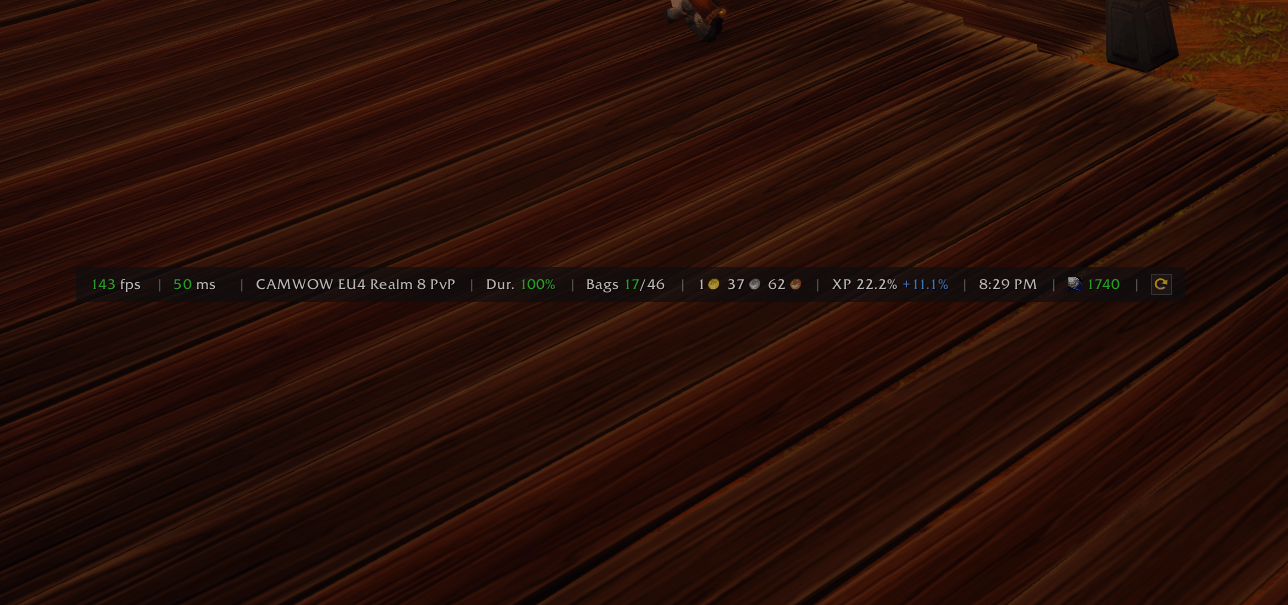
A small info bar: FPS, latency, realm, durability, bags, gold, XP, clock and more. Minimal and configurable.
Wow_Xy91sWGNFF.png
Wow_fK7JbDw2Wp.png
Wow_1xqVP5eijG.png
Description
ForeverInfoBar
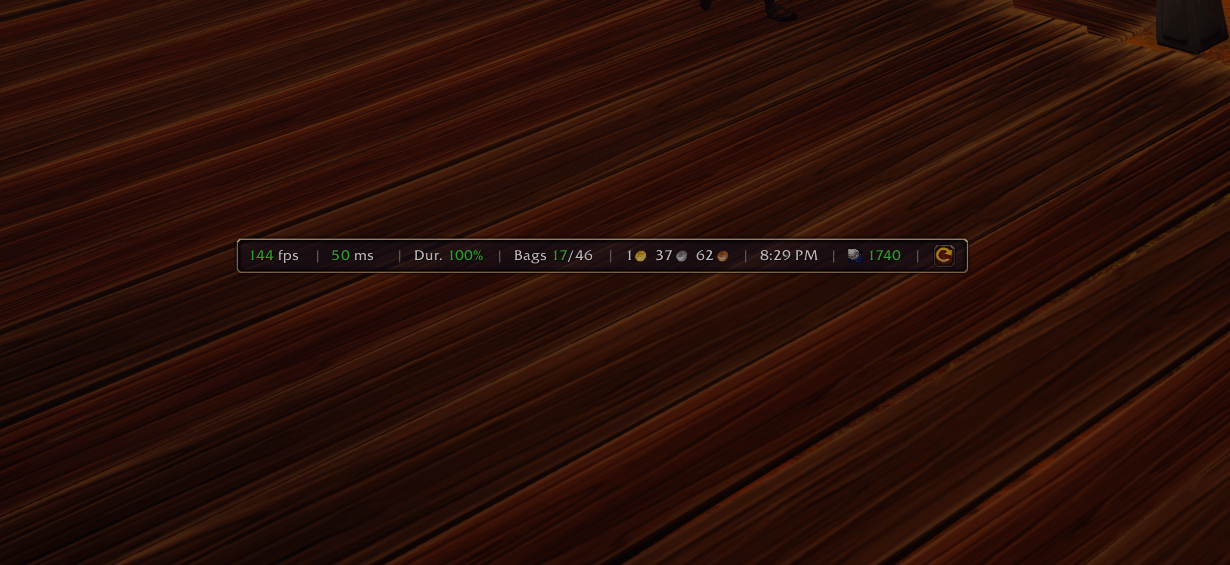
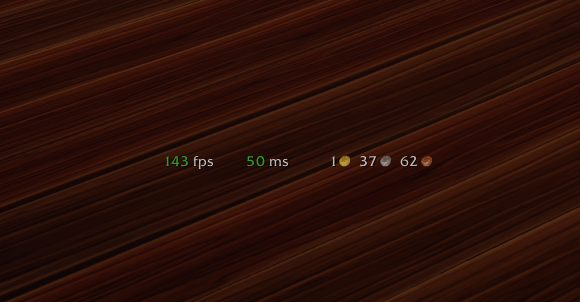
A small info bar for World of Warcraft: Forever: FPS, latency, realm, durability, bag space, gold, experience and the time at a glance, plus buttons to reload the UI and open the settings. Minimal by default, and every part of it can be turned off.
Features
- FPS, green from 50, yellow from 30, red below.
- Latency: home (your realm's server: chat, guild, auction house, addons), world (the game world: combat, movement, other players) or both. Green below 100 ms, yellow below 200, red above. The tooltip always shows both.
- Realm you are playing on.
- Durability: your most worn item, green, yellow or red. The tooltip lists every item; a click opens the character window.
- Bag space: free slots of your bags; quivers, soul and profession bags apart. A click opens the bags.
- Gold, and what you earned, spent and your profit this session (kept through /reload).
- Experience to the next level, with rested experience in blue. Hidden at the level cap.
- Clock: realm or local time, in the game's 12/24-hour format.
- Class consumables: ammo for hunters, soul shards for warlocks, with the item's icon.
- New mail, with the senders in the tooltip.
- Reload UI and Settings buttons, as small icons from the game's own art.
- Turn every item on or off, put the stats in any order, the buttons at the end or at the start.
- Font, font size and spacing between the items, and an optional separator (|, · or /) with its own opacity. The bar and its buttons grow with the font.
- Two styles: Minimalism (a flat dark bar, border on or off) and Classic (the game's own tooltip frame and red buttons). Background and items opacity, show on mouseover, container width and height in both; the text always stays readable.
- Scale, row or column, drag to move, lock.
- English and Russian.
Getting started
Log in: the bar is at the top of the screen. Drag it wherever you like, then lock it in the settings. Type /fib or click the gear (or Esc → Options → AddOns → ForeverInfoBar) to choose what it shows and how it looks.
Commands
| Command | What it does |
|---|---|
/fib |
Open settings |
/fib show / hide |
Show or hide the bar |
/fib lock / unlock |
Lock the bar or let it be dragged |
/fib resetpos |
Put the bar back at the top of the screen |
/fib reset |
Reset all settings |
/fib help |
List the commands |
Good to know
- Light: the numbers update once a second, nothing else runs in the background.
- Works in combat: the bar is not a protected frame, so it can be moved and changed at any time.
Feedback
Found a bug or have an idea? Leave a comment with what you did, what you expected and a screenshot if you can.
ForeverInfoBar Team