2026-08-08 20_06_55-World of Warcraft.png
2026-08-08 20_06_28-World of Warcraft.png
2026-08-08 20_06_04-World of Warcraft.png
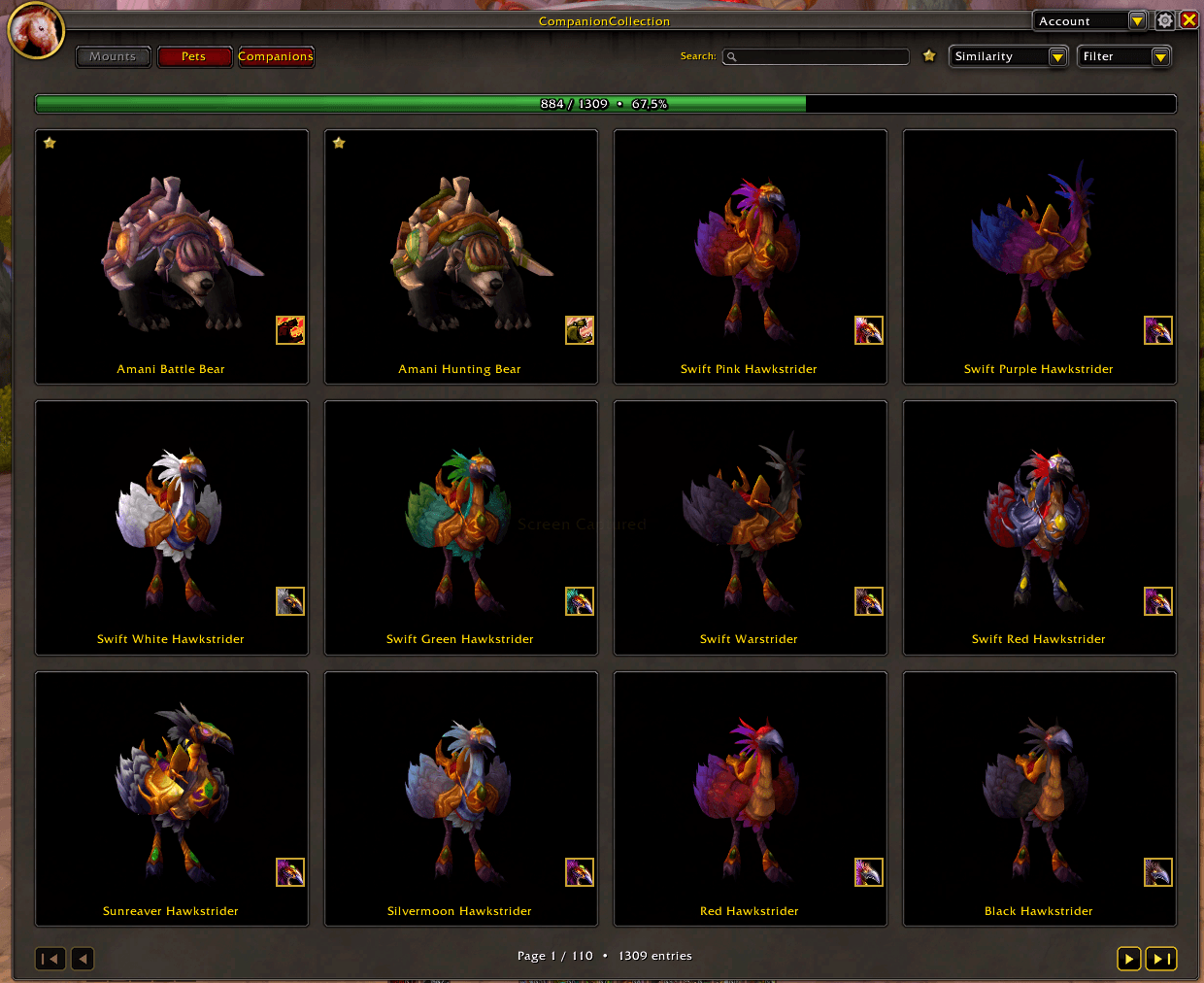
2026-08-08 20_05_48-World of Warcraft.png
Description
CompanionCollection
A modern 3D collection browser and collection management addon for Mounts, Battle Pets and Hunter Pets in World of Warcraft.
CompanionCollection provides a customizable collection interface focused on the actual 3D models of your companions instead of traditional icon-heavy browsing.
Browse and organize your Mounts, Battle Pets and, when playing a Hunter, your Hunter Pets through a shared system with search, filters, sorting, favorites, wishlists, hidden entries, custom categories, Quick Assign, shortcut buttons and profiles.
CompanionCollection also integrates directly into Blizzard's Mount Journal and Pet Journal, allowing many of its filters, assignments, sorting options and shortcuts to be used without leaving the standard World of Warcraft collection interface.
The same general idea behind Custom Filters, Quick Assign and shortcut buttons is also used in HearthPaws, DecorScribe and StyleWeaver, giving these addons a familiar and consistent workflow while each remains focused on its own collection or system.
Blizzard Collection Integration
CompanionCollection integrates directly with Blizzard's Mount Journal and Pet Journal.
Instead of requiring the standalone CompanionCollection window for every action, many CompanionCollection features can be used directly inside Blizzard's collection interface.
Depending on the collection, this includes:
- Custom Filters
- Active and Passive filter modes
- Quick Assign
- Filter shortcuts
- Quick Assign shortcuts
- favorites, wishlists and hidden entries
- additional sorting options
- bulk assignments for the current result
- custom category management
Blizzard's own search and native collection filters remain authoritative. CompanionCollection applies its additional filtering and sorting to the result instead of replacing Blizzard's collection system.
This allows the standard Blizzard interface and CompanionCollection to work together rather than competing for control of the collection.
3D Collection Gallery
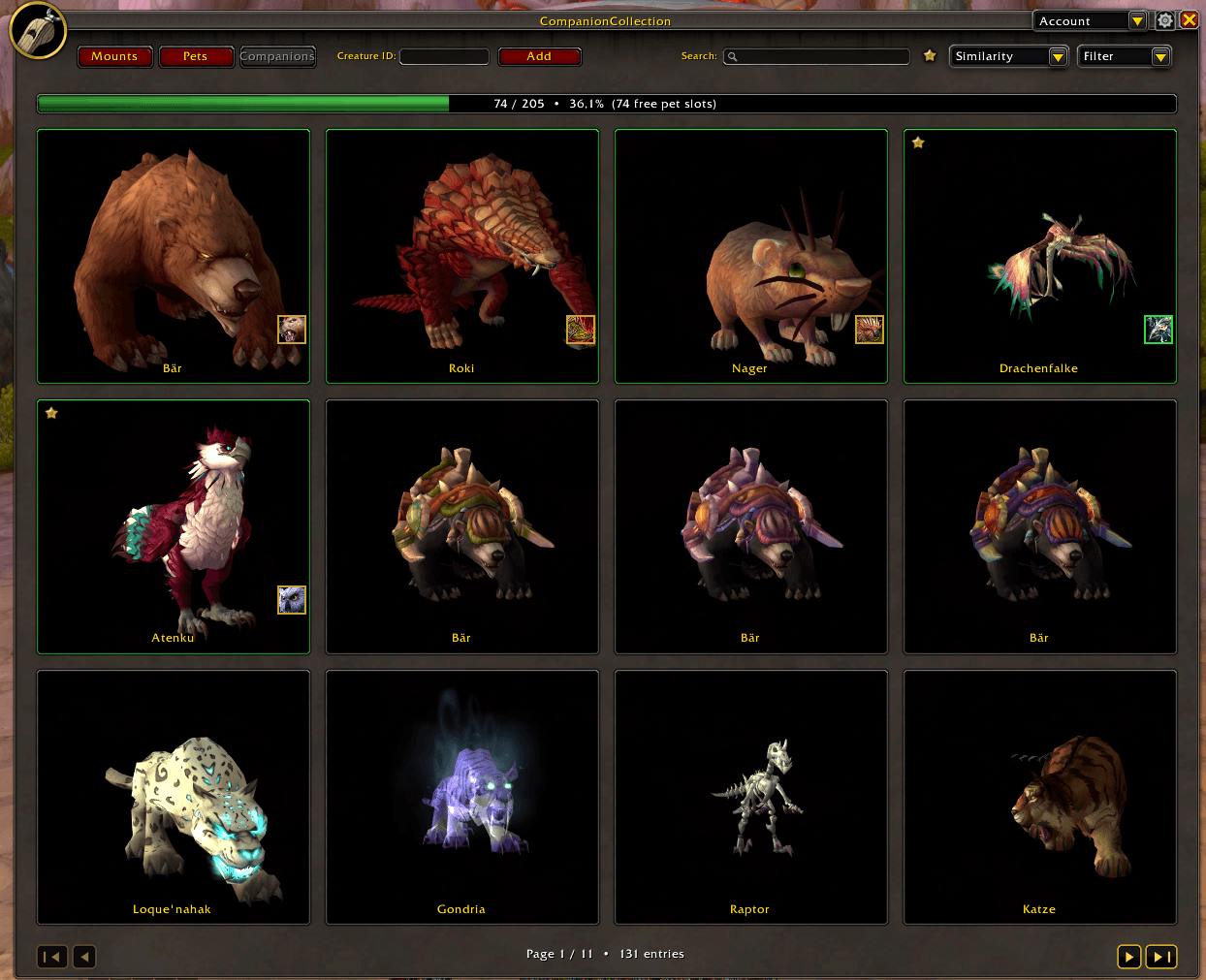
Browse your companions through their actual 3D models.
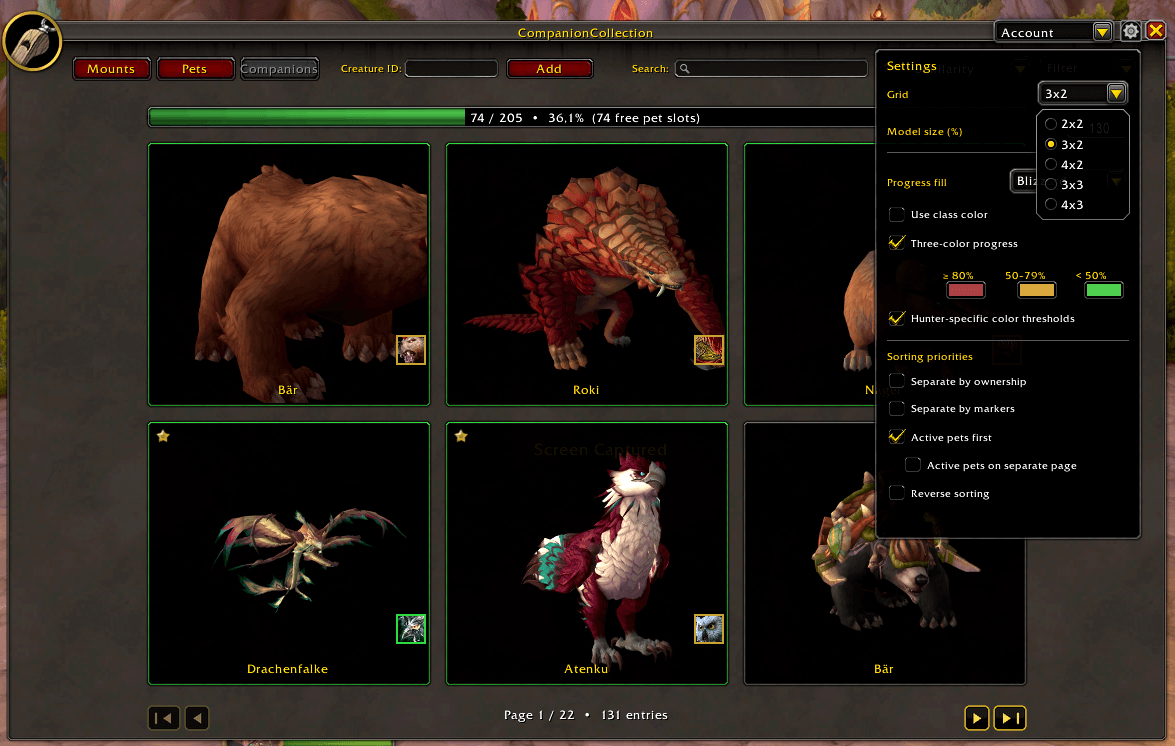
Different grid layouts and adjustable model sizes let you decide how much of your collection is visible at once.
Models can be:
- rotated
- moved
- zoomed
Visible models are loaded progressively to keep browsing large collections responsive.
A horizontal page slider and traditional navigation buttons make it easy to move through larger collections.
Search, Filters & Sorting
Search, filter and sort your collection without changing the underlying Blizzard collection data.
Available filtering options depend on the current collection and can be combined with different sorting priorities.
Companions can also be marked as:
- Favorites
- Wishlist
- Hidden
Favorites, Wishlist and Hidden entries support different display modes such as:
- Show
- Hide
- Only
Bulk actions can apply or remove markings from the currently filtered result.
Wishlist entries can automatically become favorites once the corresponding companion is collected.
CompanionCollection can also remember your selected filter and sorting configuration.
Custom Filters
CompanionCollection provides a flexible Custom Filter system for Mounts and Battle Pets.
Create your own categories and filters, for example:
Races → Trolls
The same category and filter structure can be used for both Mounts and Battle Pets, while their individual assignments remain separate.
You can:
- create custom categories and filters
- rename or delete them
- move filters between categories
- assign Mounts and Battle Pets
- remove individual assignments
- combine multiple filters
- use filters directly in Blizzard's collection interface
- quickly assign companions through Quick Assign
- export and import complete filter structures including assignments
Custom Filter imports are additive and do not overwrite existing assignments.
Existing categories are reused where possible, while duplicate filter names are automatically numbered.
Active & Passive Filters
Custom Filters support two filtering modes.
Active
An Active filter includes companions assigned to that filter.
Multiple Active filters inside the same category use OR logic.
For example:
Race → Trolls OR Orcs
Different categories are combined using AND logic.
For example:
Race → Trolls
and
Theme → Undead
This allows complex collections to be narrowed down without requiring a separate filter for every possible combination.
Passive
A Passive filter excludes companions assigned to that filter.
This makes it possible to create reusable exclusion filters without changing the underlying assignments.
Active and Passive states can also be controlled directly through Filter shortcut context menus.
Locked Filters
Custom Filters can be locked.
Locked filters remain active when normal filter resets or category clearing actions are used.
This is useful for filters that should act as a persistent foundation for a collection view while other filters are changed around them.
Lock state is stored separately for Mounts and Battle Pets.
HearthPaws Integration
When HearthPaws is installed, CompanionCollection and HearthPaws use the same Custom Filter structure for Battle Pets.
Categories and filters created in either addon become available in the other, while Battle Pet assignments are shared automatically.
There is no separate synchronization process.
This allows Battle Pets to be organized through the same categories whether they are being viewed through CompanionCollection or HearthPaws.
Quick Assign
CompanionCollection provides a Quick Assign mode for Mounts and Battle Pets.
Choose a target Custom Filter and then assign or remove companions with a direct click instead of repeatedly opening menus.
Quick Assign can be used from:
- the CompanionCollection 3D gallery
- Blizzard's Mount Journal
- Blizzard's Pet Journal
Already assigned companions are visually indicated where supported.
While Quick Assign is active in the CompanionCollection window, the Blizzard-style window frame is highlighted in green.
Quick Assign targets can also be stored as shortcut buttons for frequently used filters.
Shortcut Buttons
CompanionCollection provides configurable Filter and Quick Assign shortcut buttons for faster access to frequently used filters.
Each collection keeps its own shortcut configuration:
- Mounts – Filter and Quick Assign shortcuts
- Battle Pets – Filter and Quick Assign shortcuts
- Hunter Pets – Filter shortcuts
Filter shortcuts can use both built-in CompanionCollection filters and Custom Filters.
Custom Filter shortcuts support direct control of:
- Active
- Passive
- Lock
Shortcuts can be added through a compact + button and managed through their right-click menu.
They can be:
- activated
- changed
- removed
- switched between Active and Passive modes
- locked where supported
Shortcut button width, height and font size can also be customized.
Filter shortcuts and Quick Assign shortcuts can be shown or hidden independently in Blizzard's collection interface.
Shortcut configurations are stored per CompanionCollection profile and separately for each collection.
A Shared Addon Workflow
The same general concept behind CompanionCollection's Custom Filters, Quick Assign and shortcut buttons is also used in:
- HearthPaws
- DecorScribe
- StyleWeaver
The addons are designed around a similar interaction model so familiar actions work in a familiar way across different parts of World of Warcraft.
The actual collections and assignments remain specific to each addon unless an integration is explicitly provided, such as the shared Battle Pet Custom Filters between CompanionCollection and HearthPaws.
Mounts
The Mounts collection displays both collected and missing mounts using their full 3D models.
Collected mounts include an action icon that can be used to summon the mount or placed directly onto an action bar.
Mounts support:
- search
- Collection filtering
- Expansion filtering
- Custom Filters
- Active and Passive filters
- locked filters
- Quick Assign
- Filter shortcuts
- Quick Assign shortcuts
- Favorites
- Wishlist
- Hidden entries
- multiple sorting modes
These systems are available both in CompanionCollection and, where applicable, directly inside Blizzard's Mount Journal.
Battle Pets
Battle Pets are displayed by species using their 3D models.
They can be filtered and organized using their Battle Pet information as well as shared Custom Filters.
Battle Pets support:
- Collection filtering
- Pet Family filtering
- Expansion filtering
- Custom Filters
- Active and Passive filters
- Quick Assign
- Filter shortcuts
- Quick Assign shortcuts
- Favorites
- Wishlist
- Hidden entries
- multiple sorting modes
Blizzard's native Collection and Pet Family filters remain in control when CompanionCollection is used inside the Blizzard Pet Journal.
If multiple copies of the same Battle Pet are owned, CompanionCollection can display the individual pets through separate action icons while the main gallery model continues to represent the species.
Individual copies can therefore retain their own Blizzard favorite status independently of CompanionCollection's species-based markings.
Hunter Pets
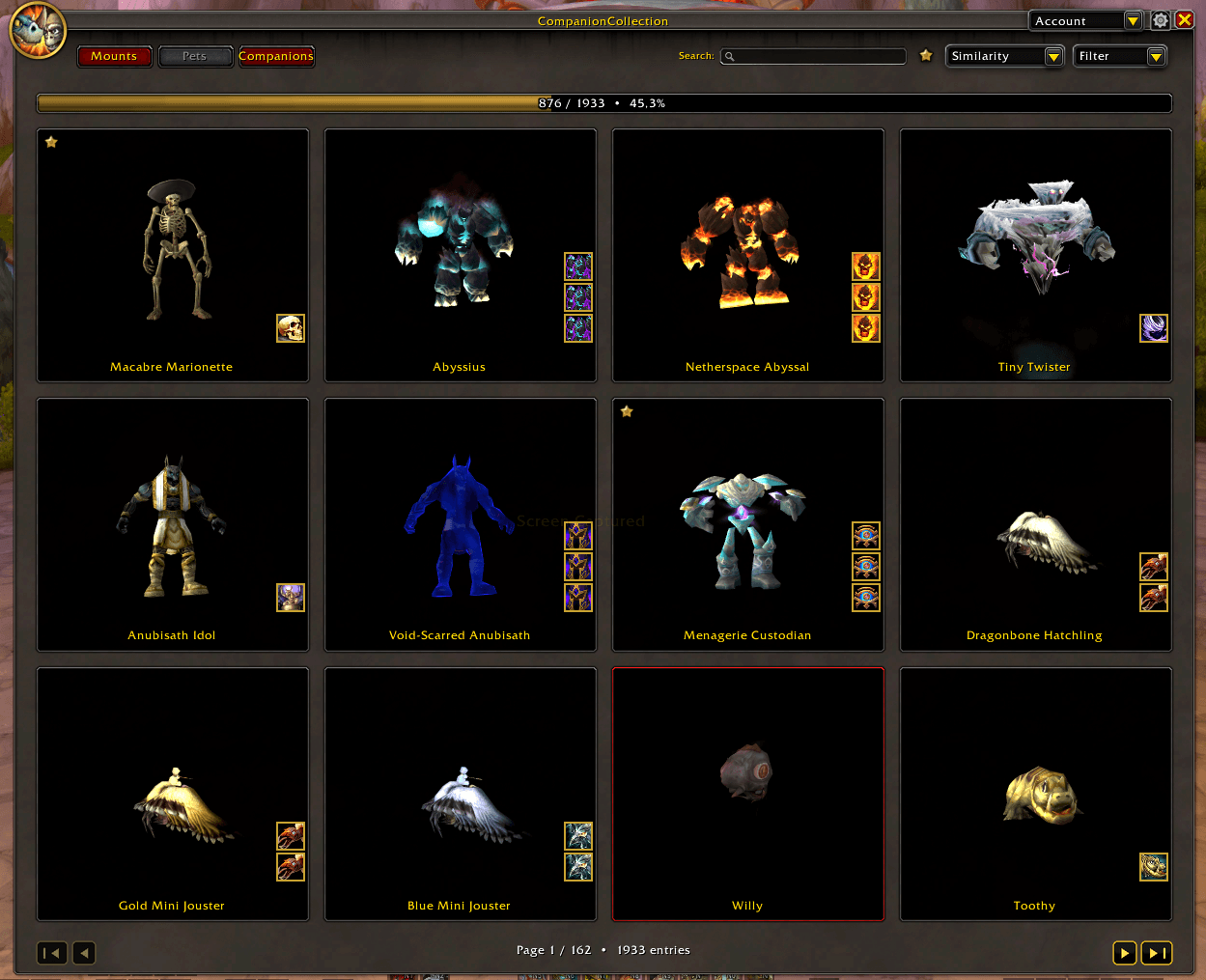
Hunters receive an additional Companions collection for their active and stabled Hunter Pets.
The gallery displays their 3D models together with information such as:
- name
- family
- level
- active or stabled status
Active pets can receive sorting priority and can optionally be separated from stabled pets.
The currently summoned Hunter Pet is highlighted directly in the gallery.
Hunter Pets use their own compatible filters and Filter shortcuts together with the same favorites, wishlist, hiding, search and sorting concepts used throughout CompanionCollection.
Hunter Pet Scanner
Hunters also have access to a separate live scanner window for discovering tameable creatures while travelling through the world.
The scanner watches creatures that World of Warcraft currently exposes through usable unit information such as:
- nameplates
- the current target
- mouseover units
Discovered creatures are shown in their own 3D gallery together with available information such as their name, family and Creature ID.
The scanner indicates whether a detected creature is already:
- Tamed
- on the Wishlist
- or a new discovery
New creatures can be added directly to the Hunter Pet Wishlist.
Scanner models support rotation, movement and zoom, and detected creatures can be selected using World of Warcraft's secure targeting system.
Additional scanner options include:
- showing only untamed creatures
- automatically starting scans
- chat notifications for new discoveries
- hiding individual results
- restoring hidden results
- configurable grid layouts
- adjustable model and window sizes
- transparency settings
- click-through mode
The current scanner results reset automatically when moving into a different area.
Important: Blizzard does not expose an unrestricted list of every creature around the player. The scanner can therefore only discover creatures that World of Warcraft currently exposes to the addon through usable unit information.
Creature ID Wishlist
Hunter Pet candidates can also be added manually using their Creature ID.
These entries behave like normal wishlist entries and are stored inside the selected CompanionCollection profile.
When the corresponding creature is later tamed, CompanionCollection can automatically convert the wishlist entry into a favorite.
Profiles
CompanionCollection includes its own profile system.
The permanent Account profile can be supplemented with additional custom profiles for different characters or setups.
Profiles can contain their own:
- settings
- favorites
- wishlists
- hidden entries
- filter states
- shortcut configurations
New profiles inherit the configuration of the currently selected profile and can later be renamed, reset, duplicated or deleted.
Collection Progress
A customizable progress bar provides a quick overview of the current collection.
For Mounts and Battle Pets, progress adapts to the currently filtered selection.
For Hunter Pets, the bar instead focuses on the remaining capacity of active and stabled pet slots.
The progress bar supports several appearance and color options.
Additional Features
CompanionCollection also includes:
- direct Blizzard Mount Journal integration
- direct Blizzard Pet Journal integration
- shared Custom Filters for Mounts and Battle Pets
- Active and Passive Custom Filters
- locked Custom Filters
- HearthPaws Custom Filter integration
- collection-specific Filter shortcuts
- Quick Assign shortcuts for Mounts and Battle Pets
- Custom Filter import and export
- filter and sorting persistence
- Favorites, Wishlist and Hidden Show / Hide / Only modes
- bulk marking actions
- multiple collection-specific sorting modes
- reverse sorting
- Favorites-first sorting
- optional separation of owned and unowned entries
- keyboard navigation in supported Blizzard collection views
- mouse wheel page navigation
- horizontal page slider
- progressive 3D model loading
- customizable model positioning and zoom
- drag-and-drop action icons
- persistent favorites, wishlists and hidden entries
- character-specific profile selection
- German localization for German World of Warcraft clients
- English localization for all other clients
- modern Blizzard-style interface
Slash Commands
/coco
/companioncollection
CompanionCollection Team