Vitja’s Minimap & Better Map
- By
Explore Hytale with a live minimap, cave views, personal waypoints, travel trails and saved surface maps.
Vitja’s Minimap & Better Map
Explore Hytale with a live minimap, cave views, personal waypoints, travel trails and saved surface maps. Vitja’s Minimap & Better Map helps you find your way while travelling, remember useful places and return to terrain you have already explored.
Open settings with /vmap. Press M for the large map. Enable the optional minimap from its settings page.
A minimap that follows you
Keep the surrounding terrain in view without opening the full map. The north-up minimap follows your position, while a distinct player arrow shows which way you are facing. Your X/Z coordinates remain visible below the map, and waypoint and trail icons are easy to distinguish from your own arrow.
A thin frame keeps the display compact. Choose either top corner and a size that suits your screen, whether you want a small navigation aid or a larger view of your surroundings.
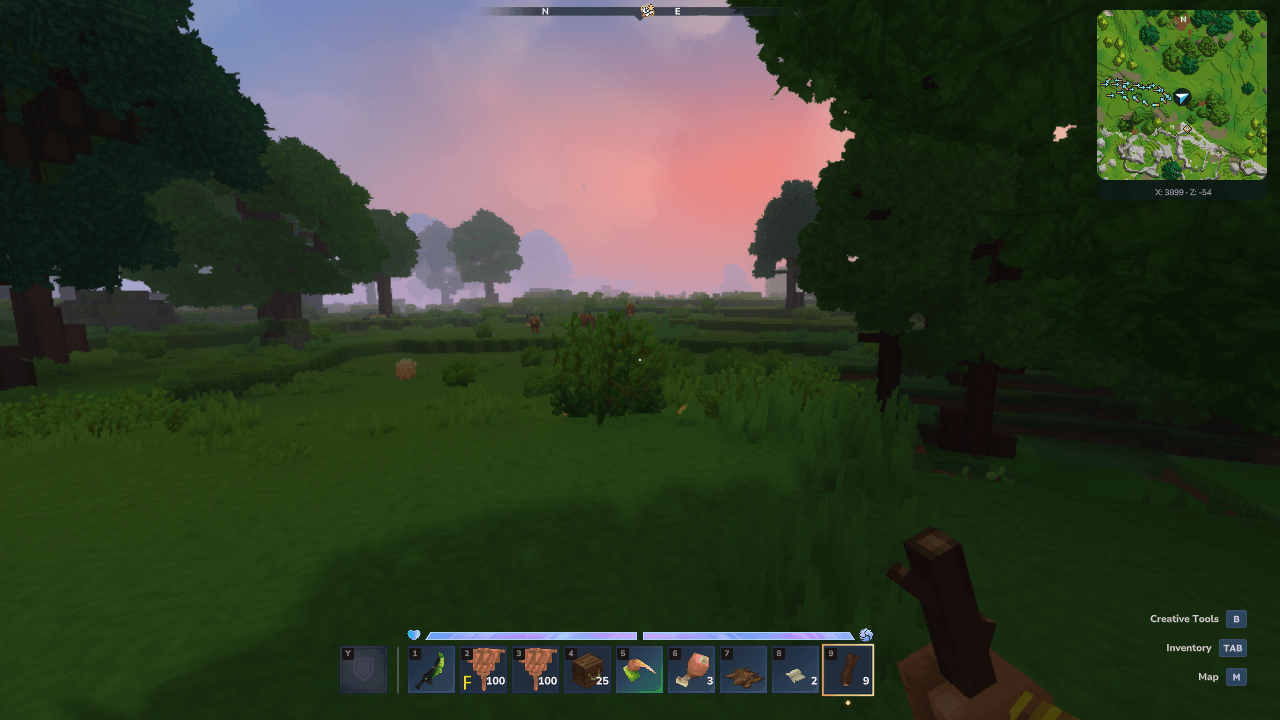
Explore with a live minimap. Follow your position and facing direction while keeping the surrounding world visible.
Keep the surface map you have explored
Your surface exploration is saved separately for each player and world. Reconnect and revisit recorded regions without having to uncover the same terrain again. Open the large map to browse your surroundings, find saved places and switch between nearby detail and a wider regional overview.
When saved terrain needs to load, the area around your current position comes first. You can continue exploring while the rest of the available map fills in.
Surface images are stored once in a shared on-disk archive for each world and map profile. Each player keeps a compact record of the chunks they have explored. This replaces the previous 4,096-tile personal image limit and avoids storing a separate copy of the same terrain image for every player. Other players' discoveries remain private.
Only a bounded working cache is kept in memory. Older terrain loads from the server's normal plugin data directory as needed, with nearby tiles prioritized and the existing streaming rate retained. Changes observed by the native surface renderer replace the affected saved tile; unloaded regions are not continuously scanned.
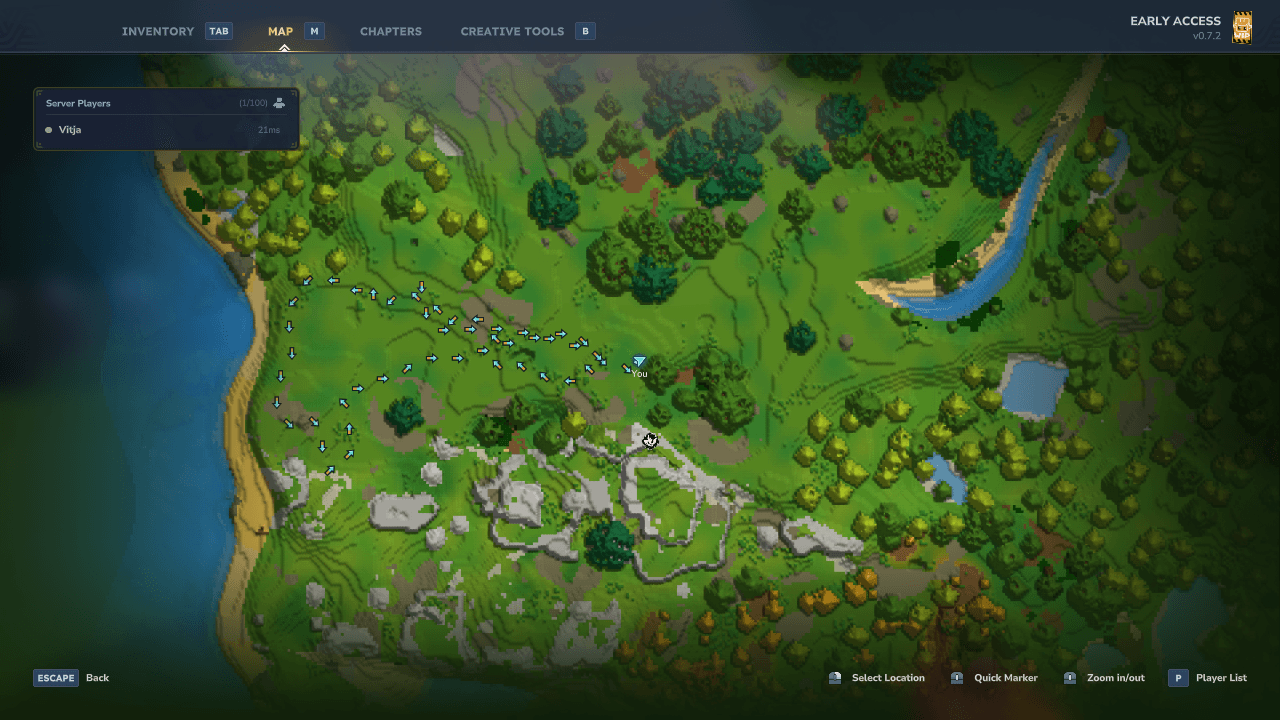
Your explored world, ready to revisit. Browse saved surface terrain and your map markers on the large map.
Find your way underground
Cave view shows nearby passages at your current height, helping you read the shape of tunnels and chambers while exploring underground. Floors, walls, water, lava and local lighting give the view useful landmarks.
Use the minimap for navigation as you move, or open the large map for a wider look at the nearby cave. Both maps follow the same cave view, so you can move between them without changing modes.
The cave view follows your height and loads progressively from nearby loaded terrain. It is a local navigation aid, rather than a permanently saved underground atlas. Mining, flowing fluids and other changes may take a little time to appear.
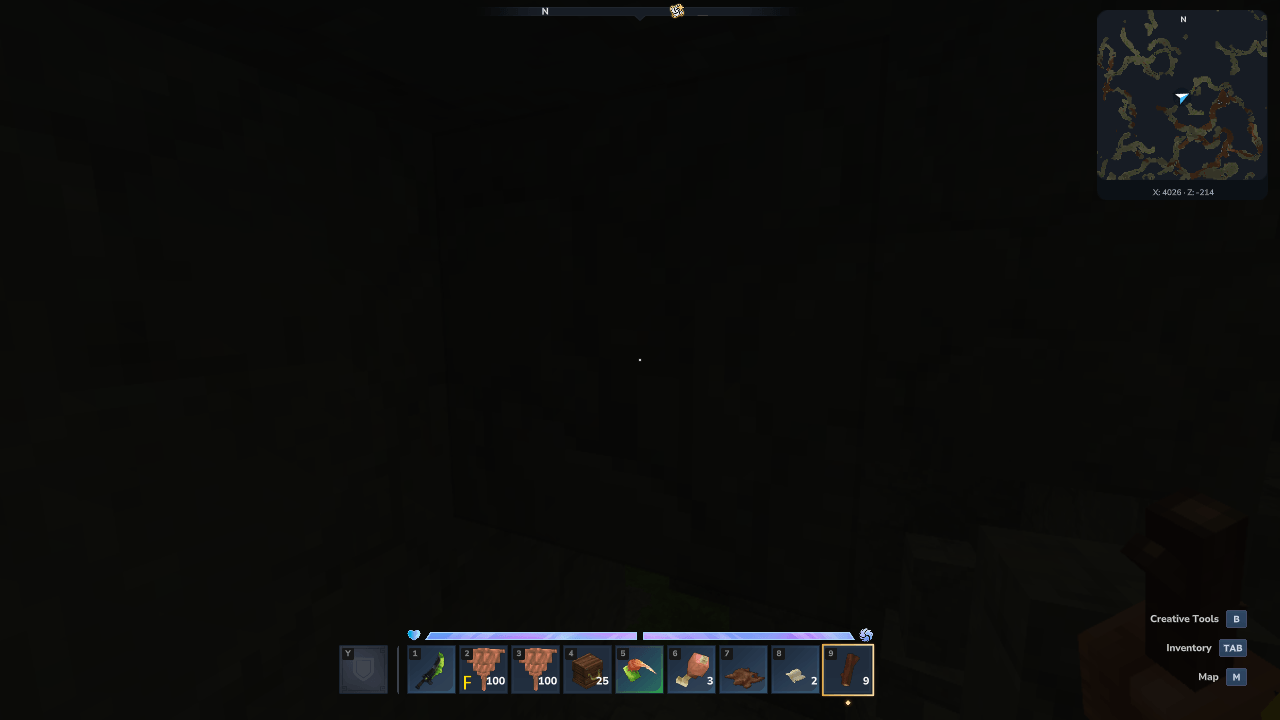
Follow the caves below. Read nearby passages while your player arrow and coordinates stay visible.
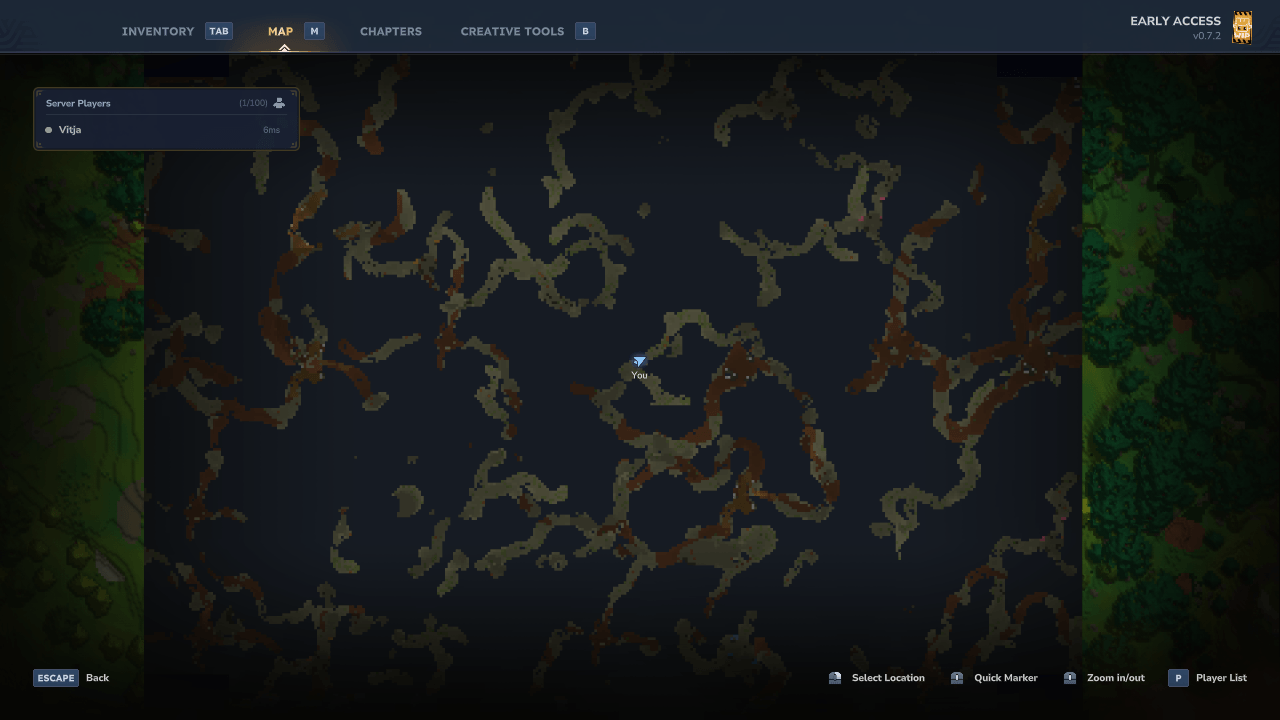
Cave view on the full map. Press M to inspect more of the nearby cave at your current height.
Let the map choose, or choose for yourself
Choose one of three views for the large map, minimap and live settings preview:
- Automatic: enabled by default. Switches to cave view under cover and back to the surface when you return to open terrain. Open ravines stay in surface view.
- Surface: keeps the normal surface map visible.
- Cave: selects the nearby cave view manually.
Automatic mode can also react to other roofed spaces. Choose Surface if you prefer to keep the overworld visible while indoors. Your saved surface exploration is kept when you switch views.
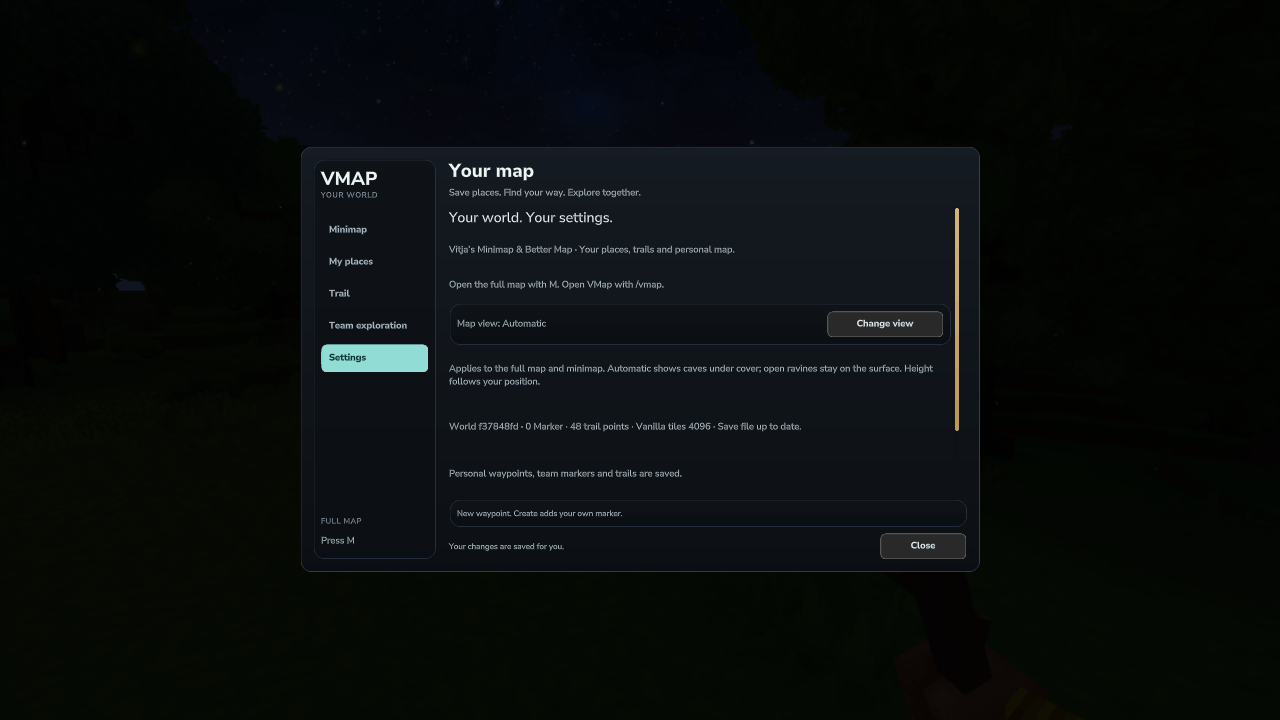
Choose how your map follows you. Use automatic switching or select the view yourself.
Make the minimap fit your screen
Place the minimap in the top-left or top-right corner and choose a small, medium or large display: 192, 256 or 384 pixels across. Adjust the zoom independently of the display size to show 80, 120, 160, 224 or 288 blocks across the map.
Zoom in for nearby navigation or out for a broader view while travelling. The live settings preview shows your changes before you close the page, and your preferences are saved for your player.
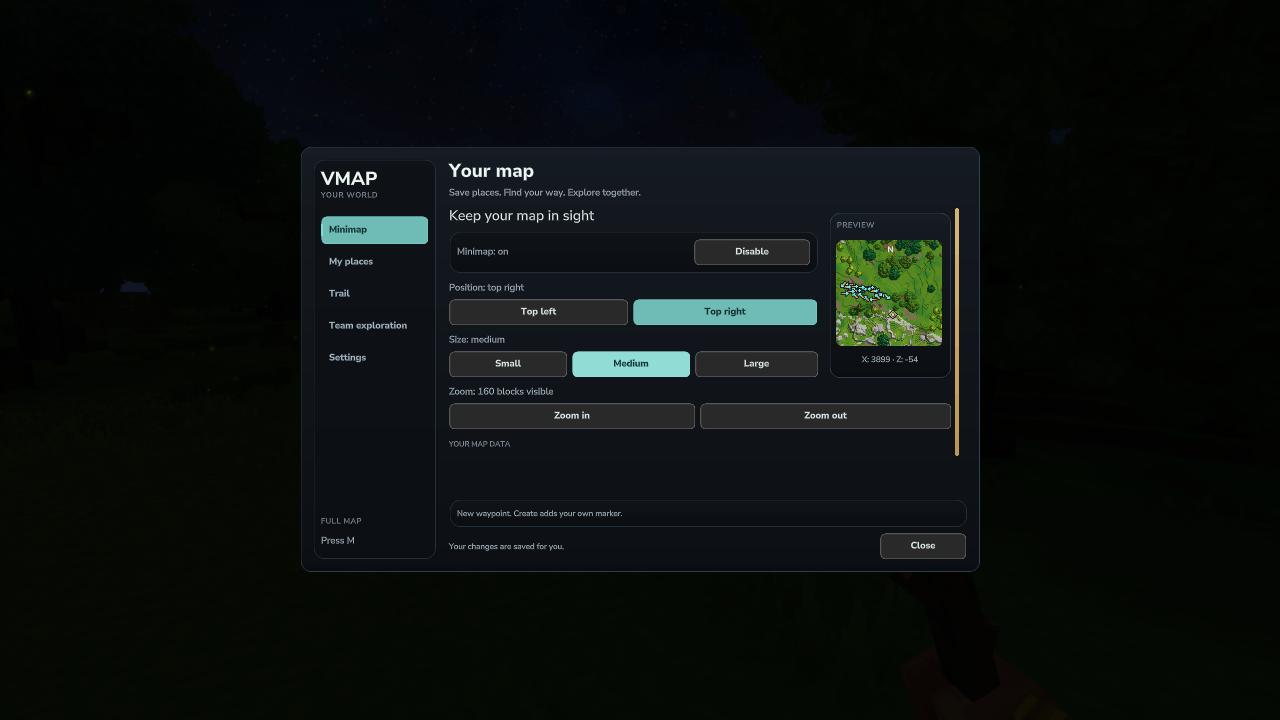
Make the minimap your own. Adjust its corner, size and visible range with a live preview.
Save places worth returning to
Mark your current position with a personal waypoint. Give it a name and a description, then choose an icon for a home, a resource location, a danger or another useful place.
Browse your saved waypoints from the settings page. Rename a marker, update its note, change its icon, move it to your current position or delete it when you no longer need it. Waypoints stay associated with their player and world, and their icons appear on the minimap and large map.
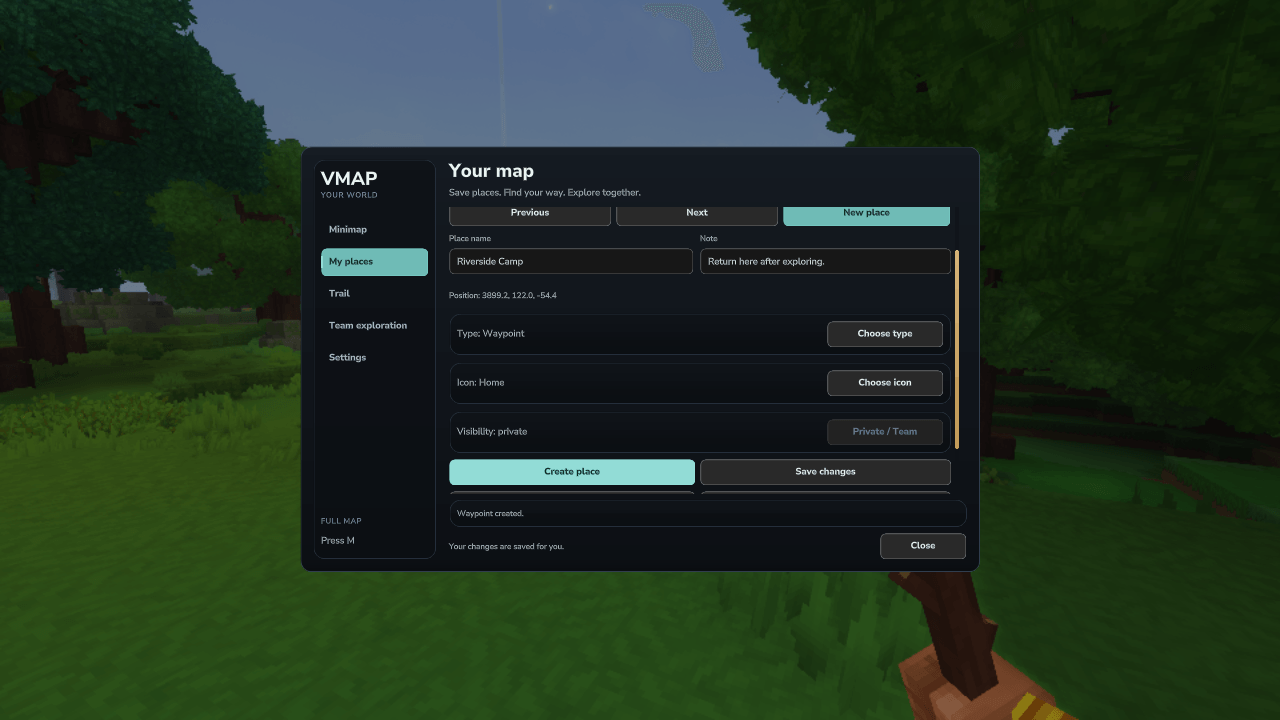
Mark places worth returning to. Save useful locations and manage them from the waypoint page.
Retrace your route
Travel trails leave directional markers along your path, helping you retrace a journey or see where you have already been. Choose the spacing between points and how many you want to keep.
When your chosen limit is reached, recording can either stop or replace the oldest points. Pause recording when you do not need it, and hide a trail without deleting its saved points. When you want a fresh start, clear the trail for your current world or all worlds through the confirmation controls.
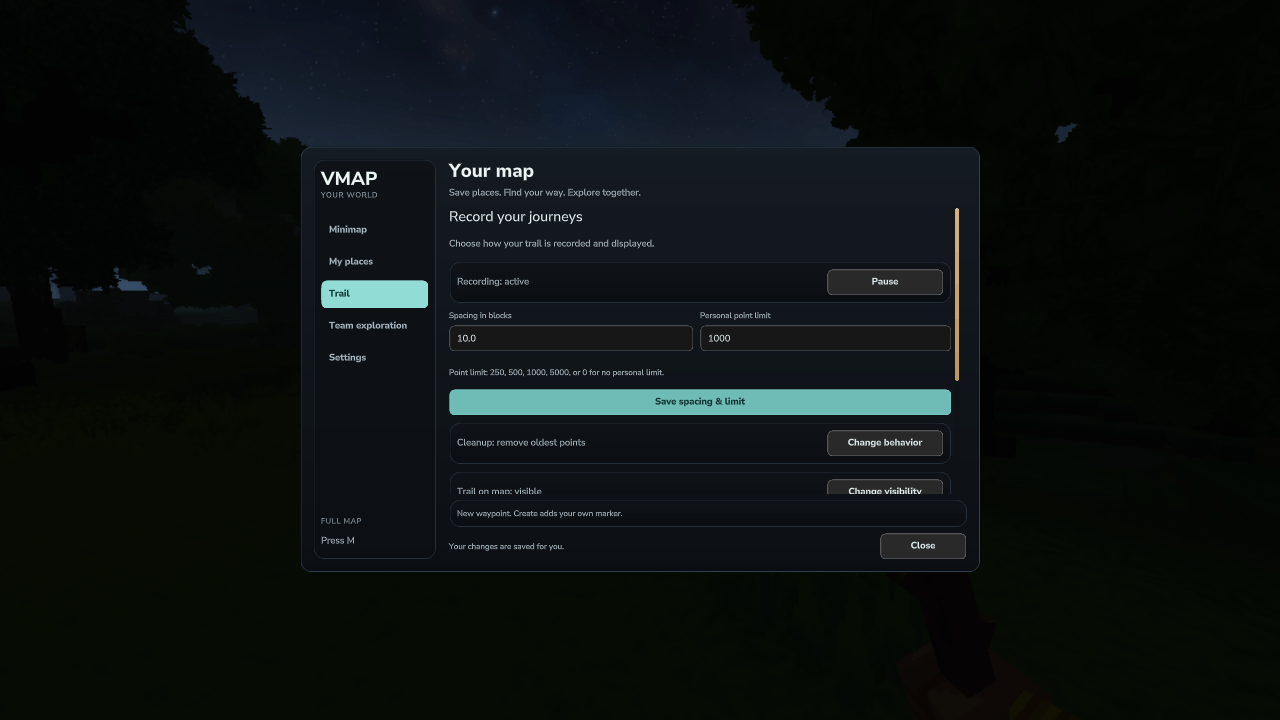
Keep the route you need. Control recording, spacing and storage from the trail page.
Optional team integration
A compatible external team provider can connect existing team membership to waypoint visibility and optional trail sharing. The provider and the relevant sharing settings are required for these features.
This mod does not create teams, send invitations or manage membership. Shared terrain exploration and live team-player position markers are not included in this release.
English and German
The interface follows your client language. German language settings select German; other or unavailable languages use English. This applies to the settings pages and player-facing messages. Your own waypoint names and descriptions remain as you wrote them.
Installation and compatibility
- Use the Hytale 0.7.x release series (
>=0.7.0 <0.8.0) on the server and a matching game client. Hytale 0.8 requires a separate compatibility review. - Place
vitjas-minimap-better-map-0.9.1.jarin the server’smodsdirectory, replacing the previous version. - Restart the server and connect.
- Enter
/vmapto configure your map and enable the minimap. PressMfor the large map.
Tested with Hytale 0.7.2: clean build, existing contract/storage tests and server startup. Production sources also compile against the 0.7.0 API. Version 0.9.1 changes only the manifest; the program classes, UI and assets are byte-identical to 0.9.0. Future patches in the declared range are not claimed as already tested.
The server plugin includes its own interface assets. Vitja’s Helper and Smart Hopper are not required. A team provider is optional and is needed only for the team integration described above.
Map areas fill in progressively when you first connect, change views or enter new terrain. Cave view is limited to terrain loaded near your player.
When updating from 0.8.7, keep the plugin's existing data folder. Supported saved surface data is migrated to the shared archive on startup, while the original terrain checkpoint files are preserved. Back up your server's plugin data before updating.
If you are replacing an earlier Explorer Map development build, back up and preserve its map data and settings when moving to the new plugin identity. Replace the previous JAR rather than loading both versions.
Feedback and Suggestions
Feedback, suggestions and bug reports are welcome! Please leave a comment below or send me a private message through my CurseForge profile. For bug reports, please include your mod version, Hytale version and steps to reproduce the issue.
License and Custom Versions
Copyright © 2026 Vitja. All rights reserved. This mod and its original source code and assets are proprietary. The source code is not publicly available. Official compiled releases may be downloaded and used under the applicable platform terms. Reuse, redistribution, modification or publishing derivative versions requires Vitja’s prior written permission, except where permitted by applicable law or mandatory platform terms.
For a custom version or permission request, contact Vitja through the official CurseForge project page or profile. The compiled release includes LICENSE.txt.
Support my Mods
If you enjoy my mods and would like to support their continued development and maintenance, you can leave a donation. Your support helps me keep improving, updating, and maintaining my mods. Thank you!
Vitja’s Minimap & Better Map Team