PrimeTooltip
- By
Prime-style square tooltips for WoW Forever with class-colored names, levels, guild and target lines, a built-in health bar, rarity-colored item borders and item level, and optional hide-in-combat.
Description
💬 Join the PrimeSuite Discord for support, bug reports, feature requests and update news:
👉 https://discord.gg/Vb9aSb7E4Y
Part of PrimeSuite: PrimeBars, PrimeChat, PrimeMinimap, PrimeQuestTracker and PrimeTooltip all share one look and work together.
PrimeTooltip
PrimeTooltip restyles the game tooltip in the Prime square style and adds more useful information when you hover players, NPCs and items. Built for WoW Forever (Interface 16001).
Features
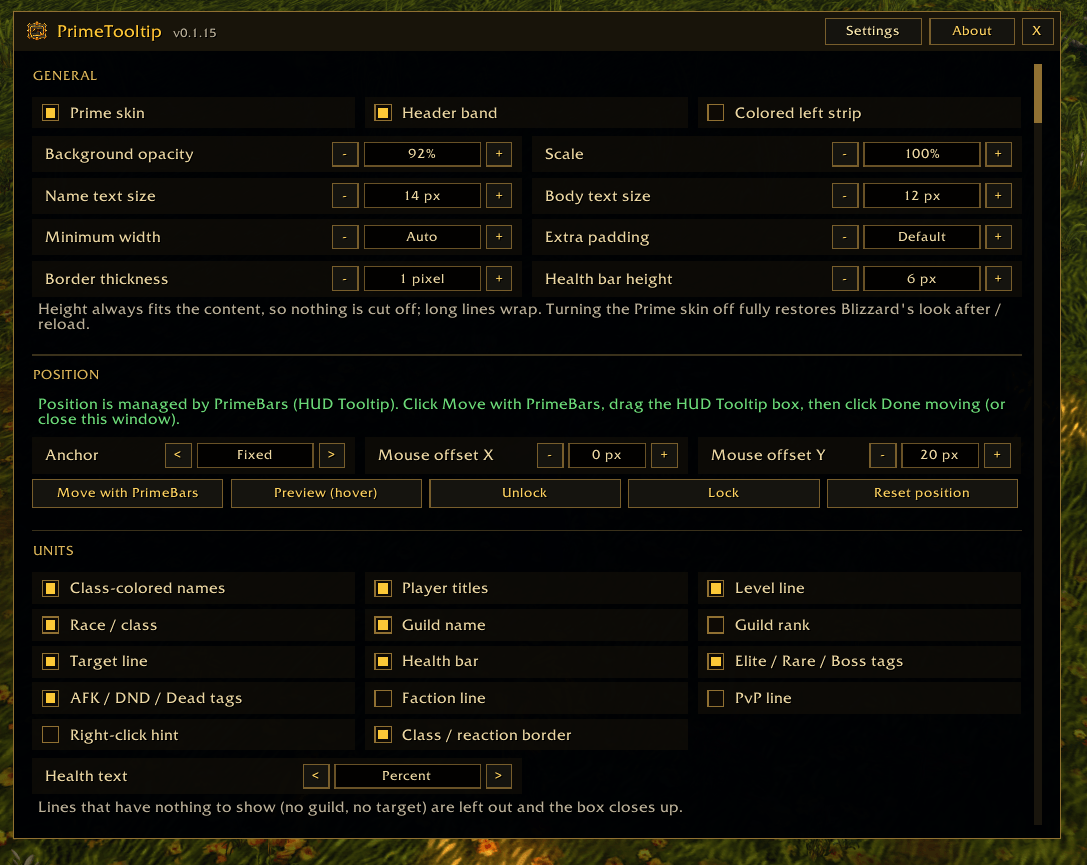
- Prime look: square tooltips with a warm dark panel, an even 1-pixel border (1–3 px) and a header band behind the name. Adjust background opacity, scale, name and body text size, minimum width and padding.
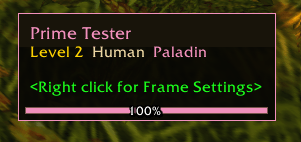
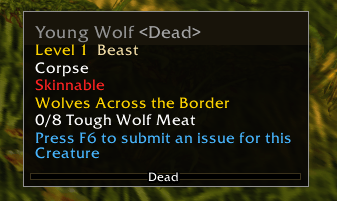
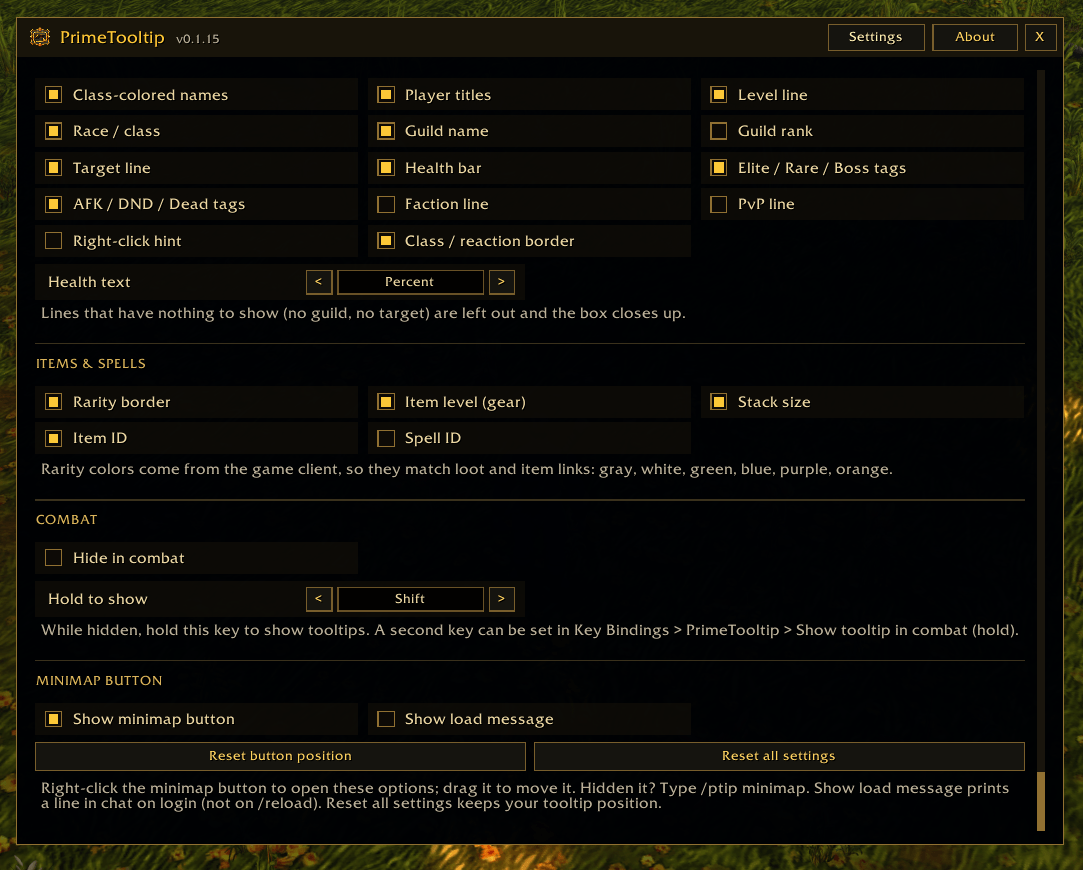
- Players: class-colored names, titles, guild name (rank optional), level in difficulty color, race and class, and AFK / DND / Offline / Dead tags.
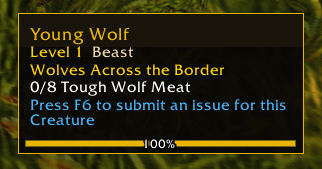
- NPCs: names in reaction colors (gray when tapped by someone else), level, creature type and Elite / Rare / Boss tags.
- Target line: shows who the unit is targeting; "You" turns red when a hostile unit is targeting you.
- Threat: the threat line keeps a colored dot: red when you have aggro, yellow when close, gray otherwise.
- Health bar: sits inside the box, colored by class or reaction, with Percent, Current / Max, Both or Off text.
- Items: border in the game's own rarity colors, item level on gear, stack size, and optional item ID and spell ID. Also styles chat-link and item comparison tooltips.
- Tidy: lines with nothing to show (no guild, no target) are left out and the box closes up. Faction, PvP and "right-click" hint lines are optional.
- Position: follow the mouse with X/Y offsets, or use a fixed spot set by PrimeBars or PrimeTooltip's own movable anchor.
- Combat: optional hide in combat; hold Shift, Ctrl or Alt (or a key binding) to show tooltips.
- Settings: every line can be turned on or off in one Options window, with a built-in About page and a minimap button.
Commands
- /ptip opens or closes Options (/primetooltip works the same)
- /ptip unlock and /ptip lock unlock or lock the tooltip position (the PrimeBars layout when PrimeBars HUD Tooltip is on, otherwise PrimeTooltip's own anchor)
- /ptip reset moves PrimeTooltip's own anchor back to its default spot
- /ptip minimap shows or hides the minimap button
- /ptip about opens the About page
- /ptip debug lists which tooltip features your client supports
The Prime Suite
PrimeTooltip works on its own. These Prime addons are designed to match it and are all optional: PrimeBars, PrimeChat, PrimeMinimap and PrimeQuestTracker.
- PrimeBars: when HUD Tooltip is turned on in PrimeBars (HUD Elements), PrimeBars owns the tooltip position. Use Move with PrimeBars in PrimeTooltip Options to open the PrimeBars layout; closing Options locks it again.
- PrimeMinimap: PrimeMinimap's button snapping places the PrimeTooltip minimap button alongside your other addon buttons.
Getting started
- Install PrimeTooltip and log in. Tooltips use the Prime look right away.
- Right-click the PrimeTooltip minimap button (or type /ptip) to open Options.
- Under Position, choose Fixed or Follow mouse. With PrimeBars HUD Tooltip on, click Move with PrimeBars, drag the HUD Tooltip box, then click Done moving. Without it, click Unlock, drag the gold PrimeTooltip box, then click Lock.
- Hover Preview (hover) to see your own tooltip where it will appear.
- Turn individual lines on or off under Units and Items & Spells.
Notes
- Settings are shared by all characters on your account. Updates keep the settings you already chose.
- Item level, stack size and IDs are added at the bottom of item tooltips.
- The target line updates when you next hover the unit, not live.
- Turning the Prime skin off fully restores Blizzard's look after a /reload.
- If the client hides health numbers, the health text may be blank while the bar still shows.
- Not included yet: inspecting other players' gear or talents.
- This is an early release. If you report a bug, please say what you were doing and include any error text.
Created by PrimeCraze
Discord: https://discord.gg/Vb9aSb7E4Y
PrimeTooltip Team