Night's Farmtracker
- By
Tracks items looted during farming sessions and shows their vendor and auction house value in real time.

Night's Farmtracker_thumpnail.png


Description
Night's Farmtracker
Track what you farm. See what it's worth.
Night's Farmtracker counts everything you loot while you grind, groups it by category, sorts it by value and prices it against your AH addon or the vendor. When the session is over, reset it to save it to the history and start fresh.
For World of Warcraft: Midnight (game versions 12.1 and 12.1.5). English and German. Optional: Auctionator, Oribos Exchange or TradeSkillMaster for AH prices.
Author: Nightwalker559 · License: MIT with AI restriction
At a glance
- No setup. Loot is detected automatically, just start farming.
- One compact window.
/nftor the minimap button opens it; a toolbar on top, the total, timer and gold rate below. - Real values. Every item is worth the higher of its AH and vendor price, with filters for everything that should only count at vendor price.
- History and export. Sessions are saved per day and month, and can be exported as JSON.
- Profiles and themes. Settings live in switchable profiles; 16 color themes plus your own color.
- Optional extras (Minimap HUD, fishing helpers, lockout counter) are all off by default.
The window
The toolbar, left to right:
| Button | What it does |
|---|---|
| Play / pause | Starts and pauses tracking and the timer |
| Reset | Saves the session to the history and clears the list and timer. Shift+click resets without saving |
| History | Left-click the Sessions & History window, right-click the Loot Log (if enabled) |
| Filter | Left-click the Filter window on the Vendor-Only tab, right-click on the Blacklist tab |
| Settings, Help, Collapse, Close | On the right. Collapse folds the window down to toolbar and footer |
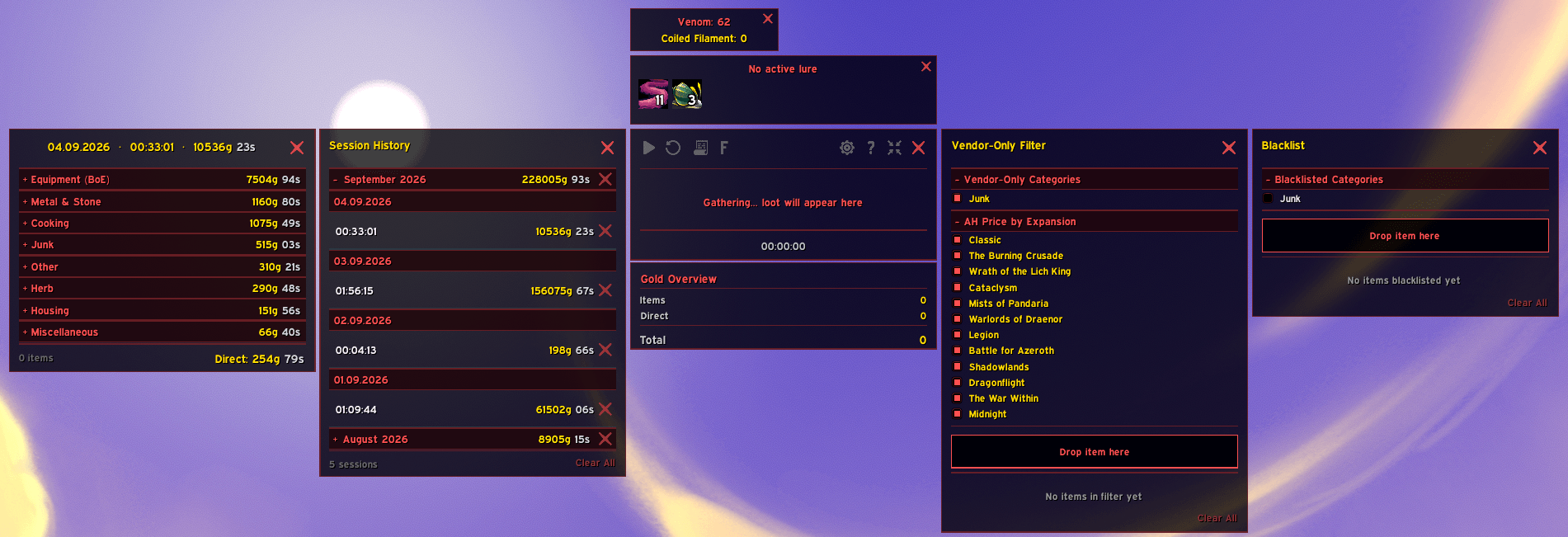
The footer shows the total gold, the session timer and the gold rate. Click the total for a breakdown of item value and directly looted gold. The Help button shows the essentials on hover and the full list of shortcuts and commands on click.
Rows show icon, name, amount and value, colored by item quality. Hover an item for its tooltip. With Show price source, a small tag tells whether a value comes from the AH (AH) or the vendor (V).
Tracking
- Items are grouped by WoW item class into collapsible categories, sorted by their value. Optional: split trade goods by subtype, split equipment by binding (BoE / BoA / Soulbound), or merge all junk into a single "Trash" row.
- Transmog-only weapons and armor get their own "Equipment (Cosmetic)" category. Mounts and pets have theirs.
- Crafting reagents show their quality tier (R1/R2/R3) with a price per tier.
- Scaling gear is listed per item level and quality, so rolls of different value never mix.
- Gold dropped directly by mobs is tracked separately.
- Every item row has a thin value bar showing its share of the most valuable item, in the theme color (can be switched off in the settings).
- The session timer can run for a fixed length: it counts down and pauses itself at 0 (Settings → Session Limit).
- Alternatively set item goals: one amount for every item, plus own amounts for single items in the Item Goals window. The bars then show the progress, turn green when an item reaches its goal, and the session pauses. The timer counts up in that case, so the fixed length is not available.
/reloadpauses the session; a relog saves it to the history and starts fresh.- Gold per hour or per minute, shown in classic (coin icons) or modern (colored text) format.
Pricing
Every item is valued at the higher of its AH and vendor price. Vendor-only items (Bind-on-Pickup, Warbound, filtered items or categories) always use the vendor price.
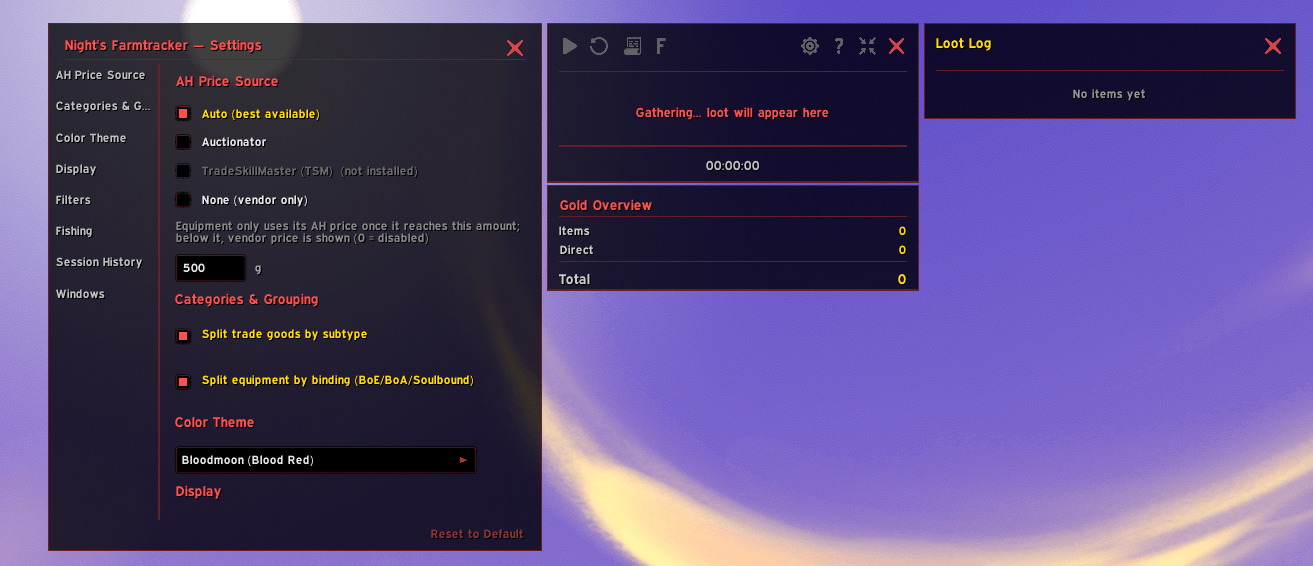
- Price sources: Auctionator, Oribos Exchange or TradeSkillMaster, with an Auto mode that prefers them in that order. TSM can use one of its price sources or a custom expression. Without an AH addon the vendor price is used.
- AH Price by Expansion: limit AH pricing to the expansions you pick; everything else uses the vendor price.
- Gear AH Threshold: equipment uses its AH price only once it reaches a gold amount you set, otherwise the vendor price. A gear icon next to the field chooses which equipment groups it applies to (Equipment, BoE, BoA, Cosmetic). An optional sound plays when a drop reaches the threshold.
Filters
- Vendor-Only Filter: drop items from your bags onto it, or tick whole categories, to value them at vendor price. Account-wide.
- Blacklist: items and categories on it are never tracked. Account-wide, and it wins over everything else.
- Delete List: items that can be neither sold nor auctioned (e.g. Warband-bound potions). At a vendor the Sell List offers them for deletion, one item per click. Items only, no categories. Account-wide.
- The three lists are the tabs of one Filter window. They group their items by expansion, can be cleared per expansion or completely, and can each be switched off in the settings (a tab whose list is off is not shown).
- Sell List: at a vendor, a window next to the merchant window lists the bag items the Vendor-Only Filter and the Gear AH Threshold mark as vendor goods (most gold first) and sells them with one button. Equipment-set items and Warband items are left out (the latter can be switched off, or limited to the upgrade tracks you tick), and a protection limits one click to 12 items, the size of the vendor's buyback list. Options: the gear icon in the Sell List window or in Settings, Windows & Buttons.
- Ctrl+left-click an item adds it to the Vendor-Only Filter, Ctrl+right-click blacklists it, Shift+right-click stops tracking it. On a category header, Shift+right-click excludes the whole category.
History, Loot Log and export
- Sessions & History is account-wide and has no session limit. It has two tabs: Sessions shows the running month day by day, History lists the past months with their farm time. Same-day sessions are merged automatically (can be switched off, or merged by hand per day). Click a session for its detail window (title: date and farm time), Shift+click a month for a month summary. Hover a month for its gold, and optionally the average per day.
- Full mode (default) keeps every session: a past month opens up to its days and sessions, and single sessions or whole months can be deleted.
- Compact mode folds all past months into one entry each to keep the saved data small. A month is then a plain row, a click opens its summary, and only whole months can be deleted. The data export still contains what was saved.
- Loot Log: a chronological, quality-colored list of the last 100 drops, kept per character across reloads (off by default).
- Data export (
/nft export): copy the saved history, all months or a single one, as JSON for use outside the game.
Look and feel
- 16 color themes plus a custom color with live preview (Settings → Colors), an optional gradient on section headers and optional theme-colored toolbar icons. Window titles follow the theme; gold is kept for gold amounts and checked options.
- Windows dock next to each other without overlapping (below or above when there is no room beside) and can be dragged. The maximum window height is adjustable; longer lists scroll.
- A minimap button (movable) and an entry in the minimap addon menu, both optional.
Settings
Everything is in one window (Settings button or right-click on the minimap button), with a sidebar to jump between sections: AH Price Source, Categories & Grouping, Colors, Data Export, Display, Filters, Fishing, Minimap HUD, Session History, Session Limit, Windows & Buttons and Profiles.
Most settings belong to a profile: create, copy, rename and delete profiles, and switch between them at any time. Window positions and the current session are stored per character. Reset all at the bottom wipes every saved setting and list.
Optional modules
All off by default.
Minimap HUD
Stretches the minimap over the screen so gathering nodes and tracking blips are readable all around your character. While it is disabled, the addon does not touch the minimap and the key binding does nothing.
- Enable it under Settings → Minimap HUD.
- Set a key under Options → Keybindings → Night's Farmtracker (there is no default key), or use
/nft hud. - Press the key to open and close the HUD.
Notes:
- Pins of HereBeDragons-based addons (GatherMate2, HandyNotes) and Routes move along with the minimap. Minimap buttons and UI panels attached to the minimap (built with ElvUI in mind) stay in the old spot on a placeholder and return when the HUD closes.
- Mouse clicks pass through to the 3D world. The HUD cannot be opened in combat; a close request in combat is carried out afterwards.
- Minimap rotation follows the HUD setting (on by default) while it is open and is restored to your own setting afterwards.
- Tuning:
/nft hud size <20-100>(percent of the screen height),/nft hud scale <1-2.5>(size of the symbols),/nft hud alpha <0-100>(opacity of the map background, 0 hides the map and keeps pins and blips),/nft hud rotate(toggle rotation).
Fishing
- Coiled Huntress Venom Tracker: shows the Venom/Toxin stack and the Coiled Filament currency while the The Coiled Huntress fishing rod is equipped. Docked above the main window, movable, with a close button.
/nft venomhides or shows it. - Fishing Lure Bar: drag lures from your bags onto the bar, click one to apply it to your fishing pole, right-click removes it. Shows the active lure buff and its remaining time.
/nft baithides or shows it.
Tip: pair with Better Fishing for double-click or keybind casting while you farm.
Instance lockout counter
A small frame below the main window with the resets in the last hour (x/9), the time until the oldest one expires, and a button to reset instances. Settings → Windows & Buttons.
Commands
| Command | What it does |
|---|---|
/nft |
Open or close the window |
/nft filter |
Open or close the Filter window (Vendor-Only, Blacklist, Delete List) |
/nft export |
Open the data export (JSON) |
/nft hud |
Toggle the Minimap HUD (if enabled) |
/nft hud size|scale|alpha <n> |
Adjust the Minimap HUD |
/nft hud rotate |
Toggle minimap rotation of the HUD |
/nft venom |
Show or hide the Venom Tracker (if enabled) |
/nft bait |
Show or hide the Fishing Lure Bar (if enabled) |
/nft repairprices |
Re-price the newest saved session with the current AH prices |
Debug commands for bug reports: /nft debug opens a live debug log window (copyable, no chat output). /nft venomdump, /nft test, /nft itemdb, /nft monthdump [itemID] and /nft sessionsdump write their output into the same window.
The full version history is in the changelog.
Feedback
Found a bug or have an idea? Open an issue on GitHub.
License
MIT with AI restriction (no use for AI or machine learning), see LICENSE.md.
Night's Farmtracker Team