What Group? (Retail)
- By
Notifies you of group details after joining via Premade Group Finder

Description
What Group?





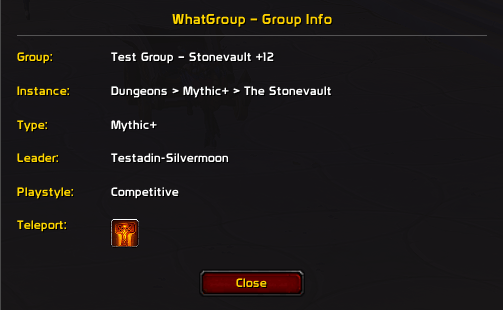
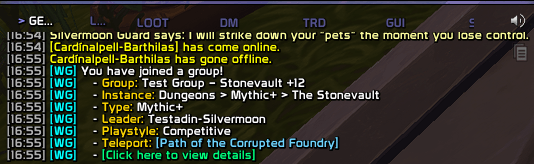
WhatGroup remembers the group you signed up for through the Group Finder tool. You get accepted, you shut the LFG window, and the details are still in front of you: the group's name, the instance, the type (Mythic+, Raid, Dungeon, PvP and the rest), who's leading, and the playstyle.
It tells you twice, on purpose. A moment after you join, a chat line appears with a cyan [WG] tag in front and a "view details" link at the end. A popup window shows the same fields, plus a teleport button for the dungeon. You can trim the chat line down to the fields you care about. The popup always shows everything.
Screenshots
Popup dialog
Chat message with clickable link
Usage
WhatGroup starts working the moment it loads, and there's nothing to switch on. You won't see anything until you join a group. To preview it, type /wg test or tick Test mode on the Master controls tab. The popup opens with a sample group, and you drag it by its title bar to wherever you want it. Lock frame on the same tab stops it moving after that. /wg test notify, or the Test button on the Chat tab, plays the chat line and the popup once.
Joining a group through the Group Finder takes four steps.
- Apply. Find a group in the Premade Group Finder and click Apply. WhatGroup notes what the listing said at that moment, so you can have several applications out and it still knows which is which. Groups you join from a guild or party invite aren't covered, because there's no listing to read.
- Join, and read the summary. Accept the invite and a chat line with a cyan
[WG]tag lists the instance, type, leader, the role you signed up as, and playstyle. The popup opens with the same details. The role is the one the leader assigned you if there is one, otherwise the role your application carried, otherwise the roles you offered. Both appear straight away unless you've set a pause under Chat → Notification Delay, and if you join mid-fight the popup waits until you're out of combat. - Teleport. The popup's last row is the dungeon's teleport, and it's a real spell button, so clicking it casts. It stays gray until you've learned that teleport, and goes gray again while it recharges, with the time left beside it. A dungeon with no teleport skips the row.
- Close it, and bring it back.
ESCor the Close button puts the popup away./wg showor the "Click here to view details" link on the chat line opens it again, for as long as you're in the group. WhatGroup forgets the group once you leave.
The Chat tab picks which lines the chat summary includes, and Print to Chat turns it off. Open Automatically on the Popup tab does the same for the window, and Width and Height sit beside it. The minimap button opens Settings on a left-click and a short menu on a right-click. Untick Minimap button on Master controls if you'd rather not have it.
Everything else is on the Ka0s WhatGroup page in Settings → AddOns, which /wg opens, and /wg help lists every command.
How it works
The Premade Group Finder is the game's list of player-made groups, and addons read it through Blizzard's C_LFGList functions. Those functions describe a listing (its name, activity, leader and playstyle) while it sits in your search results, so WhatGroup reads it the moment you click Apply rather than waiting until you've joined.
Applications queue, so having four in flight at once doesn't confuse it. When an invite lands, WhatGroup matches it to the application it came from, and the details waiting for you belong to the group you actually joined. Then the chat message prints and the popup opens.
The group info doesn't outlive the session. WhatGroup drops it the moment you leave the group, which is why /wg show stops answering then. Your settings persist, and so does the spot you dragged the popup to. If you want to see how it's built, read docs/ARCHITECTURE.md.
FAQ
| Question | Answer |
|---|---|
| Does this work for cross-realm or cross-faction groups? | Yes. WhatGroup reads whatever the group finder shows it, so realm, faction and category don't matter. |
| Is anything saved between sessions? | Your settings, plus the place you dragged the popup to. The debug console's position isn't saved. The group info itself is session-only. It clears the moment you leave the group, so /wg show only works while you're still in it. |
| How do I preview the popup without joining a real group? | /wg test notify, or the Test button in Settings. Both run the full message and popup on sample data, once, and leave your real group info alone, so /wg show still opens it afterwards. To keep the popup up while you move it, type /wg test or tick Test mode on the Master controls tab. |
| Can I delay the message and popup instead of getting them instantly? | Yes. They appear instantly by default; set a pause under Chat → Notification Delay (0-10 seconds). |
| What is the Debug console, and how do I turn on debug logging? | /wg debug opens the on-screen window; /wg debug on starts logging into it, off stops it. Logging is session-only and starts off after every login. The Debug console checkbox only shows or hides the window; it doesn't turn logging on. |
| Why is the teleport button or teleport line grayed out or missing? | Three reasons, and the popup says which: you haven't learned the spell (Teleport spell not learned beside the button), you have it but it's still recharging (On cooldown — 7h 58m 12s, counting down, with a cooldown swipe over the icon), or that dungeon has no teleport at all, in which case the row is skipped. |
| Can I keep the chat message but hide the popup, or the reverse? | Yes. Turn Popup → Open Automatically off to skip the popup, or Chat → Print to Chat off to skip the message. They work independently. |
| Can I make the popup bigger or smaller? | Yes. Popup → Width and Popup → Height move it between 320-700 and 200-520 pixels; it ships at 420 x 280. Dragging still remembers where you left it. |
| Are there per-character settings? | Only if you want them. Every character shares one profile until you pick another on the Profiles page in Settings, which can also give a character its own profile, copy one, reset one or delete one. /wg profile lists your profiles, and /wg profile <name> switches to one. |
Troubleshooting
| Symptom | Fix |
|---|---|
| The popup never appears when I join a group | Check that Enable WhatGroup (the Master controls tab) and Open Automatically (the Popup tab) are both on. If you joined while fighting, the popup is held ("Popup deferred until combat ends.") and opens when you drop out. |
| The chat message is missing some lines | The per-line toggles on the Chat tab control what the chat message includes. The popup always shows every line. |
/wg show says "No group info available" |
The group info clears when you leave the group, so /wg show only works while you're still in it. Use /wg test to preview the popup instead. |
| The teleport button is grayed out | You haven't learned that dungeon's teleport spell on this character, or the dungeon has no teleport. |
| I opened Settings but can't find the toggles | /wg config lands on the landing page. Click General in the sidebar. |
/wg config says "cannot open settings during combat" and nothing opens |
The Blizzard settings panel can't be opened in combat. Leave combat and run it again. |
| Test mode turned itself off | It ends when a fight starts, when you close the popup, and when you ask for the real one (/wg show, /wg test notify, or the chat link). It also won't start during combat. Joining a group while it's on doesn't end it; click the chat link to see that group. |
| I ticked Debug console but no debug output shows up | That checkbox only shows or hides the window. Turn logging on with /wg debug on, or the Debug: OFF button inside the window itself. Logging always starts off after a login or /reload. |
| Something looks wrong and I want to report it | Follow Reporting a bug below. |
Reporting a bug
- Type
/wg debug onand reproduce the bug. - Type
/wg diagnostics. - If the debug window isn't open, open it with
/wg debug. Press Copy, copy the entire output, and include it with your bug report.
The report is added after the debug trace in the same window, so one copy carries both.
Issues and feature requests
Bugs, feature requests and outstanding work are all tracked at https://github.com/tusharsaxena/WhatGroup/issues. Please file new reports there rather than as comments. The issue tracker is the one place the project's backlog is kept.
Version History
| Version | Date | Highlights |
|---|---|---|
| 1.6.0 | 2026-10-09 | - The popup and the chat line show the role you signed up as, with its icon; the chat line can be turned off with the Role checkbox under Chat > Text. The popup's default height goes from 260 to 280 to fit it, and a height you saved yourself is kept, so you may want to raise it - A Profiles settings page, and switching profiles applies the popup's size, scale and opacity straight away - /wg profile lists your profiles and /wg profile <name> switches to one- Joining a group in combat no longer breaks the popup's teleport cooldown, and a cooldown the game won't reveal reads "On cooldown" - Test previews no longer overwrite your real group's details, and a test run while the addon is disabled prints only the chat line |
| 1.5.0 | 2026-09-27 | - A test mode for placing the popup: /wg test or the Test mode checkbox shows a sample group you can drag into place, and /wg test notify plays the chat line and popup once- A minimap button, also shown in broker displays: left-click opens settings, right-click toggles Enabled, Locked, Test mode and the popup window - /wg enable and /wg disable, /wg diagnostics for bug reports, and a bare /wg that opens settings- The chat "view details" link opens the popup on real group joins, and Escape closes the popup even in combat - A declined, timed-out or failed application no longer leaves stale group details behind, and disabling the addon switches off all its tracking |
| 1.4.0 | 2026-09-10 | - Show and Close are now combat-safe: the popup is no longer asked to hide while protected - A popup you closed stays closed instead of returning on the next update - The visibility gate is re-asked when combat starts and ends - Each capture is paired to its own application rather than to whichever answered first - Updated for game patch 12.1.0 |
| 1.3.0 | 2026-07-12 | - The Settings page now appears in the AddOns list as soon as you log in. - The chat message and popup appear instantly on join (add a delay under Chat if you prefer). - New on-screen debug window, toggled with /wg debug; debug output no longer goes to chat.- Color-coded /wg list, /wg get, and /wg set output.- The Defaults button now performs a full, clean reset. - Updated for game patch 12.0.7. |
| 1.2.0 | 2026-05-03 | - Added the Settings panel and the /wg slash commands.- Added a teleport button to the popup, grayed out until you learn the spell. - Fixed a logout error, stale notification timers, and the wrong teleport spell and playstyle showing on real group joins. |
| 1.1.0 | 2026-04-24 | - Updated for a new game patch. |
| 1.0.0 | 2026-03-19 | - Initial release: a chat message and popup whenever you join a group through the Premade Group Finder. |
Credits
The debug console uses JetBrains Mono, licensed under the SIL Open Font License 1.1. It ships inside the bundled LibKa0s payload, with its license text beside it.
What Group? (Retail) Team