Ka0s Panel Master
- By
Draws plain backdrop panels behind your UI, so a screen full of separate frames reads as a few deliberate groups
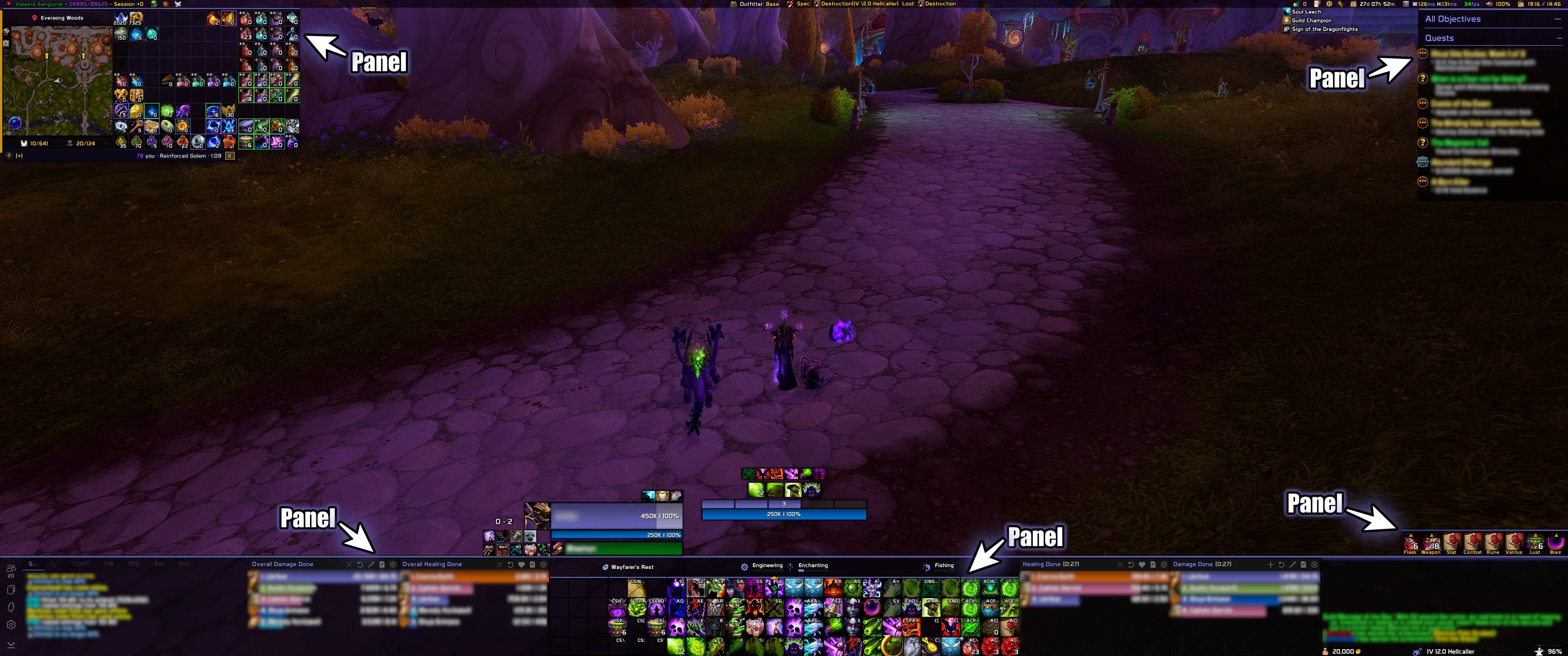
Description
Ka0s Panel Master





Ka0s Panel Master draws plain backdrop panels behind your UI, so separate frames read as deliberate groups.
A panel is a rectangle with a color, a border and a position, and that is all it is. It sits behind everything and holds nothing. It never moves or touches another addon's frames, so your action bars, your chat window and your unit frames stay exactly where their own addons put them. They just get something deliberate behind them.
If you have used kgPanels, or the panels built into ElvUI, this will feel familiar.
Screenshots
Panel Master in action
Basic panel
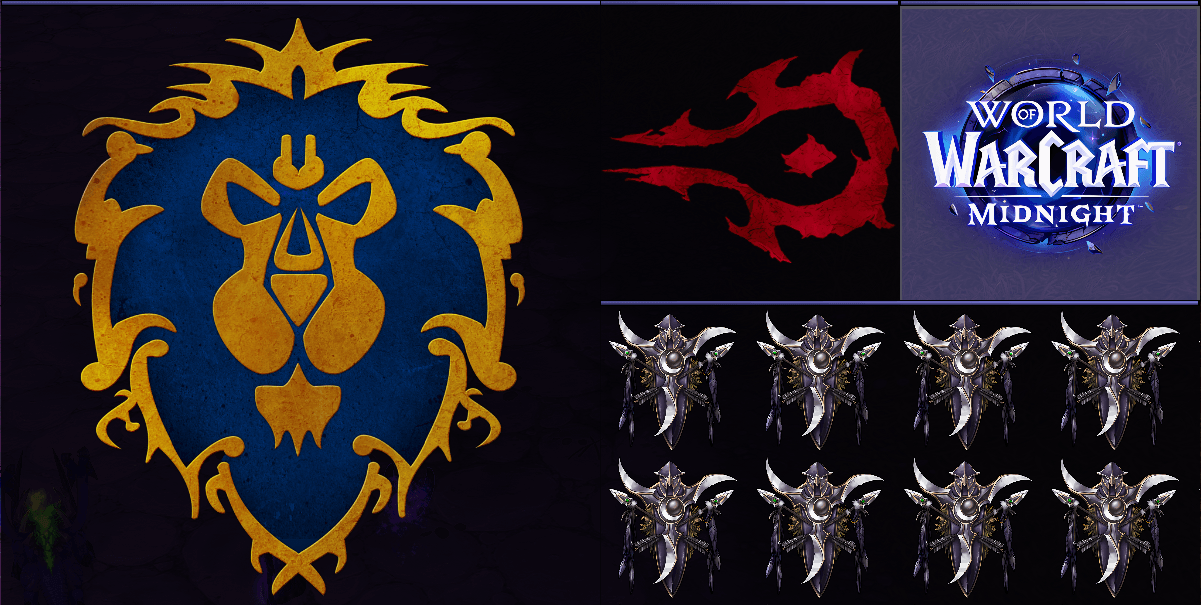
Panels with bundled artwork
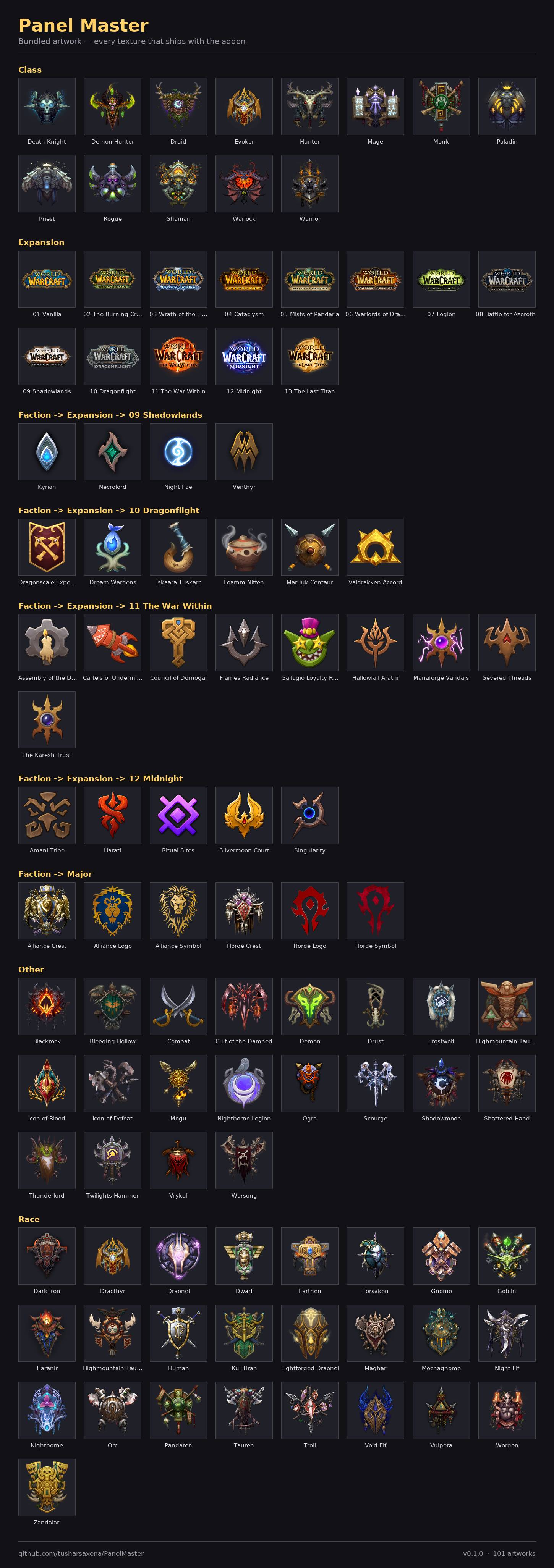
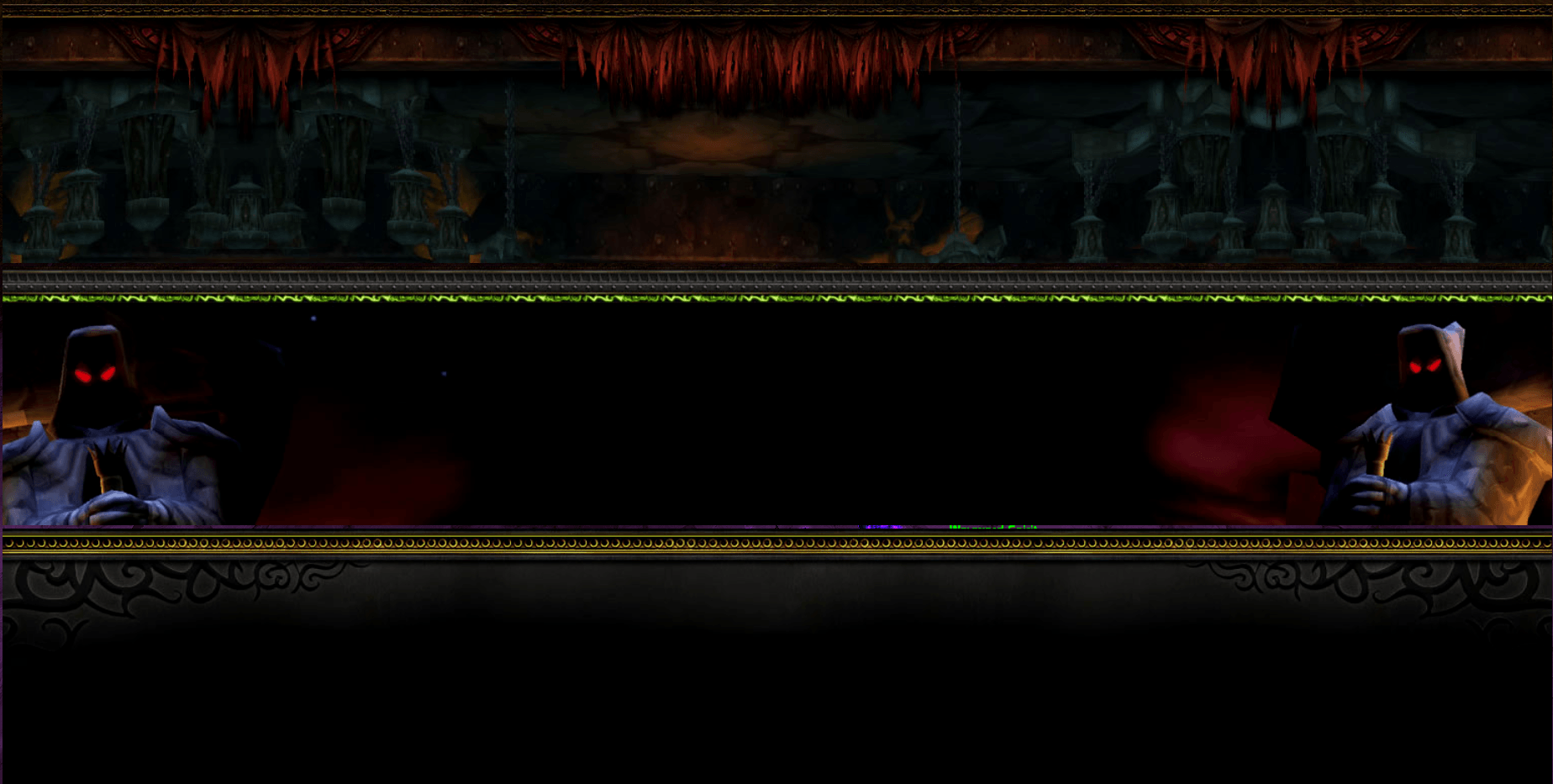
Panels with SunnArt artwork
Usage
A fresh install draws nothing, because you have no panels yet. Once you make some, they stay
locked: they ignore the mouse, and clicks go straight through to whatever is on top. /pm unlock
makes them draggable and /pm lock locks them again. There is no separate test mode, since
unlocking already outlines and names every panel you have.
Setting up a panel takes four steps.
- Make it. Type
/pm new ChatBG, or type a name into Create new panel at the top of the Panels page and press Enter. The panel turns up in the middle of the screen as a dark block with a class-colored strip along its top. The Panel picker beside that box chooses which panel the page is editing. - Move it into place.
/pm unlockgives every panel a gold outline and its name, and you drag each one where it belongs. Dragging snaps to a four-pixel grid, which keeps a row of panels level. General → Editing is where you make the grid finer or turn snapping off. To move just one panel, tick Unlock on its General tab instead. Type/pm lockwhen you're done. - Style it. The Panels page shows one panel at a time, under six tabs. Position and size takes
exact numbers and the frame strata, while Background and border, Accent bar, and Opacity and
fade cover the look. Any of the colors can follow your class color. Small changes are quicker
from chat:
/pm panel ChatBG width 420. - Add artwork, if you want it. The Artwork tab puts a picture inside the panel: one of the bundled pieces, a Sunn art pack you already have, or a texture of your own. Fit to artwork resizes the panel to match the picture. Panel artwork below goes through every setting.
Your second panel doesn't have to start from nothing. Copy settings from panel, on the General tab, gives it another panel's whole look and leaves its position alone. Every character shares one set of panels unless you give one its own profile on the Profiles page. The minimap button opens the settings on a left-click, and its right-click menu turns the addon on or off and locks or unlocks your panels.
Everything else is on the addon's page under Settings → AddOns, which a bare /pm opens, and
/pm help (or /panelmaster help) lists every command.
How panels work
WoW draws every frame in one of eight layers, called frame strata, and a frame in a higher layer
always covers one in a lower layer. Strata is what makes a panel a backdrop rather than an
obstruction. New panels start in LOW, which sits above the game world and Blizzard's parchment art
but under almost every interface frame. You can move a panel to any of the eight. BACKGROUND puts
it under absolutely everything, while DIALOG and above will cover normal UI, which is occasionally
what you want and usually not.
A locked panel never takes your mouse, whatever layer it is in. That holds with Show on mouseover only turned on too, because the panel watches where your cursor is without claiming the click.
Then there is the accent bar, a thin colored strip running the full length of an edge. It is the look BenikUI's panels are known for, and it is on out of the box. Tick whichever edges you want and pick a thickness. Push the offset positive if you would rather it detached into a floating stripe. The bar draws above the panel's border, can carry a thin border of its own, and takes any status-bar texture you have installed. Untick Enable accent bar for a plain block.
Anchoring other things to a panel
This only matters if you write your own UI code or edit a config that takes frame names. Otherwise, skip it.
Every panel has a fixed frame name built from the name you gave it when you created it:
PanelMaster_Panel_ followed by that name, with anything that is not a letter or number turned into
an underscore. A panel created as Chat BG is PanelMaster_Panel_Chat_BG. Other addons can
anchor to that name:
myFrame:SetPoint("TOPLEFT", "PanelMaster_Panel_Chat_BG", "TOPLEFT", 4, -4)The frame name is set at that moment and never changes again. Renaming a panel does not touch it, so anything anchored to the panel keeps following it. The catch is that after a rename, the frame name no longer matches the panel's name, and you can no longer work it out from that name. Hover the Panel name box in the settings window to see the current one.
Panel artwork
A panel can carry a picture as well as a color. Pick one of the pieces bundled with the addon, or point it at a texture file of your own. The art is drawn inside the panel's bounds and clipped to them, so art that is offset or scaled up cannot spill out over the rest of your UI.
Every panel starts with no artwork at all (artTexture is None), so nothing you already have
changes until you choose something.
What you can set per panel
| Setting | What it does |
|---|---|
| Artwork | Which piece. None, one of the bundled pieces, or Custom path… for your own file. |
| Custom path | The texture to draw when Custom is picked. It is only read in that case, so switching to a bundled piece and back does not lose what you typed. |
| Artwork color / Use class color | Tints the art, whichever piece it is. The white-on-black pieces are drawn in white, so the tint is what gives them their color. Full-color art wants Desaturate below first, or the tint only muddies it. Class color works here as it does everywhere else. |
| Desaturate | Drains the art to grayscale before the tint applies, so tinting full-color art gives you a clean version of the color you picked instead of mud. It is off by default, so nothing you already have changes. |
| Blend mode | Normal paints over the panel and obeys the image's transparency. Glow adds the art's light instead. It can only brighten, never darken, and reads as a lit emblem over a dark panel. |
| Opacity | How solid the art is, on top of the panel's own opacity. |
| Fill | Native size draws it at its authored pixel size; Stretch fills the panel exactly and ignores scale; Fill (crop) covers the panel and crops the overflow; Fit (contain), the default, fits the whole image inside the panel; Tile repeats it across the panel. |
| Position, X, Y | Where the art sits in the panel. Only Native size and Fit honor it. The other three cover the panel exactly, so there is nothing to move. |
| Scale | 0.1 to 4. On Fill (crop) it zooms the crop; Stretch ignores it. |
| Rotation, Flip | Quarter turns (0°, 90°, 180°, 270°) and a horizontal and vertical mirror. Flips apply first, then the rotation. |
| Layer | Behind the background, above the background (the default), or above the border and accent bar. |
| Fit to artwork | A button next to the custom path box. Press it and the panel is resized to the artwork's exact pixel size, taking Scale and Rotation into account. A bundled piece is 1024×1024 and gives a square panel that big, the same piece at scale 0.5 gives 512×512, and a three-section Sunn bar turned 90° gives 256×1536. Large art gives a large panel, so drag it back to the size you want afterwards, and press this again any time to return to the artwork's own size. If a panel has no artwork, or its art is not installed, the button says so and leaves the panel alone. |
Bundled artwork
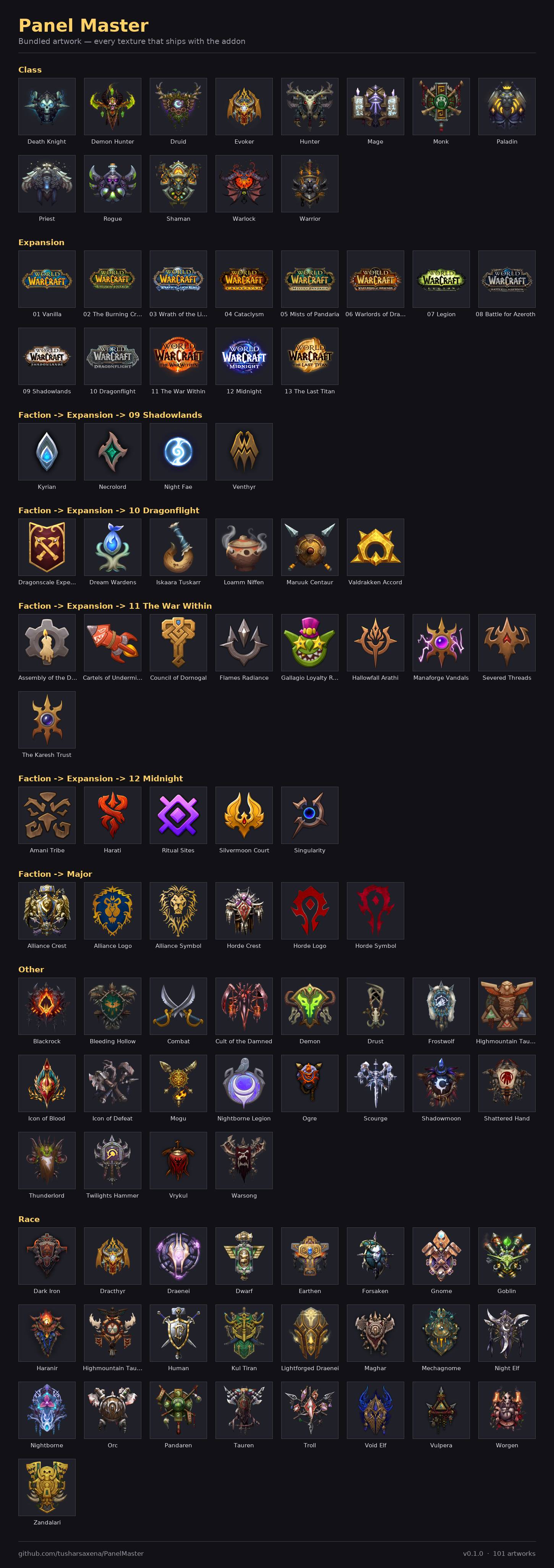
The addon ships with a bundle of 100+ images. All of them come from warcraft.wiki.gg, upscaled and enhanced by the author. The WarcraftWiki originals are published under CC BY-SA 4.0 and the upscales ship under that same license. If you reuse them, credit the source and keep them under CC BY-SA 4.0.
Sunn - Viewport Art packs
If you have Sunn - Viewport Art or any of its official art packs installed, their themes appear in the artwork dropdown too, grouped under Sunn ->. Panel Master bundles and copies nothing here. It reads what is already on your disk.
It borrows Sunn's artwork and nothing more. Panel Master does nothing with the viewport itself, the black bars that letterbox the game world. If enough people want viewport support, it can be added later as an enhancement, so say so on the issue tracker.
The dropdown lists only the packs you actually have, so none of its entries would draw a blank panel. A pack you uninstall stops being offered on the next login, even if Sunn's own saved settings still remember it.
You do not need Sunn itself loaded. The art packs are ordinary texture folders, and Panel Master can draw them whether or not the addon that came with them is running. It knows what the twelve official packs contain, and it offers a theme only when that pack's folder is really installed. So leave Sunn - Viewport Art disabled if you like. The original addon has not been updated in a while and is incompatible with WoW 12.x.x, so it will show up as incompatible. That is a shame, but it does not stop its art packs working here.
A Sunn theme is several files laid side by side into one wide bar, and you get the whole bar: one dropdown entry per theme, under the theme's own name. Every setting above works on it exactly as it works on a single piece, because Panel Master treats it as one wide image and only cuts it up at the last moment. So Fit fits the entire bar, Fill (crop) crops it and may leave only the middle section on screen, a 90° rotation stacks the sections vertically, and a horizontal flip reverses their order. Fit to artwork is worth pressing here. It gives you the bar at its authored size, 1536×256 for a typical three-section theme, which is the shape it was drawn for.
Two things to know. Some packs have art with a transparent strip along the top, and they declare how much. Sunn uses that strip to hang the art over the game world. A panel has nothing to hang it over, so Panel Master trims the strip instead. The art sits flush in the panel, and Fit to artwork measures what you can see rather than the padding.
The other is tiling. Tile on a whole bar repeats the entire bar rather than each section. It is capped so that one panel cannot cost hundreds of textures, and past the cap you get fewer, larger repeats rather than a bare strip. Tiling is also the one case where the transparent strip is not trimmed, so a tiled bar shows its gaps.
Using your own artwork
Any picture can become panel artwork, but it has to be in a format WoW can load: a .tga or .blp
sitting inside an addon folder, addressed the way the game addresses it, e.g.
Interface\AddOns\MyStuff\art\crest.tga. The game cannot read .png or .jpg at all, and a path
it cannot resolve draws nothing and raises no error.
Converting an image is the fiddly part. The converter this addon's own art was made with is yours to use, and you do not have to be a developer to run it. It takes any image and writes the TGA the client wants. Along the way it upscales a source that is too small, adds transparency if the image has none, and cleans up the halo an upscaler otherwise smears along every edge:
python3 tools/artwork/artwork_cleaner.py --single ~/Pictures/crest.png
python3 tools/artwork/artwork_cleaner.py --batch  ~/Pictures/art ~/my-wow-art
--single writes the .tga beside the image you pointed it at; --batch converts a whole tree
into a folder of your choosing. It needs Python with Pillow and numpy.
It lives in the source repo, not in the addon you
downloaded, because the packaged addon carries no build tools. Put the result in a folder under
Interface\AddOns\, then point the editor's Custom path at it. That box takes any texture path,
so there is nothing else to set up.
A good file is a 32-bit TGA with an alpha channel, square, with a power of two on both axes. WoW cannot wrap a non-power-of-two texture at all, and the Tile fill needs that. The background should be genuinely transparent (alpha 0, not white and not black), because the panel's own fill, texture and opacity show through it.
If you would like a piece added to the bundled set instead of keeping it to yourself, open an issue.
The art has to be redistributable. CC0, MIT and public domain are all fine. Non-commercial and
no-derivatives licenses are not, and neither is traced Blizzard art submitted as your own. The full
conversion guide, including how to pick good sources, is in
docs/artwork-spec.md.
FAQ
| Question | Answer |
|---|---|
| Does this move my frames around? | No. It never touches another addon's frames, or Blizzard's. It only draws its own rectangles behind them. If you want a frame moved, you still move it with whatever addon owns it. Panel Master just puts something nice behind it. |
| Can I put a frame inside a panel? | No, and that is on purpose. A panel is scenery, and nothing is ever parented into it. |
| Will a panel block my clicks? | Not when locked. A locked panel ignores the mouse completely, so clicks, tooltips and keybinds all pass straight through to whatever is on top of it. It only takes the mouse while you have the screen unlocked, which is the whole point of unlocking. |
| Do my panels follow me to my alts? | Yes, by default. Every character starts on the same shared profile, so a layout you build once shows up everywhere. If you want one character to differ, give it its own profile on the Profiles page. |
| How many panels can I have? | As many as you like. They are cheap: a panel is a handful of flat textures and it costs nothing while it sits there. |
| There is so much artwork bundled with this addon. Will it affect my performance? | No. The bundled art costs disk space and nothing else. WoW does not load a texture because it is sitting in the addon folder. It loads one when something on screen asks for it, so the only art in memory is the art your panels are actually drawing. While you play, a hundred unused pieces cost the client the same as none at all. |
| Do I need Sunn - Viewport Art installed? | Only if you want its themes in the artwork list. If you have its packs, Panel Master reads them straight off your disk, and Sunn itself does not even have to be enabled. Nothing is bundled or copied. |
| Does it work without any other addons? | Yes. It is self-contained and needs neither ElvUI nor any other suite. It runs fine alongside them; it just never depends on one. |
Troubleshooting
| Symptom | Fix |
|---|---|
| I made a panel and cannot see it | There are three usual causes. It might be behind something opaque: run /pm unlock, which outlines and names every panel regardless. It might be switched off, so check /pm panels, where a disabled panel is listed in gray. Or the whole addon is off, in which case /pm panels tells you so and names /pm enable. |
| A panel has ended up off the edge of the screen | /pm recover brings every stray panel back into view. It never runs by itself, so a panel you deliberately parked half off-screen stays exactly where you put it. |
| I unlocked panels but nothing became draggable | You were in combat, so the unlock was queued rather than applied, and you will have seen a gray notice saying so. It happens by itself the moment you leave combat. |
/pm config says it cannot open during combat |
That is Blizzard's restriction, not a bug: the game will not let the settings window be switched to while you are fighting. Run it again once you are out. |
| The settings page is covered with "Settings are locked during combat." | Nothing is wrong. Settings cannot be changed while you are in combat, and the page comes back, live and up to date, the moment combat ends. |
| I picked a texture and the panel went plain | That texture came from another addon which is no longer loaded. Panel Master keeps your choice and falls back to a flat fill until the addon is back, so you lose nothing. Pick another texture if you would rather not wait. |
| I picked artwork and nothing appeared | If it was your own file, the path is the likely cause. WoW loads a .tga or .blp only from inside an addon folder, addressed the way the game addresses it, and a path it cannot resolve draws nothing and raises no error. A typo looks exactly like having picked None. Check that the file is a power of two on both sides too, because one that is not may fail to load outright. If it is a bundled piece and still nothing shows, check the Draw layer. Behind background puts the art under the panel's own fill, which hides it unless that fill is transparent. |
| The addon will not let me create a panel with a name | Two panels cannot share a frame name, and the frame name ignores punctuation and spacing, so "Chat BG" and "Chat-BG" want the same one. Pick something that differs by more than punctuation. It can also happen with a name that looks free. A panel created as "Alpha" and later renamed still holds PanelMaster_Panel_Alpha, and the message names whichever panel is holding it. Only creating a panel is refused for this reason, never renaming one. |
| I renamed a panel and want to know its frame name | Renaming does not change it, so anything anchored to the panel still works. The frame name still reflects the name the panel was created with, though, so you can no longer work it out. Hover the Panel name box in the settings window and it shows you. |
| I cannot address a panel whose name has spaces | /pm panel and /pm rename read only the first word as the name. Use the Panels page in the settings window for those, or give the panel a one-word name. |
| I dragged a panel and it jumped somewhere slightly different | Snap-to-grid is on. Turn it off (/pm set settings.snapToGrid false) or make the grid finer (/pm set settings.gridSize 1). |
| Something looks wrong and I want to report it | Follow Reporting a bug below. |
Reporting a bug
- Type
/pm debug onand reproduce the bug. - Type
/pm diagnostics. - If the debug window isn't open, open it with
/pm debug. Press Copy, copy the entire output, and include it with your bug report.
The report is added after the debug trace in the same window, so one copy carries both.
Issues and feature requests
Bugs and feature requests are tracked at github.com/tusharsaxena/PanelMaster/issues. Please file them there rather than in comments, because that is the one place the project's to-do list lives. If it looks like a bug, follow Reporting a bug above.
Version History
| Version | Date | Highlights |
|---|---|---|
| 1.2.0 | 2026-09-27 | - A minimap button, also in Titan Panel, ElvUI data texts and Bazooka, with a status tooltip. Left-click opens settings; right-click toggles Enabled and Locked - /pm enable and /pm disable turn the addon fully off and back on without unloading it- /pm diagnostics writes a report to attach to bug reports. It replaces the retired /pm debug dump- Test mode is gone: unlocking now shows every panel with its outline and name. A bare /pm opens settings, and the settings page locks during combat- Fixes: the Panels page picker and create box show again, /pm set settings.visibility works, combat visibility switches the moment combat starts, and /pm recover handles scaled panelsReleased on lint, tests and complexity only: Panel Master ships no tests/perf.lua, so the perf suite was skipped, not measured. |
| 1.1.1 | 2026-09-11 | - A rebuild of 1.1.0 with no functional changes: the release build was re-triggered |
| 1.1.0 | 2026-09-10 | - Page-wide actions moved onto a General first tab, and Create and Edit now sit above the tab strip - Fixed the page band failing when it was built before the canvas existed - Fixed the landing tagline wrapping onto a second line - The Defaults tooltip no longer implies your panels are safe from the reset - Updated for game patch 12.1.0 |
| 1.0.0 | 2026-08-07 | - First release: create, place and style as many backdrop panels as you like - LibSharedMedia background and border textures, with a class-color option for both - Accent bars along any edge, with their own texture, border and class color - Per-panel scale, mouseover-only fade, and all eight frame strata - Per-panel artwork from the bundled catalog, your own texture, or a Sunn - Viewport Art pack you already own, with tint, desaturate, blend mode, fill, position, scale, rotation, flip, draw layer and fit-to-artwork - Fixed frame names so other addons can anchor to a panel, unaffected by renaming - Global and per-panel unlock with snap-to-grid, test mode and copy-settings-between-panels - Full command-line control and AceDB profiles |
Credits
The bundled panel artwork comes from warcraft.wiki.gg, AI-upscaled to the sizes the client wants and redistributed under CC BY-SA 4.0, the same license as the originals.
The debug console uses JetBrains Mono, licensed under the SIL Open Font License 1.1. It ships inside the bundled LibKa0s payload, with its license text beside it.
The Ka0s Panel Master Team