Description
KickCD





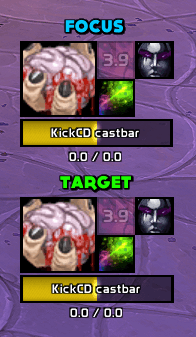
KickCD answers one question: is this cast worth a kick? It watches two enemy units, your target and your focus. Each one gets a grid of your own interrupts and cast-stopping crowd control, and every icon runs its cooldown timer and looks clearly ready or not ready. Each one also gets a cast bar showing what that unit is casting (the spell's icon, its name and the time left), colored by whether the cast can be interrupted at all. The grid comes already filled in for your class and spec, so it's useful before you've opened a single settings page.
Focus tracking is on out of the box and copies your target set's styling, so the second pair takes no setting up. Both sets move, resize and lock together. If you don't want focus, switch it off. If you want it to look nothing like your target set, unlink it.
Screenshots
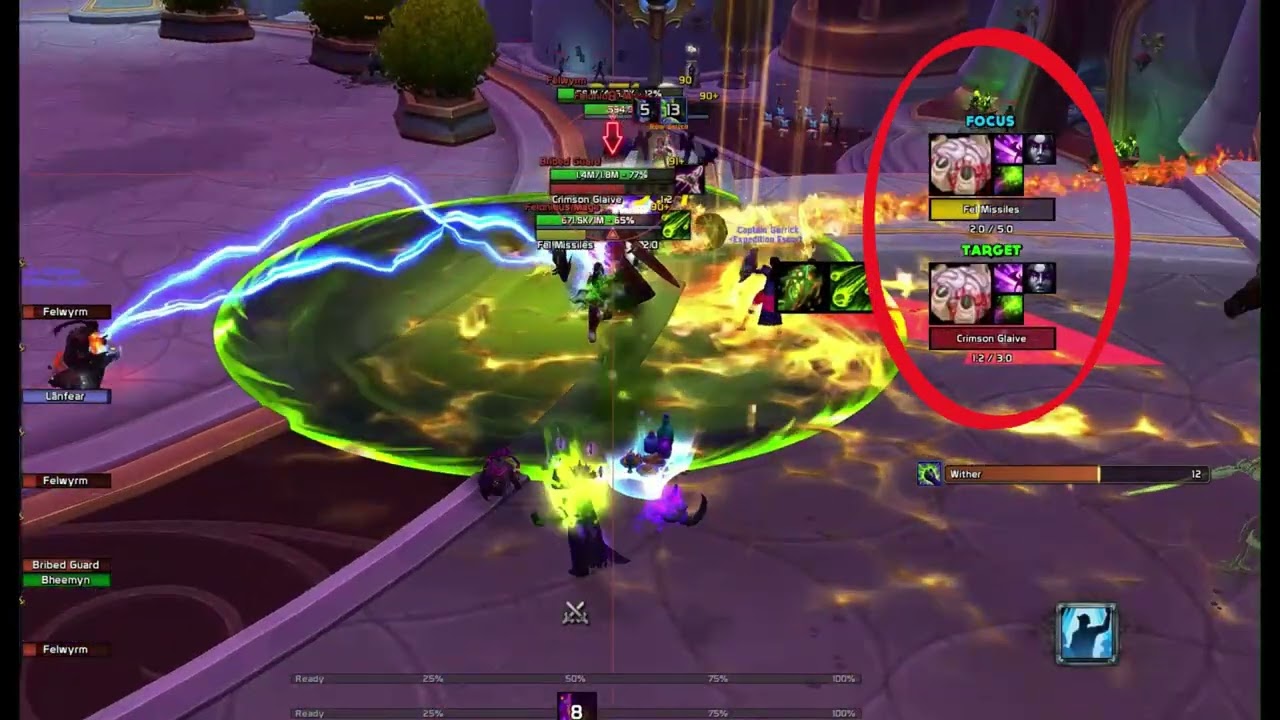
KickCD in Action

Zoomed in view of the icon grid and cast bar
Usage
A fresh install puts an icon grid and a placeholder cast bar on screen for your target, and a second pair for your focus. KickCD starts unlocked, and unlocked is its preview: every grid and bar stays up so you have something to drag. There's no separate test mode. /kcd lock starts the real behavior, and /kcd unlock brings the preview back.
Setting it up takes four steps, in this order.
- Place the sets. While unlocked, drag each icon grid where you want it. The cast bar is anchored to its grid's primary icon and moves with it. To drag the bar on its own, set Anchor mode to Free (drag to move) on Grid → Cast bar → Size and position. If a grid ends up off the edge,
/kcd resetpositionbrings both grids back. - Check your spells. The grid starts from a list for your class and spec, and it only shows what you can cast right now, so it changes when you respec. The Spells page is where you add to that list, disable rows you never use, or drag a row by its handle to reorder the icons. Enable more than the grid has room for and the extras are left off, with one warning in chat.
- Pick when it shows. Once you lock, a set only appears while its unit is casting something you can interrupt. General visibility on General → Master controls changes that to always, in combat only, or any cast. The ready glow has its own trigger on Grid → Icons → Ready glow.
- Make it look right. The Grid page's rail holds Icons, Cast bar and Text Label, and the Target / Focus picker across the top says which unit you're editing. Focus copies your target's look until you untick "Use same styling as Target" on General → Units, which is also where you turn focus off. Text Label renames, restyles or hides the "Target" and "Focus" tags beside each grid.
The minimap button opens the settings on a left-click, and a right-click gives you a menu with Enabled and Locked. /kcd disable turns the addon off without opening anything, and /kcd enable turns it back on. /kcd resetall puts every page, position and spec's spell list back to defaults, so keep it for when you really want a fresh start. To see every setting and its value without clicking through the pages, run /kcd list.
Everything else is on the addon's page under Settings → AddOns, and /kcd on its own opens it. /kcd help (or /kickcd help) lists every command.
How interrupt tracking works
In Midnight the game hides two things from addons during combat: how long is left on a cooldown, and whether an enemy's cast can be interrupted. KickCD doesn't need to read either one. It passes them straight to the game's own drawing (the cooldown sweep, the countdown text, the bar's color and fade), which is allowed to use them, so the grid and the bar stay accurate in the middle of a fight.
The master switch decides first. If the addon is off, nothing is on screen, whatever else you've set.
After that it comes down to a single visibility setting: always, only in combat, only while a tracked unit is casting, or only while a tracked unit is casting something interruptible. Every grid and cast bar follows that one setting, which is why they show, hide, move and lock as a group. Each unit is still judged against its own cast, so your focus set can light up for the focus while the target set stays dark. In "interruptible only" mode a set stays hidden through a cast you can't stop and appears the instant its unit starts one you can.
The two halves of a set watch opposite ends of the fight. The icon grids watch you. They show your interrupts and cast-stopping crowd control for the class and spec you're playing, and each icon runs its cooldown and shows whether the ability is ready. Both units draw the same cooldowns, because they're your cooldowns, not the enemy's. The cast bars watch the enemy, one bar per unit, colored by whether the cast can be interrupted.
Key settings
These are the settings that change the most about how KickCD looks and behaves.
Target and focus
Target is tracked whenever the addon is on. Focus is tracked by default and starts linked, copying target's icon and cast-bar styling live. Turn it off in General → Units, or untick "Use same styling as Target" there to give it a look of its own.
Position and label text are per-unit whether the link is on or off, and that's why the two sets start well apart. While focus is linked it also mirrors target's label styling and whether the label shows at all. The drag lock, the visibility mode, and overall size and transparency are always shared across both units.
Visibility (General → Master controls → General visibility)
This is one setting with four values, and the master switch outranks all of them.
| Value | When a unit's set shows |
|---|---|
always |
Always. |
in_combat |
Only while you're in combat. |
target_casting |
Only while that unit is casting or channeling. |
target_casting_interruptible |
Only while that unit is hostile and casting something you can interrupt. Casts you can't interrupt stay hidden. (Default.) |
The ready glow has its own copy of this setting on Grid → Icons → Ready glow, with the same four choices plus never to switch the glow off entirely. Primary and secondary icons can use different triggers.
Cast bar placement (Grid → Cast bar → Size and position)
The default is anchored to the primary icon. The bar sticks to the main icon in the grid and moves with it, and you choose which points connect plus a small offset. You can't drag the bar itself in this mode. The other option is free, where the bar floats on its own: unlock, drag, lock, and the position is saved. Out of the box the bar sits just below the icon grid, lined up with its left edge.
Cast bar direction and auto-size (Grid → Cast bar → General)
Orientation is horizontal or vertical, and growth direction picks which way the bar fills: right or left when it's horizontal, up or down when it's vertical. Auto-size to icon grid matches the bar's length to the grid and keeps it matched, so adding, removing or disabling icons resizes the bar in place. The bar's other dimension stays wherever you set it.
Icon grid layout (Grid → Icons → Layout)
The primary anchor sets where the block of secondary icons sits relative to the main icon. The grow direction sets the order they fill in, and Rows × Cols sets how many fit. Any anchor works with any grow direction.
If you enable more spells than the grid can hold, the extras are left off and you get one warning in chat, so you can make room or trim the list.
FAQ
| Question | Answer |
|---|---|
| Does this replace Blizzard's cast bars? | No. It adds its own and leaves Blizzard's alone. If you don't want to see both, hide Blizzard's target and focus cast bars in Edit Mode. |
| Does it track my focus too? | Yes, out of the box, with its own grid and cast bar copying your target set's look. Turn focus off in General → Units if you only want your target. |
| How do I make focus look different from target? | On General → Units, untick "Use same styling as Target" (or press "Copy styling from Target" first, then edit). Then switch the Grid page's unit picker to Focus. |
| I see a "Target" (or "Focus") label on my grid. What is it, and can I change or hide it? | That's the unit's identity label, and Grid → Text Label controls it. You can set its text, restyle it, attach it to the icon grid or the cast bar, or turn it off. Each unit has its own. While focus is linked it mirrors target's label styling and whether the label shows, but the text stays independent. |
| How do I move the grids or cast bars? | Run /kcd unlock, drag, then /kcd lock. One lock covers every unit. An icon grid always drags when unlocked. A cast bar drags only when it's set to move freely; when it's anchored, it follows its grid. /kcd resetposition puts both icon grids back in their default spots. A cast bar that moves freely stays where you left it, and /kcd resetall resets that too. |
| Where do my spell defaults come from, and why isn't every spell there? | Each class and spec comes with a starter list, set up the first time you use that character. The grid then shows only the spells you can cast right now, so spells from talents you didn't pick, spells you haven't learned and pet abilities without a pet are hidden. To start over, use /kcd spells resetall (all specs) or /kcd spells reset (one spec). |
| Can I add my own spells? | Yes, in Settings → Spells or with /kcd spells add. For the spec you're currently playing, you can only add spells the game already tracks as cooldowns. |
| Does it track items or trinkets? | Not yet. It tracks spells only. |
| Why won't the settings panel open in combat? | The game blocks it mid-fight. Run /kcd config again once combat ends. |
| Are there per-character settings? | Yes, see Settings → Profiles. Every character starts on a shared default, and you can split off a per-character, per-class, per-realm or per-faction profile whenever you like. /kcd profile lists your profiles, and /kcd profile <name> switches to one without opening the panel. |
| Does the fill direction change for channels? | Yes. A channel drains the way the matching cast would fill, so a bar that fills to the right during a cast drains to the left during a channel. |
| How do I capture debug info for a bug report? | Follow Reporting a bug below. /kcd diagnostics writes one report into the debug window, after your trace. It covers the spell list, cooldowns, both grids and cast bars, the interrupt checks and any events your client refused to register. If you only need one of those, the single snapshots (/kcd debug spells, /kcd debug castbar, /kcd debug interrupt, /kcd debug events) still print to chat. castbar and interrupt show your target, or your focus if you add focus. The window resets on every reload. |
| Can I measure how much KickCD costs my frame rate? | Yes. /kcd perf start begins a run. Play for a while, then /kcd perf finish ends and saves it, and /kcd perf report writes the summary and a JSON line to copy into the debug window. /kcd perf on its own shows where a run stands and lists every step, and the same steps are on a small panel. |
Troubleshooting
| Symptom | Fix |
|---|---|
| The icon grid never appears. | Check three things: the addon is on (/kcd get enabled is true), your visibility setting fits the situation (/kcd get visibility; some modes need combat or a casting target), and your spec has at least one enabled spell that you know. /kcd diagnostics lists what it's watching. |
| The icon grid won't drag. | It's locked. Run /kcd unlock, drag it, then /kcd lock. If unlocking doesn't seem to take, run /kcd toggle. |
| The focus set sits on top of my target set. | They start apart, but you can drag them into each other. Run /kcd unlock, move one out of the way, then /kcd lock. /kcd resetall puts every unit back in its starting position. |
| I only want my target, not focus. | Turn focus off in General → Units, or run /kcd set units.focus.enabled false. Everything focus-related disappears. |
| The cast bar still shows on casts I can't interrupt, even in "interruptible only" mode. | If the bar fades out on those casts, it's working as intended: the frame is still there, just invisible. For anything else, run /kcd diagnostics while the target is casting and follow Reporting a bug. |
Cooldown text sticks at 0.0 for a few seconds after a spell finishes. |
This was fixed and shouldn't come back. If it does, first check that cooldown text is on (Grid → Icons → Annotations), then run /kcd diagnostics during the stuck moment and follow Reporting a bug. |
| The glow on secondary icons flickers or restarts constantly. | That shouldn't happen any more. If it still does, check that the glow trigger is set to one of the "target casting" options, then send a short video with your settings. |
| The settings panel won't open mid-fight. | That's deliberate: the game blocks it in combat. Run /kcd config again after the fight. |
| The cast bar won't auto-size to the grid. | Toggle Auto-size off and on, or run /kcd resetposition, which puts both icon grids back and refreshes the bar. Auto-size only controls the bar's length; its other dimension stays where you set it. |
| I want a clean slate. | For one page, use that page's Defaults button. For one setting, /kcd reset setting. For everything but profiles, /kcd resetall or General → Reset all settings. For just the icon grids' positions, /kcd resetposition puts both back. For one spec's spell list, /kcd spells reset or the Spells page's Defaults button; for every spec's, /kcd spells resetall. |
| Something looks wrong and I want to report it. | Follow Reporting a bug below. |
Reporting a bug
- Type
/kcd debug onand reproduce the bug. - Type
/kcd diagnostics. - If the debug window isn't open, open it with
/kcd debug. Press Copy, copy the entire output, and include it with your bug report.
The report is added after the debug trace in the same window, so one copy carries both.
Issues and feature requests
If you've found a bug or want a feature, file it at https://github.com/tusharsaxena/kickcd/issues. All reports and planned work live in the issue tracker, so please post there rather than in comments.
Version History
| Version | Date | Highlights |
|---|---|---|
| 1.5.0 | 2026-10-09 | - /kcd profile lists your profiles and switches between them from chat- The target-casting glow lights for any cast your target makes, friendly ones included, and clears when the cast ends - Cast bar name truncation counts characters, so accented, Cyrillic and CJK spell names are no longer cut short or garbled - The cast bar no longer sticks to a hidden icon when the icon grid empties - Drag strip tooltips open beside the strip, and the Spells list no longer has a gap |
| 1.4.0 | 2026-09-27 | - A minimap button, also shown in broker displays: left-click opens the settings, right-click toggles Enabled and Locked, and hovering shows the version and state - /kcd enable and /kcd disable switch the addon on and off without the panel. A disabled addon stands down completely, and a bare /kcd opens the settings- /kcd diagnostics writes a bug-report snapshot into the debug window- The Icons, Cast bar and Text Label pages are now one Grid page with a Target / Focus picker, and its Defaults button resets only the unit you're editing - Spells are added from a box on the Spells page. The cast bar and grid have drag strips that no longer cover the unit label, and the color and font-flag upgrades now reach every profile |
| 1.3.0 | 2026-09-10 | - The global cooldown is now attributed per spell rather than per log line, so icons stop reading as ready when they are not (#15) - Fixed the cast bar minting a closure on every cast - Debug lines now mark which entries the global cooldown explains - The download is about 7.5 MB smaller, because project-page art no longer ships to players - Updated for game patch 12.1.0 |
| 1.2.1 | 2026-07-26 | - Fixed spell lists being empty on non-English clients. Spec lists are now keyed on Blizzard's spec ID rather than the translated spec name, and existing profiles migrate automatically on load. - The Spells tab's spec dropdown now follows an in-game spec change while settings are open. - The debug log no longer floods with repeated lines while a spell is on cooldown, and the rebuild line now names every watched and skipped spell. - Icons skip redundant repainting as a cooldown ticks down. That's about a third less work per update, with no visual change. |
| 1.2.0 | 2026-07-13 | - Added target and focus tracking. Each unit gets its own icon grid and cast bar, with focus on by default and linked to target's look. New Text Label tab for custom identity labels on any grid or cast bar. Added an on-screen debug window with Copy/Clear buttons, controlled by /kcd debug on|off|toggle|window (replacing /kcd debug log); debug messages now go there instead of chat and reset each reload. Refreshed the default layout: cast bar under the grid, cast time below it, and the two sets spaced apart. /kcd resetall now restores positions; added /kcd version. |
| 1.1.0 | 2026-05-03 | - Added texture, font, and border dropdowns with live previews. The settings panel's main page now shows the logo and command list, with breadcrumb headers on subpages. All chat output now uses a single cyan [KCD] label. |
| 1.0.1 | 2026-05-02 | - Rebuild only; nothing changed for players. |
| 1.0.0 | 2026-05-02 | - Initial release. Interrupt and CC cooldown icon grid with flexible layout, plus a target cast bar that colors itself by interruptibility and can auto-size to the grid. Five-tab settings panel with full /kcd command coverage and per-tab Defaults. Visibility modes (always / in combat / target casting / interruptible only) with a per-icon ready glow. Per-spec spell lists with hover tooltips and known/unknown markers. Saved profiles. |
Credits
The debug console uses JetBrains Mono, licensed under the SIL Open Font License 1.1, and the ? on the icon grid's and cast bar's handles, and the drag handles and remove marks on the Spells page, are drawn from Open Iconic (MIT). Both ship inside the bundled LibKa0s payload, with their license text beside them.
Kick CD (Retail) Team