HaboonUI
Your UI, your way. HaboonUI brings quality-of-life tweaks, enhanced maps, chat windows, trackers, timers, custom spell sounds, and HUD customization to WoW Forever—all in one modular suite.
Screenshot 2026-10-11 115721.png
Screenshot 2026-10-11 114248.png
Screenshot 2026-10-11 115424.png
Screenshot 2026-10-11 115548.png
Screenshot 2026-10-11 115449.jpg
Description
HaboonUI
An all-in-one interface suite made for World of Warcraft: Forever.
HaboonUI does the job of a whole folder of addons from one settings window: quality-of-life automation, map upgrades, whisper windows, a bag window, a damage meter, battleground stats, timer bars, an LFG board, upgrade arrows, an instance tracker and more. It's built on Forever's own interface code from the ground up, not ported from Retail or Classic.
A smaller download from 1.2.1: health and power orbs now ship as an optional standalone addon. Their artwork is no longer bundled with HaboonUI, bringing this release's download down from about 150 MB to 101 MB—roughly 33% smaller. The rest of the suite remains included. Orb settings are now managed by the separate addon.
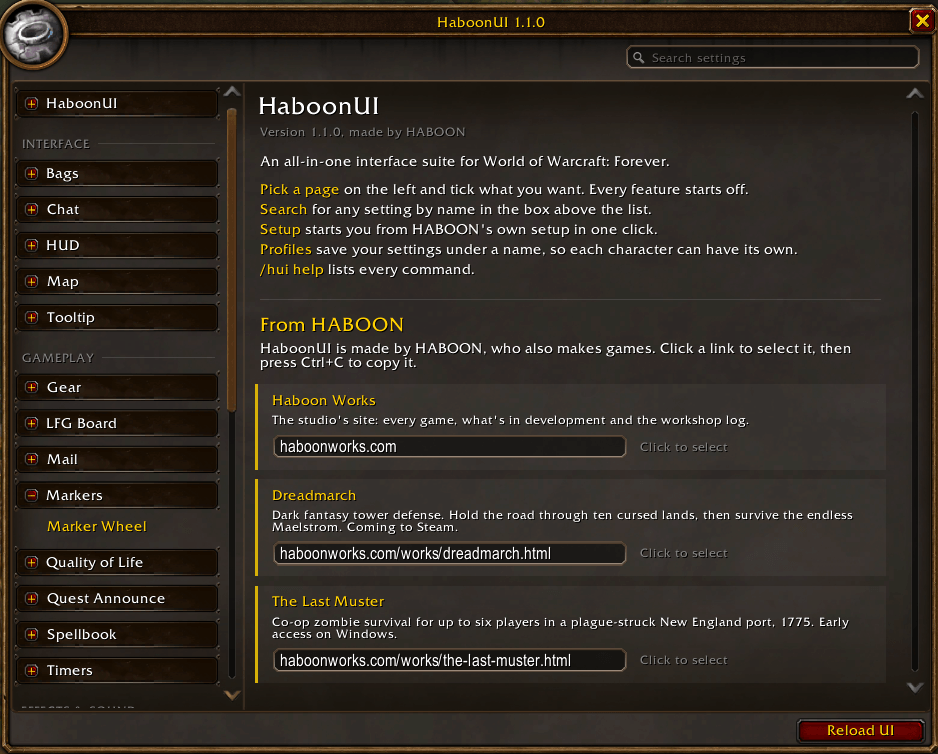
- Nothing changes until you ask. Every feature starts off. Turn on what you want in
/hui, and each choice is saved. The only things on from the start are each window's minimap button and the history recording (fights, battlegrounds, instance runs, trades…), so nothing is lost before you find the setting. - One settings window for everything.
/hui(or the HaboonUI button in the game menu) opens it, with a search box that finds any setting by name or description. Every page is also in the game's own Options window, under AddOns > HaboonUI. - Every window in one menu. Click HaboonUI in the minimap's addon menu (or right-click the HaboonUI button in the game menu) for the settings and every HaboonUI window: bags, meter, PvP stats, journal and the rest.
- Start from scratch or from a full setup. On first login HaboonUI offers to apply HABOON's own setup in one click, with an Edit Mode layout ready to import. Or skip it and build your own.
- Profiles. Save your settings under a name and give each character its own profile: it switches by itself when you log in. Share a profile with a friend as a line of text to copy and paste.
- Europe or USA spelling. HaboonUI writes colour, grey and centre. Pick USA on its General page for color, gray and center, or leave it on Automatic to go by your region.
- Take only what you need. HaboonUI comes as a core and 26 feature modules, with additional dungeon data loaded when needed. Turn off modules you don't use in the AddOns list at character select.
HaboonUI is for WoW Forever (client 1.60.1) only. It doesn't load in Retail, Classic Era or the other Classic versions. Its own settings and windows are in English.
What's inside
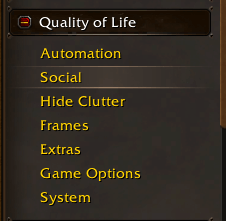
Quality of Life
Dozens of small automations, fixes and conveniences for everyday play.
- Automation: sell junk, auto repair, restock arrows, bullets, reagents, food and drink at vendors from a per-character list with class presets and gold limits, automate quests and gossip, faster auto loot, accept summons and resurrections, release your spirit in battlegrounds and the open world.
- Social: block duels, pet battle duels, stranger invites, friend requests and shared quests; accept invites from friends; invite from a whisper keyword.
- Hide clutter: error text, talking heads, boss banners, zone text, event toasts, alert pop-ups.
- Frames: a wider merchant window, bigger quest text.
- Extras: an enhanced dressing room, Train All button, screen borders.
- Game and system: remove raid restrictions, skip loot warnings, faster movie skip, easy item destroy, remove transforms, max camera zoom, weather density.
- Handy commands:
/hui rest,/hui id,/hui quest <id>,/hui ra,/hui reinv,/hui torch,/hui grid,/rland more (/hui helplists them).
Map
- Move and scale the world map, keep it visible while you move, coordinates for your cursor and you, and a Wowhead link for the quest you're looking at.
- Shows unexplored areas, plus dungeon and raid entrances, Forever's new dungeons too (Forever's map has none of its own).
- Dungeon maps: inside a dungeon or raid, the map shows Blizzard's map of it with every floor, and turns to the floor you walk onto (Forever's map has no instance maps). Click an entrance icon to see any instance's map from anywhere. Forever's new dungeons (Hall of Thanes, Ruins of Lordaeron, Excavation Site: Wetlands, City of Dalaran) get Santiago Reyes' painted maps, or maps made from the game's own minimap images.
- Zone map: move it, keep it centred on you, icon sizes, opacity.
- Minimap: square or see-through (or fading in combat), a dozen borders for the square map and a dozen rings for the round one (classic, Dragonflight, gold, soft edge…), addon buttons that show on hover or all gathered into one button that opens and closes them (pick which go in), a tracking button you can move, hide the clock, calendar, zone text and other parts or Shift-drag the ones you keep where you want them, rescale the cluster.
Chat
- Whisper windows, one per conversation, with a reply box and quick Invite / Friend / Ignore / Who buttons. Separate windows or tabbed.
- Group and channel windows for guild, officer, party, raid and chosen channels; can hide in combat.
- Conversation history saved between sessions, with a history browser (
/hui chat history). - Stranger whisper filter by level or keywords, with a list to review what was filtered.
- Class icons beside names in chat, before or after the name, in three looks.
- Chat frame tweaks: select and copy chat text, clickable web links, arrow keys in chat, longer chat history, messages kept after a /reload, no sticky chat, no chat fade, easy resizing, hidden chat buttons, font size.
Bags
- One bag window, sorted by category, as one big bag or as separate bags, in six looks to choose from. Search, item quality glows and special-bag colours.
- Keep an item in the group you want: drop it on a group's heading (sorted by category) and it stays there from then on.
- Markers on items: item level on gear, "BoE" on gear that binds when equipped, a coin on grey items, quest items marked, and a glow on new ones.
- Hide bags you don't want to see, the key ring or any bag: what's in them stays put.
- A Sell junk button at vendors. Stop the game opening your bags at vendors, the bank and the mailbox, and hide the game's clean-up buttons.
- Sorting your way: by group, quality, name, item level or vendor price; junk with items of its kind, at the end or at the start; reversed so free slots come first; ore and herbs into their bags or not; leave any bag out. Sort with a click or every time your bags open or close.
- Remembers every character's bags, bank, mail and gear. Browse your alts' items, see on item tooltips how many each character has, and search finds what your other characters carry too.
- A minimap button with your free bag space, every character's gold and mail that's about to run out.
- Open All, your way: takes the gold and items from every mail, or just the gold. Choose which kinds it opens (auction sales, purchases, expired auctions, outbid refunds, everything else) and keep a few bag slots free. When more mail is waiting on the server it waits for the next batch and carries on, then tells you what it collected. Cash-on-delivery and GM mail are always left for you.
- Checkboxes on mail: tick mails (Shift-click for a range, or every mail at once) and open or return them all.
- A return or delete button on each mail, Ctrl-click to return, a Forward button, and the gold and items waiting in your inbox at a glance.
- Address book: your characters, the people you've mailed, friends and guild beside the To box, with names completed as you type.
- Quick attach: one button per kind of trade good in your bags (cloth, herbs, ore…) attaches every stack of it. Alt-click any bag item to attach it, and send it straight away if you like.
- The gold you send becomes the subject, and trades and guild invites are declined while you're at the mailbox.
- Bigger text in the letters you read and write.
Flying Coins & XP
- Flying coins: the money you loot pops out of the body and flies into your bag, spinning and sparkling. The bag gulps it down and the amount counts up beside it.
- Flying XP: glowing orbs fly into your XP bar from where you earned them: where you clicked the mob you killed (or from your character, if you like), the quest you handed in, or the top of the screen for a place you discovered. The bar lights up as they land. Rested bonus XP flies as blue orbs.
- Five ways for them to travel: a wiggling string, a fountain, hopping, a magnet or a whirlwind (or a different one each time). Send them to your portrait, a corner of the screen or any spot you like instead. The XP orbs have four sounds made for them, each orb a note higher than the last, or Guild Wars 2's XP sound.
Toasts
- Toasts for what you get and what you reach: loot (with item level and how many you have, rolls you win, your group's epics), money that counts up, currencies, quests ready to turn in and turned in (with their XP and money), level ups, reputation, skill-ups, recipes, Legacy challenges, and new mounts, companions, toys, heirlooms and appearances.
- Level ups as an epic full-screen moment: the edges of the screen fade to black, your new level slams in over a golden sunburst with a sound made for it, and every gain counts up underneath: health, mana, each stat, talent points, and what the level unlocked. It never takes the mouse and steps aside in combat. Or keep a toast like the others.
- Five styles: Blizzard's toast art, a dark plate, see-through glass, flat pixel, or one slim line each. Put them at any corner or edge, or drag them anywhere. They stack, slide into place and merge repeats (loot x5, +250 reputation).
- Sounds made for them: nine sets with a sound for every kind: four dark and low (piano and sub, synth braams, war drums and horns, deep bells and whispers) and five bright (crystal bells, arcane chimes, royal brass, 8-bit arcade, warm kalimba), quiet for the frequent ones and big for the big moments. Use one set for everything, mix and match per kind, or keep the game's own toast sounds.
- Quality glows and bursts for the big moments, and they can wait until combat ends. Hover one for the item or quest, click it to open what it's about, right-click to dismiss it.
Markers
- A marker wheel: hold your hotkey over a mob, a player or a unit frame, flick toward Skull, Cross or any of the eight raid markers and let go. No menus, no target swapping out of combat.
- Ground markers too: over empty ground (or with a hotkey of their own) the wheel places ground markers. Pick one, let go, click where it goes.
- Right-click while the wheel is open to take markers off. The wheel's middle shows the marker the unit has, or make a quick tap put on your favourite marker.
- Four looks (glass, orbs, minimal, neon), any size, Skull-first or the game's order, and a tick as you move between markers.
Quest Progress
- Tells your group how your quests are going: each objective as it counts up (Kobold Vermin slain: 4/10), then the quest when it's done, with a link they can click. Quests you accept, turn in or fail too, if you like.
- Every step, every quarter, halfway or only when an objective is done. To your party (or raid), your guild or a friend by whisper; solo, just to you in chat or as big text on screen. A sound of your choice for progress, objectives and finished quests.
- Lines that come in a fight wait until it's over and go out as one, so a pull of five kobolds is one line, not five.
AFK Screen
- When you go AFK the interface fades away and the camera slowly circles your character in one of five shots, all looking down from above: a close-up, a wide panorama, a crane that rises and sinks, a high orbit, or a slow pull back. Or let it tour through them all; the mouse wheel flips through them.
- Your character stands on the right of the screen. It rises into view with a wave, cheers, laughs or dances now and then, and falls asleep after a while.
- Your name, title, guild, level and zone, an experience bar with rested XP, gold, time played, the clock and how long you've been away. Three looks: a dark band, cinematic letterbox bars, or clean text over a soft shadow.
- Whispers, guild and group chat that come in while you're away pop up on the screen. Point at the list to open it up: scroll back through every message, filter to whispers, guild or group chat, and click one to answer it.
- Everything on the screen has its own switch, down to the clock, the date and each stat.
- A key, a click or moving brings your interface back, and so do combat, a battleground ready to enter, invites, ready checks and summons.
Damage Meter
- Damage, healing, tanking, taunts, interrupts, dispels and deaths for every fight, with each player's spells and targets.
- Casts and taunts counted for you and your group, which Blizzard's meter doesn't do.
- Saved fights with boss kills and wipes, comparisons, death recaps, and reports to chat.
- CSV export of saved fights (per fight, player, spell or death) for spreadsheets, and import to bring fights to another computer.
- Seven window styles, Blizzard's own meter looks among them, with your choice of scale, bar colours, font and outline.
- Up to six windows that snap together when you drop one against another: joined windows move as one, and side by side they resize together.
PvP
- Saves every battleground you play, with the full scoreboard for both teams.
- A stats window with Overview, History, Players and Trends tabs, an end-of-match summary or popup, and CSV export and import (
/hui pvp).
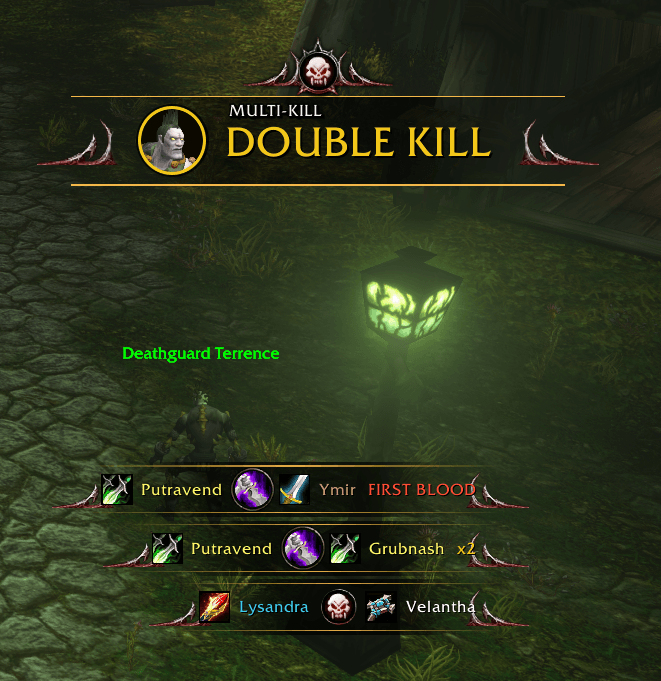
Kill Feed
- A PvP kill feed: every killing blow by you or your team (killer, weapon, victim) and your teammates' deaths.
- Ten styles, from just text to framed portraits: glowing trails, shooter-style boxes, Warcraft tooltips, flat pixel bars, big portrait cards, legendary gold filigree, arcane rune rings in ten elements, faction crests and the raid boss-kill banner. Put it at any corner or edge of the screen, or drag it anywhere.
- Streak banners for multi-kills (DOUBLE KILL up to MONSTER KILL), kill streaks (KILLING SPREE up to LEGENDARY) and first blood.
- An announcer that calls them out ("Double kill!", "Killing spree!", "Godlike!") in deep arena-style voices, over hit sounds that build up with each kill, in eight sets: impact, arcade, war drums, arcane, storm, blades, heroic brass and shadow.
Timers
Timer bars for everything with a countdown:
- Battleground queue pops (also as a countdown under the pop-up), battle start, base and tower captures (Arathi Basin, Alterac Valley), Arathi Basin win estimate, Warsong Gulch flag respawns, match clock, spirit healer waves.
- Ready checks, summons, instance removal, PvP flag, timed quests, breath and fatigue.
- Flight timers: every flight's time is recorded the first time you take it, then a bar counts down to landing and the flight map shows each destination's flight time.
- Shift-click a bar to tell your battleground or group about it.
Dungeon Journal
A dungeon journal in the look of Blizzard's Encounter Journal, which Forever doesn't have:
- Every dungeon and raid, Forever's new dungeons too (City of Dalaran, Ruins of Lordaeron, Hall of Thanes, Excavation Site: Wetlands), with level ranges coloured for your level.
- Each boss in order with its portrait: loot with drop chances, abilities with the game's descriptions, and a 3D model. Trash and rare drops too.
- Every quest of the dungeon: whether you can take it, have it or have done it, what it asks, who gives it and where (one click puts a waypoint there), who takes it back, where it sits in its chain, and its XP, gold, reputation and item rewards.
- The dungeon's map and a waypoint on its entrance.
- Tracks your boss kills per character and ticks off the bosses you've killed this run.
- Search bosses, loot and quests; item tooltips can say which boss drops them.
Tracker
- Instance caps per hour and per day across your characters, with a warning before you hit one.
- A log of every instance run: time, XP per hour, gold, loot and kills.
- Saved lockouts and a characters overview: level, rested XP, gold, /played, professions and more.
- Levelling stats on a panel that's yours to set up: XP per hour, time and kills to level, rested XP, gold per hour and more, each line on or off, with an XP bar and a title. Seven looks (the game's tooltip, its HUD and panel art, or flat, pixel and text-only ones), three layouts (two columns, tiles or one line), and a corner to drag it bigger or wider. It can fade in combat or show only on mouseover.
- A trade log, and personal records: your biggest hit and crit with every ability, with toasts when you beat one.
Gear
- Upgrade arrows on items in your bags, the bank, vendors, the auction house, loot, rolls and quest rewards, plus tooltip scores from stat weights you can tune per class and spec.
- Hit and crit weights worked out from your own character at your level.
- Quest rewards: arrows on the rewards, and the biggest upgrade picked for you when you hand the quest in.
- Check an item in the gear window: drag any item in (or Shift-click one) to see how much of an upgrade it is for each of your weight sets.
- Share a set of stat weights as a line of text, or import one, including the scale strings other gear addons make.
- An upgrade alert in chat with an [Equip] link.
- Gear scores for every player: on tooltips, the character sheet, beside Inspect, and for your whole group.
Tooltip
Tooltips your way:
- Ten styles (Twilight, Classic, Dark, Pixel, Glass, Flat, Rounded, Dialog, Gold or the game's own) with your own colours, a shine, scale and fonts. A live preview beside the settings window.
- Borders in a player's class colour, an NPC's reaction colour or an item's quality colour.
- Richer unit tooltips: names with titles in class colours, away/busy tags, a tidy level line with elite, rare and boss marks, guild ranks, talents ("Elemental (31/20/0)"), who they're targeting and who in your group is targeting them, without the PvP, faction and "Right click" lines.
- Health and power bars inside the tooltip with numbers, buff and debuff icons with time left, and raid mark, faction, combat and class icons.
- A 3D model of the player or NPC beside its tooltip: any side, size and camera angle, in a frame that matches the tooltip.
- Put tooltips at the mouse or beside the frame you point at (separately for units, objects, unit frames and the rest, and differently in combat), hide them at once instead of fading, or hide them in combat or instances.
- IDs (items, spells, auras, NPCs, quests…), item levels, the icon beside item and spell tooltips, who cast an aura, and chat links that show their tooltip on mouseover.
- Quest objects that stand out, as in retail: quest items on the ground sparkle (or get a glowing outline), so you can spot what to pick up. The herb or ore vein nearest you (within about 15 yards) glints too, brightest once you can gather it and grey when your skill is too low.
LFG Board
- Reads group posts from the channels you choose (LookingForGroup, World, Trade, General…) and lists them by dungeon, for your level and roles.
- Click a post to whisper the leader. Alerts for new groups, and posts kept out of your chat if you want.
Enemy Radar
- A window listing the enemy players near you. Click a name to target them. It pops up when an enemy shows up and hides again when nobody's been around for a while (5 to 30 seconds, your choice).
- Thirteen window styles to match your other windows: Blizzard's metal panel, the game's damage meter, tooltip, classic tooltip, dialog, gold, classic leather, Midnight, Messenger, pixel, glass, chat frame and plain. Then make any part your own: the background (rock, marble, parchment, dialog art or one colour) and its opacity, the border, the top, your own colours, rows as bars in class colours, the size, row height, font and text size. Made-up enemies show the look while you change it.
- Alerts when enemies show up, kill-on-sight and ignore lists, and a record of every enemy you've seen.
- PvP Record: every enemy player you kill and every one who kills you. Kills and deaths by class, your record against each player with every fight you've had, a full history, and records like your best kill streak, your nemesis and your most killed. Filter by time, character, and world PvP or battlegrounds.
HUD
Finishes Forever's Edit Mode:
- Cast bar width and height (not just its size), bag bar and micro menu options, action bar fading, gryphon art and size, hide keybind and macro text and the stance bar, always-on XP bar numbers, buff and debuff opacity, quest tracker fading or hiding, durability figure fading.
- Class-coloured name bars and health bars, an elite dragon around your portrait, and hide the portrait numbers, the rested sleep animation and the PvP icon.
- Health numbers where the game shows none: on the target of target frames and on nameplates, as a percent, current health or both.
- Portraits for your player, target and focus frames: a live 3D model, a class icon (modern or classic) or no portrait at all (just the bars), with a separate choice for NPCs. Keep it round in a ring, or make it square in one of fifteen square borders: action button, gold, bronze, copper, silver, faction, class colour and more. The 3D model breathes and looks around, casts and flinches at crits, and on your own frame does your emotes and talks when you chat.
- Living health and power bars on your, your pet's, target, focus, party and boss frames: water light, mist, a current or swirling liquid always moving inside them, with a glow that breathes where the fill ends. They also slide to their new value, health you lose stays as a red chunk that drains away, and healing lights up before the bar fills.
- Movers for frames Edit Mode can't move (error text, zone text, combo points, alerts, friend toasts, battleground scores).
- A durability status on the character frame, a raid frames button, and timers for the buffs you choose.
- Settings can follow your Edit Mode layout.
Nameplates
Your nameplates your way, built on the game's own so they keep working with everything the game hides from addons:
- Health bars: eight textures, width and height, a thin or thick border and a background colour, and the level box beside the bar hidden if you like (the bar takes its room).
- Colours by reaction, class, tapped mobs and your focus; threat colours for tanks (holding it, slipping, lost) and for damage and healing (close to pulling, pulled); and an execute range colour below the health you pick.
- Health numbers: percent, current, both, current / most or missing, on the left, middle or right, in your font.
- Cast bars: your texture and colours for casting, channelling, can't be interrupted and interrupted. Or hang them under the health bar at your height, with the icon on either side (as tall as both bars if you like), a border and the time left.
- Names: font, size, outline and place (above or inside the bar), in class or reaction colour, with the level in front in the colour of how hard the mob is.
- Raid markers at the size and place you want, and the elite and rare dragons Forever's nameplates leave out.
- Buffs and debuffs: icon size, space above the bar, square icons, countdown numbers and stack counts.
- Target highlight: a border, a glow and arrows on your target, a border on your focus, the plate under your mouse lit up, your target bigger and the others faded.
- Distance, size and stacking: how far away plates show, how big and see-through they are up close and far off, how tightly they stack and how fast they move, and plates for pets, totems and guardians. Enemy plates only in combat if you like.
Spellbook
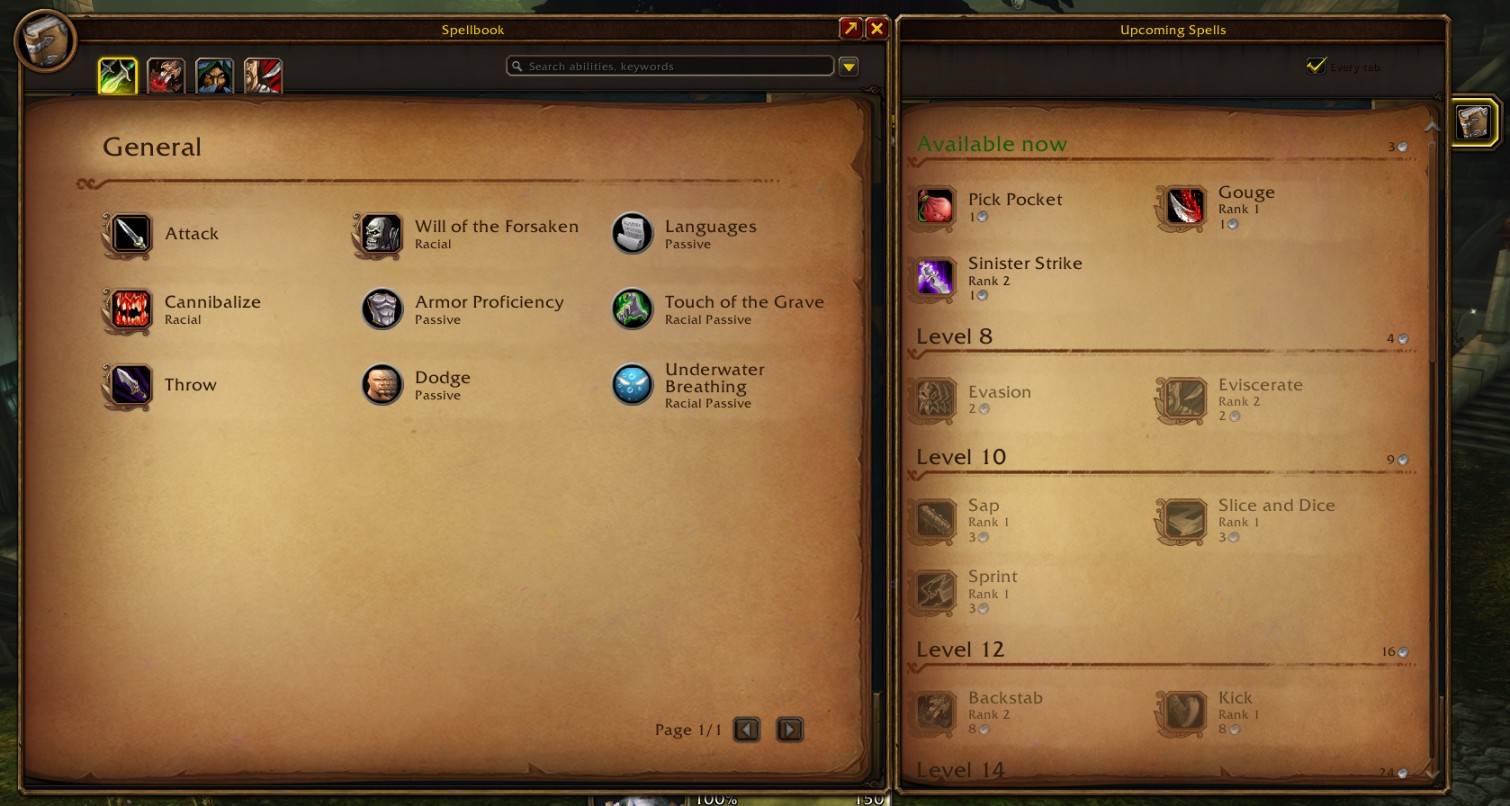
- An Upcoming Spells page beside your spellbook: every spell you haven't learned yet, by level, with the trainer's price.
Combat Text
- Your choice of font for the damage numbers over units and for the scrolling combat text (Bangers, Zero Cool, Big Noodle Titling, Roboto Bold or the game's own).
- Size, gravity and time on screen of the damage numbers.
- Animated scrolling combat text: the text over your character rises, falls, curves out in arcs, spills out in a waterfall, slides left or right, or pops in and out, at its size and speed, where you want it. Crits can move their own way.
- Animated damage numbers: your hits move the same seven ways, over the enemy's nameplate or at a spot you pick. Crits can move their own way; numbers coloured by school.
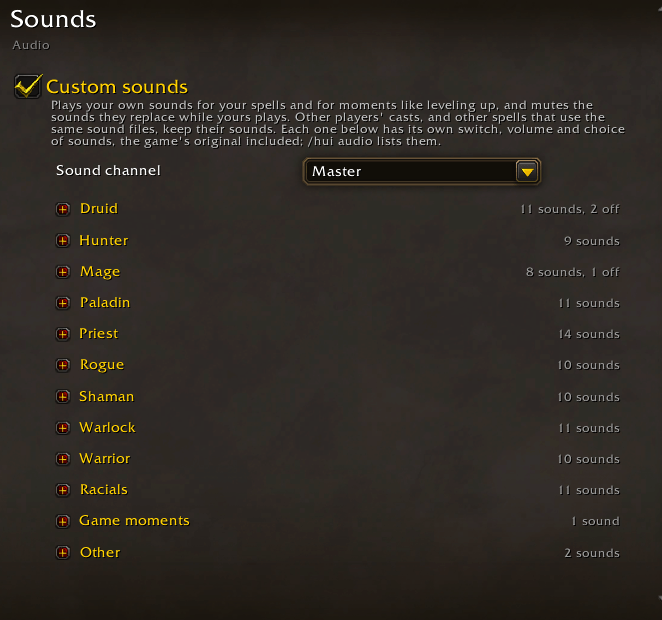
Audio
- Custom-made sounds for every class's spells up to level 10 (Fireball, Shadow Bolt, Smite, Wrath, Lightning Bolt, Auto Shot, Battle Shout, the summons, forms, aspects, stances, totems and more), every racial and levelling up, built from layered game effects.
- Several sounds to choose from for most of them, or Random for a different one each cast, and each with its own volume. Original game sound turns any of them back.
- The original sound is muted only around your own cast, so other players' spells sound as normal.
- Game sounds: mute any of the game's sounds you're tired of, silence the rested emotes, a volume slider on the character frame, and keep audio on your current output device.
- Menu sounds: opening and closing a module in the HaboonUI settings window plays Warcraft III's menu sounds. Turn off HaboonUI - Menu Sounds in the AddOns list for silent headings.
Getting started
- Install, then log in. HaboonUI offers its setup once: apply it, or close the window to start with everything off.
- Type
/hui(or click HaboonUI in the game menu (Escape) or in the minimap's addon menu, or go to Esc > Options > AddOns > HaboonUI) and tick what you want. - Window modules (bags, meter, PvP, tracker, gear, journal, LFG, Enemy Radar) have a minimap button.
/hui helplists every command.
Installing by hand
Unzip the download into Interface\AddOns in your WoW Forever folder (inside World of Warcraft), so that Interface\AddOns\MyUI, Interface\AddOns\MyUI_QoL and the others are there side by side. Then restart the game. The folders are called MyUI on disk; in game the addon is HaboonUI.
Updating from a version that included health and power orbs? Update HaboonUI first, then install the standalone Orbs addon if you want to keep them. Your last active orb looks, positions and options carry over. If installing manually, extracting this update will not remove the old MyUI_Orbs folder: replace that addon folder with the standalone download, or remove it if you no longer want Orbs. Keep your SavedVariables and restart the game after updating.
Made by HABOON
HaboonUI is made by HABOON at Haboon Works, an indie game studio. If you like HaboonUI, try the games:
- Dreadmarch: dark fantasy tower defense. Hold the road through ten cursed lands, then survive the endless Maelstrom. Wishlist it on Steam.
- The Last Muster: co-op zombie survival for up to six players in a plague-struck New England port, 1775. Early access on Windows.
Bugs and ideas
Forever is new, and so is HaboonUI. If something breaks, open Feedback in HaboonUI's settings. Its Errors box keeps recent HaboonUI errors, even when the game's error window is hidden; click an entry for the full details. Tick Show Lua errors to see the game's error window too. Write what happened and what you were doing: recent errors are included in your report unless you untick Include these errors in my report. Copy the link into your browser and the form at haboonworks.com/feedback opens with your report filled in, ready to send straight to HABOON. You can also post the details in the comments. Ideas are welcome the same way.
Credits
The Combat Text fonts keep their own licenses (see MyUI_CombatText/Fonts/LICENSES.txt). Spellbook trainer data and the Dungeon Journal's loot, drop chances and quests are compiled from Wowhead. The Kill Feed announcer voices were made with ElevenLabs text-to-speech. The maps of Forever's new dungeons are by Santiago Reyes, from his "Atlas de Azeroth: Forever" (asguevara433.wixsite.com/srmaps), used with his permission (see MyUI_Map/Maps/CREDITS.txt). The menu sounds are Warcraft III's, used with Blizzard's permission (see MyUI_MenuSounds/Sounds/CREDITS.txt).
HaboonUI is © 2026 HABOON, all rights reserved. It's free to use, but please don't re-upload it, share modified copies or reuse its parts elsewhere without asking (see LICENSE.txt).
HaboonUI is fan-made and isn't affiliated with or endorsed by Blizzard Entertainment.
HaboonUI Team