image_2026-10-08_101529912.png
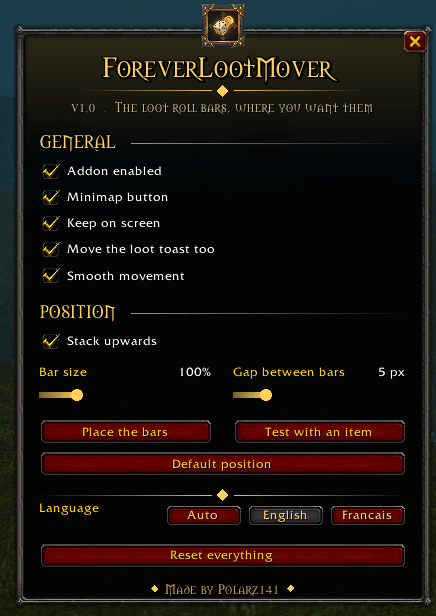
image_2026-10-08_101543427.png
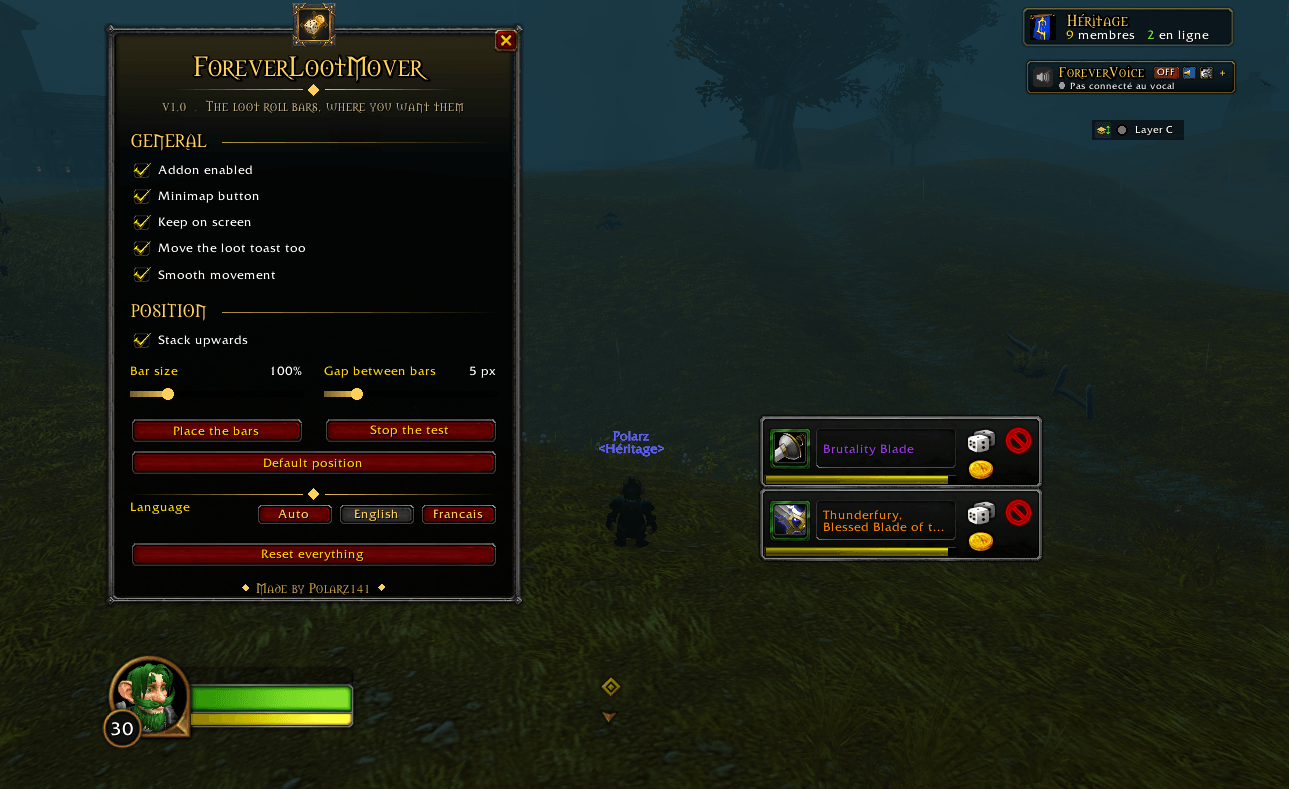
image_2026-10-08_101611129.png
Description
ForeverLootMover
Move the group loot roll bars wherever you want — on World of Warcraft: Forever.
The roll bars appear in the middle of your screen, right on top of the boss you are fighting and the raid frames you are watching. ForeverLootMover pins them where you want them, at the size you want, stacking in the direction you want — and keeps them there no matter how often the game puts them back.
It does not reskin anything. The bar keeps the exact look this client gives it: ForeverLootMover only decides where it lands.
No libraries, no dependencies.
Why a new addon
The older movers hook the game's loot functions by name — GroupLootContainer_Update, GroupLootFrame_OnShow, and friends. The moment a build renames or rewrites that code, those hooks are never called and the addon silently does nothing. That is exactly what happens on Forever.
ForeverLootMover never looks up a Blizzard function by name:
- the roll bars are found by frame name, then by walking the loot container, then by looking for any frame holding a
rollID; - their own
SetPointis hooked on the object itself, so the addon is told whenever the game moves them, whatever code did it; - a watchdog re-checks the layout five times a second while a roll is on screen, and only ever writes a position that is actually wrong — a layout that is already right costs nothing.
Features
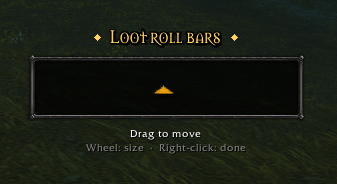
- Place the bars from anywhere. A stone frame in the usual World of Warcraft look shows the exact footprint the bar will take, with an arrow for the stacking direction. Drag it, wheel over it to resize, right-click when it is good. No need to wait for a dungeon to hand out loot.
- Test with a real item. One click borrows two of the game's own roll bars, fills them with a real item and shows them where they will appear, so the spot is judged on the real frame. They are inert — no roll is started, nothing can be clicked — and they are handed back after thirty seconds, on a second click, or the moment a real roll starts.
- Size from 50 % to 300 %, with the mouse wheel over the placement frame or with the slider.
- Stacking direction — new rolls pile up above or below the first bar — and the gap between two bars, from 0 to 30 px.
- No fourth square. The transmog / disenchant button this build draws next to need, greed and pass is taken off the bar. Optional.
- Smooth. A bar is placed in the very frame it is shown, so it never flashes at its default spot first, and it fades in. When a roll is over, the bars left slide into their new slot instead of snapping.
- Settings that stick — position, size and options survive a reload, a relog and a full restart of the game, even with the Forever beta bug that resets other addons (see below).
- English and French, picked in the options or followed from your client.
- Minimap button and addon compartment entry.
Options menu
Open it with a right-click on the minimap button, or with /flm options.
| Section | What you can change |
|---|---|
| General | Addon on / off, minimap button, keep the bars on screen, smooth movement, hide the transmog button |
| Position | Stacking direction, bar size, gap between bars, place the bars, test with an item, default position |
Controls
/flmshows the placement frame. Drag it where you want, wheel over it to resize, right-click it when you are done.- Left-click the minimap button to show the placement frame.
- Right-click the minimap button to open the options.
Slash commands
| Command | Description |
|---|---|
/flm or /lootmover |
Show / hide the placement frame |
/flm options |
Open the options menu |
/flm test |
Two real roll bars, filled with an item, for 30 seconds |
/flm scale 120 |
Size of the bars, in percent (50 to 300) |
/flm spacing 6 |
Gap between two stacked bars, in pixels |
/flm up / /flm down |
Stacking direction |
/flm minimap |
Show or hide the minimap button |
/flm reset |
Position back to the middle of the screen |
/flm resetall |
Every setting back to default |
/flm on / /flm off |
Turn the addon on or off |
/flm scan |
List the loot roll frames this build has |
/flm debug |
The scan, plus the state of the settings backup |
Installation
- Download the latest file.
- Extract the
ForeverLootMoverfolder into your WoW ForeverInterface\AddOnsdirectory:World of Warcraft\<Forever folder>\Interface\AddOns\ForeverLootMover - Launch the game. The folder must be named
ForeverLootMover.
About the Forever beta saving bug
During the WoW Forever beta, the client writes addon settings at logout but never reads them back after a relog or a restart, so every addon starts from defaults. ForeverLootMover keeps two extra copies of its settings:
- Addon CVars — they stay in memory while the game runs, which covers a relog. The client never writes them to disk, so they are gone once the game is closed.
- One account macro named
ForeverLootMover— macros are stored by the server and are always there after a restart. It holds a single line of settings and does nothing if you click it. If you delete it, the addon puts it back a few seconds later.
At login, the most recent copy wins. When Blizzard fixes the bug, the normal saved variables take over again — nothing to change. The macro uses one of the 120 account macro slots; if they are all taken, a chat message tells you.
Turning it off
With the addon off, the game keeps the bars where they currently are until the next /reload, which puts them back to their default spot. Nothing is permanently changed.
Compatibility
- World of Warcraft: Forever — 1.60.x, Interface
16001 - Works alongside any other addon that does not move the loot bars itself. If one does, the two will fight over the position — turn one of them off.
Support
ForeverLootMover is free, and it stays free and complete. If it got the roll bars out of your way and you feel like saying thanks, you can leave a tip on TipeeeStream. Entirely optional.
Made by Polarz141.
ForeverLootMover Team