promotional banner

Picture Sliders

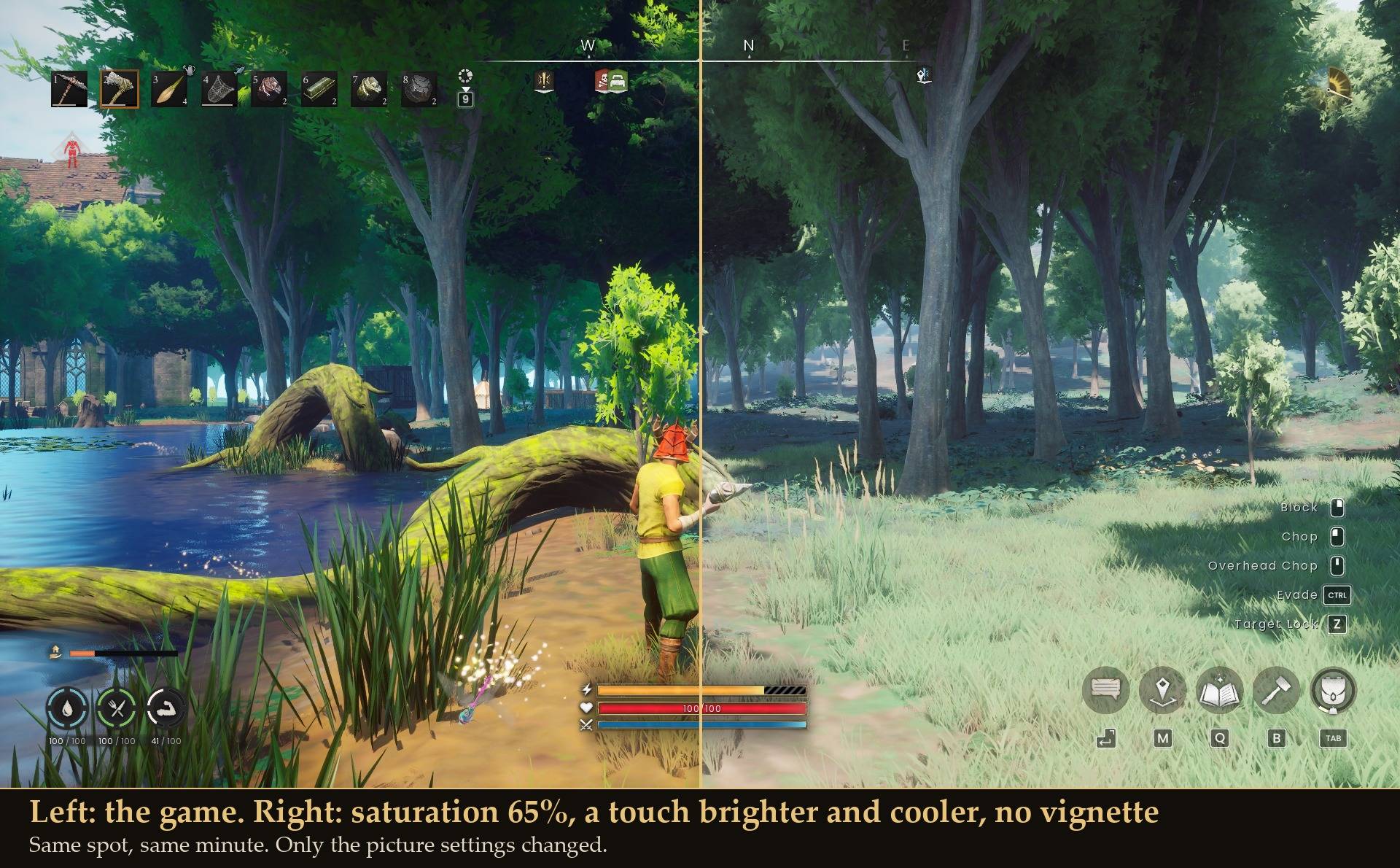
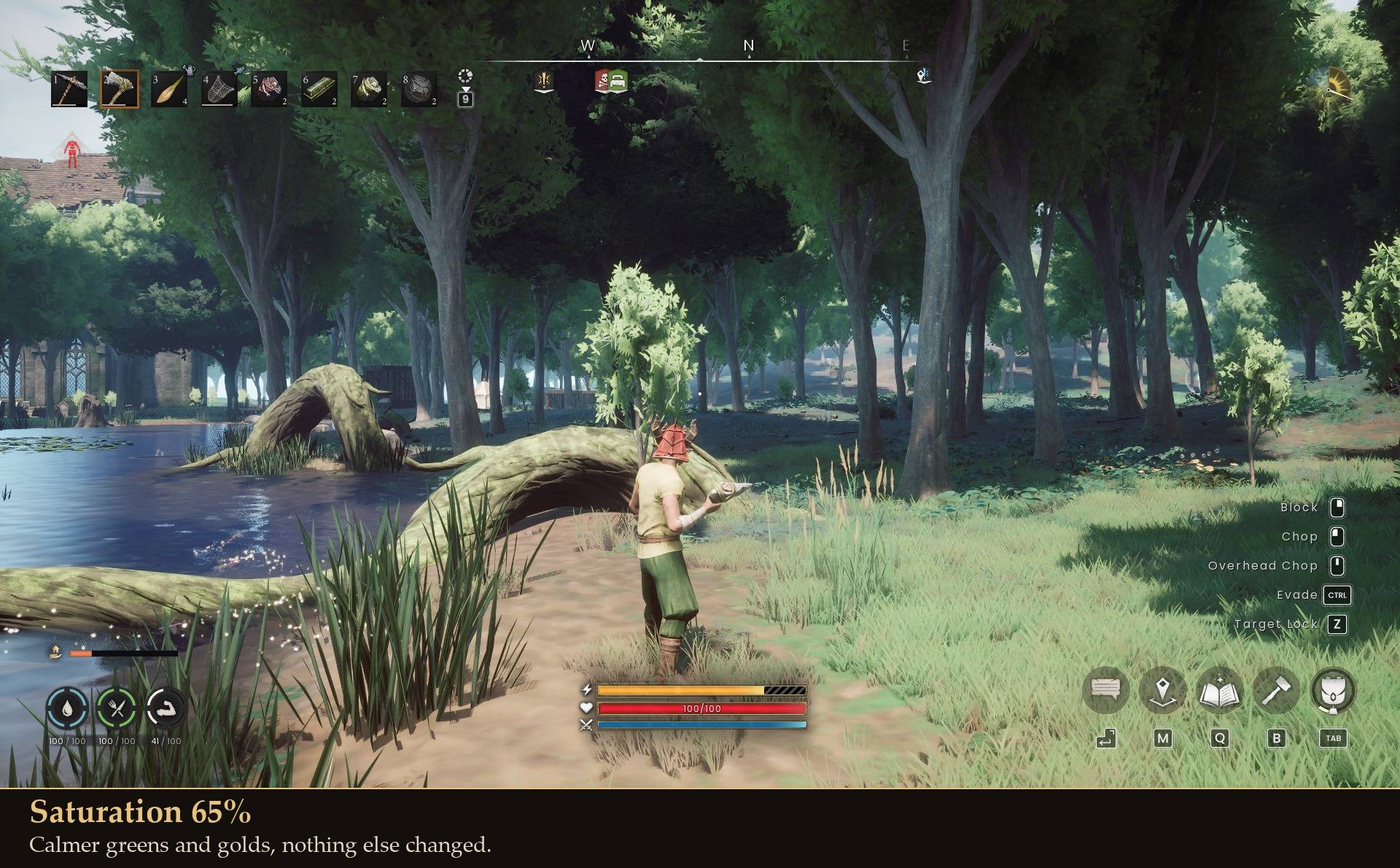
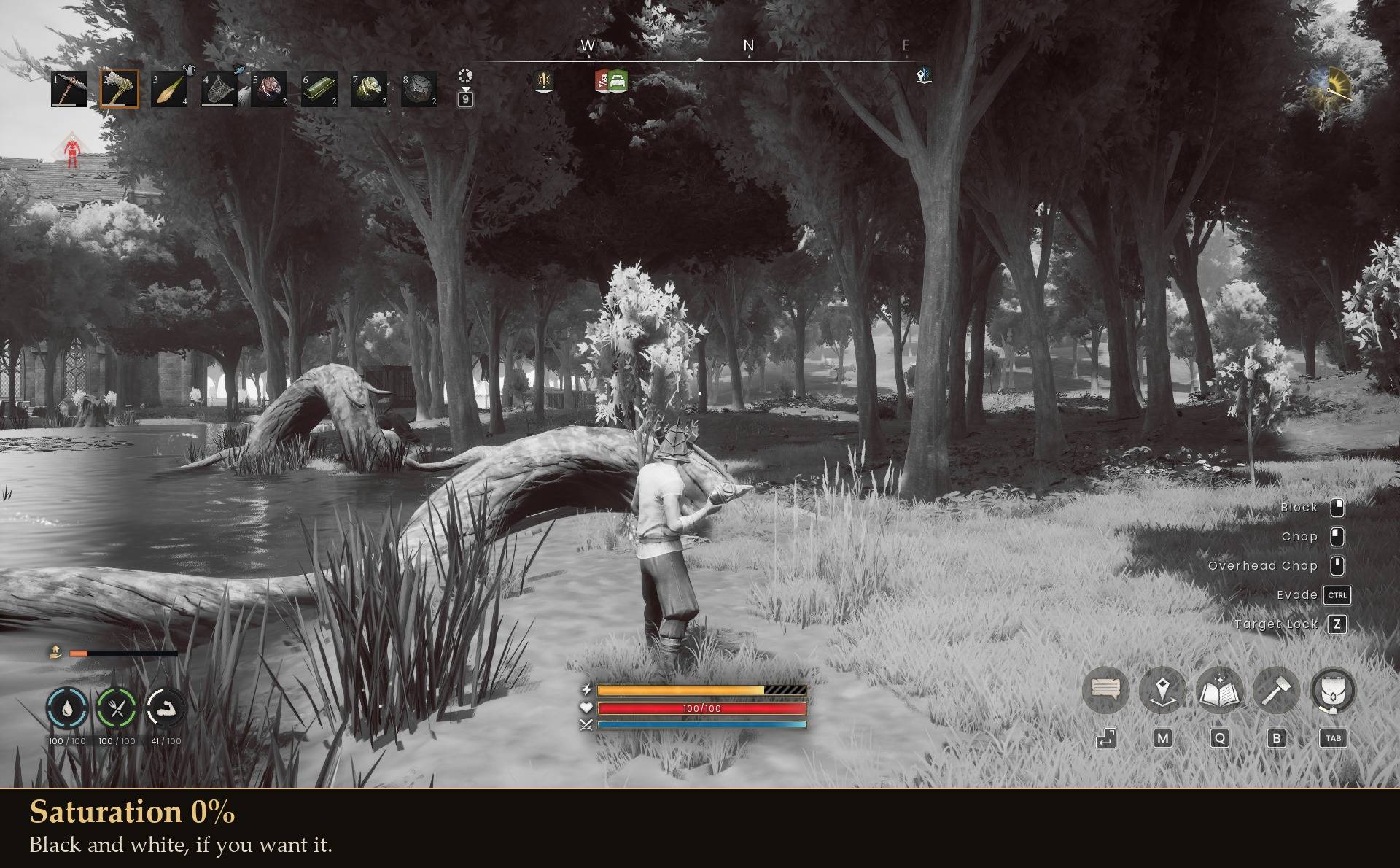
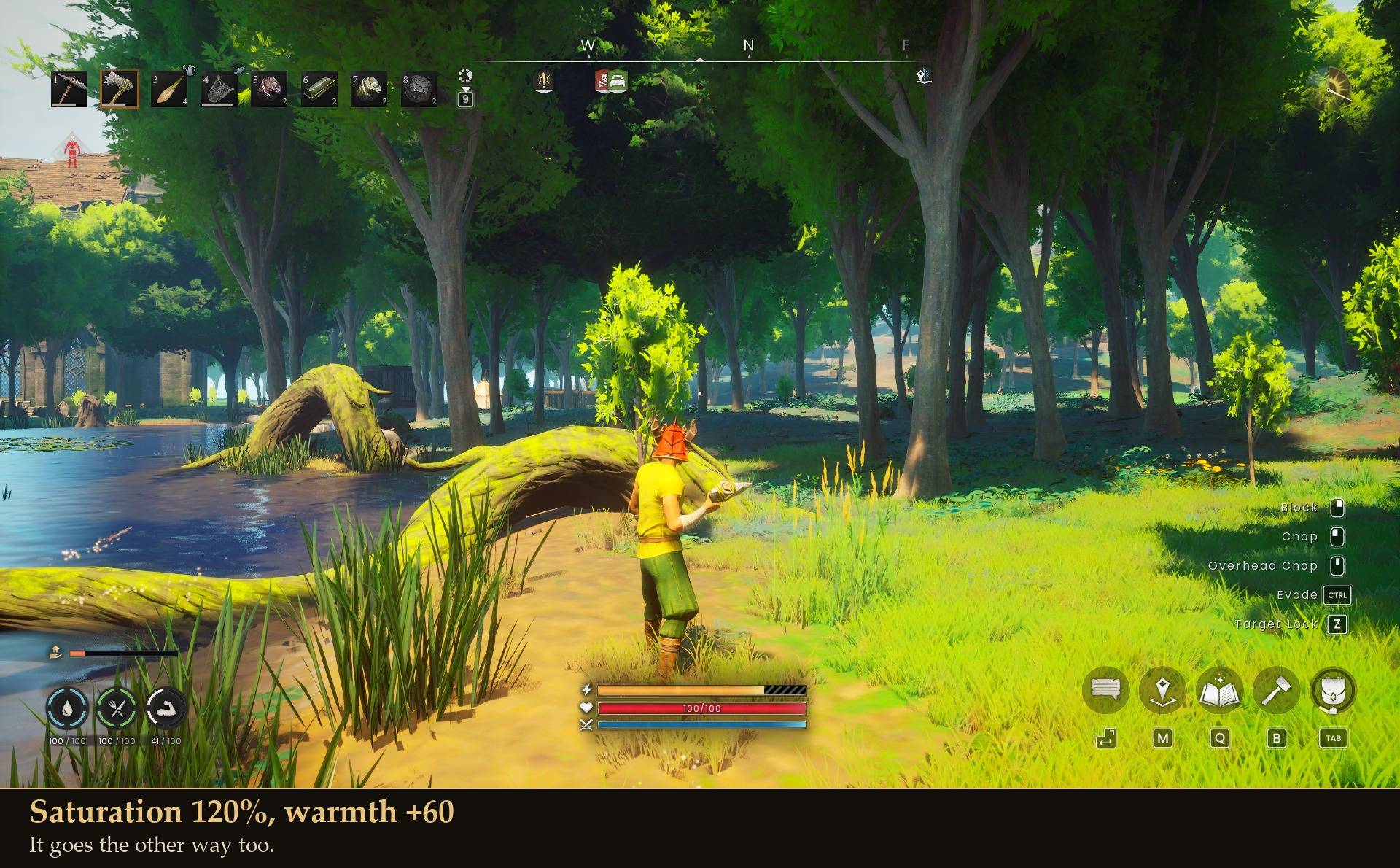
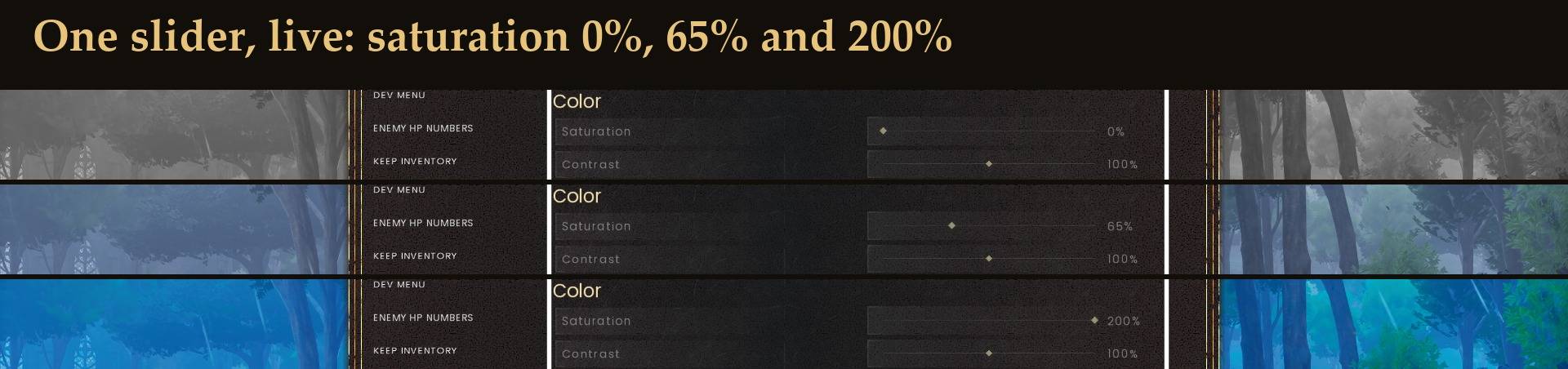
Saturation, contrast, brightness and warmth sliders, plus switches to remove vignette, film grain, color fringing and motion blur. Visual only.
1-before-after.jpg

1-before-after.jpg

2-saturation-65.jpg

2-saturation-65.jpg

3-black-and-white.jpg

3-black-and-white.jpg

4-warm.jpg

4-warm.jpg

1a-slider-showcase.jpg

1a-slider-showcase.jpg

Description

Picture Sliders

A lot of people find Dragonwilds too saturated, and the game gives you bloom and depth of field and nothing else to do about it. This adds the sliders it is missing.

What you get

  • Saturation, from black and white to extra vivid
  • Contrast
  • Brightness, in exposure steps
  • Warmth, cooler or warmer
  • Switches to remove vignette, film grain, color fringing (chromatic aberration) and motion blur
  • Everything applies live from Mod Menu, so you can dial it in while looking at the world
  • Two ways back to normal: switch off Use my picture settings to compare against the game's own look without losing your settings, or press RESET TO DEFAULTS in Mod Menu to put every slider back

How it works
It places one invisible picture filter that covers the whole world and overrides only the settings you actually change. Anything left at its default keeps the game's own look. Because it is one filter for the whole world, it also covers the target-lock camera and cutscenes, not just the normal view.

It is visual only. Nothing is saved to your world or character, and removing the mod gives you the game's picture back.

Install

  1. Install UE4SS for RSDragonwilds (free, from the UE4SS for RSDragonwilds page on Nexus Mods)
  2. Drop the PictureSliders folder into RSDragonwilds/Binaries/Win64/ue4ss/Mods/
  3. Load into a world and open Esc > MODS > Picture Sliders, or edit config.txt

On Game Pass: use the BE version of UE4SS with the SCO signature, the normal build does not load there. Game Pass also installs the game under Binaries/WinGDK/ instead of Binaries/Win64/, so the PictureSliders folder goes in RSDragonwilds/Binaries/WinGDK/ue4ss/Mods/. If you install with a mod manager, check that is where it ended up.

Config


Enabled = true
Saturation = 100     # percent, 0-200
Contrast = 100       # percent, 50-150
Brightness = 0.0     # exposure steps, -3 to 3
Warmth = 0           # -100 cooler to 100 warmer
NoVignette = false
NoFilmGrain = false
NoChromatic = false
NoMotionBlur = false

Every value above is the game's own look.

Tested
Measured from screenshots of the same spot, not judged by eye:

  • Saturation at 40% took the average color intensity of the frame from 136 to 42, and the target-lock camera read the same
  • Brightness +1.5 lifted average brightness from 97 to 146
  • Warmth +80 shifted the frame warmer and -80 cooler
  • Removing the vignette brightened the screen edges and nothing else
  • Switching the mod off returned the exact original picture
  • Dragging the Saturation slider in Mod Menu changed the picture as it moved and saved to config.txt

The film grain, color fringing and motion blur switches are confirmed applied, but I did not measure them on screen.

The Picture Sliders Team

profile avatar
  • 14
    Projects
  • 754
    Downloads

More from maxxfilthView all