Find it in any chest. Take it out, or put it back.
Press Alt+F, type an item name and see every chest that holds it, how many, how far away and which way to walk. Then take what you need into your backpack, or store your backpack into the chests that already hold each item.
COMPATIBILITY
✔ Single player · ✔ Co-op guest
✔ Dedicated server · ✔ Controller
Install on your PC only; the server does not need it.
New in 2.0: it moves items now
Up to 1.1 this mod only looked. 2.0 can move items: TAKE pulls from your chests into your backpack, and STORE ALL puts your backpack into your chests. That is the big change, so read the next two sections before you click anything. If you liked the look-only mod, switch off Allow moving items in Mod Menu and it goes back to only looking: no buttons, nothing moved.
What you get
- A real search box: it opens with the cursor already in it, and the list filters as you type
- Several words work: "copper bar" only shows items with both words in the name. Names that start with what you typed come first, then the rest alphabetically
- Alt+F anywhere opens it. No pause menu needed (the pause menu entry is still there)
- Item list on the left with the item's own icon, how many chests hold it and the total
- Click an item and the right side shows each chest with the count in it, the distance, a compass direction and a small bar so you can see where most of it sits. Nearest chest first
- TAKE 1, TAKE 10, STACK and ALL on the selected item pull it out of your nearest chests into your backpack
- STORE ALL beside CLOSE puts each stack in your backpack into a chest that already holds that item
- Numbered chests: chests of the same kind are numbered, because the game calls every one of them "Oak Chest"
- Your whole base, not just the room you are standing in
- Esc, CLOSE or the hotkey closes it and gives you your character back
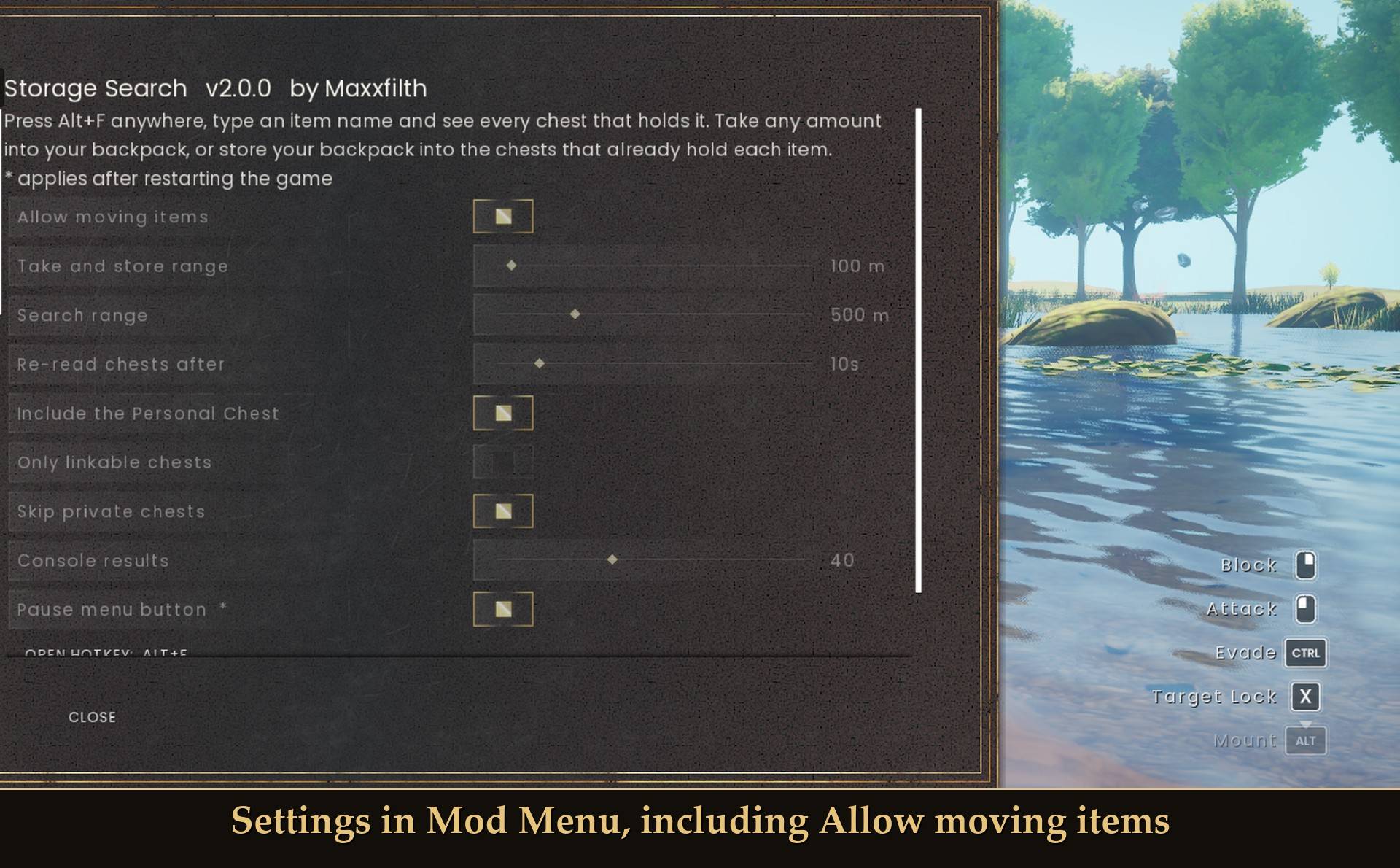
- Settings in Mod Menu, if you use it
- A console search too, if you prefer typing there:
ss copper
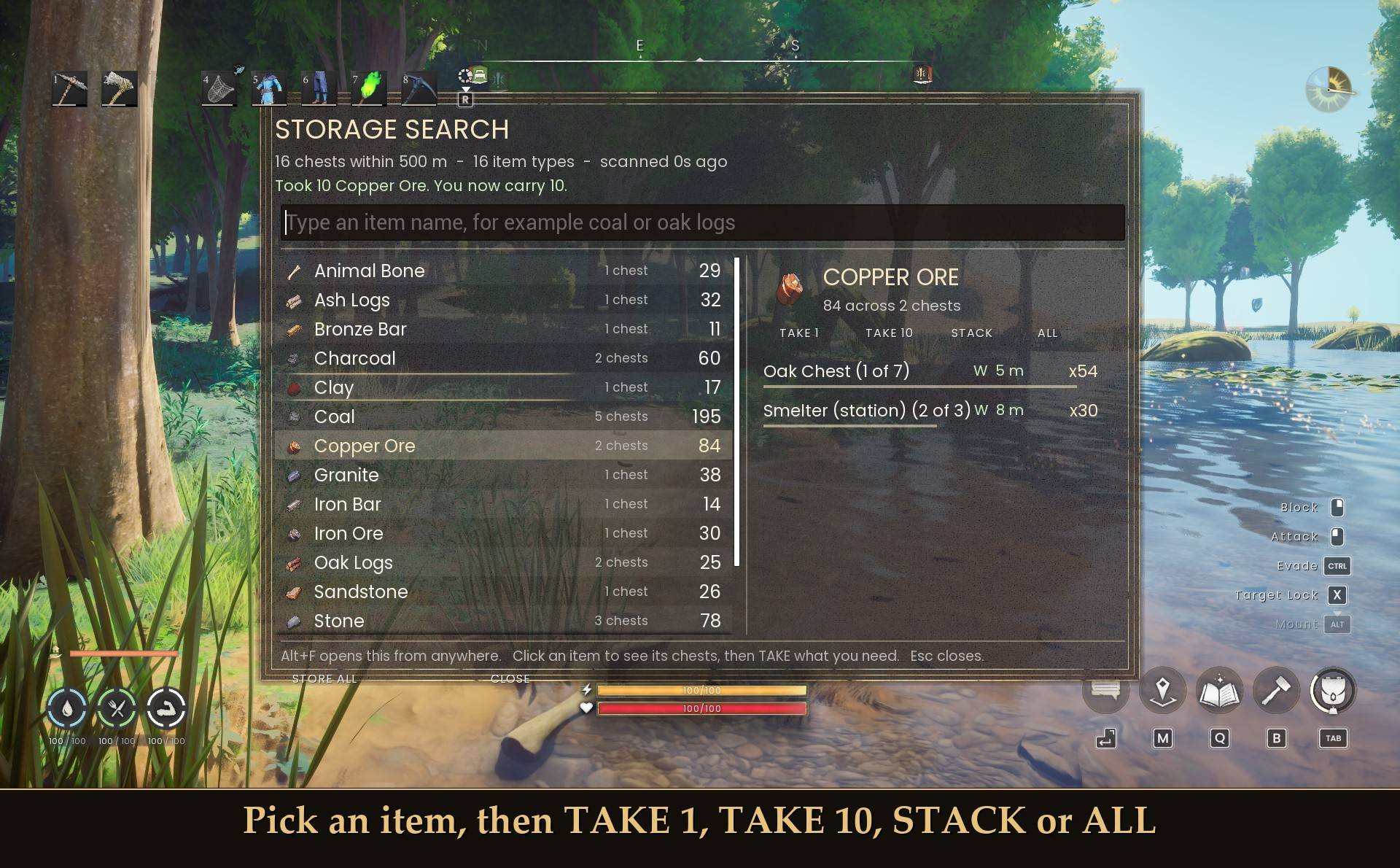
Take what you need
Pick an item and four buttons show under its name:
- TAKE 1 and TAKE 10: that many
- STACK: one full stack of that item
- ALL: every one the chests in range hold
Items come out of the nearest chest first, then the next nearest, and go into your main backpack (the 24 regular slots). They never land in your hotbar.
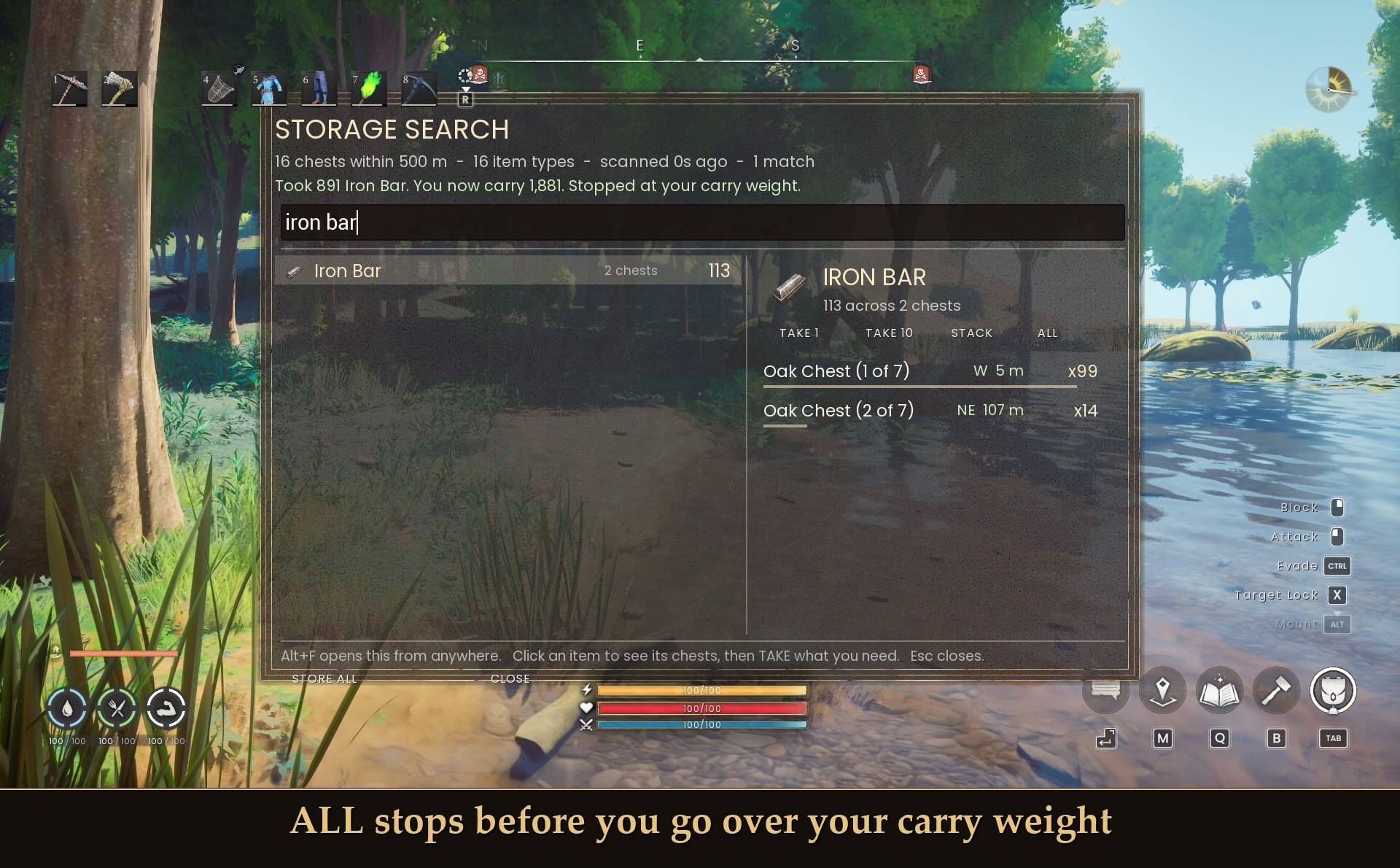
It stops on its own in two cases. When your backpack is full, it says so. And it stops before you go over your carry weight, so you never end up over-encumbered by accident. In my test, ALL on a pile of iron bars took 1,901 of them and stopped at 399.9 of my 400 carry weight. After that, TAKE 1 just says "Too heavy: that would put you over your carry weight." The green line under the title always tells you how many you took and why it stopped.
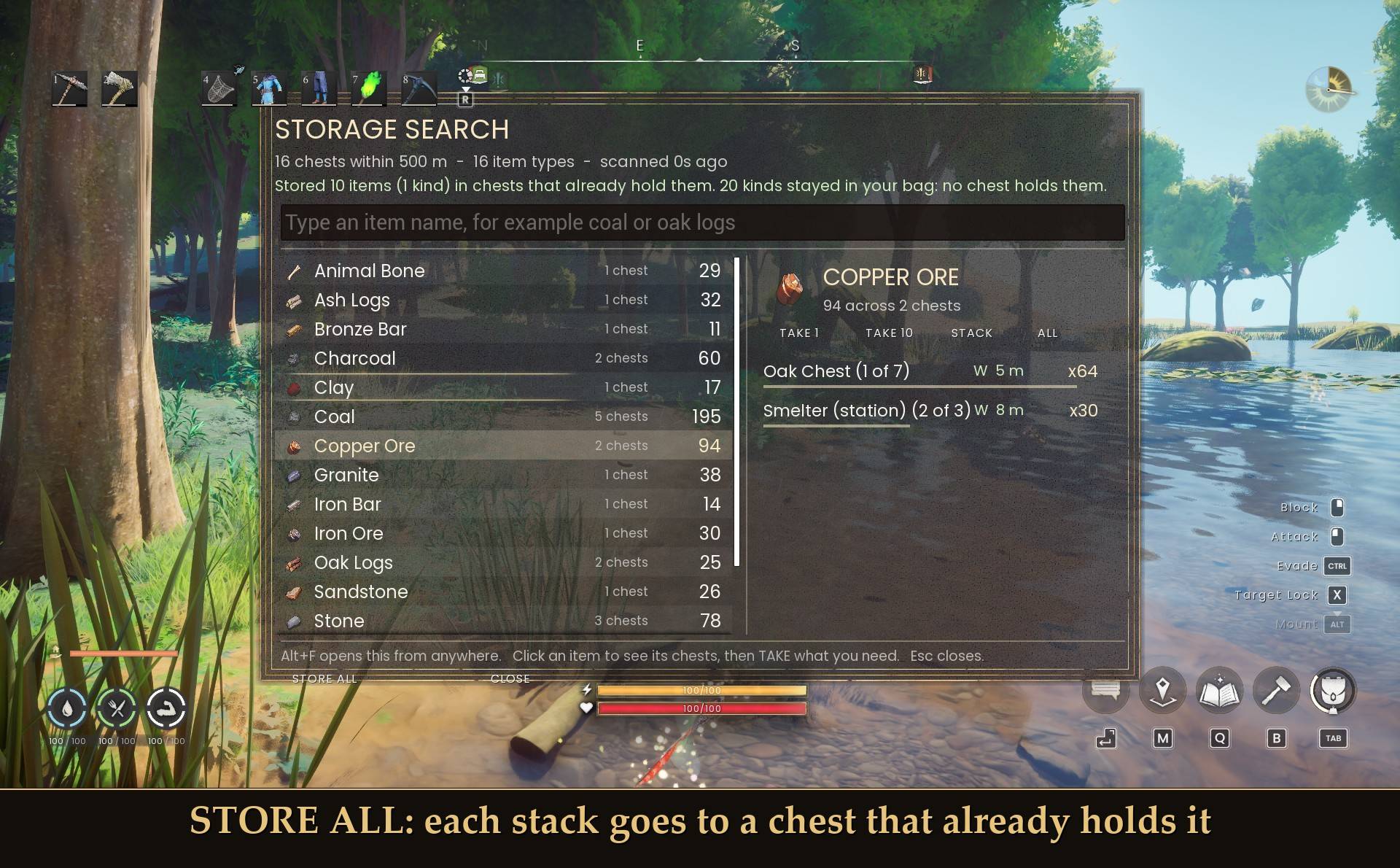
Store all
STORE ALL goes through your main backpack one stack at a time. Each stack goes into a chest that already holds that item, nearest first. Anything no chest holds stays in your bag, so your chests never fill up with things you did not put there. The green line tells you how many items went, and how many kinds stayed with you.
Your hotbar and your rune pouch are never touched, by STORE ALL or by TAKE. I tested both: tin ore in a hotbar slot and Law runes in the pouch stayed put while a nearby chest held the same items.
How the moving is kept safe
- The game's own transfer: items move one stack at a time with the game's own item transfer, and every move is counted on both sides. If anything ever left one place without arriving in the other, the mod writes a warning to the UE4SS log. In my tests the totals always matched and nothing was ever dropped on the ground.
- Only nearby chests: TAKE and STORE ALL only use chests within 100 m of you by default. Change it with Take and store range in Mod Menu. Far chests still show in the search, so you can see what is there and walk over.
- Never crafting stations: a smelter has its own inventory, so it shows up in the search, now labeled "Smelter (station)" (1.1 called it "Chest 16"). TAKE never takes from it and STORE ALL never feeds it.
- Worlds you join: since 2.2 the buttons move items there too, see Dedicated servers and joined worlds below.
- Prefer look-only? Switch off Allow moving items and the TAKE and STORE ALL buttons disappear.
With a controller (new in 2.1)
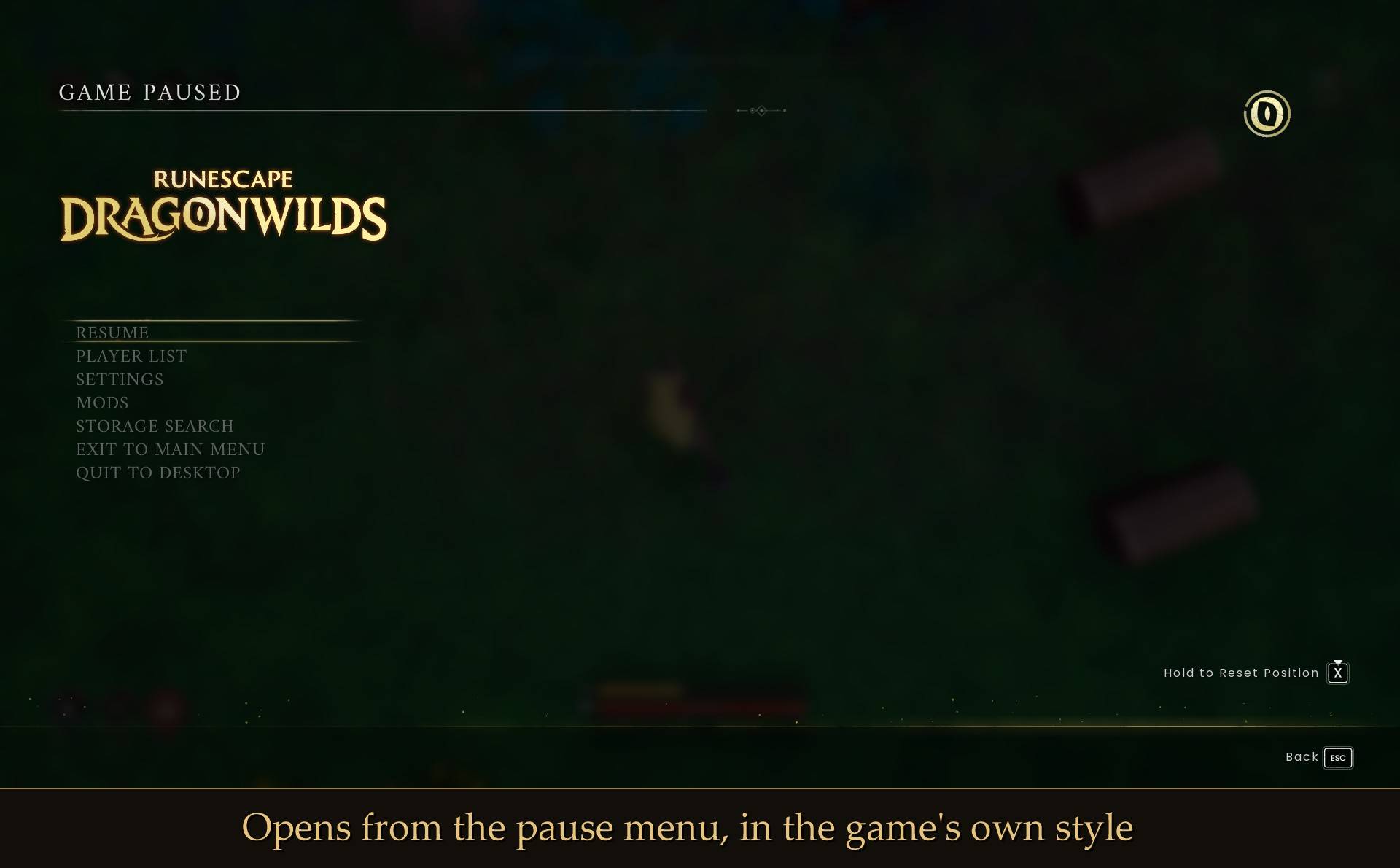
Open the pause menu, pick STORAGE SEARCH and press A. The panel opens inside the pause menu, next to the list. Press right to go into the item list, up and down to move through it, and A to pick an item; its chests show on the right. TAKE 1, TAKE 10, STACK, ALL and STORE ALL work with A. There is no typing on a controller, so the list is shown a page at a time (PREV PAGE and NEXT PAGE). CLOSE takes you back to the pause menu; B closes the pause menu with it. If Mod Menu 1.0.14 or newer is installed, the two panels never open on top of each other.
Which chest, and where
The game gives every chest the same name. Ten oak chests are ten things called "Oak Chest", so a list of names alone would tell you nothing. Each chest here comes with a compass bearing and a distance taken from where you are standing right now, and repeats are numbered "Oak Chest (1 of 3)", nearest first. The number stays the same whichever item you click. Open it, read the line, walk that way, or take it from right where you are if it is close enough.
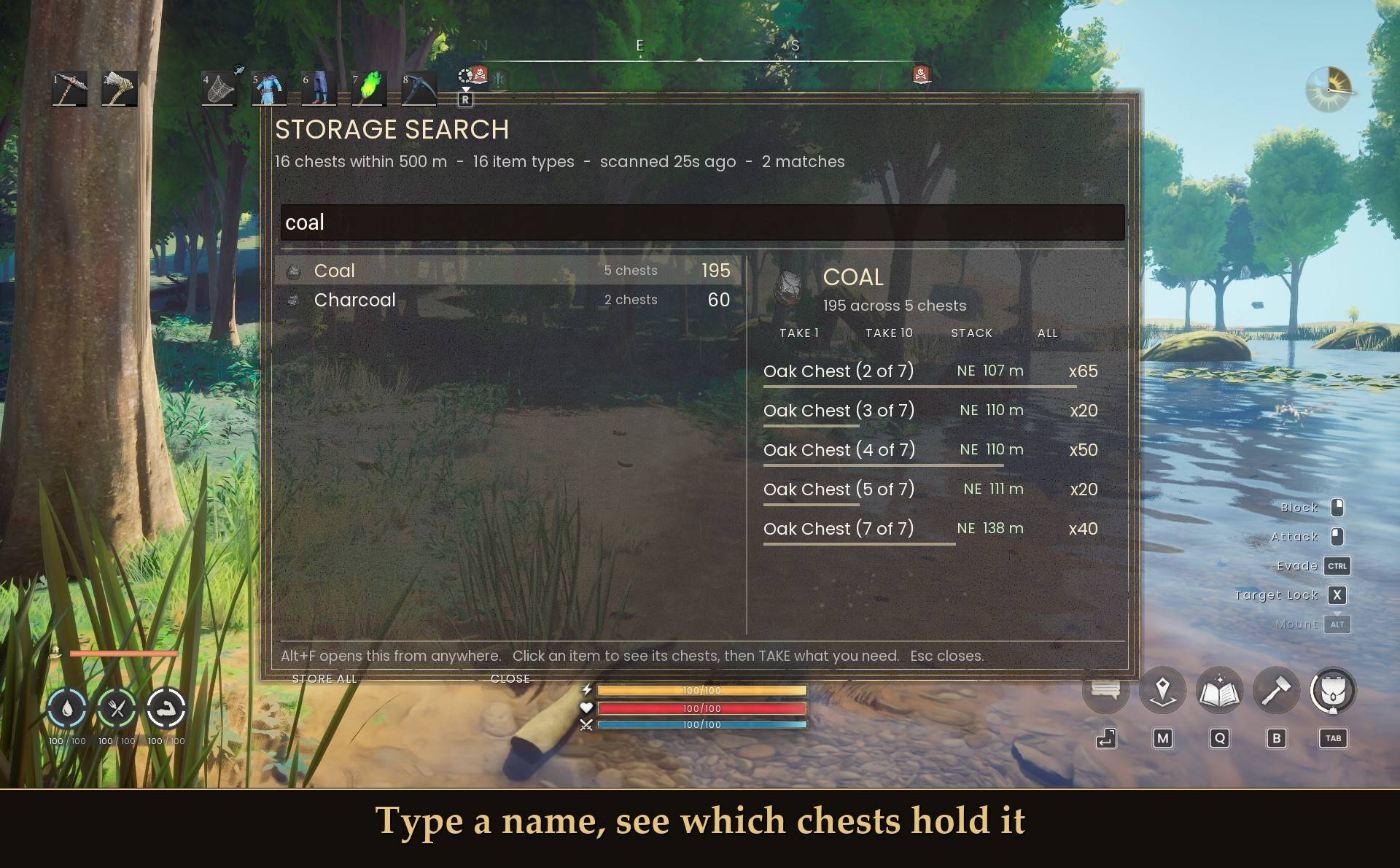
It searches the whole base, not a small radius
Chests stay loaded no matter how far away they are, so there is no technical reason to only look at what is nearby. The default search reach is 500 meters, which covers a large settlement. Set it to 0 and it searches every chest you own, anywhere. Taking and storing has its own, shorter range (100 m by default), set separately.
Settings
All live in Mod Menu (Esc > MODS > Storage Search), or in config.txt in the mod folder:
ShowInPauseMenu = true
OpenKey = ALT+F
MaxDistanceMeters = 500
RescanSeconds = 10
IncludePersonalChest = true
OnlyLinkableChests = false
SkipOthersPrivateChests = true
MaxResults = 40
ConsoleSearch = true
AllowMoving = true
MoveRangeMeters = 100
MoveWhenJoined = true
AllowMoving (Allow moving items): default on. Shows TAKE and STORE ALL. Off = the old look-only Storage Search: it never moves an itemMoveWhenJoined (Move items in worlds you join): default on. TAKE and STORE ALL on dedicated servers and in worlds you join. Off = search only thereMoveRangeMeters (Take and store range): 0 to 2000 in steps of 10, default 100. TAKE and STORE ALL only use chests this close to you. 0 means any chest the search can seeOpenKey (Open hotkey): ALT+F by default. Choices are ALT+F, ALT+G, ALT+K, F, G or none (none = pause menu only). Restart the game after changing it. Ctrl is not offered because Ctrl is the game's Evade roll. A plain F or G also opens it, but then it only opens: use Esc or CLOSE to shut it, since the same key would otherwise fire while you type it into the search boxMaxDistanceMeters (Search range): 0 to 2000 in steps of 50, default 500. 0 means no limitRescanSeconds (Re-read chests after): 2 to 60, default 10. Nothing is scanned while you play, only when you open the panelIncludePersonalChest (Include the Personal Chest): default on. A Personal Chest you have built is searched like any other. The personal storage you carry with you is never includedOnlyLinkableChests (Only linkable chests): default off. Limits the search to chests with Linkable tickedSkipOthersPrivateChests (Skip private chests): default on. Co-op: skips chests another player marked privateMaxResults (shown as "Console results" in Mod Menu): 5 to 100 in steps of 5, default 40. The most rows in the item list and the most lines from the console search. If more items match, the top of the panel tells you and typing narrows itShowInPauseMenu (Pause menu button): default on. Adds STORAGE SEARCH to the Esc menu. Restart after changingConsoleSearch (Console search): default on. Registers the ss command on the UE4SS console (F10). Restart after changing
Everything except OpenKey, ShowInPauseMenu and ConsoleSearch applies as soon as you change it in Mod Menu.
Dedicated servers and joined worlds
- Only you need it. New in 2.2: TAKE and STORE ALL work when you join a dedicated server with just your own copy installed. The server does not need the mod. Searching already worked there.
- On by default. The setting is "Move items in worlds you join" in Mod Menu (
MoveWhenJoined in config.txt). Off keeps joined worlds search-only.
- Same checks as solo. Carry weight, a full backpack and the hotbar are respected the same way.
- STORE ALL is slower there. Each backpack stack is its own request to the server, about half a second to a second per stack. A backpack with 45 stacks took about 24 seconds in my test. Nothing is lost if you close the window while it works, it finishes on its own.
- Tested on the Windows dedicated server: TAKE 10 took 0.26 seconds, with the same counts on the server and on my side.
- Joining a friend's world that they host from inside the game goes the same way, but I only have one account, so I have not tried that one with a second player.
Install
- Install UE4SS for RSDragonwilds (free, from the UE4SS for RSDragonwilds page on Nexus Mods)
- Drop the StorageSearch folder into
RSDragonwilds/Binaries/Win64/ue4ss/Mods/
- Optional: Mod Menu, to change settings in game
- Load into a world and press Alt+F, or press Esc and pick STORAGE SEARCH
Updating from 1.x: just replace the folder. Your old config.txt works, and the two new settings start at their defaults (moving on, 100 m).
On Game Pass: use the BE version of UE4SS with the SCO signature, the normal build does not load there. Game Pass also installs the game under Binaries/WinGDK/ instead of Binaries/Win64/, so the StorageSearch folder goes in RSDragonwilds/Binaries/WinGDK/ue4ss/Mods/. If you install with Vortex, check that is where it ended up.
To remove it, just delete the folder. The mod adds no items of its own, so nothing is left behind. Anything you moved stays where you moved it.
How it compares
- Master Chests adds a search bar inside a chest you already have open. Useful, and a different job: you still have to walk to each chest.
- VicinityProcessing shows nearby chest contents at a processing station and can move items for you there.
- This one answers which of my chests, out of all of them, has the thing, and where it is. Then it lets you take it from wherever you are standing, or put your backpack away into the chests that already hold each item.
Good to know
- This version moves items. If you only want to look, switch off Allow moving items.
- The mod never writes your save file itself. Moves go through the game's own transfer.
- The scan only runs when you open the panel or search. Nothing runs in the background while you play.
- Chest names come from the game and are the piece type ("Oak Chest", "Iron Chest"). The game does not expose the name you give a chest, so the mod cannot show it.
- Racks with no inventory, like the pan rack, are skipped. World loot chests and buried chests are not yours, so they are not listed.
- To check it loaded, look for "[StorageSearch] loaded" in ue4ss/UE4SS.log. It also logs "open with ALT+F" when the hotkey is bound. If a move ever comes up short, the log gets a Storage Search line with "WARNING" in it: please send me that log.
Tested on RuneScape: Dragonwilds 1.0 with UE4SS 3.0.1 (the latest build from its Nexus page), solo on Steam: TAKE 1, TAKE 10, STACK (exactly one stack) and ALL, a full backpack, chests out of range, ALL stopping at carry weight, STORE ALL at the base and far from it, the hotbar and rune pouch left alone, a smelter skipped by both TAKE and STORE ALL, and item totals checked before and after every move. 2.1 with a controller (virtual Xbox pad): opening from the pause menu, moving through the list, picking an item, TAKE 10, STORE ALL, CLOSE and B, and the handoff with Mod Menu 1.0.14. 2.2 on a Windows dedicated server: see Dedicated servers and joined worlds. Not tested yet: co-op with a second player (as host or as guest), Game Pass, paging through a very long list with a controller.
Links