Look at it, and the game tells you what it is.
A small panel next to your crosshair: a creature's examine text, exact health, weaknesses and drops, what a rock or tree gives and when it refills, what is in a chest.
COMPATIBILITY
✔ Single player · ? Co-op guest
? Dedicated server · ✔ Controller
Install on your PC. ? = not tested yet.
The name comes from RuneScape's Examine option. Rest your aim on something for a few seconds and a panel in the game's own style tells you what you are looking at. Look away and it goes. No key to press unless you want one.
New in 1.4.0: a switch for each kind
- Rocks, trees and plants each have their own switch. Turn off trees and keep rocks, or the other way round.
- Chests and each kind of station too. Chests and storage, cooking stations, smelters and kilns, crafting stations and composters can now be turned on and off one by one.
- Your old settings carry over. If you turned off Rocks, trees and plants or Chests and stations before and keep your config.txt, the new switches start off too.
1.3.0: out of your way
- It waits longer before it shows. Aim delay now starts at 5 seconds instead of 1, so the panel no longer pops up every time you glance at something. Set it anywhere from 0 to 10 seconds.
- It opens left of the crosshair. The game shows its own name and action prompt to the right of the crosshair (like a cannon's name and what you can do with it), and the panel used to sit on top of them. It now opens on the left by default. Right of the crosshair and top are still there under Panel position.
1.2.0: examine text
- A line of examine text under the name, in quotes, in a dim slanted line, like the Examine option in RuneScape.
- The real text where RuneScape has one. Creatures that are also in Old School RuneScape or RuneScape 3 use their real examine text. A goblin is "An ugly green creature.", the Kalphite Queen "I don't think insect repellent will work…".
- New lines for Dragonwilds-only creatures. Garou, KotHaar, Rotsworn, the Vault Guardians, the big named dragons and more get a short text written for this mod in the same style. The Rotridden Cow: "A cow that is mostly rot. Do not milk."
- Rocks and trees too, where the original games have them: "A rocky outcrop.", "A beautiful old oak."
- It never pushes anything off. A long text wraps onto a second line, and health, drops and your Slayer kills always keep their place.
- Don't want it? Switch off Examine text in the settings.
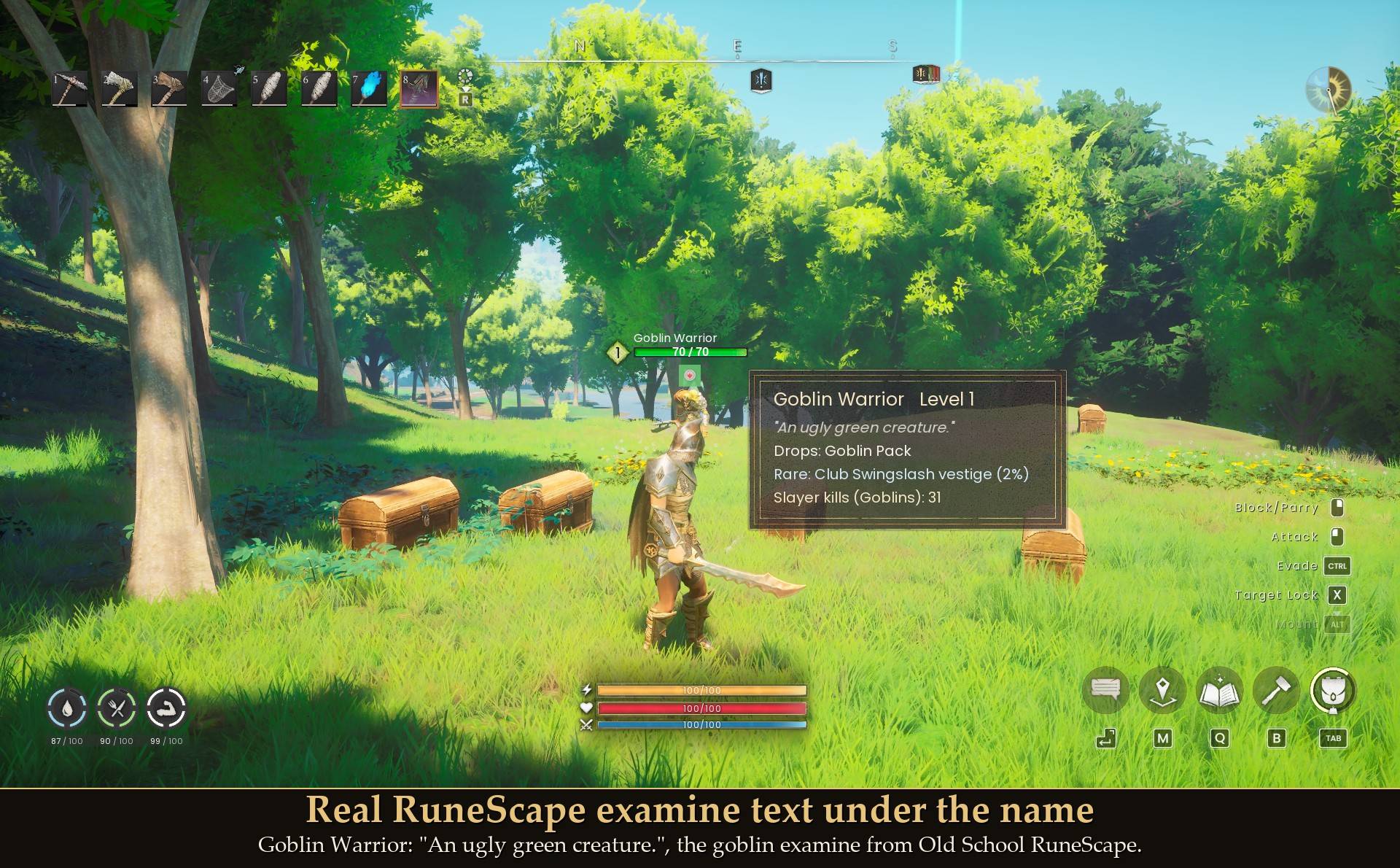
Examine texts from the Old School RuneScape Wiki / RuneScape Wiki.
1.1.0 added: works with Enemy HP Numbers (see below), "+3 more rare drops" when a creature has more than four, damage types as words (like "Astral Projection" in Kuldra's immunities), the Kalphite Queen's drops while she is on the ground, and hiding the panel while you fight.
What it shows
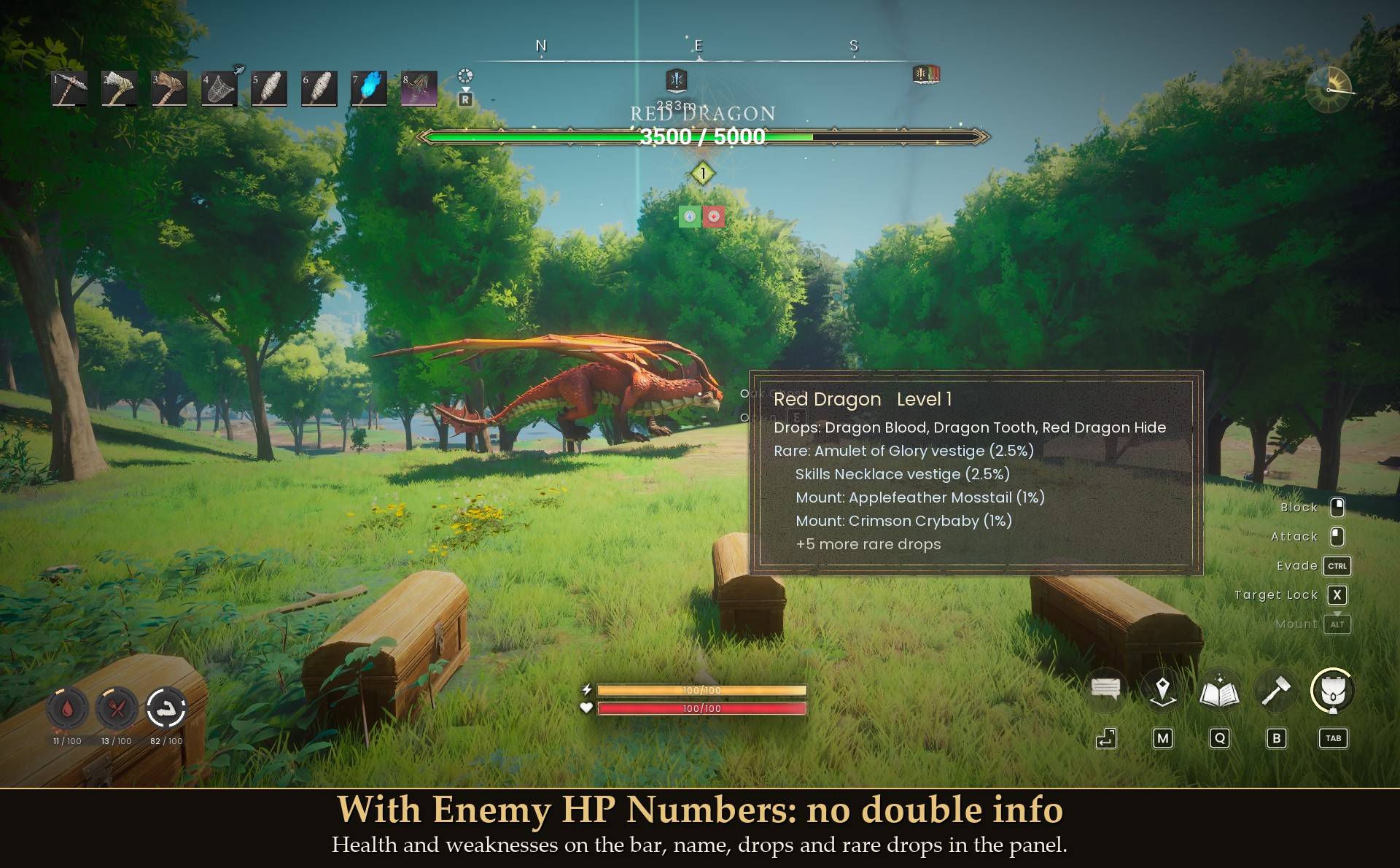
Creatures: name and level, its examine text in quotes, exact health ("Health 70 / 70"), what it is weak to, resists or is immune to, what it drops, and rare drops with their chance ("Rare: Club Swingslash vestige (2%)"). The game's own bar over a creature shows its name, level and a health bar; this adds the numbers, the weaknesses and the drops. The drop list comes from the game's own loot tables. Up to four rare drops are listed; if there are more, the last line says how many ("+5 more rare drops" on a Red Dragon). When it dies the panel says "Dead".
Slayer kill count: if you also play my Slayer Reimagined mod, creatures also show how many of that family you have killed. Without Slayer the line is simply not there. 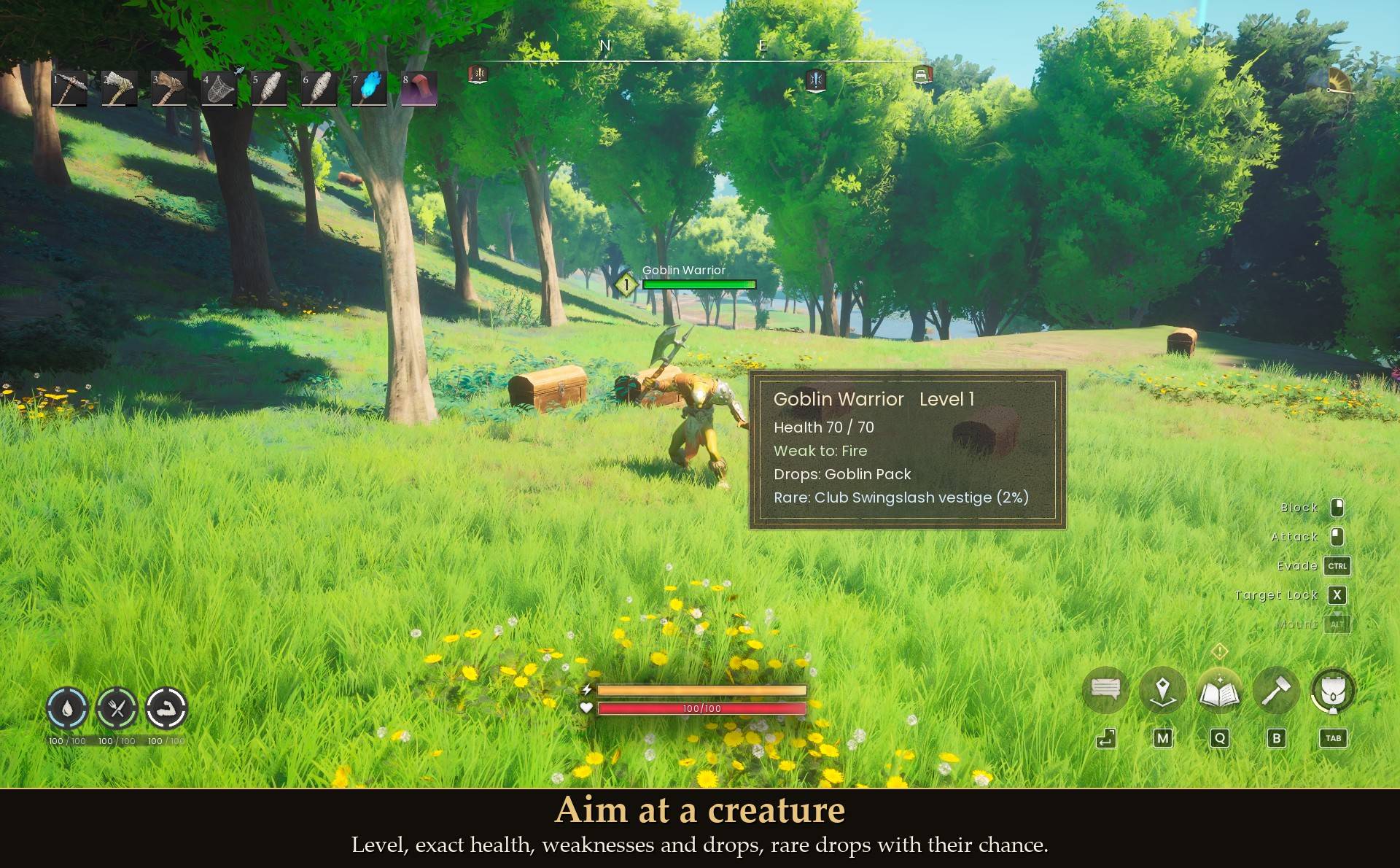
Rocks, ore and trees: its examine text if RuneScape has one, what it gives, the tool it needs ("Needs: Stone pickaxe or better"), how much is left, and how long it takes to come back once you empty it ("Refills 1 game day after it empties (about 24 min)"). An emptied one counts down instead ("Empty: refills in" and the time left), and says so if something built on it stops it refilling.
Things you pick up by hand, like branches: the item, "Pick it up with E", what is left and the refill time. 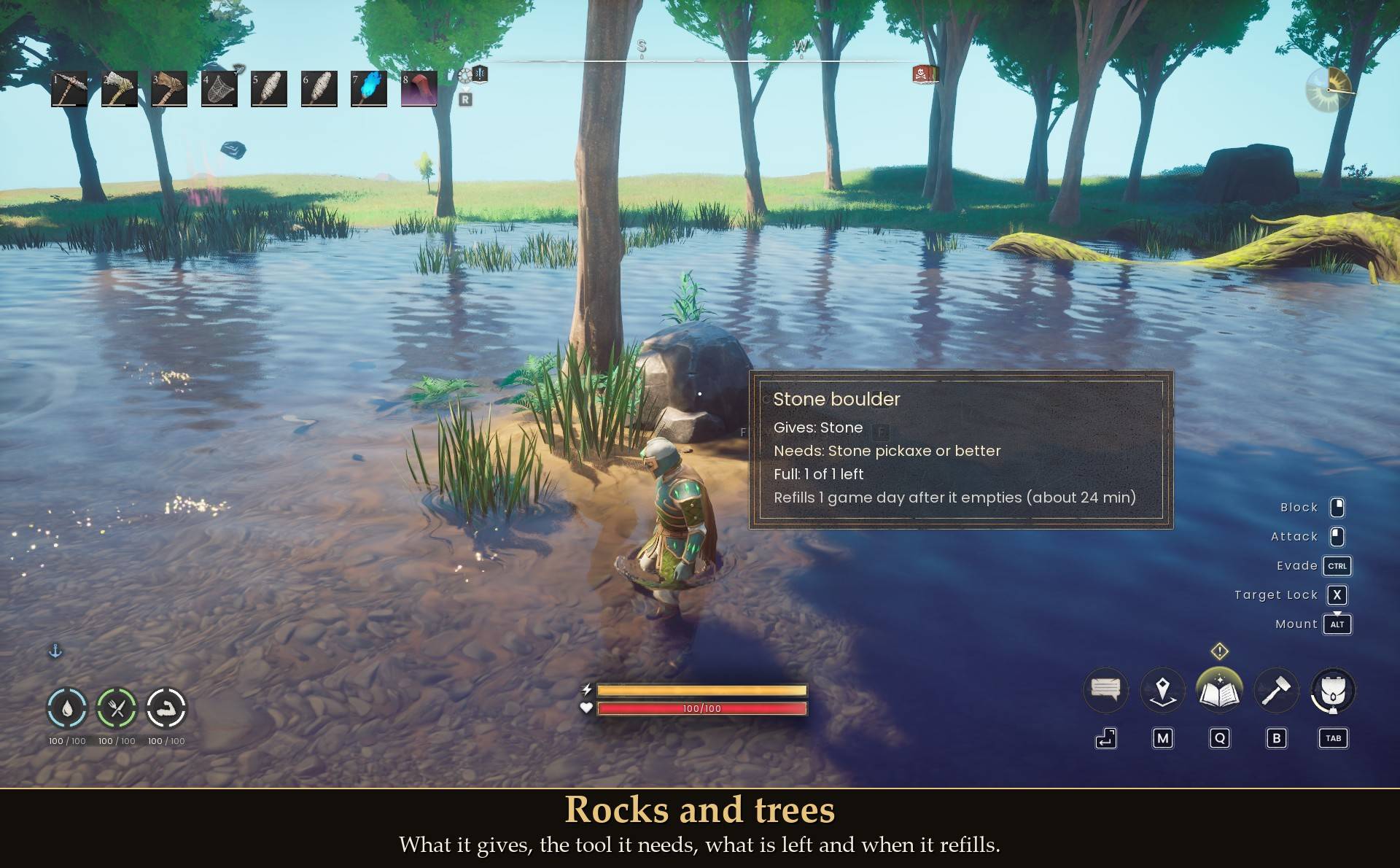
Chests: how many kinds of items and stacks, how many slots are used, and the three biggest stacks ("Most: Copper Ore x64, Stone x55, Tin Ore x48"). Handy for finding the right chest without opening every one. 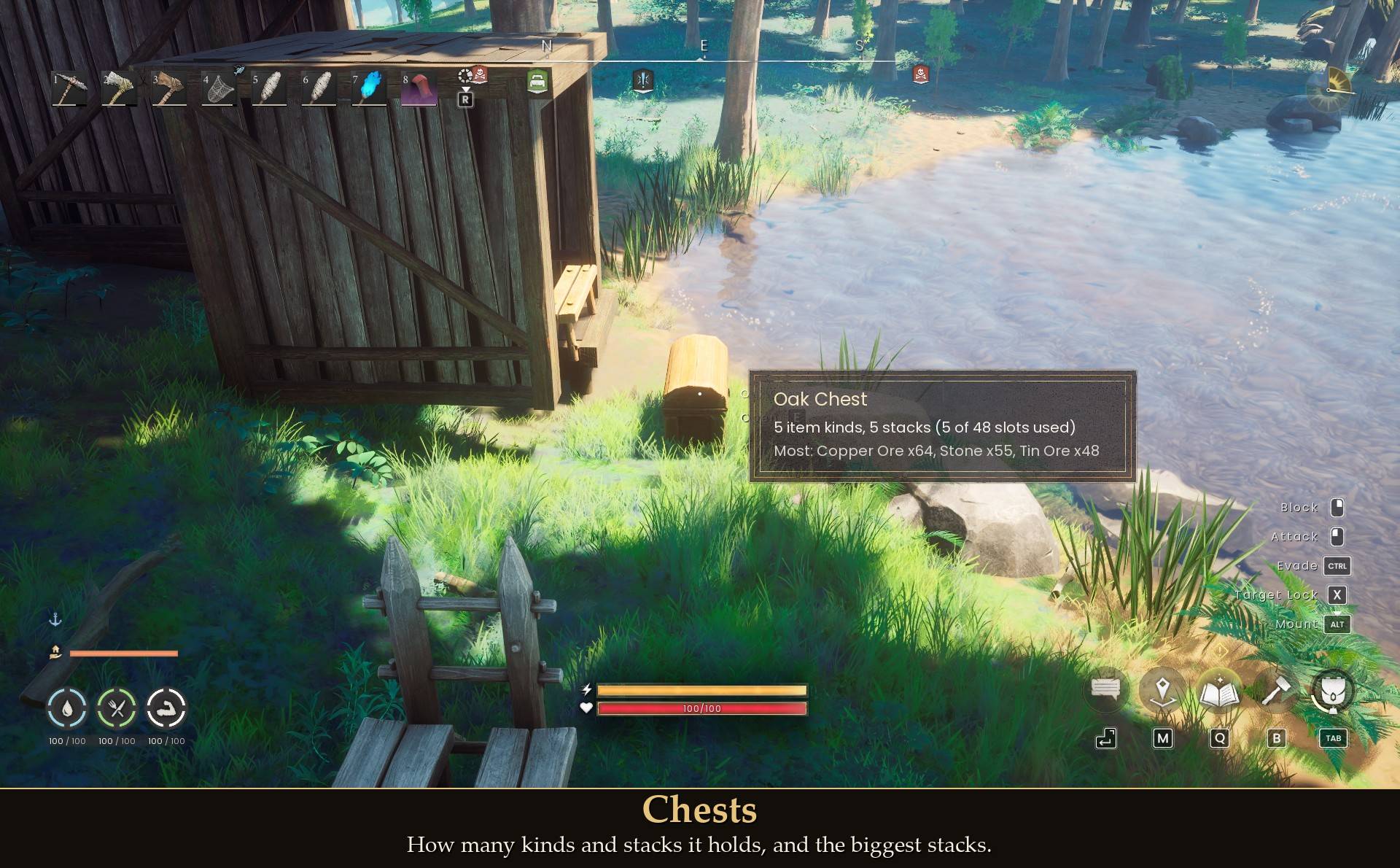
Stations: what is inside ("Sawmill / Holds: Oak Logs x5"), or "Empty".
Anything else you can interact with: its name. 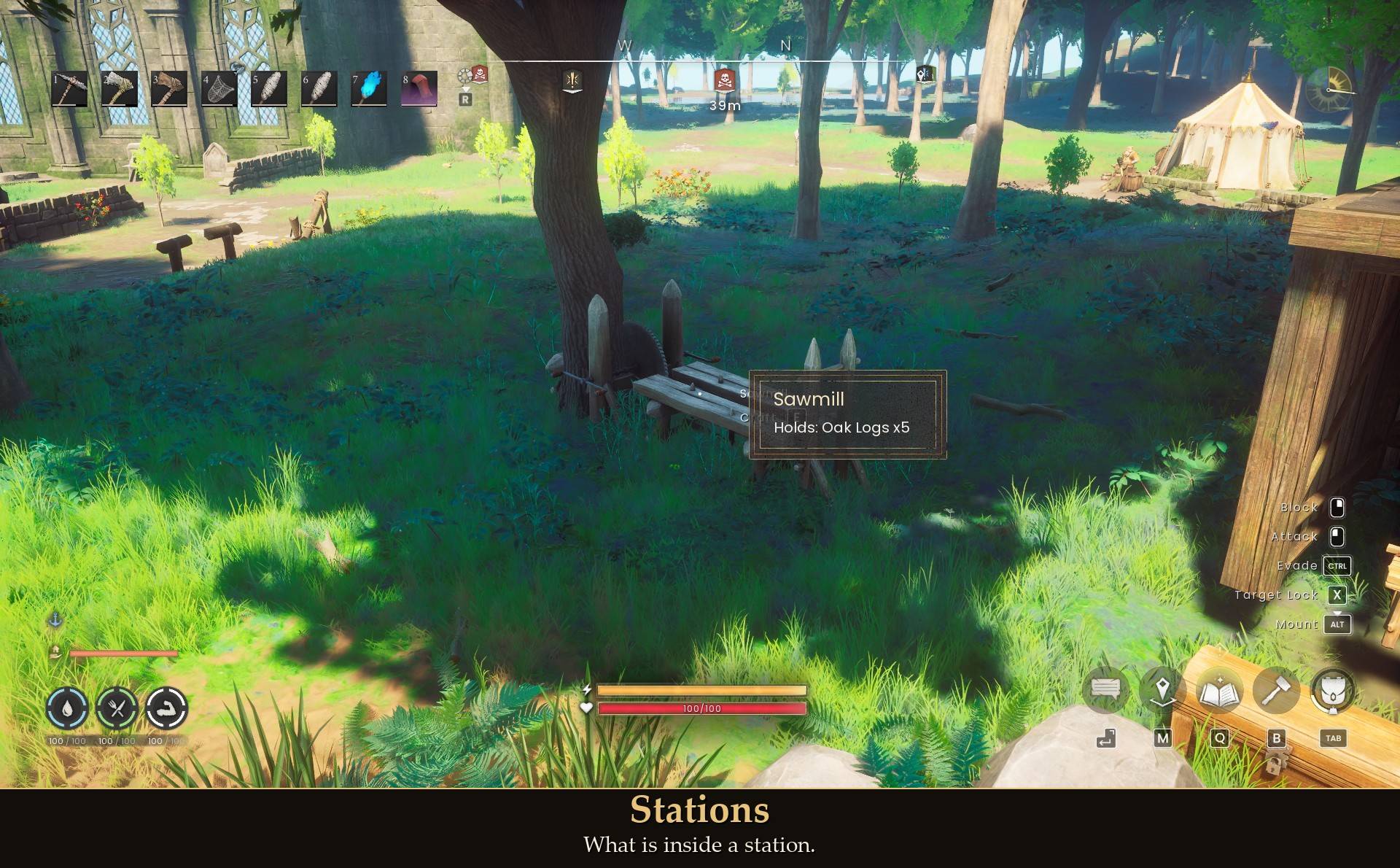
A note on tools: the "Needs:" line comes from the Dragonwilds wiki's Mining and Woodcutting pages, not from the game's files. If a patch moves a rock to a different pickaxe tier, the panel can be wrong until I update it.
With Enemy HP Numbers
My Enemy HP Numbers already puts a creature's exact health and weaknesses on its health bar. If you run both, the panel skips what that bar already shows and keeps the rest: name, level, drops, rare drops and your Slayer kills. You don't read the same thing twice.
- Line by line. Weaknesses switched off in Enemy HP Numbers: only Health goes, "Weak to" stays. Numbers switched off: Health stays, "Weak to" goes. Its text line lists only weaknesses by default, so in text mode the Resists line stays.
- Only while the bar is on screen. The game shows an enemy's bar once you fight it or when you are close to it. No bar up, or the creature is past Enemy HP Numbers' range: you get every line, same as without it.
- Icons that didn't fit stay. The icon row holds 3 icons by default. A knight with two weaknesses and two resistances gets 2 green and 1 red icon on the bar, so the panel keeps "Resists: Slash, Stab".
- Boss bars too. With the big boss bar up, Tok-Xil's panel just says "Health and weaknesses are on its health bar". Switch off Boss bars in Enemy HP Numbers and the lines come back.
- Enemy HP Numbers 1.3.1 or 1.3.0. 1.3.1 tells Examine what it shows. With 1.3.0, Examine reads its settings instead. I tested both.
- Want every line anyway? Switch off Skip what Enemy HP shows. Without Enemy HP Numbers installed, nothing changes.
When it shows
- By default, on its own: the panel opens once your aim has rested on something for 5 seconds, so it stays out of the way while you look around. Hold Z to see it right away. Make the wait shorter or longer (0 to 10 seconds) with Aim delay.
- Or only while you hold a key: set When it shows to hold_key and hold Z. You can pick N, T, U, Caps Lock or a mouse side button instead. These are keys the game leaves free. Not Alt (that is Mount) or Ctrl (Evade).
- Lock on to a creature (X on the keyboard, right stick click on a controller) and the panel shows that creature straight away, in either mode, with no wait and at any distance.
- On a controller every button already does something in the game, so there is no button to hold. Use the default mode, or lock on.
- It hides while you fight: swing a weapon, cast with a staff, aim or shoot a bow, or get hit, and the panel goes. It comes back about 8 seconds after the last of those: 3 seconds (Back after a fight), then the usual 5 second Aim delay. Locked on, it hides too and shows your target again after the same wait. Mining or chopping with the crosshair on the rock or tree doesn't count, and neither do eating, emotes, or losing health to hunger or thirst. Switch off Hide while fighting to keep it up.
- It gets out of the way: hidden while the inventory, map, pause menu or a chest is open, on mouse and on controller, and back when you close it.
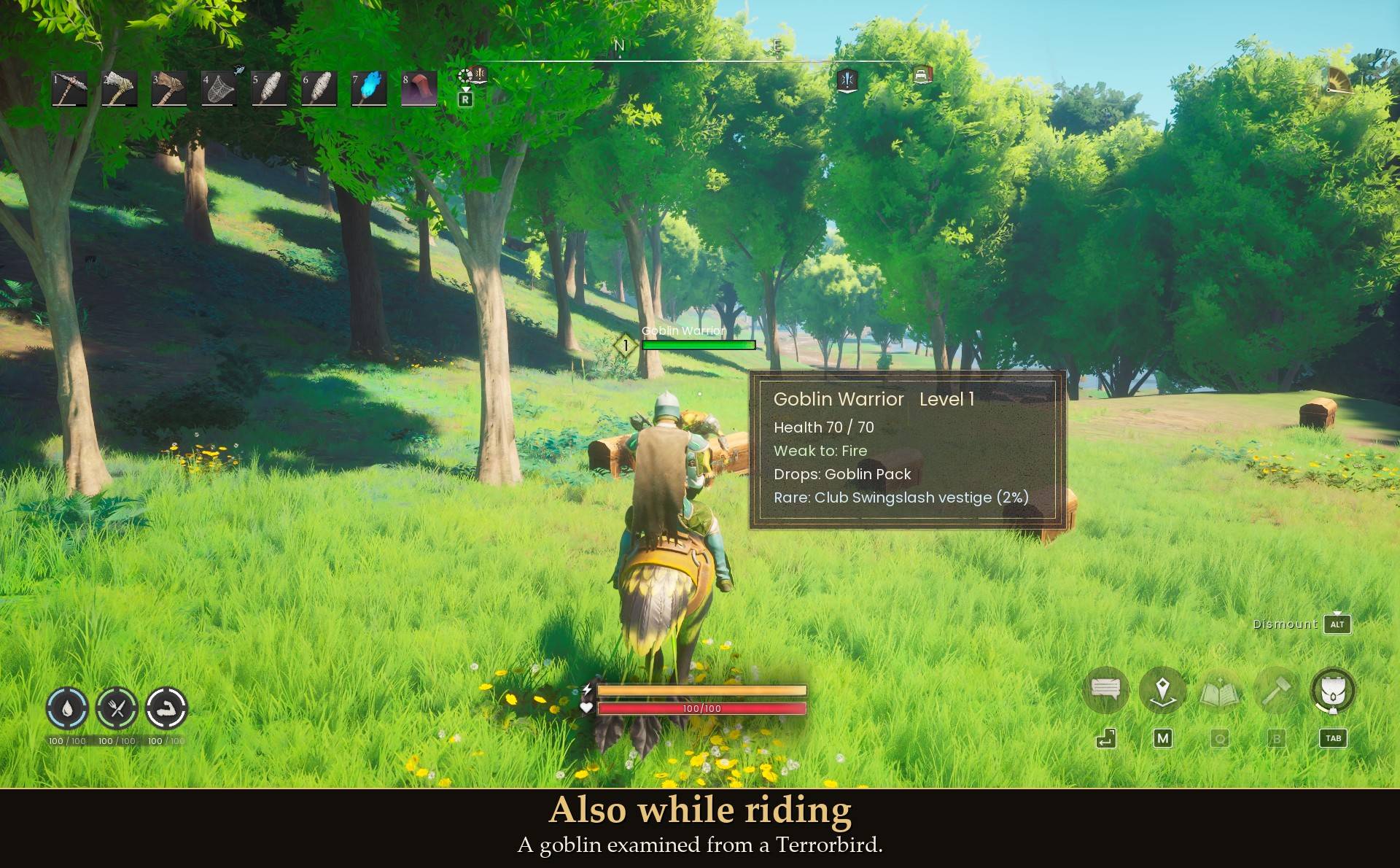
- Works while riding a mount.
Settings
All live in Mod Menu (Esc > MODS > Examine), or in config.txt in the mod folder (restart the game after editing it).
- Show the Examine panel (default on): the master switch.
- When it shows (default always): always, or hold_key.
- Key to hold (hold_key mode) (default Z): Z, N, T, U, CAPS_LOCK, MOUSE4 or MOUSE5.
- Show the creature you lock on to (default on): while locked on, the panel shows that creature, also in hold_key mode without the key. Range does not apply to it.
- Hide while fighting (default on): hides the panel while you swing, cast, aim or shoot, or get hit, also while locked on. Mining or chopping with the crosshair on the rock or tree does not count.
- Back after a fight (default 3 s, 1 to 10 s, steps of 0.5): how long the panel stays hidden after your last swing, cast, shot or hit. Then it waits for the Aim delay as usual.
- Aim delay (default 5.0 s, 0 to 10 s, steps of 0.1): how long your aim must rest on something first. Not used in hold_key mode.
- Range (default 40 m, 3 to 100 m): anything further away is ignored.
- Panel position (default left_of_crosshair): left_of_crosshair, right_of_crosshair or top. Left keeps it off the game's own name and action prompt.
- Panel size (default 100 %, 60 to 200 %, steps of 5).
What it shows, each on by default:
- Creatures: name, level, exact health, weaknesses and resistances.
- Examine text: the quoted line under the name.
- Creature drops: the drop list and rare drop chances.
- Slayer kill count: only when Slayer Reimagined is installed.
- Skip what Enemy HP shows: leaves out the health, weaknesses and resistances that its bar already shows. Off shows every line.
- Rocks and ore, Trees, Plants and pickups (three switches): what it gives, the tool it needs, how much is left and when it refills.
- Chests and storage: loot chests in the world, and anything you placed that holds items: what is inside.
- Cooking stations (campfire, cooking pot, grill, cauldron, fermentation barrel), Smelters and kilns (smelter, advanced smelter, charcoal kiln), Crafting stations (tanner, advanced tannery, loom, spinning wheels, sawmill, stonecutter, grindstone) and Composters (four switches): the station's name and what is inside.
- Everything else: the name of anything else you can interact with.
Extra log lines (default off): writes what Examine read to UE4SS.log, for bug reports.
Install
- Install UE4SS for RSDragonwilds (free, from the UE4SS for RSDragonwilds page on Nexus Mods).
- Drop the
Examine folder into RSDragonwilds/Binaries/Win64/ue4ss/Mods/
- Optional: install Mod Menu to change the settings in game. Without it, every setting is in
config.txt inside the mod folder.
On Game Pass: use the BE version of UE4SS with the SCO signature, the normal build does not load there. Game Pass also installs the game under Binaries/WinGDK/ instead of Binaries/Win64/, so the Examine folder goes in RSDragonwilds/Binaries/WinGDK/ue4ss/Mods/. If you install with Vortex, check that is where it ended up. To uninstall, delete the Examine folder. Nothing is left behind in your save. Updating from an older version: just replace the folder. If you keep your old config.txt, it still works, but it also keeps your old Aim delay and Panel position. Change those two in Mod Menu if you want the new 5 s wait and the left side.
Good to know
- It only reads. It never changes a creature, a rock, an item, a chest or your save.
- Fishing spots never show. The game's aim line passes straight through them, so there is nothing for the mod to pick up.
- A felled tree shows nothing. In my test, once a tree was chopped down there was nothing left at that spot to aim at. Standing trees work.
- The first thing in your line of sight wins. If a hill or the ground is between you and a rock, the aim line stops there and no panel shows. Step closer or aim higher.
- Drops are baked in. The drop lists were read from the game's loot tables for version 1.0 and ship with the mod. If a patch changes drops, the panel lags until I update it. Item names are spelled the way the game spells them.
- Examine texts come from the wikis. The real lines are taken from the Old School RuneScape Wiki and RuneScape Wiki and ship with the mod. Where a Dragonwilds creature is an elite, named or colored version of a RuneScape one, like an elite goblin or a named Hellhound, it gets that creature's text. The texts written for this mod are only for creatures RuneScape doesn't have.
- Give it 40 seconds after loading in. The mod does nothing for about 40 seconds after you enter a world, while the game finishes loading.
- Light on performance. No hooks, and it never scans the area: five times a second it looks only at what is under your crosshair. With the panel up in the default mode that took about 0.3 to 0.5 ms each time in my tests, less in hold_key mode. Frame times with the panel up and with the mod off showed no difference beyond normal noise. Checking the Enemy HP Numbers bar added about 0.05 ms, and Hide while fighting about 0.07 ms.
- Not sure it is running? UE4SS.log shows a line starting with
[Examine] loaded v1.4.0.
Tested on RuneScape: Dragonwilds 1.0 with UE4SS 3.0.1, on mouse and keyboard and on a controller: a goblin (health, level, name and drops checked against the game's own values), a stone boulder with a goblin standing beside it, a standing ash tree, a branch on the ground, a placed Oak Chest, the Sawmill empty and with logs in it, the Range slider, holding Z, locking on and off, hiding in the inventory, map, pause menu and a chest, riding a Terrorbird, killing a goblin while it was examined, and leaving the world and coming back. 1.1.0 with Enemy HP Numbers 1.3.1, with 1.3.0 and without it: a goblin untouched, hit, near and far, a knight with more entries than the icon row holds, Enemy HP Numbers' numbers off, weaknesses off, text mode and a shorter range, Tok-Xil's boss bar with Boss bars on and off, and the new switch off and on; also Kuldra, the grounded Kalphite Queen and a Red Dragon for the new lines. Hide while fighting: sword swings, drawing and shooting a bow, a staff cast, a goblin hitting me, swinging while locked on, a pickaxe on a boulder until it broke, an axe on a tree, a pickaxe swung at a goblin, eating, an emote, zero water, Back after a fight at 3 s and 1 s, and the switch off. 1.2.0 with Enemy HP Numbers 1.3.1 and Slayer Reimagined: a goblin (real text, with Enemy HP Numbers' bar up and with Skip what Enemy HP shows off), a Garou Druid (a text written for the mod), a Green Dragon (the fullest panel, it fits), the Kalphite Queen, an Abyssal Demon, a Raven (its text wraps to two rows), a copper rock and an oak, an ash tree (no text), a sword swing (the panel hides and comes back with the line), and the Examine text switch off and on. Not tested yet: the 1.3.0 left position and 5 s wait in game, co-op, Game Pass, the slant on the final 1.2.0 build (I tried the same slant live on the test build, that is the picture above), the countdown on an emptied rock, hold keys other than Z, the Enemy HP Numbers hide key (ToggleKey) together with Examine, fishing spots (they never show), and for Hide while fighting: dodging, parrying, combat sorcery spells, drinking, zero food, and playing it on a controller.
Links
Also on Nexus Mods: Examine on Nexus Mods.