Compass Bar
- By
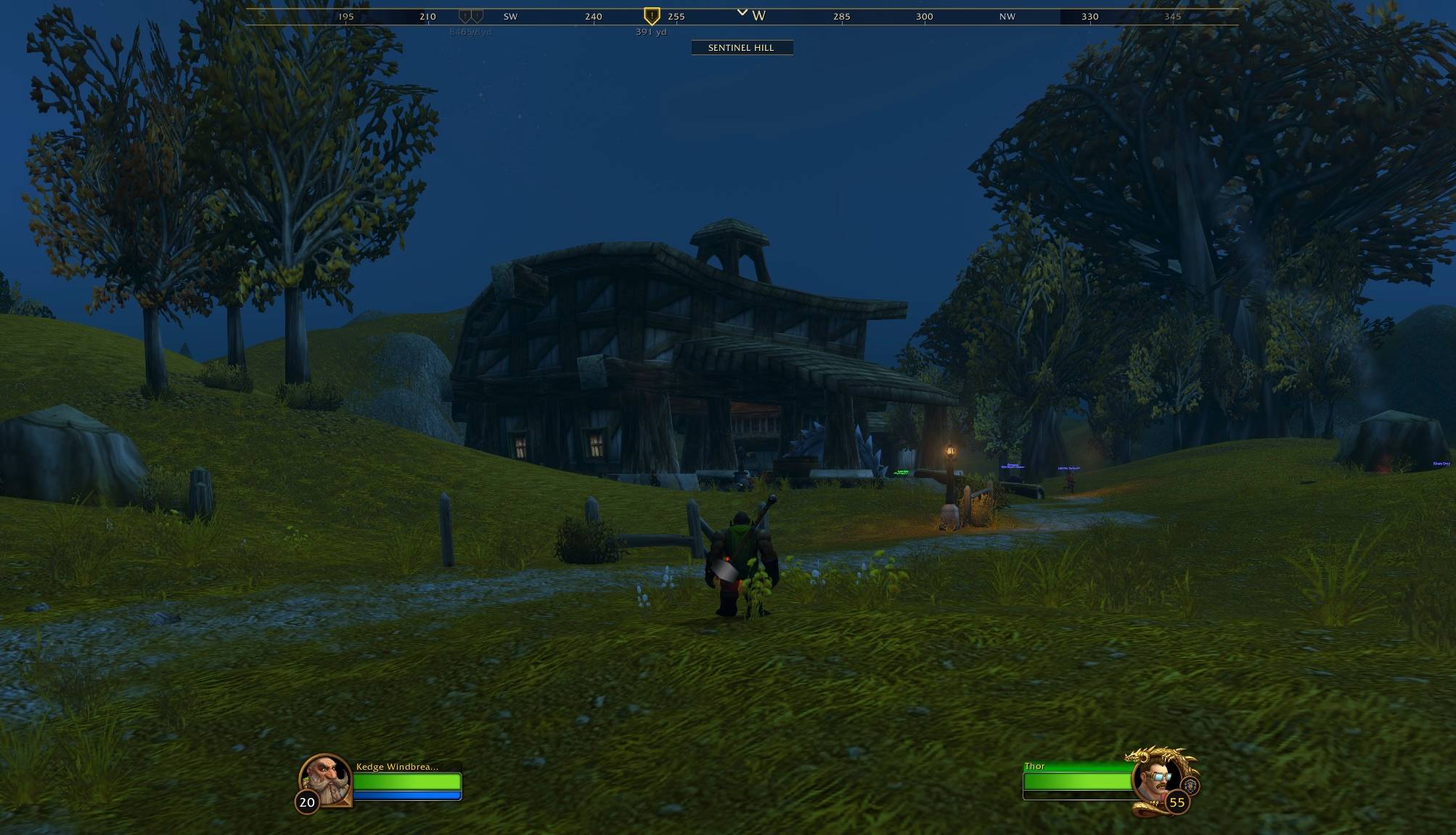
A compass bar across the top of your screen showing the direction and distance of your party, quest areas, quest turn-ins and map pin.
Compass-Bearing.jpg
track-ore.webp
Compass-Options.jpg
Description
Compass Bar
A compass bar across the top of your screen that shows the direction of what's on your map.
What it shows
- Party members as class-coloured markers, numbered to match your party frames. Raid members too, if you want them.
- Quest objective areas. "Kill boars here" points at the centre of the area.
- Quest turn-ins, marked with a gold "?".
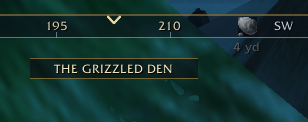
- Gathering spots for ore, herbs and treasure chests, greyed out.
- Flight paths you haven't picked up yet, and the nearest one you know.
- Your map pin, if you've placed one on the world map.
- Your corpse, while you're dead.
The distance in yards shows under each marker. Markers behind you sit faded at the ends of the bar, so you know which way to turn. Hover a marker to see its name.
Selected quest
Select a quest in your quest tracker or log, and its marker on the compass grows larger and brighter. Other quest areas fade back, so you can still see them. Turn-ins always stay bright.
Nearest quests
Only the nearest quests show, 5 by default, so the bar doesn't fill up in busy zones. The markers update as you move. Your selected quest always shows, however far away it is.
Turn-ins always show and don't count towards that number. You can turn that off if you'd rather they count like any other quest.
Gathering spots
Addons can't read live minimap tracking dots, so the compass learns where nodes spawn instead. When you mine, gather a herb or open a treasure chest, it saves the spot. Nearby spots show on the compass as greyed-out icons: copper ore for ore, a herb for herbs and a chest for treasure. Hover one to see what was gathered there and when.
A spot means a node spawns there, not that one is there now. Check your minimap tracking as you get close.
- Silent sharing. Spots are shared with party, raid and guild members running Kedge's Compass, so everyone's map fills in faster. Nothing appears in chat, and only people in your party or guild can send you spots.
- Your professions only. Ore and herb spots show only if you have Mining or Herbalism. Treasure always shows.
- No clutter. The nearest 5 spots of each type within 400 yards show by default. Both numbers are adjustable.
- Account-wide. Spots are saved for your whole account, so all your characters benefit.
Skinning and fishing aren't recorded, since corpses and fishing pools don't stay in one place.
Flight paths
When you open a flight master's map, the compass records where that flight master is. It also records every other flight path on that map, so one visit to a flight master captures all the flight paths your character knows.
- Ones you haven't picked up show on the compass in full colour, within 1000 yards by default.
- The nearest one you know shows greyed out, for when you want a ride.
- A message tells you when you pass close to a flight path you haven't picked up.
- Silent sharing. Flight paths are shared with your party and guild like gathering spots. When you log in, the compass asks your guild once, so a new member gets the guild's flight paths straight away.
- Per character. Each character keeps its own list of the flight paths it has picked up.
World map
Gathering spots and flight paths also show on the world map. Gathering spots show on zone maps. Flight paths show on zone and continent maps, full colour for ones you haven't picked up and greyed out for ones you know.
A Kedge's Compass button on the map chooses what shows: ore, herbs, treasure, known flight paths and undiscovered flight paths. It starts in the bottom-left corner, and you can drag it anywhere on the map.
Hover a pin for details. Right-click a pin to forget it.
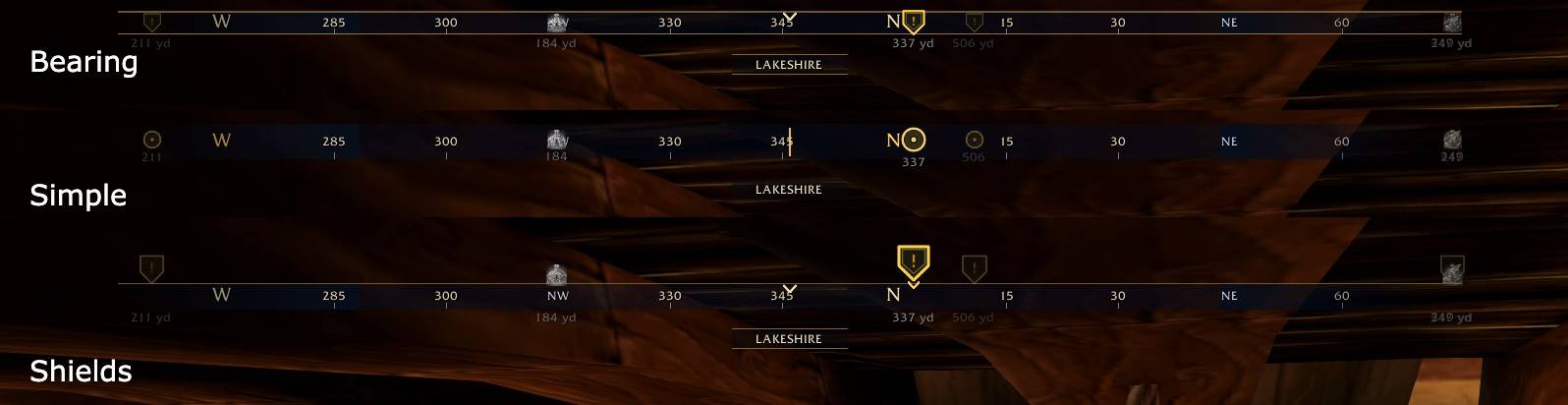
Three styles
- Bearing (default): a slim strip between thin gold lines, with small shields inside it.
- Shields: quest markers as shield badges hanging above a slim bar, with a chevron under your selected quest.
- Simple: a flat bar with markers on it.
On any style, you can add compass degrees every 15° between the direction letters, and a banner under the bar with the name of the area you're in.
Options
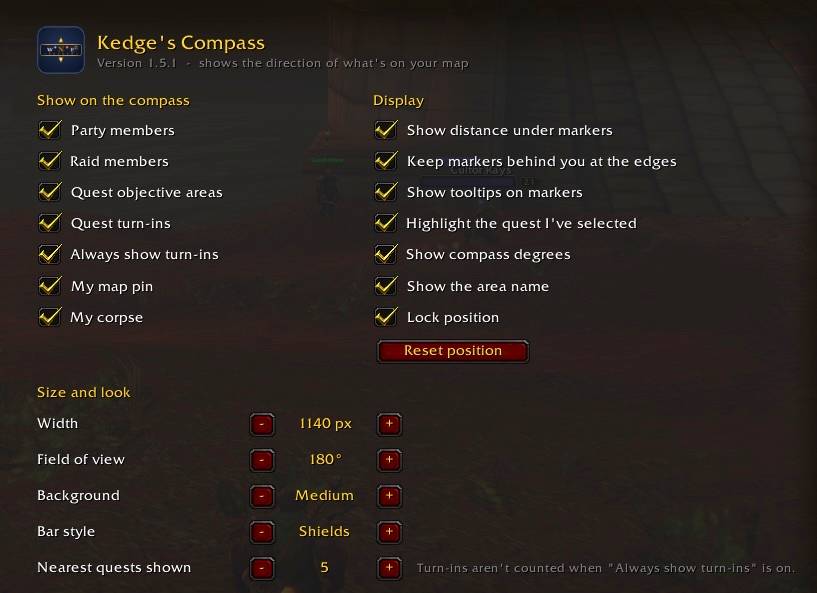
Everything is set in Options > AddOns > Kedge's Compass, or type /kcompass. No file editing needed.
- Choose which markers to show.
- Choose how many nearest quests to show, from 1 to All.
- Turn distance, degrees, the area name, tooltips and selected-quest highlighting on or off.
- Set the width, field of view, background strength and bar style.
- Unlock the bar to drag it anywhere, and reset its position.
Gathering settings have their own Gathering page under Kedge's Compass:
- Ore, herbs and treasure on or off.
- How many spots of each type to show, and how far to look.
- Recording, party sharing and guild sharing on or off.
- Forget the spots in the current zone, or all spots.
Flight paths and the world map have their own Flight paths and map page:
- Undiscovered flight paths, the nearest known one and the nearby message on or off.
- How far to look for flight paths you haven't picked up.
- Recording and guild catch-up on or off.
- World map pins on or off, and reset the map button's position.
- Forget all saved flight paths.
The bar never blocks clicks or camera turning.
Works with Kedge's New World
If Kedge's New World is installed, its Unlock frames and Reset positions also move and reset the compass, and its options page has a button that opens these options. Nothing changes if you use the compass on its own.
Good to know
- The compass hides where the game doesn't report which way you're facing, such as inside most dungeons.
- Treasure chests are recognised by English object names, so chest spots aren't recorded on other language clients yet.
- Open any flight map once on each character, so the compass learns which flight paths that character knows.
Commands
/kcompassopens the options./kcompass unlock,/kcompass lockand/kcompass resetmove the bar./kcompass debugprints what the compass can see. Include its output with any bug report.
Installation
- Copy the
KedgesCompassfolder intoInterface/AddOns. - Restart the client. If you're updating from 1.7 or earlier, a full restart is needed, not just
/reload.
Support
If you find it useful, you can buy me a coffee: https://buymeacoffee.com/kedge
Found a bug or have an idea? Leave a comment on this page.
Also by Kedge
- Totem Wheel — one-key radial totem menu for shamans
- New World Loot Toasts — New World style loot toasts, skill-up popups and fishing tension bar
- Spell Rank Updater — puts the new rank of a spell on your bars when you train it
- Quest Item Marker — badges every bag item an active quest needs
- Junk Seller: Auto-Sell Greys — auto-sells greys at any vendor, no prompts
- Bank Anywhere — check your bank and your alts' banks from anywhere
- Free Bag Slots — free bag slot count on the backpack button
Compass Bar Team