Vendor Plus
- By
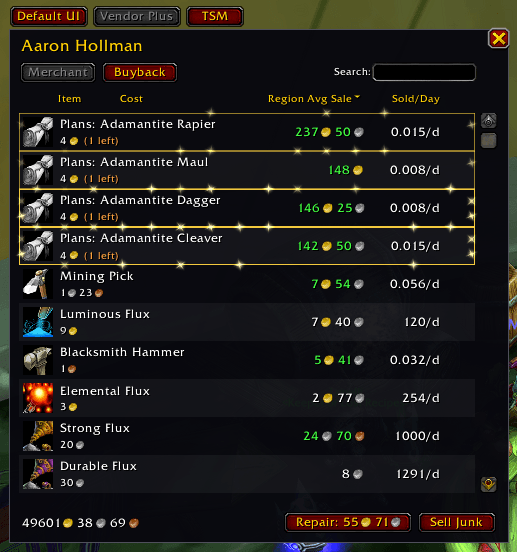
VendorPlus replaces the default merchant window with a clean, searchable, sortable list that shows flipping potential at a glance.
Vendor Plus 1.png
Vendor Plus 2.png
Description
Description
VendorPlus replaces the default merchant window with a searchable, sortable list and shows TradeSkillMaster region data next to every item: the region average sale price and how many sell per day. You can see which vendor items are worth buying to resell without alt-tabbing to a price tool.
It is built for flippers who check vendors for resale opportunities and want the market numbers right on the buy list.
Features
- TSM market data: Region Avg Sale (
DBRegionSaleAvg) and Sold/Day (DBRegionSoldPerDay) on every row. The average sale price turns green when it beats the vendor's per-item cost. Items with no TSM data show--and always sort last. - Fractional sales rates: slow sellers show as
0.050/dinstead of rounding down to zero. - Search: filter the vendor's stock by name as you type.
- Sortable columns: click a header to sort by item, cost, region avg sale or sold/day. Click again to reverse, and a third time to return to the vendor's own order.
- Merchant and Buyback tabs: switch between the vendor's stock and your buyback list.
- Limited-stock highlight: items with limited stock show how many are left and get an animated gold border. The glow disappears when stock hits zero.
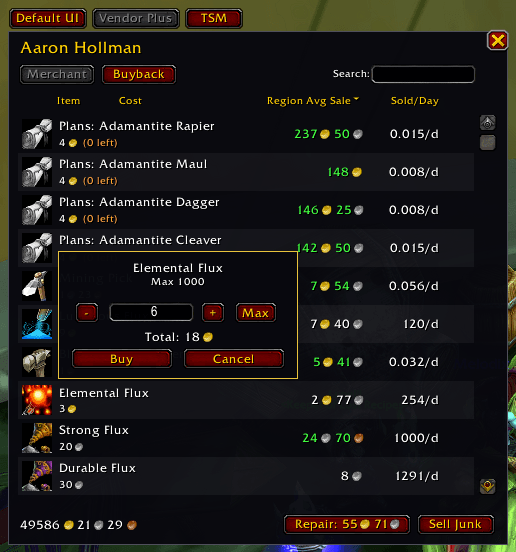
- Quantity picker: Shift-click an item to choose how many to buy, with - and + buttons, a Max button, mouse-wheel adjustment and a live total cost. It respects your gold, the vendor's remaining stock and the max stack size.
- Purchase confirmation: purchases above a gold threshold ask first (1000g by default). Purchases with extended costs always ask.
- Repair and Sell Junk: built-in buttons, with the repair cost shown.
- Three views: switch between Blizzard's Default UI, Vendor Plus and TSM's own vendor window from a button bar above the window. Your choice is remembered.
- At-a-glance details: quality-coloured names, stack counts, unaffordable prices in red, unusable items greyed out, and currency or item costs shown with icons.
- Draggable window: the position is saved between sessions.
How it works
- VendorPlus reads the vendor's stock and looks up each item through TSM's price sources. The list refreshes when stock, your gold, your bags or your durability change.
- Region figures come from your TSM data. Keep the TSM Desktop App syncing so the numbers stay current.
- TSM rounds sold-per-day to whole numbers, so VendorPlus asks for the value multiplied by 1000 and scales it back to keep the decimals. If the figures still look scaled, use
/vp divisor. - The TSM view works by clicking the "TSM4" button TSM adds to the merchant frame. If you close TSM's window with its own "WOW UI" button, VendorPlus falls back to the default UI.
- Settings are saved in
VendorPlusDB.
What it does not do
VendorPlus does not collect its own prices, so the price columns need TradeSkillMaster. Without it the window still works as a searchable, sortable vendor list, with a notice that no price data is available. It does not track purchase history, profit or inventory. Region figures are market averages across the region, not guaranteed prices on your own realm.
Slash commands
/vpor/vendorplus: show the command list/vp toggle: enable or disable the overhaul (reopen the vendor to apply)/vp view default,/vp view vpor/vp view tsm: switch vendor views/vp confirm <gold>: ask for confirmation on purchases above this amount/vp divisor <n>: divide TSM's Sold/Day by n (default 1)/vp reset: reset the window position/vp tsmscan: check whether TSM's vendor window and buttons are detected
Vendor Plus Team