Thumber
- By
Track your interactions with other players in World of Warcraft (TBC Classic / Anniversary). Mark anyone thumbs up, neutral, or thumbs down, with an optional free-text note. Your mark shows up in their unit tooltip and in a sortable list window.
thumber settings.png
thumber tooltip.png
Thumber ui.png
Description
Track your interactions with other players in World of Warcraft (TBC Classic / Anniversary). Mark anyone thumbs up, neutral, or thumbs down, with an optional free-text note. Your mark shows up in their unit tooltip and in a sortable list window.
Marking players
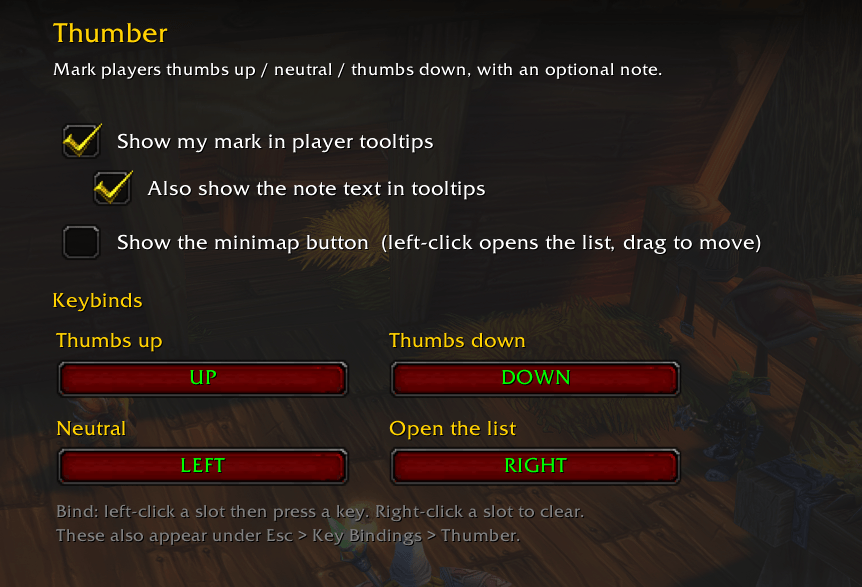
- Keybinds mark your current target (falling back to mouseover). Defaults:
Arrow Up = thumbs up, Arrow Down = thumbs down, Arrow Left =
neutral, Arrow Right = open the list. These are claimed once on first run
(overriding the arrow-key movement defaults); rebind or clear them any time in
/thumber configor under Esc → Key Bindings → Thumber.- Toggle: marking a player with the mark they already have removes
them (and tells you). A different mark just changes it. This applies to
the keybinds and the
/thumbsup//thumbsdown//neutralcommands; note that passing a note (e.g./tu great tank) updates instead of removing.
- Toggle: marking a player with the mark they already have removes
them (and tells you). A different mark just changes it. This applies to
the keybinds and the
- Slash commands:
/thumbsup(/tu),/thumbsdown(/td),/neutral(/nt)[note]— mark your target (or mouseover) and, if you pass text, set its note in one go. Quotes are optional:/tu ninja looterand/tu "ninja looter"both work./thumber(/th) — open the marks list./thumber note <text>— set a note on your target./thumber config— settings & keybinds.
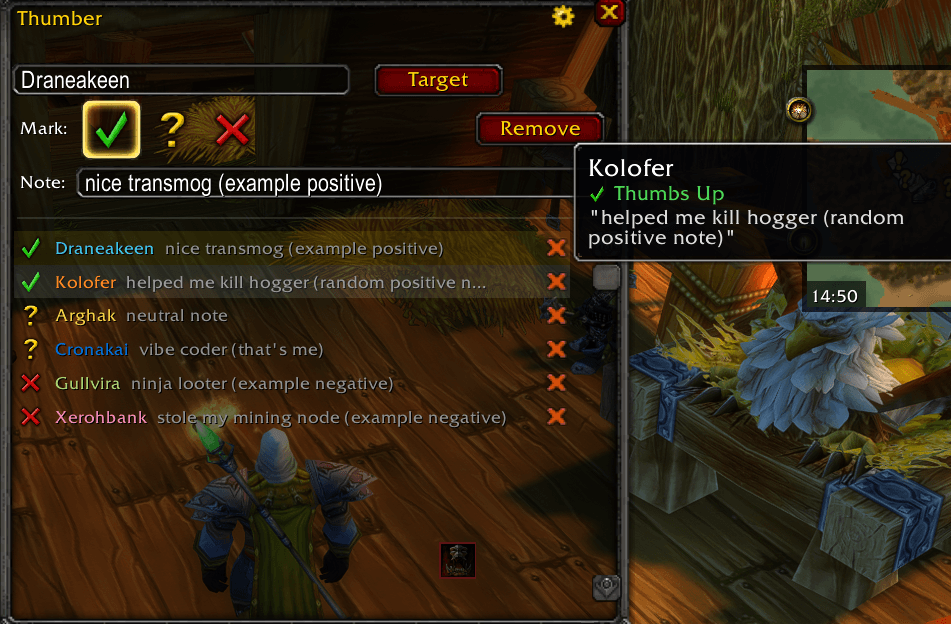
- In the window: click Target to load your current target, then click a thumbs button. Type a note and press Enter. Click any row to edit it; the Remove button (or the red X on a row) deletes a mark.
- Minimap button: left-click opens the list, drag to move it around the
minimap. Toggle it in
/thumber config.
Tooltips
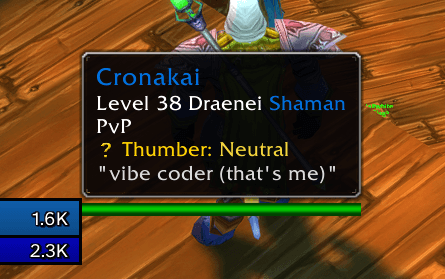
Hovering a player you've marked adds a coloured line to their tooltip showing the mark (and, optionally, the note). Both can be toggled in settings:
- Show my mark in player tooltips — the mark line.
- Also show the note text in tooltips — appends your note underneath.
The Thumber Team