RawID
- By
Show and copy item IDs in WoW Forever, with per-ID visibility controls, modifier-key details and a minimap launcher.
RawID
The IDs you need, without the extra clutter.
RawID shows item, spell, NPC, quest and other game IDs in your WoW Forever tooltips. Keep important information visible, reveal extra details while holding a key, and copy item IDs without typing them manually.
See it in action
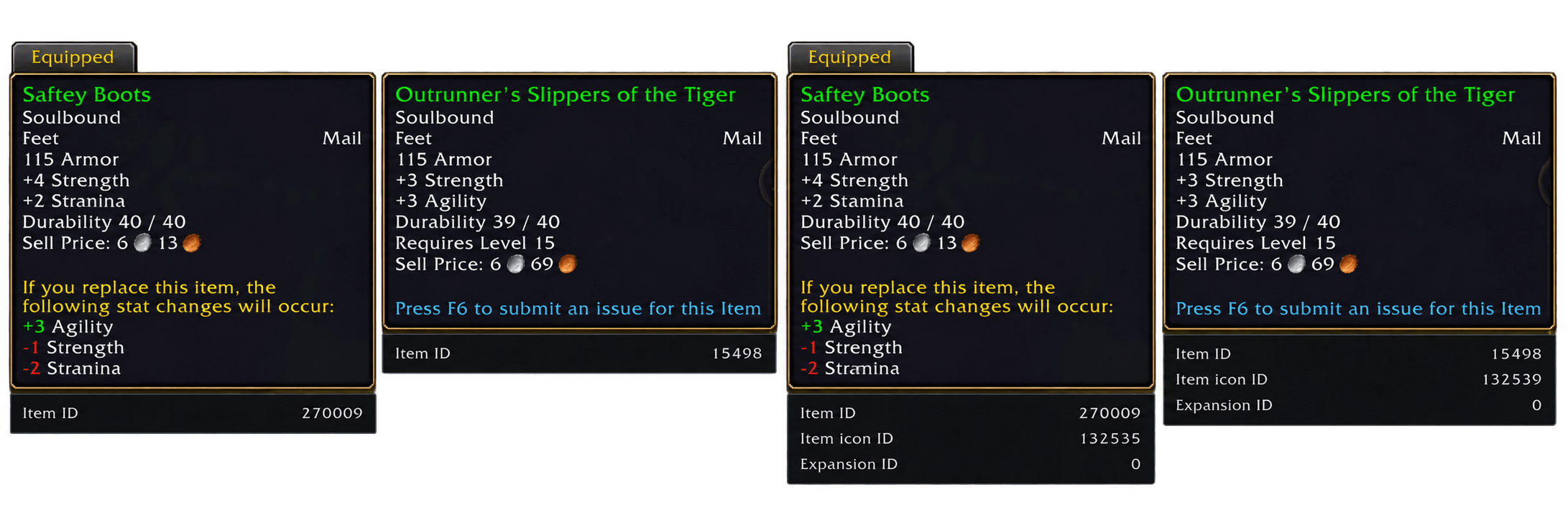
Left pair: normal hovering shows the Item ID. Right pair: holding Shift reveals additional details, including Icon ID and Expansion ID. The hovered item and equipped comparison item each display their own IDs.
Click either screenshot on this page to view the full-size image.
Choose what appears
Every supported ID type has its own display setting:
| Setting | What it does |
|---|---|
| Always | Show this ID whenever its tooltip is displayed. |
| On hold | Show this ID only while holding your selected modifier key. |
| Off | Keep this ID hidden, even while holding the key. |
Choose Shift, Ctrl or Alt as the shared hold key.
For example, keep Item ID visible all the time and reveal Icon ID only while holding Shift. Releasing Shift hides the extra information without hiding the Item ID.
Each comparison tooltip keeps its own item information.
Default settings
Item ID is always visible. Shift reveals the other enabled details.
| ID type | Default |
|---|---|
| Item ID | Always |
| Spell, NPC and Quest IDs | On hold |
| Item-use spell, enchantment and gem item IDs | On hold |
| Icon, expansion, set and object IDs, plus macro index | On hold |
| Bonus ID and other specialist categories | Off |
Only information available for the hovered item or subject is displayed. You can change each setting independently.
The minimap button and item-copy shortcut are enabled by default. Minimap position locking is off, and no keyboard shortcuts are assigned automatically.
Copy item IDs
Shift + left-click a supported bag or equipped item, then press Ctrl+C.
RawID opens a compact panel with the numeric ItemID already selected. An item tooltip does not need to be open beforehand. Press Esc to close the panel.
You can also assign a Copy hovered item ID keybinding. The item-click shortcut can use Shift, Ctrl + Shift or Alt + Shift.
Ctrl+C is required: this uses the game's normal text-copy interaction, not automatic one-click clipboard copying.
Native item actions such as chat linking, stack splitting, trying on equipment and opening item sockets take priority. Copying is paused during combat. Some third-party item interfaces may require the hovered-item keybinding instead of the click shortcut.
Settings and appearance
Open Esc → Options → AddOns → RawID, left-click the minimap button, or type /rawid.
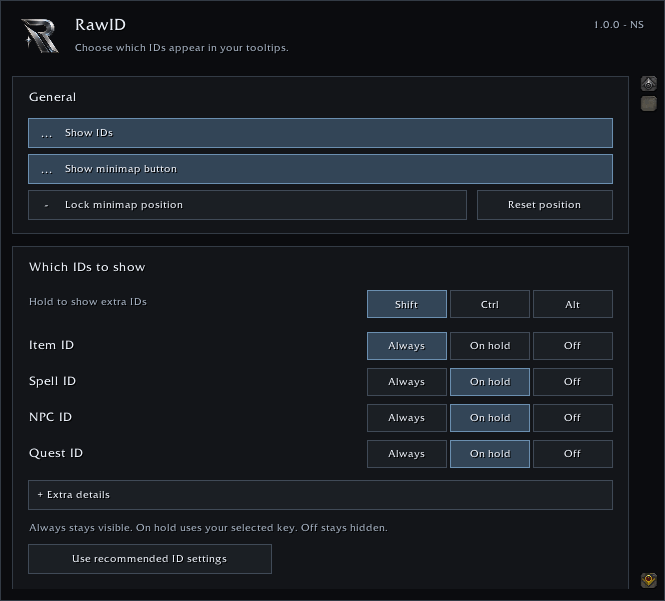
Choose what stays visible and what appears on hold. Less common ID types are grouped under Extra details.
The settings page also includes text-colour customization, normal/held display previews, copying preferences and minimap controls.
Click Use recommended ID settings to restore the ID defaults above and select Shift as the hold key. This does not change your text colour, minimap preferences or keybindings.
Minimap and keybindings
Left-click the minimap button to open RawID settings. Click again while RawID's page is displayed to close Settings. When another settings category is open, the button switches to RawID.
A standard DataBroker launcher is included for compatible display addons. HidingBar is optional. Hiding the standalone minimap button does not remove the DataBroker launcher.
RawID provides three actions under Options → Keybindings:
- Open / close RawID settings
- Show / hide RawID IDs
- Copy hovered item ID
The settings page shows your current assignments and opens the game's keybinding editor. Existing assignments are not overwritten automatically.
Commands
| Command | Action |
|---|---|
/rawid or /rawid options |
Open settings. |
/rawid on |
Show RawID IDs. |
/rawid off |
Hide RawID IDs without changing individual display choices. |
/rawid status |
Show version and diagnostic information. |
/rawid reset |
Reset RawID preferences while keeping keybindings and minimap position. |
/rawid help |
Show available commands. |
Installation and compatibility
Designed for WoW Forever 1.60.1 / Interface 16001. Tooltip integrations are suspended when the client reports a different interface number.
For manual installation, close WoW and extract the RawID folder into the Forever client's Interface/AddOns directory.
The main manifest should be located at:
Interface/AddOns/RawID/RawID.toc
Enable RawID in the AddOns list. Required libraries are included; no separate library installation is necessary.
Disable idTip or another ID-tooltip addon to avoid duplicate information. RawID does not modify their saved settings.
Available IDs depend on the information provided by the client. Unknown or restricted values are skipped. Compatibility with every third-party tooltip, inventory addon or minimap manager is not guaranteed.
Credits and license
Maintained by NS.
Based on idTip by silverwind, with Forever-focused compatibility work, independent settings, per-ID visibility controls and an item-ID copy panel. RawID is a separately maintained project, not an official idTip release.
Original RawID contributions are licensed under the MIT License, copyright 2026 NS. Inherited idTip material and embedded libraries retain their applicable license notices, included in LICENSE.
RawID Team