NextPress
- By
NextPress (core): One clear icon with your next button and keybind. Needs a class module. Visual only, you press everything.
How it works
What you need
Settings
Description

NextPress
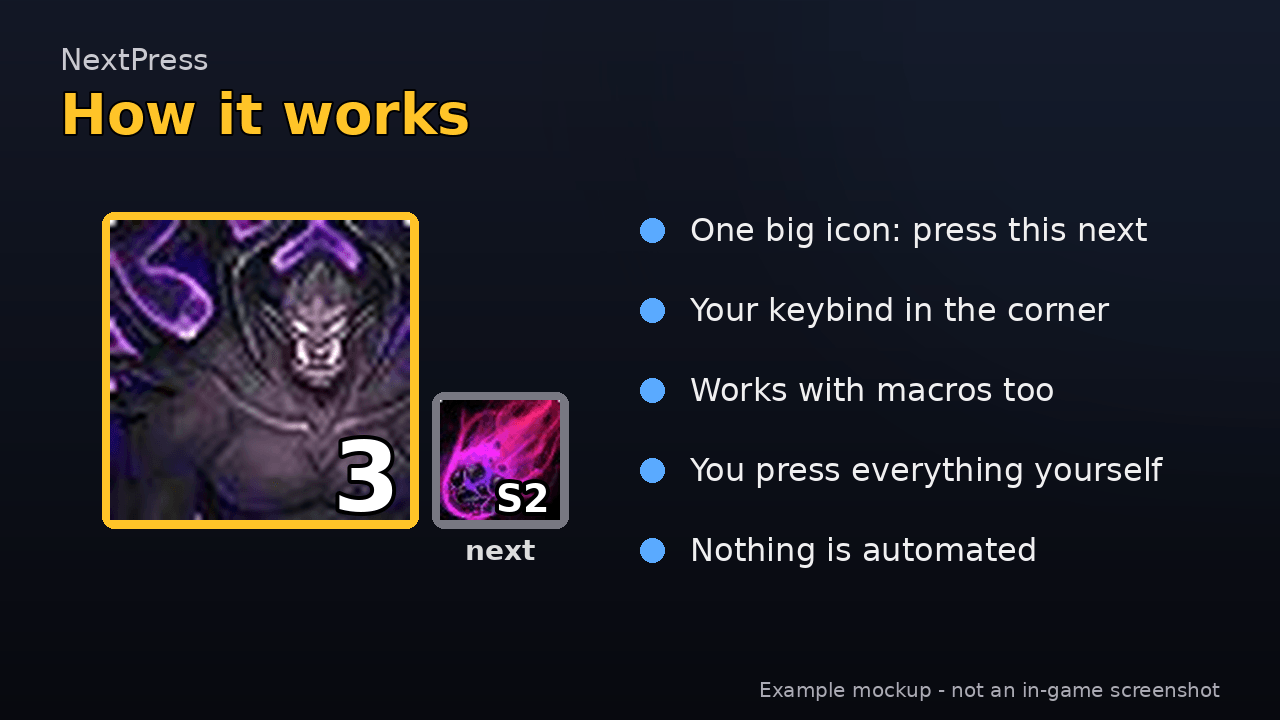
One clear icon. It shows your next button and its keybind.
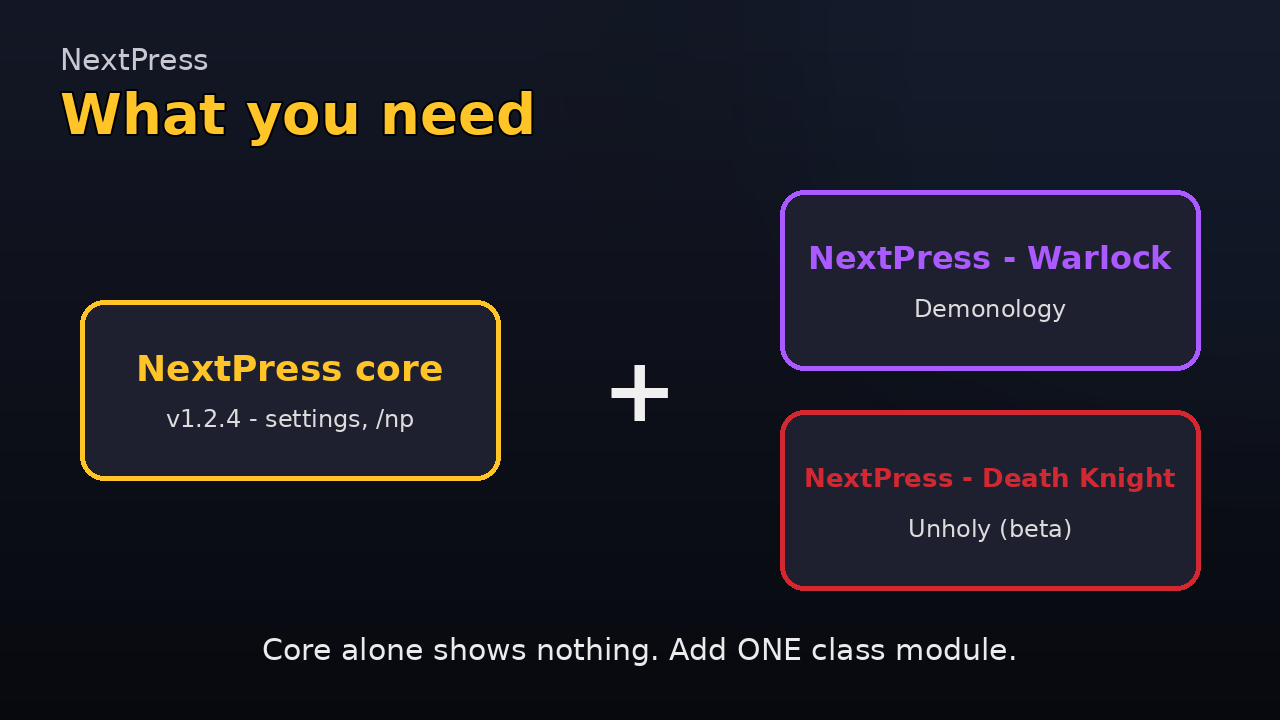
What you need
NextPress is the core. It does nothing on its own.
You also need one class module:
- NextPress - Warlock - Demonology
- NextPress - Death Knight - Unholy (San'layn, beta)
If no module covers your spec, NextPress shows nothing and tells you once in chat.
What it does
- Shows one big icon: the spell to press next.
- Shows your keybind on the icon, like "3".
- Finds keys for spells cast from macros too (also potion and trinket macros like
/use 13). - Shows a small "next" icon after that.
- You press every button yourself. Nothing is automated. It only shows things.
How to install
CurseForge app (easiest): install the class module. The app installs NextPress core for you.
Manual:
- Download NextPress core and your class module.
- Unzip them.
- Put the folders in
World of Warcraft/_retail_/Interface/AddOns. - Restart the game or type
/reload.
Moving from DemoAssist or UnholyAssist? Keep the old addon on for one login so your settings come over. Or type /np migrate. Then delete the old folder, so you do not get two icons.
Main features
- Big main icon with keybind, plus a small "next" icon.
- Green PRESS cue, cast bar and GCD swipe (each can be turned off).
- Potion and trinket FREE badges. Healthstone and defensive reminders.
- Hold key: pause the burst until you are ready.
- Show always, only in combat, or only out of combat.
- Settings per spec, shared across your account.
- Export and import settings as text. Imported text is checked and never run as code.
Settings
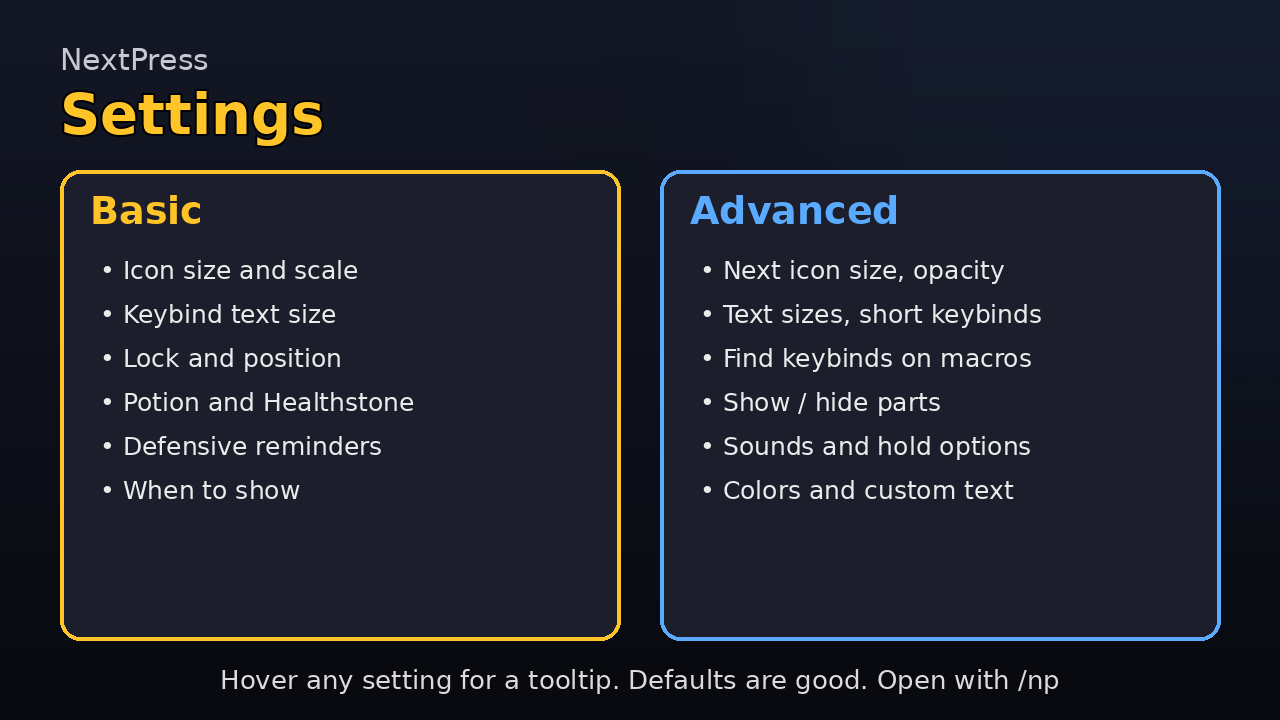
Open with /np, or Esc > Options > AddOns > NextPress. Class pages are under it.
Basic (shown first): icon size, scale, keybind text size, lock, position, potion, Healthstone, defensives, when to show.
Advanced (tick "Show advanced settings"): next icon size, opacity, text sizes, short keybinds, find keybinds on macros, show/hide parts, sounds and text-to-speech, hold options, colors and custom text.
Every setting has a short line saying what it does and its default. Hover any setting to see a tooltip with each choice and when to pick it.
The defaults are good. You do not need to change anything.
Slash commands
/np- open the settings./np help- list all commands./np debug- print a report in chat./np debug copy- put the full report in a box you can copy./np export- copy your settings as text (/np export allfor every spec)./np import- paste settings text. You are asked before anything changes./np bind <spell> <key>- set a key by hand, if the icon shows the wrong one./np migrate- bring in old DemoAssist / UnholyAssist settings.
About updates
A new version resets only rotation settings and learned cooldowns. This makes the new defaults work right away.
Your look is kept: size, scale, fonts, colors, text, badges, keybinds, icon position and the "Show advanced settings" tick.
Found a bug?
- Type
/np debug copy. - Press Ctrl+C to copy the report.
- Paste it in a comment or issue here, and say what went wrong.
The report has the versions, your class and spec. No personal info.
Good to know
- Game: WoW Retail 12.x (Midnight).
- Author: byrd90. License: MIT.
Other NextPress addons
NextPress Team