Munin.LogBox
- By
Chat text as plain, selectable text — great for grabbing debug logs. Moveable, resizable box. Refresh, Ctrl+C, done.
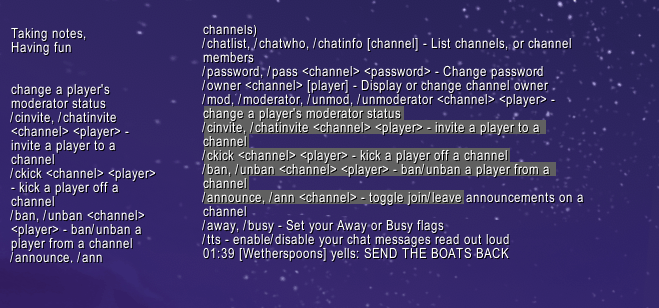
Select specific text and copy it 3.png
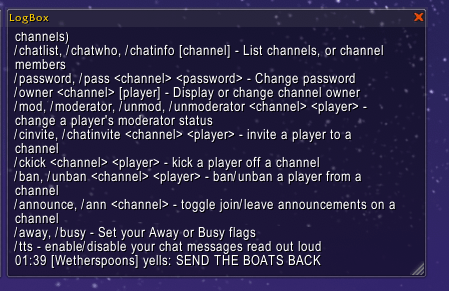
LogBox - With Notepad, Coordinates, MoveSpeed, GoldBox, BagSlots and SimpleFishing 3.png
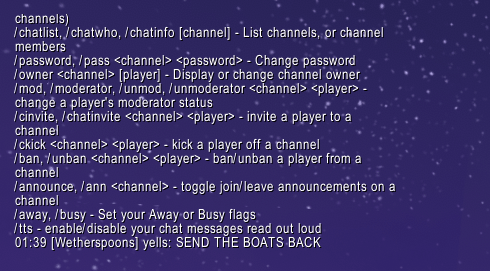
LogBox - With Notepad, Coordinates, MoveSpeed, GoldBox, BagSlots and SimpleFishing 4.png
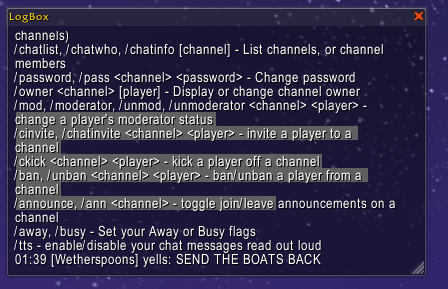
Select specific text and copy it 1.png
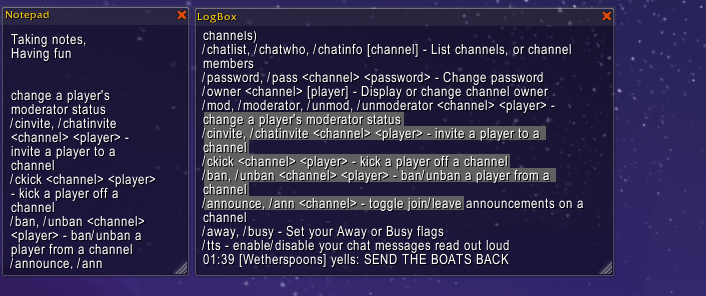
Select specific text and copy it 2.png
Description
LogBox
A moveable box that pulls your chat log out as plain, selectable text — so you can copy debug output straight out of WoW chat log, or easily note the plan for that raid boss.
WoW's chat frame is built from text objects the game doesn't let you select or highlight, so there's no native way to copy anything out of it. LogBox works around that: click Refresh and your chat history lands in a normal text box, ready for Ctrl+A / Ctrl+C. You can also of course select only the text you need.
Works great with Munin.Notepad!
Features
- Copy chat text — the whole point. Click Refresh (or left-click the minimap icon) and the full scrollback from your default chat frame appears in the box, already fully selected, ready to Ctrl+C.
- Clean plain text — color codes, hyperlink markup, and icon escape sequences are stripped out, so what you paste is just plain readable text.
- Snapshot, not a live feed — the box shows whatever chat looked like the moment you last hit Refresh. Click it again any time to pull in new lines.
- Movable — drag it by its title bar while unlocked; it's clamped to your screen edges so it can never get lost off-screen.
- Resizable — grab the bottom-right corner to make it bigger or smaller; the size is remembered.
- Lockable — lock it in place, fully transparent and out of the way, or unlock it whenever you like.
- Minimap icon — left-click to show the box and refresh it in one action, right-click to hide/show it, Alt+Right-click to lock/unlock it.
- Discoverable even when empty — a locked, empty box stays fully transparent for a clean, minimalist look, but hovering your mouse over it reveals a faint outline and icon so you never lose track of where it is.
Usage
- Left-click the minimap icon to show the box and pull in the latest chat log, fully selected — one click and you're ready to Ctrl+C.
- Right-click the minimap icon to toggle the box hidden/shown.
- Alt + Right-click the minimap icon to lock/unlock the box.
- Click and drag the title bar to reposition it while it's unlocked.
- Alt + Right-click and drag anywhere on the box to reposition it while it's locked — it unlocks the instant you grab it and locks itself again the moment you let go. Prefer a locked box that never moves by accident? Turn this off with
/logbox drag. - Click the small refresh icon on the title bar to pull the latest chat log in at any time.
- Click the small close button on the title bar to hide the box.
- Slash commands are also available:
/logbox lock— lock the box in place/logbox unlock— unlock it for dragging/logbox toggle— lock/unlock in one command/logbox show— show the box again after closing it/logbox hide— hide the box/logbox refresh— pull the latest chat log into the box/logbox minimap— toggle the minimap icon on/off/logbox drag— toggle whether Alt+Right-click-drag can move the box while it's locked
Roadmap
LogBox is intentionally a bare-bones dev tool right now — a pure "get the text out" utility. Planned/considered for later, depending on feedback:
- Choosing which chat frame to pull from (e.g. a custom "Debug" tab or the Combat Log window) via a dropdown, instead of always reading the default chat frame.
Notes
LogBox only reads chat text already visible to you in the default chat frame — it doesn't intercept, log to disk, or transmit anything.
Munin.LogBox Team