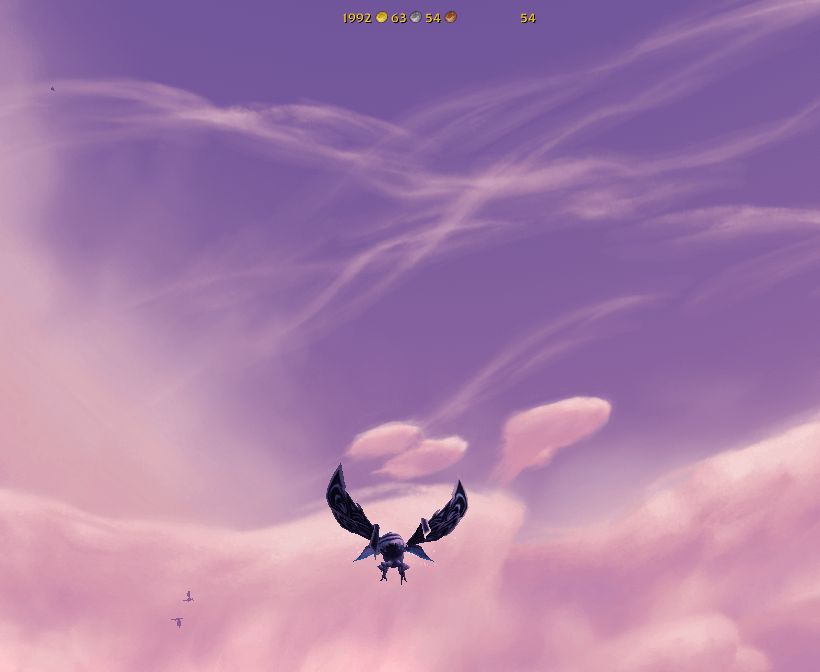
Munin.GoldBox and Munin.BagSlots 2.png
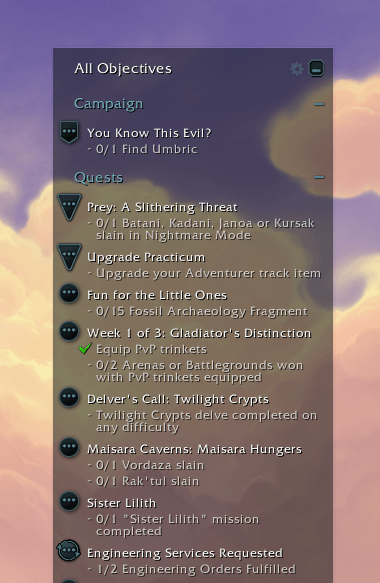
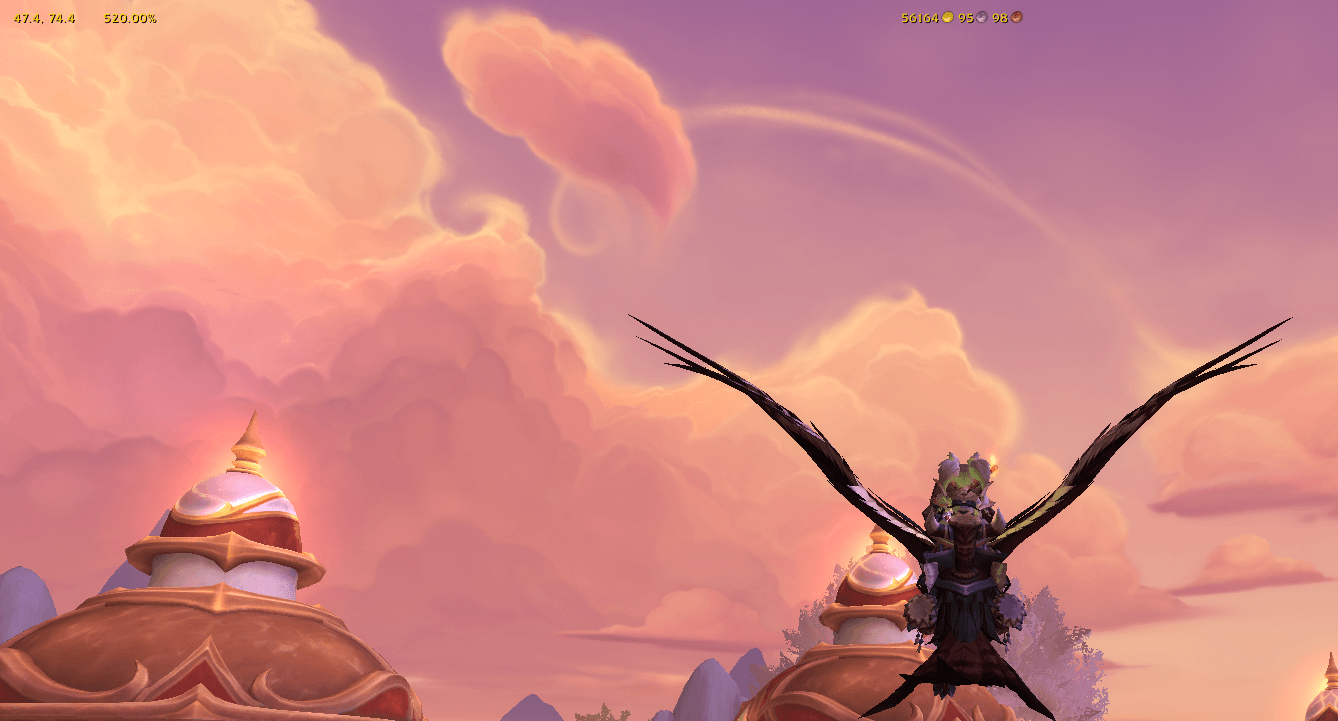
Coordinates, MoveSpeed and GoldBox.png
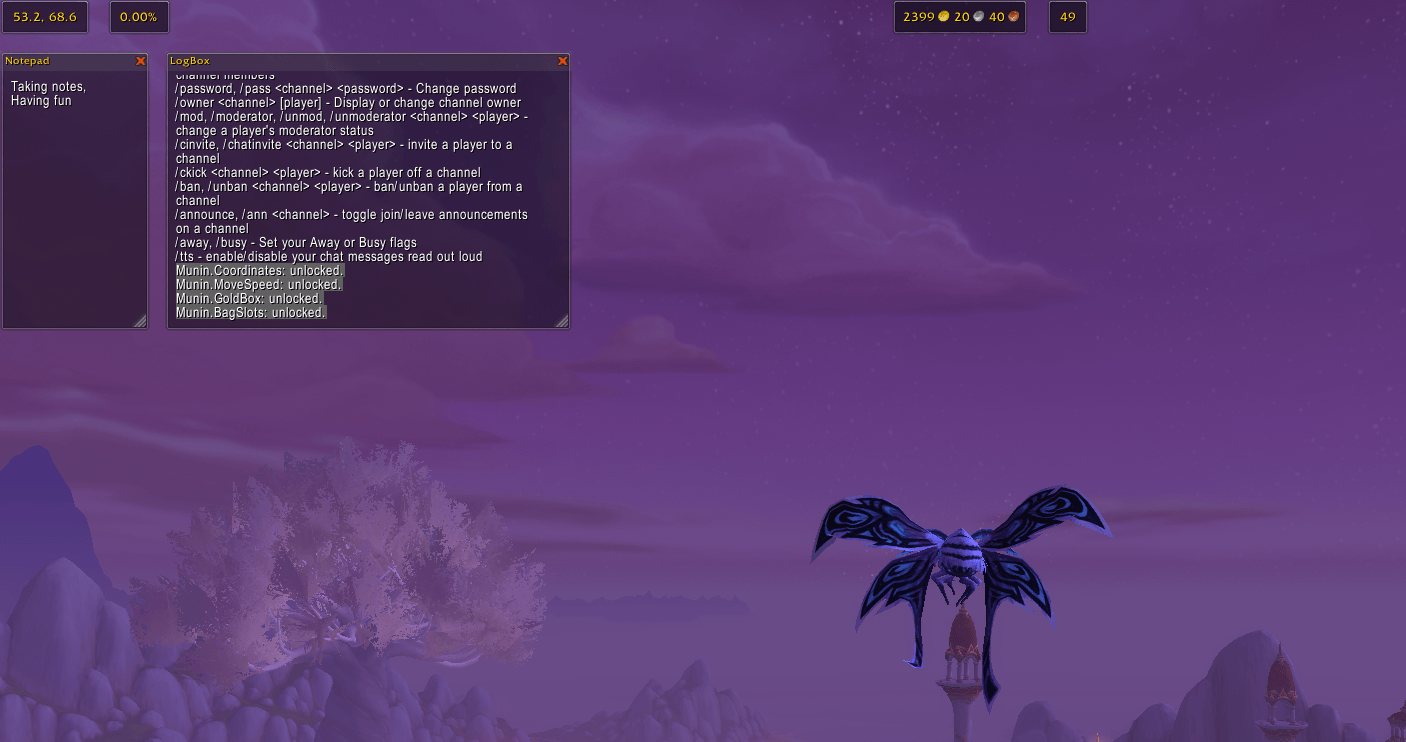
Munin.UI 8.png
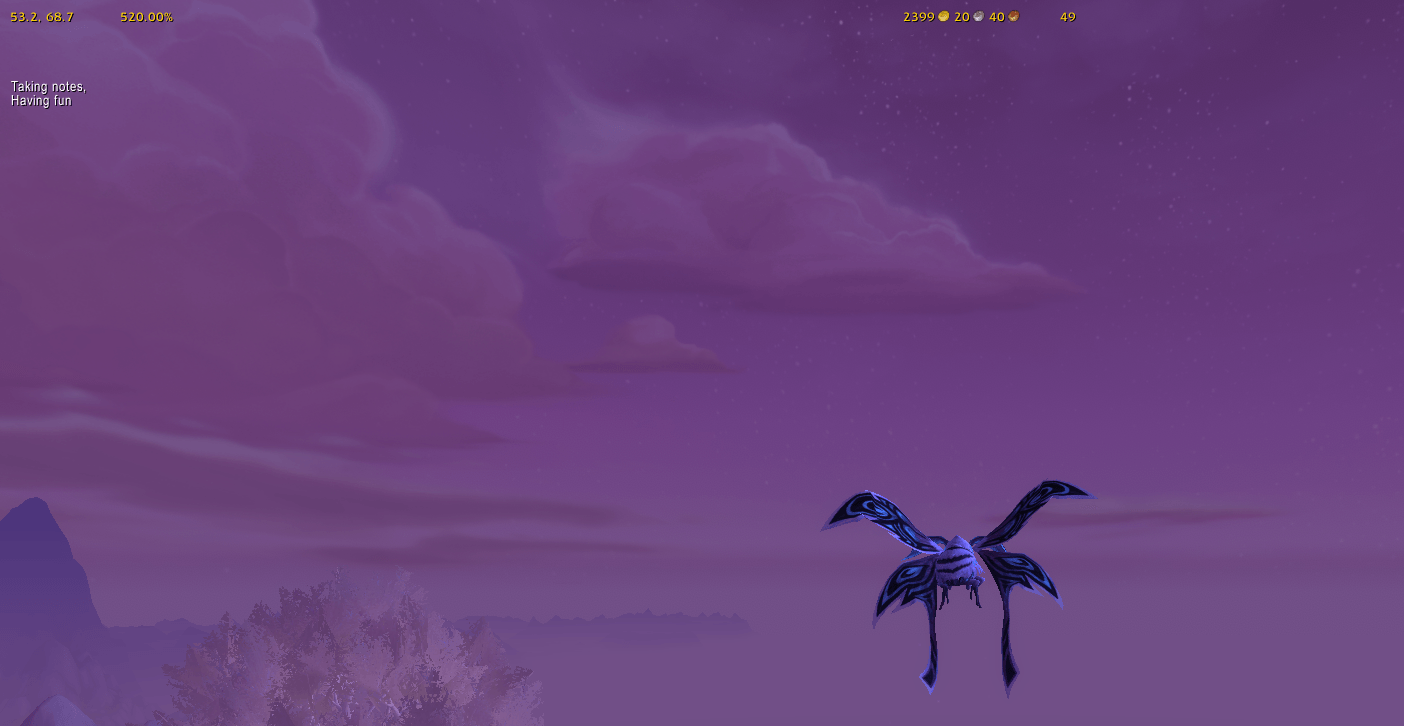
Munin.UI 7.png
Munin.UI 9.png
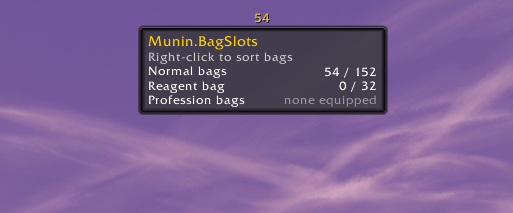
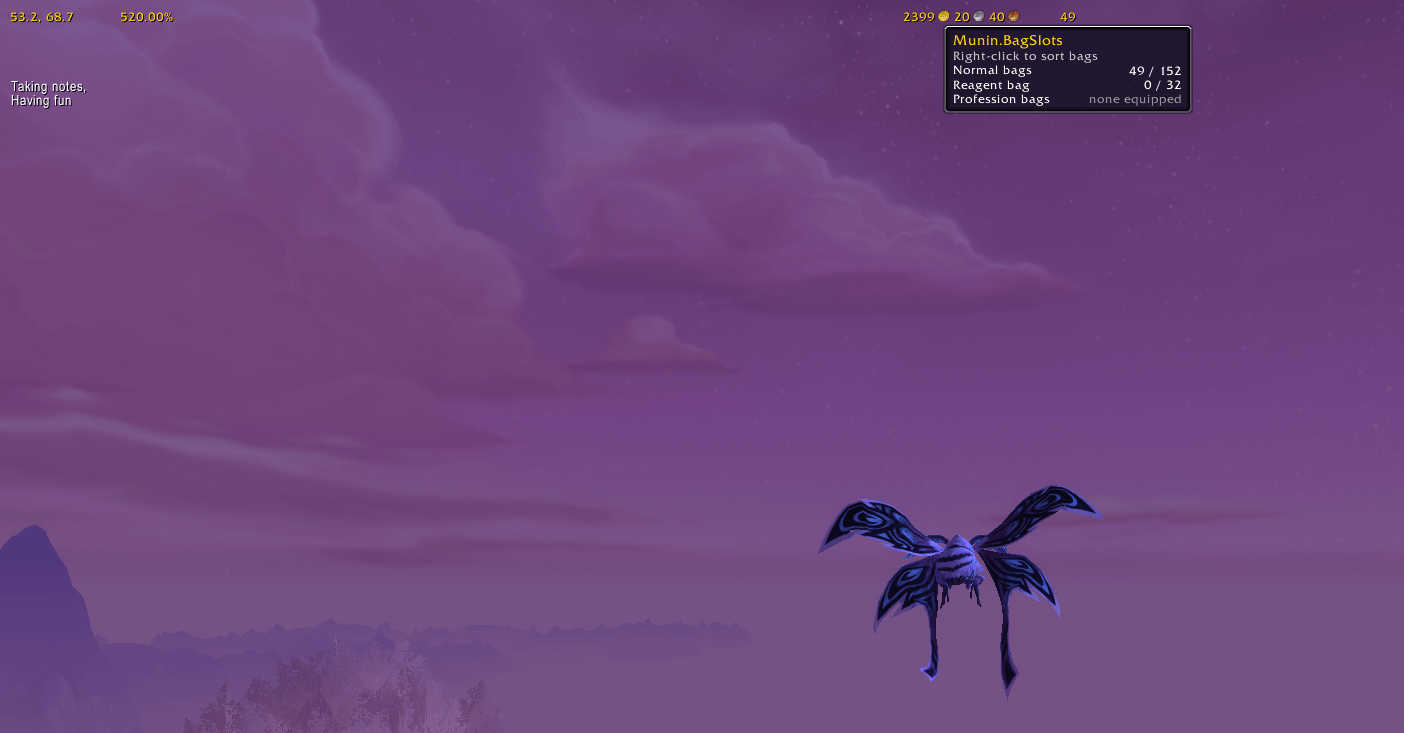
BagSlots - Tooptip, and rightclick to sort bags.png
Description
Munin.UI
Ready for WoW Forever!
Now includes Munin.ChatBox and Munin.NameBox!
All Munin UI addons combined into one — GoldBox, Notepad, MoveSpeed, Coordinates, BagSlots, LogBox, ZoneMap, SpecIcon, QuestLog, NameBox and ChatBox — published alongside the standalone versions. Log in and they're already laid out on screen for you, locked and out of the way — no setup needed to get a clean-looking UI.
Already using one or more of the standalone Munin addons? Munin.UI detects them automatically and skips those components so you never get duplicates. Each component's position, lock state, and (for Notepad) notes are kept fully separate from its standalone version — switching between them doesn't carry your data over, and nothing you've already set up gets touched in either direction.
Note: Munin.LogBox is hidden as default, find it in options. Munin.SpecIcon is by default hidden in World, and shown in PvP/Arena/Dungeon/Raid/Scenario. This can be changed in settings. Munin.QuestLog restyles Blizzard's own Objective Tracker in place, so it has no on-screen position of its own to lay out, move/resize from Edit Mode. Munin.SimpleFishing is not contained in this addon, as it is not a UI element. It is available as a stand-alone addon (retail only).
Features
- Ten components shown by default, one waiting in settings — GoldBox, Notepad, MoveSpeed, Coordinates, BagSlots, ZoneMap, SpecIcon, QuestLog, NameBox and ChatBox are on from the start. LogBox (a dev/debugging tool) starts hidden — open it from the options panel, its ChatBox icon or its minimap icon.
- Starts clean, no setup needed — every component begins locked and in its default position, so you get a tidy UI immediately. Unlock and move/resize anything you want to change from settings, or simply alt+rightclick and drag to where you want them.
- Laid out for you by default — Every box is still freely movable, lockable, and resizeable.
- Choose which components you use — an options panel under Esc → Options → AddOns → Munin.UI (or
/Munin.UI,/MuninUI,/MUI) lets you turn each component on or off individually. - Plays nicely with the standalone addons — already run the standalone version of a component? Munin.UI detects it and skips that one automatically, greying out its checkbox in the options panel with a note explaining why.
- Fully independent from the standalone addons — each component's position, lock state, and (for Notepad) notes are separate from its standalone version.
Usage
- Log in and ten of the eleven components appear in their default positions, already locked — LogBox stays hidden until you choose show it in the options panel or from its minimap icon, SpecIcon will show up in PvP/Arena/Dungeon/Raid/Scenario, and QuestLog restyles Blizzard's own Objective Tracker directly, wherever Edit Mode already has it positioned.
- Open
Esc→Options→AddOns→Munin.UI(or type/Munin.UI,/MuninUI, or/MUI) to turn individual components on or off, and change auto-show/hide for individual components. Changes need a UI reload to take effect — the panel offers a Reload UI button once you've changed something. - Each component otherwise works exactly like its standalone counterpart:
- GoldBox — shows your current gold.
/muigoldbox lock|unlock|toggle. - Notepad — a small persistent notepad, notes saved per character. Minimap icon.
/notepad lock|unlock|toggle|show|hide|minimap|drag. - MoveSpeed — shows your movement speed as a % of base run speed.
/muimovespeed lock|unlock|toggle. - Coordinates — shows your current map coordinates.
/muicoords lock|unlock|toggle. - BagSlots — shows how many normal bag slots you have free; right-click to sort bags.
/muibagslots lock|unlock|toggle. - LogBox — pulls your chat log into copyable plain text. Minimap icon;
/muilogbox lock|unlock|toggle|show|hide|refresh|minimap|drag. - ZoneMap — a movable window for the zone map (Shift+M).
/zonemap lock|unlock|toggle|show|hide. - SpecIcon — shows your current specialization as a small icon, with role in the tooltip.
/muispecicon lock|unlock|toggle. - QuestLog — restyles Blizzard's Objective Tracker with a frosted backdrop and cool accent color, without moving or replacing it. Gear icon next to Blizzard's own minimize button;
/questlog show|hide|toggle. - NameBox — puts your character's name on screen.
/muinamebox lock|unlock|toggle. - ChatBox — turns your default chat window into a movable, resizable box, with the tab row and its buttons along the top. Scroll the tab row to reach tabs that don't fit.
/muichatbox lock|unlock|show|hide|reset.
- GoldBox — shows your current gold.
- Every box supports Alt+Right-click-drag to reposition it even while locked.
Munin.UI Team