MendeLedger
- By
A WoW Forever addon that keeps Auctionator's scan prices long after Auctionator forgets them, and lets you search and graph that history.
Description
MendeLedger
A GUI for seeing Auctionator price history, and a ledger of your own auction house sales and purchases.
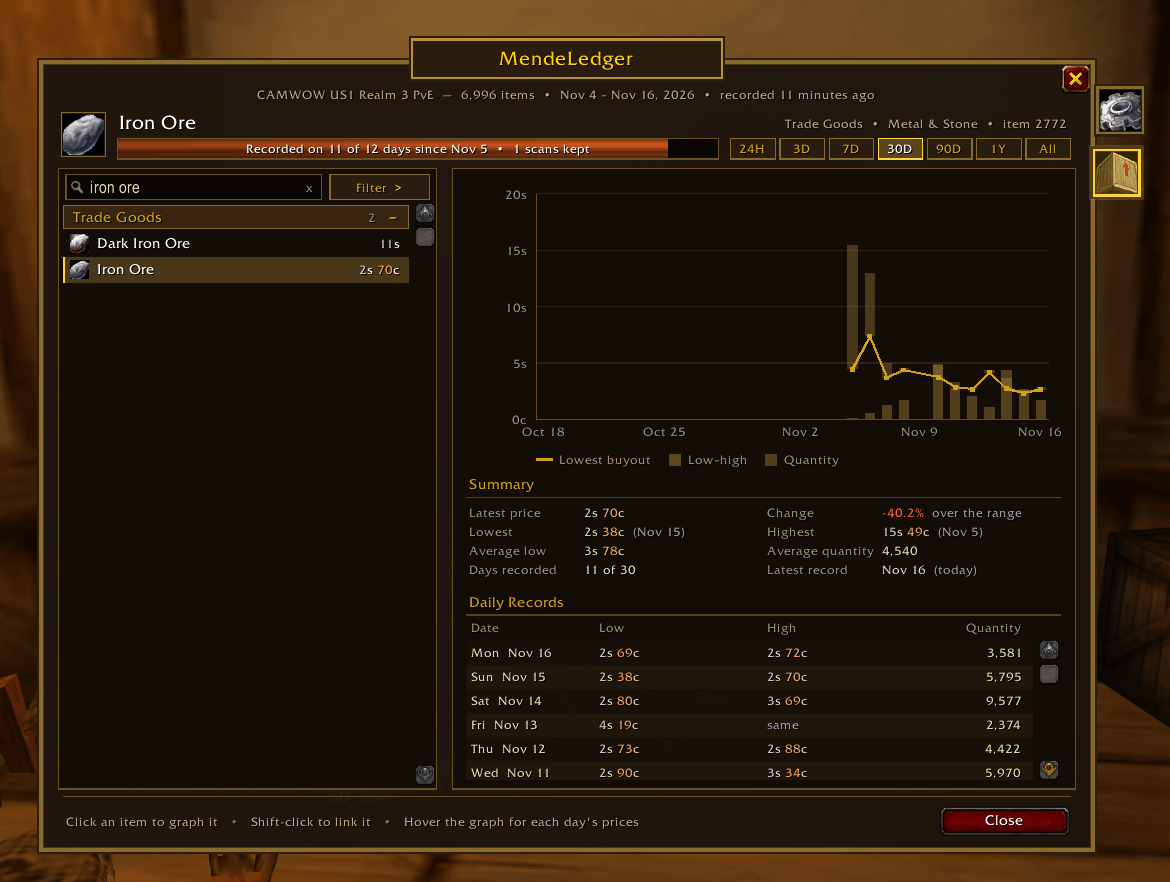
Auctionator only remembers the last 21 days of prices (by default). MendeLedger keeps every day Auctionator scans, so you can look up an item's price history over months instead of weeks, and graph how it moves, even hour by hour. Its Ledger tab keeps track of what you sell and buy on the auction house, and how much gold you make and spend, by day, week, month, quarter, and year.
Features
- Keeps the daily lowest price, highest price and quantity of every item Auctionator scans, for as long as you like
- Optional scan detail: keeps every Auctionator scan with its time, so you can see how prices change during the day
- Search everything in an item's tooltip, not just its name: weapon and armor types, slots, stats, effects and set bonuses
- Price graph with ranges from 24 hours to all time; hover any point to see its prices
- A summary for the chosen range: latest price, change, lowest, highest and averages
- Find items you can buy on the auction house for less than a vendor pays for them
- Find gear worth more disenchanted than it costs on the auction house
- Shift-click an item to link it in chat
- A ledger of your auction house sales, purchases and deposits, with income, spending and profit by day, week, month, quarter and year
- Keeps each auction house separate: region, ruleset and faction (for example US / PvE / Alliance)
- Import the prices your other characters have scanned
- Minimap button and an entry in the addon compartment
Requirements
- World of Warcraft: Forever
- Auctionator: MendeLedger records the prices Auctionator scans. Version 350 or later is recommended: it keeps a separate price list for each ruleset and faction
Installation
With the CurseForge app: install MendeLedger from its CurseForge page.
By hand: copy the MendeLedger folder into:
World of Warcraft\_forever_\Interface\AddOns\If MendeLedger doesn't show up in the AddOns list, restart the game completely.
Getting started
- Open the auction house and let Auctionator scan.
- Close the auction house. A few seconds later MendeLedger records the prices and says so in chat.
- Type
/mendel, search for an item and click it.
The first time, you immediately get every day Auctionator still remembers (up to 21 days). From then on, the history keeps growing.
Seeing prices during the day
MendeLedger can keep every scan Auctionator makes, with its time. To get a new point about every 30 minutes:
- In Auctionator's options, turn on autoscan and set the interval to 30 minutes.
- Auctionator scans when you open the auction house and the interval has passed. It doesn't scan again while the window stays open, so you get a point each time you visit the auction house (or press Auctionator's scan button). Full scans can be made once every 15 minutes.
- In MendeLedger, pick an item and choose 24H, 3D or 7D.
Good to know:
- Only scans made while MendeLedger is enabled are kept.
- A gap in the line means the item wasn't on sale when a full scan ran. The records list shows it as "not on sale".
- Searching for a few items adds points for those items only.
- Price checks on Auctionator's Selling tab count toward the daily prices, not the scan detail.
- Scan detail is kept for 14 days (you can choose 7, 14 or 30). Daily prices are kept for as long as you choose.
- Use the View button under the graph to switch between each scan and one point per day.
The window
The tabs on the right edge of the window: Options (the gear), Log (price history) and Ledger (your sales and purchases).
Log tab
Left side
- Search box: finds items by name, item type and anything in their tooltip (see Searching below). With the search box selected, shift-click an item in your bags to search for it.
- Filter: sort by name, latest price, 7-day change, vendor profit, disenchant profit or days recorded; search item tooltips or only names and types; show only items seen in the last 7 days or with 2 or more days of prices; group by item type; expand or collapse all item types.
- The item list, grouped under item-type bars. Click a bar to open or close it.
Right side
- The graph:
- Gold line: lowest buyout
- Shaded column: lowest to highest price in that day (or group of scans)
- Brown bars: how many were on sale
- Range buttons: 24H, 3D, 7D, 30D, 90D, 1Y and All.
- Summary: latest price, change over the range, lowest, highest, average price, average quantity, and how many days or scans were recorded.
- Daily Records (or Scans in scan view): every day or scan in the range, newest first.
The bar above the graph shows on how many days the item has been recorded since it was first seen.
Ledger tab
Your own auction house business: what you sold and bought, for how much and when.
- Day, Week, Month, Quarter and Year choose how it's totalled. Weeks start on Monday.
- The button beside them switches between the auction house shown (all your characters there), this character only, and everything.
- Left side: every period with sales or purchases, newest first, with its profit. Click one to see it.
- Right side:
- A chart of the last twelve periods: income in green (up), spending in red (down) and profit as a gold mark. Hover a column for its totals, click it to see it.
- Summary of the chosen period: income from sales, spent, profit, purchases, deposits paid, the auction house's cut, items sold and items bought.
- Every sale, purchase and deposit in the period, newest first, with time, item, quantity and gold. Hover one for its details (sale price, cut, deposit returned, gold received, character); click it to see the item's price history on the Log tab, or shift-click to link it.
How it's counted:
- Income is the gold you receive from sales: the sale price, minus the auction house's cut, plus the deposit you get back.
- Spent is what you pay for purchases plus the deposits you pay when you post auctions.
- Profit is income minus spent. A deposit lost on an auction that expired or was cancelled counts against your profit.
Where the records come from:
- Sales and purchases of items come from your mailbox ("Auction successful" and "Auction won" mail). They're recorded when you open your mailbox, at the time the mail arrived. MendeLedger only reads your mail: it never takes gold, items or mail.
- Purchases of commodities (ores, herbs, cloth and other stackable goods) go straight into your bags without mail, so they're recorded at the auction house when you buy them.
- Deposits are recorded when you post an auction.
Searching
The search box looks at each item's name, its type and slot, and everything in its tooltip. So "sword" finds every sword, even ones without "sword" in the name, and you can search for stats, effects and set bonuses.
- Every word you type must match, in any order:
set staminafinds set items with a Stamina bonus. - Put a phrase in quotes to match it exactly:
"increased defense". - A number on its own finds the item with that item ID.
- Capital letters don't matter.
- Every new search starts with all item types open. You can close them while you search; when you clear the search, the item types you had closed before are closed again.
Some searches to try: sword, plate legs, binds when equipped, critical strike, "chance on hit", strongholds.
Tooltips are read in the background the first time you search in each session, which takes a few seconds; names and item types match straight away, and the results fill in as tooltips are read. To search names and item types only, turn off Search item tooltips in the Filter menu.
Vendor profit
Choose Vendor profit under Sort by in the Filter menu to list items whose cheapest auction costs less than a vendor pays for them, the biggest profit first.
- The amount on the right is the profit on one item: what a vendor pays, minus the lowest buyout in the latest scan. Green means profit; grey means you'd lose money.
- Items vendors won't buy say "no vendor" and come last.
- Hover an item to see its profit in the tooltip, whatever the list is sorted by.
- The auction price is from the latest scan, so a cheap auction may already be gone. Check when the item was last recorded (in its tooltip, or the summary when you click it), and look at the auction house before you count on the profit.
- The profit is per item; only the cheapest auction is known, so buying several may cost more each.
Disenchant profit
Choose Disenchant profit under Sort by in the Filter menu to list gear that's worth more disenchanted than its cheapest auction, the biggest profit first.
- The amount on the right is what the item is worth disenchanted, minus its lowest buyout in the latest scan.
- "Worth disenchanted" is the average over many disenchants: for each material the item can give, the chance of getting it times how many you get on average times its latest auction price in the same auction house. A single disenchant can give more or less.
- What an item gives depends on its item level and quality, and for uncommon gear on whether it's armor or a weapon. The rules follow the published World of Warcraft: Forever disenchanting tables.
- A
*after the amount means some of the materials it can give have no auction price yet, so it's really worth a bit more. - "can't DE" means it can't be disenchanted (shirts, tabards, some wands, or any item whose tooltip says "Cannot be disenchanted"). "no prices" means none of its materials have an auction price yet; "no data" means its item level isn't in the disenchanting tables.
- Hover an item to see its disenchant profit in the tooltip, whatever the list is sorted by.
- You need enough Enchanting skill to disenchant an item; MendeLedger doesn't check your skill.
- As with vendor profit, prices are from the latest scan, so check the auction house before you buy.
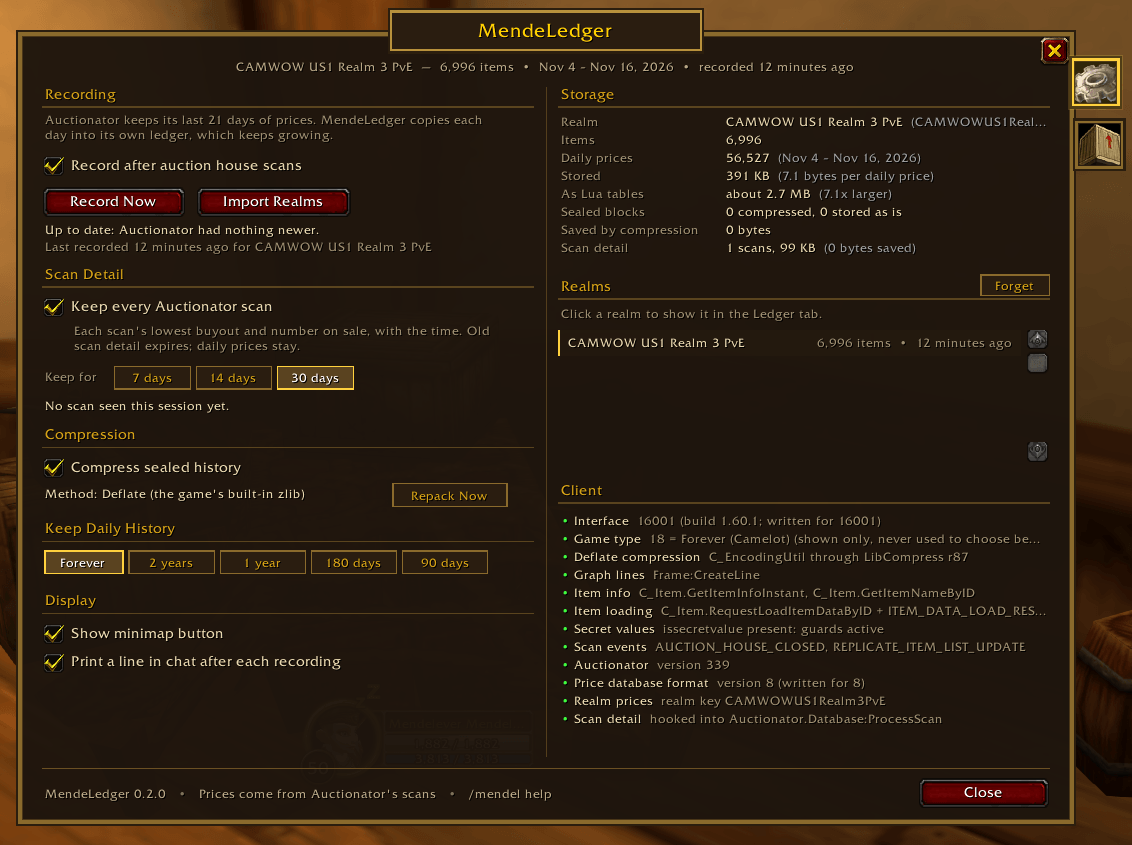
Options tab
Click the gear tab on the right edge of the window.
- Recording: record automatically after auction house scans; Record Now; Import All records the prices Auctionator has saved.
- Scan Detail: keep every Auctionator scan, and for how long (7, 14 or 30 days).
- Compression: saves disk space. It's best to leave it on.
- Keep Daily History: Forever, 2 years, 1 year, 180 days or 90 days.
- Display: show the minimap button; print a line in chat after each recording; record your sales and purchases for the Ledger tab.
- Storage: how much space your history uses. The figures are measured when you open this tab, so they can take a few seconds to update.
- Auction Houses: each one MendeLedger has prices for, shown as region / ruleset / faction. Click one to view its prices; Forget deletes its history (Auctionator's own data is not touched). Use Here is only needed if MendeLedger can't tell which auction house your character uses. An entry marked "from before 0.2.7" holds older prices that haven't found their auction house yet (see Troubleshooting).
- Client: shows which game features MendeLedger found. Useful when reporting a problem.
Commands
| Command | What it does |
|---|---|
/mendel |
open or close the window |
/mendel log |
open the Log tab (price history) |
/mendel ledger |
open the Ledger tab (your sales and purchases) |
/mendel <text> |
open the window and search (names, types, stats, effects or an item ID) |
/mendel record |
record Auctionator's prices now |
/mendel import |
record everything Auctionator has prices for |
/mendel houses |
list the auction houses in your history |
/mendel house <name> |
show another auction house's prices |
/mendel use <name> |
tell MendeLedger which auction house this character uses (only if it can't tell) |
/mendel keep <days or forever> |
how long to keep daily prices |
/mendel scans on / off |
keep every Auctionator scan, or only daily prices |
/mendel keepscans <7, 14 or 30> |
how many days of scan detail to keep |
/mendel compress on / off |
turn compression on or off |
/mendel repack |
apply the compression setting to history you already have |
/mendel stats |
how much space your history uses |
/mendel minimap |
show or hide the minimap button |
/mendel options |
open the Options tab |
/mendel reset |
move the window back to the middle of the screen |
/mendel probe |
check which game features MendeLedger found |
/mendel forget |
forget the history of the auction house being shown (asks first) |
/mendel help |
list these commands in game |
Disk space
MendeLedger stores prices compactly. For an auction house with about 7,000 items, the first 12 days of daily prices take roughly 0.35 MB.
Scan detail takes more. Scanning every 30 minutes all day can add about half a megabyte a day for a busy auction house, which is why it's only kept for 14 days by default. If your saved data grows too large, choose a shorter Keep Daily History or Scan Detail setting.
Troubleshooting
Nothing is recorded. Make sure Auctionator is enabled and has scanned the auction house, then close the auction house or type /mendel record.
Items show as "Item #12345". Item names are loaded from the server and appear after a short while.
A search misses items the first time. Tooltips are still being read; the line under the title shows the progress, and the results fill in as it finishes.
The list takes a few seconds to appear. The first time you open the window in a session, MendeLedger reads through your whole history to build the item list ("Reading the ledger… 45%"). It does this in small slices so the game stays smooth, which on a large history takes a few seconds. Opening it again in the same session is instant.
"No scans of this item in this range." Scan detail only exists for scans made while MendeLedger was enabled. The daily view is shown instead.
How MendeLedger keeps auction houses apart. WoW Forever has no realms: there's an auction house for each region, ruleset and faction. MendeLedger reads these for each character and keeps a separate price history for each auction house, shown as, for example, US / PvE / Alliance. Regions are US, EU, KR/TW (Korea and Taiwan count as one for now) and CN; rulesets are PvE, PvP, RP and Hardcore. A character can't move to another region, so once MendeLedger knows a character's auction house, a different region reading later (for example after the region was changed at the login screen) doesn't move its history anywhere.
Prices from before version 0.2.7. Older versions filed prices under realm names such as CAMWOW US1 Realm 3 PvE. When one of your characters logs in, that history (daily prices and scan detail) is moved into the auction house with the same region and ruleset, and into the other auction houses of that region and ruleset that MendeLedger already knows; then the old entry is removed, and chat says so. An entry named like "PvE Alliance" (made by version 0.2.7's Import All) is moved into its auction house the same way. A character of the other faction that hasn't logged in since version 0.2.7 starts without that older history.
The first login after updating takes a minute. After updating from a version before 0.2.9, MendeLedger moves scan detail out of old entries and reads Auctionator's price lists through once more, in the background. The line under the window's title shows the progress. Recording waits until it's done; nothing is lost.
I play both factions, or more than one ruleset. Auctionator 350 and later keep a separate price list for each ruleset and faction, and MendeLedger copies each one into the right auction house. Older Auctionator versions keep a single price list for everything since the WoW Forever update of November 20, 2026. With those, so that one auction house's prices never end up in another's history, MendeLedger records daily prices from its own scans for each auction house instead of copying Auctionator's list, and chat says so once. Updating Auctionator fixes this.
An item shows up twice, once with a suffix. Items with random enchantments, such as "of the Bear" or "of the Eagle", are listed separately for each suffix (Auctionator 350 and later record them that way), as well as once without a suffix for all of them together.
MendeLedger asks which auction house you use. This only happens if the game won't tell it your region, ruleset or faction. Open the Options tab, click the right entry under Auction Houses and press Use Here, or type /mendel use <name>; /mendel probe shows what was missing. Nothing is lost while it waits: Auctionator keeps its last 21 days of prices.
The minimap button is gone. Type /mendel minimap.
The window is off the screen. Type /mendel reset.
A sale is missing from the Ledger tab. Sales are recorded when you open your mailbox, so open it once after selling. Mail you took before installing version 0.4.0 can't be read any more. Commodity purchases and deposits are only recorded while MendeLedger is enabled.
The time of a sale is when its mail arrived. That's normally the moment it sold; a sale whose gold is held back for a while shows when the gold arrived.
Something stopped working after a game or Auctionator update. Type /mendel probe and include what it shows when you report the problem on the CurseForge page, along with your MendeLedger and Auctionator versions.
Credits
Made by MendeleevForever. MendeLedger is not made by or affiliated with the Auctionator team or Blizzard Entertainment.
MendeLedger includes these libraries, with their licences in the Libs folder:
- LibStub and CallbackHandler-1.0 (Ace3 licence)
- LibDataBroker-1.1 and LibDBIcon-1.0
- LibCompress (GNU GPL v2)
MendeLedger Team