Lafee macro manager
- By
creating, editing, duplicating, deleting and organizing both global and character-specific macros from one clear interface
aaa.png
Description
Lafee Macro Manager
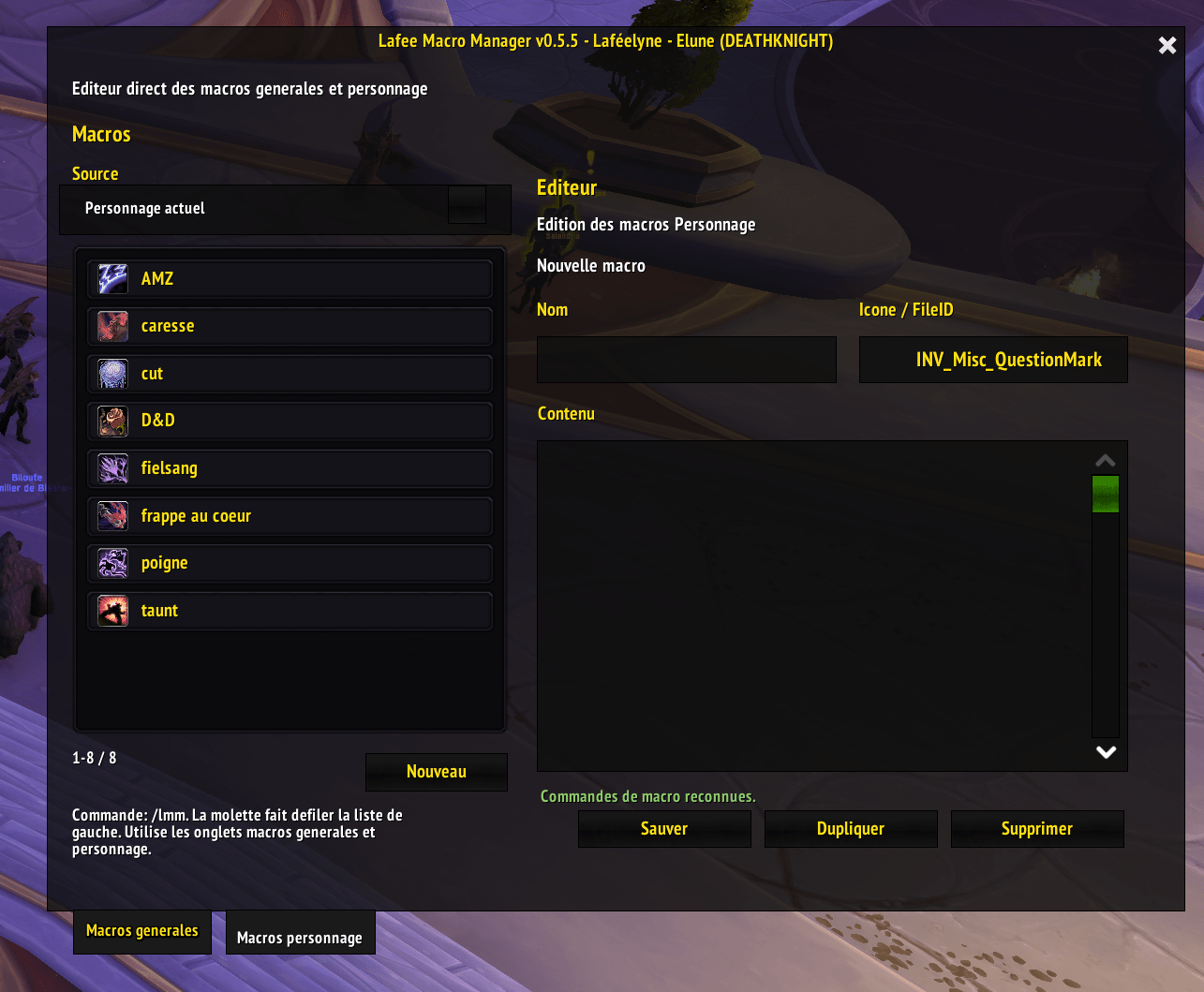
Lafee Macro Manager is a lightweight World of Warcraft Retail addon for creating, editing, duplicating, deleting and organizing both global and character-specific macros from one clear interface.
It uses Blizzard's native macro system. Macros created or edited with the addon remain standard WoW macros and can still be used from the default Macro window and action bars.
Features
- Edit global and character-specific macros.
- Create, save, duplicate and delete macros.
- Browse and select spell and item icons.
- Keep the dynamic question-mark icon (
?) when desired. - Highlight recognized macro commands and spell names.
- Insert a spell name from the spellbook with Shift + left-click or right-click while the editor is open.
- Drag a macro from the left-hand list to an action bar.
- Browse cached macros from your other characters and import them locally.
- Switch quickly between global and character macros.
- Movable editor window with a saved position.
- Movable minimap button that can be hidden.
- Optional ElvUI skinning when ElvUI is installed.
- French and English interface, selected automatically from the game locale.
Retail compatibility
Version 0.5.0 declares support for these Retail interface versions:
- 12.0.5 (
120005) - 12.0.7 (
120007) - 12.1.0 (
120100)
ElvUI is optional. Lafee Macro Manager does not modify ElvUI files and does not require any external library.
Installation
Download and extract the addon.
Make sure the resulting folder is named exactly
Lafee_macro_manager.Place it in:
World of Warcraft/_retail_/Interface/AddOns/Lafee_macro_manager/Restart World of Warcraft or reload the interface with
/reload.Enable Lafee Macro Manager in the AddOns list on the character selection screen.
The final path should contain Lafee_macro_manager.toc directly inside the addon folder, not inside a second nested folder.
Getting started
Click the minimap button or type /lmm to open the editor.
Use the two tabs to choose between:
- Global: macros available to every character on the WoW account.
- Character: macros available only to the current character.
Select a macro in the left-hand list to edit it. Use New to clear the editor and start a new macro. Changes are written to the game only when Save is pressed.
The macro name and body follow Blizzard's native limits. The addon truncates names to 16 characters and bodies to 255 characters before saving.
Icons and automatic icon selection
Click the icon preview to open the icon picker. You can also enter an icon FileID or texture name manually.
Use ?, auto, or the question-mark icon to keep Blizzard's automatic macro icon behavior. The addon remembers this choice for macros saved through Lafee Macro Manager so that later edits do not accidentally freeze the icon to the currently displayed spell.
Spellbook insertion
While the Lafee Macro Manager window is open, hold Shift and left-click or right-click a spell in the spellbook to insert its name at the editor cursor. If text is selected in the macro body, the spell name replaces that selection.
The addon supports the current Retail spellbook and keeps fallbacks for older Retail spellbook button layouts. If another addon heavily replaces the spellbook, this shortcut may not be available; normal typing and pasting still work.
Importing macros from another character
Lafee Macro Manager stores a lightweight snapshot of each character's macros when that character logs in and whenever the macro list changes.
Open the Source menu to view a previously synchronized character. Remote entries are read-only. Select one and press Import to create a local copy in the currently selected Global or Character tab.
Important limitations:
- A character appears only after you have logged in with that character while the addon was enabled.
- The snapshot represents the most recent synchronization for that character.
- Imported macros still count toward Blizzard's native global or character macro limit.
Minimap button
- Left-click: open or close the editor.
- Right-click: switch between Global and Character tabs.
- Drag: move the button around the minimap.
The position and visibility of the minimap button are saved account-wide.
Slash commands
/lmm— open or close the editor./lmm global— select the Global macro tab./lmm character— select the Character macro tab./lmm reset— reset the editor window to the center of the screen./lmm minimap— hide or show the minimap button./lmm help— display the command list./lafeemacro— alias for/lmm.
Combat restrictions
World of Warcraft restricts macro changes during combat. Saving, creating, deleting, duplicating, importing and dragging macros are therefore disabled while combat lockdown is active. The controls become available again after combat.
Saved data
The addon uses:
LafeeMacroManagerGlobalDBfor account-wide character snapshots and minimap settings.LafeeMacroManagerDBfor character-specific preferences, window position and automatic-icon tracking.
Deleting these SavedVariables resets the corresponding settings and cached character list, but it does not delete your native WoW macros.
Troubleshooting
If the addon does not appear:
- Check that the folder name and installation path are correct.
- Confirm that the addon is enabled for the current character.
- Use
/reloadafter installing or updating. - Temporarily test with other addons disabled if the interface is heavily modified.
To display Lua errors, run:
/console scriptErrors 1
Then reload the interface with /reload. To disable Lua error popups again, use:
/console scriptErrors 0
When reporting a problem, include the full Lua error, your WoW version, the addon version, and whether ElvUI or another spellbook replacement is enabled.
Privacy and dependencies
Lafee Macro Manager does not send data outside the game and has no required third-party dependencies. ElvUI support is optional and uses the installed ElvUI skinning API without changing ElvUI itself.
Feedback
Bug reports and suggestions are welcome on the addon's CurseForge project page. Please include clear reproduction steps whenever possible.
The Lafee macro manager Team