


BigNoteBox
- By
BigNoteBox is a modern and feature rich in-game notepad addon letting you create, organize, & access notes without leaving WoW. Track quests, boss strategies, crafting, other info. It keeps your notes handy & shows them when needed by place or situation!
What's new
Changes in v1.7.3
- New: Blizzard icon fields (Note config and Rich Note Icon tag) now support autocomplete search across 32,000+ icons
- New: Type any part of an icon name to get suggestions with live previews. You can scroll the list with arrow keys and mouse wheel
- New: Enable the icon list feature in Main Config > Advanced > Icons (off by default). This feature uses about 2 MB of memory
- Change: Default max amount of sticky notes changed from 10 to 20
Changes in v1.7.2
Major feature: ESC menu sticky notes
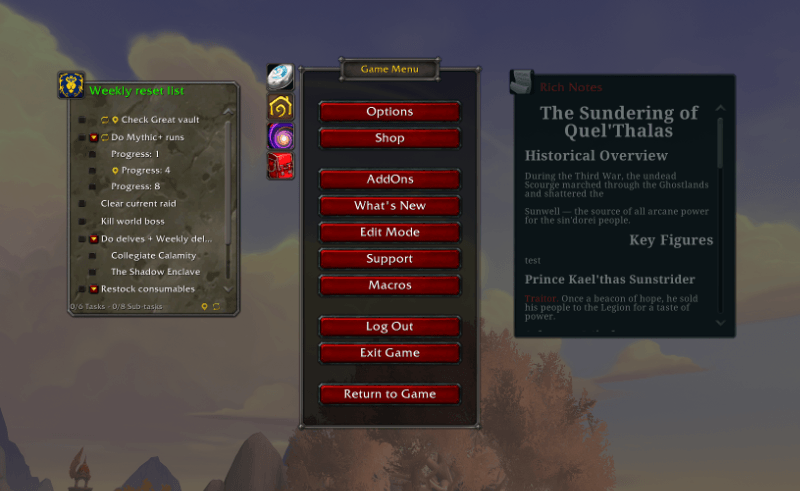
- New: You can now migrate notes from MyNotepad and AmmeNotepad
- New: Sticky Notes can now live in the ESC menu screen (Sticky Note Config > Pin to ESC Screen)
- New: Sticky Notes can be set to always open in the ESC menu screen (Main Config > Features > Sticky Notes > Default to ESC screen only)
- New: There is an overlay by default on the ESC screen, this can be turned off (Main Config > Features > Sticky Notes > Dim screen behind ESC sticky notes)
- Change: Cleaned up libs folder and saved about 2 MB of space
- Fixed: Dropdown menus in Sticky Note settings rendered below the window
Changes in v1.7.1
Major feature: Sticky Note Focus Mode
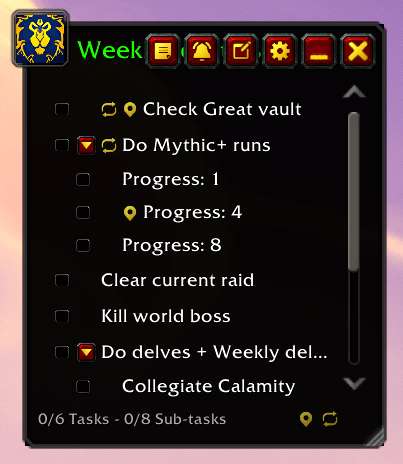

- New: Sticky notes now have a focus mode. Open the sticky note settings and check Focus Mode
- Change: Removed eight background textures for sticky notes and added three new ones
- Change: Added a separate button graphic when a sticky note is in task mode. The button that switches back to note mode is now a note
- Fixed: The buttons in the task window now show as disabled when there are no tasks to clear/delete in both normal mode and skin mode
- Fixed: Task mode in Sticky Notes should no longer flicker if the opacity is set to anything but 100%
- Fixed: Setting a situation or reset on a sub-task will now correctly show the icon in the task window in RefBox
Changes in v1.7.0
Major feature: Task system!
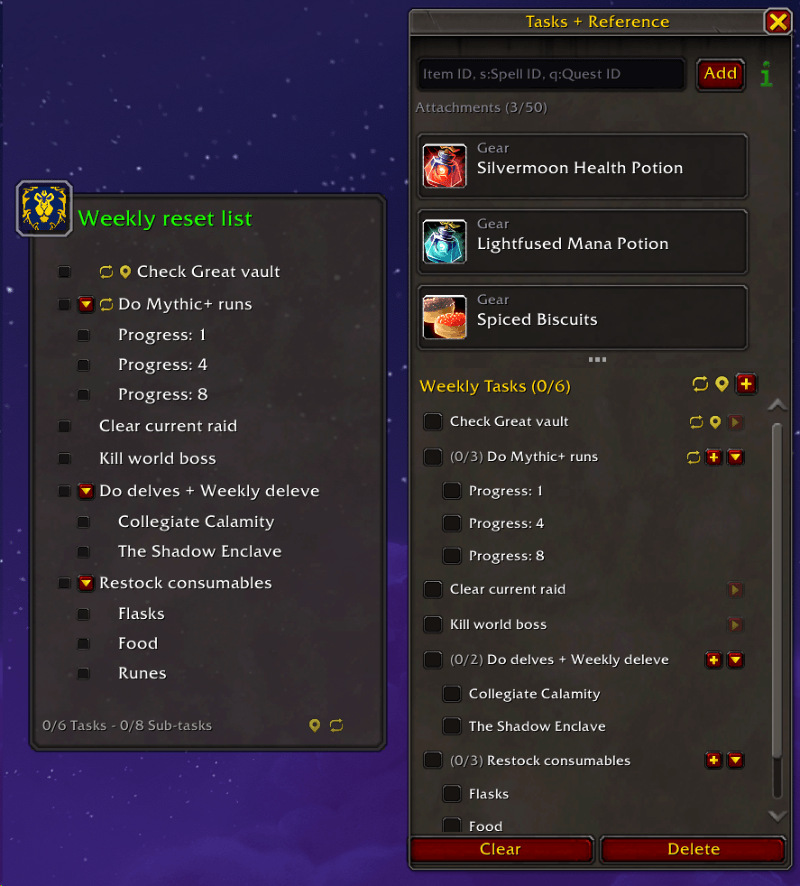
- New: Task system! Add tasks and sub-tasks to any note
- New: Tasks can have daily or weekly auto-reset (set in the task edit window)
- New: Tasks can be bound to a situation (zone, instance, player) (set in the task edit window)
- New: Sub-tasks can collapse and expand
- New: Task panel in the Reference Box with header, footer, and splitter
- New: Sticky notes can show task view instead of note body (toggle with the task button in the sticky header)
- New: Task view in sticky notes with live checkbox toggling
- New: Task filter button in the note list
- New: Task icon shown in note list rows for notes with tasks
- New: Tasks added as a share tier in the share system
- New: Global reset and situation icons in sticky note task footer
- New: Task list spacing setting: Compact, Normal, Spacious (Config > Features > Tasks)
- New: Stone background texture added to sticky note appearance (Sticky Settings > Appearance)
- New: You can now change the opacity of all windows in skin mode (Config > Appearance > Skins > Window opacity)
- Change: Background opacity in sticky notes can now be set to 0 (Sticky Settings > Appearance)
- Change: Sticky note task footer shows Tasks and Sub-tasks counts separately
- Change: Task toggle buttons match the Reference Box style
- Change: The triggered alarm window now follows the skin
- Change: Alarms now default to "Wait for combat to end" instead of "Fire immediately". Can be changed per alarm in the advance tab
- Fixed: The icon for the trash stat in Config > General was not showing
- Fixed: Tag bar in main window included the "Add tag..." input field in the counter. Now ignores it and shows correct hidden tag count
- Fixed: Separation line in the alarms window reduced to 1px and hidden when no alarm is set
This mod has no additional files