ars-UI - MOP Classic - 1920x1080
- By
8566d2531ec41f45291f52e55e236249.jpg
WoWScrnShot_050426_223416.jpg
WoWScrnShot_050326_120711.jpg
WoWScrnShot_050426_202422.jpg
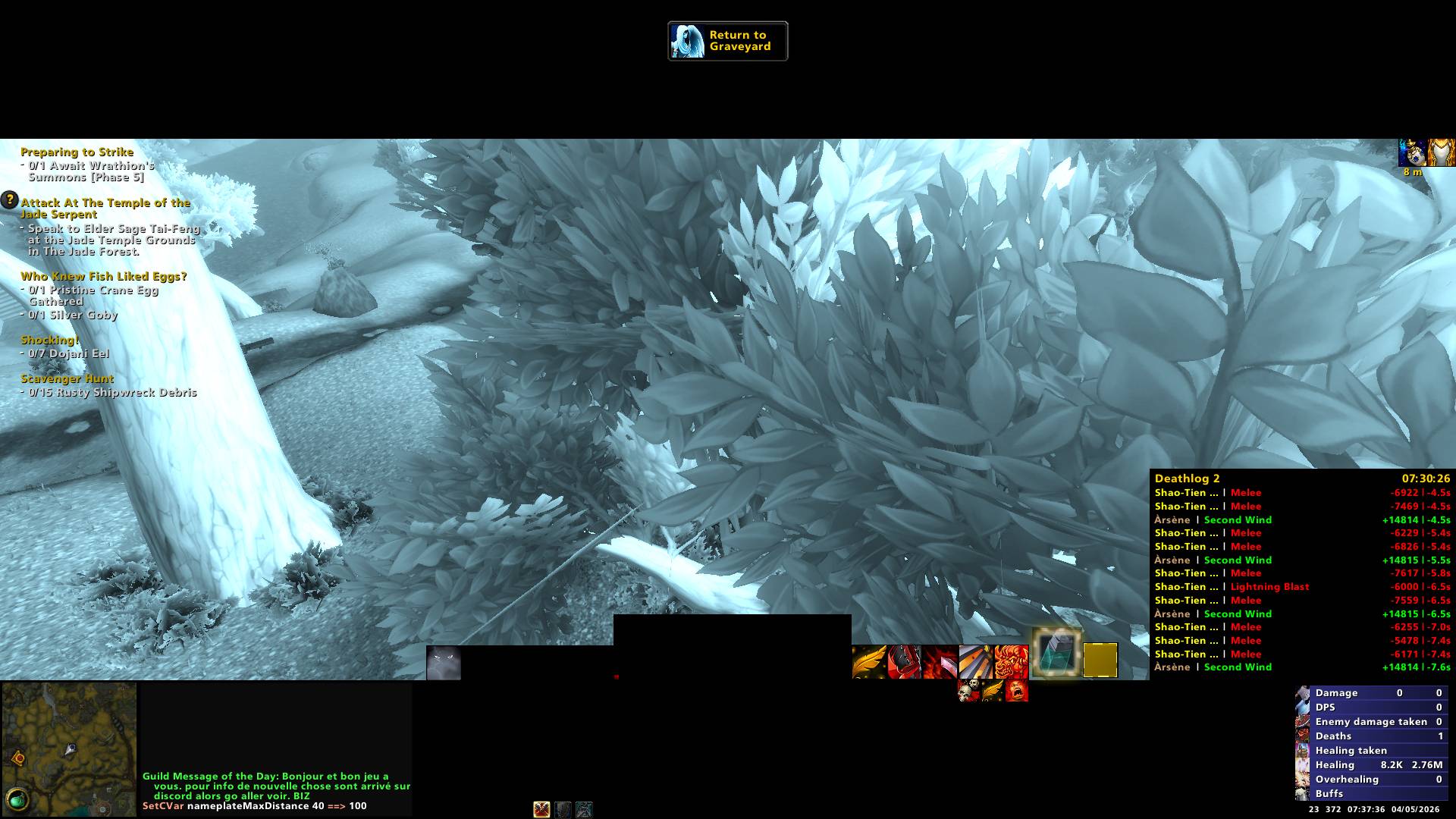
WoWScrnShot_050426_073736.jpg
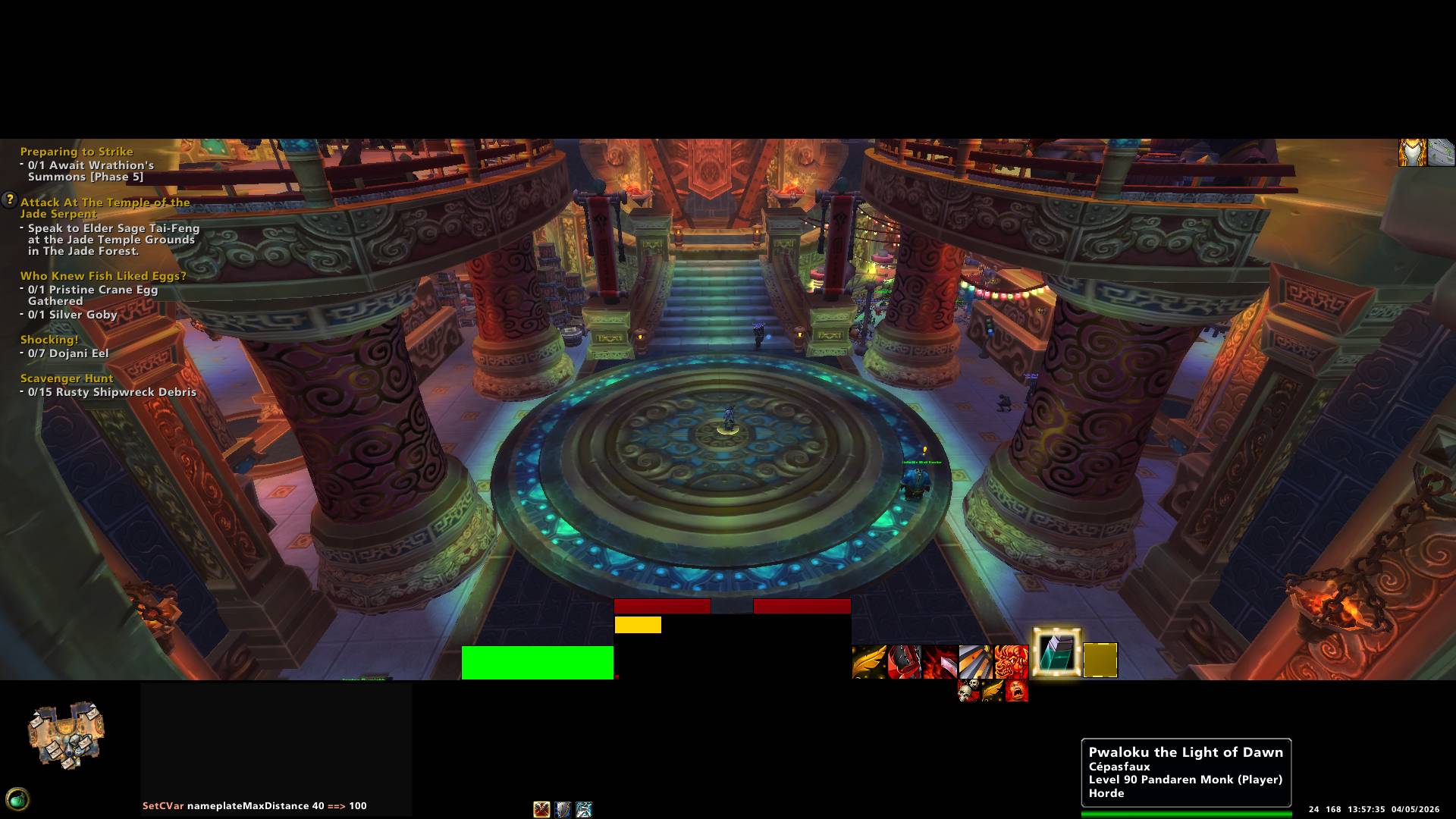
WoWScrnShot_050426_135736.jpg
3cd94ca2b295afde6dc2c7e453d51d97.jpg
655f56314f97ba2aac7ffe4306a64cc9.jpg
b30834fb6dbedf65ca727017f579992f.jpg
1a2abde1fe7b0f098db676816a373e7a.jpg

Description
ars-UI is a lightweight, all-in-one interface addon that enhances nearly every aspect of the default Blizzard UI
Instead of replacing frames or creating new ones, ars-UI focuses on reskinning and refining the original interface, preserving Blizzard’s core design while improving its visual clarity and usability. This approach ensures maximum compatibility, stability, and performance.
Built with a strong minimalist philosophy, ars-UI delivers a clean and distraction-free layout tailored for players who want to stay focused and efficient. Every change is intentional reducing visual noise while keeping all essential information easily accessible.
Whether you're playing casually or in a competitive environment, ars-UI provides a streamlined and optimized UI experience without unnecessary bloat.
Key Features:
Lightweight and performance-friendly
Reskins the default Blizzard UI (no full replacements)
Minimalist and clean design
Improved readability and visual clarity
Designed for both casual and competitive play
Important Notes & Requirements
ars-UI relies on a dedicated WeakAuras package in order to function as intended. Without this WeakAuras setup, ars-UI is not fully complete and will not provide all of its designed features and functionality. The WeakAuras component is therefore mandatory to fully experience everything ars-UI has to offer.
⚠️ Dependency Notice:
The included WeakAuras package is an essential part of ars-UI and is required for proper functionality.
ars-UI also relies on a small set of external addons to fully deliver its intended experience. These are used to enhance combat information, encounter control, and nameplate readability. While ars-UI is designed around them, they remain required for full feature support.
⚠️ Core Addon Dependencies:
ars-UI is built with compatibility and integration in mind for several key addons (such as boss encounter tools, damage meters, nameplate enhancements, and raid tools). Without them, some features may be limited or unavailable.
⚠️ Class Compatibility:
ars-UI and its WeakAuras package are currently designed and supported for Rogue and Warrior only.
ars-UI offers a complete ready-to-use configuration including macros, keybindings, and action bar spell placement.
While ars-UI can technically be adapted or used as a base for other classes or setups, this is not recommended, as many features are specifically tailored around Rogue and Warrior gameplay.
That being said, ars-UI provides a solid and flexible foundation for users who wish to modify, extend, or repurpose it for their own needs. Feel free to adapt it if you are comfortable doing so.
⚠️ Version & Resolution Support:
This version of ars-UI is specifically designed for WoW MoP Classic and optimized for a 1920x1080 resolution. Other versions or resolutions are not officially supported and may result in layout inconsistencies or reduced usability.
Showcase
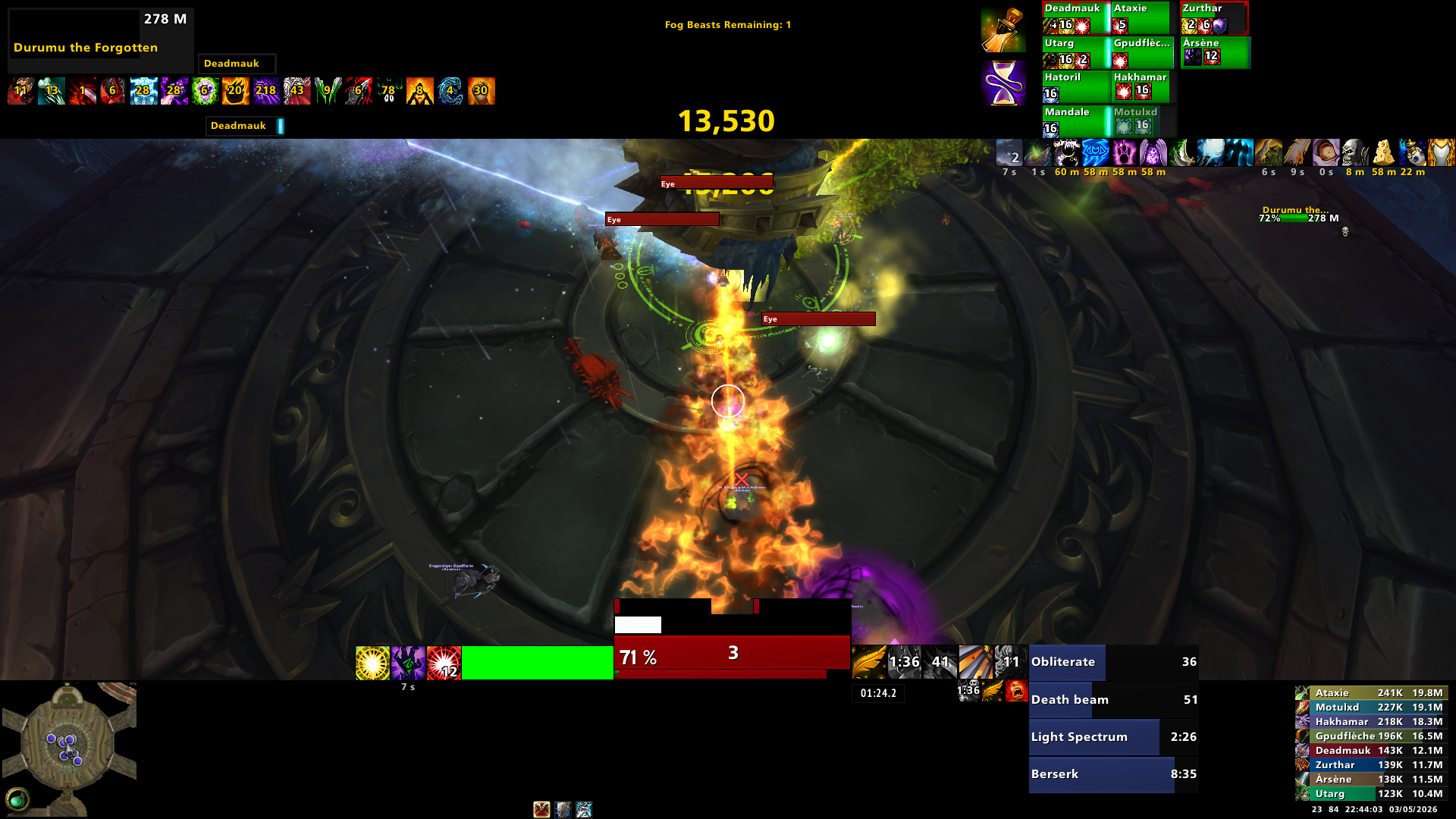
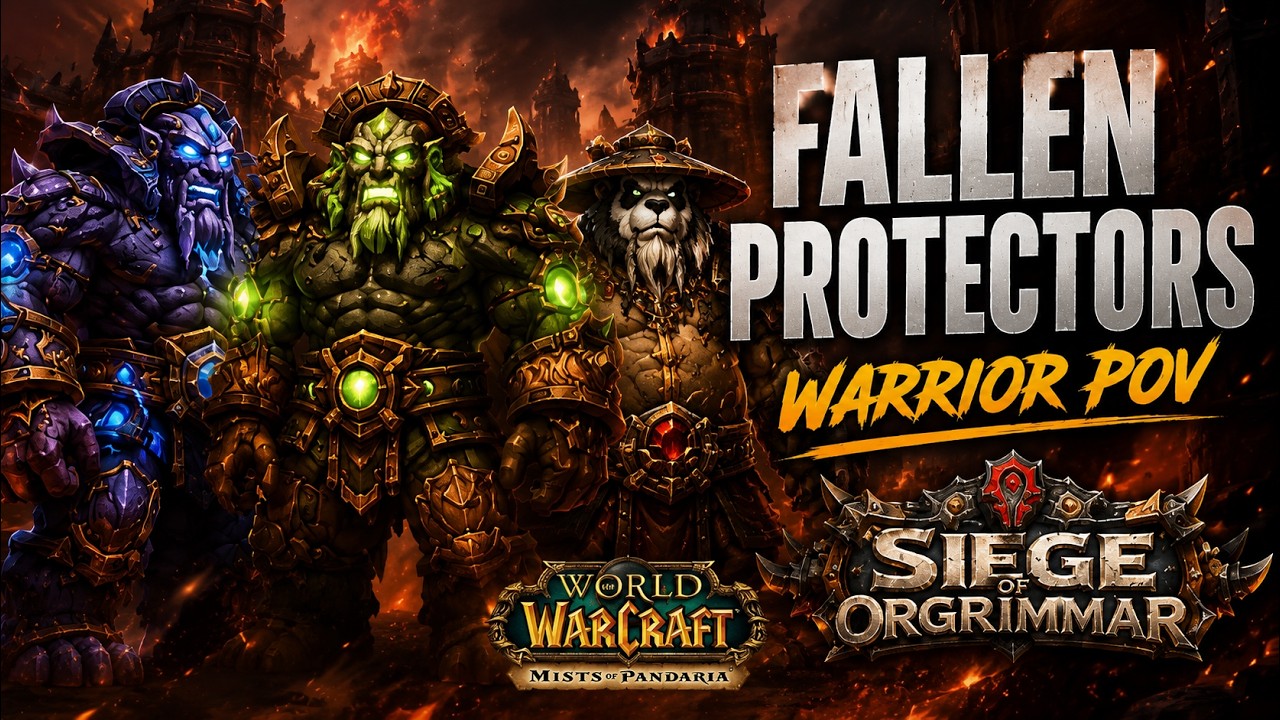
Combat footage this is not the latest version of ars-UI, but it’s very close to the current one.
VIDEO 1 : Fallen Protector VIDEO 2 : Norushen
Twitch : Twitch Chanel Youtube : Youtube Chanel
Features
CPU & Memory Usage
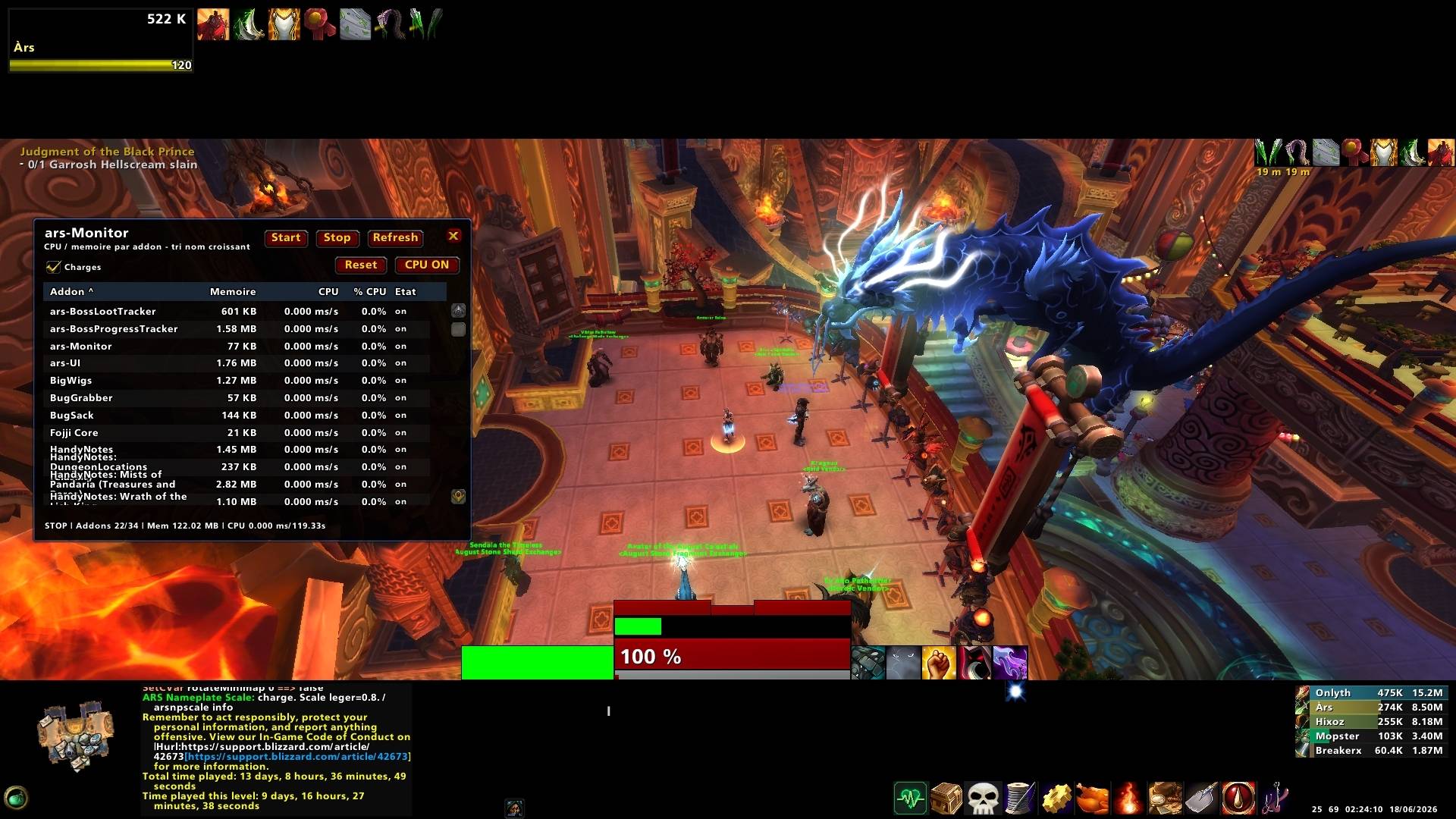
ars-UI is designed to remain lightweight, and its performance can be monitored through the ars-monitor interface.
As shown in the ars-monitor panel, both CPU usage and memory usage stay optimized, whether the game is idle or during combat situations.
This helps ensure that ars-UI remains efficient and performance-friendly, even in demanding environments.
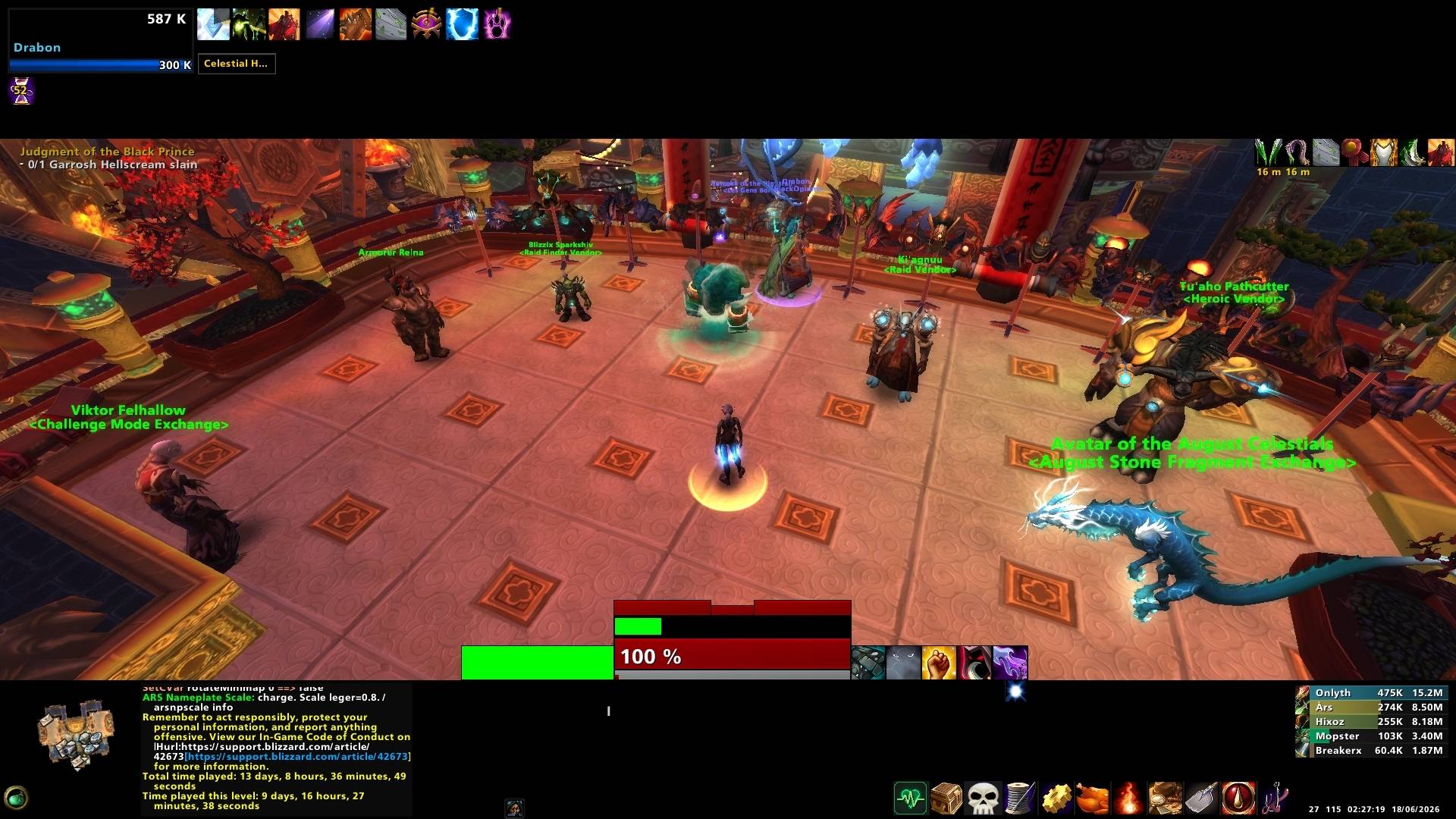
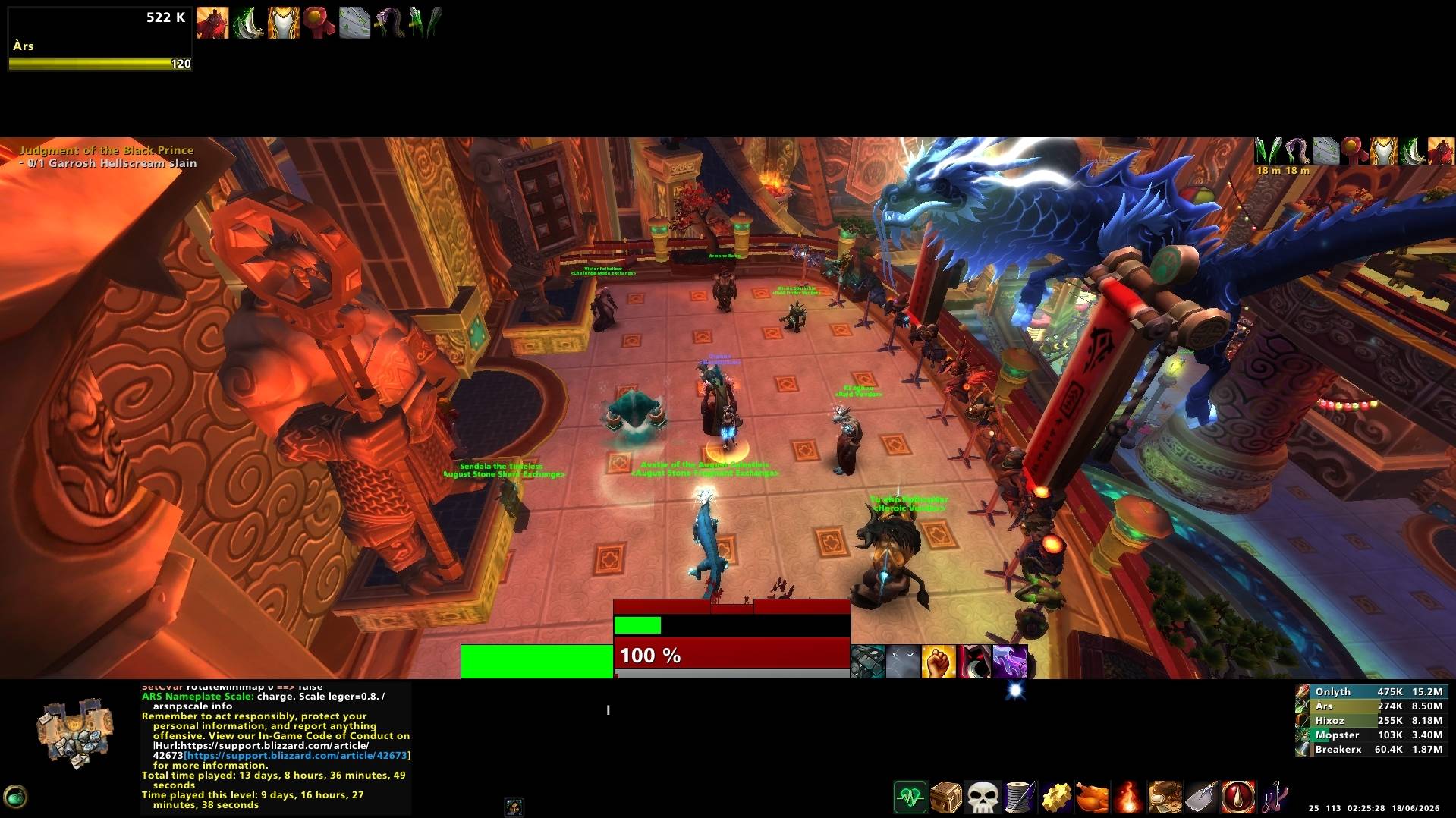
IMAGE 1 : ars-UI rest mode IMAGE 2 : ars-UI combat modeVIDEO 1: CPU Usage in raid 10 combat
ars_options_cvar.lua (CVar Configuration System)
ars_options_cvar.lua is a comprehensive configuration file that manages a wide range of Blizzard interface CVar settings.
It is highly detailed and fully documented, allowing advanced users to directly modify in-game parameters from within the file itself.
This system automatically applies and maintains all configured settings, ensuring consistency even after:
UI resets
New character creation
Default Blizzard configuration restores
Scope of Configuration
This module handles most Blizzard gameplay and interface options, including quality-of-life and gameplay-related settings.
However, it does not manage graphical settings, which must still be configured manually in the game options.
It also includes audio-related settings (warnings, sounds, alerts, etc.).
⚠️ Important Audio Notice
Audio settings can still be changed through the in-game Blizzard menu. However, any changes made there will be overwritten by ars_options_cvar.lua on reload or login.
If you wish to permanently modify audio behavior, you must edit the values directly inside the file itself. This ensures your settings are properly applied and preserved by the system.
However, the file is fully and clearly commented, making it easier to understand and adjust safely.
Auto Keybinding System
The Auto Keybinding feature provides a complete default keybind setup designed to simplify configuration and save time.
Centralized Keybind Management
All keybindings can be fully customized directly through the file:
ars_binding_profile.lua
This allows advanced users to edit and fine-tune every bind manually if needed.
One-Click Setup via ars Menu
Through the ars options menu, you can apply the entire keybinding profile in a single click.
This makes setup extremely fast and consistent across:
New characters
UI reinstallations
UI resets
IMAGE 1 : Keybind
Macro Setup (ars_macro.lua)
ars_macro.lua is a dedicated file that stores all character-specific and general macros used by ars-UI.
It can be fully modified to suit your own needs, giving complete control over how macros are organized and used.
In-Game Macro Management
Macros can also be created directly through the ars menu, allowing for a fast and simple setup without editing files manually.
This is especially useful for:
New character creation
UI resets or reinstallations
Quick setup or configuration changes
IMAGE 1 : Macro
Default Macro Profiles
ars-UI already includes a pre-configured default macro setup for:
Rogue
Warrior
These presets provide a ready-to-use foundation, helping players get started instantly without additional configuration.
Skilling Action Bar (ars_skillingbar.lua)
ars_skillingbar.lua is a dedicated system that automatically populates your action bars with the desired spells and macros in a single click through the ars menu.
This allows for a fast and complete setup of your core gameplay buttons without manual dragging or configuration.
One-Click Setup
Through the ars menu, you can instantly apply a full action bar layout, making it ideal for:
New character creation
UI resets or reinstallations
Fast reconfiguration of your setup
IMAGE 1 : SkillingBar
Edit mode and other Addons Settings Integration
ars-UI provides a unique system to automatically configure all supported third-party addons and Edit mode in a single click through the ars menu.
This includes addons such as BigWigs, MRT, Skada, and Plater, ensuring they are instantly set up to match the ars-UI environment.
One-Click Setup
No manual profile creation or configuration is required.
Simply:
Install the required addons
Open the ars menu
Click the setup option
Reload your UI
Everything is then automatically configured and ready to use.
IMAGE 1 : AddonsSetting
Window Reskin
The entire Blizzard UI has been fully reskinned to match the clean, dark aesthetic of ARS UI, delivering a consistent and modern visual experience across all major interface windows.
Every element has been redesigned with a minimalist black/dark theme, improving readability, focus, and immersion while preserving full Blizzard functionality and layout structure.
The following panels have been completely reskinned:
Character Panel
Quest Panel
Spell Book Panel
Talents Panel
Collection Panel
Dungeon Journal Panel
Guild & Communities Panel
Game Menu
Achievements Panel
Group Finder
Bags & Inventory System
All windows now share a unified visual identity, ensuring a seamless experience across the entire interface without altering gameplay flow or usability.
IMAGE 1 : Character Panel IMAGE 2 : Quest Panel IMAGE 3 : Spell Book IMAGE 4 : Talents Panel IMAGE 5 : Collection Panel IMAGE 6 : Dungeon Journal IMAGE 7 : Guild / Communities IMAGE 8 : Game Menu IMAGE 9 : Group Finder IMAGE 10 : Achievement IMAGE 11 : Bags / Inventory
Streamer Mode
ars-UI includes a dedicated Streamer Mode designed to help content creators stream or record gameplay without exposing sensitive chat information.
This mode allows you to hide guild chat directly inside the guild window while keeping all other UI functionality intact.
It can be toggled on or off instantly through the ars menu using /ars, giving you full control depending on your situation (streaming, recording, or normal gameplay).
One-Click Toggle
No manual configuration or addon editing is required.
Simply:
Open the ars menu
Enable or disable Streamer Mode
Reload if necessary
Everything is handled automatically and instantly applied to the UI.
IMAGE 1 : StreamerModeMenu IMAGE 2 : StreamerMode
Viewport Layout
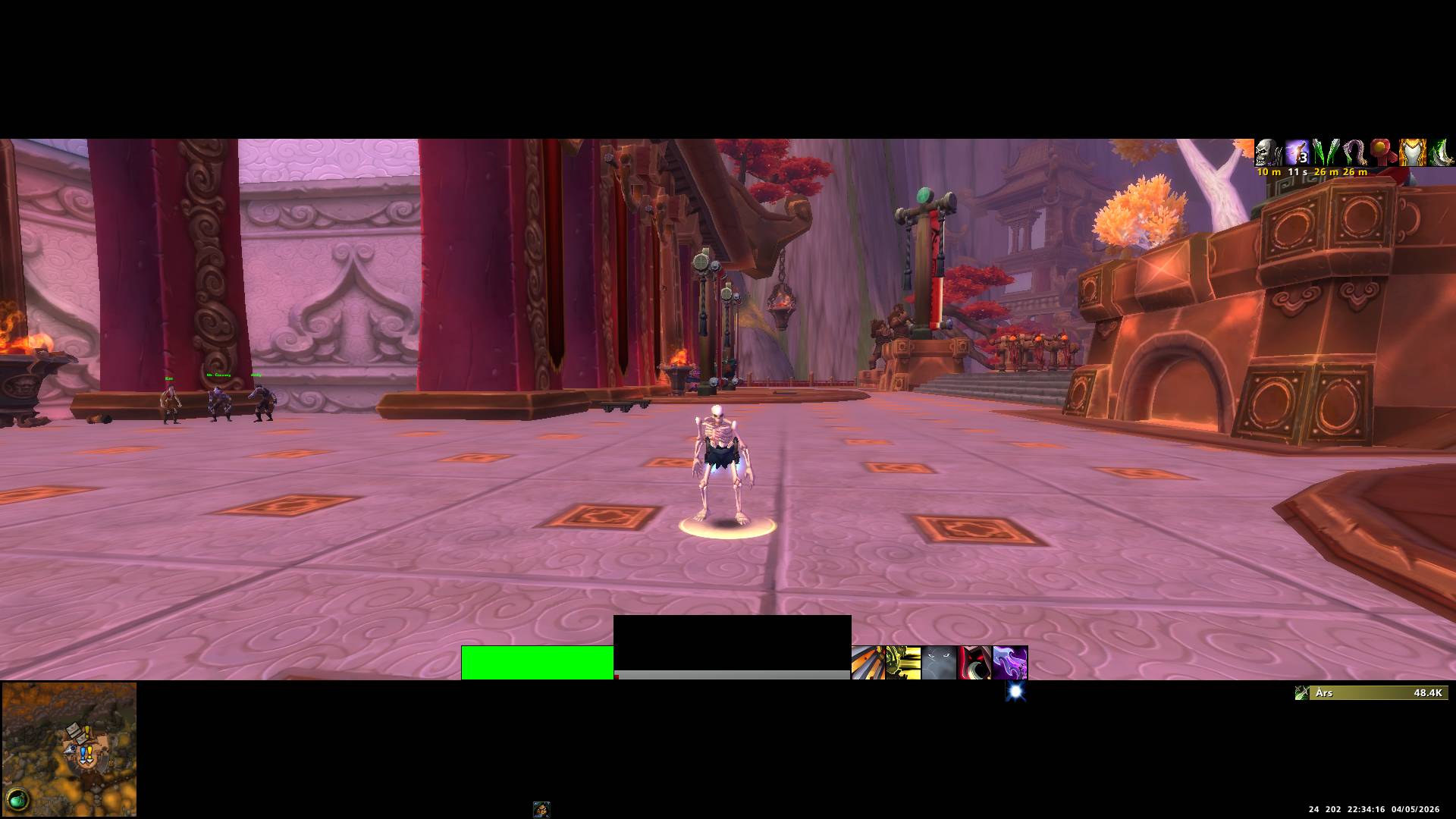
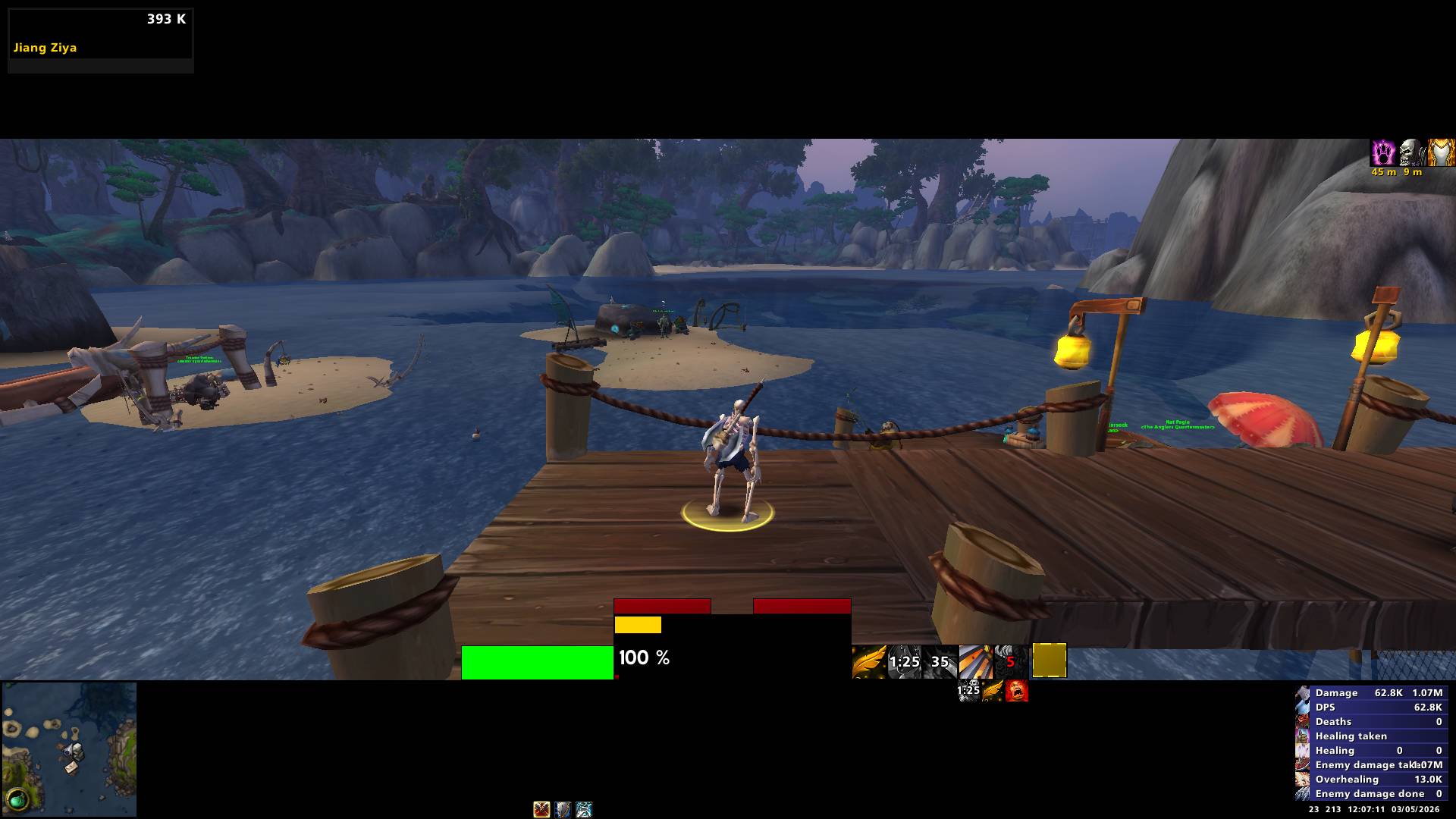
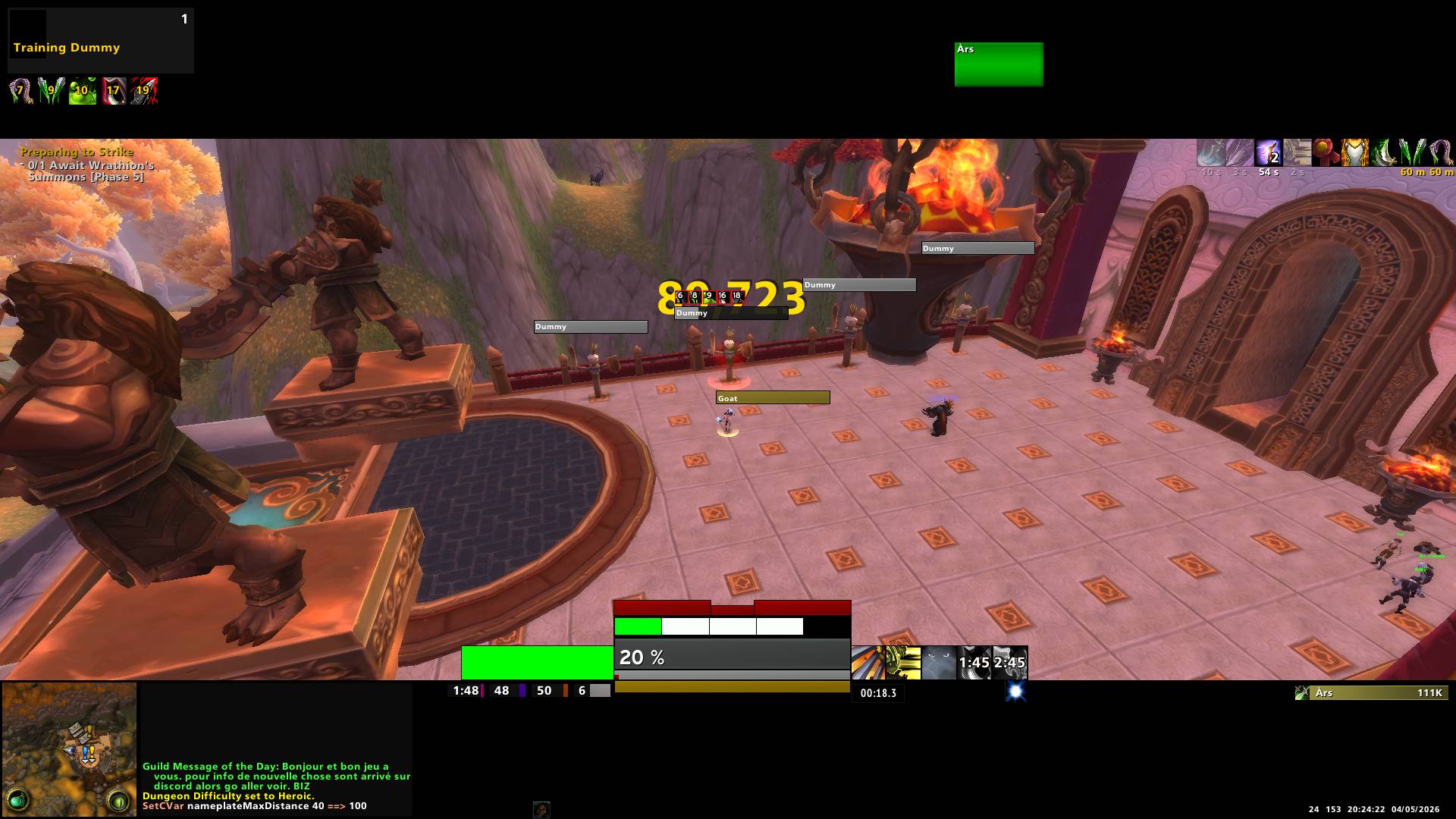
ars-UI uses a custom viewport system with dedicated space at the top and bottom of the screen.
This layout allows UI elements to be placed outside of the main gameplay area, keeping the center of the screen clean and unobstructed.
Improved Screen Visibility
By relocating interface elements into the top and bottom bars:
The visual gameplay area remains clear
Important UI components no longer overlap with combat or character movement
You gain better visibility on the sides of the screen, improving overall awareness
IMAGE 1 : Viewport
Custom Font System
ars-UI introduces a new global font system applied across the entire interface.
All UI text has been replaced with a consistent custom font to improve readability, visual cohesion, and overall style consistency throughout the addon.
This includes chat, frames, modules, and all integrated UI elements.
Chat Bubbles Reskin
Chat bubbles have been fully reskinned to match the ars-UI visual identity.
They now feature a cleaner and more minimal design, improving readability while blending naturally into the game world without drawing unnecessary attention.
Chat System Overview
The ars-UI chat system has been completely redesigned for clarity, speed, and accessibility, while staying minimal and non-intrusive.
It is built around 5 dedicated tabs, allowing you to quickly separate and manage different types of communication:
Main – General chat and default communication
Combat – Combat-focused log view (damage, events, etc.)
Whisper – Private messages
Loot – Loot and item-related messages
Guild – Guild chat access
IMAGE 1 : Chat
Combat Tab – Minimal Combat Mode
The Combat tab “H” introduces a focused combat view where the chat can be completely hidden when needed, reducing screen clutter during intense gameplay.
IMAGE 1 : HiddenChat
Quick Channel Sidebar
On the right side of the chat frame, a dynamic quick-access sidebar appears when hovering the mouse.
This sidebar allows instant access to chat channels without needing slash commands.
Features include:
One-click channel selection (say, party, raid, guild, etc.)
Instant input switching into the selected channel
Quick /roll 100 button for fast random rolls
IMAGE 1 : ChatSidebar
Minimap Enhancements
ars-UI minimap has been refined to improve usability while maintaining a clean and minimal look.
It includes several quality-of-life improvements designed for fast interaction without cluttering the interface.
Mouse Wheel Zoom
You can zoom in and out directly on the minimap using the mouse wheel, allowing for quick navigation without opening additional menus.
IMAGE 1 : MapZoom
Hidden Calendar Button
The default calendar button has been made invisible and repositioned to the top-right area of the minimap to keep the interface clean.
When opened, the calendar integrates seamlessly with the minimap layout.
IMAGE 1 : HiddenCalendarButton
Hidden Tracking Button
The tracking button has also been made invisible and repositioned to the top-center of the minimap.
It remains fully functional while preserving a minimal UI aesthetic.
IMAGE 1 : HiddenTrackingButton
Objective Tracker
The Objective Tracker has been repositioned to the left side of the screen for improved visibility and a more natural alignment with the overall UI layout.
This placement helps maintain a clear central gameplay area while keeping quest and objective information easily accessible.
Hidden Collapse Button
The default collapse button has been made invisible, contributing to a cleaner and more minimal interface design. The tracker remains fully functional while avoiding unnecessary visual clutter.
IMAGE 1 : HiddenObjectivesButton
Compact Raid Menu Button
The Compact Raid Menu collapse button has been made completely invisible as part of ars-UI’s clean and minimal interface design.
The functionality remains fully intact, allowing the raid frame to still be expanded or collapsed, but without adding any visual clutter to the UI.
IMAGE 1 : HiddenCompactRaidFrameButton
Raid Frame Cleanup
The raid frame has been fully cleaned and streamlined for better readability and a more minimal interface.
Visual Improvements
Several elements have been adjusted or simplified:
Role icons are hidden to reduce visual clutter
Buffs and debuffs have been resized and repositioned for clearer visibility
All player names are displayed in white text for consistent readability
Overall layout has been refined for a cleaner raid overview
IMAGE 1 : RaidFrame
Player Frame
The Player Frame has been completely cleaned up and redesigned for a more minimal and modern look.
Only the health bar is displayed, with all text elements removed from the main frame to reduce visual clutter during gameplay.
Player health values and detailed information remain accessible when needed through the Character Panel.
IMAGE 1 : PlayerFrame
Buffs & Debuffs Layout
Player auras have been repositioned to improve visibility while keeping the center of the screen clear:
Buffs are displayed at the top-right edge of the viewport
Debuffs are positioned to the left of the Player Frame
This layout ensures important information remains easy to track without interfering with gameplay focus.
IMAGE 1 : BuffDebuff
Interactive Menu Access
The Player Frame retains full functionality and behaves like the default Blizzard UI. You can still click on the Player Frame to open the standard character menu, ensuring no loss of usability despite the minimalist redesign.
IMAGE 1 : PlayerFrameInterract
Target Frame
The Target Frame has been completely reskinned with a dark/black minimalist design, improving readability while maintaining a clean and modern visual style.
All Blizzard class-related color features are preserved, ensuring clear identification of class, reactions, and status while keeping the original gameplay readability intact.
Buffs & Debuffs
The aura display has been fully redesigned for better clarity and visibility:
Buffs are displayed with increased icon size and positioned to the right of the Target Frame
Debuffs follow the same design logic and are placed below the Target Frame
Each debuff includes an integrated timer display, allowing for precise tracking of remaining duration
IMAGE 1 : TargetFrame IMAGE 2 : TargetFrame
Boss Frame Reskin
The default Blizzard boss frames have been completely redesigned to fit the ARS UI visual identity.
The new boss frames feature a dark minimalist layout with improved clarity, ensuring that health bars, casts, and debuffs remain highly readable even in high-intensity encounters.
The design focuses on clean spacing, reduced visual noise, and better integration with the rest of the UI, while fully preserving Blizzard’s original combat information and functionality.
IMAGE 1 : Boss Frames
Casting Bar
ars-UI reskins the default Blizzard casting bars for both the Player Frame and the Target Frame.
The design follows the same minimalist and clean visual style as the rest of the interface, improving readability while staying fully integrated with the original UI.
Player & Target Integration
The casting bars are positioned efficiently within the ars-UI layout, ensuring a clear and minimalist display.
This allows important casting information to remain easily visible without adding extra elements to the screen.
IMAGE 1 : CastingBar
Action Bars & Main Menu Bar
ars-UI repositions and streamlines action bars to keep them accessible while maintaining a clean and minimal interface.
Main Menu Bar
The Main Menu Bar is located at the top-left of the screen and is only visible on mouseover.
This keeps it fully accessible when needed while remaining hidden during gameplay to reduce visual clutter.
IMAGE 1 : MainMenuBar
Action Bars Layout
Primary action bars are also designed around a mouseover visibility system, ensuring quick access without permanently occupying screen space.
The layout is organized as follows:
A central block located at the bottom-center of the screen, containing 3 main action bars
Two additional side bars positioned on the right side of the screen, vertically centered
IMAGE 1 : CentralBar IMAGE 2 : LateralBar
Bags Reskin
The bags are reskinned by ARS UI in the same spirit, offering a minimalist black interface that is clean and precise, and matches the overall design of ARS UI.
IMAGE 1 : BagsOpen
Xp Bar / Leveling Mode
ars-UI includes its own custom XP bar system designed specifically for leveling and progression tracking.
The XP bar automatically calculates and displays:
Total XP progression
Quest completion percentage directly on the bar
Current XP values as text
The system automatically activates while your character is below max level, providing a clean and efficient leveling experience fully integrated into the ars-UI layout.
Leveling Tracker Module
ars_leveling is an additional module that can be enabled or disabled directly through the ars-UI menu by typing /ars.
This module tracks:
Time spent on each level
Total leveling time
Overall leveling progression statistics
All information is displayed inside a dedicated scrollable window, allowing you to easily review your leveling performance and progression history.
IMAGE 1 : LevelingMode IMAGE 2 : XPBar IMAGE 3 : XPBarLeveling IMAGE 4 : MenuarsLeveling
ars_reput Module
ars_reput is a dedicated reputation tracking module designed to display all your reputations in a clean and readable bar format.
It allows you to track multiple reputations at the same time, with each faction displayed clearly for fast overview and progression monitoring.
By clicking on the reputation bar, a scrollable menu opens, giving you access to a full list of available reputations that you can enable or disable for tracking.
The module can be fully toggled on or off directly through the ars-UI menu by typing /ars, allowing you to enable it only when needed.
IMAGE 1 : ReputationModuleMenuars IMAGE 2 : ReputationBar VIDEO 1 : ReputationModuleInAction
ars_databar Module
The ars_databar module provides essential system and time information in a clean and unobtrusive way.
It is positioned at the bottom-right of the screen, just below Skada, ensuring visibility without interfering with gameplay.
Displayed Information
The databar shows key real-time information in the following order:
Latency (MS)
FPS
Time
Date
All elements are presented with a focus on clarity and minimal visual impact, making them easy to read at a glance without adding unnecessary clutter.
IMAGE 1 : Databar
Map Coordinates
ars-UI enhances the world map by adding precise X/Y coordinates for improved navigation and positioning.
When the map is opened, the coordinates are displayed at the bottom-center of the map, making them easy to read without interfering with other map elements.
IMAGE 1 : MapCoordinates
Auto Quest
ars-UI includes an Auto Quest feature designed to speed up questing and reduce repetitive interactions.
It automatically handles accepting and turning in quests, allowing for a smoother and more efficient leveling or daily quest experience.
Manual Control (Shift Click Override)
If you want to manually control quest interaction, you can use Shift + Click to bypass the automatic behavior when needed.
Faster Loot
ars-UI includes a Faster Loot feature that significantly reduces the default looting delay, allowing items to be collected almost instantly.
This makes farming, dungeon runs, and general gameplay much smoother and more efficient.
Manual Loot Window Control
By default, the loot window behavior is optimized for speed. However, if you want to keep the loot window open, you need to Shift + Click to maintain it manually.
Auto Repair
ars-UI includes an Auto Repair feature that automatically repairs your gear when interacting with a repair vendor.
This removes the need for manual interaction, ensuring your equipment is always maintained with minimal effort.
Max Camera Distance
ars-UI includes a MaxCam feature that allows you to zoom out to the maximum distance available.
This ensures you can always take full advantage of the game’s camera range, improving visibility and overall awareness during gameplay.
Drag Frame System
ars-UI includes a Drag Frame system that allows you to freely move and reposition most Blizzard UI windows for a fully customizable interface layout.
This system gives you control over a wide range of default menus and panels, making it easy to organize your UI exactly how you want it.
Movable Frames
You can drag and reposition nearly all major Blizzard interface elements, including:
Mailbox
Talents / Specialization window
Various default UI panels and menus
Limitations
Some protected Blizzard frames remain non-movable due to game restrictions, such as:
Achievements
Guild interface
IMAGE 1 : DragFrame
Loot Frame
The Loot Frame has been repositioned to the left side of the screen for better visibility and a more consistent UI layout.
It retains the original Blizzard skin, ensuring a familiar look and behavior while integrating seamlessly into the ars-UI layout.
ars_work Module
ars_work is a utility module designed to provide quick access to professions and practical gameplay tools through a clean and hidden interface system.
Hidden Access Button
A fully invisible button is positioned next to Skada.
When hovered, it allows you to open or close the ars_work panel without adding any visual clutter to the UI.
IMAGE 1 : HiddenWorkModuleButton
ars_work Panel
The ars_work panel contains 11 quick-access buttons, designed for utility and convenience:
Your two primary professions
Cooking
Campfire / Fire-making tool
Fishing access button
ars-monitor
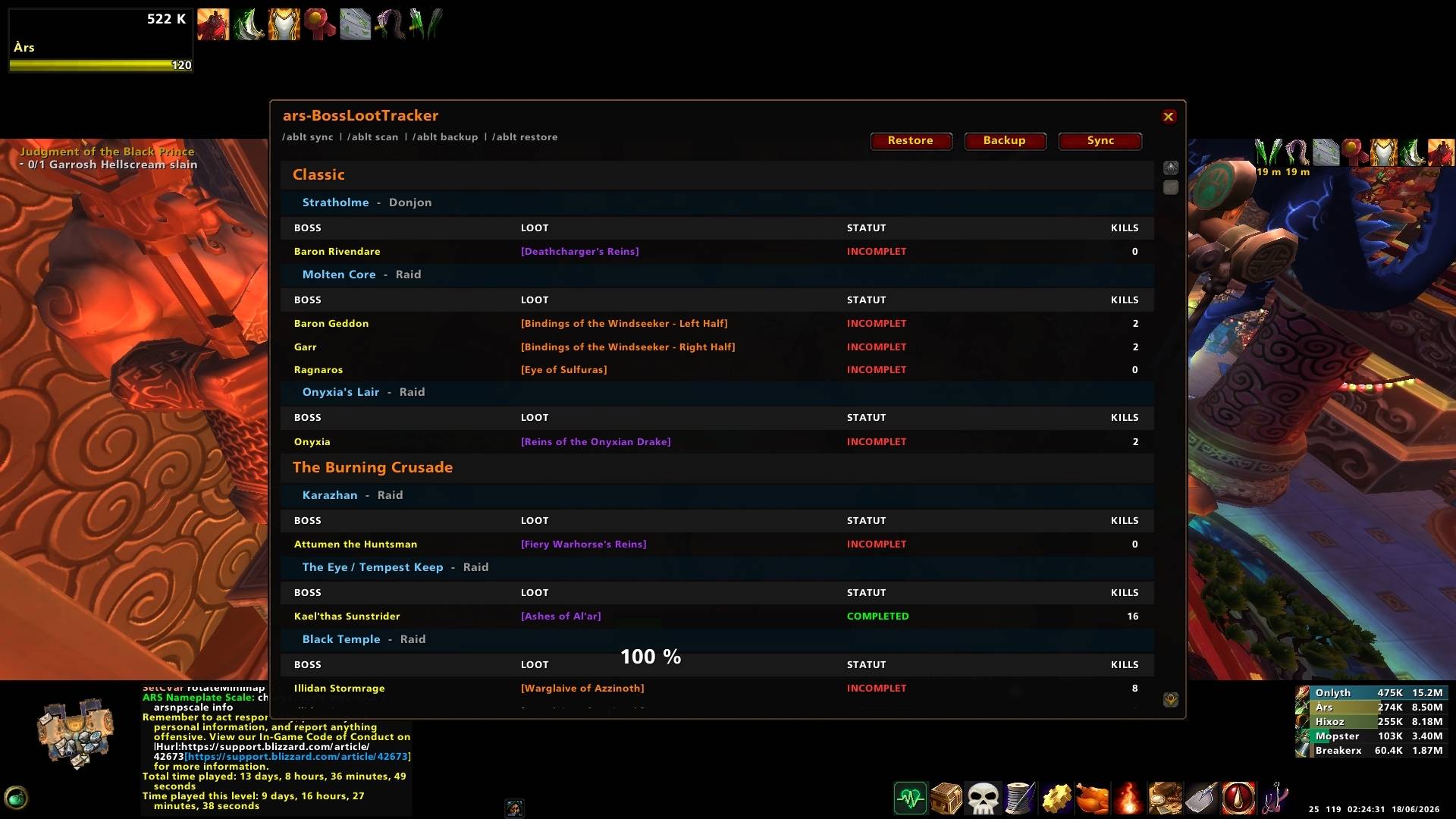
ars-BossLootTracker
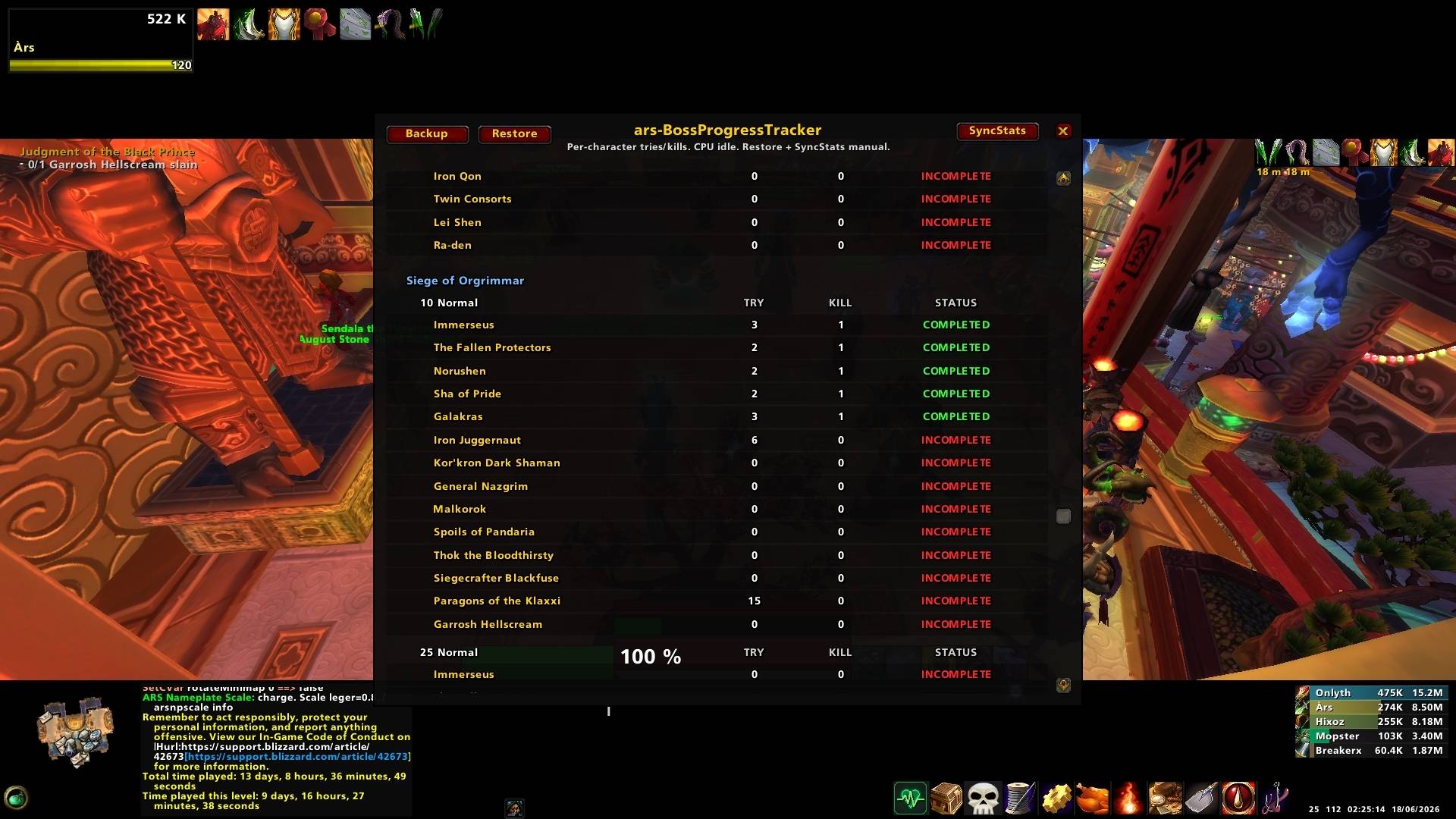
ars-BossProgressTracker
IMAGE 1 : WorkModule
Fishing Module
The fishing button opens a separate draggable fishing window, which includes:
Fishing skill displayed as text
A live timer showing how long you have been fishing
Fully movable position for personal setup preference
Additionally, the Fishing Module button can be used directly to start fishing instantly, providing a faster and more seamless interaction without opening additional menus.
IMAGE 1 : FishingModule
Survey Module
The survey button opens a separate draggable Survey window, which includes:
Survey button with direct left-click and right-click support
Fully movable position for personal setup preference
No timer, keeping the module clean and lightweight
Additionally, the Survey Module button can be used directly to cast Survey instantly, providing a faster and more seamless interaction without opening additional menus.
IMAGE 1 : SurveyModule
ars-monitor
ARS Monitor is a lightweight performance module included with ars-UI.
Similar to AddonUsage, it allows you to track addon memory usage and CPU consumption directly in-game, without needing an additional external addon.
The module can be opened from the ars_work panel, as shown in the first image, or by typing /armon.
ARS Monitor displays memory usage, CPU usage, and percentage values for each addon, making it easier to identify which addons are consuming the most resources.
It is designed to stay consistent with the ars-UI style, with a clean and minimal look while providing the essential tools needed to monitor addon performance.
IMAGE 1 : ars-monitor IMAGE 2 : ars-monitor acces
ars_deathlog Module
ars_deathlog is a dedicated combat analysis module designed to help you review and understand the moments leading up to your death in detail.
Hidden Access Button
A fully invisible button is positioned next to Skada.
It allows you to open, close, and navigate through ars_deathlog pages without adding any visual clutter to the interface.
Left Click: Open / Close the deathlog
Right Click: Change page
IMAGE 1 : HiddenDeathlogButton
Death Replay System
ars_deathlog provides a detailed breakdown of the last 15 seconds before death, allowing you to analyze what happened in critical moments.
You can scroll using the mouse wheel to navigate through the full 15-second timeline.
This includes a clear timeline of events to help improve performance and decision-making.
The deathlog also displays the exact time of death.
IMAGE 1 : Deathloghistory
Death History Storage
The module can store up to two personal death records, allowing you to review previous deaths and compare situations over time.
IMAGE 1 : DeathlogButton
AFK Mode
AFK Mode adds a custom full-screen AFK display designed to match the visual style of ars-UI.
It includes:
A fully opaque black background
Character name, AFK status, level, class, and guild information
Location and status information displayed at the bottom of the screen
A clean minimalist layout made for screenshots, streams, and idle moments
Toggle support directly from the ars-UI Module menu
Chat feedback when the feature is enabled or disabled
The module is lightweight and does not run permanent updates while the AFK screen is inactive.
IMAGE 1 : AFKMode
Hidden Bag Bar
In ars-UI, the default bag bar is completely hidden to maintain a clean and minimal interface.
This means your inventory bags are no longer permanently displayed on screen, reducing visual clutter and keeping the gameplay area unobstructed.
⚠️ Bag Management Limitation
To change or reorganize your bags, you will need to temporarily:
Acced to the ars menu by tiping /ars then click on bags and then you can change your bags.
See video bellow:
VIDEO 1 : BagsBar
Hidden XP & Reputation Bars
In ars-UI, both the experience (XP) bar and the reputation bar are completely hidden from the default Blizzard interface.
This is intentional, as these elements are fully replaced by a dedicated based system integrated into ars-UI.
IMAGE 1 : XpBarHidden
Hidden UI Elements (Clean Interface Layer)
ars-UI also removes several default Blizzard UI popups and text elements to keep the screen as clean and distraction-free as possible during gameplay.
These elements are disabled or fully hidden at the UI level, without affecting core gameplay functionality.
Suppressed Interface Elements
The following UI components are hidden:
Zone Text & Subzone Text (area name displays)
UI Error Messages (red error text such as “Out of range”)
Boss Emotes Frame (raid boss emotes and whispers)
Addons and Other Requirements
⚠️The following list are the addons and other files to download and install to fully enjoy ars-UI.
!BugGrabber
BugSack
BigWigs
BigWigs_MistsOfPandaria
HandyNotes
HandyNotes_DungeonLocations(Classic)
idTip
MRT
NamaplatesSCT
Skada
WeakAuras
Clean-Icons-Mechagnome-Edition
Setup / Config
Step 1
Download the ars-UI zip file, then place the folders ars-monitor, ars-UI and ars-UI-addons_setting into:
World of Warcraft/classic/Interface/Addons
Also download all addons listed in Addons and Other Requirements and place them in the same folder (except Clean-Icons-Mechagnome-Edition and ars-UI FONT/CHATBUBBLES).
IMAGE 1 : AddonsDirectory
Step 2
Download the ars-UI FONT/CHATBUBBLES if it is not already installed, then place the Fonts folder into:
World of Warcraft/classic/
If a Fonts folder already exists, replace it.
IMAGE 1 : Fonts
Step 3
Download the ars-UI FONT/CHATBUBBLES if it is not already installed, then place the 3 folders Chat-Bubbles-Invisible, Chat-Bubbles-Small, Tooltips into:
World of Warcraft/classic/Interface
IMAGE 1 : ChatPackDirectory
There are two possible configurations for chat bubbles:
Invisible background
Visible small background
IMAGE 1 : invisible IMAGE 2 : visible
By default, the setup uses the invisible background version.
If you want the visible background version, go into Chat-Bubbles-Small, copy the Tooltips folder, then paste and replace the one located in:
World of Warcraft/classic/Interface
Step 4
Download the icons pack if it is not already installed, then place the ICONS folder into:
World of Warcraft/classic/Interface
IMAGE 1 : ICONSDirectory
Step 5
Connect to the game and make sure all addons are enabled.
Check the option to load out-of-date addons if necessary.
Then follow the next steps.
IMAGE 1 : AddonsLoaded
Chat Config
Once in-game, open your chat settings menu.
IMAGE 1 : Open settings IMAGE 2 : ChatMenu
Reset the chat to default.
IMAGE 1 : ChatDefault
Then open the ars-UI menu by typing /ars
IMAGE 1 : ArsMenu
Click on TchatConfig (important).
Wait for the reload.
Open the chat settings again.
IMAGE 1 : ChatMenu
Configure tab M as shown in the images:
IMAGE 1 : MConfig
Then configure tab H as shown:
IMAGE 1 : HConfig
Do the same for tab W:
IMAGE 1 : WConfig
Then tab L:
IMAGE 1 : LConfig
And finally tab G:
IMAGE 1 : GConfig
Last step for chat:
Go to tab G → Background menu and configure it as shown.
IMAGE 1 : GBackground
Edit Mode Config
To install the ars-UI Edit Mode layout, open the ars-UI menu by typing /ars in-game.
Once the menu is open, click on the Edit Mode button.
After applying the layout, reload your interface to make sure everything is correctly updated.
IMAGE 1 : Edit Mode config
Nameplates Config
Once in-game, open your nameplates settings menu.
Configure nameplates as shown in the vidéo:
VIDEO 1 : Nameplates
Raid frames Config
Once in-game, open your raid frames settings menu.
Configure raid frames as shown:
IMAGE 1 : Raid Frames
Addons Config
This section will configure all your addons in just a few clicks.
First, make sure once again that you have properly downloaded and installed all required addons and that they are enabled in-game.
Then open the ars-UI menu by typing /ars and click on the 4 windows: BigWigs, Skada, MRT, and Plater, then click reload.
Your addons should now be fully configured and ready to use.
IMAGE 1 : AddonsConfig
Keybinding Config
⚠️ Warning: this setup will erase all of your current keybinds and recreate the default keybinding setup for ars-UI.
If you do not want to use this feature, do not follow this step.
Open the ars-UI menu by typing /ars, then click on UnbindAll, then BindAll, and reload your UI.
All keybindings are now applied.
If you want to edit the keybind file to apply your own bindings in one click, it is located at:
ars-UI/ars_main_config/ars_binding_profile.lua
IMAGE 1 : KeybindSetup
Macro Config
⚠️ Warning: this setup will erase all of your current macros and recreate the default ars-UI macro setup for Rogues and Warriors only.
If you do not want to use this feature, do not follow this step.
Open the ars-UI menu by typing /ars, then click on DeleteMacro, then CreateMacroG, then:
If you are playing a Rogue → click RogueMacro
If you are playing a Warrior → click WarMacro
After that, reload your UI.
All your macros are now created.
If you want to edit the macro file to apply your own macros in one click, it is located at:
ars-UI/ars_main_config/ars_macro.lua
⚠️ Warning: you need to check this file and find the mount macros, then replace them with the correct name of the mount you are using if you want them to work properly.
There are currently two keybinds assigned to mounts and two macros linked to them.
IMAGE 1 : MacroSetup IMAGE 2 : MacroSetup
SkillingBar Config
If you followed the previous two steps and want to use the full ars-UI configuration, this section will place all previously created spells and macros into the correct action bars with the correct keybinds.
⚠️ Warning: this will completely clear your action bars and fill them again.
Do not follow this step if you are not sure about what you are doing.
Open the ars-UI menu by typing /ars, then click on CleanActionBar, then select your class and your current spec, and click reload.
Your spells and macros are now placed in your action bars and ready to use.
You will need to repeat this process if you change spec by selecting the correct one each time.
If you want to edit the skillingbar file to apply your own setup in one click, it is located at:
ars-UI/ars_main_config/ars_skillingbar.lua
IMAGE 1 : SkillingBarSetup
WeakAuras Config
Go in-game and open WeakAuras by typing /wa.
Then go to wago.io and download the following WeakAuras packs:
LINK 1 : ARS_UI_MOP_CLASSIC_1920x1080
LINK 2 : ARS_ROGUE_MOP_CLASSIC_1920X1080
LINK 3 : ARS_WARRIOR_MOP_CLASSIC_1920X1080
Import all three packs into WeakAuras.
Your WeakAuras are now fully installed and ready to use.
Social/Support
Official website : ars-ui.com
Twitch : Twitch Chanel
Youtube : Youtube Chanel
Discord: Discord Server
Paypal : Paypal Link
Patreon : PatreonLink
ars-UI, ars UI, ars UI WoW, ars UI addon, WoW MoP Classic UI, MoP Classic UI addon, WorldofWarcraftMoPClassic addon, WoW 5.4 UI addon, WoW minimalist UI, WoW raid UI addon, WoW Blizzard UI reskin, ElvUI alternative MoP Classic, lightweight WoW UI addon, WoW viewport addon, MoP Classic raid frames,
The ars-UI - MOP Classic - 1920x1080 Team