More map markers, and any of the game's icons for them.
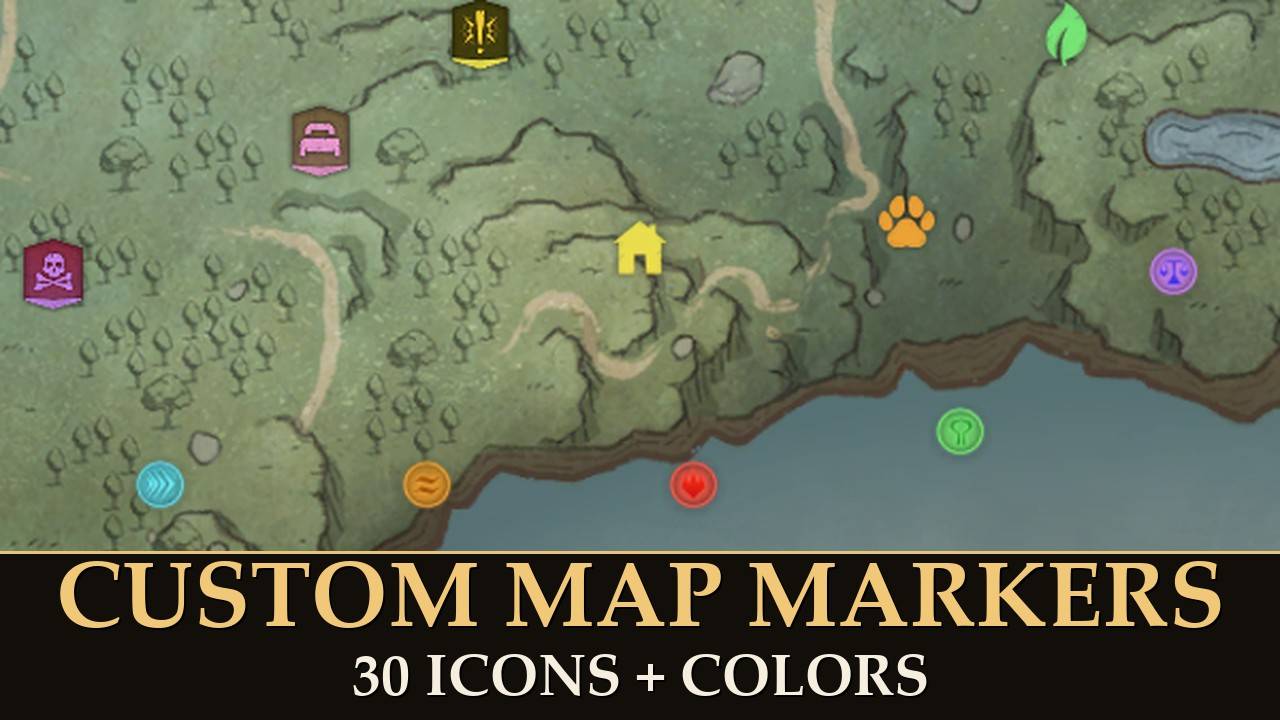
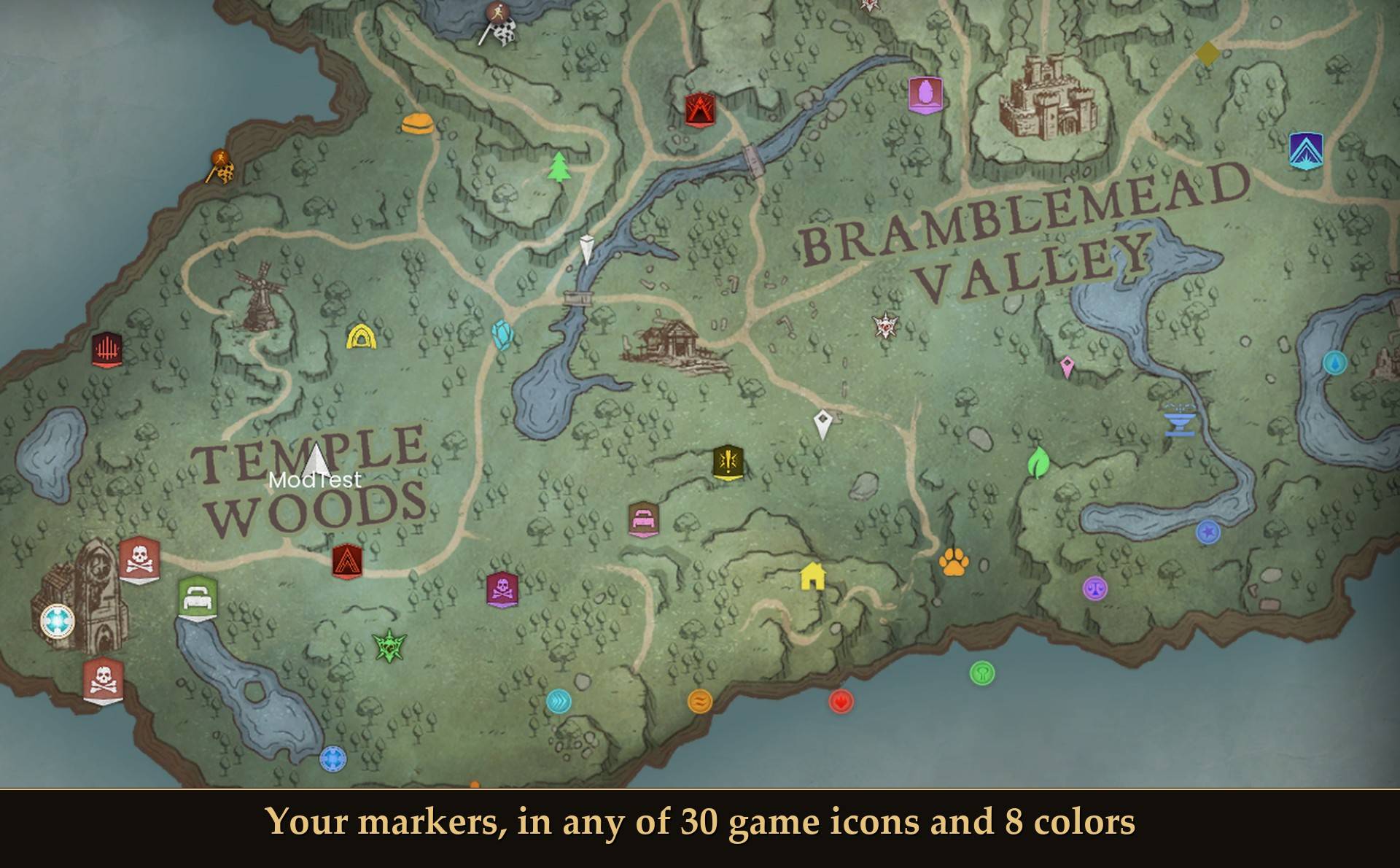
Give each marker you place one of 30 icons that ship with the game and one of 8 colors. Optional: raise the game's limit of 99 markers, up to 1000.
Read this before you place more than 99 markers
The game itself refuses to load a character that has more than 99 markers. With this mod installed it loads fine. Without it, the game sends you back to the main menu. So if you raise the limit and go over 99, bring your marker count to 99 or below before you remove the mod. The "Your markers" line in Mod Menu tells you how many to remove. The limit stays at 99 until you raise it yourself.
The game lets you pick one of 6 icons when you place a marker. I wanted more icons and a higher limit: one icon for caves, another for each rune vent, another for a boss. This mod does both.
What it does
- 30 icons from the game: cave, boss, fight cave, crucible, grave, bed, tower, elder gate, door, lodestone, shrine, agility, burrow, pool, crystal, quest, marker, a separate icon for each rune vent (air, water, earth, fire, nature, law, astral), and the game's own 6 marker icons.
- 8 colors: red, orange, yellow, green, cyan, blue, purple and pink, or the marker's normal white.
- Per marker: every marker you placed can have its own icon and color.
- A higher marker limit (optional): the "Marker limit" slider goes from 99 (the game's limit, the default) up to 1000.
- A backup list: "Save my markers to file" writes all your markers, with their icons and colors, to a file. "Restore saved markers" puts back any that are missing, up to your limit.
How to change a marker
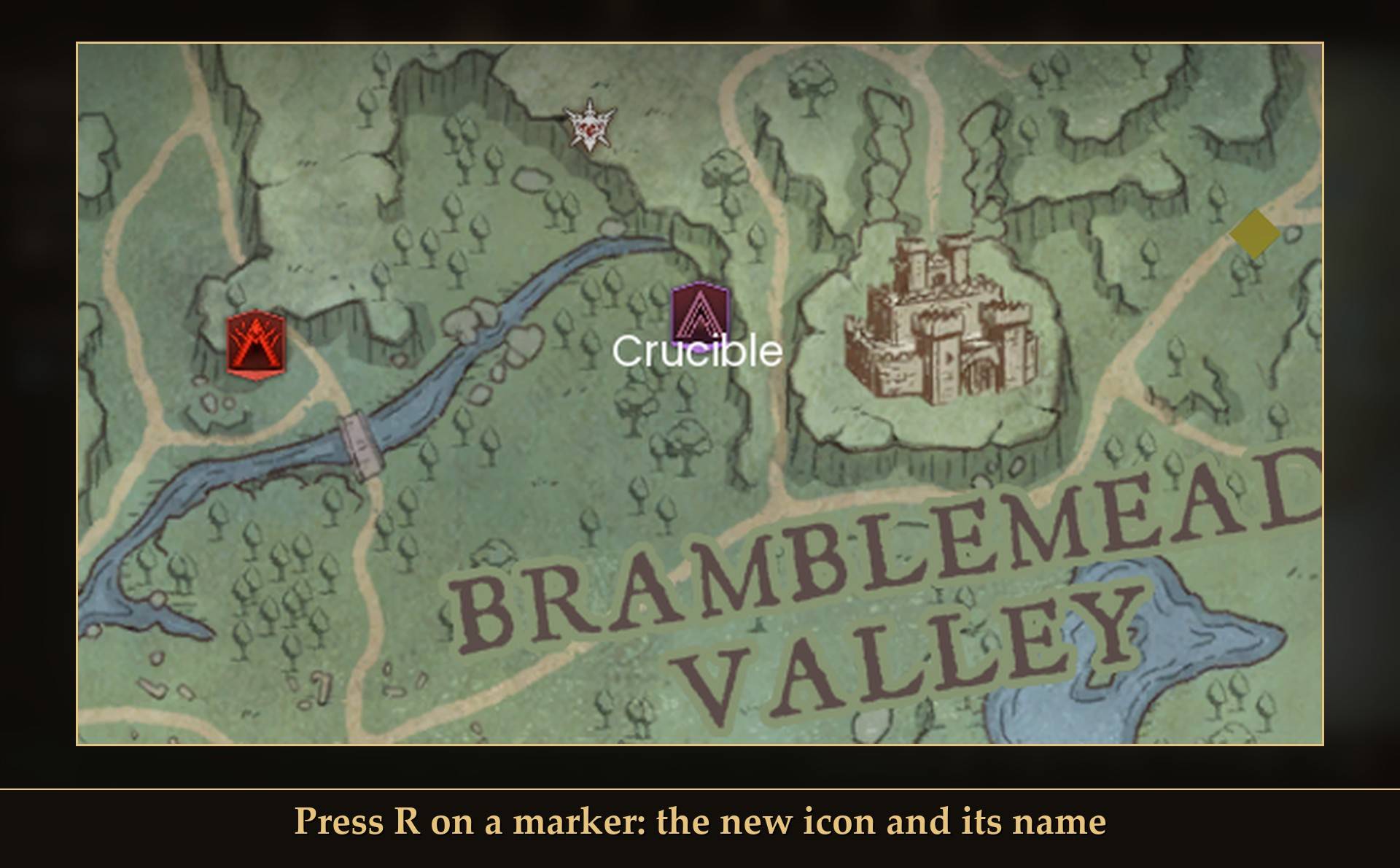
- Keyboard: open the map and point at one of your markers. R = next icon, T = next color. Hold Shift to go back. The mod picks the marker nearest the cursor.
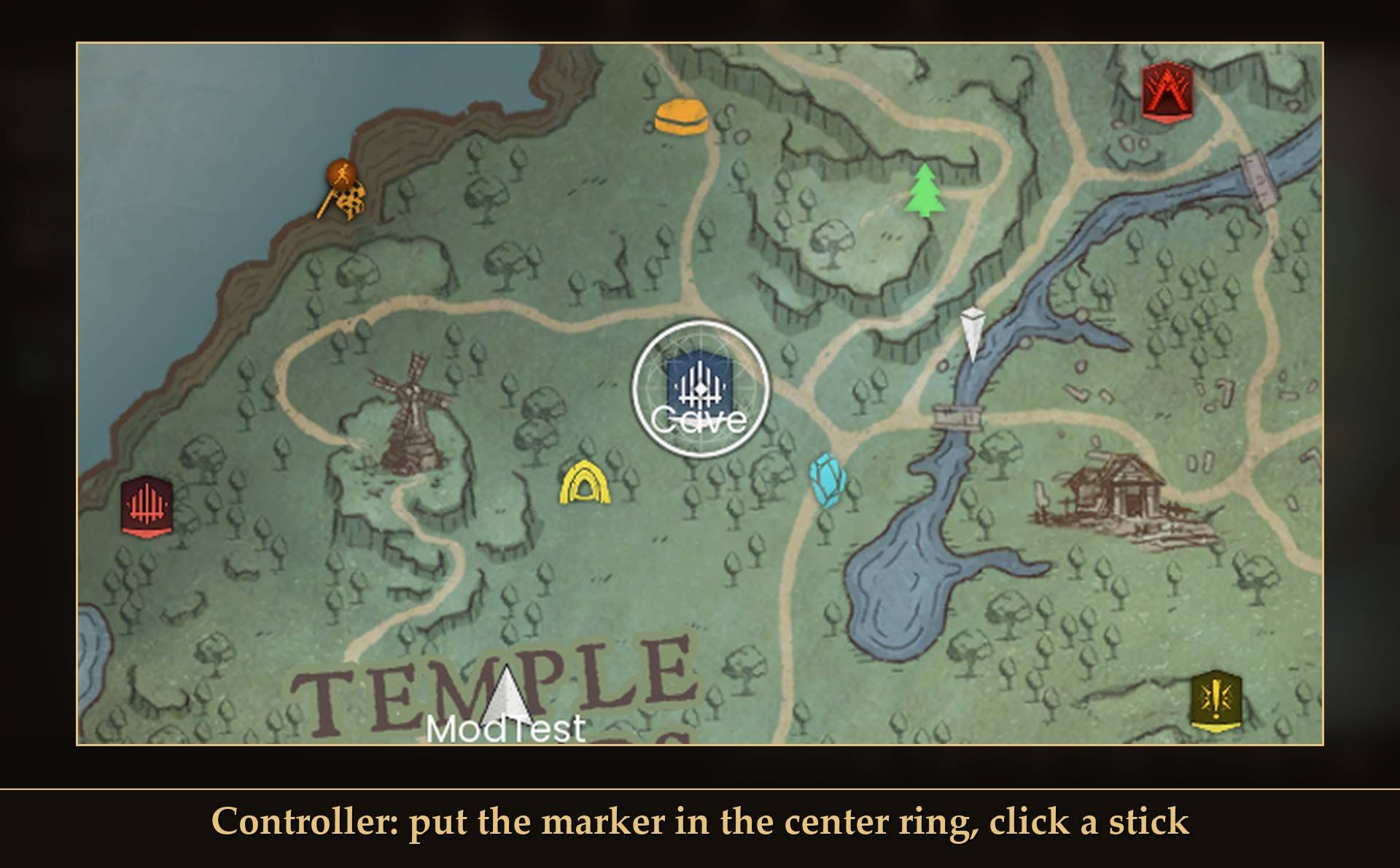
- Controller: open the map and move it with the left stick until your marker sits in the ring at the center. Left stick click = next icon, right stick click = next color.
- After each change the icon or color name shows under the marker for a moment.
Your picks are kept per character in the mod's own file (%LOCALAPPDATA%\RSDragonwilds\Saved\MapMarkers-<character>.txt) and come back every time you open the map, also after a restart. The mod never changes marker data in your save: each marker stays one of the game's normal markers, the mod only draws it with the icon and color you picked.
Before you remove the mod
- 99 markers or fewer: just remove it. Your markers stay, with their normal icons. Install the mod again later and your picks come back.
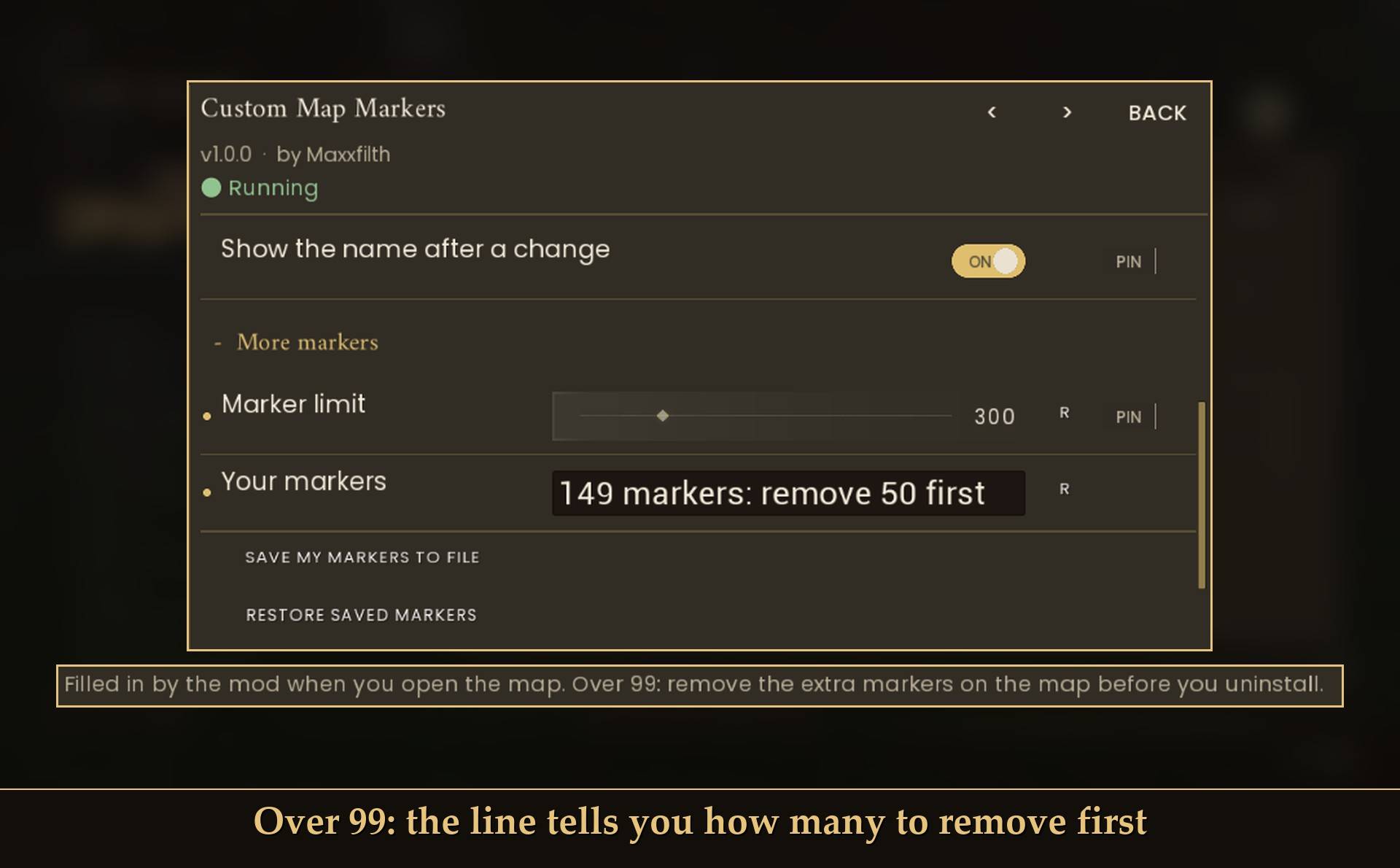
- More than 99: open the map, then check "Your markers" in Mod Menu. It reads like "146 markers: remove 47 first". If you want them back later, press "Save my markers to file", then remove markers until you are at 99 or below. With a controller: put the marker in the center ring and press A. Once you install the mod again, "Restore saved markers" puts the missing ones back.
Settings
All live in Mod Menu (Esc > MODS > Custom Map Markers), or in config.txt in the mod folder (restart the game after editing it):
- Next icon (map): R by default. Shift + key goes back. Any key, or none.
- Next color (map): T by default. Shift + key goes back. Any key, or none.
- Controller buttons on the map: on by default. Left stick click = icon, right stick click = color.
- Show the name after a change: on by default.
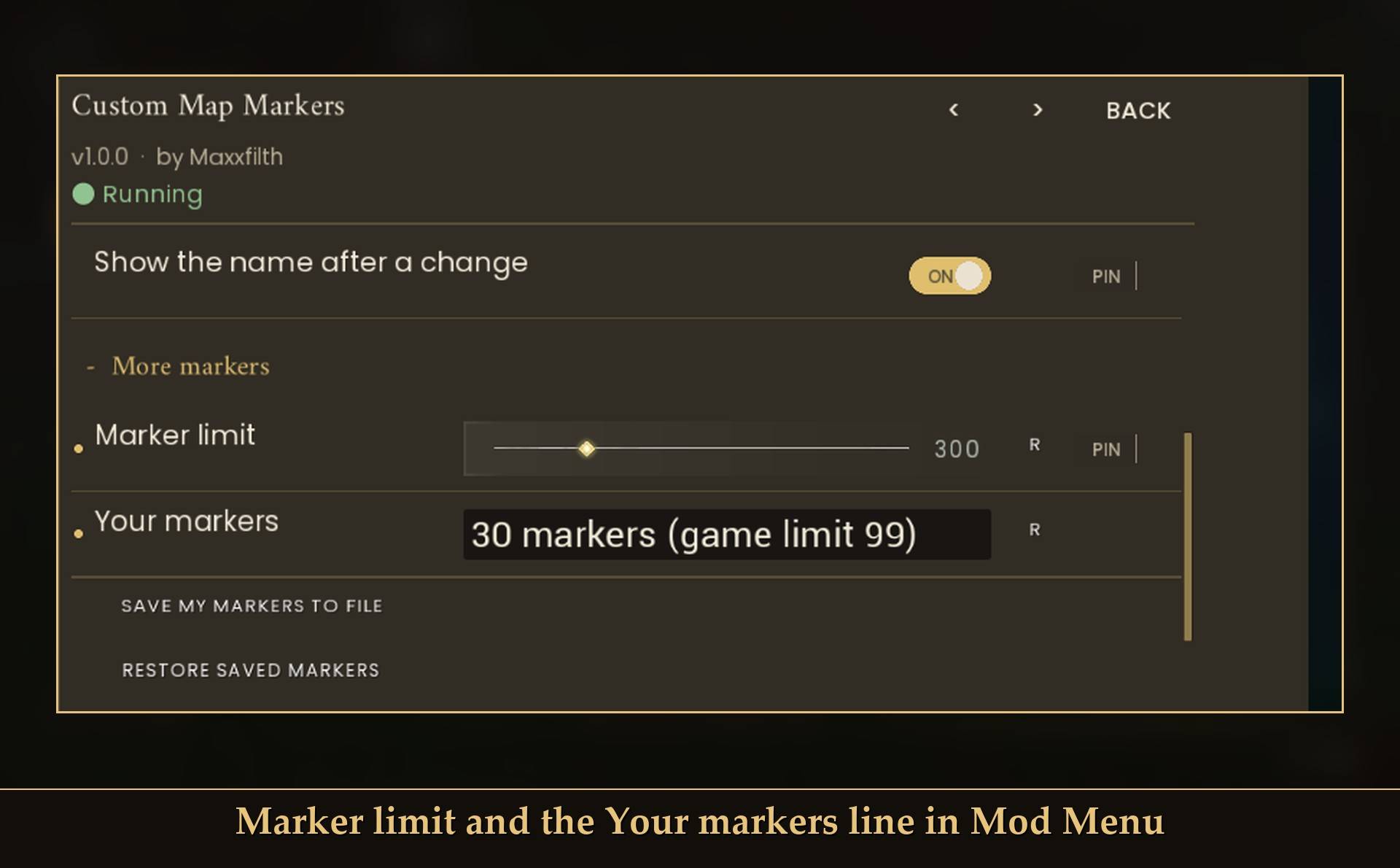
- Marker limit: 99 by default (99 to 1000). Read the warning above before you go over 99.
- Your markers: filled in by the mod when you open the map. Shows your count, and how many to remove before you uninstall when you are over 99.
- Save my markers to file and Restore saved markers: buttons, see above. Only the mod's own file is written, never your save.
- Detailed log: off by default. Writes extra lines to UE4SS.log.
Install
- Install UE4SS for RSDragonwilds.
- Drop the
MapMarkers folder into RSDragonwilds/Binaries/Win64/ue4ss/Mods/
- Optional: install Mod Menu to change the settings in game. You need it for the "Your markers" line and the Save / Restore buttons.
On Game Pass: use the BE version of UE4SS with the SCO signature, the normal build does not load there. Game Pass also installs the game under Binaries/WinGDK/ instead of Binaries/Win64/, so the MapMarkers folder goes in RSDragonwilds/Binaries/WinGDK/ue4ss/Mods/.
To uninstall, delete the MapMarkers folder. If you have more than 99 markers, read "Before you remove the mod" first.
Good to know
- Only your own markers change. Quest icons, lodestones and the other icons the game puts on the map are left alone.
- No map filters. It does not hide or show groups of map icons.
- Other mods. I did not find another mod that raises the marker limit or changes marker icons.
- Not sure it is running? UE4SS.log shows a line starting with
[MapMarkers] loaded.
<small>Tested on RuneScape: Dragonwilds (Steam build 26162923) with UE4SS 3.0.1 and Mod Menu, solo on a test character: 146 and 159 markers placed and loaded again after a restart, the game refusing a 159-marker character without the mod, removing the mod with 20 markers (world loads, normal icons), all 30 icons loading, picks kept after a restart and after a session without the mod, Save and Restore (149 markers), the R and T keys, both stick clicks and removing a marker with A on a virtual Xbox controller. Not tested yet: co-op (hosting or joining), dedicated servers, removing markers with the mouse, Game Pass, a physical controller.</small>
Links