RaidDebuffMonitor
- By
RaidDebuffMonitor will monitor and track the application of debuffs on a target.
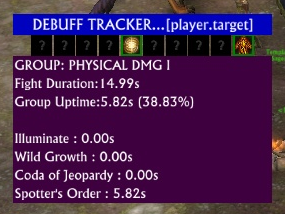
Shows the snapshot detail for the debuff group as a popup
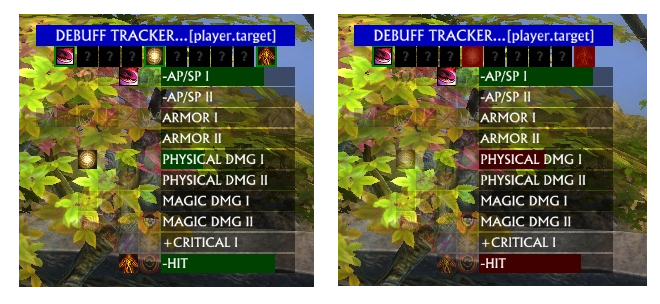
Shows addon in use, with some debuff categories hidden. Right image shows some debuffs have dropped off (red bars and red icons)
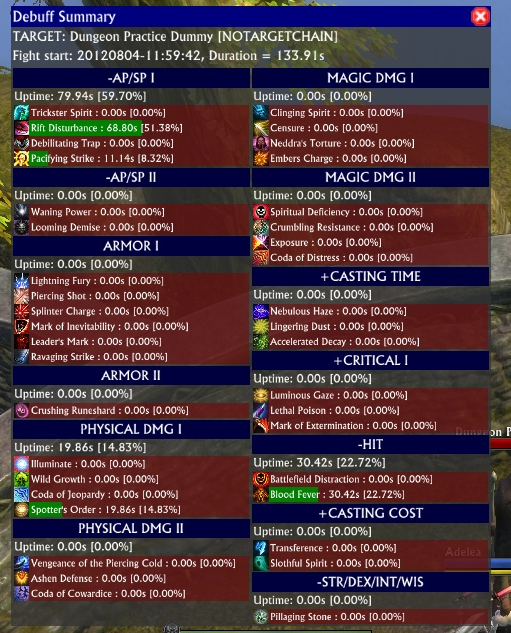
Shows the per-fight summary screen detail
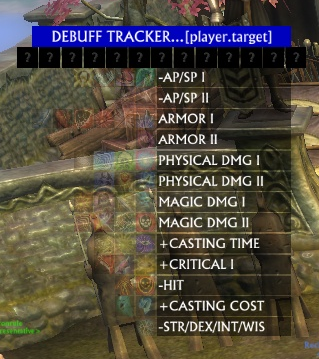
Shows the intial interface on a fresh install.
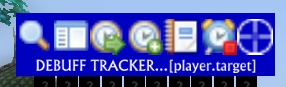
Shows the popup control panel
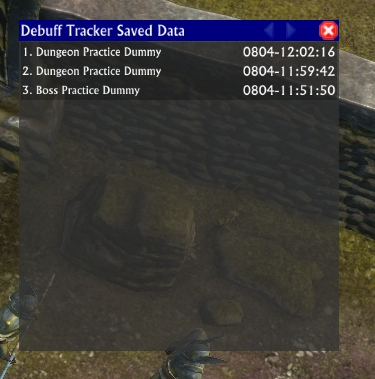
Shows the screen where you can choose which saved data set to look at in detail.
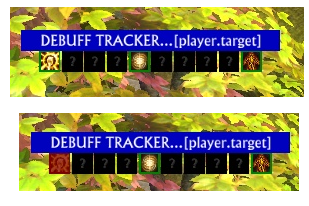
Shows addon in use, with all categories bars hidden.
Description
Trying to maximise your raid DPS - then check to see what debuffs arent being applied.
Debuffs are grouped into stacking groups - the currently active debuff in a group is shown, and uptime across all possible debuffs in a group are tracked.
The default interface shows a header bar, showing new target selection, a row of icons, and then a grid of icons / group names.
You can right-click a group name to hide it. Right-clicking the header bar will unhide any individually hidden groups.
Putting the mousover the header bar will popup the control panel.
This has 7 icons, which are (left to right - see screenshot)
- Zoom - alters scale factor, use the mousewheel up/down to change the scale of the interface
- Details - this toggles display of the categories under the icon row. Note: Mouseover'ing the header bar will show the detail if hidden.
- Clock w/ Arrow - changes the update frequency, use the mousewheel up/down to change this in 0.05s units. Lower numbers give more accurate data, but have a bigger system impact.
- Clock w/ Plus - changes the duration required to save the fight data, again use the mousewheel up/down to change this in 5s units.
- Binder - toggles display of the saved set selection window.
- Clock w/ Stop box - forces current fight to end, and a new one to begin - useful to split a fight for whatever reason.
- Scope - cycles through target selection modes : player.target / player.target.target / focus
In use, the row of icons under the header will change as debuffs apply and wear off.
NOTE: You can mouseover these icons to get a popup window showing current status of the debuff group (See screenshot)
They start a fight as black "?"'s
When a debuff in a group is applied, the icon changes to the debuff applied, and has a green border.
When the debuff wears off, it goes red.
This way you can tell at a glance what debuffs are currently active, which have never been applied at all and which are currently being slacked upon!
If the detail bars are being shown, then the bar color will reflect the current status, and its size will reflect percentage uptime of the group over the fight.
On the Saved Data screen, you can left-click an entry to bring up the summary, or right-click to remove it.
The summary screen shows all groups and debuffs in the group.
NOTE:
- The target selection mechanism is used to determine what your tracked target will be, when a new target is required.
- A fight ends:
- when your target dies
- when the client cannot find the target (despawn, or nothing in your raid is targetting it)
- when everyone in your group/raid dies
- when the STOP button on the control panel is pressed
- If you die, but the raid stays alive, then the target will continue to be tracked.
- A new target is chosen if you are in combat. Friendly or offline targets will not be chosen.
NOTE:: Currently using ability names since I wasnt able to find the IDs for all the abilities, so will probably only work on English language clients.
NOTE2:: In order for Crushing Runeshard to be detected properly, it needs to find the item details - if you get a NOTICE: message to this effect, then find one! Either find a link, or look on the AH. Once you have seen one, it should detect this and notify you.
The RaidDebuffMonitor Team