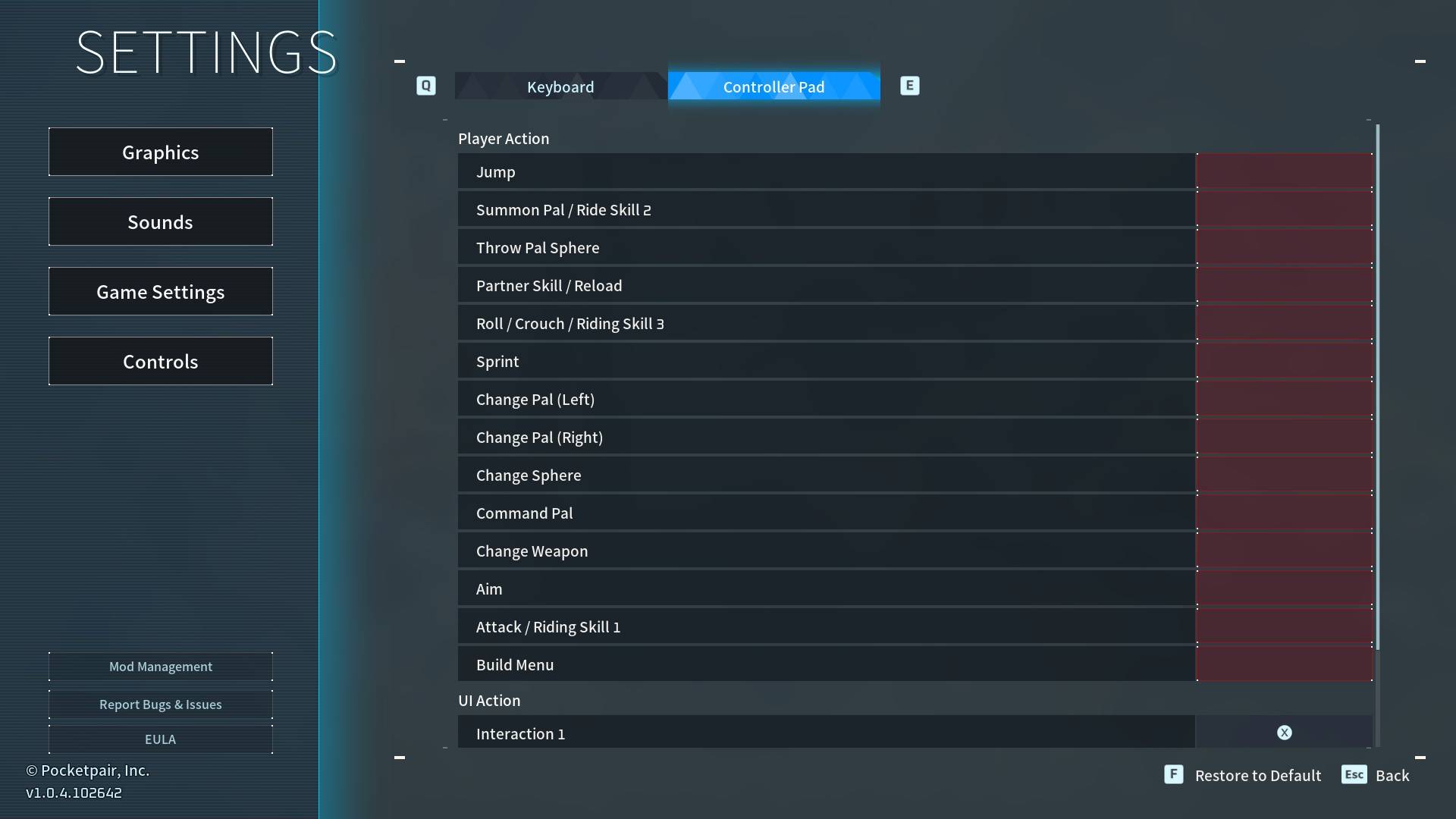
Unbound Controller Buttons Presets
These custom UserOption.sav configurations were originally bundled with PalWheel and are now available separately.
Steam version of Palworld on Windows only.
The Microsoft Store / PC Game Pass version uses a different save system, so these files are not directly compatible with it.
1. PalWheel Preset
UserOption_1_PalWheel_Preset.sav
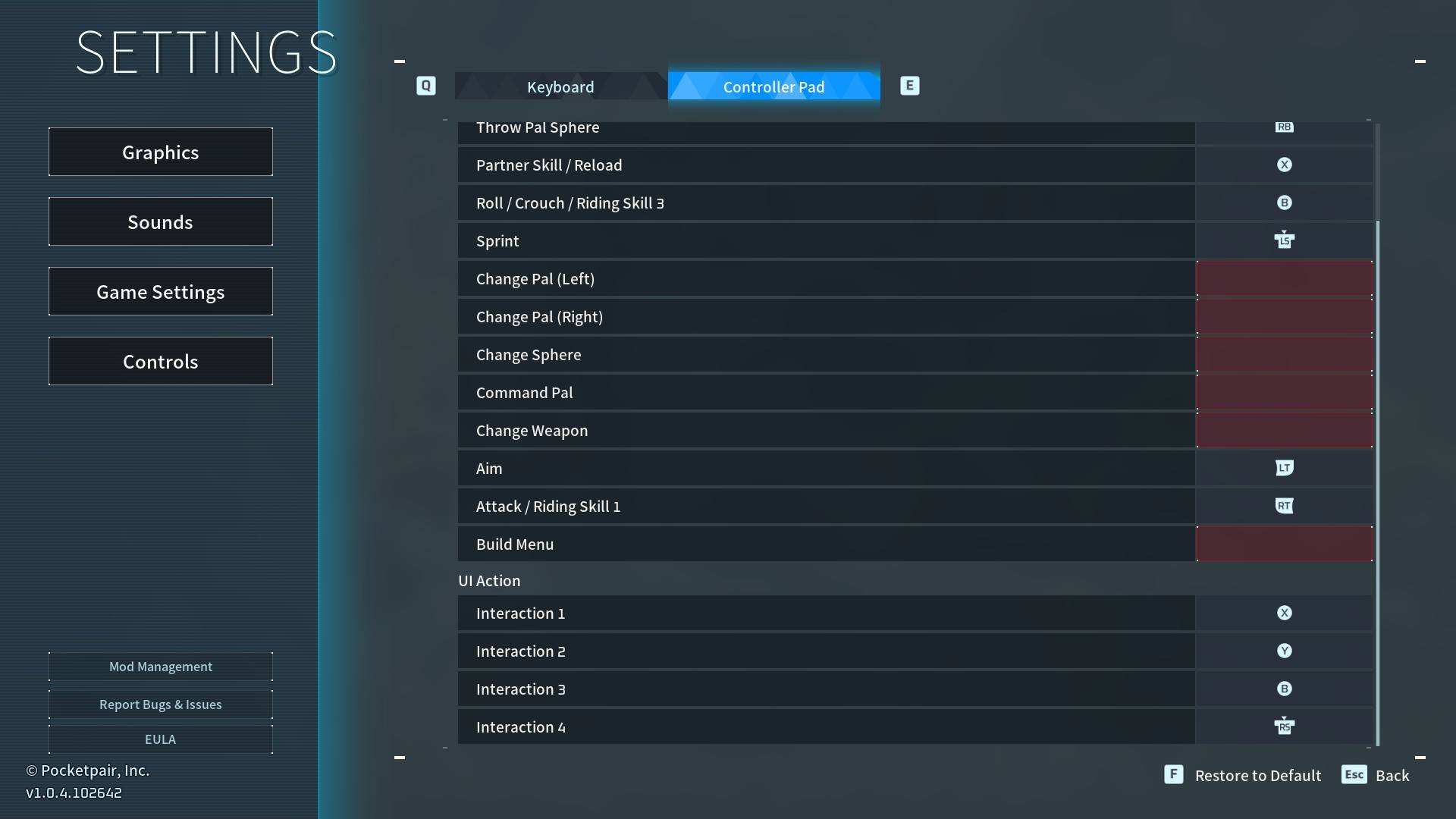
Changes from the default controller layout:
- Summon Pal → Triangle / Y
- D-pad Up / Down / Left / Right → Unbound
- R3 / Right Stick Press → Unbound
All other controller bindings remain unchanged.
This is the original layout bundled with PalWheel and frees the entire D-pad and R3 for PalWheel, other mods, Steam Input, or custom controls.
2. Dual Weapon Use Preset
UserOption_2_Dual_WeaponUse_Preset.sav
Same as the PalWheel Preset, plus:
- Square / X → Secondary Use Weapon / Attack
- R2 / RT remains the normal Use Weapon / Attack button
This gives melee weapons a more natural face-button attack while keeping the normal trigger binding.
Gun side effect: Square / X is also the normal Reload / Partner Skill button. With a gun equipped, pressing Square / X will fire a shot and then reload, even if the magazine was full before the shot.
For guns, use R2 / RT normally if you do not want to trigger a reload after firing.
3. Dual Weapon Use + Dual Reload/Partner Skill Preset
UserOption_3_Dual_WeaponUse_Dual_ReloadCoop_Preset.sav
Same as Dual Weapon Use, plus:
- R3 / Right Stick Press → Secondary Reload / Partner Skill
Relevant controls:
- R2 / RT → Use Weapon / Attack
- Square / X → Reload / Partner Skill + Secondary Use Weapon / Attack
- R3 → Secondary Reload / Partner Skill
R3 follows the same behavior as the normal Reload / Partner Skill action:
- Tap R3 → Reload
- Hold R3 → Partner Skill
4. All Unbound Preset
UserOption_4_All_Unbound_Preset.sav
Sets all gameplay controller Main and Secondary bindings to None.
Keyboard bindings are left unchanged, and controller UI/menu navigation remains available.
This is intended for players who want to rebuild the gameplay controller layout completely using mods, Steam Input, or another custom input setup.
IMPORTANT — Back Up Your Existing UserOption.sav
UserOption.sav contains more than controller bindings.
It also stores other Palworld options such as:
- Mouse and controller sensitivity
- Keyboard bindings
- Camera and FOV-related settings
- Brightness
- Other game and UI settings
Installing one of these presets will replace your existing UserOption.sav, so the other settings stored in your current file will also be replaced by the values contained in the preset.
Copy and back up your existing UserOption.sav before installing.
That backup is the easiest way to restore all of your previous settings later.
Installation
Completely close Palworld.
Press Win + R and enter:
%LOCALAPPDATA%\Pal\Saved\SaveGames
Find your existing:
UserOption.sav
Copy it somewhere safe as a backup before continuing.
Choose one of the four preset files.
Rename the chosen file to:
UserOption.sav
Copy it into:
%LOCALAPPDATA%\Pal\Saved\SaveGames
and replace the existing file.
Launch Palworld.
The normal full path is:
C:\Users<YourUserName>\AppData\Local\Pal\Saved\SaveGames\UserOption.sav
Notes
Changing or resetting controller bindings through Palworld's settings may overwrite these custom bindings. Keep a copy of the preset if you want to restore it later.
SUPPORT
All of my mods are free. If you find these useful and would like to support my modding work, you can do so through Patreon or Ko-fi.
Support is completely optional.