


Litematica Zone Focus
- By

Curse Maven Snippet
What's new
0.1.0 · Minecraft 26.3 — Sections
The biggest Zone Focus update so far: one world can now hold several schematics, each split into zones its own way. Your existing zones are kept.
Sections — several schematics, each with its own split
A section is one or more schematics plus a rule for cutting them into zones: a grid, the schematic's sub-regions, or zones drawn by hand. A castle can be a 3×2×3 grid, a bridge split by sub-regions and a tower one manual zone — all at once in the same world.
- New section window. Tick the enabled Litematica placements on the left, pick the method on the right, give the section a name. A schematic that already belongs to another section is marked "in section #N" — ticking it moves it here. Split again… in the section menu reopens the same window.
- Combined bounds. With two or more schematics ticked, choose Each separately or Combined bounds: four schematics placed end to end can be cut by one grid, as one build.

- Section list in Manage zones. Above the zone panel: number, name, schematic count, rule and progress. Click a section to make it active; right-click for Rename, Hide section, Split again…, Delete section. + Section creates a new one. The map, the zone list and 3D always show the active section.

- Other sections don't get in the way. Hide other sections (on by default) hides the holograms of the other sections' schematics, so you only see what you are building now. Other sections' frames draws thin outlines of their zones if you still want to see where they are.
- Section → zone in the HUD. With several sections the label reads S2 · Z7/24 (section · zone); with one section nothing changes.
- Keys: Next section / Previous section (unbound by default). Next zone crosses sections lets "Next zone" continue into the next section after the last zone.

Cutting and preview
- Cut with the mouse, one block per step. Drag the cut lines on the 2D map, or the plane handles in 3D. Right-click the map or the model for Cut here / Remove cut.

- 2D map from the top, front and side. 3D gets a Side view too.

- 3D for any section, even one made of several schematics (needs Material HUD 1.0.18). A height slider under the 3D view hides everything above the chosen layer, so you can look inside.

- Voxy world under the hologram. If Voxy is installed, the 3D view draws the real world around the section. No setup.
Other changes
- Chat messages are off by default. Feedback (marking tool on/off, check results) now appears above the hotbar; turn Chat messages on to get it in chat again.
- Your zones carry over. The old zone file is read as one section. A backup (
zonefocus_zones.json.bak-0.0.9) is made before the first save in the new format.
Fixed
- fix — Material HUD numbers did not refresh when a second schematic was enabled, moved or turned off inside a zone.
- fix — a manual zone and a grid counted materials differently when two schematics overlapped.
- fix — auto-switching jittered when you stood where two zones overlap.
- fix — the zone number on the Material HUD card could disagree with Zone Focus.
Known limitation
Material HUD still counts every enabled schematic inside the active zone's box. If a schematic of another section stands inside that box, its blocks show up in the HUD. Zone Focus's own check and the holograms already keep sections apart.
📦 You need
Minecraft 26.3 · Fabric Loader · Fabric API · malilib · Litematica · Java 25 · Litematica Material HUD 1.0.18+ for 3D sections and library zones (optional)
All Relations
- All Relations
- Embedded Library
- Optional Dependency
- Required Dependency
- Tool
- Incompatible
- Include
Fabric API
Required DependencyMods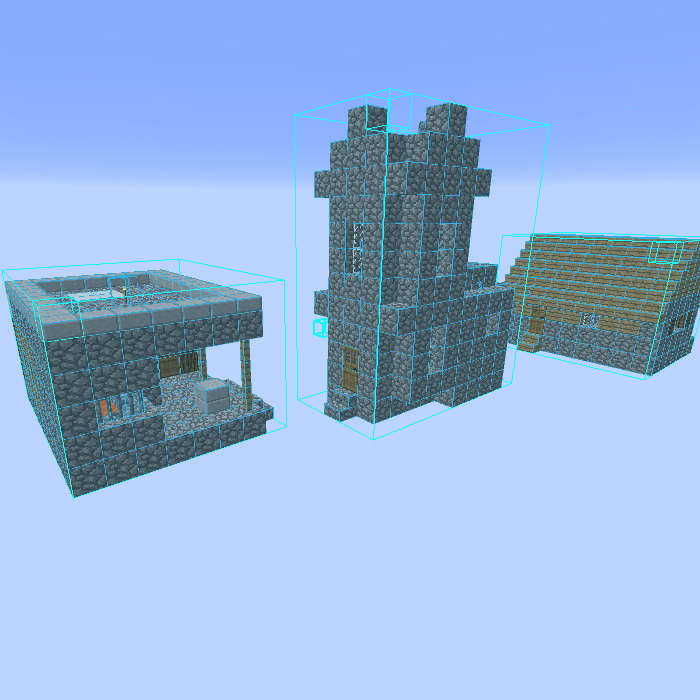
Litematica
Required DependencyMods
MaLiLib
Required DependencyMods
Mod Menu
Optional DependencyMods