Jayly's Cinematic Editor v2.2.3
- By
Jayly's Cinematic Editor controls your camera to change perspectives and designing cinematic scenes within Minecraft.
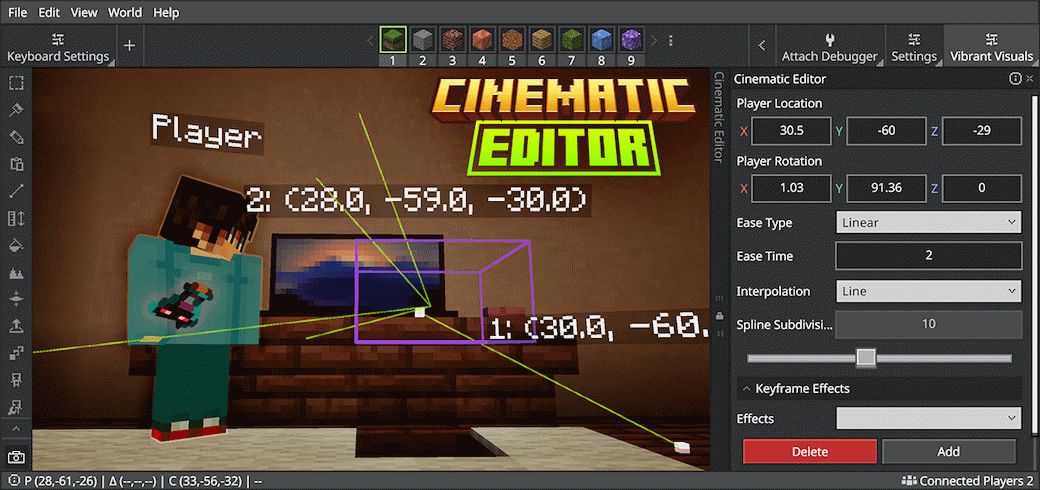
thumbnail-2025-v2-preview-mcpedl.png
Description
Jayly's Cinematic Editor controls your camera to change perspectives and designing cinematic scenes within Minecraft. This tool is a Minecraft Editor extension used within Minecraft Editor.
⚠️ This article is about the Cinematic Editor using Bedrock Editor engine. For the Cinematic Editor with cross-platform support, see Cinematic Runtime add-on: https://mcpedl.com/jayly-cinematic-runtime/
Note: The Minecraft Cinematic Editor extension is currently available to the Windows version of Minecraft Bedrock Edition.
Note: This extension requires Minecraft Bedrock Editor in-game tool.
The Cinematic Editor got a major update with new features and improvements! If you're a Windows player, you might enjoy a more streamlined and powerful editing experience.
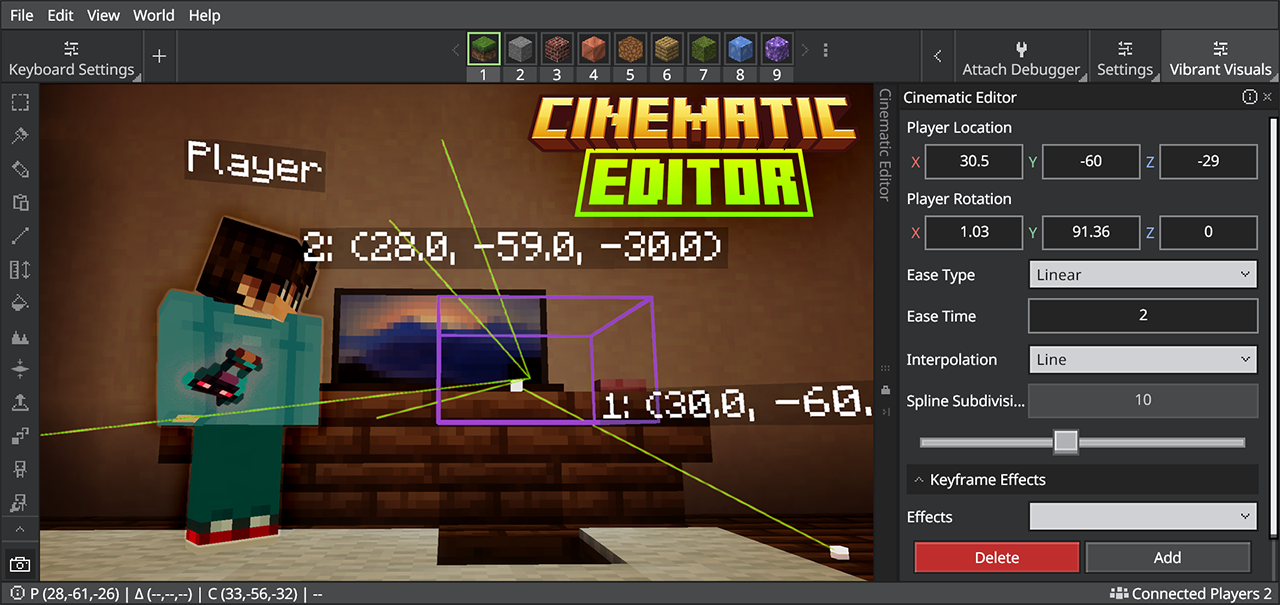
Cinematic Editor with 'Prizma Visuals' Vibrant Visuals Pack.
Cinematic Editor full wiki
Features
- Ability to manage Cinematic Editor tool and interact with the Minecraft world simultaneously.
- Create and manage keyframes
- Adjust camera position and rotation
- Control camera transitions (easing)
- Control camera interpolation (linear and hermite)
- Add keyframe effects (fade in/out)
- Import and export scene for use in the Cinematic Runtime Add-On
- Import and export scene for use in the Cinematic Editor Extension
- Debug camera with aspect ratio and FOV support
What's Next
Looking ahead, here's a list of features I wanted to include in future releases. No promises tho.
- Play multiple sequences one after the other until the scene is finished
- Change camera FOV support
- Manage scene using Custom Commands API
- Record and replay Minecraft gameplay (e.g. similar to ReplayMod / Flashback capabilities)
Bonus Content
Check out the videos about behind the development of Cinematic Editor on YouTube
Export and import scene
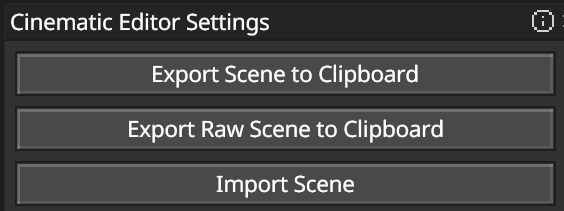
Export the scene by going into Editor settings panel, which can be accessed on the top of the editor.
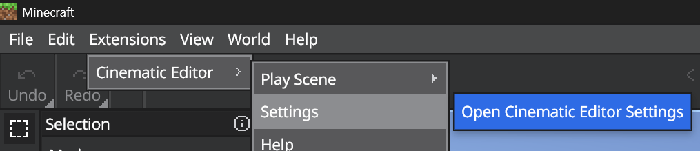
Then press Export Scene to Clipboard or Export Raw Scene to Clipboard.
Import the scene by clicking on the Import Scene button.
Installation
Download files CinematicEditor_v2.x.x.mcaddon to access Cinematic Editor new V2 features.
Close Minecraft if you have it open. Double click on the MCADDON file to launch Minecraft and import the add-on to Minecraft.
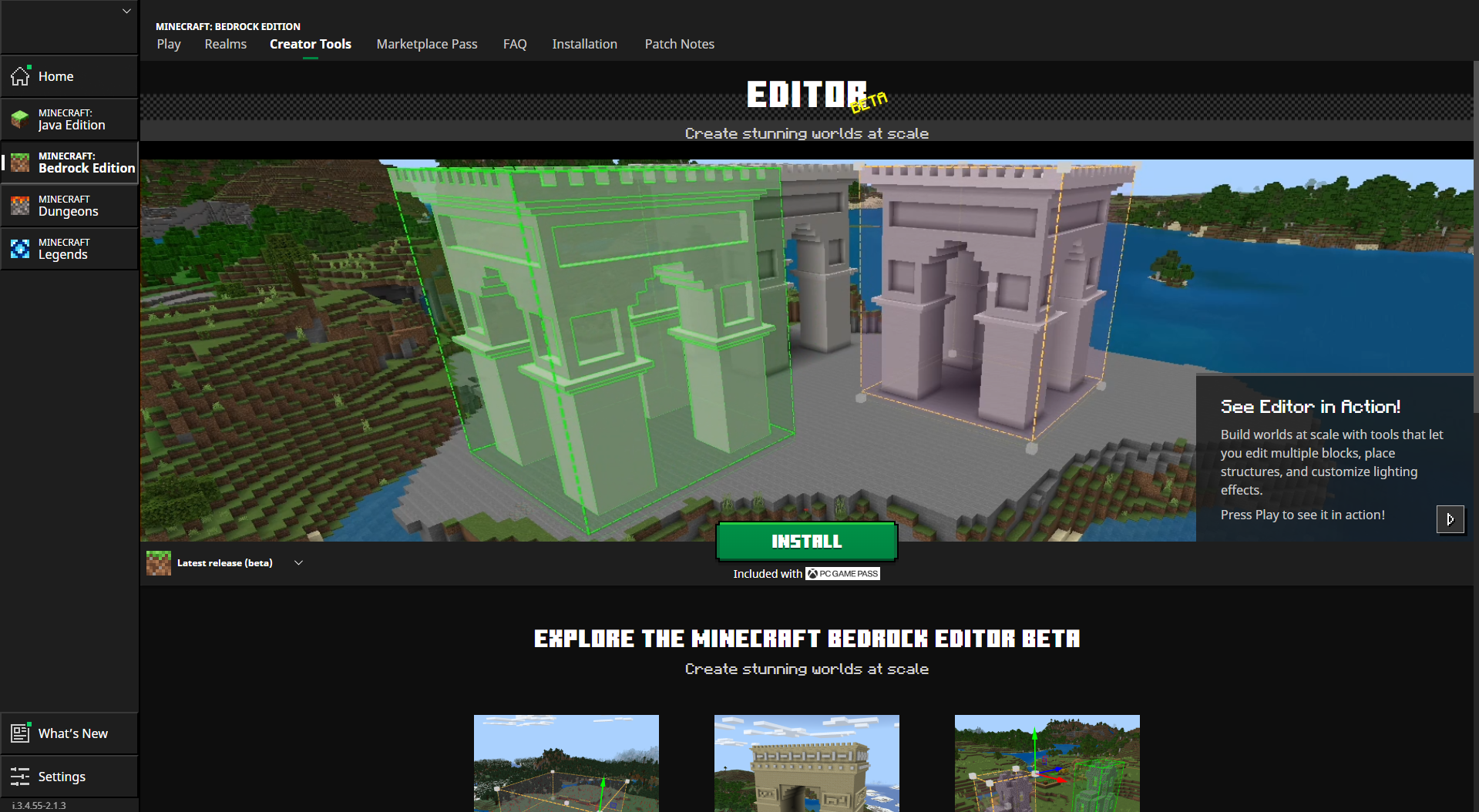
Close Minecraft, then launch Minecraft Editor mode from either the Minecraft Launcher or a shortcut.
You can launch it either directly from the Creator Tools tab in the Minecraft Launcher or by creating a custom desktop shortcut that uses the command minecraft:?Editor=true.
Jayly's Cinematic Editor v2.2.3 Team


Owner