Zmenu
- By
A clean, movable micro-menu bar with your class icon, custom colors, a live info line (zone, durability, FPS, latency, local and realm time) and a one-click quest tracker toggle that auto-hides in combat.
Zmenu Performance.png
Description
ZTV Menu
Your micro-menu, cleaned up and actually useful.
ZTV Menu replaces Blizzard's default micro-menu with a sleek, movable bar that opens all the same windows and puts the information you check constantly right next to it. Everything works in combat, just like the buttons it replaces.
The Menu Bar
- One-click buttons for Character, Professions, Spellbook & Talents, Achievements, Quest Log, Housing, Guild & Communities, Friends, Group Finder, Collections, Adventure Guide, Shop and Help
- The Character button shows your class icon, and its tooltip shows your item level and lowest durability
- The Group Finder button uses Blizzard's green Group Finder eye
- Uses Blizzard's own buttons behind the scenes, so every panel opens normally, even in combat
- Optionally hides Blizzard's default micro-menu
Info Line
- Current zone
- Lowest gear durability, color-coded green, yellow or red
- FPS and latency
- Local time and realm time
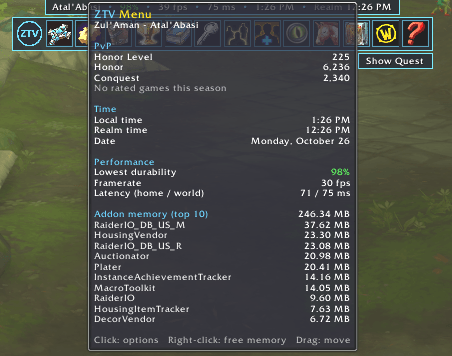
Hover the info line for more:
- Honor level, Honor and Conquest
- Your rated PvP brackets this season (2v2, 3v3, Rated Battleground, Solo Shuffle, Blitz)
- Local time, realm time and today's date
- Framerate plus home and world latency
- Top 10 addons by memory use, with a total. No separate profiler needed
Right-click the info line to free unused Lua memory.
Quest Tracker Toggle
- A text button at the bottom right of the bar reads Hide Quest or Show Quest and switches each time you click
- The quest tracker automatically hides when you enter combat and returns when combat ends
- Right-click the toggle to turn the combat auto-hide on or off
Make It Yours
- Drag the bar anywhere by its logo or info line, then lock it in place
- Horizontal or vertical layout
- Adjustable scale, button size and spacing
- Pick your own background and border colors (with transparency)
- Show or hide the logo and the info line
- Settings are saved per account
Commands
/ztvmenuor/zmenu: open the options window/zmenu lock: lock or unlock the bar/zmenu show//zmenu hide: show or hide the bar/zmenu reset: reset everything to defaults
You can also open the options by clicking the ZTV logo on the bar, clicking the info line, or from the addon menu by the minimap.
Zmenu Team