UI Visibility Forever
- By
Hide or fade Personal Resource Display, action bars, unit frames, chat, minimap and more on mouseover, plus bigger character names at the cursor. For WoW: Forever.
ibf2.gif
prb.gif
Description
UI Visibility
Controls when parts of the interface are visible in WoW: Forever, and helps you read the names of the characters you point at. Every part is a module that can be turned on or off.
What it does
The options are grouped in tabs by where each part is on screen.
Bars
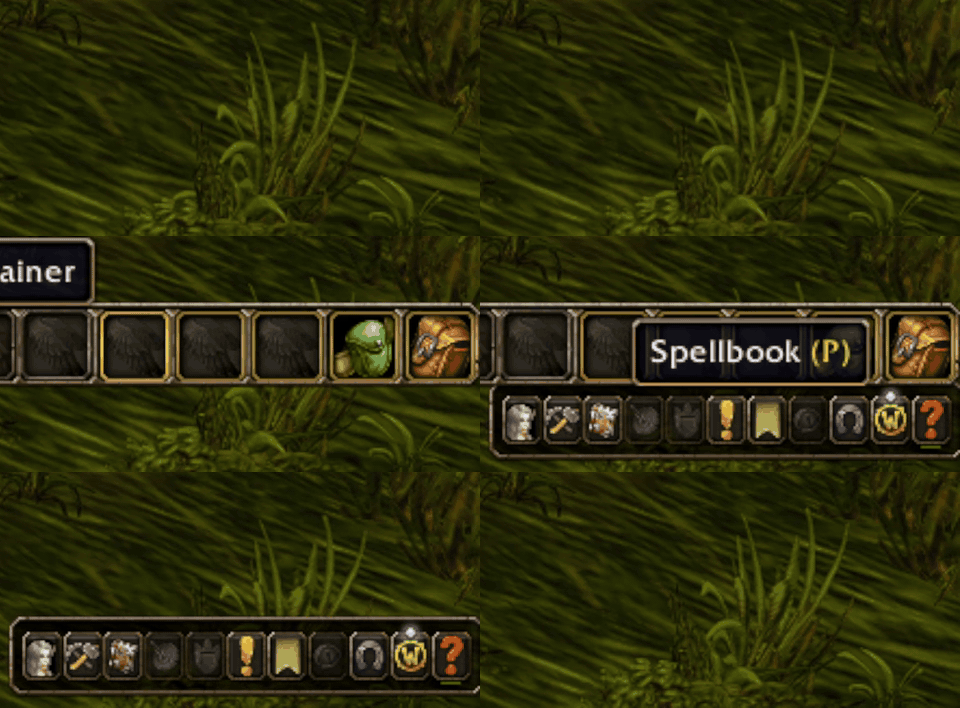
- Action bars: Action Bars 1 to 8.
- Class bars: Stance, Pet, Possess and Totem bars.
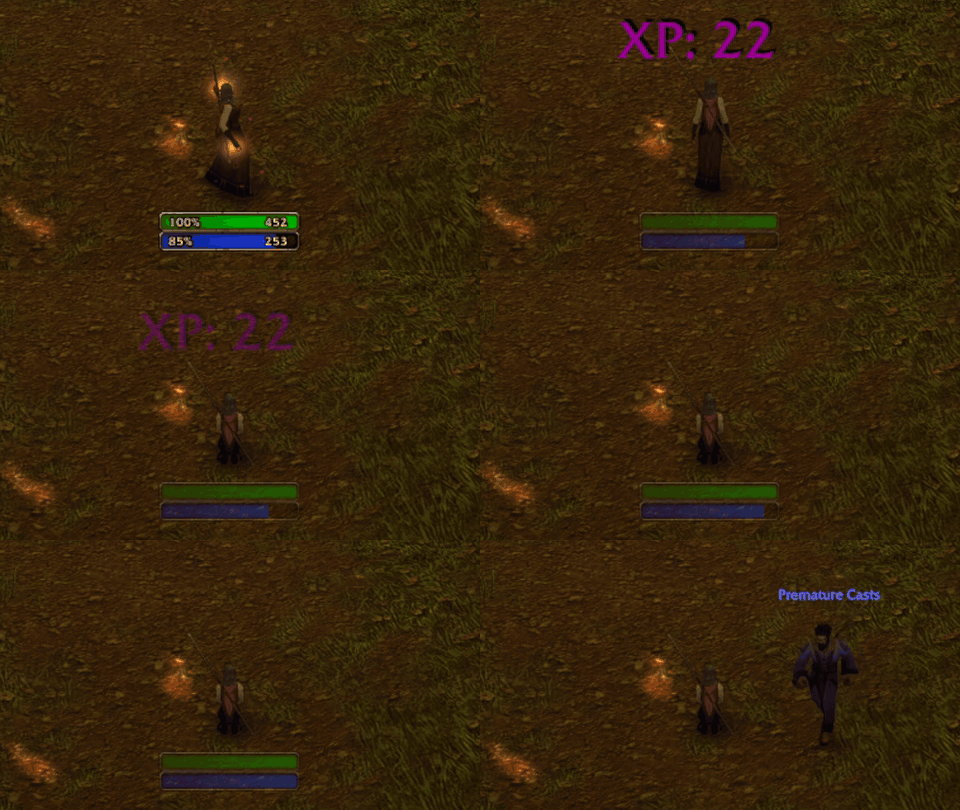
- Experience bar: By default, hidden, shown on mouse hover and for a few seconds after gaining experience.
Frames
- Unit frames: Player, pet, target, target of target, focus, party, raid manager and cast bar.
- Personal Resource Display: By default, fully visible in combat, half visible while health or resources regenerate, and hidden when everything is full. Every opacity can be changed, and the bar text can show only in combat.
Interface
Chat (with its tabs and buttons), social button, quest tracker, Questie tracker, buffs, debuffs, bags and main menu.
Minimap
Zone text, clock, calendar, tracking, mail, addon button, compass border, day/night icon and other addons' minimap buttons.
Names
- Name at the cursor: While you hover a player or NPC, their name shows in big letters next to the cursor, in the game's name colors, at any distance. It can also show their level (colored by difficulty) and a quest mark when they're part of one of your active quests.
- You choose who it's for (allied players, enemy players, friendly NPCs, hostile NPCs) and when to hide it (in combat, in an instance, on dead characters, on characters close enough to have a nameplate, or over the interface).
- Tooltip: The tooltip can show next to the cursor instead of in the corner, bigger, and after a short delay.
- Names above heads: Turn the game's own names above heads on or off by category (allied and enemy players, hostile, interactive and special NPCs, pets, guardians and minions, totems, critters, your own name, weak enemies, guild names and titles). One button, or
/uiv togglenamesin a macro, hides them all and brings them back exactly as they were. It can hide only the names, or the names and the whole interface (like Alt+Z), by hand or automatically while you're away or after some time out of combat. That button can also sit on your screen, always visible or only on mouse hover.
Shown, Hidden or On hover
In the Action bars, Class bars, Unit frames, Interface and Minimap modules, every element can be:
- Shown: the game's normal behavior. The addon doesn't touch the element.
- Hidden: invisible, and it ignores the mouse. Keybinds of hidden action bars still work.
- On hover: invisible until the mouse passes over it.
Before you start: parts that are off in the game
UI Visibility only controls parts of the interface that the game is showing. Some of them are off by default in the WoW client and have to be turned on there first:
- Personal Resource Display: Turn it on in Edit Mode (check "Personal Resource Display"). Then select it and set its Visibility to Always and its Opacity to 100%, so UI Visibility decides when it shows. Turn on Show Bar Text if you want the health and resource numbers in combat.
- Action Bars 2 to 8: Turn them on in Edit Mode or in Options > Action Bars.
- Class bars: The Stance, Pet, Possess and Totem bars can be turned off in Edit Mode. They also only appear for classes and situations that use them (for example the Pet Bar with a pet out).
- Focus frame, party frames and raid manager: They only appear when you have a focus or are in a group.
- Questie tracker: Needs the Questie addon.
- Names, "Has a nameplate": Only matters if you have nameplates turned on.
Other details
- Every element starts as Shown, so nothing changes until you choose what to hide.
- Everything is shown in Edit Mode, so you can move it.
- The chat is always shown while you type a message.
- Fade smoothness (0 to 10) sets how fast elements appear and disappear. 0 is instant.
- Action bars and unit frames can't be fully changed during combat: if you change their mode in a fight, they become invisible right away, but they keep reacting to the mouse until combat ends.
- The game doesn't let addons know where a character's head is on screen, so the bigger name follows the cursor instead of replacing the name above the head.
- Available in English and Spanish.
Options and commands
Options are in Options > AddOns > UI Visibility, and in a window with the same tabs that opens with /uiv or by clicking UI Visibility in the minimap's addon button. The tabs are General, Bars, Frames, Interface, Minimap and Names. The General tab lists every module with an Open button that goes to its tab. Hover any option to see what it does.
/uiv: Opens the options window/uiv prd,xp,bars,actionbars,unitframes,interface,minimap,names: Opens the tab with that module/uiv options: Opens the pages in the game's Options menu/uiv help: Opens the help window/uiv status: Shows the state of every module/uiv debug: Personal Resource Display timing details/uiv list: Lists the addon minimap buttons found/uiv add Name: Adds an addon minimap button that wasn't found/uiv remove Name: Removes a button you added/uiv togglenames: Hides all names above heads, or brings them back as they were
UI Visibility Forever Team