Smart Bank Tab Deposit | Bank Tab & Warband Bank Deposit
- By
Right-click an item at the bank and it lands in the tab you have open, for the bank and the Warband Bank. Stacks are topped up first. No settings, no new window: it just fixes where Blizzard puts your items.
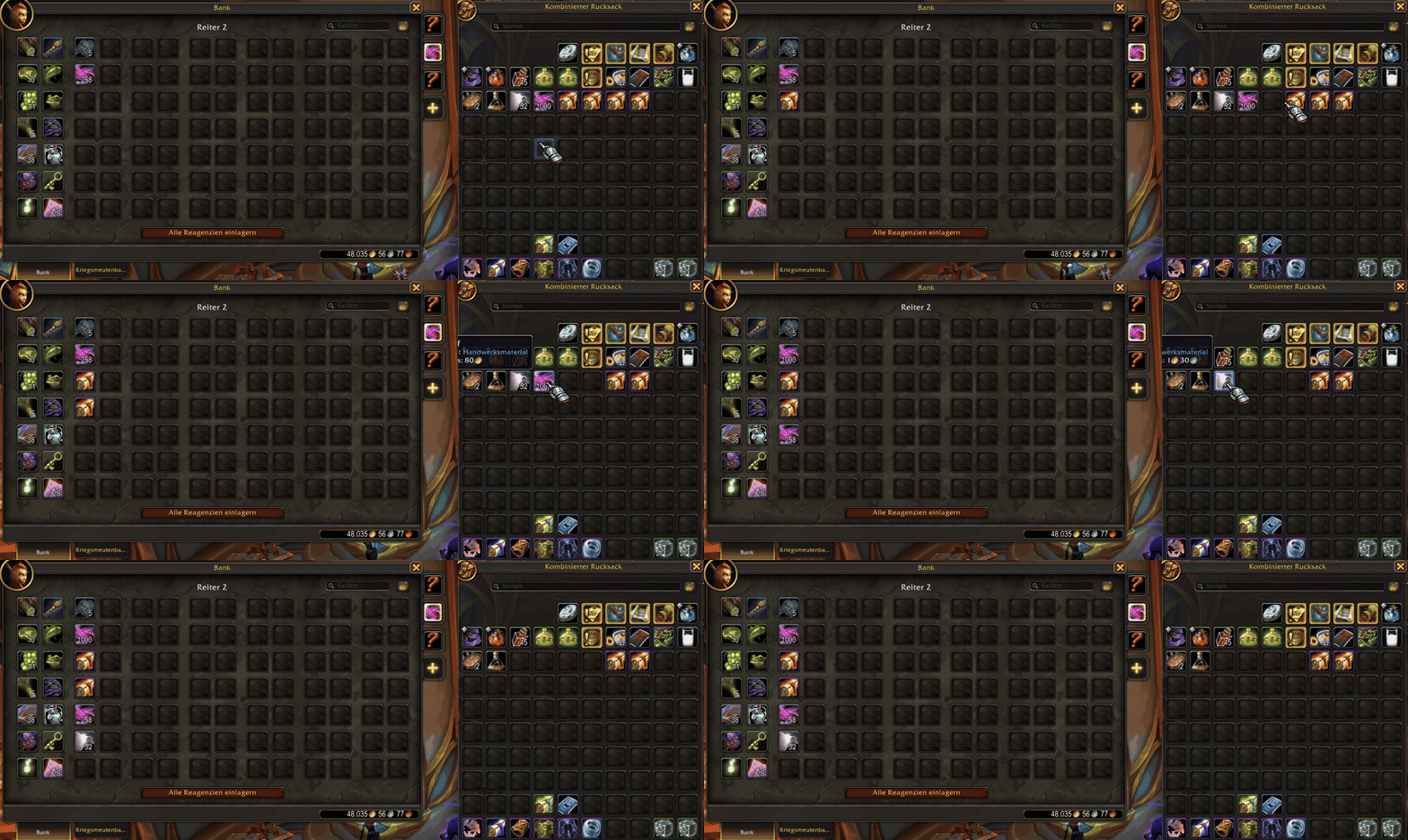
Right-click in your bags — the items land in the tab you have open, and stacks are topped up first.
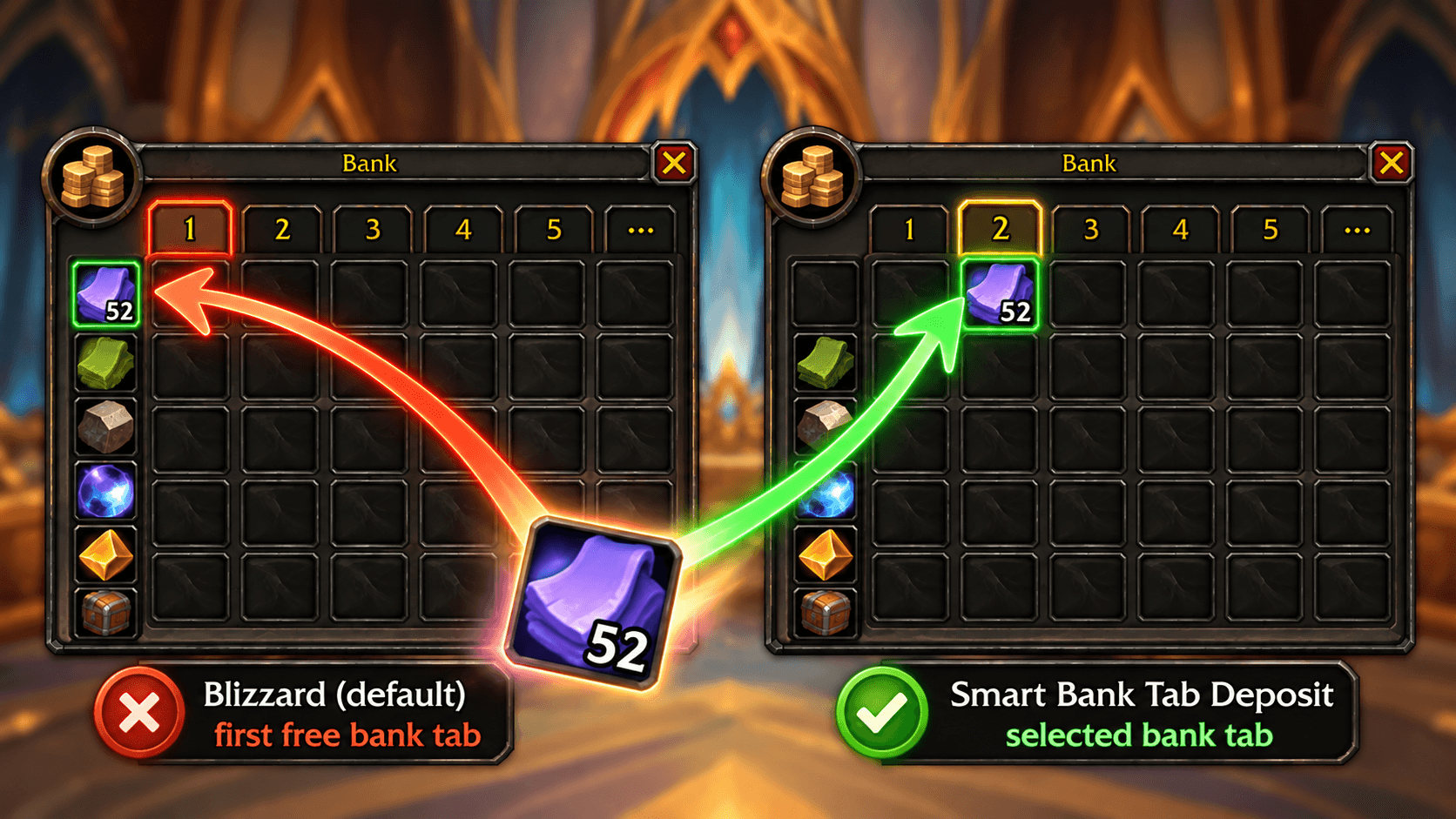
Blizzard puts right-clicked items into the first free tab — Smart Bank Tab Deposit puts them into the tab you have open.
Description
Since the bank got tabs, right-clicking an item at the bank puts it into the first free slot in any tab, not into the tab you are looking at. You open your herb tab, right-click your herbs, and they end up in tab 1 between your old gear.
Smart Bank Tab Deposit fixes that: right-click an item and it goes into the tab you have open. That's all it does, and it does it quietly.
Available in: English, German, Spanish, French, Italian, Portuguese (Brazil), and Russian.
Features
- Into the selected tab: right-click deposits go into the bank tab you have open, for the character bank and the Warband Bank.
- Stacks first: if the tab already has a stack of that item, it's topped up first. Only the rest takes a new slot.
- Respects tab assignments: if the open tab is assigned to item types (e.g. "Trade Goods, Reagents"), only matching items go in. Anything else (potions, gear, lockboxes) is deposited by Blizzard's own rules, so your sorted tabs stay sorted.
- Safe fallback: if the tab is full, you get a short message and Blizzard deposits the item as usual. Items that can't go into the Warband Bank, and items that would lose their refund, are left to Blizzard's own messages.
- Nothing else changes: Shift/Ctrl-clicks, dragging, using items away from the bank and combat all work exactly as before.
- Bag addons: works with Blizzard's bags and with Bagnon's bags when you use Blizzard's bank window. (Bagnon's own bank window shows all tabs at once, so there is no "selected tab" there.)
How to use
- Open the bank and click the tab you want to fill.
- Right-click items in your bags.
Commands
/sbtd— short help/sbtd debug— turns debug messages on or off: each move is shown in chat (helpful for bug reports). Off by default.
Smart Bank Tab Deposit | Bank Tab & Warband Bank Deposit Team