RGS - Rhodan's Graphical Automation Settings
- By
Create custom graphics profiles that will swap automatically based on your group-size
RGS — Rhodan's Graphical Automation Settings
Save the graphics settings you want for each kind of play, and let RGS switch between them.
RGS keeps separate graphics presets for solo play, scenarios, groups, and raids. You choose the values in each preset; RGS applies the matching one as your group or content changes.
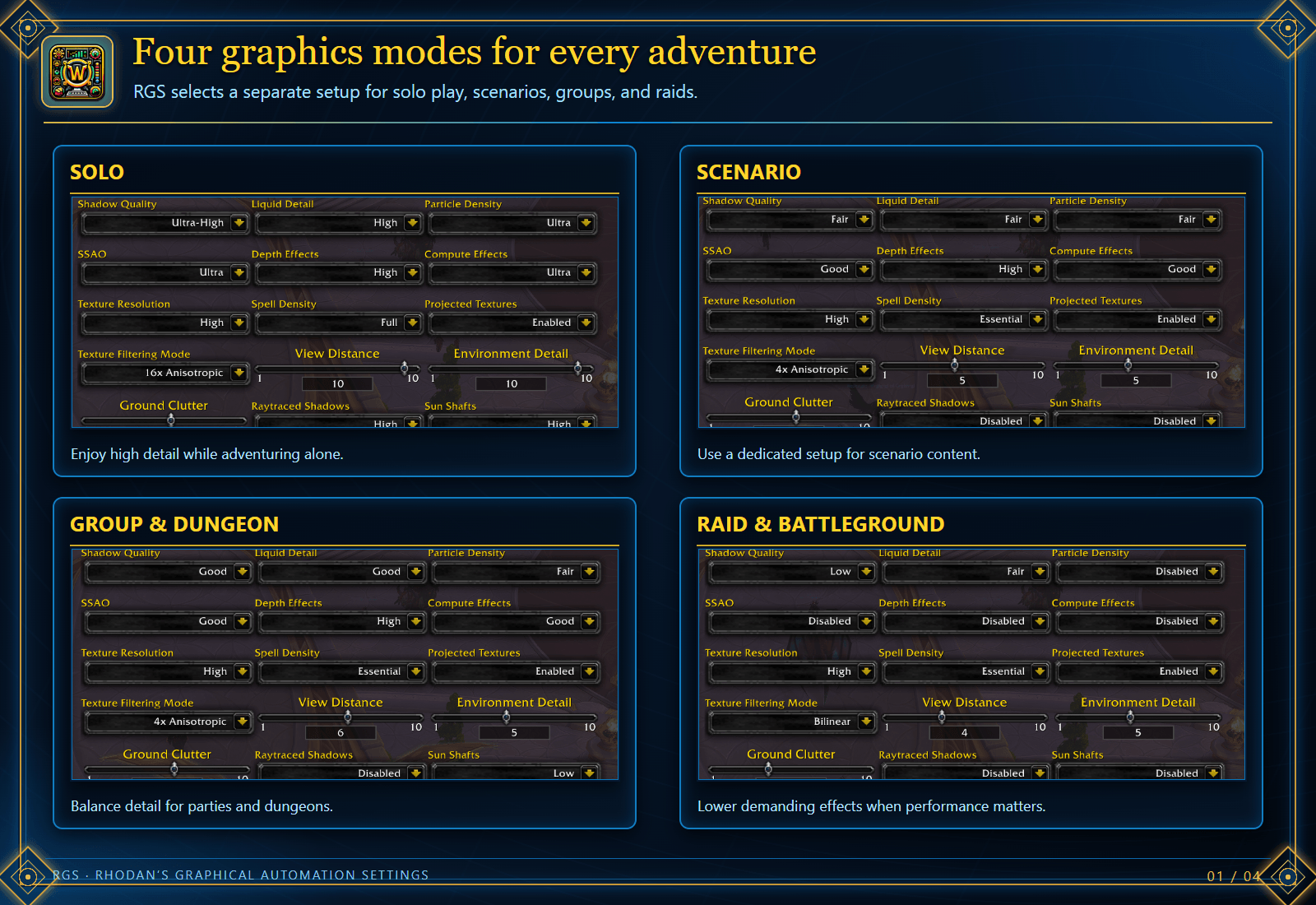
Four graphics modes
- Solo: Your settings for exploring and playing on your own.
- Scenario: A separate setup for scenario content.
- Group: Settings for parties and dungeons.
- Raid: Settings for raids, battlegrounds, and arenas.
Each mode can favor the visual detail or performance you prefer. RGS also checks your active mode when you enter the world, change areas, or join or leave a group.
Set up your presets
- Open Options → AddOns → Rhodan's Graphical Settings, or click the RGS broker icon.
- Select Solo, Scenario, Group, or Raid.
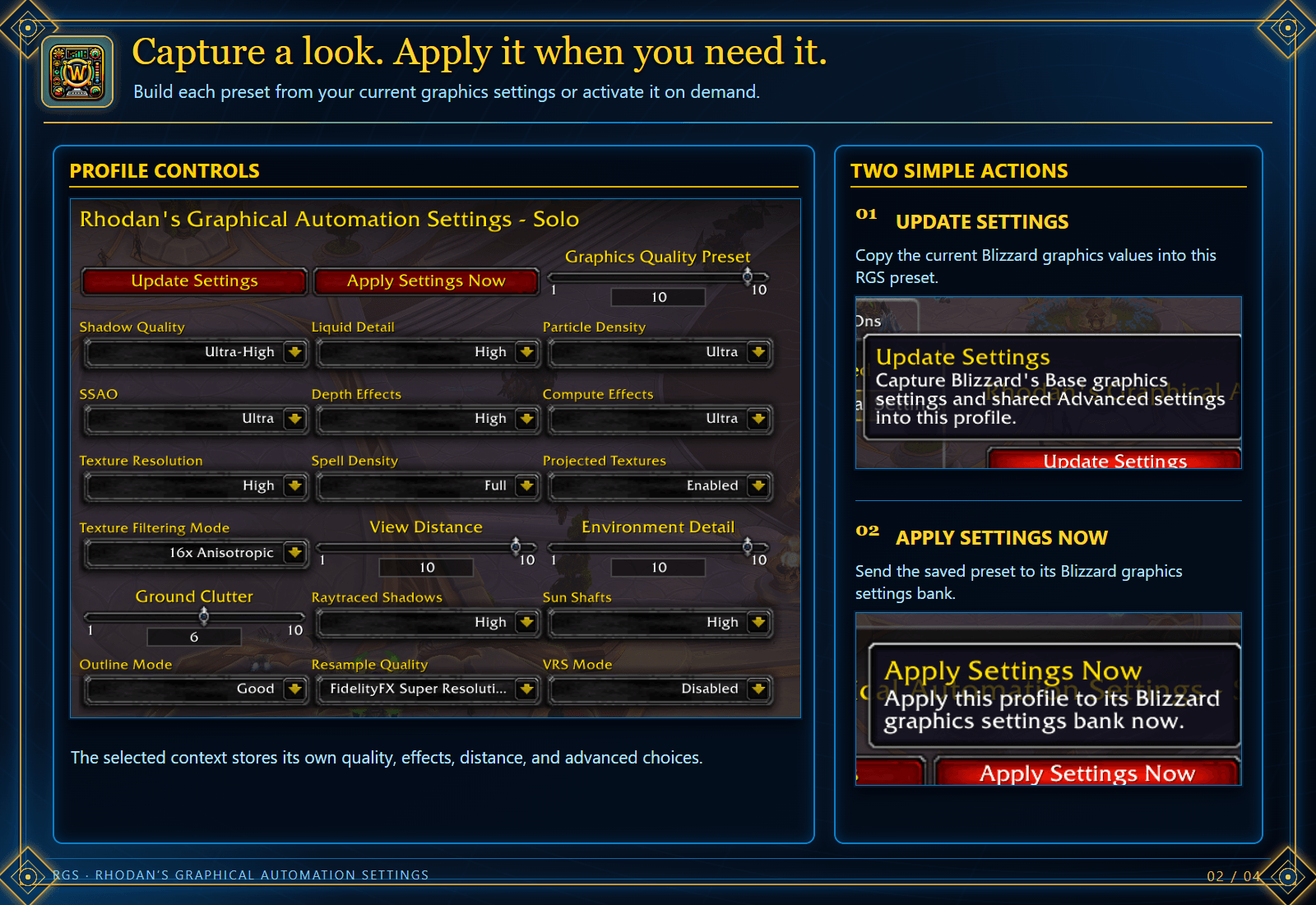
- Adjust the controls in RGS, or set up Blizzard's Graphics options first and click Update Settings to capture their current values into the selected RGS mode.
- Click Apply Settings Now to try that mode immediately. Repeat for the other modes.
How changes are saved and applied
- Changing a control in RGS immediately saves its value to the RGS tab you selected. Click Apply Settings Now to see that preset in game immediately. Otherwise, RGS applies it the next time that mode becomes active.
- Changing a control in Blizzard's Graphics options changes WoW's current setting but does not overwrite an RGS preset. To keep that change in RGS, open the tab where you want it saved and click Update Settings.
- Update Settings replaces the saved values in the RGS tab you selected. It does not choose a destination based on your current group or content, so a context change while you are configuring settings will not silently save changes to another tab.
WoW writes the updated RGS SavedVariables file to disk when you use /reload or log out. You do not need to press Apply Settings Now for a manual change to remain saved in its RGS preset.
For the Raid mode, RGS captures and applies Blizzard's Raid and Battleground graphics bank when that bank is enabled; otherwise it uses the Base bank. Shared Advanced graphics settings are captured with the selected mode.
Fine-tune what matters to you
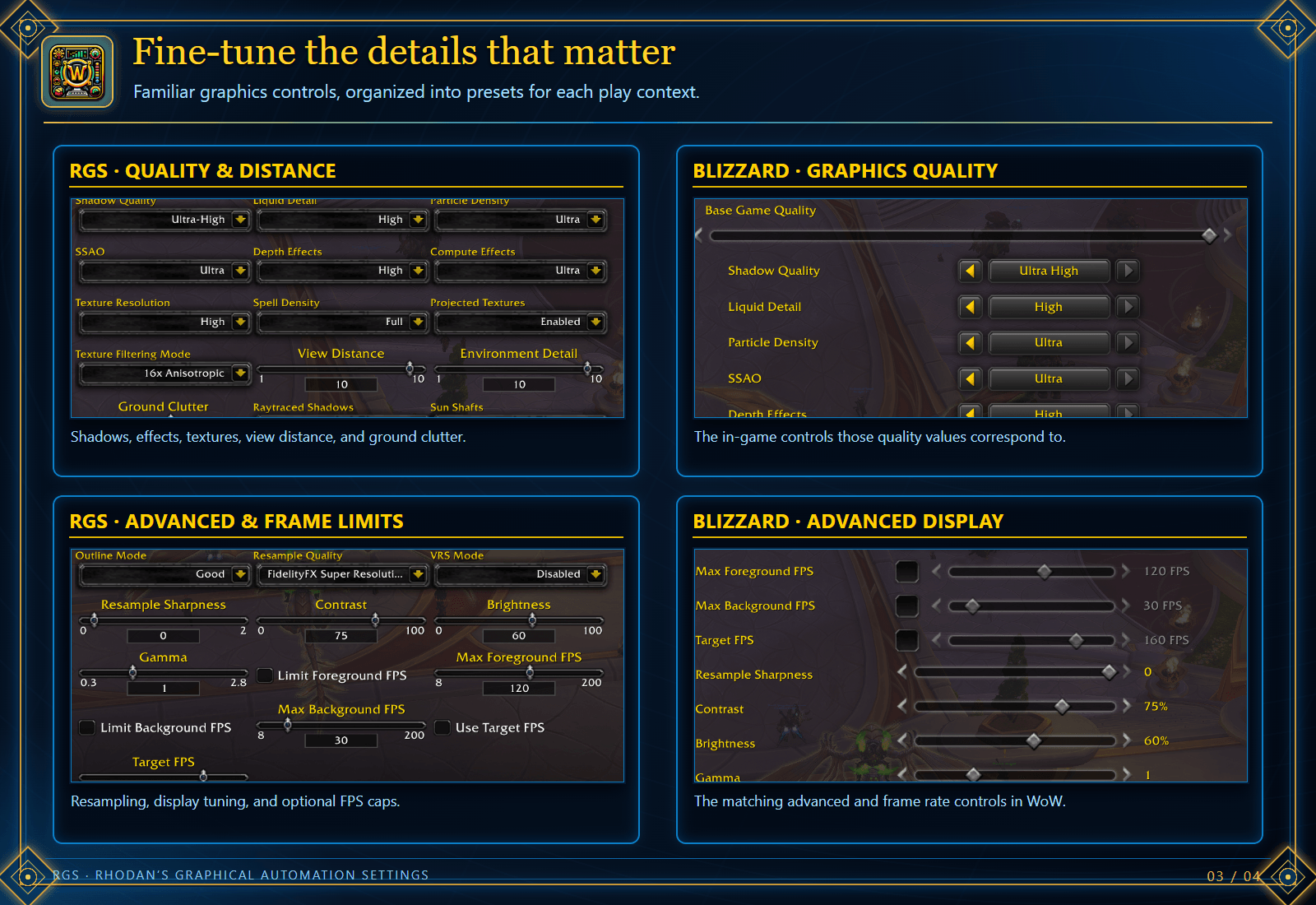
RGS offers controls for graphics quality, shadows, lighting and effects, spell density, textures, view distance, environment detail, ground clutter, resampling, display tuning, and frame limits. Its 1–10 quality and distance sliders match the values shown in Blizzard's Graphics options.
Controls appear when the corresponding setting is available on your WoW client.
Ace3 profiles
Use the Profiles page to create or select a complete RGS setup, copy settings from another profile, or reset the active profile. Each Ace3 profile contains its own Solo, Scenario, Group, and Raid presets.
Client versions
RGS includes client manifests for:
- WoW Retail 12.1.0
- Classic Season of Discovery 1.15.9
- TBC Anniversary 2.5.6
- WoW Forever 1.60.1
Graphics display note
After RGS applies a preset, Blizzard's Graphics options may not immediately redraw its dropdowns and sliders. If the displayed controls appear out of date, use /reload to refresh the options page. This display behavior is separate from saving settings to an RGS preset.
Help and feedback
Please report bugs or request features through GitHub Issues. You can also view the source code and past releases.
Other projects by Rhodan
RGS - Rhodan's Graphical Automation Settings Team