QOL by TeoDaTank
- By
Lightweight QoL: auto quest, craft shopper, current-expansion AH filter, and a movable focus cast bar.
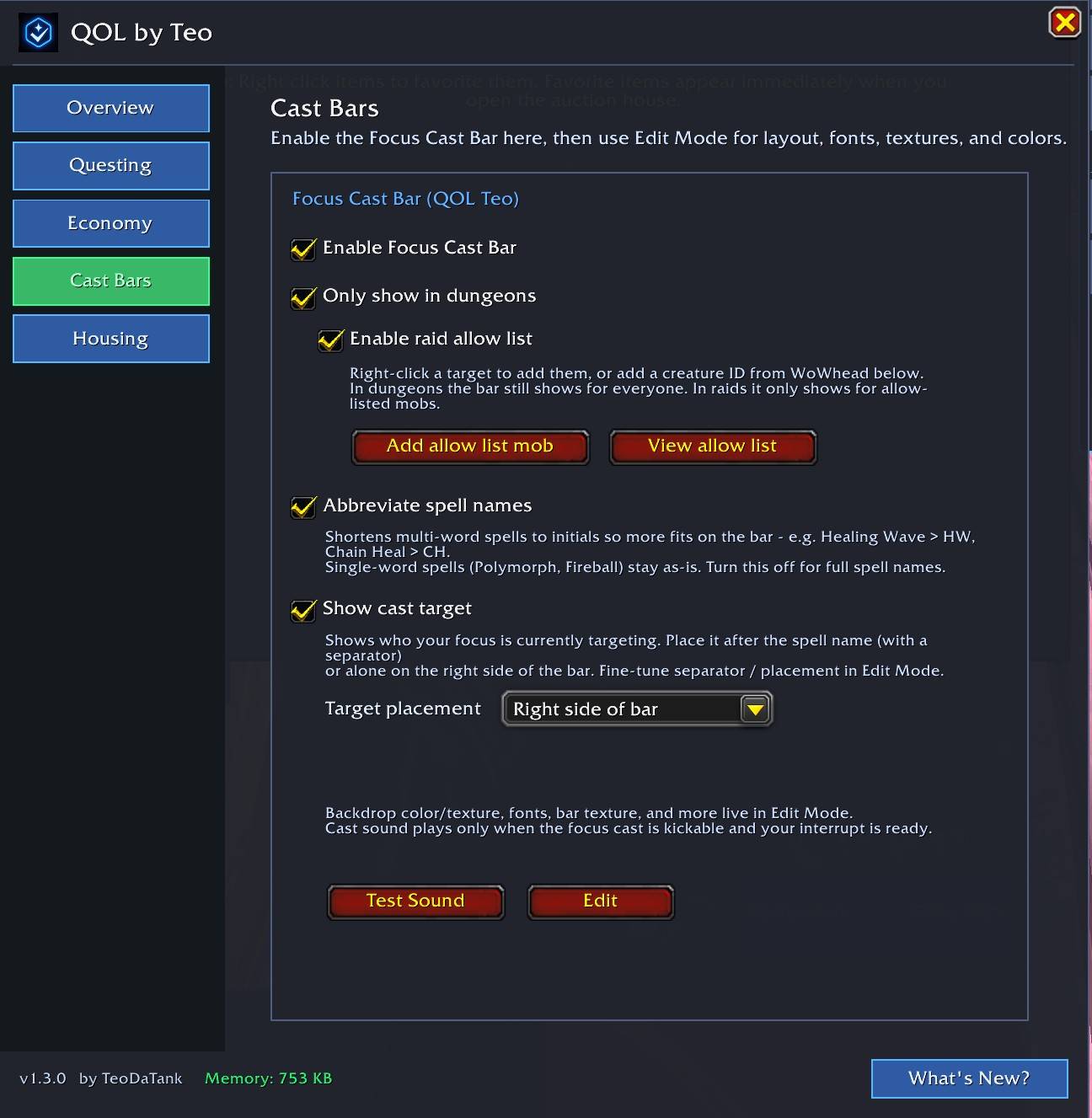
V2-CastBar.jpg
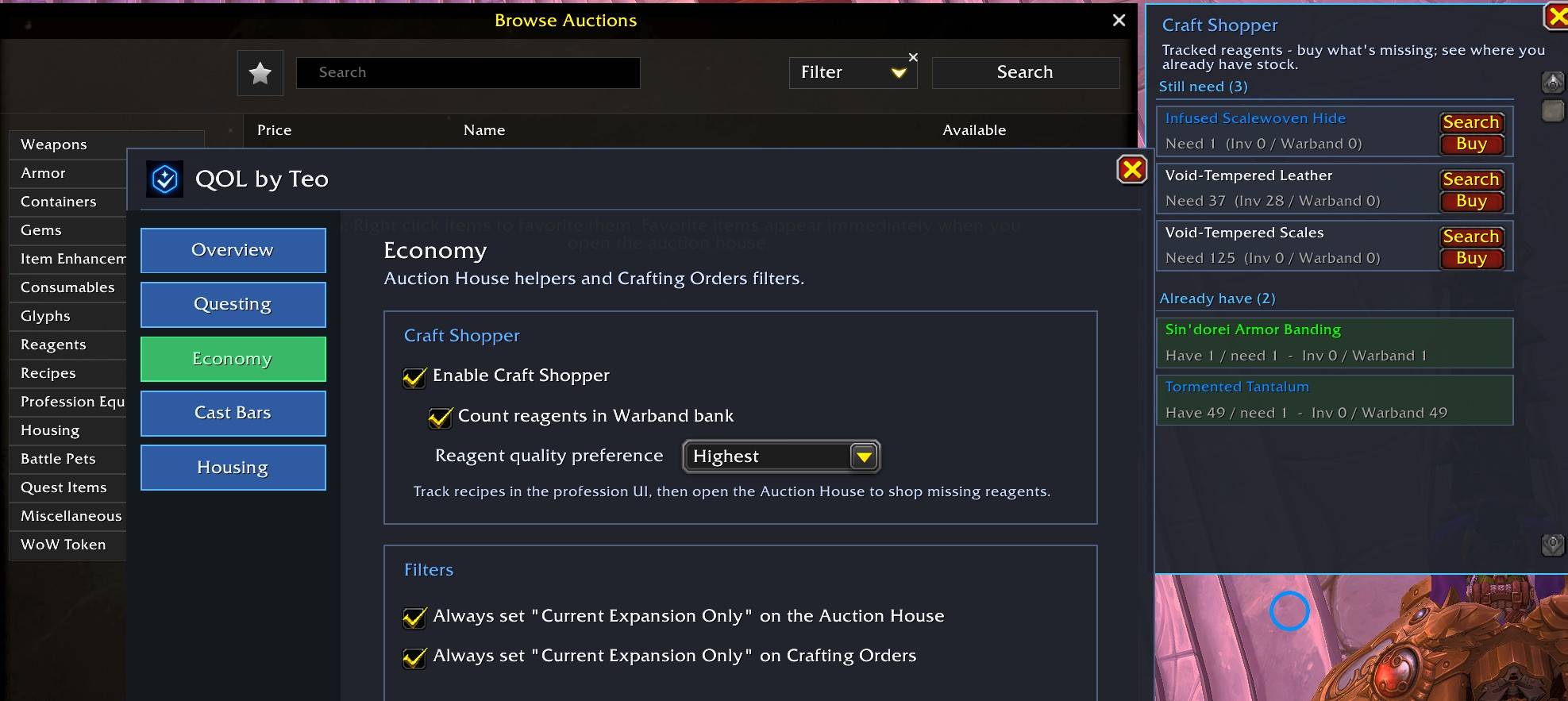
V2-CraftShopper.jpg
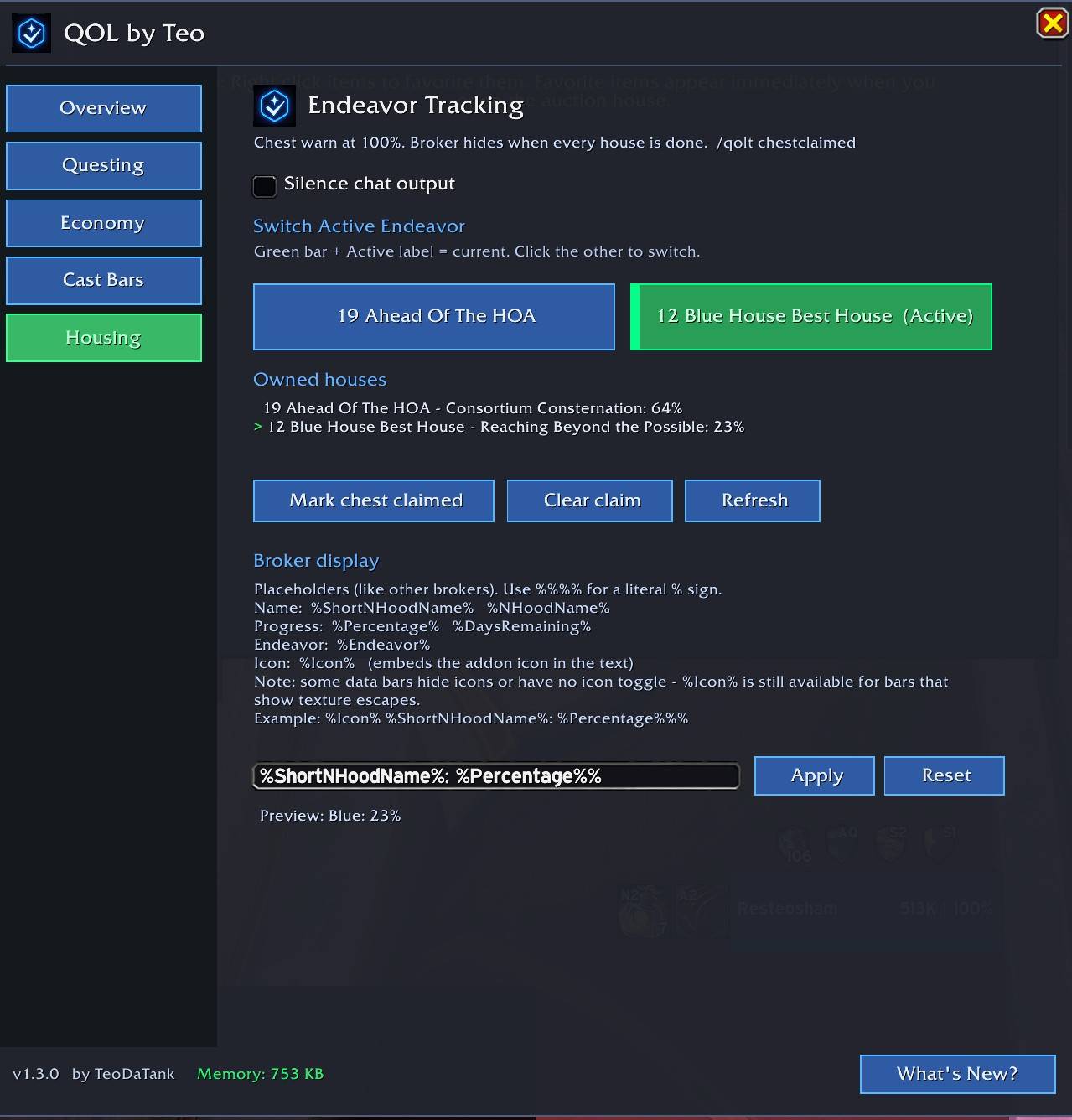
V2-Housing.jpg
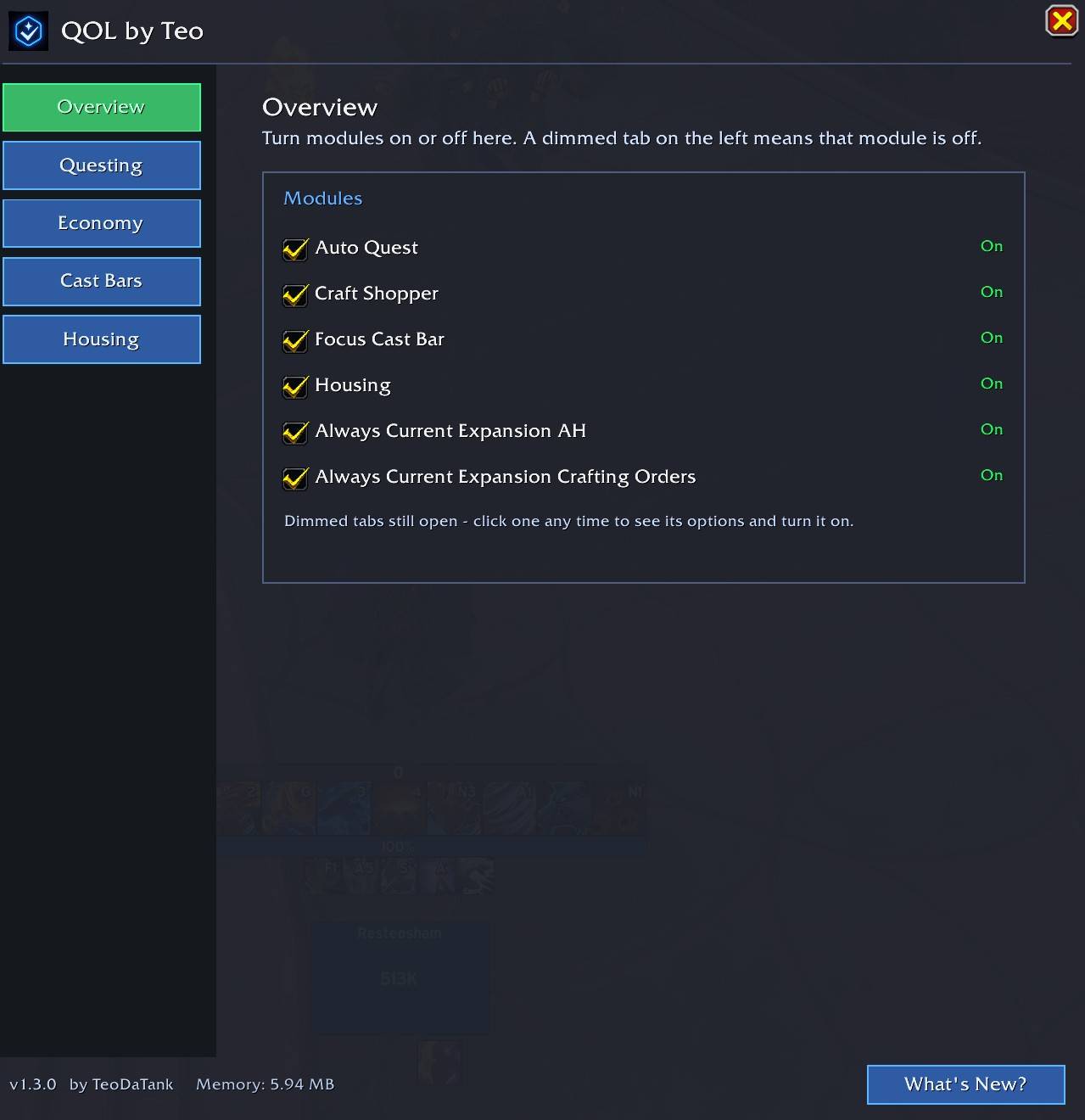
v2-overview.jpg
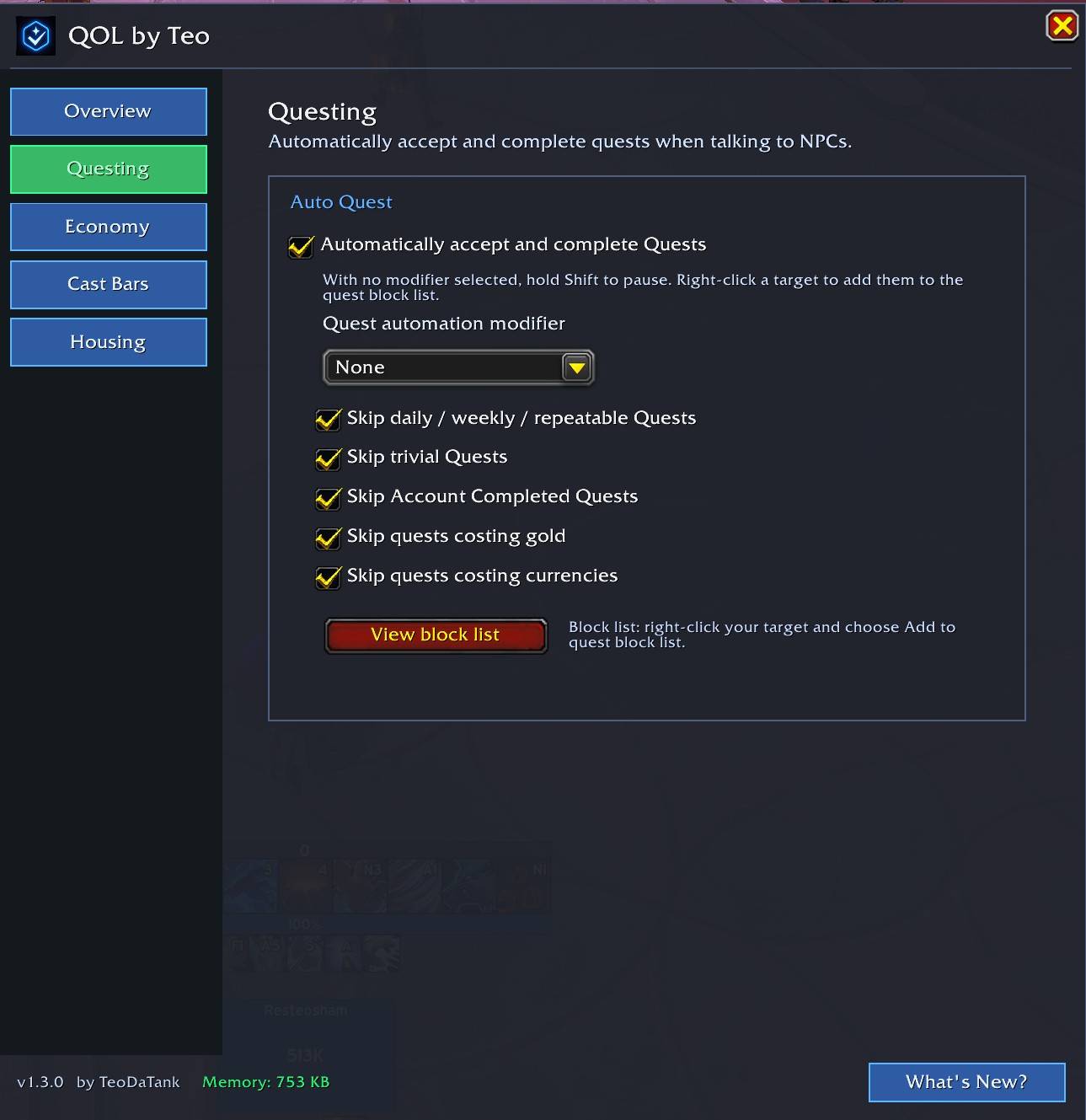
v2-questing.jpg
Description
QOL by Teo
Small tools. Big convenience. No kitchen sink.
Author: TeoDaTank · Version: 2.9.13 · Slash: /qolt
Why this exists
I got tired of QOL packs that try to do everything. Half the options I never touch, and the settings feel like a second addon.
QOL by Teo is a small set of things I leave on. Each piece has its own toggle. If you only want one of them, that is fine.
Type /qolt for a movable, resizable panel. The Guide tab explains each sidebar group. The left sidebar is grouped by job: Automation, Mail, Loot, Raid, Combat, Character, Alt, Systems, Setup. Search the title bar to jump to a setting. Power chips on the right turn modules on or off. Profiles save named setups on this account or share a settings string. Hover the ? next to some options for a short tip.
My good friend X said the options UI looked like the 90s. So the footer has Skin: Neon (electric) or Plain (boring, on purpose). Plain is the default.
Questing
Auto Quest accepts and turns in quests when you talk to an NPC. That is most of it.
- Hold a modifier (or require one) at busy hubs
- Skip dailies, trivial quests, warband-completed, or quests that cost gold/currency
- Right-click an NPC to block them; review the list under Questing
It does not pick quest rewards for you. Multiple rewards still mean you choose.
Instance gossip (separate toggle): auto-select known dungeon, raid, and Delve gossip lines without turning on full Auto Quest. Same modifier pause as quest automation.
Loot
Bonus Rolls auto-pass Nebulous Voidcore bonus rolls when any rule matches. Rules are per character.
- Quick Rules: Prey / Outdoor, Delves, Mythic+ below +10, Raid LFR / Normal / Heroic / Mythic
- Advanced: unusual difficulties, whole dungeons, and per-raid-boss toggles (two columns when the panel is wide)
- Hover a boss portrait for this character's loot specialization. Coin-obtained tracking is covered under Special addons
Raid
Raid Leader is per character. Turn it on with the sidebar power chip.
- Raid difficulty: Normal, Heroic, or Mythic, applied when you invite
- Guild rank list comes from your guild. Invite this rank and every rank closer to Guild Master (officers and the guild leader included)
- Converts the party into a raid as soon as someone joins, then sends the remaining invites
- Auto-promote for a guild rank, plus named people (type a name, press Enter, x to remove)
Group Finder
LFG QoL adds a dungeon icon row on the Premade Groups create panel for quick listings, plus optional default playstyle when you create a group.
- Toggles under Group Finder and on Overview (no separate sidebar power chip)
Crafting
Orders puts filter checkboxes on the Crafting Orders window after you turn the helper on (sidebar: Crafting, then Orders). Reward items show on each row instead of a chest.
- Knowledge, Augment Runes, or All mats: a row stays bright if it matches any box you checked
- Under gold does not hide rows. It turns a row red when the mats you still supply cost more than the number you type
- The gold highlight and the expected cost need a marketplace scan from the last 2 days. See Special addons. Mats the order already sent are not counted, and bags are ignored
Economy
Always Current Expansion opens the Auction House and Crafting Orders already filtered to Current Expansion.
Craft Shopper sits next to the AH and lists reagents you still need for recipes you have tracked. It does not scan your whole profession book. Calculate Prices uses a saved marketplace scan when one is available (age shown). Without that, it searches the live AH for each missing item while the house is open. See Special addons.
Crafting Orders Recent remembers recipes you opened this session (cleared on reload). Optionally groups them with Craft Shopper as Has mats / Missing mats / Not tracked.
Warband counting, quality picks, and Sync live under Economy if you want them.
Consumable Reminder (off by default) tracks the consumables you care about and nudges you before you run dry.
- Floating panel for food, combat potions, healing potions, flasks, weapon oil, Auto-Hammer, Void-Touched Drums, battle rez, drink/water, and healer mana buns
- Economy options sit in Combat Consumables, Raid Utility, and Personal cards; disable a card or use Minimize to collapse it
- Buy # restock target and Warn # low-stock threshold (optional auto-fill warn at half of buy)
- Per-category buy tier (1* / 2*); optional higher-rank counting toward a lower tier goal
- Level 90+ only for the reminder and Craft Shopper consumable rows
- Choose when it appears: dungeon, raid, town, rest area, open world, or when you are out of any tracked item
- Per-spec flask and potion picks; flask menu labels include the stat (Vers, Mastery, Haste, Crit)
- Drums skip bloodlust classes; drink can stay healer-only; battle rez can hide on native-brez classes
- Stock counts bags, bank, reagent, and warband
- Unlock position to drag; hidden in combat
- When Craft Shopper is enabled too, missing consumables get Search / Buy rows beside your reagent list at the AH
Mailbox
Helpers at the postbox. Off by default. See Special addons if you already use another mail UI.
Inbox
- Select checkboxes, then Open / Return / Delete
- Open All with filters for auction mail, Postmaster, and other attachments
- Keep free bag slots; optional verbose chat
Send Mail
- Recipient book and autocomplete (recent, contacts, optional friends / guild)
- Alt-click a bag item to attach (needs a recipient)
- Money amount can fill the subject as a wire-style line
- Quick Attach sidebar: cloth, herbs, ore, leather, and other trade goods in one click; click again to remove that type; subject becomes Cooking + Enchanting when you stack types
- Right-click a Quick Attach button to set a default recipient for that mat type
Teo-branded Send Mail fields are optional under the Mailbox page.
Macros
Create / Update character macros for Combat Potion, Health Potion, and Food.
- Editable priority lists (Account or Character)
- Macros write the full list you set; bags do not shrink them
- Heal defaults put Healthstone first, then Concentrated Silvermoon Health Potion, then Silvermoon Health Potion
Focus keybind, ready-check announce, and Focus Kick live under Combat > Focus Tools (not Macros).
Combat
Focus Tools: Set Focus keybind, raid marker, ready-check announce, and Focus Kick macro. If you already use Mythic Dungeon Tools for focus, see Special addons.
Battle Res shows the shared charge pool in M+ and raids (icon or text), with count and next-charge timer. Unlock to drag, right-click to lock.
Auto Accept Rez takes resurrection offers for you (optional combat / dungeon gates).
Auto Combat Logging turns logging on for the content you care about.
Alt
Track Great Vault progress across your alts. Off by default. Log in on each alt once so QOL saves a snapshot.
Great Vault (Alt sidebar): left roster is a weekly task list (Active / Not Tracking / Complete) with a tracked-completion summary. Assign Progressive or Weekly Coin from + or right-click; hide from the same menu. Selected alt opens vault/crest/BIS detail on the right. Hidden restores hid alts. Max-level characters only.
BIS favorites show on the alt detail pane when Keystone Loot is installed and enabled. See Special addons.
BIS by Dungeon: pick a dungeon and see which alts have the most upgrades there (needs those same favorites).
QOLT-Alt broker: optional LDB feed (QOLT-Alt) with a ready count; hover for each alt, goal, and progress. Left-click opens Great Vault.
Character
Optional overlays on your character panel and Inspect for enchants and gems.
- Simple marks for missing pieces, or Full mode with quality icons (names optional)
- Simple: Show if enchanted adds craft-rank icons on enchanted slots
- Missing warning: red tint, red text, or both
- Optional item level and upgrade track coloring; pick fonts, sizes, and label padding
- Item level / track text outlines so numbers stay readable on busy gear
- Midnight Season 1: Sporefused and Ascendant Voidforged use a teal ilvl tint (SF / VF with track on); Season 2 specials later
- Quick Gem Bar: hover empty sockets for bag gems, click to insert; Shift-click a gem to search AH when open; full item tooltips on the list
- Embellishment count on the paper doll (
N / 2), with optional uncapped!alert plus font / size / color / offset - Weapon ilvl above the icons; off-hand enchant text to the right so labels do not stack
- Warn on low level consumables: yellow tint when an enchant or gem is craft rank 1 If another addon already draws the same overlays, turn one of them off so they do not stack. Talent loadout tools are under Special addons.
Cast Bars
Focus Cast Bar shows what your focus is casting. Bright when kickable and your interrupt is ready; gray when shielded or your kick is down.
Turn it on under Cast Bars > Focus. Tune looks and sound in /qolt with a live preview. Unlock position to drag it (center guides, Center H, and 1px nudge arrows); right-click to lock. No Blizzard Edit Mode.
Optional kick sound is off by default. Under Midnight it can still false-alert on non-interruptible casts, so leave it off if that is confusing.
Dungeon-only, raid allow list, and extra fonts are in the editor if you want them. See Special addons for SharedMedia.
Cast on You shows up to three nameplate casts aimed at you. Same unlock / lock placement as Focus.
Optional dungeon gate and AMS / Spell Reflect gate (Death Knight / Warrior only; other classes see nothing while that gate is on). Sound off by default for the same Midnight reason. Not reliable in PvP yet.
These are kick / personal-target helpers, not a full nameplate package.
Housing
A data broker for your active neighborhood Endeavor and its percent. At 100% it reminds you to claim the completion chest.
- Customize broker text with placeholders if you like
- Already claimed but the warn sticks?
/qolt chestclaimed(undo:/qolt chestclear) - Multiple houses: broker hides when every owned neighborhood is done for the cycle
Lightweight glance, not a full Endeavor task tracker. See Special addons if you want a full one.
Minimap and Keys
Under the Minimap tab in /qolt:
- Square Minimap, show the launcher button, optional Addon Compartment icon (you can use both)
- Icon bag: tuck other addon minimap icons into one bag button; Edit collection to leave some on the map. See Special addons if you already use a button bag
- Hide the tracking button; right-click the minimap for the tracking menu (no ping)
/keys shares keystones with party and guild (/teokeys works too). Party and Guild filter the list without re-requesting. Shift-click posts [Player] - [Keystone] once. Teleport on click and track offline keys live under Keys options. Season 2 dungeon portals are included.
Interface
Under Systems > Interface:
- Auto-Fill Delete confirmation (types DELETE for you; you still confirm)
- Tooltip IDs: separate toggles for Item, Spell (talents and auras), NPC, and Icon (texture file ID)
- Optional Adventure Guide loot-row specialization icons. See Special addons if Auto Loot Spec is loaded
- Slash shortcuts:
/rl,/keys - Skip cinematics (always, or only if seen before)
Special addons
Auctionator. Some features rely on Auctionator scanned marketplace data. Future sources coming soon. Request a specific in-game source to get it prioritized.
The gold box on Crafting Orders, the expected mat cost on those rows, and Craft Shopper Calculate Prices read that scan. Orders need a scan from the last 2 days. Craft Shopper also searches the live Auction House, one missing item at a time, when Auctionator is not loaded.
These are the other addons we play next to:
- Postal and Postal Reborn: mailbox helpers stay off so you do not get two mail UIs
- RollAway and iAutoPass: Bonus Rolls and the Group Finder quick-create row stay off
- Auto Loot Spec: Adventure Guide loot-row icons stay off so they are not drawn twice
- Mythic Dungeon Tools: if MDT already has a focus keybind, that key wins and yours comes back when MDT is unbound or unloaded. Ready-check announce stays off when MDT is set to announce, and the message uses your MDT marker when one is assigned
- Keystone Loot: Coin-obtained bonus roll loot, plus a BIS grid on the alt detail pane (hourglass opens Keystone Loot). BIS by Dungeon uses those favorites
- Talent Loadout Manager: Delete all specs on the Character tab wipes every custom and Blizzard loadout you own for the current spec (double confirm)
- Minimap Button Bag: our icon bag stays off when a button bag is already collecting minimap buttons, so the two do not fight
- Vamoose's Endeavors: use that if you want a full Housing task tracker. Ours is only the active neighborhood percent and the chest reminder
- SharedMedia: extra fonts, sounds, and textures in the cast bar editor when that library is installed
Quick start
- Enable QOL by Teo and type
/qolt(or use the minimap button) - On Overview (or the sidebar power chips), turn on what you want
- Mailbox: enable the Mail power chip, then visit a postbox
- Cast Bars > Focus: Enable, tweak, Unlock position to place it
- Combat / Character / Macros: Focus Tools, Battle Res, gear overlays, or potion macros as you like
- Pin the Endeavor broker if you use Housing
Tips
- Busy hub: hold your Auto Quest modifier until you are ready
- Block list for quest NPCs you want to handle yourself
- Raid kick targets go on the Focus allow list when dungeon-only is on
- Focus, Cast on You, or Battle Res still unlocked after closing
/qolt? Right-click the frame to lock - Companion addons we play next to are listed under Special addons
Feedback
Bugs and requests: leave a comment on CurseForge.
Discord: TeoDaTank
Changelog
2.9.13
- Crafting, then Orders: turn the helper on and the filter boxes show on the Crafting Orders window
- Reward items show on each order instead of a chest you have to hover
- Faded rows did not match any checked box (Knowledge, Augment Runes, or All mats). Red only marks rows over the gold cap
- Gold box needs Auctionator and a scan from the last 2 days. Mats the order already sent are not counted
2.9.12
- Raid Leader: invite a guild rank and everyone above it, set raid difficulty, convert to a raid, then finish invites
- Raid Leader: difficulty and guild ranks are shared. Name list is per character (Enter adds, red X removes)
- Great Vault: track Weekly Coin and Progressive together. Stay Active until both are done
- Bonus Rolls: hover LFR, Normal, Heroic, or Mythic for that difficulty's loot
2.9.10
- Craft Shopper Calculate Prices: Auctionator scan memory when loaded (with age), or live AH search per missing item without it
- Bonus Rolls: per-character rules; portrait loot preview for this character's loot specialization
- Great Vault: right-click a roster row to hide
2.9.9
- UI: Consumable Reminder options in Combat Consumables, Raid Utility, and Personal cards; Minimize to collapse
- UI: Bonus Rolls raid bosses in two columns when the panel is wide
- Consumable Reminder: Void-Touched Drums, Auto-Hammer, drink/water, healer mana buns; bags/bank/warband counts; hides in combat
- Bonus Rolls: optional auto-pass on Mythic+ below +10
2.9.2
- Consumable Reminder: Buy # and Warn # thresholds; auto-fill warn; level 90+ gate; DK native brez
- /keys: Party and Guild filter cached keys without refresh
- Great Vault: hide/unhide alts; max-level tracking only
2.9.1
- Consumable Reminder: fix Lua error opening flask/potion spec picker (Edit button)
2.9.0
- Economy: Consumable Reminder for food, pots, flasks, oil, and brez with per-category amounts, buy tier, and when-to-show rules
- Per-spec flask/potion pickers; flask labels show primary stat; optional higher-rank stock counting
- Craft Shopper AH panel adds Search/Buy for missing consumables when both modules are on
- Guide: Automation section highlights Consumable Reminder
2.8.9
- Menu: Overview retired; new Guide tab with section highlights and Open buttons per group
- Module toggles stay on sidebar power chips and individual settings tabs
2.8.8
- Alt: Great Vault tab with alt roster, vault grid, crest caps, Weekly Coin / Progressive goals
- Alt: Keystone Loot favorites in a BIS grid when KSL is enabled; BIS by Dungeon planner; QOLT-Alt data broker
- Menu: Macros under Systems
- Economy: Auction House Current Expansion Only filter works again
- Questing: Skip Account Completed only at max level; Auto Quest gossip reliability fix
2.8.7
- Character: Delete all specs on the Character tab when Talent Loadout Manager is loaded (double confirm; removes custom and Blizzard loadouts for the current spec)
- Character: groundwork for future season build imports when we partner with a talent data source (no import UI yet)
- Bonus Rolls: two-column layout for dungeon and raid auto-pass rules on wide screens
2.8.6
- Bonus Rolls: fix raid boss auto-pass (bonus roll window hook + encounter tracking); fix power-chip toggle error
- UI: main panel scrollbar gutter
2.8.5
- Bonus Rolls: auto-pass by difficulty, dungeon, or per-raid-boss with per-difficulty toggles; DJ portraits and loot hover preview; RollAway / iAutoPass stand-down
- Group Finder: dungeon icon quick-create row and default playstyle; RollAway stand-down
- Questing: Instance gossip toggle separate from Auto Quest
2.8.4
- Interface: tooltip IDs split into Item, Spell, NPC, and Icon toggles
- Overview quick toggles match; old single-toggle profiles migrate to all four on
2.8.3
- Questing: auto-select dungeon, raid, and Delve gossip when Auto Quest is on
- Toggle under Questing; same Shift pause as quest automation
2.8.2
/qoltmenu: diagonal NEW ribbon on tabs with recent changes (clears when you open the tab)- Tooltip item, spell, and talent IDs are back under Interface
- NPC ID lines skip Delves, dungeons, and raids so world clicks stay clean
2.8.1
- Mailbox: Teo scrollbar on saved contacts; chat explains empty or duplicate Add
2.8.0
- Mailbox helpers (inbox batch + Send Mail + Quick Attach); stands down for Postal / Postal Reborn
/qoltMail group; power chips on the right- Adventure Guide loot-row specialization icons (ALS stand-down)
2.6.1
- Bug fix: Character item-level labels no longer stack with multiple weapons
2.6.0
/qoltmenu regrouped: Automation, Combat, Character, Macros, Systems, Setup- Focus Tools under Combat next to Focus Cast Bar
- /keys Season 2 teleports; Heal macro Concentrated Silvermoon defaults
2.5.11
- Bug fix: Skip-if-seen no longer blanks later dungeon cutscenes in the same zone;
/qoltcloses on combat
Earlier
See the full CHANGELOG.md on the project files tab for older notes.
The QOL by TeoDaTank Team