Auto Loot Spec - Teo Edition
- By
Auto Loot Spec remembers loot specialization per outdoor default, season dungeon, and boss - by difficulty - and swaps it for you so you stop missing drops.
AG-Icons.jpg
ALS-Menu.jpg
ALS-Popout.jpg
First-Dungeon-Visit.jpg
Description
Auto Loot Spec
Stop forgetting to swap loot specialization when the next boss (or dungeon) wants a different one.
Author: TeoDaTank · Version: 1.3.4 · Slash: /als or /autolootspec
Why this exists
Loot specialization is easy to set and easy to forget.
You clear one boss on Arms, the next wants Prot, then you zone into a key still on the wrong outdoor default. Doing that by hand every pull gets old. I wanted something that remembers the choices per character and applies them when I zone or pull.
That is Auto Loot Spec.
What it does
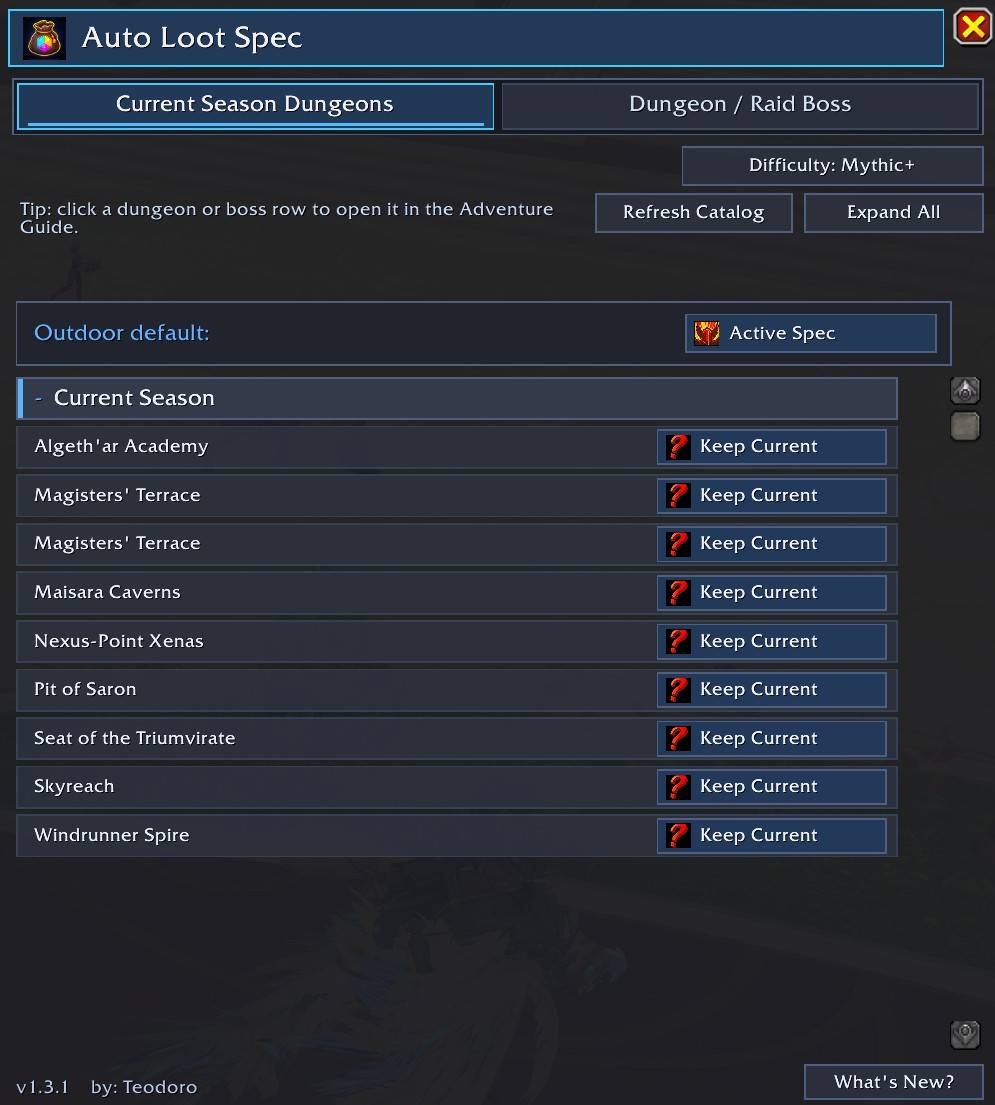
You set a loot spec for:
- Outdoors (when you are not in a dungeon or raid)
- Current-season dungeons, per difficulty (Normal / Heroic / Mythic / Mythic+)
- Individual bosses, per difficulty (raids LFR through Mythic; dungeon bosses use dungeon difficulties)
When you zone outdoors, enter a dungeon, or pull a raid/world boss, ALS swaps to the matching assign if you set one.
Assignments are per character. The dungeon/raid list comes from the Encounter Journal, so you do not have to visit every instance first. First catalog build after a patch can take a moment.
It does not change your active talent spec. It only changes loot specialization.
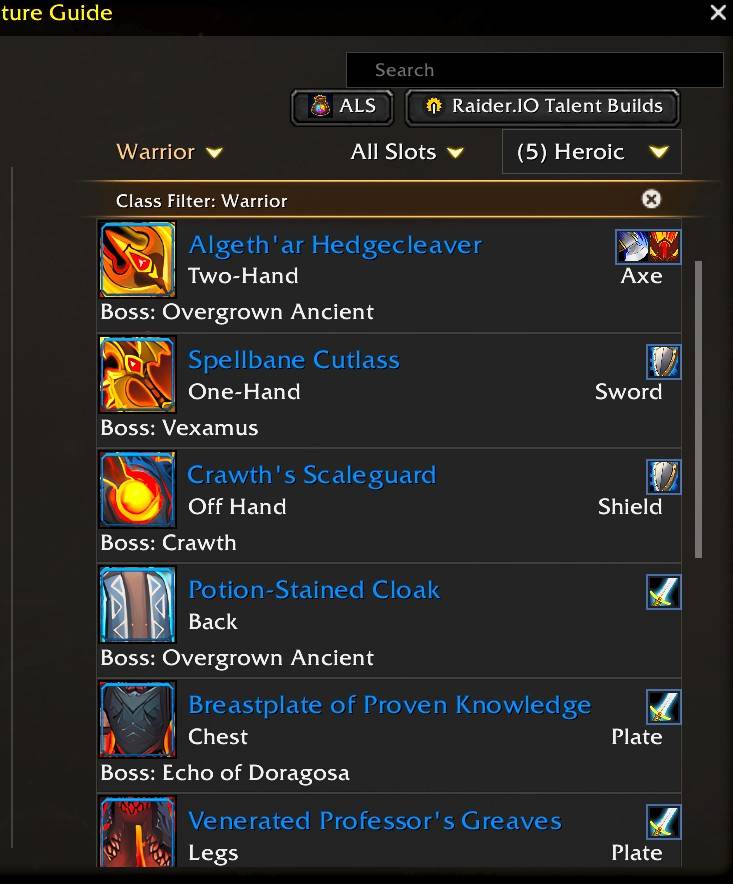
Adventure Guide
Guide on a row opens that dungeon or boss in the journal on the Loot tab. The journal gets an ALS button back to the panel.
On the Loot tab, small loot-spec icons show which specs can use each item. Those icons follow the class filter you pick in the journal, not only your character.
Spec picker
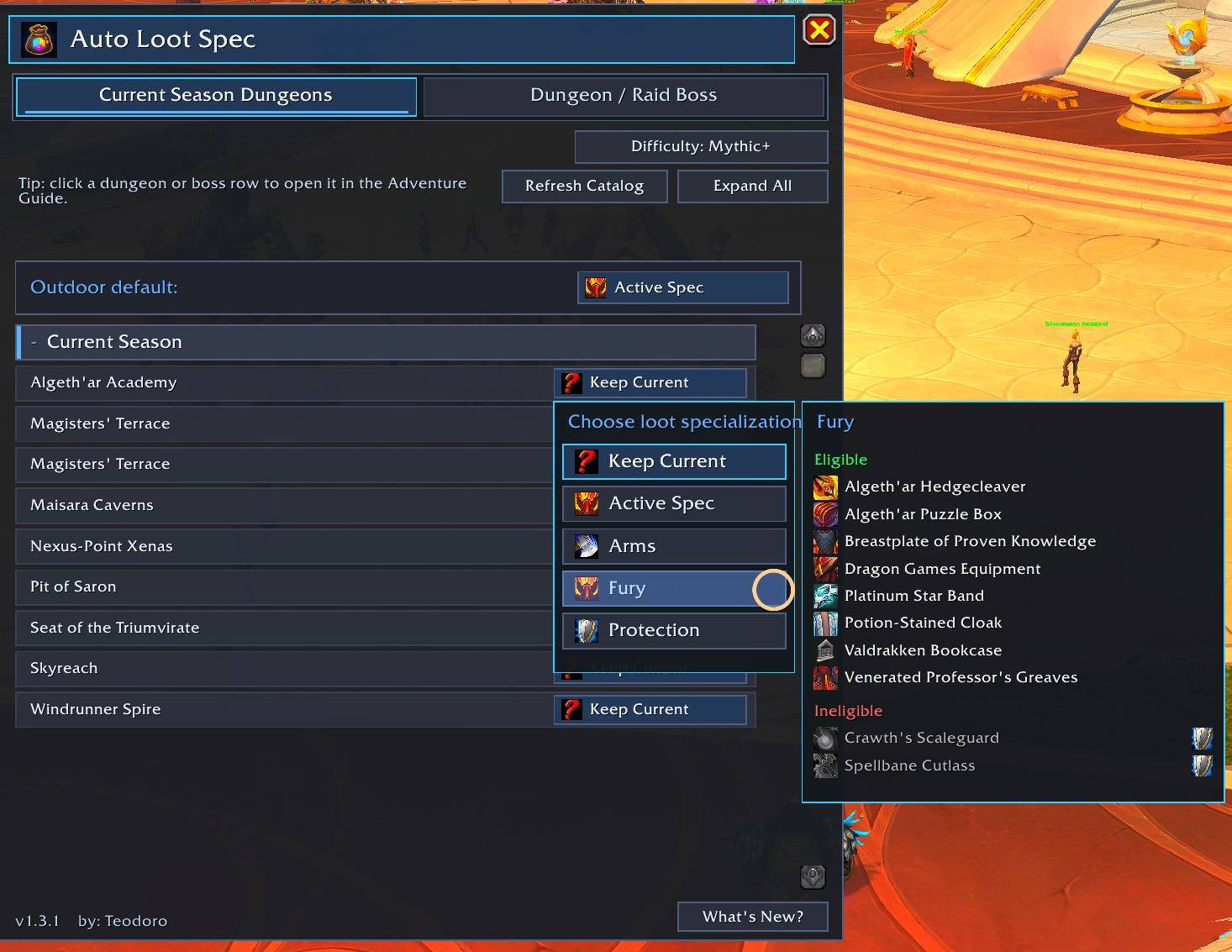
Click a loot-spec slot to pick Keep Current, Active Spec, or any of your class specializations. No cycling one-by-one.
Hover a spec to see Eligible / Ineligible loot for that choice. You can turn the hover preview and journal icons off in Config if you do not want them.
Quick start
- Enable Auto Loot Spec and
/reload(or relog). - Type
/als. - Set Outdoor default.
- Under Current Season Dungeons, pick a difficulty and set a loot spec per dungeon.
- Under Dungeon / Raid Boss, pick raid difficulty and assign bosses you care about.
- Use Guide when you want the journal open to that loot table.
Tips
- Mythic and Heroic are separate assigns for the same boss if you care about both.
- Season dungeon tab is for "what I run this season." Boss tab is for finer control.
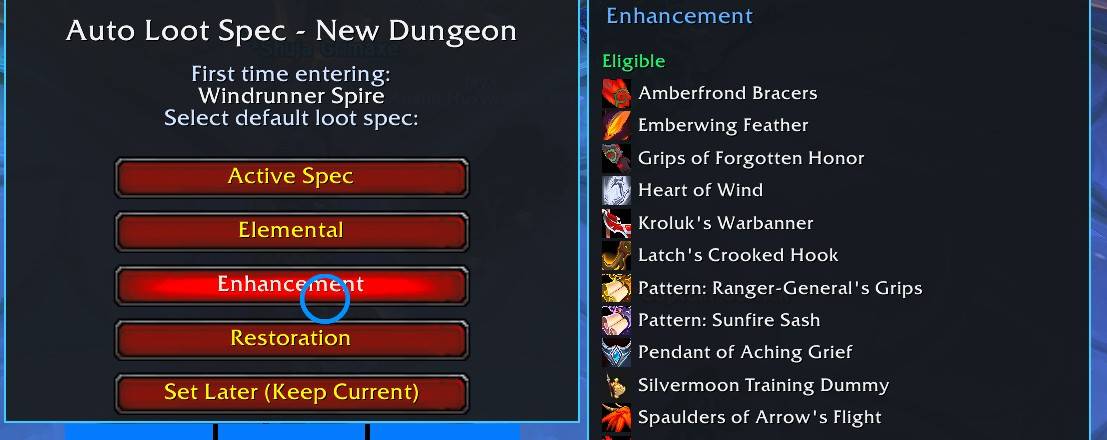
- First time in a dungeon without an assign, ALS can prompt you. Leave without choosing and the prompt closes when you leave (1.3.4).
Feedback & contact
Bugs and requests: leave a comment on CurseForge.
Discord: TeoDaTank
Changelog
1.3.4
- First-time dungeon popup closes if you leave without choosing a loot spec
1.3.3
- Dungeon entry popup can show Eligible / Ineligible loot on spec hover
- Separate Config toggle for that prompt hover
1.3.2
- Config for journal icons and main-window hover preview
- Hover preview no longer refreshes the open Adventure Guide every time
1.3.1
- Ready for Midnight 12.1
- Journal loot icons follow the class you browse in the Adventure Guide
- Spec hover preview stays on-screen near screen edges
1.3.0
- What's New footer, journal loot-spec icons, Eligible / Ineligible hover preview
The Auto Loot Spec - Teo Edition Team