PriceX
- By
Using the backend database of the big Auctionator, we have an item lookup (in various ways) to price check anything, even if it's not in your inventory. Download today!
Screenshot 2026-11-25 175833.png
Screenshot 2026-11-25 175840.png
Description
PriceX — Item Prices at a Glance
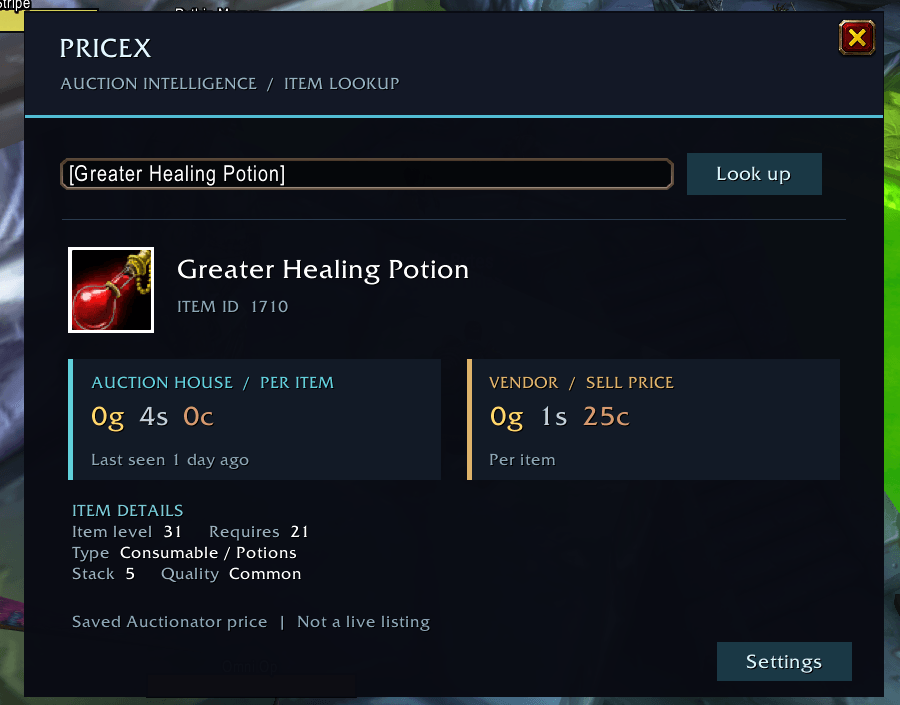
Find out what an item is worth without leaving the game. PriceX brings Auctionator's saved auction-house prices and the game's vendor sell prices together in one focused item lookup window.
Search for an item, check its last recorded auction price, and compare it with its vendor value. PriceX presents the information in a clear, color-coded layout, with the item's icon and quality color to help you identify what you're looking at.
Requires Auctionator for auction-house prices. PriceX reads the prices Auctionator has already saved; it does not run its own auction-house scan.
Features
Find an item your way
- Search by item name using the items PriceX has learned.
- Search by item ID when you know the exact item you want.
- Use an item link to look up an item directly. Click the PriceX search box and then shift-click the item to insert its link.
- Find partial name matches in your known-item index, or turn partial matching off in settings.
- Prefer exact name matches when a search also matches other items.
PriceX learns item names and links from your bags, successful lookups, and item tooltips where supported by the client. You can choose which sources it uses in settings.
See values clearly
- Auctionator price: The last per-item auction price available from Auctionator's database.
- Vendor sell price: The per-item sell value supplied by the game, when available.
- Scan age: See how long ago Auctionator recorded the item, when that information is available.
- Item details: See item level, required level, type, stack size, and quality when Auctionator has a price for the item.
- Item identity: See the item's icon, quality-colored name, and item ID.
If Auctionator has no saved price for an item, PriceX shows the item's identity, vendor value, and a status message. It does not invent an auction price.
Make PriceX your own
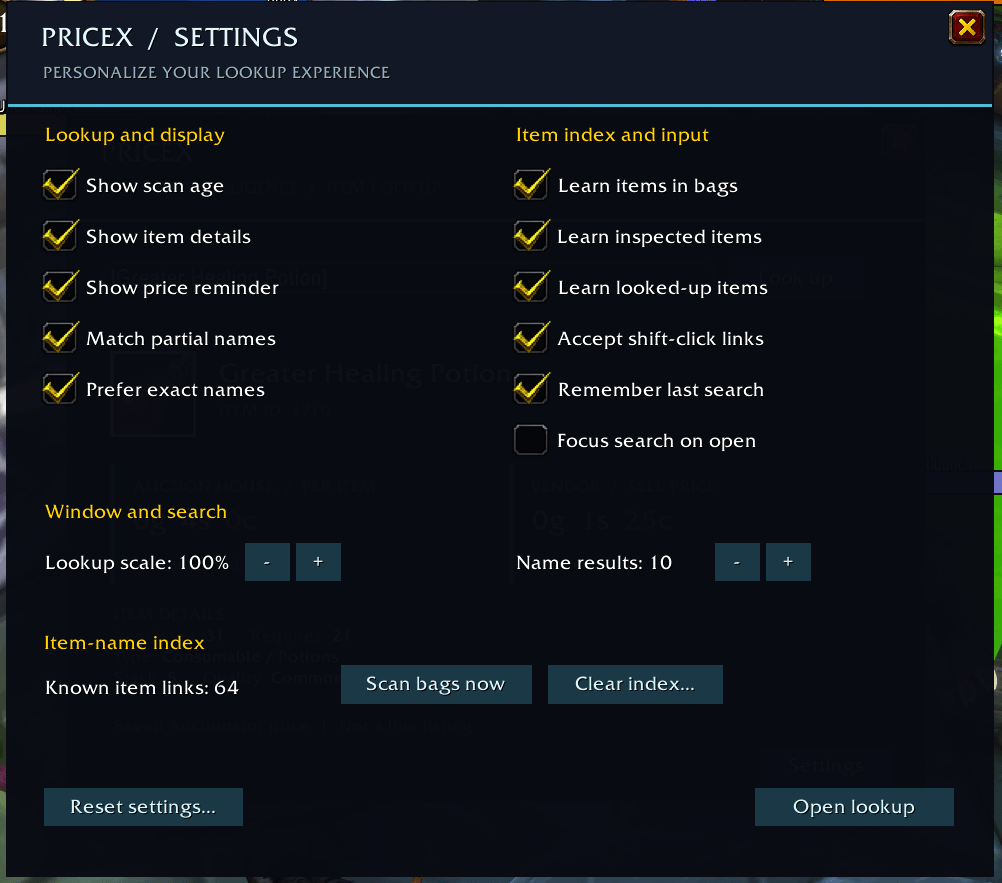
Open the settings window to customize how PriceX looks and behaves:
- Show or hide the scan age, item details, and saved-price reminder.
- Choose whether PriceX learns items from bags, tooltips, and lookups.
- Toggle partial-name matching and exact-match preference.
- Enable or disable shift-click link insertion.
- Remember your last search or focus the search box when the lookup window opens.
- Adjust the lookup window's scale and the number of name matches shown.
- Scan your bags for known items, clear PriceX's name index, or restore the default settings.
Clearing PriceX's name index does not delete Auctionator's prices.
Getting started
- Install and enable Auctionator and PriceX for the supported game client.
- Visit the auction house and use Auctionator to collect price data.
- Type
/pxto open PriceX's item lookup. - Enter a known item name, an item ID, or an item link, then press Enter or click Look up.
- Type
/pricexto open settings. You can also open settings from the lookup window.
To insert a linked item, click the PriceX search box first and then shift-click the item. If the item has multiple variants, an item link can provide a more specific lookup than the base item ID.
Commands
| Command | Action |
|---|---|
/px |
Open item lookup. |
/px 1710 |
Look up an item directly by ID. Replace 1710 with the desired ID. |
/pricex |
Open PriceX settings. |
How the prices work
PriceX displays Auctionator's last saved price for the item, not a live auction listing. Prices can be missing or out of date, and an item may sell for more or less than the saved value. Run Auctionator scans regularly if you want more recent information.
Auctionator may use a more general item price as a fallback for some item links. A plain item ID may also be less specific than a link containing variant information. Scan age can be unavailable even when a price is shown.
Vendor values come from the game client and are displayed per item. They can be unavailable for some items.
Frequently asked questions
Why is there no auction price?
Make sure Auctionator is installed and enabled, then use it to scan the auction house. PriceX can only show a price if Auctionator has one available for the item in the current context. A missing price does not mean the item is worthless.
Why can't PriceX find an item by name?
PriceX's name search covers items it has learned, not a complete catalogue of every item in the game. Try an item ID or link, inspect the item, or use Scan bags now in settings. You can control how PriceX learns names in the settings window.
Why do I see several matches for a name?
PriceX may have learned more than one link or variant with the same name. Use an item link to choose the variant you want, or use an ID for a base-item lookup.
Does PriceX replace Auctionator?
No. Auctionator collects and stores auction-house price data; PriceX provides a separate lookup interface for that data and vendor values. Keep Auctionator installed and enabled if you want auction prices.
Does PriceX upload my data?
No. PriceX stores its preferences and known-item index in the game's account-wide SavedVariables. WoW writes those values when you log out or reload the UI. PriceX does not upload them to a website or external database.
Compatibility
PriceX targets the Forever client, interface 16001. An installation of Auctionator compatible with that client is needed for auction prices. Item-link insertion, tooltip learning, and client compatibility should be verified in game for the specific client and Auctionator versions in use.
PriceX Team