Phield Guide
- By
Replaces the Base UI Dungeon Journal with an enhanced and more streamlined layout.
Model_viewer_ulatek.png
Raid_Boss.png
Shopping_list_Toast.png
+10_Loot.png
+10_loot_bonusroll.png
Description
Phield Guide
A cleaner dungeon journal. Phield Guide replaces the Dungeons and Raids tabs of the Adventure Guide with one window where you pick an instance, pick a boss, and read what you came for without clicking back and forth.
It opens from the normal Adventure Guide button and keybind. Journeys, the Traveler's Log and Blizzard's other tabs still work like they always have.
Features
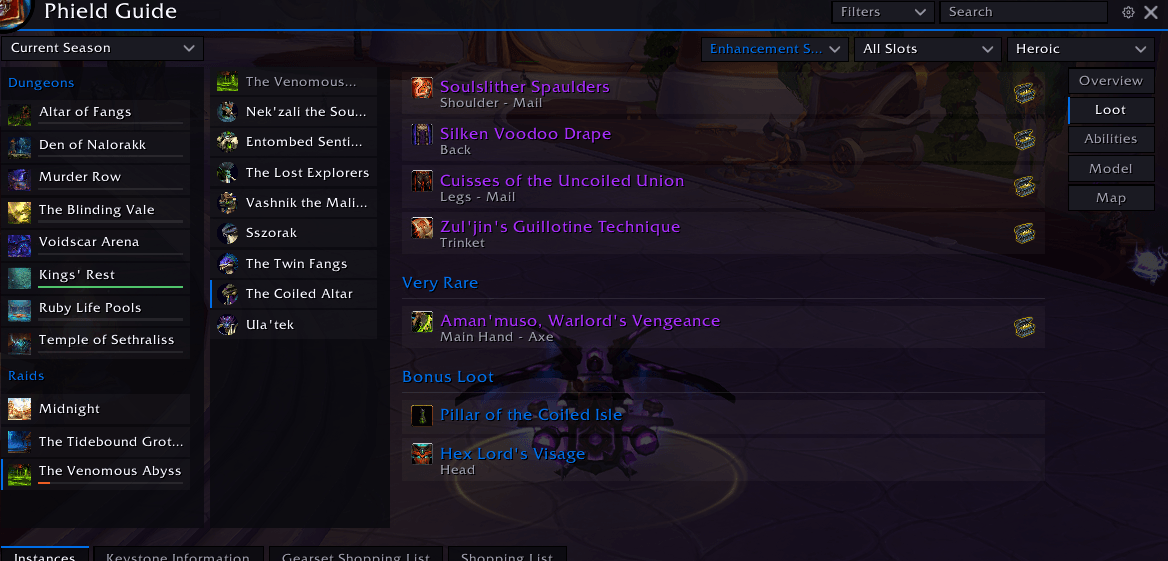
Everything on one screen
- Dungeons and raids in one list, with an expansion picker above it.
- Instance, boss and details sit side by side, so going from one boss to the next is a single click.
- Overview, Loot, Abilities, Model and Map tabs for every boss.
- Keystone Information gets its own tab for the season's affixes and rewards.
- A search box that looks through every expansion at once (instances, bosses, abilities, loot and trash) and takes you straight to whatever you click.
- Search filters: pick what shows (instance names, bosses, boss abilities, loot, trash mobs), what kind of loot (gear, mounts, pets, toys, decor and the rest) and where to search (dungeons, raids, this expansion, this season). They're remembered between sessions.
- Closes and reopens right where you left off.
Loot
- Drops are grouped the way the game groups them: regular, Very Rare, Extremely Rare, Bonus and seasonal.
- Gear your character can't use shows up in red.
- Filter by class, spec and item slot.
- Pick a difficulty and the loot and abilities change to match. Dungeons and raids each remember their own pick.
- Right-click a drop to put it on a Shopping List or into a slot on a Gearset Shopping List.
Gearset Shopping List
- A character sheet tab for planning your gear. Pick a slot to see what this season's dungeons and raids drop for it for your spec, then pick what you're after. Your character model wears everything you've picked.
- Picks tick off once you have them, equipped, in your bags or in the bank.
- Set what counts for each pick: a minimum item level, or an upgrade track and rank.
- A catalyst toggle for a pick you'll turn into tier, and a Crafted entry in every slot that ticks off once a crafted piece reaches the item level you set.
- This season's tier pieces are listed under the raid boss whose token makes them.
- The Expansion filter adds older expansions, for transmog or gearing an alt (those picks count at any item level).
- More than one list per character, with a dropdown to switch, copy, rename and delete them.
- A bar under each dungeon and raid fills in from red to green as you get what's on all your lists, gearset and shopping alike.
- A toast and sound when a pick ticks off, both optional. Ticks stay put until you recheck the list, and a finished list asks whether to keep it.
Shopping List
- Account-wide lists for anything worth collecting: transmog, mounts, pets, toys, decor and the rest.
- Add from a loot row's right-click menu, or Alt-click an item in your bags or a link in chat.
- Entries are grouped by kind, say where they drop and can carry a note.
- They tick off once collected, or once their appearance is learned.
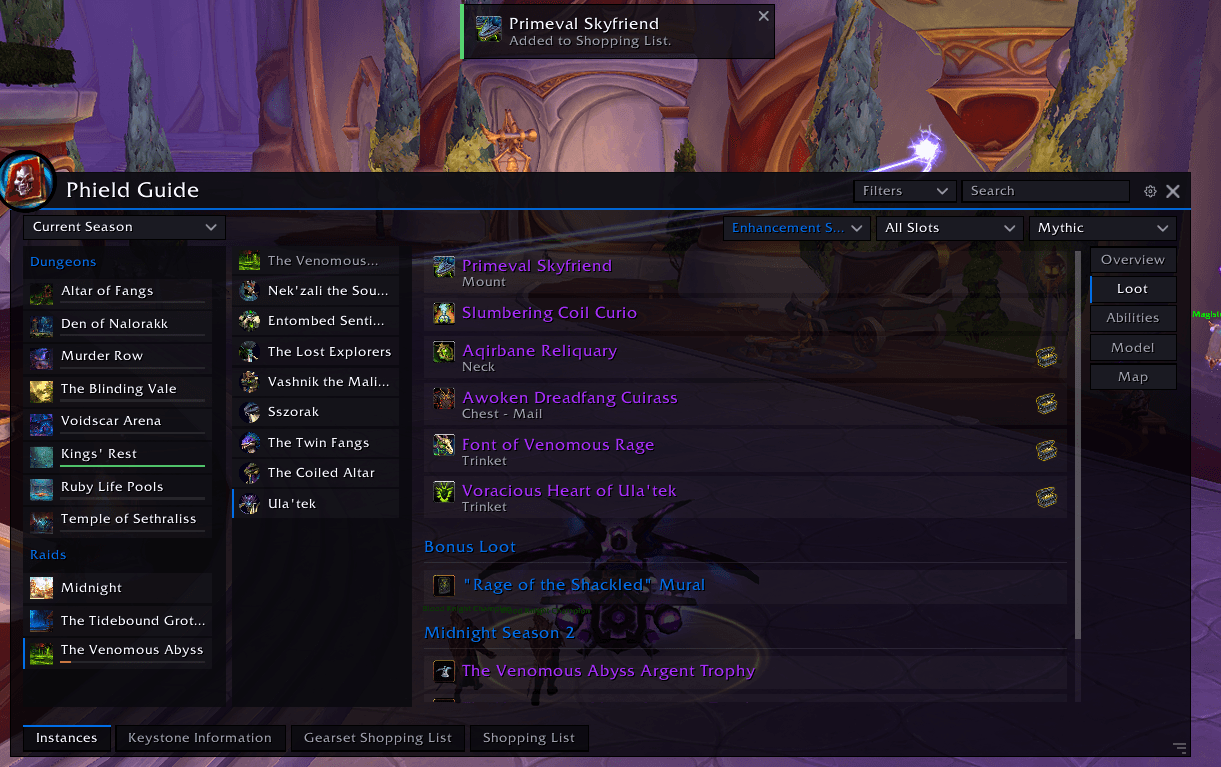
- Click a toast to jump to where the item drops, right-click to dismiss it.
Mythic+
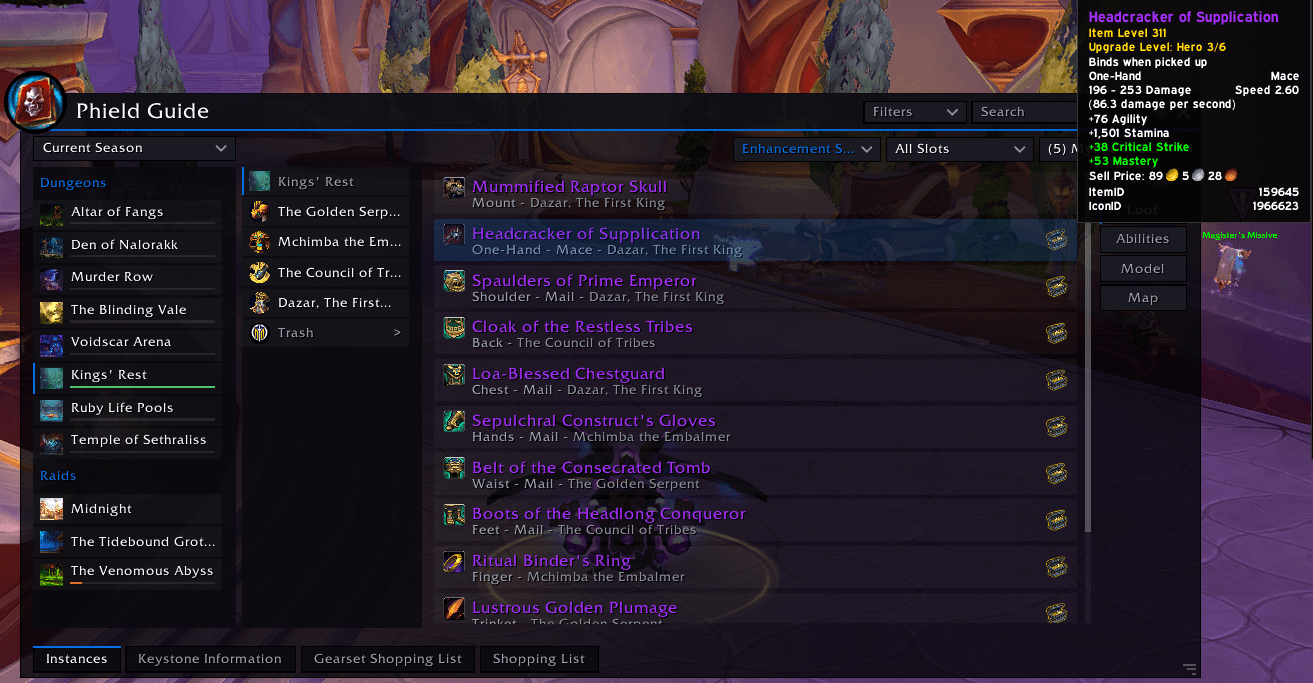
- Hover Mythic in the difficulty picker to choose a key level.
- Loot tooltips then show the item level and upgrade track that key actually gives, like Hero 3/6 at +10 instead of the journal's default.
- Hover the chest on a loot row to see what the Great Vault gives for that item.
Bonus roll tracking
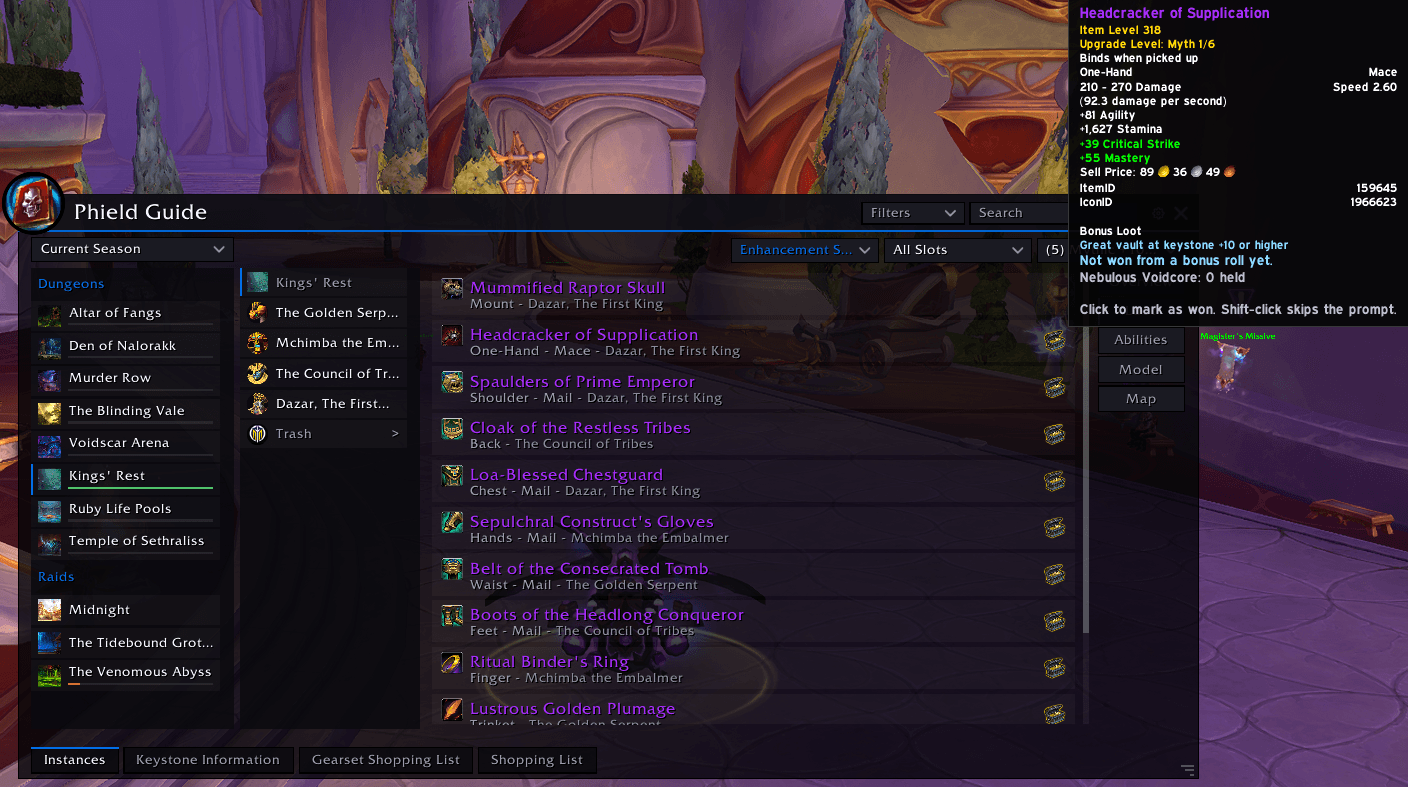
- A chest on a loot row means you can still get that item from a bonus roll.
- A red cross over the chest means you've already won it from a bonus roll at that difficulty this season. A new season starts with every chest open again, and last season's list is cleared out.
- The game doesn't keep track of this, so Phield Guide writes your rolls down as they happen. Rolls from before you installed it won't show on their own.
- Click a chest to mark an item as won yourself, or click a crossed-out chest to undo it. Hold Shift while clicking to skip the confirmation.
Boss abilities
- Abilities in a collapsible list with the usual role and mechanic icons.
- Only the abilities for the difficulty you picked are shown.
- Blue ability names in the descriptions are clickable and jump to that ability.
Trash mobs (needs Mythic Dungeon Tools)
- A Trash entry under each dungeon's bosses lists every mob and what it casts.
- Interruptible casts are listed first, and channeled spells get a clock icon.
- Each mob shows its enemy forces count, what crowd control works on it and whether it can see through stealth.
- A button opens MDT on the dungeon you're looking at.
Models and maps
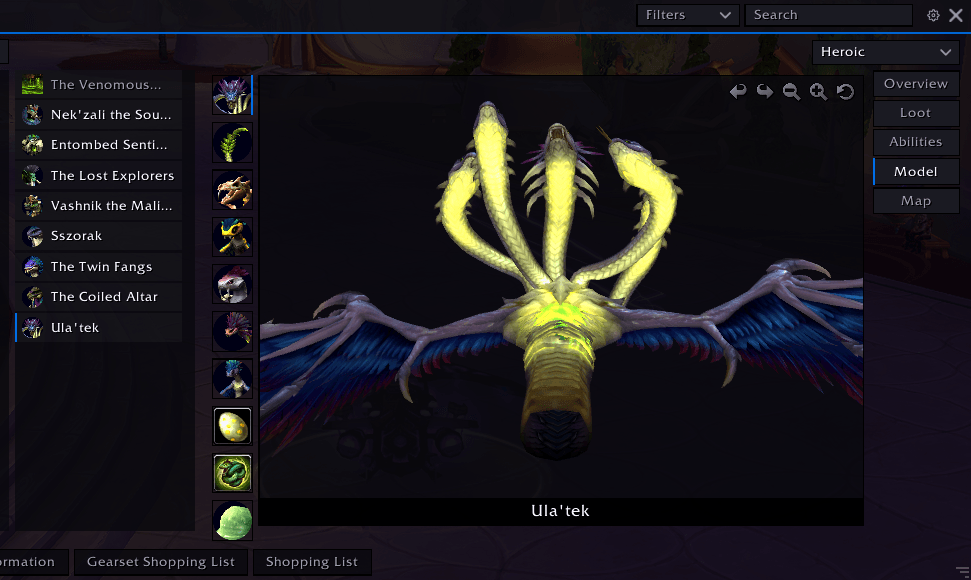
- 3D models for bosses, their adds and trash mobs. Left drag to spin, right drag to move, scroll to zoom.
- The dungeon's map right in the window, with a floor picker for multi-floor dungeons.
Handy extras
- Shift-click loot or abilities to link them in chat. Ctrl-click still opens the dressing room.
- Journal links people post in chat open in Phield Guide.
- Move and resize the window and it stays that way.
- The gear icon opens appearance settings: accent color, background opacity, row height and text size.
Commands
| Command | What it does |
|---|---|
/pg |
Open or close Phield Guide |
/pg reset |
Put the window back where it started |
/phieldguide works anywhere /pg does.
Optional
Mythic Dungeon Tools adds the trash mobs. Everything else works without it.
Credits
Trash mob data comes from Mythic Dungeon Tools. Thanks to Raidbots and AlterEgo for the upgrade track data.
Phield Guide Team