Perfect Screenshot
- By
Take perfect screenshots: choose JPG, PNG or TGA and the quality, hide the interface and names with one key, and stamp the date, your character and zone on your pictures.
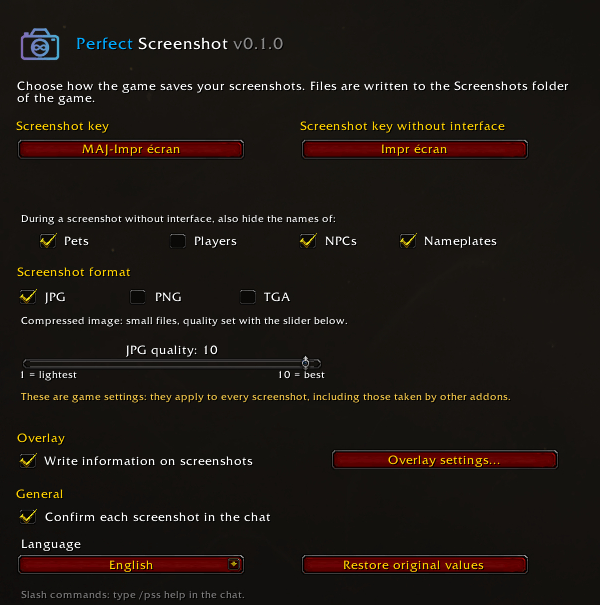
Screenshot format and JPG quality, screenshot keys (with and without interface), names to hide, overlay switch and language.
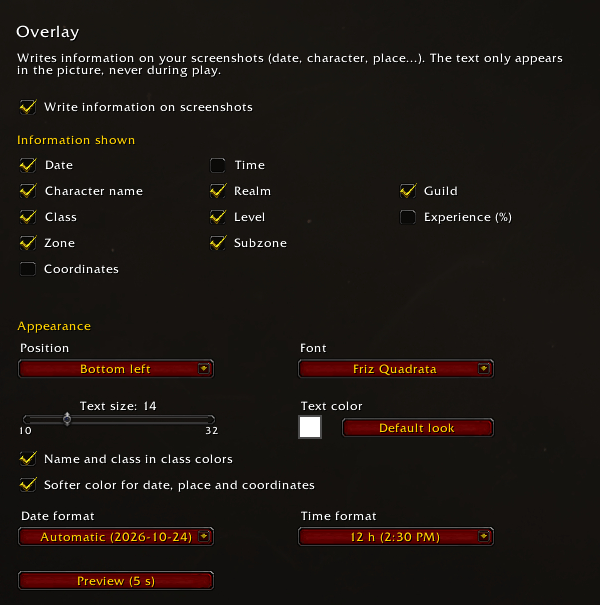
Choose the information written on your pictures, its position, font, size, colors, and the date and time formats.
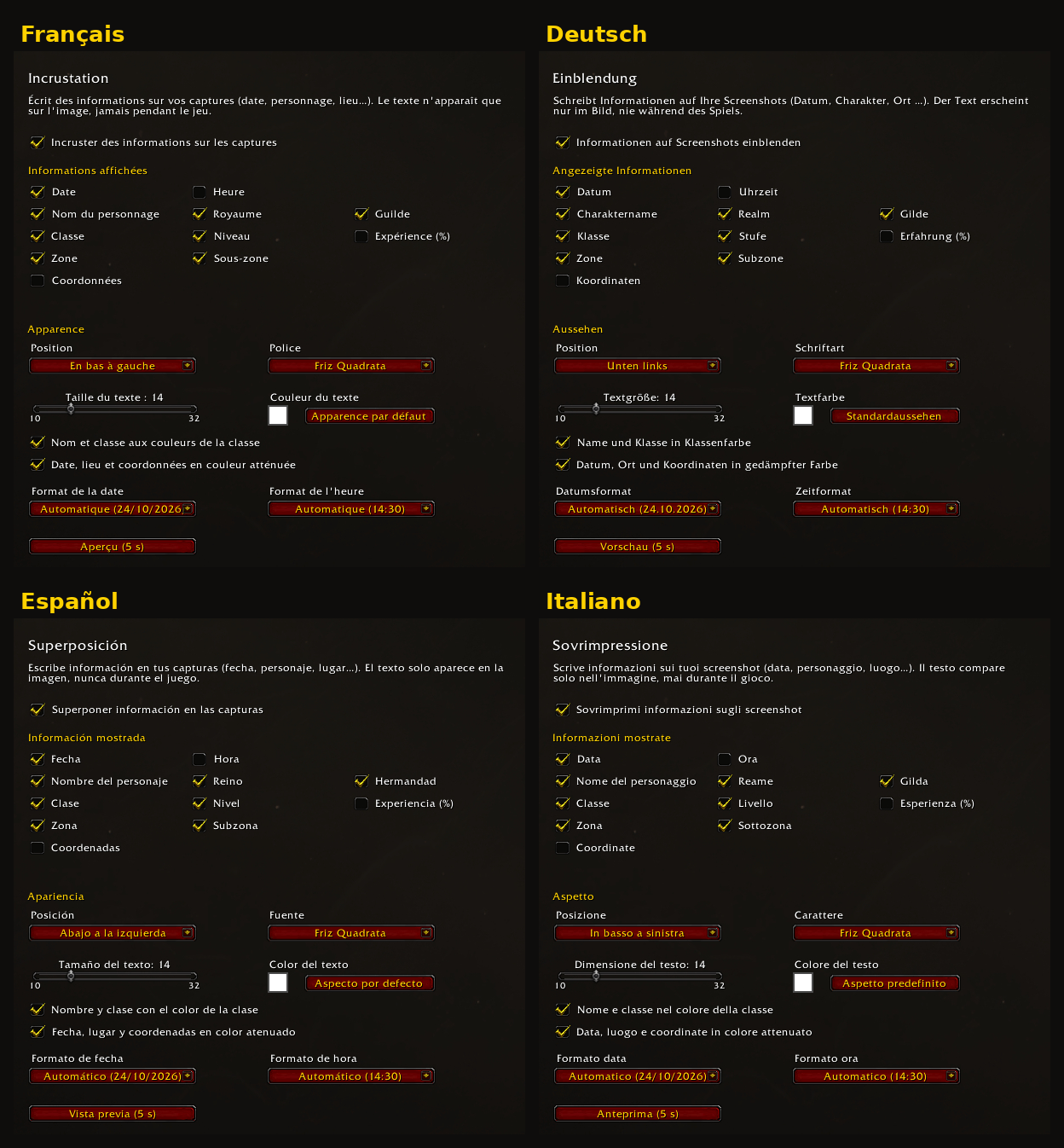
The overlay page in French, German, Spanish and Italian. English is shown in the other screenshots.
Description
Perfect Screenshot
Better screenshots for WoW Forever: choose the file format and quality, take clean shots without the interface, and write the date, your character and the place on your pictures.
Features
Format and quality
- Choose the screenshot format: JPG, PNG or TGA.
- Set the JPG quality from 1 (lightest file) to 10 (best quality).
- Your game settings are recorded on first launch and can be restored with one click.
Keys
- Set the game's screenshot key directly from the addon page (same binding as Esc > Options > Key Bindings).
- A second key: screenshot without interface. The interface disappears for the picture and comes back right after.
- If the key is already used by another action, the addon asks before replacing it.
Clean pictures
During a screenshot without interface, you can also hide, only for that picture:
- pet, demon and totem names,
- player names (yours included),
- NPC names,
- nameplates (including nameplate addons).
Your game settings are put back exactly as they were, even if the game closes during the capture.
Overlay (date, character, place)
Write information in a corner of each screenshot. It only appears in the picture, never while you play. It works with the normal key, the key without interface, and screenshots taken by other addons.
- Choose each piece of information: date, time, name, realm, guild, class, level, experience, zone, subzone, coordinates.
- Position (4 corners), font (4 game fonts), size and color.
- Name and class in class colors, date and place in a softer shade.
- Date format (automatic, 24/10/2026, 10/24/2026, 2026-10-24, 24.10.2026) and 12 h / 24 h clock.
- Preview button: shows the overlay for 5 seconds with the interface faded out.
Languages
English, Français, Deutsch, Español, Italiano. The addon follows the game language or can be switched in its options.
Commands
/pss: open the options/pss jpg | png | tga: choose the format/pss quality <1-10>: JPG quality/pss noui: screenshot without interface (works in a macro)/pss stamp: turn the overlay on or off/pss status: current setting/pss restore: restore the game values recorded on first launch/pss lang <code>: force the addon language (auto= game language)
Good to know
- Format and quality are game settings: they also apply to screenshots taken by other addons.
- TGA is a raw, uncompressed format: no quality loss, but files are much larger (several MB each) and usually need a dedicated viewer (GIMP, IrfanView, XnView...).
- During combat the game forbids hiding the interface, the names and changing key bindings: the screenshot is then taken with the interface.
- Files are saved in the game's
Screenshotsfolder.
Perfect Screenshot (Français)
De meilleures captures d'écran sur WoW Forever : choisissez le format et la qualité, prenez des photos propres sans interface, et inscrivez la date, votre personnage et le lieu sur vos images.
Fonctionnalités
Format et qualité
- Format des captures : JPG, PNG ou TGA.
- Qualité JPG de 1 (fichier le plus léger) à 10 (meilleure qualité).
- Vos réglages du jeu sont notés au premier lancement et peuvent être restaurés en un clic.
Touches
- Réglez la touche de capture du jeu directement depuis la page de l'addon (même raccourci que Échap > Options > Raccourcis).
- Une seconde touche : capture sans interface. L'interface disparaît le temps de la photo et revient aussitôt.
- Si la touche est déjà utilisée par une autre action, l'addon demande avant de la remplacer.
Photos propres
Pendant la capture sans interface, vous pouvez aussi masquer, seulement le temps de la photo :
- les noms des familiers, démons et totems,
- les noms des joueurs (le vôtre compris),
- les noms des PNJ,
- les barres d'info (y compris celles des addons).
Vos réglages du jeu sont remis à l'identique, même si le jeu se ferme pendant la capture.
Incrustation (date, personnage, lieu)
Écrivez des informations dans un coin de chaque capture. Elles n'apparaissent que sur l'image, jamais pendant le jeu. Cela marche avec la touche normale, la touche sans interface et les captures prises par d'autres addons.
- Chaque information au choix : date, heure, nom, royaume, guilde, classe, niveau, expérience, zone, sous-zone, coordonnées.
- Position (4 coins), police (4 polices du jeu), taille et couleur.
- Nom et classe aux couleurs de la classe, date et lieu en teinte atténuée.
- Format de la date (automatique, 24/10/2026, 10/24/2026, 2026-10-24, 24.10.2026) et horloge 12 h / 24 h.
- Bouton Aperçu : affiche l'incrustation pendant 5 secondes avec l'interface estompée.
Langues
English, Français, Deutsch, Español, Italiano. L'addon suit la langue du jeu ou se règle dans ses options.
Commandes
/pss: ouvrir les options/pss jpg | png | tga: choisir le format/pss quality <1-10>: qualité JPG/pss noui: capture sans interface (utilisable dans une macro)/pss stamp: activer ou couper l'incrustation/pss status: réglage actuel/pss restore: restaurer les valeurs du jeu notées au premier lancement/pss lang <code>: forcer la langue de l'addon (auto= langue du jeu)
Bon à savoir
- Le format et la qualité sont des réglages du jeu : ils s'appliquent aussi aux captures prises par d'autres addons.
- TGA est un format brut non compressé : aucune perte de qualité, mais des fichiers beaucoup plus lourds (plusieurs Mo chacun) qui demandent en général un logiciel de visualisation particulier (GIMP, IrfanView, XnView…).
- En combat, le jeu interdit de masquer l'interface et les noms, et de changer les raccourcis : la capture est alors prise avec l'interface.
- Les fichiers sont enregistrés dans le dossier
Screenshotsdu jeu.
Perfect Screenshot Team