PADIA
- By
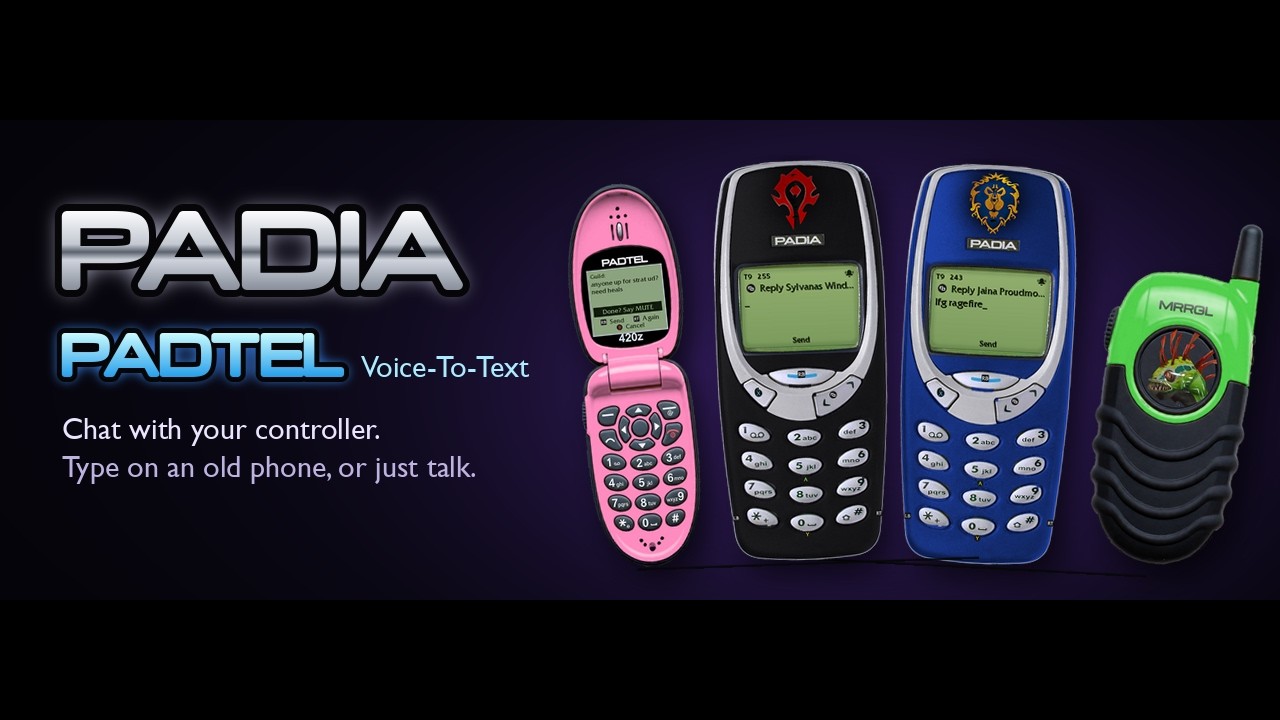
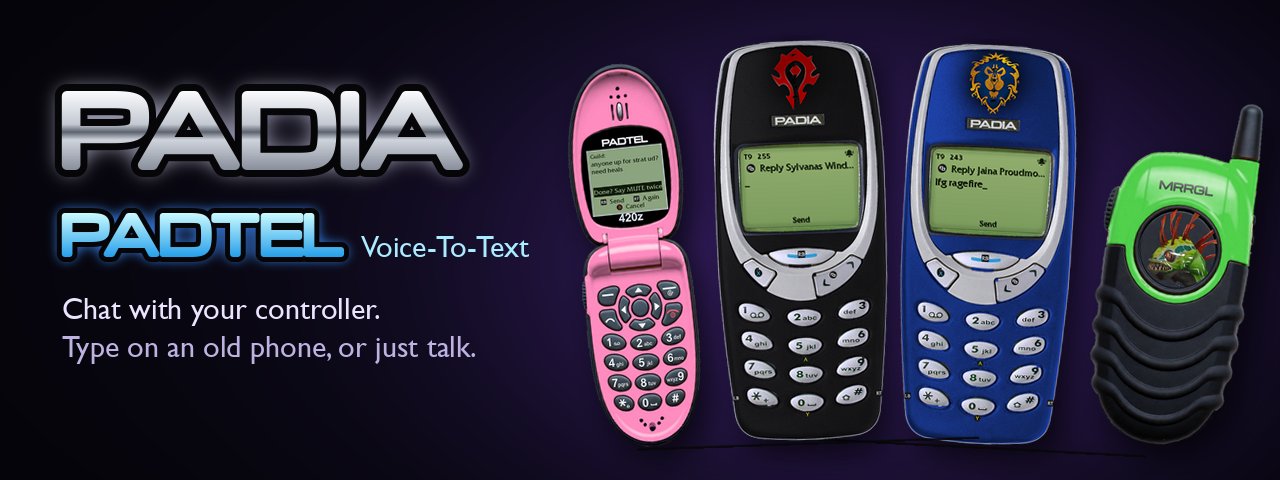
Type and send chat with your controller: T9 Predictive on an old brick phone, voice-to-text on the PADTEL flip phone, or 46 other themes with twin-stick T9 or an on-screen keyboard.
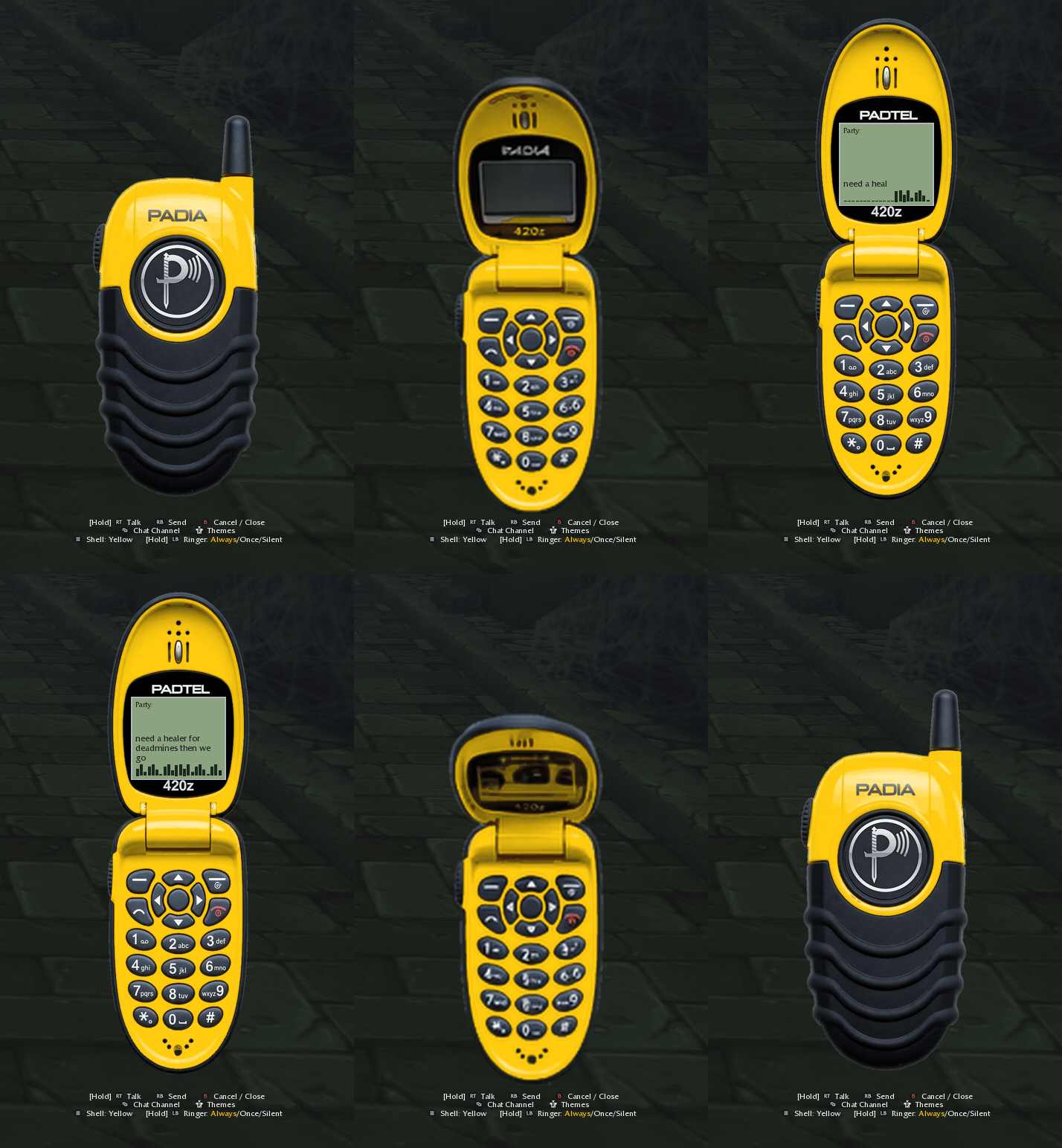
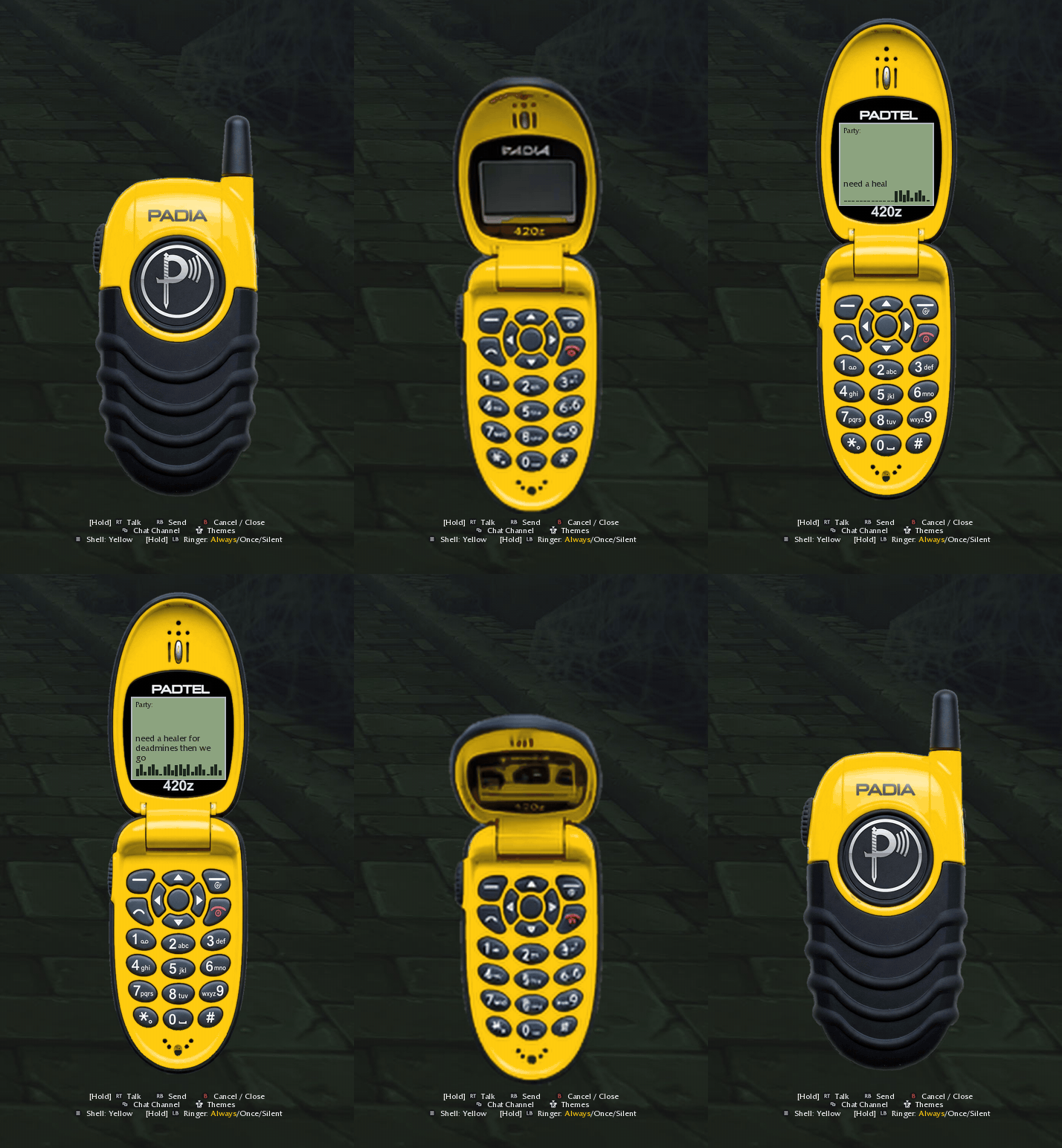
Hold RT: the phone flips open, the wave follows your voice and Windows types your words. Let go to read them; RB sends.
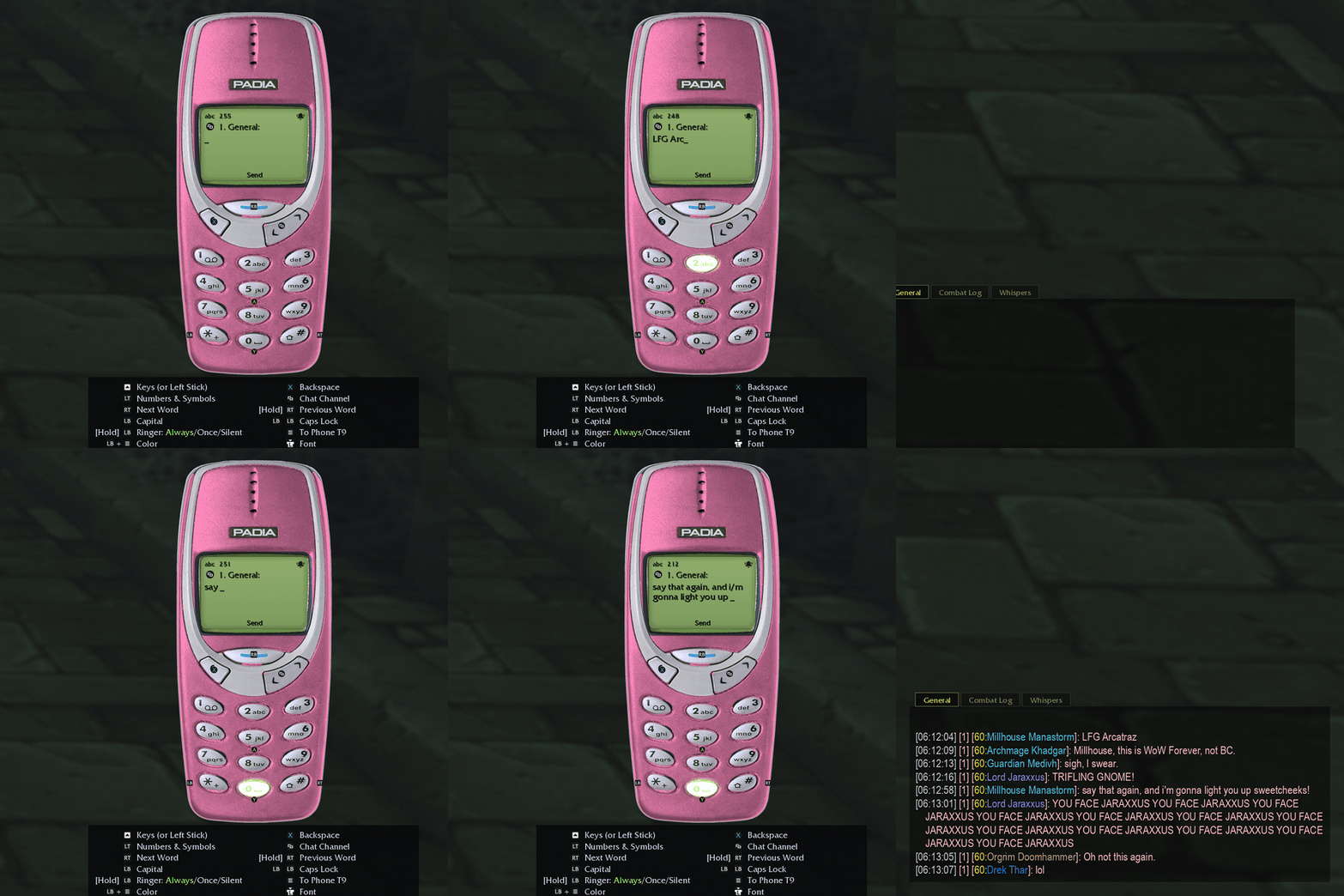
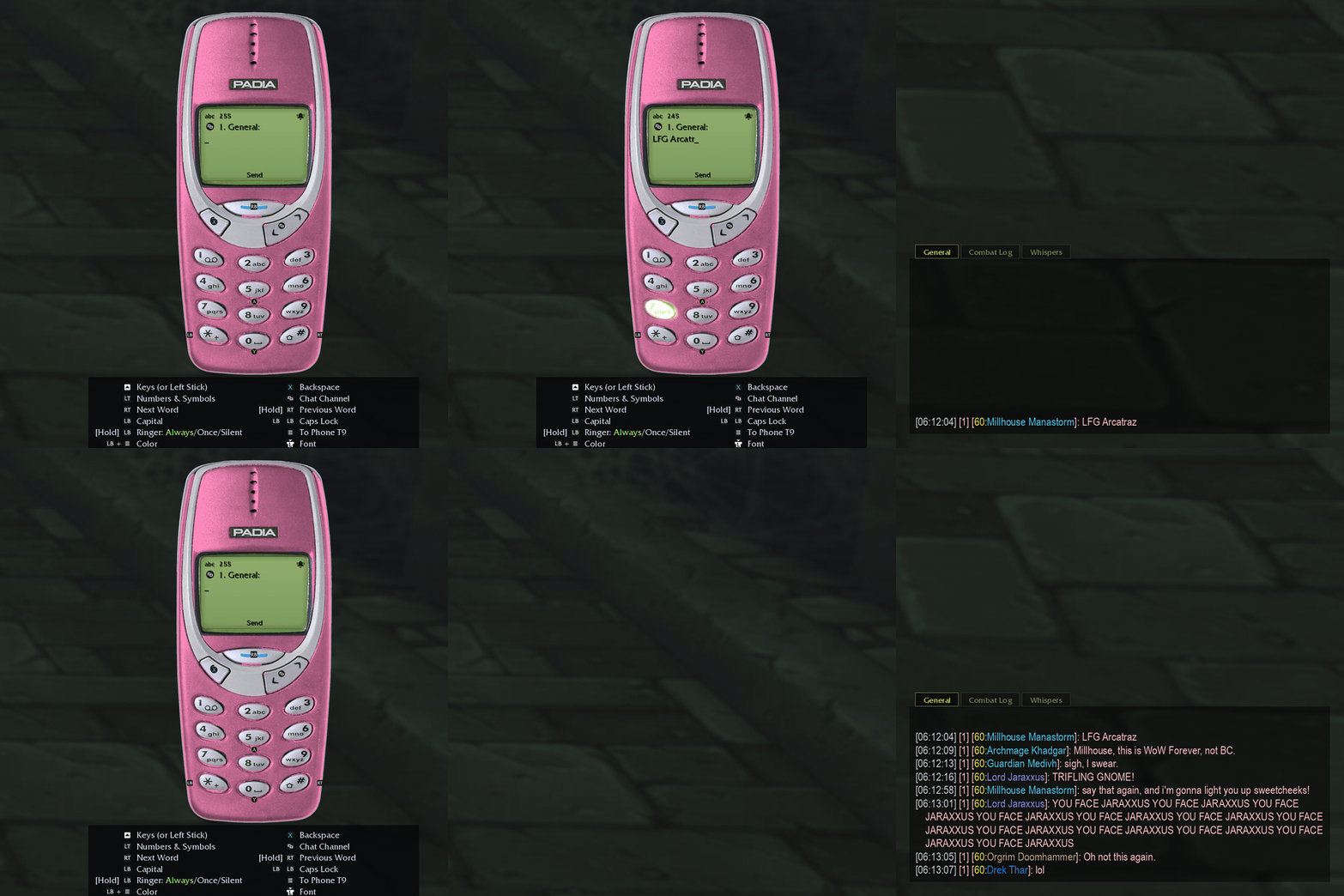
Answering Millhouse Manastorm in General on the pink phone: Caps Lock for LFG, ABC multi-tap for Arcatraz.
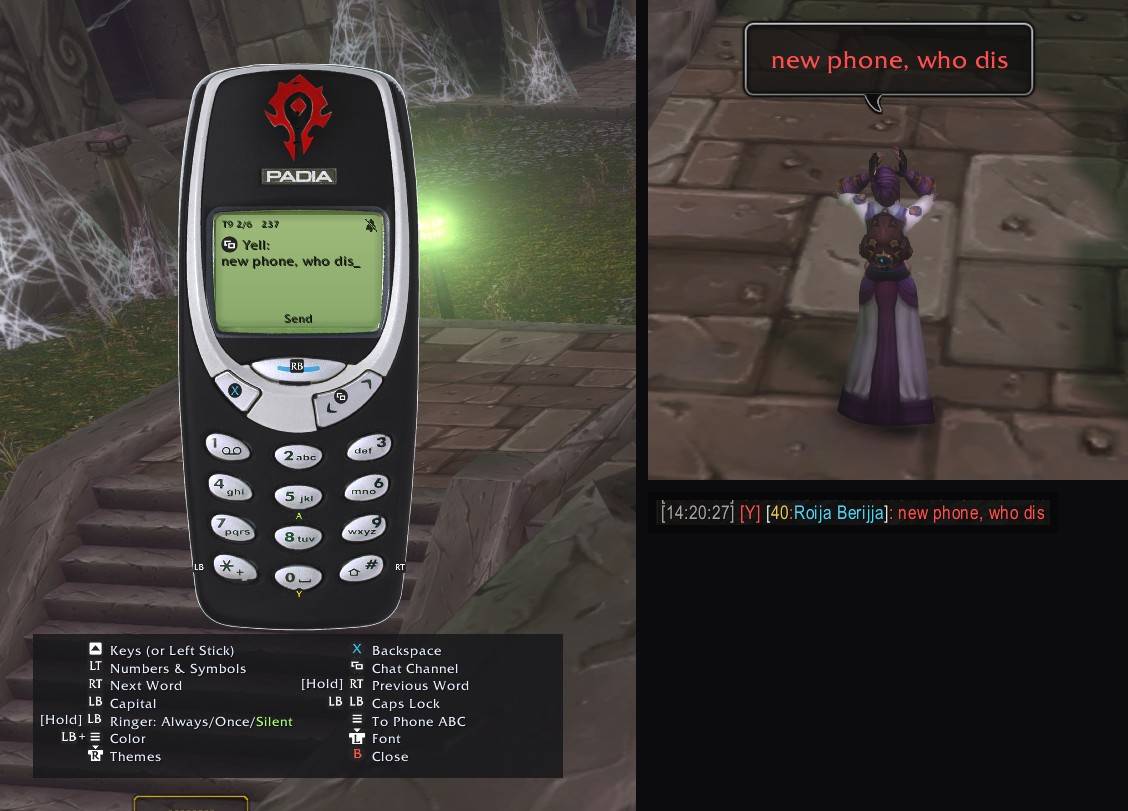
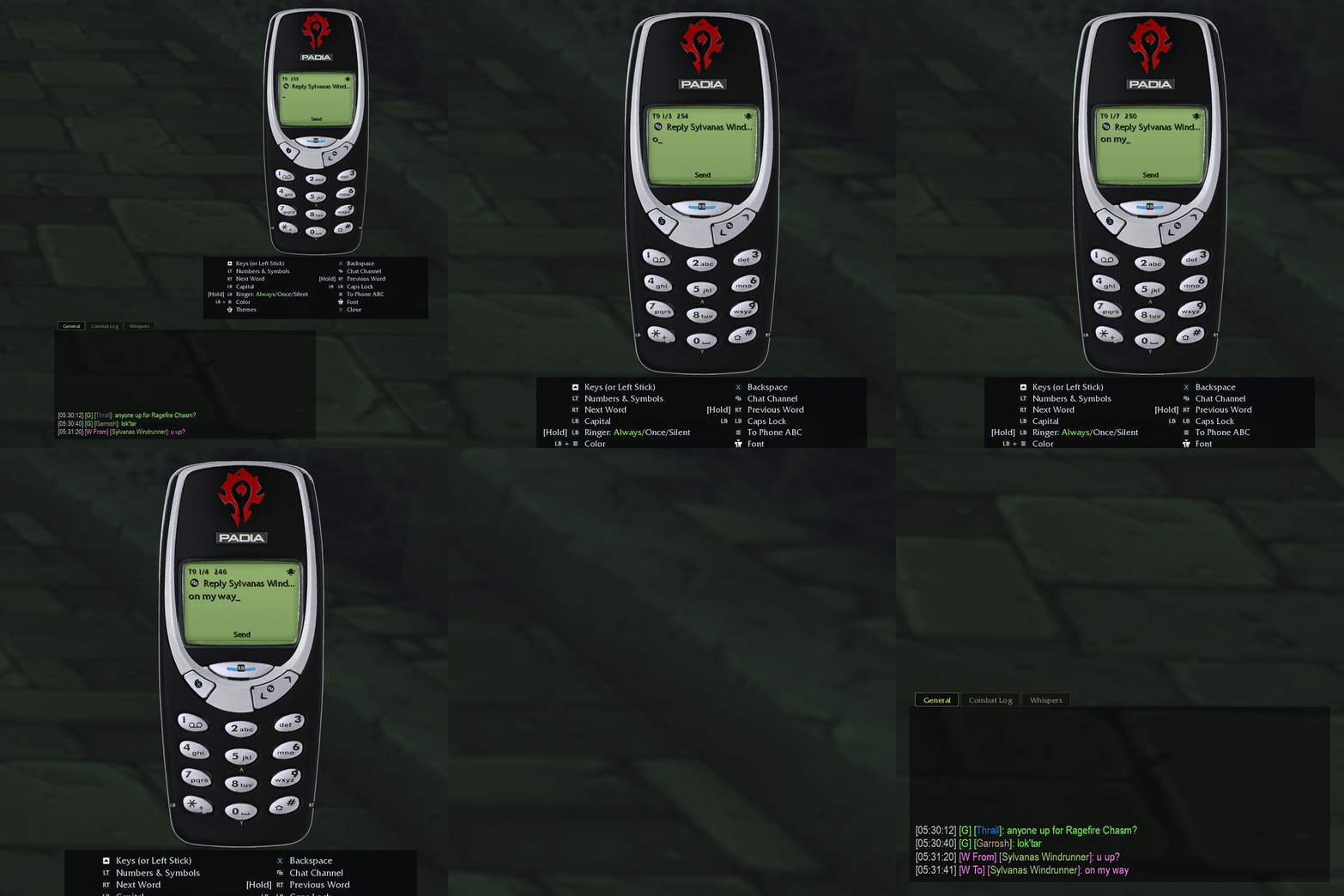
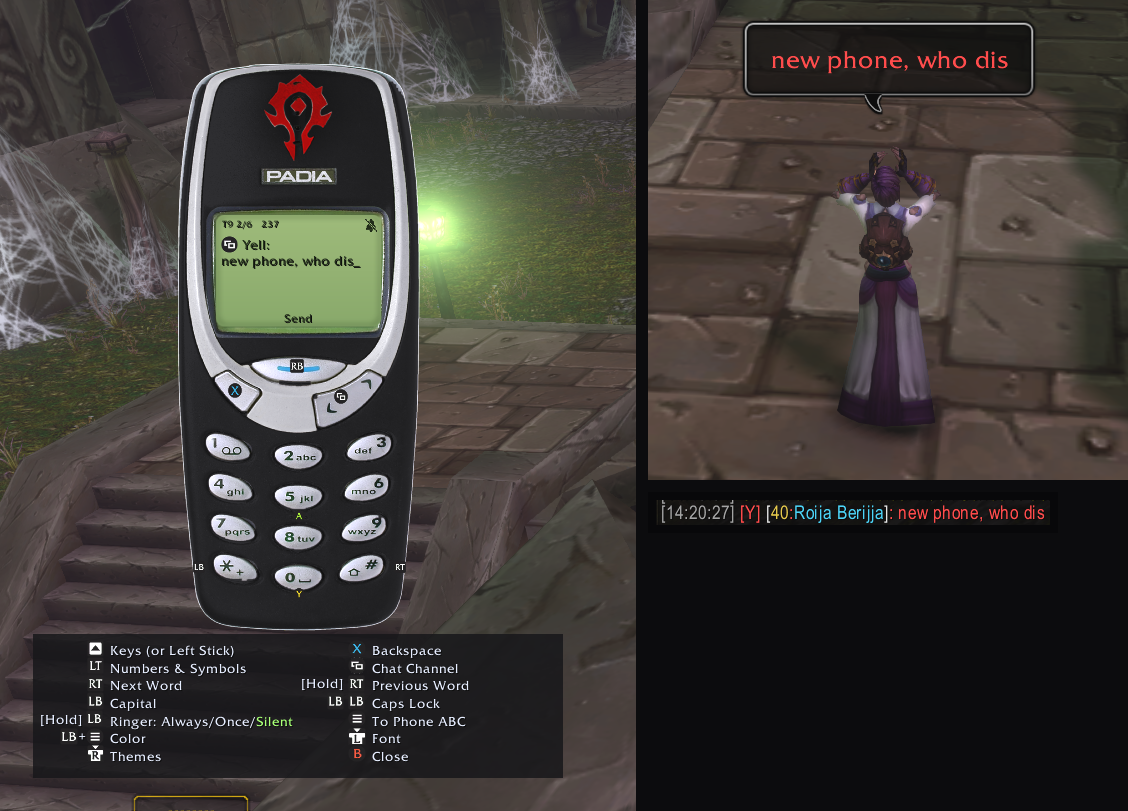
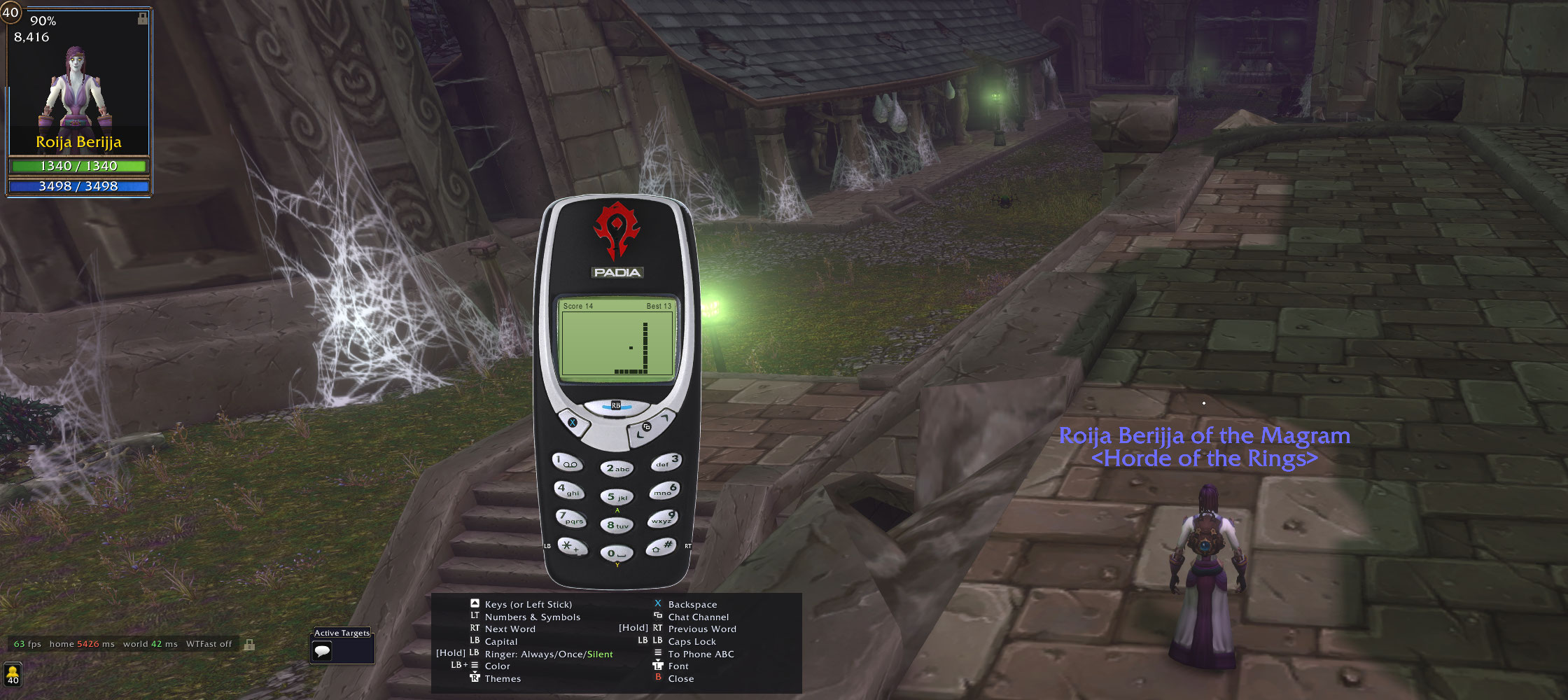
Typed on the PADIA phone with the controller and sent as a yell: the speech bubble over your character and the line in chat.
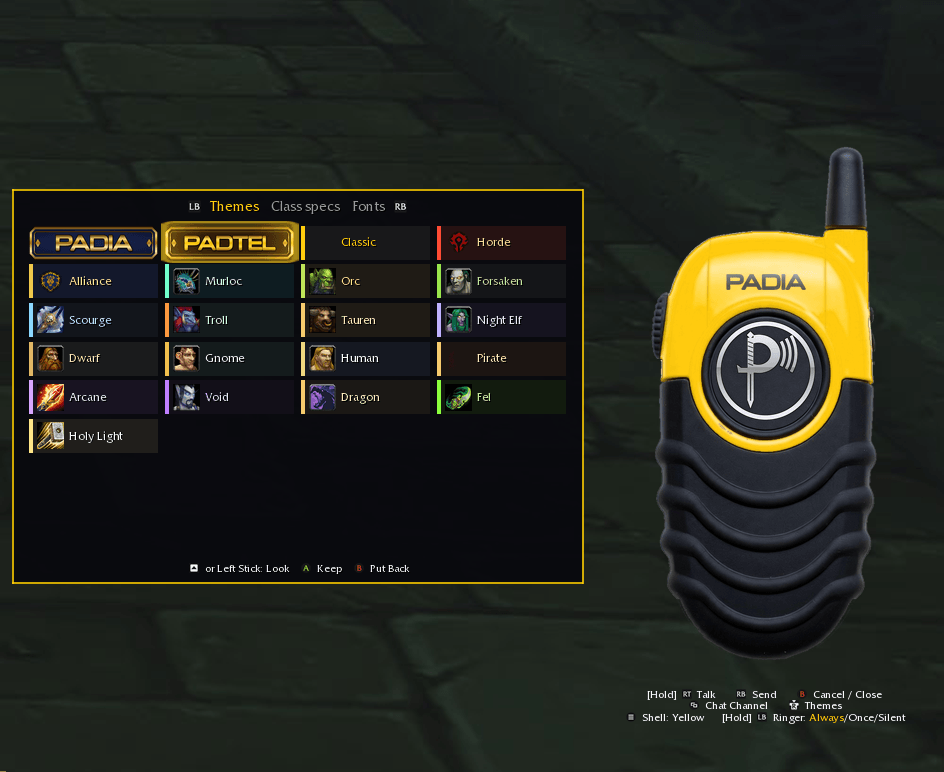
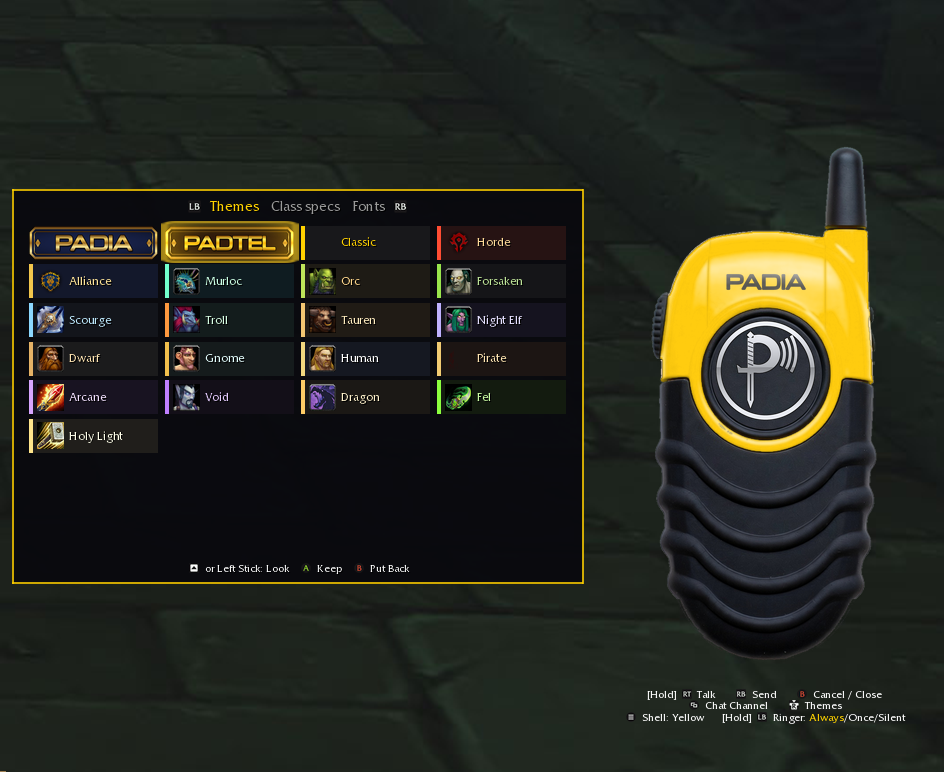
R3 opens the theme picker: PADTEL, the PADIA phone and 46 more themes, each shown on screen as you look at it.
Description
Found a bug? Report it at:
bugs@auscraft.games

WoW's controller mode lets you quest, fight and loot from the couch, but the second someone says hi in party chat you need a keyboard. PADIA puts one on screen that you type on with the sticks and buttons, then sends the line to whatever channel you picked. Or pick the PADTEL phone and hold RT while you talk; Windows' own voice typing writes what you say.
Made for WoW: Forever with the game's controller support turned on.
Opening it
Any one of these opens PADIA:
- Pick Chat on the game's gamepad wheel. PADIA opens instead of the empty chat line.
- Hold LB + RB and press D-pad down, the game's chat bubble shortcut. PADIA opens there too.
- Bind a button to it under Key Bindings > AddOns > PADIA.
- Type
/padia, or put/click PadiaTogglein a macro.
PADIA opens out of combat only, and a fight closes it. Whatever you wrote stays until you send it.
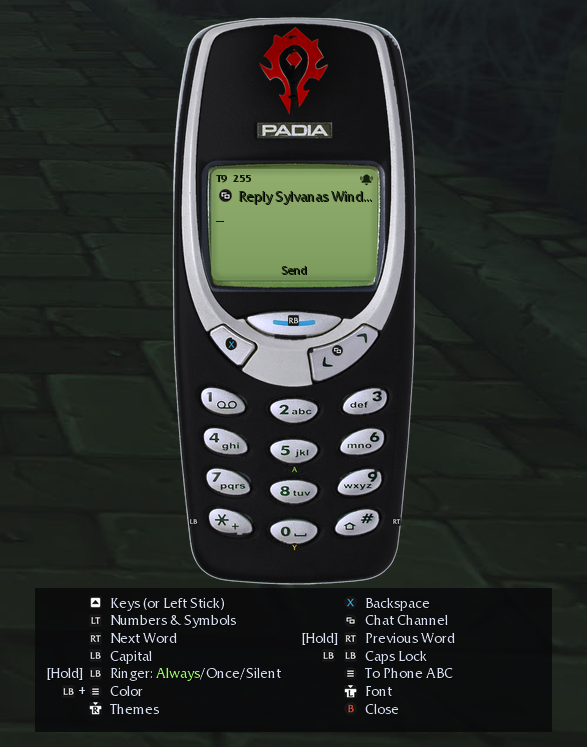
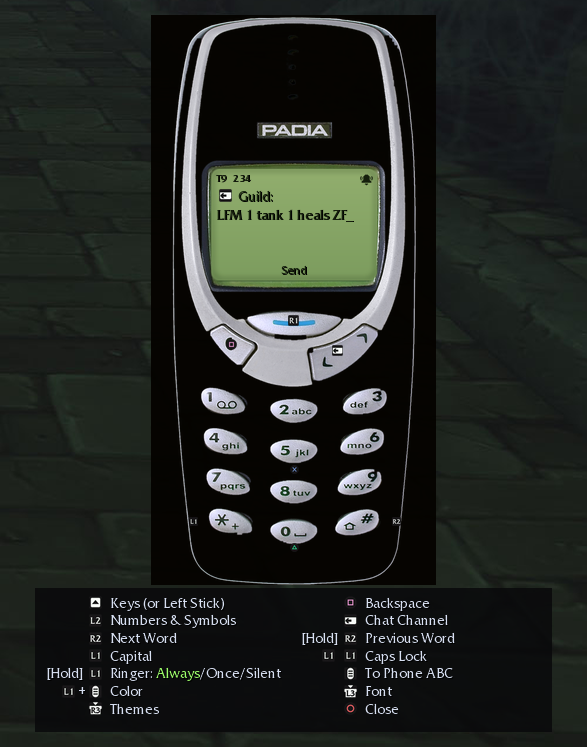
The PADIA phonePADIA starts as a classic candybar phone. The D-pad or left stick's eight directions are the keys around the 5, A is the 5 and Y is 0 (space). The 1 (up-left) has the signs: . , ? ! / ' - : ( ) @ # & + = It writes T9 like you remember, or ABC multi-tap if you press Menu/Start.
Quick Phrases: press RT on an empty line for your saved phrases, then the last 20 lines you sent, newest first. Pick one with A and it's on the line; RB sends it. Save a phrase with /padia phrase add <text>, like The dictionary has about 20,000 English words plus chat words like gg, grats, brb and lol, and WoW's own: lfg, lfm, tank, heals, rfc, sfk, gnomer, zf, mara, brd, ubrs, strat, scholo, mc, bwl, naxx, rol and more. PADIA learns every word you send. Names from your friends list, guild and group come up first for their keys, with their capital letter, and |
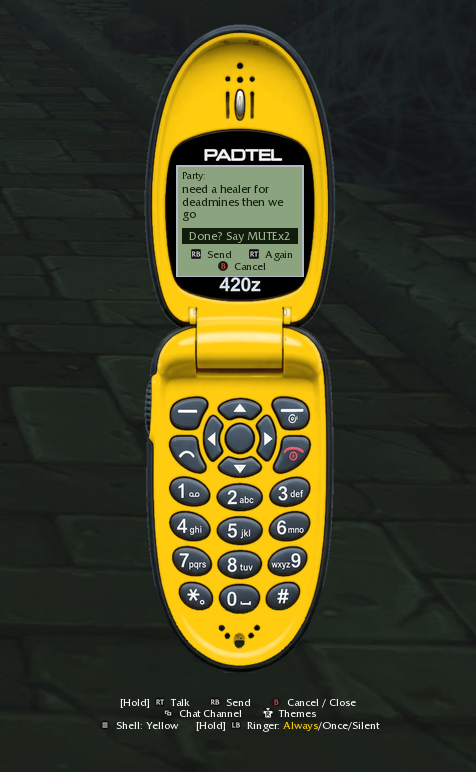
PADTEL: talk instead of typingPADTEL is a second phone, a rugged flip phone made for voice typing. It doesn't type with the buttons at all. Windows does the listening. While you hold RT, PADIA hands Windows its chat line, and Windows types what you say into it.
Watch PADTEL in the game (1:36)
  |
The PADIA phone, continued
Whispers
A whisper makes the phone ring, and the next time you open it, it's ready to reply.
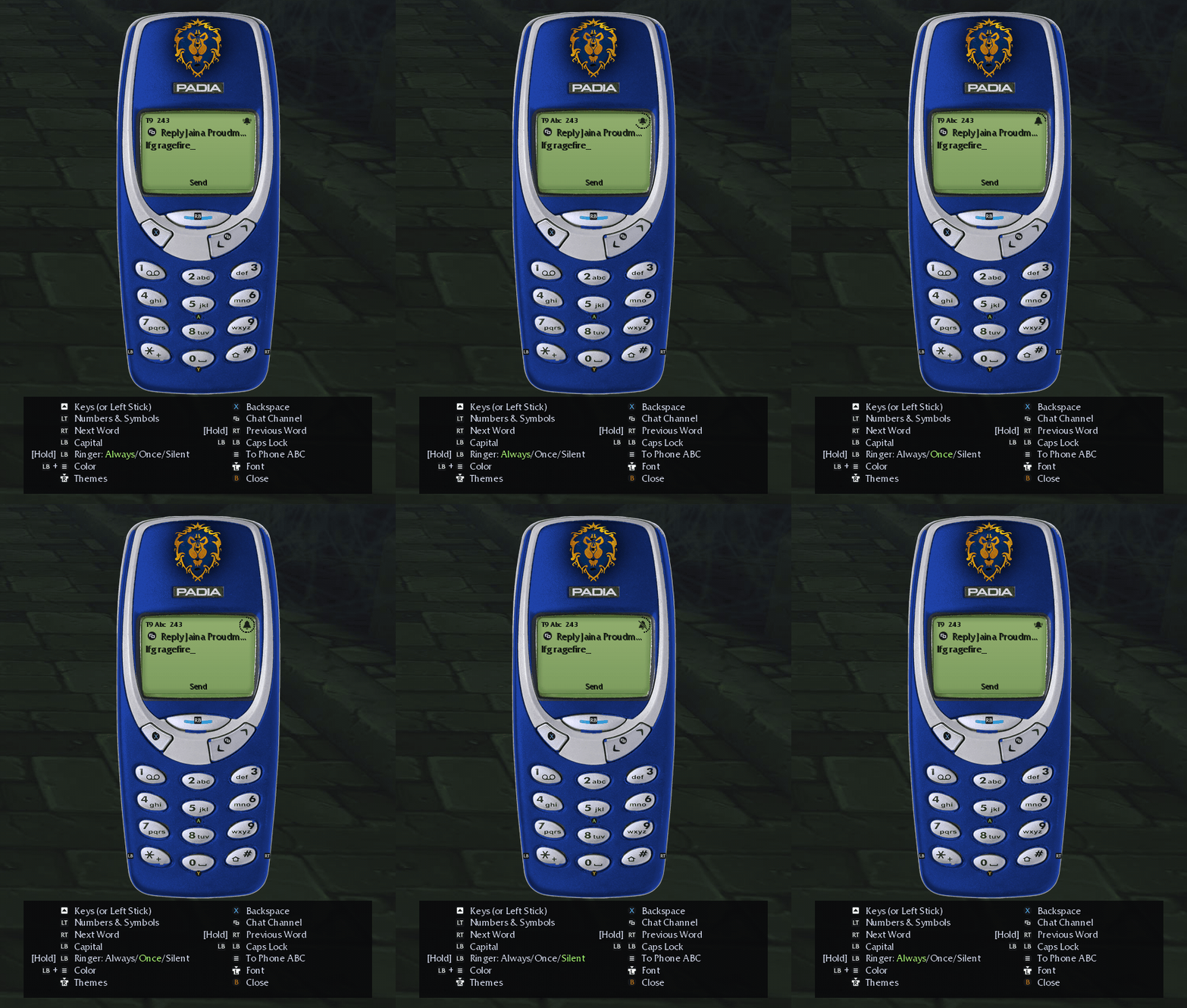
Hold LB on the phone to go to the next ringer setting:
- Always: it rings for every whisper. This is the default option set.
- Once: it rings for each person's first whisper since you logged in or reloaded, then stays quiet for their whispers until you log in or reload again.
- Silent: it never rings, but whispers still wait for your reply.
The hints list all three with the current one lit, and the bell in the screen's corner shows it too: a bell with sound waves for Always, a plain bell for Once, a crossed-out bell for Silent. /padia ringer always, /padia ringer once and /padia ringer silent set it from chat.
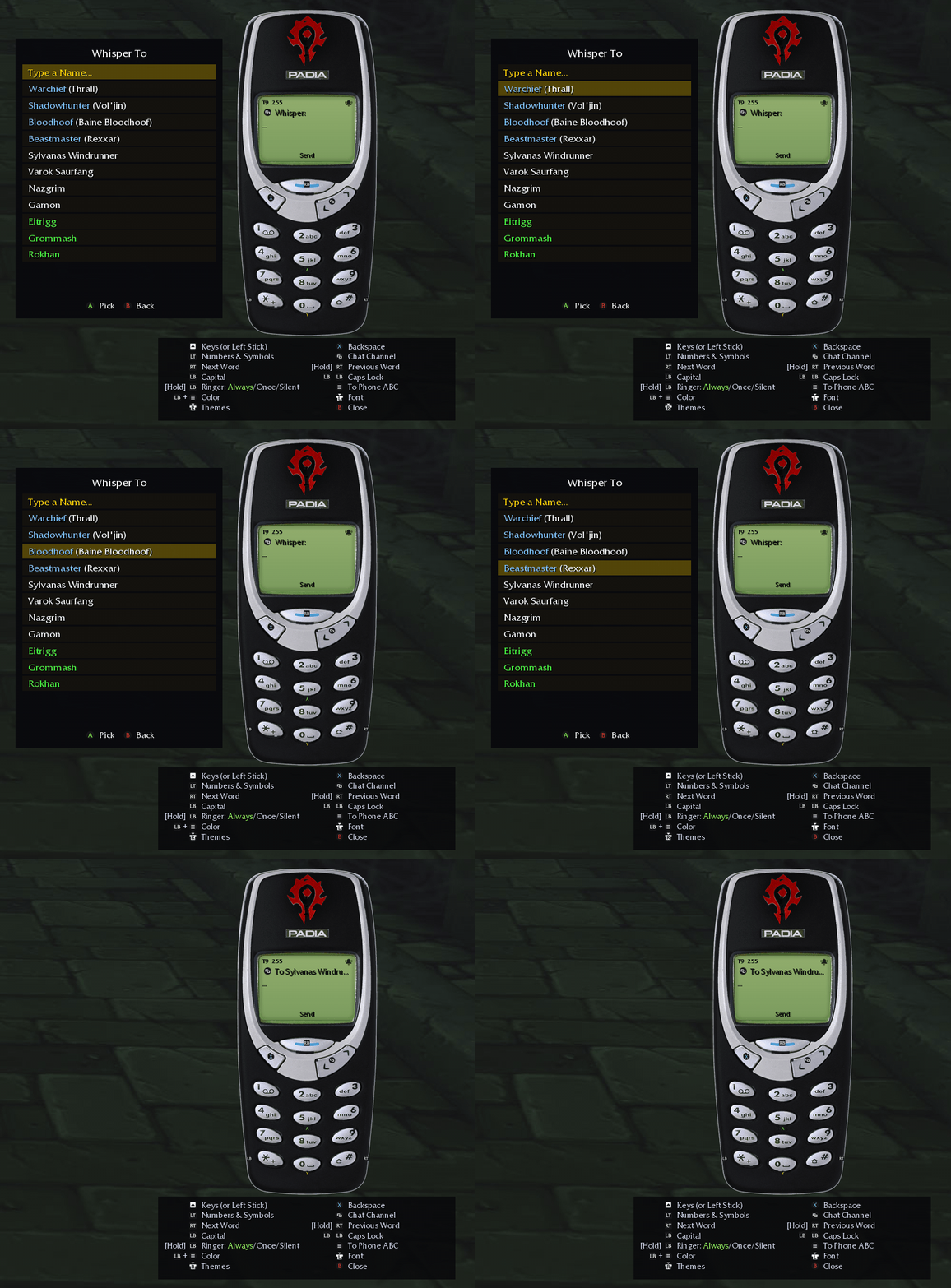
To whisper someone new, press View/Select until Whisper and pick from your Battle.net friends, friends and guildmates who are online, or type a name. Battle.net friends get a Battle.net whisper, so it reaches them on any character.
Every channel
Say, Party, Guild, Reply, Whisper, Community, Raid, Instance, Yell, and the numbered channels you're in: 1. General, 2. Trade and the rest. View/Select cycles them and the phone stays on the one you pick.
Community opens a list of your communities and their chats, like Whisper's list of friends. Pick one with A and the phone talks there until you pick another. Your guild isn't in the list, since Guild has its own channel.
A message longer than WoW's 255-letter limit goes out as several chat lines. Whispers, party, guild, community, raid and instance chat get all of them. Say, Yell, emotes and the numbered channels get two at most, so you don't trip the game's spam limit; the rest stays on the screen to send next.
Shells
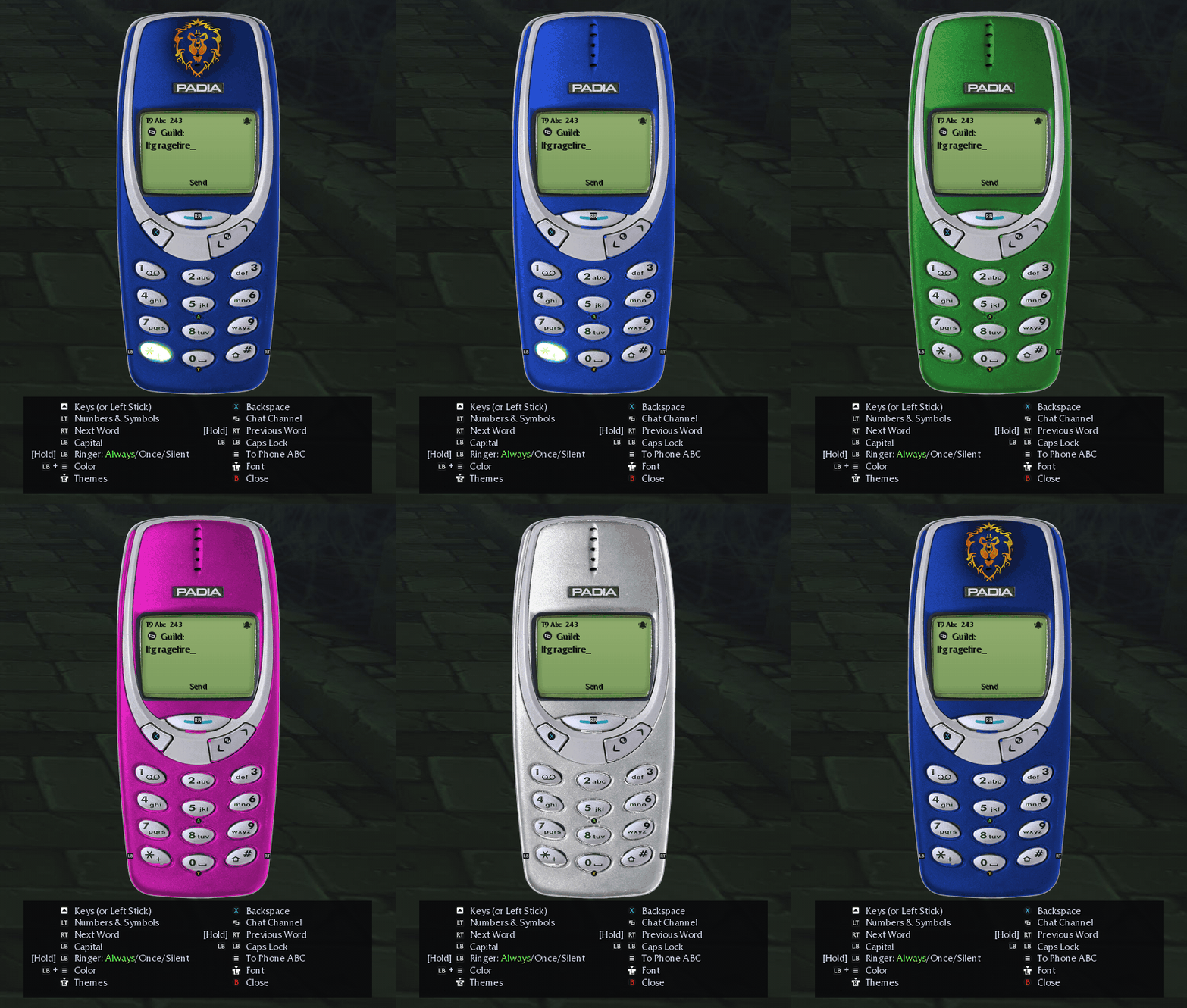
13 colors, plus a black Horde shell and a blue Alliance shell with the faction's emblem. Hold LB and press Menu/Start to go through them, or use /padia shell.
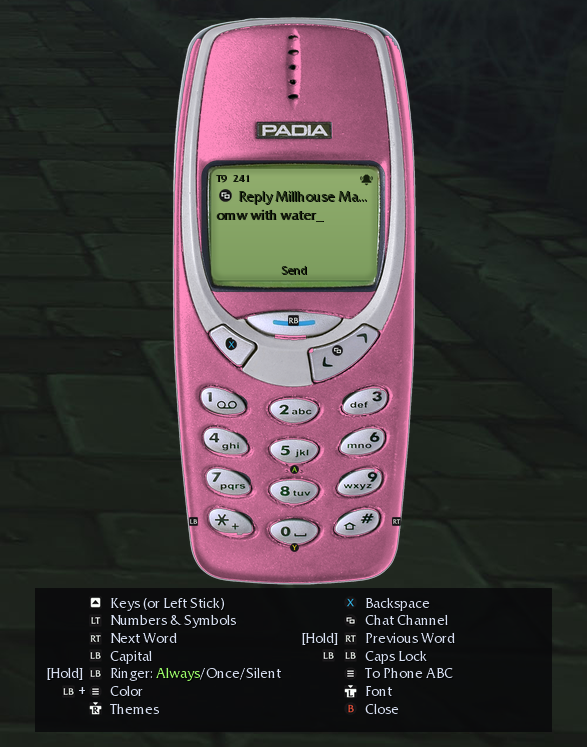
When new mail comes in, the phone says "You have mail!" /padia mail off keeps it quiet.
PADTEL, continued
Setting up, once:
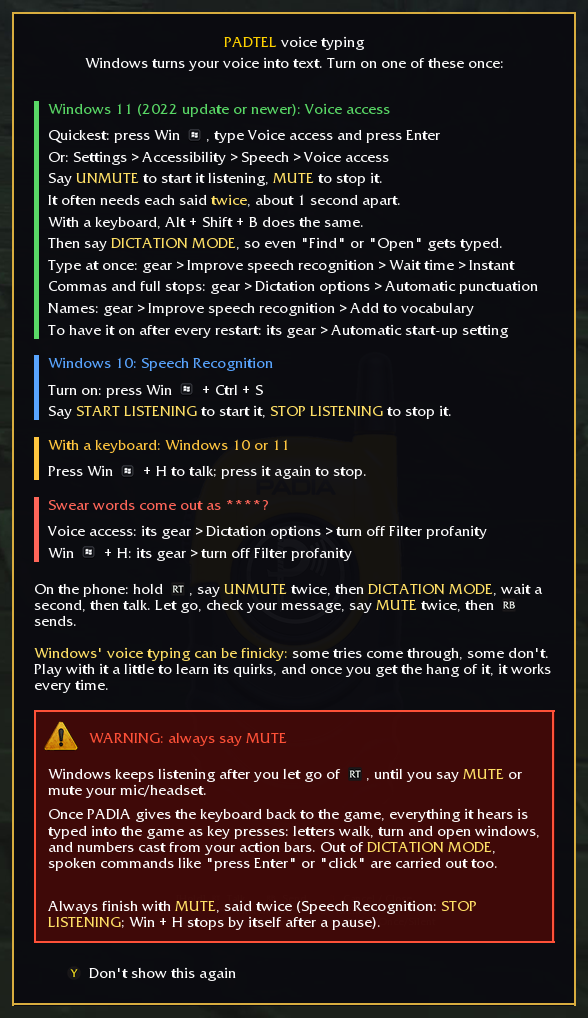
- Windows 11: Voice access. Press Win, type Voice access and press Enter. Its bar sits at the top of the screen. Say UNMUTE to start it listening and MUTE to stop it. It often needs each said twice, about 1 second apart.
- Then say DICTATION MODE before you talk. In its normal mode Voice access runs anything that starts like one of its commands, so "Find a mage" tries its Find command and types nothing. In dictation mode everything you say is typed.

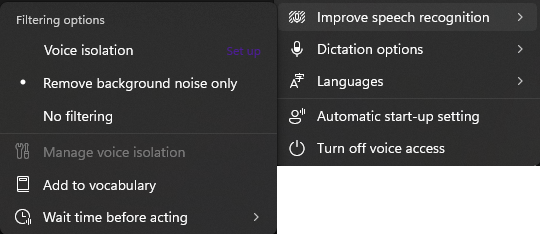
- In Voice access's gear menu, set Improve speech recognition > Wait time before acting to Instant, so it types as soon as you stop talking.
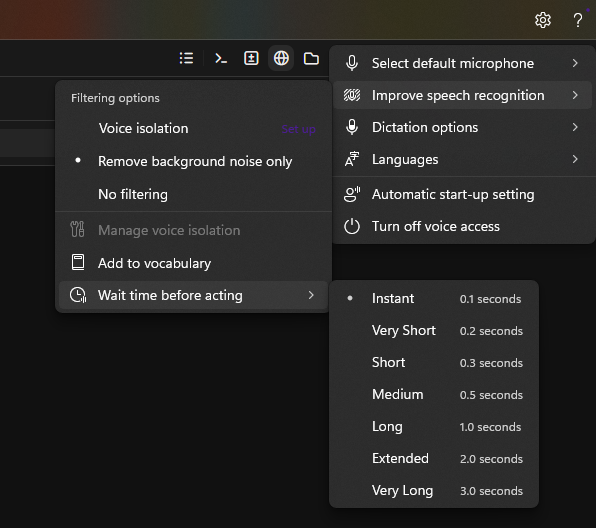
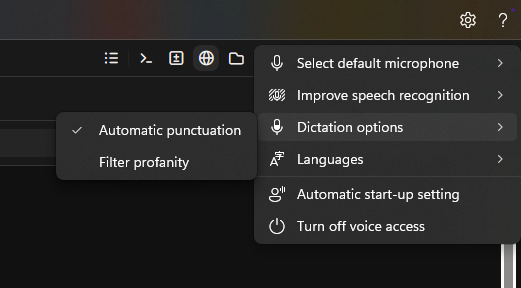
- Also under the gear menu, in Dictation options, turn on Automatic punctuation so your messages get commas and full stops. Filter profanity is there too (see below).
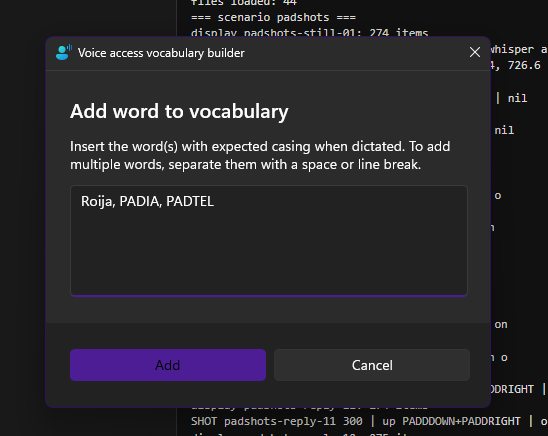
- Teach it names it gets wrong, like your character's, your friends' and PADIA's own: in the gear menu, Improve speech recognition > Add to vocabulary, then type them as they should be written.
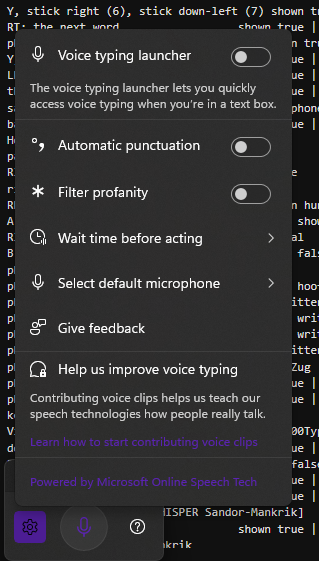
- Windows 10: Speech Recognition. Press Win + Ctrl + S, then say START LISTENING and STOP LISTENING.
- Either, with a keyboard: Win + H, then press it again to stop.
- If your swear words come out as ****, turn off Filter profanity in Voice access's Dictation options, or in Win + H's gear menu.
Talking: hold RT and the phone flips open with a beep-beep. Say UNMUTE twice, then DICTATION MODE, wait a second, then talk; the wave on the screen moves with your microphone. Let go of RT and it chirps; a moment later your whole message is on the screen, which grows to fit it. Say MUTE twice, then RB sends it, RT records it again and B cancels.
Windows' voice typing can be finicky: some tries come through and some don't. Play with it a little to learn its quirks, and once you get the hang of it, it works every time.
Always say MUTE when you're done. Windows keeps listening after you let go of RT, until you say MUTE or mute your mic/headset. Once PADIA hands the keyboard back to the game, everything it hears is typed into the game as key presses: letters walk, turn and open windows, and numbers cast from your action bars. Out of DICTATION MODE, spoken commands like "press Enter" or "click" are carried out too. The guide PADTEL shows when you pick it says so too;
/padia voiceguideshows it again.
Ringer and mail: PADTEL rings for whispers and says "You have mail!" just like the PADIA phone, by the same ringer setting. Hold LB for 2 seconds to go to the next setting. The bell in the top right corner of PADTEL's screen shows which one it's on: a bell with sound waves for Always, a plain bell for Once, a crossed-out bell for Silent.
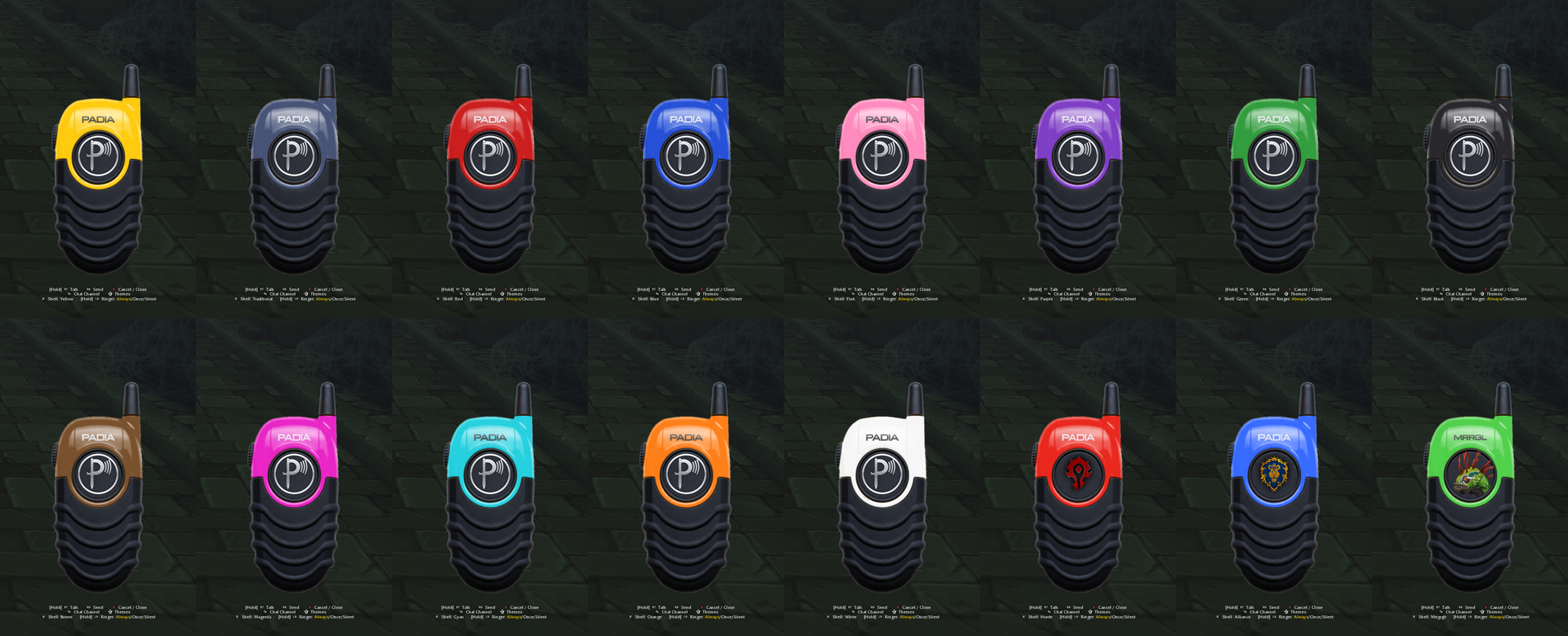
Shells: press Menu/Start for the shell menu. There are 16: the yellow it comes in, every PADIA color with the PADIA symbol on the lid, Horde and Alliance with their crests, and Mrrgrglr.
PlayStation controllers
PADIA shows Xbox buttons unless you pick PlayStation's in Options > AddOns > PADIA, or type /padia playstation. /padia xbox switches back.
Other themes and styles
R3 opens the picker, where LB and RB switch between themes, class specs and fonts. Each theme shows on screen as you look at it. Besides the PADIA and PADTEL phones there are 46 themes built from the game's own art, one for every class spec among them, with the spec's talent art and class crest:
- Races and factions: Horde, Alliance, Orc, Forsaken, Scourge, Troll, Tauren, Night Elf, Dwarf, Gnome, Human, Murloc, Pirate
- Magic: Arcane, Void, Dragon, Fel, Holy Light
- Warrior: Arms, Fury, Protection
- Paladin: Holy, Protection, Retribution
- Hunter: Beast Mastery, Marksmanship, Survival
- Rogue: Assassination, Combat, Subtlety
- Priest: Discipline, Holy, Shadow
- Shaman: Elemental, Enhancement, Restoration
- Mage: Arcane, Fire, Frost
- Warlock: Affliction, Demonology, Destruction
- Druid: Balance, Feral, Restoration
- Classic: Classic
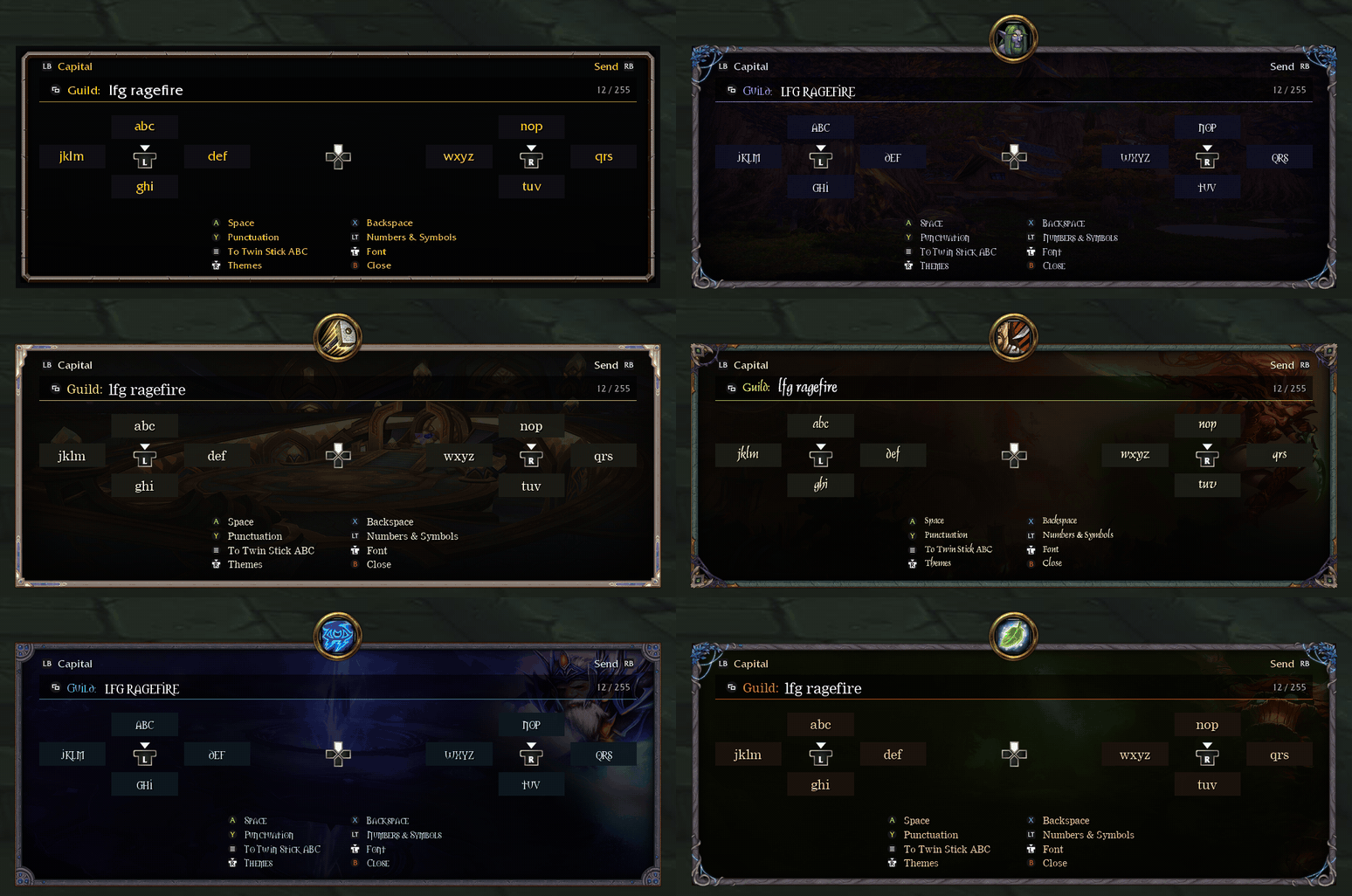
Outside the two phones, Menu/Start switches between three ways of typing:
Twin Stick T9: The left stick's four directions are ABC, DEF, GHI and JKLM. The right stick's are NOP, QRS, TUV and WXYZ. Flick once per letter and PADIA writes the likeliest word. The next four guesses sit around the D-pad. Press a direction to take one, or RT for four more.
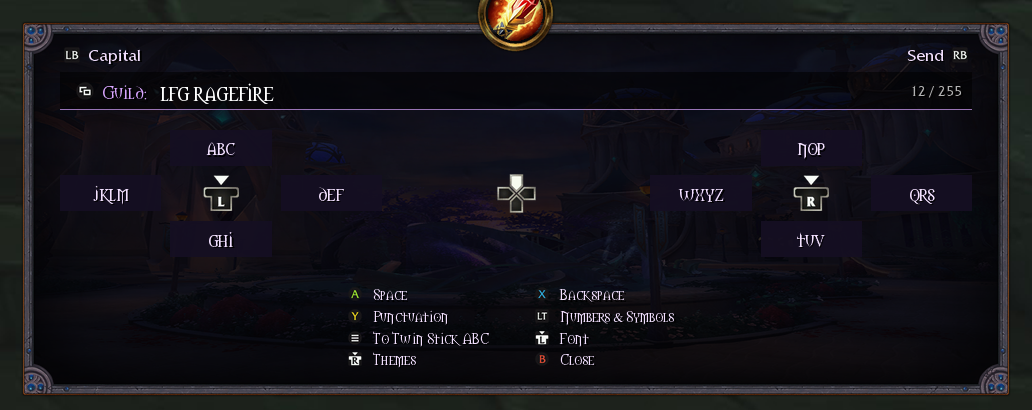
Twin Stick ABC: The same letter groups. Flick the same way again within a second for the next letter.
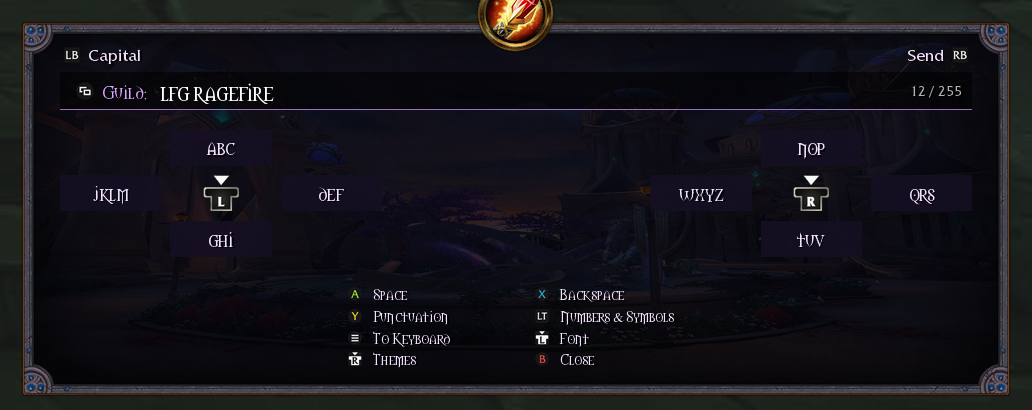
Keyboard: A full on-screen keyboard. Move with the D-pad or left stick and press A to type a key.
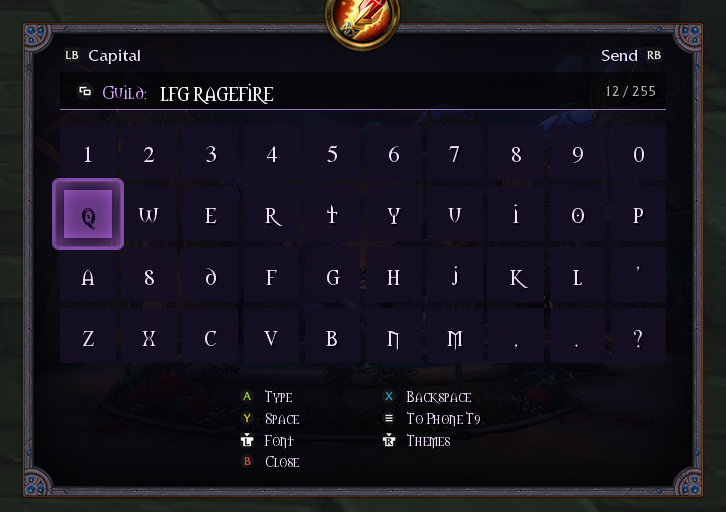
There are 7 fonts, from Friz Quadrata to Morpheus.
A real keyboard works too: click PADIA's line and type. Only RB sends; Enter and Esc hand the keyboard back, and Enter opens the game's own chat line as always. Drag the window anywhere with the mouse; /padia lock holds it there. A line starting with / runs as a command, as the game's chat line would run it: /s, /y, /g, /w name, /r and /1 send to that chat, and /reload, emotes and other addons' commands run. Protected ones such as /cast, /use and /target only run from the game's own chat line, and PADIA says so.
Commands
/padia: Open or close PADIA/padia themes: List the themes and fonts- /padia theme <name>, /padia font <name>: Switch to one
/padia shells, /padia shell <color>: List or set the PADIA phone's color/padia xbox,/padia playstation: The buttons PADIA shows- /padia name <name>: Add a name to the guesses
- /padia addword <word>: Add a word to the guesses; PADIA says if it already knows it
/padia names: List the names PADIA knows/padia lock,/padia unlock: Hold the window where it is, or let the mouse move it again/padia reset: Put the window back in its first place- /padia size <40 to 120>: Make the PADIA and PADTEL phones smaller or bigger
/padia ringer always,/padia ringer once,/padia ringer silent: Set the phones' ringer: it rings for every whisper, for each person's first whisper since you logged in or reloaded, or never/padia ringer: Say which setting the ringer is on/padia tonetest: Hear the PADIA phone's ring/padia mail on,/padia mail off: The phones say "You have mail!" when new mail comes in, or stay quiet/padia mailtone: Hear "You have mail!"/padia voiceguide: Show PADTEL's voice typing guide. The Voice guide button on PADIA's Options page does too./padia phrases: List your quick phrases- /padia phrase add <text>, /padia phrase remove <number>: Save a quick phrase, or remove one
/padia help: List the commands
Credits
The word list comes from FrequencyWords by Hermit Dave, licensed CC BY-SA 4.0. Words.lua is shared under that same license. The PADIA phone is a photo by smial from Wikimedia Commons, licensed under the Free Art License; PADIA's changed copy (its own name on the badge, the screen cleared, the shell made recolorable) is shared under the same license. The badge's lettering is Michroma by Vernon Adams, SIL Open Font License. The "You have mail!" voice was made with ElevenLabs. The ring is a bar of Francisco Tárrega's Gran Vals (1902, public domain), played as an old phone's beeps; PADIA makes it and its other sounds itself. The PADTEL phone, its flip and the PADIA 420z are AusCraft's own pictures; the Mrrgrglr shell's murloc is from a screenshot of the game. PADIA, PADTEL and MRRGL are lettered in Michroma. PADTEL's beeps are made by PADIA itself; the voice typing is Windows' own. PADIA is not made by or connected with Nokia, HMD, Motorola, Nextel or Microsoft. The rest of PADIA is MIT.
The animations come from a test rig that runs PADIA's own code with its own art and the game's; the yell and dungeon pictures are screenshots from the game.
More from AusCraft at auscraft.games. If PADIA saves you from digging out a keyboard, you can buy me a coffee.
PADIA Team