OmniRankUp
- By
Level up! See at a glance what your new level gave you and which spells are waiting at your class trainer.
Description
OmniRankUp — Know what your new level brought you
You level up, the golden light fades… and then what? How much Strength did you gain? Is there a new spell to buy? Do you even have enough gold for it? Usually you open your character sheet, run to the trainer, and find out on the spot.
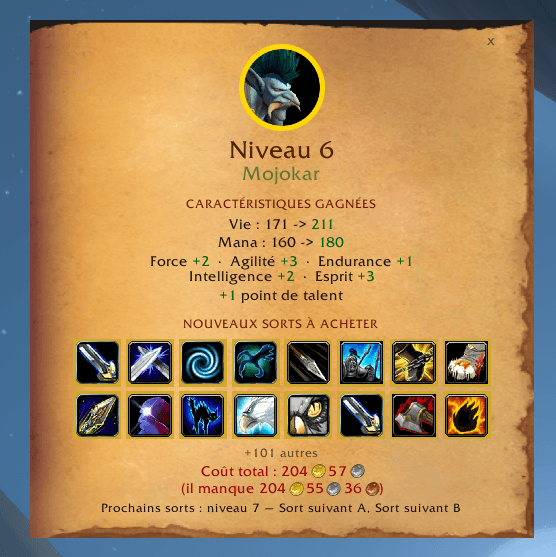
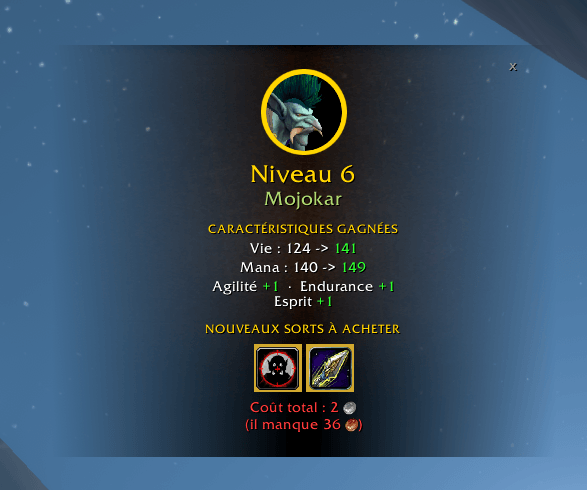
OmniRankUp tells you right away. At each level-up, a small window shows your stats before and after, your new talent point, and the spells to buy at your class trainer with their total cost.
What the recap shows
- Stats before → after — your five stats, health and mana (or rage / energy), with the gain for each.
- Talent point — the point earned at this level.
- Spells to buy — the new spells at your class trainer, with their icons and the total cost. Short on gold? The missing amount shows in red.
- Coming next — the spells unlocked at your next trainer level.
- Chat link — a clickable [Level X recap] line in your chat. The last 10 recaps are kept for each character.
Never in your way
- Never in combat — the window waits until the fight is over.
- Closes by itself — and pauses while your mouse is over it.
- Movable and lockable — with a button to bring it back to the center.
Make it yours
- 5 backgrounds, 3 borders, 3D portrait or class icon, a ring around it (shape and color).
- Size, text size, opacity, compact mode, game font, title color.
- Opening transitions (slide, fade, zoom) and animated content, with adjustable speed.
- 18 built-in sounds, no sound, or your own file.
- Hide Blizzard's level-up banner if you want (optional).
- Minimap button.
Good to know
- Spells come from your class trainer: open their window once and OmniRankUp remembers the list. Visit again later to refresh it. Pet trainers and weapon masters are ignored.
- Your own sound: put an .ogg or .mp3 in Interface\AddOns\OmniRankUp_Sounds\, then type its name in the options. Restart the game after adding a file: WoW only sees new files at launch.
- English, French, German, Spanish and Russian — following your game language.
Commands
/oru — options
/oru test — preview the window with sample data
/oru test current — preview with your real trainer spells
/oru last — show your last recap again
/oru reset — restore default settings
Level up. Read. Go train.
----
[FR] OmniRankUp — Sache ce que ton nouveau niveau t'a apporté
Tu montes de niveau, la lumière dorée s'éteint… et après ? Combien de Force as-tu gagné ? Y a-t-il un nouveau sort à acheter ? As-tu seulement assez d'or ? D'habitude, tu ouvres ta fiche de personnage, tu cours chez le maître et tu découvres tout sur place.
OmniRankUp te le dit tout de suite. À chaque niveau, une petite fenêtre montre tes stats avant et après, ton nouveau point de talent, et les sorts à acheter chez ton maître de classe avec leur coût total.
Ce que montre le récap
- Stats avant → après — tes cinq caractéristiques, la vie et le mana (ou rage / énergie), avec le gain de chacune.
- Point de talent — le point gagné à ce niveau.
- Sorts à acheter — les nouveaux sorts chez ton maître de classe, avec leurs icônes et le coût total. Pas assez d'or ? La somme manquante s'affiche en rouge.
- À venir — les sorts débloqués au prochain palier du maître.
- Lien dans le chat — une ligne cliquable [Récap du niveau X]. Les 10 derniers récaps sont gardés par personnage.
Jamais dans tes pattes
- Jamais en combat — la fenêtre attend la fin du combat.
- Se ferme toute seule — et se met en pause tant que ta souris est dessus.
- Déplaçable et verrouillable — avec un bouton pour la recentrer.
À ton goût
- 5 fonds, 3 cadres, portrait 3D ou icône de classe, un anneau autour (forme et couleur).
- Taille, taille du texte, opacité, mode compact, police du jeu, couleur des titres.
- Transitions d'ouverture (glissement, fondu, zoom) et contenu animé, vitesse réglable.
- 18 sons intégrés, aucun son, ou ton propre fichier.
- Masquer la bannière de niveau de Blizzard si tu veux (option).
- Bouton de minicarte.
Bon à savoir
- Les sorts viennent de ton maître de classe : ouvre sa fenêtre une fois et OmniRankUp retient la liste. Repasse plus tard pour la mettre à jour. Les maîtres des familiers et les maîtres d'armes sont ignorés.
- Ton propre son : place un .ogg ou un .mp3 dans Interface\AddOns\OmniRankUp_Sounds\, puis tape son nom dans les options. Relance le jeu après avoir ajouté un fichier : WoW ne voit les nouveaux fichiers qu'au lancement.
- Anglais, français, allemand, espagnol et russe — selon la langue de ton jeu.
Commandes
/oru — options
/oru test — aperçu de la fenêtre avec des données d'exemple
/oru test actuel — aperçu avec les vrais sorts de ton maître
/oru last — réaffiche ton dernier récap
/oru reset — remet les réglages par défaut
Niveau suivant. Lis. Va t'entraîner.
OmniRankUp Team