Offhand - Dual-Screen and Multi-Monitor UI
- By
True dual-monitor and split-screen support for WoW! Anchor your 3D game world and combat HUD to your primary screen, while transforming your second monitor into a dedicated 2D interface workspace for your map, bags, and UI panels.
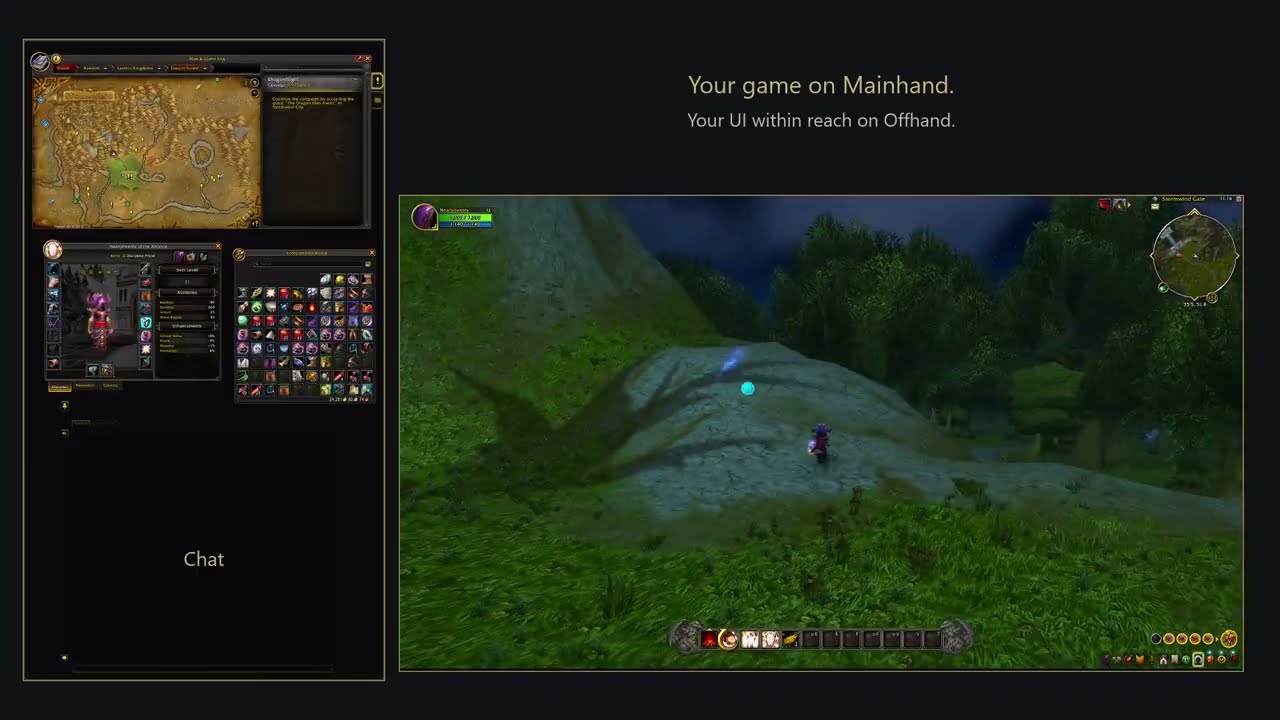
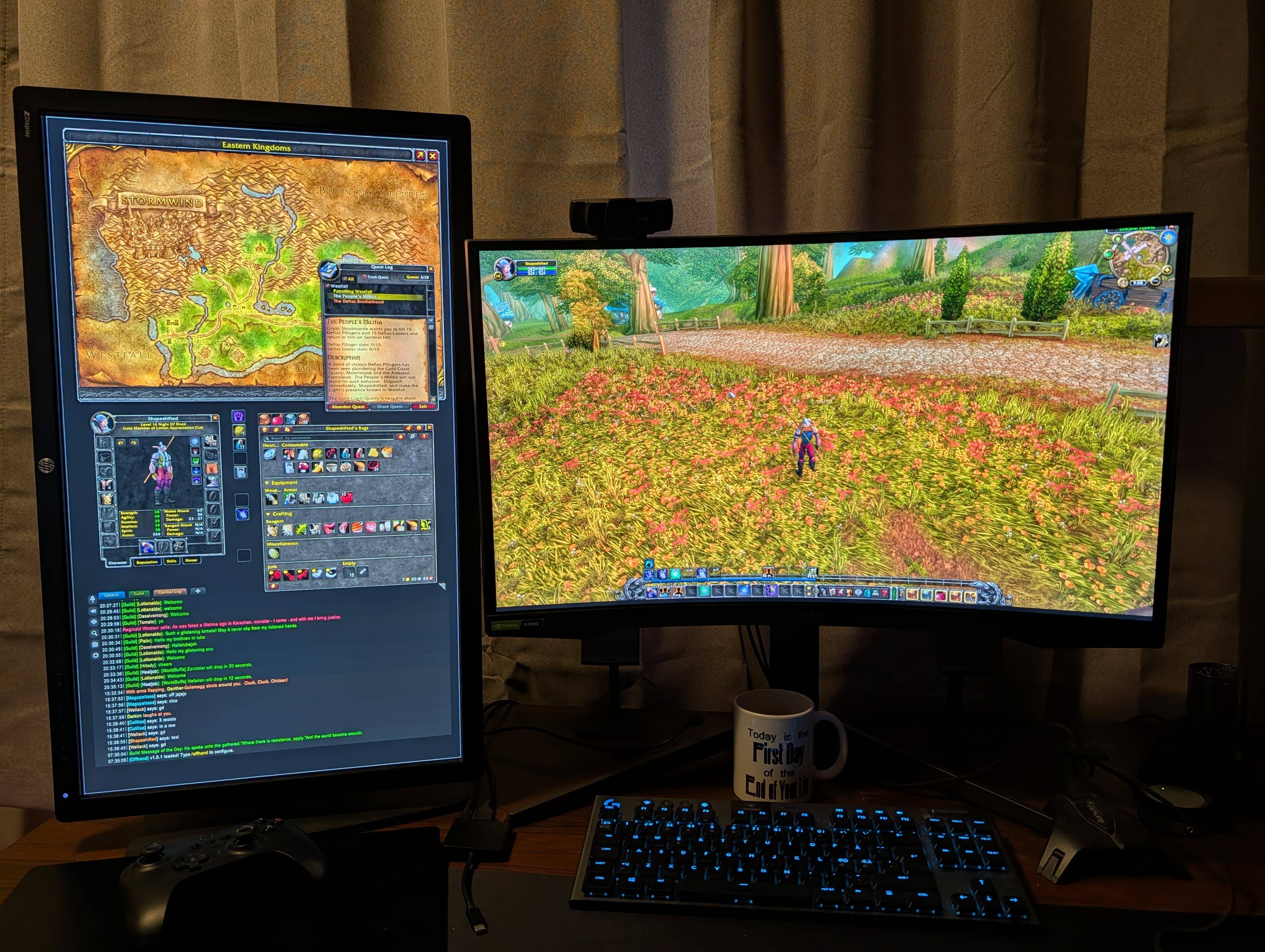
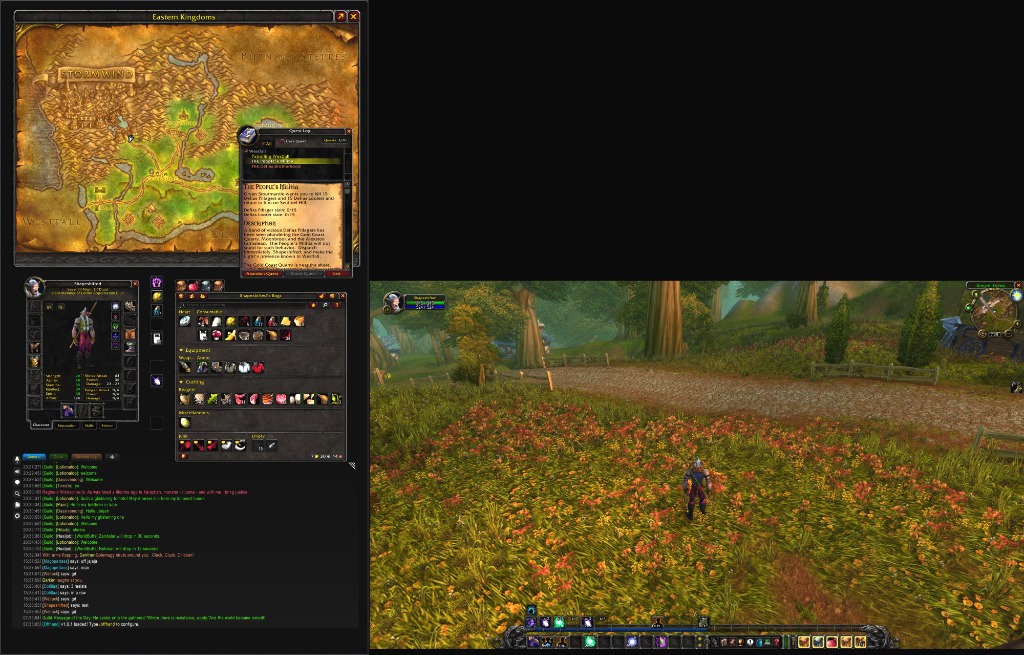
This is how Offhand appears in person, in front of you on your monitors.
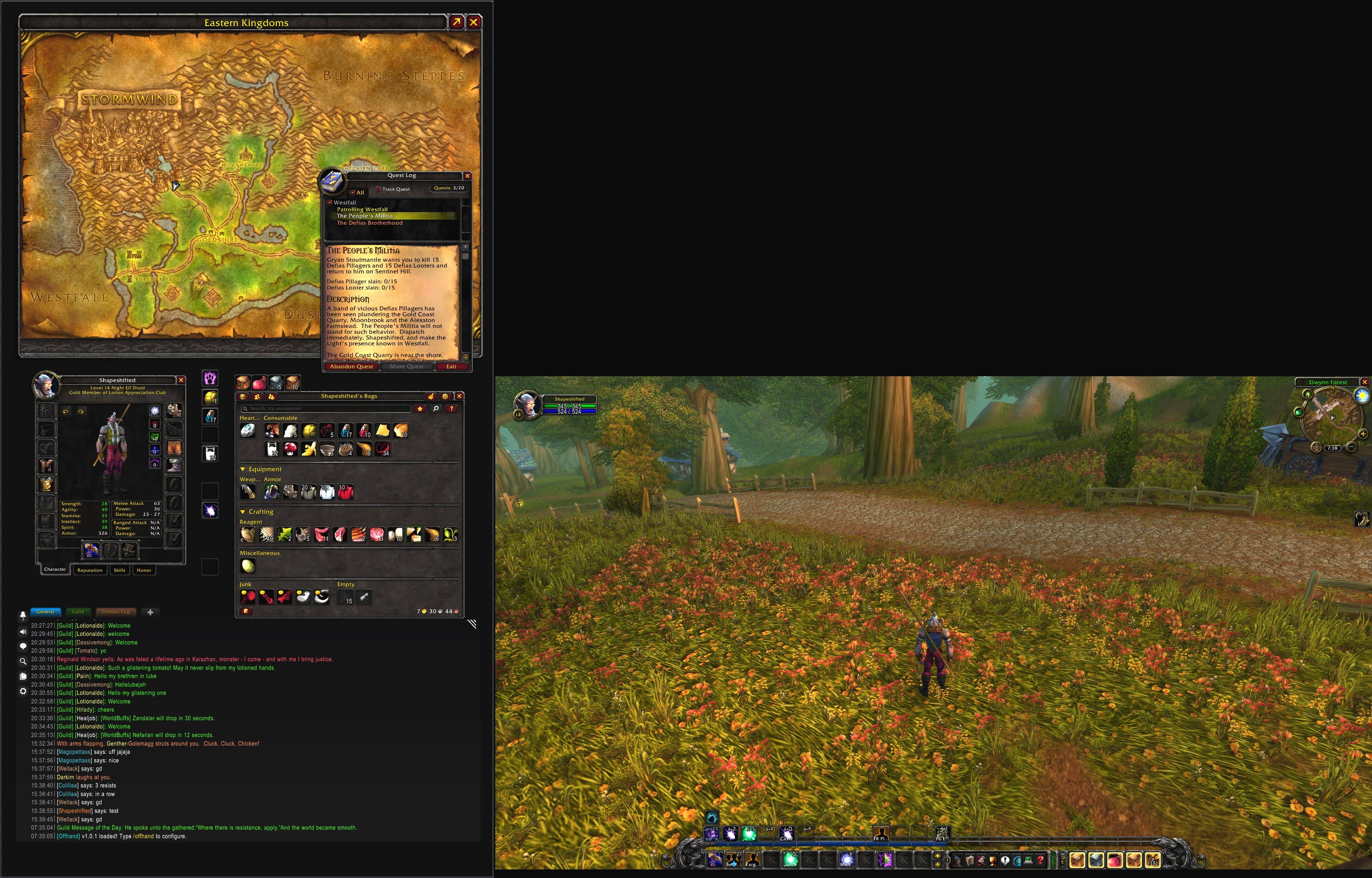
This is how Offhand appears to the game, and when you take a screenshot. The black "void" does not appear in-game.
Description
Offhand - Dual-Screen and Multi-Monitor UI | v2.1.2 PRE-RELEASE (BETA 25)
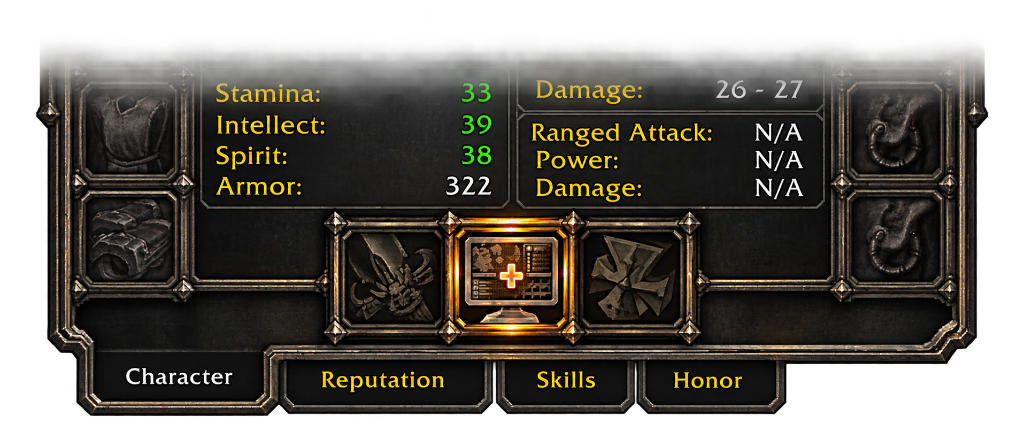
Dual-wield your monitors.
Keep your map, bags, Character panel, chat, and meters accessible without burying the game underneath your UI.
Stretching World of Warcraft across two monitors normally leaves the camera centered on the bezel. Offhand separates the game viewport from the extended UI canvas: your Mainhand holds the game world and combat HUD, while your Offhand becomes a workspace for supported interface panels.
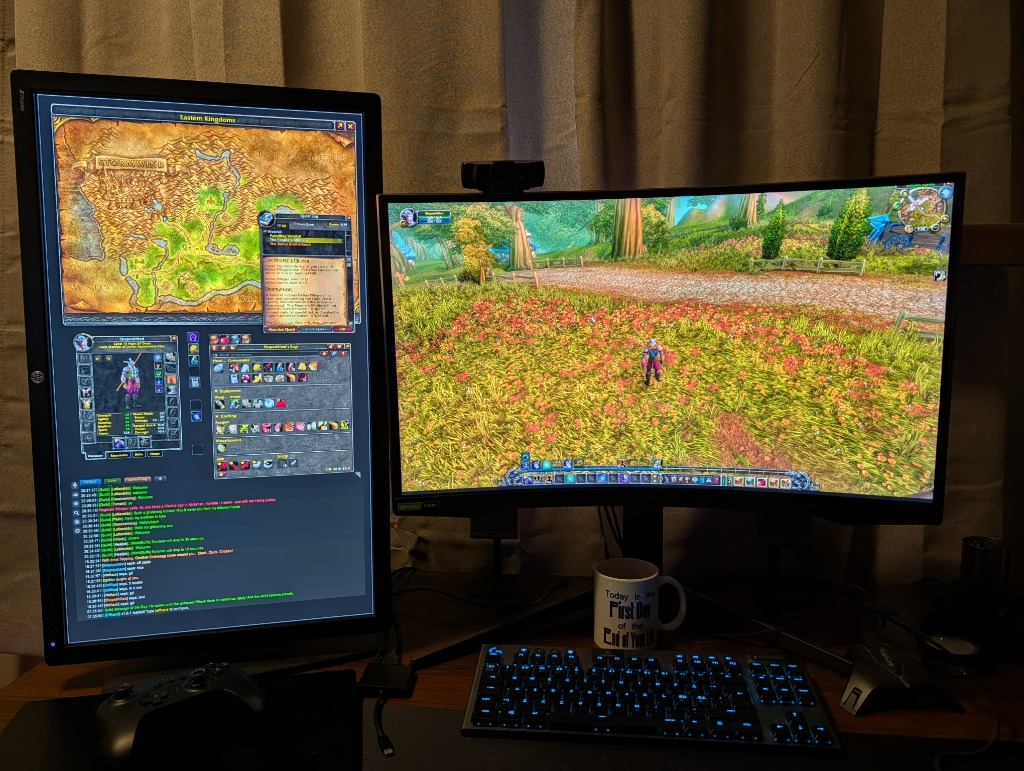
A real desk setup: gameplay on Mainhand, with maps and other panels available on Offhand.
See Offhand in action

Explore the interactive tour for more layouts. Illustrated screen arrangements; available features depend on your WoW client.
Start here: the Offhand website

The official website brings the interactive demo, illustrated setup guides, and Background Studio together in one place.
Explore the demo | Follow the setup guides | Open Background Studio
Download and Quick Start
1. Install Offhand for your WoW client
Close WoW, install Offhand through CurseForge or WowUp, and check that you selected the intended WoW installation. For manual installation, place the Offhand folder in that client's Interface\AddOns folder. Launch WoW and enter the game world.
The addon and the optional Companion are separate components. Installing the addon does not install Companion.
2. Back up your layout and follow the welcome guide
Before spanning, save a copy of your Blizzard Edit Mode layout and back up your UI addon profiles. A larger canvas can shift custom interfaces, including Ellesmere and Naowh setups. Some panels may need repositioning; Offhand does not automatically convert every third-party UI profile.
Open the welcome guide, or type /offhand guide. Choose how to place WoW across your screens:
- Companion, recommended on Windows: use the optional Microsoft Store app for borderless spanning, display selection, and exact monitor geometry, especially with mixed resolutions or stacked displays. Keep Auto-span WoW on launch off during initial setup.
- FancyZones: use Microsoft's PowerToys to create a reusable combined Canvas zone on Windows. Spanning monitors must use the same Windows display scaling percentage.
- Manual placement: resize and position the ordinary WoW window yourself. No Offhand executable is required for this path or FancyZones.
At the display-mode step, click Set to Windowed. If WoW is already Windowed, continue with Place WoW. If your client cannot apply the change automatically, use Open display settings, select Windowed, and apply it. Windowed (Fullscreen) is a different mode.
3. Place the window, then confirm it
Companion: after your character has entered the game world, select your displays and Mainhand (game) in Companion, then click Span WoW Now. Return to the guide in WoW, click Reload UI, then Confirm placement. Maximizing WoW onto one monitor does not replace spanning.
FancyZones or manual: place the window across the intended screens, visually check its position, then click Confirm placement and Remember Window when prompted. This confirms your chosen canvas; it does not automatically detect physical monitor boundaries.
The combined WoW canvas. Unequal display heights can leave unused padding in the screenshot; calibrate to the screens you actually see.
4. Calibrate Mainhand and finish HUD setup
Click Start Calibration, apply the detected recommendation, then check Mainhand, the seam, and UI size. Where supported Blizzard Edit Mode APIs are available, finish with Create Mainhand HUD Layout outside combat with Edit Mode closed, then reload when prompted. On clients without that step, choose Finish Setup.
If Blizzard's custom-layout list is full, open Escape > Edit Mode and its layout dropdown. Export an unwanted custom layout if you may need it later, then delete only a layout you no longer need. Close Edit Mode, reopen /offhand wizard, and retry HUD creation. Offhand does not delete layouts for you.
5. Arrange your panels and check the result
Move supported maps, bags, Character panels, chat, Spellbook, and Talents onto Offhand, where available on your client. Use Blizzard Edit Mode or your HUD addon's own controls for protected action bars and unit frames.
Exit WoW normally, relaunch, restore the intended span, and verify that your workspace and HUD return. FancyZones/manual users may need to reapply their zone or window placement. Companion removes the title bar when it applies a borderless span.
Follow the illustrated setup and settings guide.
Main features
- Mainhand-focused gameplay: keeps the game camera away from the bezel, with supported HUD placement on your game display.
- Accessible UI workspace: places supported maps, bags, Character panels, chat, and meters beside the game. Remembers eligible panel positions and open state, subject to native closing behavior and combat restrictions.
- World Map controls: adjust the supported map's scale and keep it open while moving. External map addons retain their own placement and scale controls.
- Flexible arrangements: portrait/landscape pairs, stacked displays, unequal resolutions, and offsets through exact Companion topology. The single-display 32:9/32:10 mode provides an equal game/workspace split.
- Guided setup and settings: Windowed-mode setup, Mainhand/Offhand identification, calibration, and a five-page settings interface with help and recovery controls.
- Profiles and appearance: saved profiles, themes, accents, custom backgrounds, and adjustments for supported world text, speech bubbles, and group-loot placement.
- Native Forever controller workflow: supported panel drag handles and a bindable gameplay/UI-focus action.
- Recovery tools: Recover Missing UI targets fully off-screen supported windows and HUD elements while preserving visible elements. Broader gather and HUD rebuild actions are separate and can change existing placements. Companion additionally provides window restoration and missing-monitor protection.
- Localization: English, German, French, Spanish, Portuguese, Italian, Russian, Korean, Simplified Chinese, and Traditional Chinese.
Create a custom Offhand background

Background Studio previews your image beside an illustrated Mainhand display and lets you adjust its crop, fit, opacity, and darkening. World Map and Bags outlines are reference guides only; they are not exported.
Processing stays in your browser. The generated Offhand_UserMedia package contains a texture, declarative metadata, a recipe, and installation instructions. It contains no Lua or executable program code. Install it beside Offhand, fully restart WoW, then enable Use installed custom background in Themes & Colors. Normal addon updates leave this separate package alone.
Optional Offhand Companion

Companion is optional. Once Span WoW Now succeeds, you can exit Companion and the current window stays spanned. Leave it running when you want automatic spanning, active display recovery, or the Forever compatibility bridge.
Companion manages the desktop window: borderless spanning, display selection, exact monitor rectangles, restoration, and missing-monitor recovery. The addon manages the in-game viewport and supported UI panels. FancyZones and manual placement remain alternatives that do not require an Offhand executable.

Microsoft Store provides a signed installation and managed updates. For a portable download, use the official Companion Beta 20 release and checksums. The addon and Companion have independent version numbers.
Read the Companion installation, Linux/Wine, and recovery guide.
Security and policy
Companion uses desktop window-management APIs. It does not inject code, read WoW process memory, simulate game input, automate gameplay, install a service or driver, or collect telemetry. Obtain it only from Microsoft Store or the official GitHub release; do not disable security protections or override a named malware detection to install it. Security documentation and download verification.
These design choices, Store availability, and security reviews do not constitute Blizzard approval or guarantee account safety. Blizzard alone interprets and enforces its agreements; review its current terms before using any desktop utility.
Compatibility and Limitations
Clients and platforms
Client targets include Retail, WoW Forever, Classic Era / Hardcore / Season of Discovery, Burning Crusade Classic Anniversary, and Mists of Pandaria Classic, on their declared interfaces. Available HUD and panel features depend on the APIs exposed by your client. Interface declarations do not establish that every feature has been live-tested on every client build.
The in-game addon can be used on Mac and Linux with manual placement or a suitable window manager. Companion is a Windows application; Wine support is experimental and requires WoW and Companion to use the same user, WINEPREFIX, and Wine/Proton runner. Native macOS, X11, and general Wayland Companion support is not claimed.
Third-party UI addons
Offhand yields to external frame owners where appropriate. Compatibility varies by client and addon version:
- OpenMap: use OpenMap's own title handle and controls for placement and scale. Offhand supports its map in the workspace on compatible Retail versions.
- Leatrix Maps: retains its own map controls. If you combine map addons, avoid enabling competing movement and scale controls in more than one addon.
- Bag addons: integration paths include Baganator, Bagnon, AdiBags, ArkInventory, BetterBags, and ElvUI. The bag addon owns its contents and opening logic; native gamepad focus can impose additional restrictions.
- Chattynator and Ellesmere UI: Offhand respects recognized ownership of chat and other supported UI elements. Arrange externally owned chat windows through their addon's own controls.
- Bartender, Dominos, ElvUI, Tukui, and ConsolePort: retain their protected HUD elements. Position them through their own tools; native Forever gamepad handling does not establish complete ConsolePort compatibility.
- Dialogue UI: includes a Mainhand placement adapter. As with other UI replacements, use a matching supported addon/client version and report any placement or interaction problems.
Native Forever Gamepad UI
Bind Toggle gameplay and window focus in controller configuration to switch between gameplay and UI interaction. Back and Escape retain Blizzard's native window-closing behavior in protected UI modes. On supported keyboard workflows, the out-of-combat Escape-persistence option can keep eligible workspace windows open; close buttons and interaction endings still work normally.
WoW Forever persistence
If your settings return after /reload but not after a full restart, see the Companion recovery guide or contact us on Discord. The recovery bridge is a fallback, not a requirement for every installation.
Performance
A larger WoW render canvas may increase GPU load compared with a single-screen window. Performance depends on the client, resolution, graphics settings, and other addons.
Loading screens and graphics changes
WoW's native loading artwork still uses the full spanned window and can crop across unequal or offset displays. As a manual workaround, select Restore Window in Companion before loading, then Span WoW Now after returning to the game world. Offhand's in-world viewport does not control the loading artwork.
If a border remains inside Mainhand after loading, check window placement, Windows scaling, and bezel settings, then include those details in your report.
Recovery: choose the smallest action needed
- A supported window or HUD element is missing: open
/offhand, find Recovery & Preview, and choose Recover Missing UI. It targets fully off-screen supported elements; visible elements on either display stay where they are. Inactive abilities and interaction windows stay closed. Recovered elements may need adjustment, and HUD repairs may require a reload. - You want workspace panels back on Mainhand: Gather Off-Screen UI is a broader gather action. Read its confirmation: it can move supported visible workspace windows and update their saved placements, including windows that were already reachable.
- The protected HUD needs rebuilding: leave combat and close Blizzard Edit Mode, then use Create Mainhand HUD Layout. This can replace edits in the generated Offhand layout and reposition visible HUD systems. Back up your layout first; use missing-only recovery when you want to preserve visible elements.
- Blizzard's custom-layout list is full: open Escape > Edit Mode, use the layout dropdown to export a layout if needed, then delete only an unwanted custom layout. Close Edit Mode, reopen
/offhand wizard, and retry. Offhand does not delete layouts for you.
If the split or window size is wrong, correct the native window placement before rebuilding your HUD or saved panel positions. See the illustrated recovery guide.
Commands
/offhandor/oh: open settings./offhand guide: reopen the setup guide./offhand wizard: open display calibration./offhand gather: open the broader gather action; review its confirmation before moving workspace panels./offhand diag: show troubleshooting diagnostics.
Support and Feedback
Start with the illustrated setup and settings guide. For further help, use the CurseForge comments or join the Offhand Discord. Select Offhand in the Start Here channel to access its channels.
Include your WoW client/build, addon and Companion versions, display arrangement and resolutions, Windows scaling percentage, reproduction steps, screenshots, and any Lua errors.
💖 Special Thanks to the Forever Beta Testers
Offhand was shaped, battle-tested, and refined through dozens of beta iterations thanks to our dedicated Discord testing community. Offhand simply would not have recovered from the initial Reddit release without the help of these people and the time they invested to get Offhand back on the road. Massive gratitude goes out to the players who shared bug captures, "/offhand diag" logs, display configurations, and real-world desk setups throughout the WoW Forever Beta:
Core Contributors & Active Testers
- @who.am_i. — Outstanding bug hunting and combat error isolation, capturing Lua stacks across combat lockdown, quest combining errors, Error Auras, and Beta 21 Party Frame placement.
- @ivellos — Invaluable early testing, continuous multi-monitor configuration checks, and active community showcase participation.
- @bludrunk — Tireless beta testing across successive builds, fast feedback loops, and support triage, supportive ear and bit of a badass.
- @alex_292 — Dedicated daily beta testing, configuration feedback, and hands-on community troubleshooting.
- @.kukaracha — Thorough Companion app window scaling testing, text scaling feedback, and dual-display layout verification.
- @jarmen4u — Critical testing on multi-window chat behavior and helping isolate the secondary chat window reset defect across /reload.
- @baddino72 — Leading Linux & Wine compatibility testing, window manager focus handling, and multi-screen UI rearrangement verification.
- @luthia. — Druid form shifting and stance bar layout testing, helping identify stance-change profile reapplication issues. Cutscene issues and more!
- @moshtradamus — Identifying and documenting mixed-height monitor dead space and edge alignment challenges.
- @rich18144 — Reliable long-term beta testing, regression verification, and bug tracking across early releases.
- @magic815 — Addon compatibility testing (Better Forever Chat) and chat related issues, map issues, text scale feedback, nameplate scaling and setup reports.
- @_spada — Profile persistence feedback, dual-monitor showcases, and workflow suggestions.
- @.loomi — Battleground score frame placement reports and UI resizing feedback.
- @meilu87 — Investigating and identifying Forever client rendering engine issues with AA/MSAA sharpness and tearing.
- @kustos — Windows desktop DPI scaling and issues around 3-monitor setups.
- @paayog — The first person to reach out and offer a helping hand after the Reddit debacle. Thank you!
- @monky9938 — The OG Linux tester, provided compatibility, companion and general testing from day 1 of the discord!
- @trapscallion — UI frames and companion tester, security & packaging, all-round support!
Showcase & Community Testers
Special thanks also to @lodenk, @kaylipso, @_valand, @tpkruse, @fungdark, @g4nsk1, @.darocketeer, @flipmyswitch, @wallaweegie, @jimmythegent, @felo7474, @.meggie., and all members of the N4UX ADDONS Discord who shared diagnostics, screenshots, feedback and logs and simply downloaded Offhand and took a leap of faith to trust the process and project!
Disclaimer
AI tools assisted development and coding. Project direction, testing decisions, and published releases remain the author's responsibility.
World of Warcraft is a trademark of Blizzard Entertainment, Inc. Offhand is an independent community project and is not affiliated with or endorsed by Blizzard Entertainment.
Offhand - Dual-Screen and Multi-Monitor UI Team