MissionFocus
Minimal Quest Tracker with Tracker Action Hotkey and Custom Questline Support.
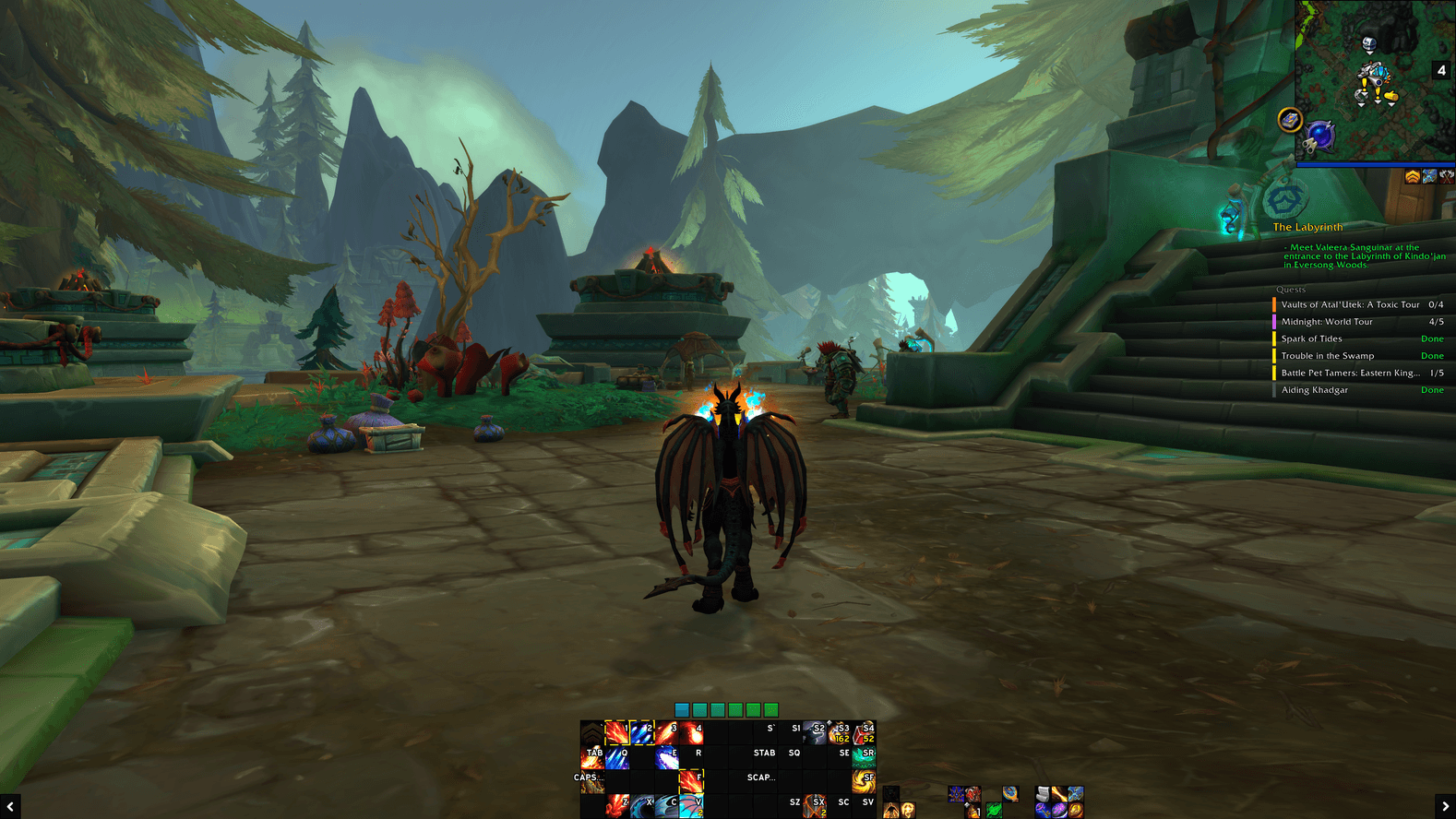
ss001.png
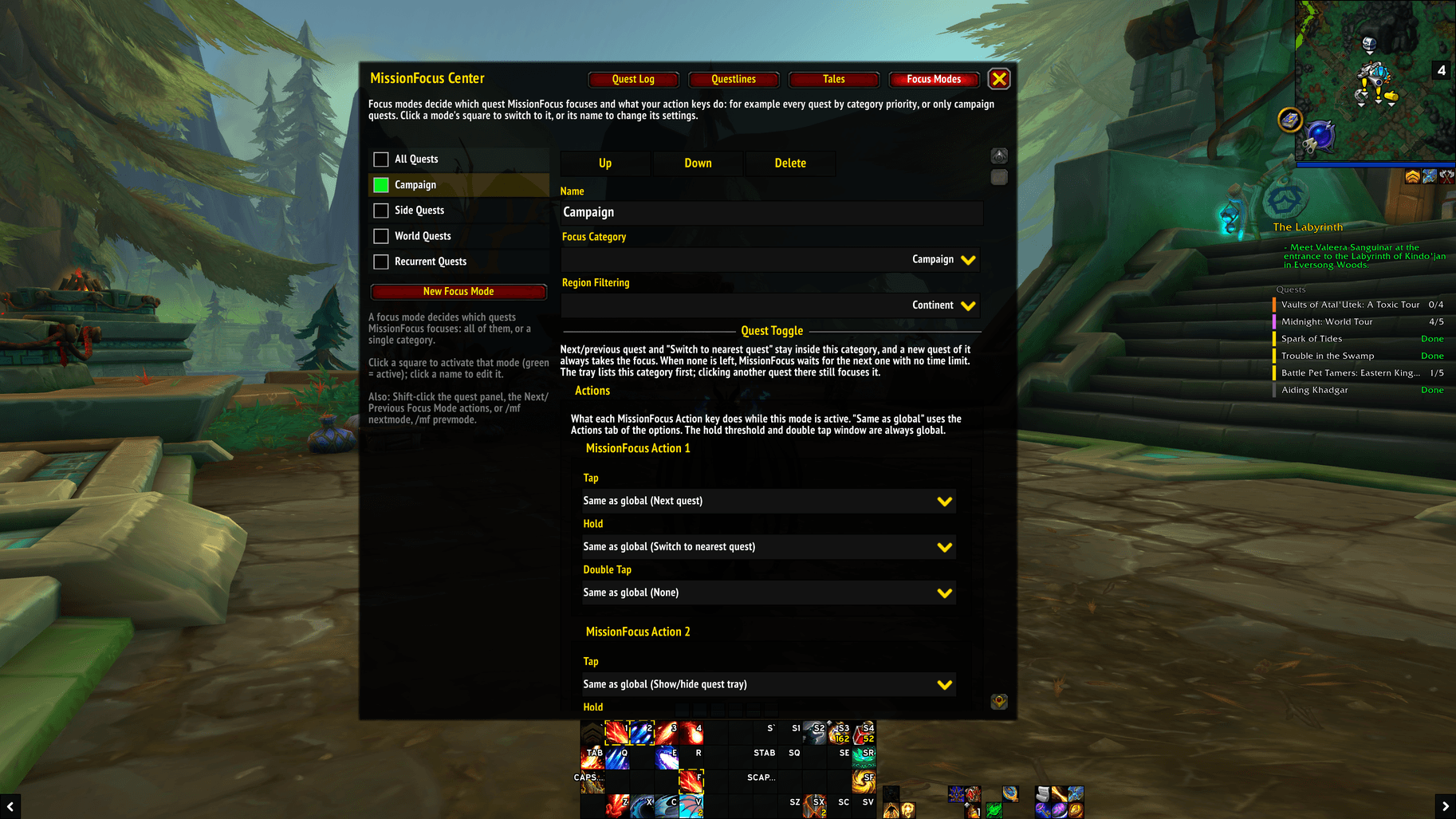
ss002.png
ss003.png
Description
MissionFocus
A World of Warcraft addon that replaces the quest tracker with one quest at a time. A small panel shows the quest you are working on, with its objectives and progress. Your other quests wait in a tray you open when you need them. Less clutter on screen, more attention on the quest in front of you.
Works on Retail (MissionFocus.toc) and WoW Forever (MissionFocus_Camelot.toc).
The panel
The focused quest is the game's own super-tracked quest: the one the map arrow and waypoint point to. Focus a quest in MissionFocus and the game's waypoint follows, and the other way round.
The panel shows the quest's category (Campaign, Side Quest...), title, objectives and progress bars, and a few buttons:
- Next quest button: click for the next quest, right-click for the previous one.
- Tray button: show or hide your other quests.
- Quest item button: use the focused quest's item. When the focused quest has none, it can offer the item of the nearest quest in your zone (shown greyscale with a yellow "!"); using it also focuses that quest. In combat the button cannot change: if you switch quests, it dims until combat ends.
Clicking the quest title:
| Click | Does |
|---|---|
| Click | Show/hide the quest tray |
| Shift-click | Switch focus mode |
| Right-click | Open the MissionFocus Center |
| Shift-right-click | Open the quest in the game's quest log |
Want the screen empty? Hide the panel (immersion mode, /mf panel or a key): the quest stays tracked and focused, and cycling and the item key keep working.
The quest tray
A list of your other quests, in category order, each with its category. Click one to focus it, right-click to open it in the quest log, Shift-click to stop tracking it. It can also list the untracked quests of your log (dimmed; Shift-click to track one), and show each quest's objective progress.
Keybindings
In Options > Keybindings > AddOns > MissionFocus there are three action keys and one item key:
- MissionFocus Action 1-3: each key can do something different on a tap, a hold and a double tap. Choose what in the options' Actions tab.
- Use Focused Quest Item: uses the quest item button, even while the panel is hidden.
Actions: next / previous quest, switch to the nearest quest, next / previous category, next / previous focus mode, show/hide the tray, hide/show the panel, peek at the tray or panel (while the key is held), open the quest in the game's quest log, untrack the quest, open the MissionFocus Center, set region filtering, next tale step, open the options.
Focus modes
A focus mode decides which quests you cycle through and which quest takes the focus next.
- All Quests (built in): every category, in your priority order (Quest Toggle tab of the options). A new quest of a higher priority category takes the focus. When you finish the last quest of a category, MissionFocus can wait a little for the next quest of the chain before moving on.
- Your own modes: focus one category only (for example Campaign), with its own settings and its own action keys. A new quest of that category always takes the focus.
Each mode can also filter by region: quests that have nothing to do with your current world, continent or zone are grouped at the end of the tray and skipped when cycling.
Switch modes from the panel (Shift-click the title), with a key, or with /mf nextmode. Edit them in the MissionFocus Center, Focus Modes tab.
Objectives where you are
Scenarios, delves, and world quests or bonus objectives whose area you are in can show:
- As Secondary Focus (default): in a smaller block under the panel.
- As Main Focus: on the panel itself while they last; your focused quest comes back when they end.
- Off.
The MissionFocus Center
Right-click the quest title (or /mf log) to open it. Its tabs:
- Quest Log: every quest in your log, tracked or not, with when, where and from whom you accepted it. Sort, filter, and act on quests. Quests that were already in your log before MissionFocus was installed show when it first saw them instead.
- Questlines: the questlines you recently worked on, and where you stand in each, as a timeline of their steps. Find Quests looks for questlines you can start or continue on your current map. The game only reveals questlines it is offering there, so single quests, and quests not offered to you yet, don't show up.
- Focus Modes: create and edit focus modes.
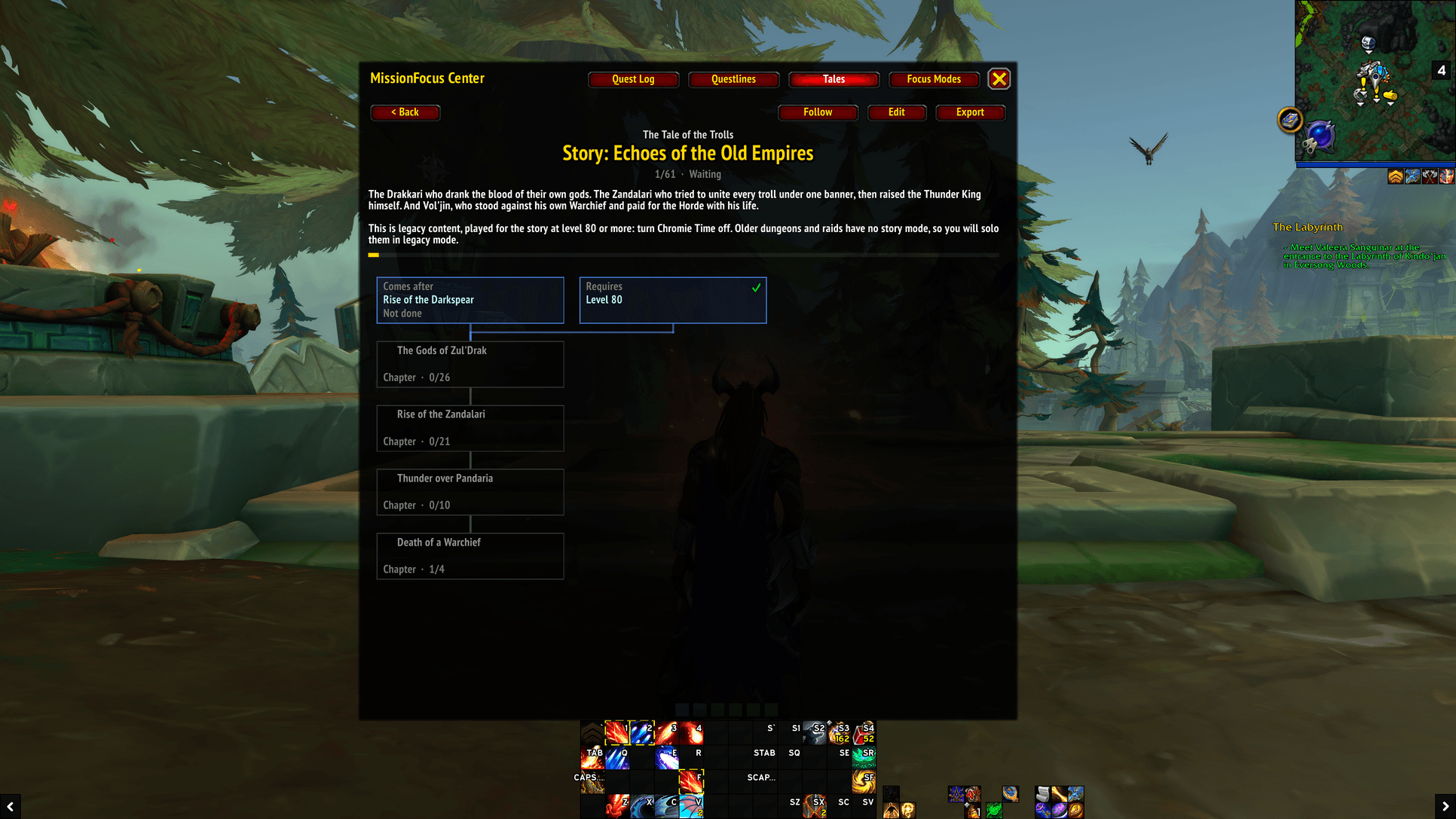
- Tales: Adventurer's Tales, below.
Adventurer's Tales
Build your own path through Warcraft's stories, and follow it: which quests, questlines, dungeons and places to play, in which order, and why they matter. A tale is organized like a book (stories, chapters, steps), can have parallel paths, and can be shared as text with other players. MissionFocus ships with The Tale of the Trolls, a Horde tale.
See readme_adventurer_tales.md for the full guide.
BtWQuests (optional)
If the BtWQuests addon is installed, MissionFocus can use its quest database (option in the General tab): parallel branches and prerequisites in the Questlines tab, quest givers' locations, more quests found by Find Quests, and a chain search in the tale editor. Everything works without it.
Slash commands
/mf or /missionfocus opens the options. They are also in the game's AddOns settings.
| Command | Does |
|---|---|
/mf next, /mf prev |
Next / previous quest |
/mf nearest |
Focus the nearest quest |
/mf nextcat, /mf prevcat |
First quest of the next / previous category |
/mf nextmode, /mf prevmode |
Next / previous focus mode |
/mf modes |
Open the Focus Modes tab |
/mf tray |
Show/hide the quest tray |
/mf panel |
Hide/show the quest panel |
/mf log |
Open/close the MissionFocus Center |
/mf tales |
Open the Tales tab |
/mf tale |
Next step of the tale you follow |
/mf reset |
Move the panel back to its default position |
/mf where |
Location diagnostics (for bug reports) |
Appearance
Fonts, colors (the title can take its category's color), progress bars, panel width and scale, position (unlock and drag the title), item button side and size, and three frame styles:
- Blizzard: flat background with a tooltip border.
- Border Blur: a background whose edges fade out.
- Fading: a soft glow behind the quest title.
Limitations
- MissionFocus hides the game's objective tracker, which also shows scenarios, achievements and bonus objectives. MissionFocus shows scenarios, delves and area objectives itself, but not tracked achievements.
- By default, inside dungeons, raids, delves and scenarios MissionFocus steps aside and brings the game's tracker back (it shows the instance objectives). Turn off "Use Blizzard Tracker in Instances" to keep MissionFocus there too.
- The game keeps no record of when or where a quest was accepted, or of recently finished questlines. MissionFocus records them from the moment it is installed, per character.
Development
Tools/holds scripts that are not part of the addon: the tale checker and a questline lookup. See Tools/README.md. The packaged addon leaves it out (.pkgmeta).notshipped/is for working files that stay out of the packaged addon, such as the high-res logo.notshipped/make_icon.pymakes the in-game icon (Icons/logo.tga) from it.- The built-in tales are built by generators in a separate private repository, because they use a copy of BtWQuests' data.
License
MissionFocus Team