ClassCloset
For tier set appearance hunters. A way to organize, tag, and visualize it better.
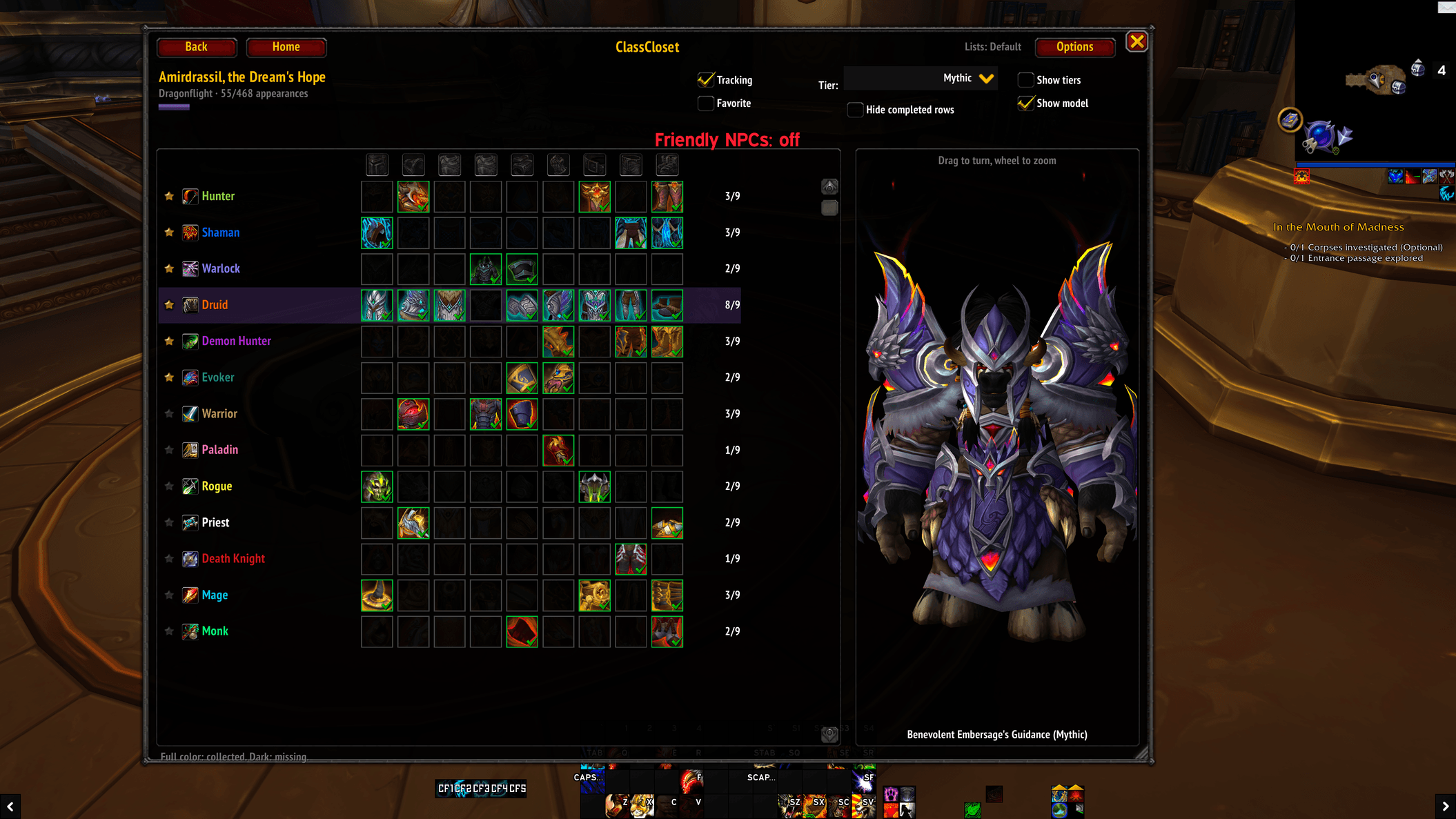
ss001.png
Description
ClassCloset
A World of Warcraft (Retail) addon to track transmog set appearances for every class. Each set gets a table where the rows are the classes, the columns are the slots, and each cell is the piece's icon: full color when you have that appearance, dark when you are missing it.
Only appearances count. Any item with the same look counts as collected, like the game's "unique appearances" view.
Window
/cc (or /classcloset) opens and closes the window. You can move it, resize it from the corner, and close it with Escape. Back and Home move between pages.
Home
Three lists:
| List | What it shows |
|---|---|
| Tracking | Sets you are working on. |
| Favorites | Sets you like. |
| Completed | Sets where you have every appearance, for every shown class and tier. Checking every set is heavy, so it only runs when you click Find completed. With the "only my lists" option it checks just your Tracking and Favorites sets, which is quick and runs by itself. When your collection changes, the list says "Out of date" until you check again. |
Each row shows the set's progress. Click a set to open its table.
The Newest button at the top opens the Newest page (see below), and shows how many appearances you collected today and this week. Configure, under Tracking and Favorites, opens the set list for that list.
Configure (choosing sets)
- Every set, with a search box, an expansion filter, Class sets only (sets where each class has its own version, like raid tier sets) and Hide completed.
- Check a set to add it to the list. Click a set to see it on your character on the right. Double-click or right-click to open its table.
- Saved in profile picks where the lists are saved (see Profiles).
Set table
- One row per class. Click the star to make a class a favorite in this set: it is listed first in this set's table. Each set has its own favorite classes.
- Tier picks the version (for example Raid Finder, Normal, Heroic, Mythic). Show tiers shows one row per class and tier instead.
- Hide completed rows, Show model, and Tracking / Favorite check boxes for the set.
- Hovering a piece shows its name, slot, whether you have the appearance, and where to get it: every item with that look, with the boss, instance and difficulties that drop it, or the source type (vendor, quest, achievement...). A check or a cross shows which of those items you already have.
- The model shows your own class's version first. Click a row to show it. Click a cell to try that piece on; right-click shows the whole row; shift-click links the item.
Newest
The latest appearances you collected, newest first: the item, when, where (zone, subzone, instance and difficulty) and who (which character). Click one that belongs to a set to open that set's table. Only this character filters the list, Clear empties it.
- The list keeps the latest 200 appearances (option). It is shared by all your characters and profiles.
- By default only new looks are kept: an item whose look you already had from another item is left out (option).
- It starts empty: ClassCloset can only record what you collect while it is installed.
In set tables, pieces you collected in the last 24 hours glow gold, and in the last 7 days silver, with a pulsing glow. The glow, the pulse and both colors can be changed in the options.
How sets are grouped
The game lists one set per class (and per tier). ClassCloset puts together the sets that share the game's source label (the raid or season name), expansion and patch: that is one ClassCloset set. Its tiers are the game's set variants, matched by name (Normal, Heroic...).
Profiles
Your Tracking and Favorites lists, each set's favorite classes and display choices are saved in the profile.
- Default profile: shared by every character (account lists). This is the default.
- Character profile: pick it in Configure or in the Profiles options to give a character its own lists.
Options
/cc options, the Options button, or the game's AddOns settings.
- General: what Completed lists, the defaults for the model, filters, tiers, icon size and how dark missing pieces are, the glow on recently collected pieces, and the Newest list (how many to keep, only new looks).
- Classes: which classes are shown (hidden classes are left out of tables and progress).
- Profiles.
Commands
| Command | Does |
|---|---|
/cc |
Open or close the window |
/cc options |
Open the options |
/cc debug |
Print what the game reports: number of sets, sets per class, a few examples |
/cc rebuild |
Read the game's sets again |
Limitations
- The model is always your own character (race and body). Class does not change how a set looks, so this shows the set as you would wear it.
- Grouping relies on the game's labels. A set the game labels differently from its siblings shows on its own.
- Not tested in game yet.
ClassCloset Team