Iconic – Icon Search
- By
A searchable icon picker for macros, equipment sets, banks and outfits. Works in Retail, Forever and Classic.
🇩🇪 Deutsche Beschreibung weiter unten (German description below)
Iconic
A searchable icon picker for World of Warcraft: WoW Forever, retail and Classic.
Imagine you've just put together a new equipment set or written the perfect macro. But now it needs an icon. After scrolling through WoW's 33,000 icons looking for the right one, you just give up.
Why is it so hard to find the icon you have in mind? Why can't you just search for "golden shield" or "arrow", or even for your favourite spell or item?
This is where Iconic comes in. It adds a search box, filters and categories to the icon picker, so you find exactly the icon you want.
⚠️ Early version: please report bugs on GitHub.
My new "Avenger Tank" outfit is finally ready. Now it needs an icon… something purple.
A shield, maybe?
With a hint of gold. Just a hint.

A few seconds, and there it is.
Finding icons
- What icons show: we analyzed over 30,000 icons, so you can search by what they show, such as "werewolf" or "rose". Spell, item, mount, pet and currency names work too, and typos still find close matches.
- Colors: search by one or more colors. Icons are sorted by how closely they match. Looking for an icon that's red and green? Iconic has you covered.
- Filters: source, class, Blizzard category, Iconic category and profession, or only your own spells and items.
- Grouping: group the icons by source, class, Blizzard category, Iconic category, profession or color.
- Suggestions: icons that fit where you opened the picker, such as the items in a bank tab, the spells in a macro or your spec icons.
- Recently used: the icons you picked last.
- Icon IDs in tooltips, always or while holding Shift, Ctrl or Alt (Options → AddOns → Iconic).
- German: in a German game client, the interface is in German and icons are found by their German and English names.
/iconicopens a standalone browser to look up icons and copy their IDs.
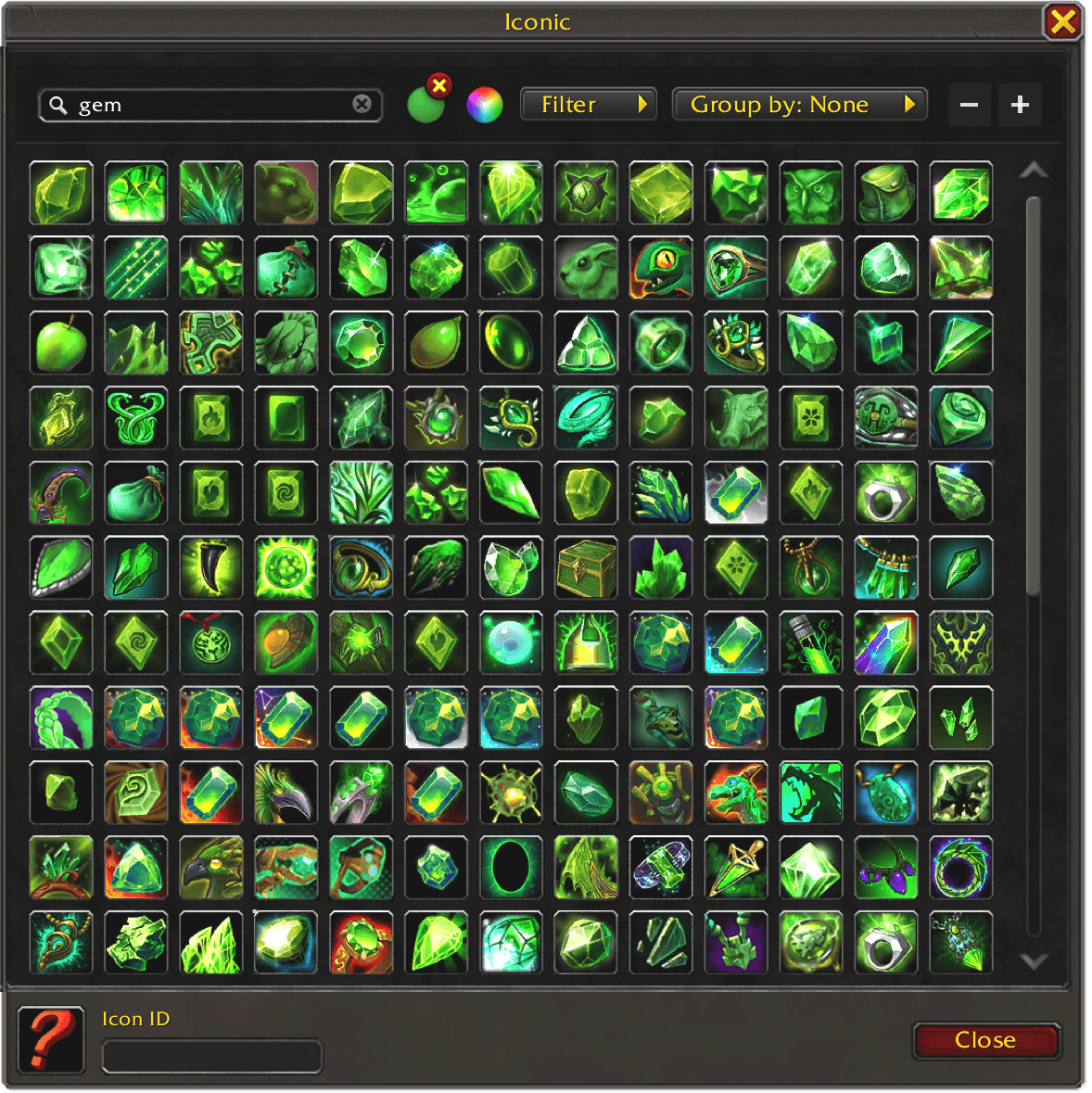
Search icons everywhere
Iconic replaces the icon grid wherever the game lets you choose an icon:
- Macros
- Equipment sets
- Bank tabs
- Guild bank tabs
- Transmog outfits
It also replaces the built-in icon pickers of these add-ons:
- Bagnon: filter editor, bank tabs and guild bank tabs
- Baganator: bank tabs
- Clique: custom macros
- Details!, Plater and World Quest Tracker (DetailsFramework)
- Any other add-on that uses Iconic's API
Add-on authors are encouraged to add Iconic support to their add-ons: Iconic.OpenPicker(onChoose, opts) opens Iconic as a picker, and Iconic.RegisterPicker(frame, adapter) puts Iconic into your own icon picker (see UI/API.lua). Alternatively, contribute an adapter like the ones in Adapters.
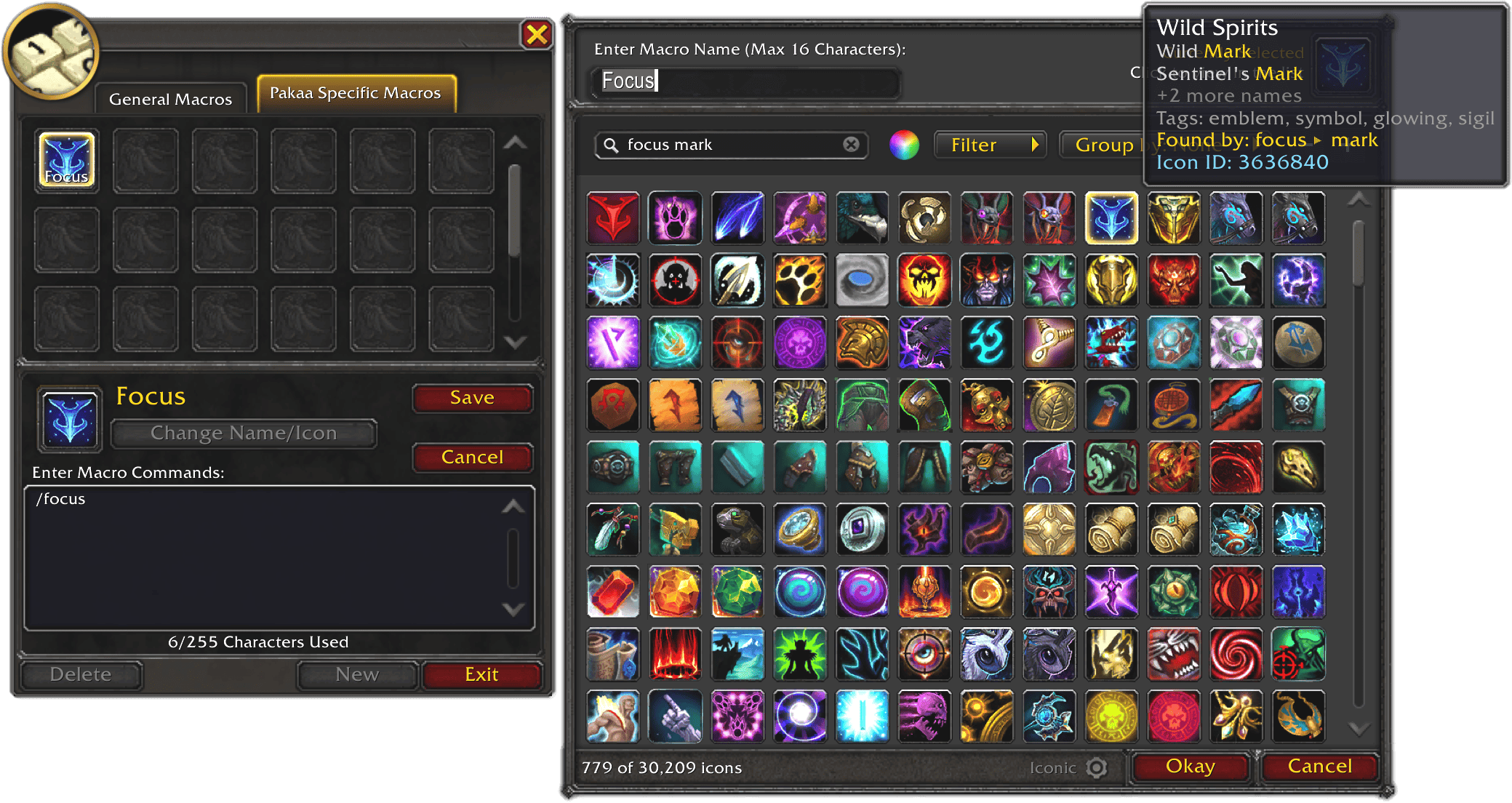
Getting started
- Open the macro window (
/macro) and create or edit a macro. Iconic replaces the icon grid. - Type in the search box, or pick filters from the toolbar.
- Type
/iconicto browse icons without changing anything, and/iconic settingsfor the options.
Iconic (Deutsch)
Icons durchsuchen statt durchscrollen – für World of Warcraft: WoW Forever, Retail und Classic.
Das neue Ausrüstungsset steht, das Makro ist perfekt – fehlt nur noch das passende Icon. Also scrollst du durch über 33.000 Icons, bis du irgendwann entnervt das Fragezeichen nimmst.
Dabei hast du das Icon doch längst im Kopf. Warum kannst du nicht einfach nach „goldener Schild“ oder „Pfeil“ suchen? Oder nach deinem Lieblingszauber oder einem bestimmten Gegenstand?
Genau dafür gibt es Iconic. Es erweitert die Icon-Auswahl um Suche, Filter und Kategorien, damit du schnell genau das Icon findest, das du suchst.
⚠️ Frühe Version: Fehler bitte auf GitHub melden.
Mein neues Pala-Tank-Outfit ist endlich fertig. Jetzt fehlt nur noch ein Icon … irgendwas Lilanes.
Vielleicht ein Schild?
Mit etwas Gold. Aber nur ein bisschen.
Ein paar Sekunden später ist es gefunden.
Icons finden
- Nach Motiv: Wir haben über 30.000 Icons ausgewertet. Du kannst also nach dem suchen, was darauf zu sehen ist, zum Beispiel „Werwolf“ oder „Rose“. Auch Namen von Zaubern, Gegenständen, Reittieren, Haustieren und Währungen funktionieren – und Tippfehler verzeiht die Suche auch.
- Nach Farbe: Such nach Farben, die besten Treffer stehen oben. Du suchst ein Icon mit mehreren Farben, zum Beispiel Rot und Grün? Kein Problem.
- Filter: nach Herkunft, Klasse, Blizzard-Kategorie, Iconic-Kategorie und Beruf – oder nur deine eigenen Zauber und Gegenstände.
- Gruppieren: nach Herkunft, Klasse, Blizzard-Kategorie, Iconic-Kategorie, Beruf oder Farbe.
- Vorschläge: Icons, die zum Kontext passen, etwa die Gegenstände in einem Banktab, die Zauber in einem Makro oder die Icons deiner Spezialisierungen.
- Zuletzt verwendet: die Icons, die du zuletzt gewählt hast.
- Icon-IDs im Tooltip, immer oder nur mit gedrückter Umschalt-, Strg- oder Alt-Taste (Optionen → AddOns → Iconic).
- Auf Deutsch: Im deutschen Client ist die Oberfläche auf Deutsch, und du findest Icons über ihre deutschen und englischen Namen.
- Mit
/iconicöffnest du einen eigenen Browser, um Icons nachzuschlagen und ihre IDs zu kopieren.
Überall verfügbar
Iconic ersetzt die Icon-Auswahl überall dort, wo das Spiel dich ein Icon wählen lässt:
- Makros
- Ausrüstungssets
- Banktabs
- Gildenbanktabs
- Transmog-Outfits
Auch in diesen Add-ons ersetzt es die eingebaute Icon-Auswahl:
- Bagnon: Filter-Editor, Banktabs und Gildenbanktabs
- Baganator: Banktabs
- Clique: eigene Makros
- Details!, Plater und World Quest Tracker (DetailsFramework)
- Jedes weitere Add-on, das die Iconic-API nutzt
Du entwickelst selbst Add-ons? Dann bau gern Iconic ein: Iconic.OpenPicker(onChoose, opts) öffnet Iconic als Auswahl, und Iconic.RegisterPicker(frame, adapter) bindet Iconic in deine eigene Icon-Auswahl ein (siehe UI/API.lua). Alternativ kannst du einen Adapter beisteuern, so wie die in Adapters.
So geht's
- Öffne das Makrofenster (
/macro) und leg ein Makro an oder bearbeite eins. Statt der üblichen Icon-Liste erscheint Iconic. - Tipp einfach ins Suchfeld oder wähl Filter in der Leiste oben.
- Mit
/iconicstöberst du durch die Icons, ohne etwas zu ändern./iconic settingsöffnet die Einstellungen.
Iconic – Icon Search Team