HunterMaster
- By
Stop clipping autos and guessing the dead zone. The whole hunter kit in one movable group: swing timer, range zones, stings on every enemy, pet, traps, cooldowns, and radial menus that work in combat.
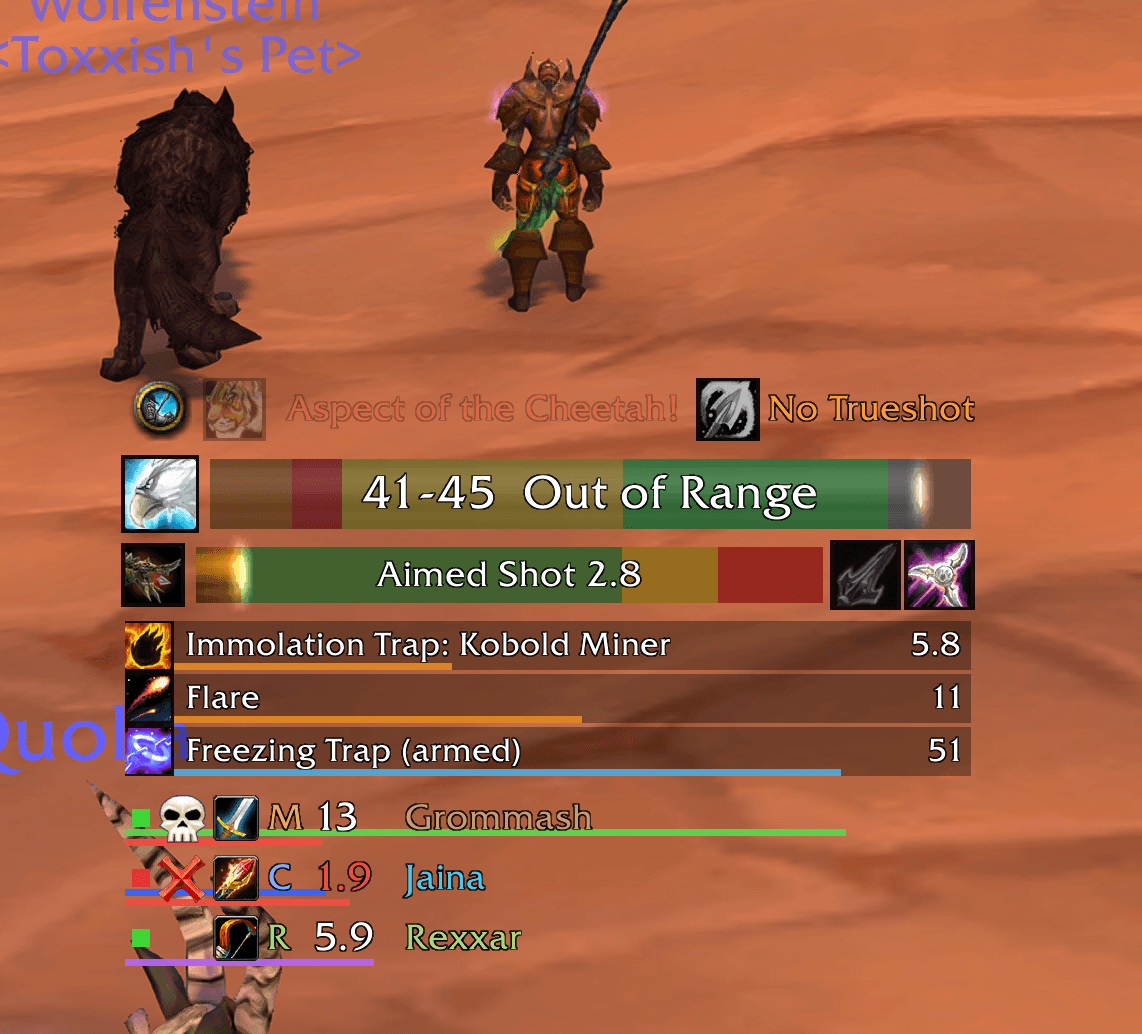
Configurable Action Bars, HuD, Cooldowns.
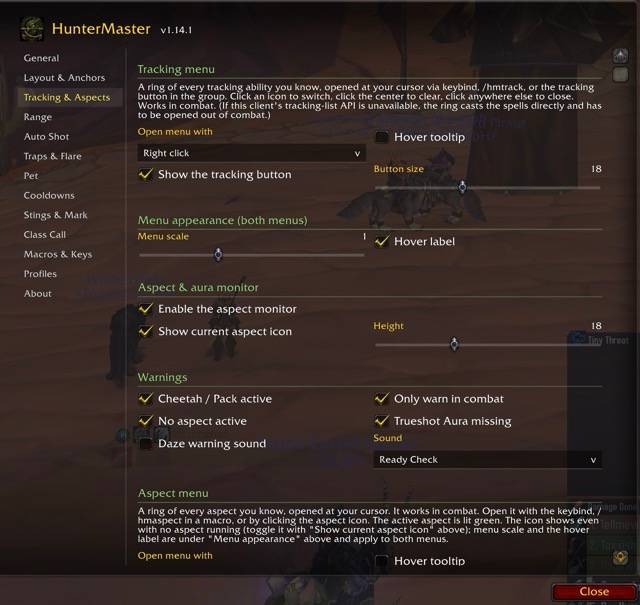
Screenshot 2026-08-13 at 7.07.56â¯PM Medium.jpeg
Screenshot 2026-08-13 at 7.07.45â¯PM Medium.jpeg
Screenshot 2026-08-13 at 7.08.23â¯PM Medium.jpeg
Screenshot 2026-08-13 at 7.08.12â¯PM Medium.jpeg
Screenshot 2026-08-13 at 7.07.56â¯PM Medium.jpeg
Description
HunterMaster
Stop clipping autos and guessing the dead zone. The whole hunter kit in one movable group: swing timer, range zones, stings on every enemy, pet, traps, cooldowns, and radial menus that work in combat. For WoW Classic Era (1.15.9).
Everything sits in one group you place once and read at a glance. Spell icons everywhere, so you can read it without reading.
What it does
- Names the range band you're standing in: melee, the dead zone, Warrior Charge range, the sweet spot, or Hawk Eye long range.
- Times your Auto Shot swing and shows when weaving Multi-Shot or Aimed Shot is safe, when it would clip the next auto, and what a clip cost you when it happens.
- Tracks your stings and Hunter's Mark on every enemy you've tagged, not just your current target. Click a row to target that enemy; marked enemies sort in kill order.
- Puts tracking and aspects one click away on radial menus that work in combat, and warns before Cheetah gets you dazed, when you have no aspect, or when Trueshot Aura fell off.
- Watches your pet's health, focus, and happiness, with one-click Call, Revive, and Mend buttons.
- Times your traps and Flare, and glows the trap icon the moment a new one can go down.
- Shows exactly the cooldowns you pick and nothing else.
- Stows and re-equips your ranged weapon in one press for Nefarian's hunter class call.
All of it lives in one movable group you place once. Named profiles (pvp, pve) switch every setting at once, and every option in the panel explains itself when you hover it.
Installation
- Exit the game.
- Copy the
HunterMasterfolder intoWorld of Warcraft\_classic_era_\Interface\AddOns\ - Log in and check that HunterMaster is enabled in the AddOns list.
Type /hm to open the options.
Quick start
Right-click the minimap button and pick Unlock frames. The group fills with preview data. Drag anywhere on it to move it, drag the corner grip to scale it, then lock it again from the same menu. Every module has its own options page, and changes apply as you make them.
Modules
Range
Estimates the distance to your target and names the zone you're in:
| Zone | Meaning |
|---|---|
| Melee (0-5) | Wing Clip / Raptor Strike range |
| Dead zone (5-8) | Too close to shoot, too far to melee |
| Charge range (8-25) | An enemy Warrior can Charge or Intercept you |
| Sweet spot (25+) | In shot range, out of Charge range |
| Long range | 35-41 yd with Hawk Eye, past most caster ranges |
The Charge zone gets its own icon and optional sound. Display styles: zone bar (horizontal or vertical), big number, ring, or minimal. Hawk Eye ranks are read from your talents. Range checking runs on the bundled LibRangeCheck-3.0, the same library RangeDisplay and WeakAuras use, with a hunter-specific fallback if it can't answer.
If a reading looks wrong, target something and type /hm debug, then send
the output. It prints what every range API returned.
Aspects
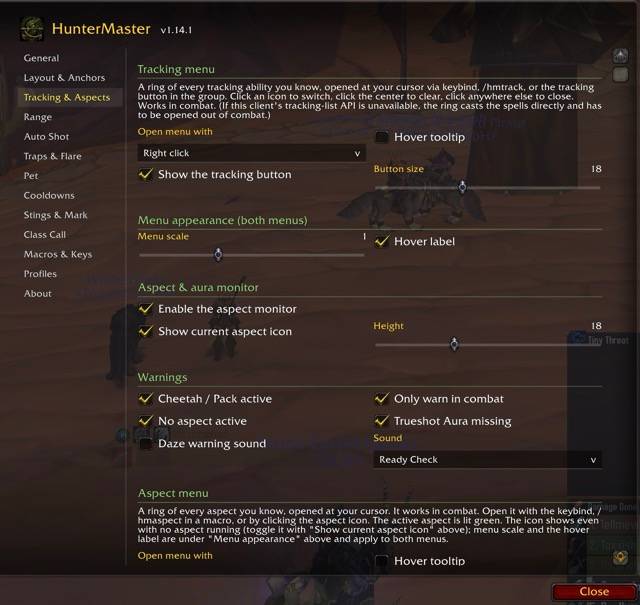
A slim strip that shows your current aspect and warns when something needs fixing: Cheetah or Pack still on (getting hit means a daze, so it pulses and can play a sound, by default only in combat), no aspect at all, or Trueshot Aura missing when you know the talent.
Auto Shot
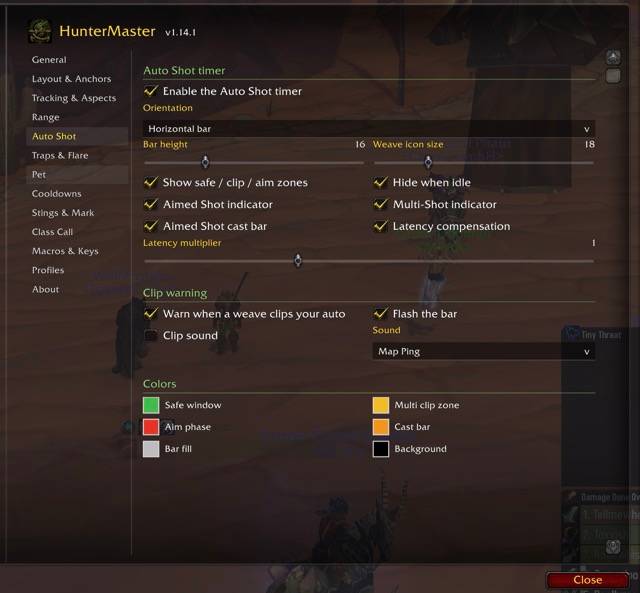
A swing timer using the same event model as Trueflight and WeaponSwingTimer:
- Green: safe to move and weave.
- Yellow: casting Multi-Shot now would clip your next auto.
- Red: aiming, stand still.
The Aimed Shot and Multi-Shot icons light up when a weave is safe and show their real cooldowns. An Aimed Shot cast bar with vanilla pushback rules overlays the swing bar while casting. Latency compensation, Feign Death, weapon swaps, and mid-swing haste changes are all handled.
If you do clip an auto, the bar flashes red with a "Clip!" cue and an optional sound, and once the delayed shot lands it shows what the clip cost, for example "Clip! +0.4s". Useful for practicing clean weaves.
Stings & Hunter's Mark
Tracks Serpent, Scorpid, Viper, and Wyvern Sting plus Hunter's Mark on any number of enemies at once, not just your current target — and only yours, never another hunter's. Each compact row shows the raid marker, class icon, a melee/caster/ranged letter, the remaining time, an in-range dot, and the name. The row's duration bar is colored by the sting (Serpent green, Scorpid purple, Viper blue, Wyvern orange out of the box - every color, including Hunter's Mark, can be changed in the options); with your mark also up a second bar appears below it, each counting down its own timer.
Click a row to target that enemy. Marked enemies sort first in kill order (skull, X, square, moon, triangle, circle); the rest sort by time remaining, application order, or sting priority. A "Max tracked targets" cap keeps the list bounded, dropping the least relevant entry when a fresh sting needs the room. If you'd rather never click one by accident in PvP, turn off Clickable rows and the list becomes display-only. The pet buttons and cooldown icons have matching options.
One limit worth knowing: WoW doesn't let addons re-wire click targets during combat. Rows keep the enemy they had when combat started (timers keep updating), and enemies first stung mid-fight appear as extra rows that become clickable when combat ends. Two enemies with the same name are targeted by proximity; that's a game limitation.
Tip: enemy nameplates (V) give the tracker better timers, markers, and
range info.
Pet
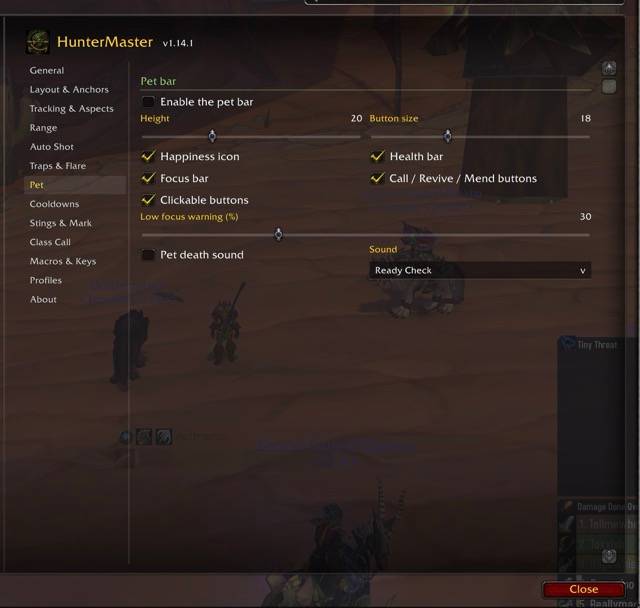
Happiness face, health and focus bars, a low-focus warning, and secure buttons that do the right thing: Call Pet when you have none, Revive Pet when it died (with a sound), Mend Pet when it's hurt. All usable in combat.
Traps & Flare
A 60-second countdown for the armed trap, effect timers when one springs (Freezing hold, Frost zone, Immolation and Explosive burns with the victim's name), a Flare timer, the shared trap cooldown on each icon, and a pulse plus sound shortly before anything runs out. The moment the trap cooldown ends, the icon glows briefly: a new trap can go down.
Cooldowns
An icon strip of exactly the cooldowns you pick (Rapid Fire, Bestial Wrath, Scatter Shot, Deterrence, Feign Death, and so on) with sweep, optional time text, and a glow plus optional sound when one comes back up.
Tracking menu
A ring of every tracking ability you know, opened at your cursor. Click an
icon to switch tracking, click the center to clear it, click anywhere else
to close. Works in combat. Open it with the keybind, /hmtrack in a
macro, or the tracking button that sits at the left of the Tracking &
Aspects row, before the aspect icon (which mouse button opens it is
configurable, and the button shows even with no tracking active). Settings
live on the Tracking & Aspects options page.
Aspect menu
The same idea for aspects: a ring of every aspect you know, active one lit
green, and it opens and casts in combat. Open it with the keybind,
/hmaspect, or by clicking the aspect icon (mouse button configurable).
The icon stays visible even with no aspect running, grayed, so the menu is
always one click away. Each icon opens only its own menu, and each has its
own hover tooltip toggle.
Class Call (Nefarian)
Nefarian's hunter class call breaks equipped ranged weapons. One press of
/hmranged (or its keybind) stows your weapon into any free general bag
slot; the next press re-equips that same weapon by item, wherever it ended
up. Nothing depends on a specific bag slot, quivers and ammo pouches are
never used, and weapon swaps are legal in combat. If the remembered weapon
is gone, the first ranged weapon in your bags is equipped instead.
The Nefarian panel is a tiny movable icon that appears in Blackwing Lair, or whenever Nefarian or Lord Victor Nefarius is detected nearby. It shows "equipped" in green or "empty" in orange, and one click toggles the weapon. Drag it while frames are unlocked. Configure it on the Class Call options page.
Keybinds for all three tools are under Options > Keybindings > HunterMaster.
Layout
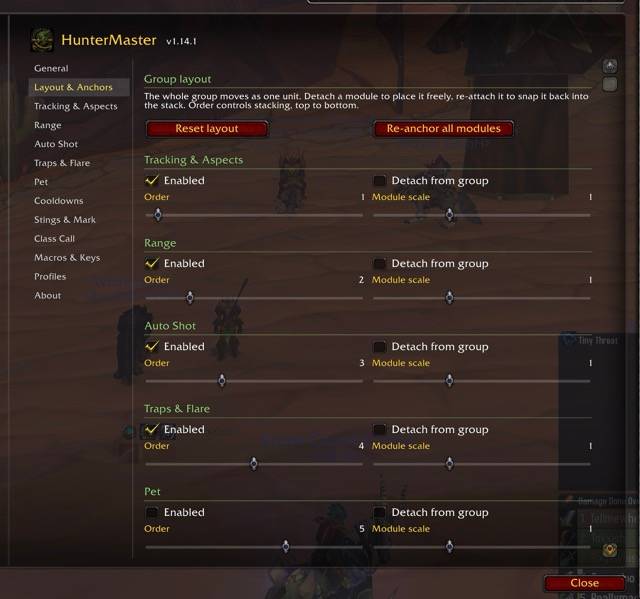
Everything lives in one group that moves and scales as a unit. Any module can be detached on the Layout & Anchors page, placed freely, and re-attached later. Each module has its own order, scale, and enable toggle. Reset layout and Re-anchor all are there if things go astray.
Profiles
Make as many profiles as you like (pvp, pve, solo), each storing every setting and the full layout. Switch from the Profiles page, or faster: right-click the minimap button and pick one from the menu. Profiles can be exported as text strings and imported on other characters.
Commands
| Command | Action |
|---|---|
/hm |
Open the options panel |
/hm enable |
Enable the addon |
/hm disable |
Disable the addon |
/hm debug |
Range diagnostics for bug reports (target something first) |
/hmtrack |
Open or close the tracking menu |
/hmranged |
Equip or unequip your ranged weapon |
/hmaspect |
Open or close the aspect menu |
FAQ
Nothing shows up? The display modules are Hunter-only. Also check
/hm > General > Enable HunterMaster.
Why is a sting row grayed out? The enemy died or its data expired during combat; the row frees up when combat ends.
Does it work while leveling? Yes. Every check uses only the spells you actually know.
Where are the sounds? All sound alerts start off, so the addon is quiet until you opt in. Each module's options page has its own toggles.
SharedMedia? If another addon loads LibSharedMedia-3.0, its fonts and bar textures show up in HunterMaster's dropdowns.
Performance notes: tracking is event-driven, polling runs on one shared 10 Hz ticker, and hidden elements do no per-frame work.
The HunterMaster Team