


GlanceCast
- By
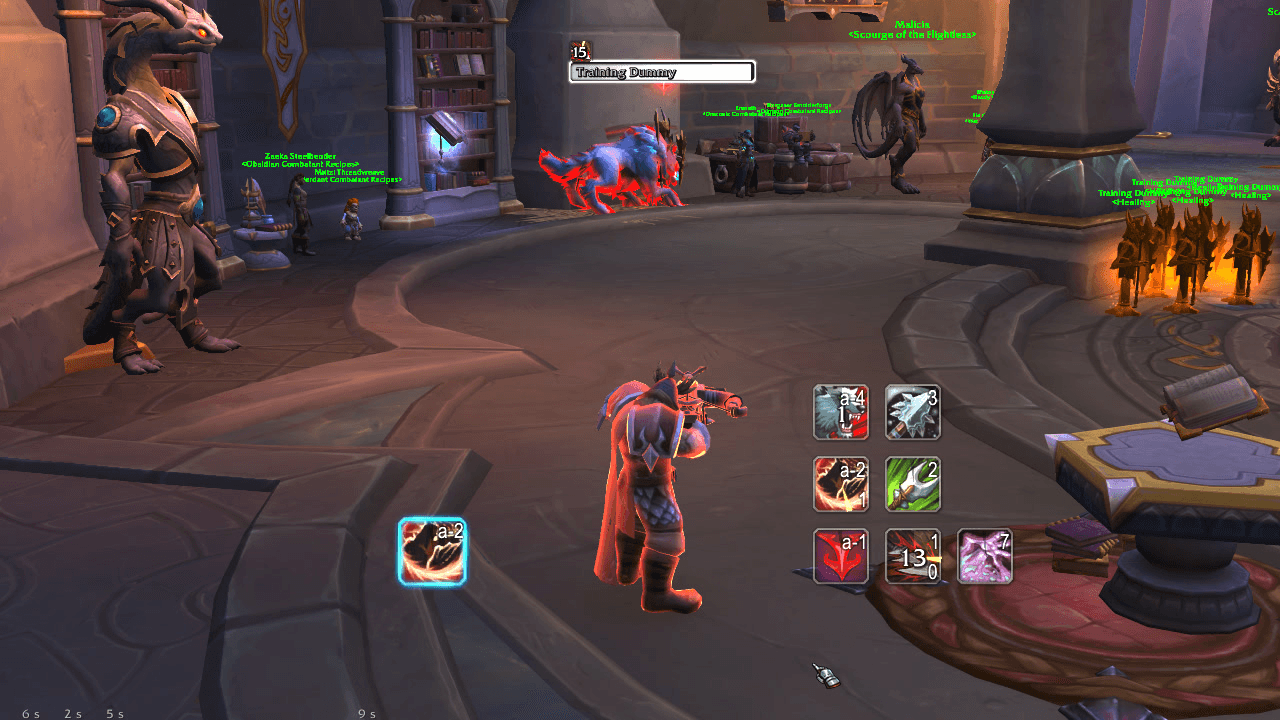
glancecast-v1.2-7-hunter.png
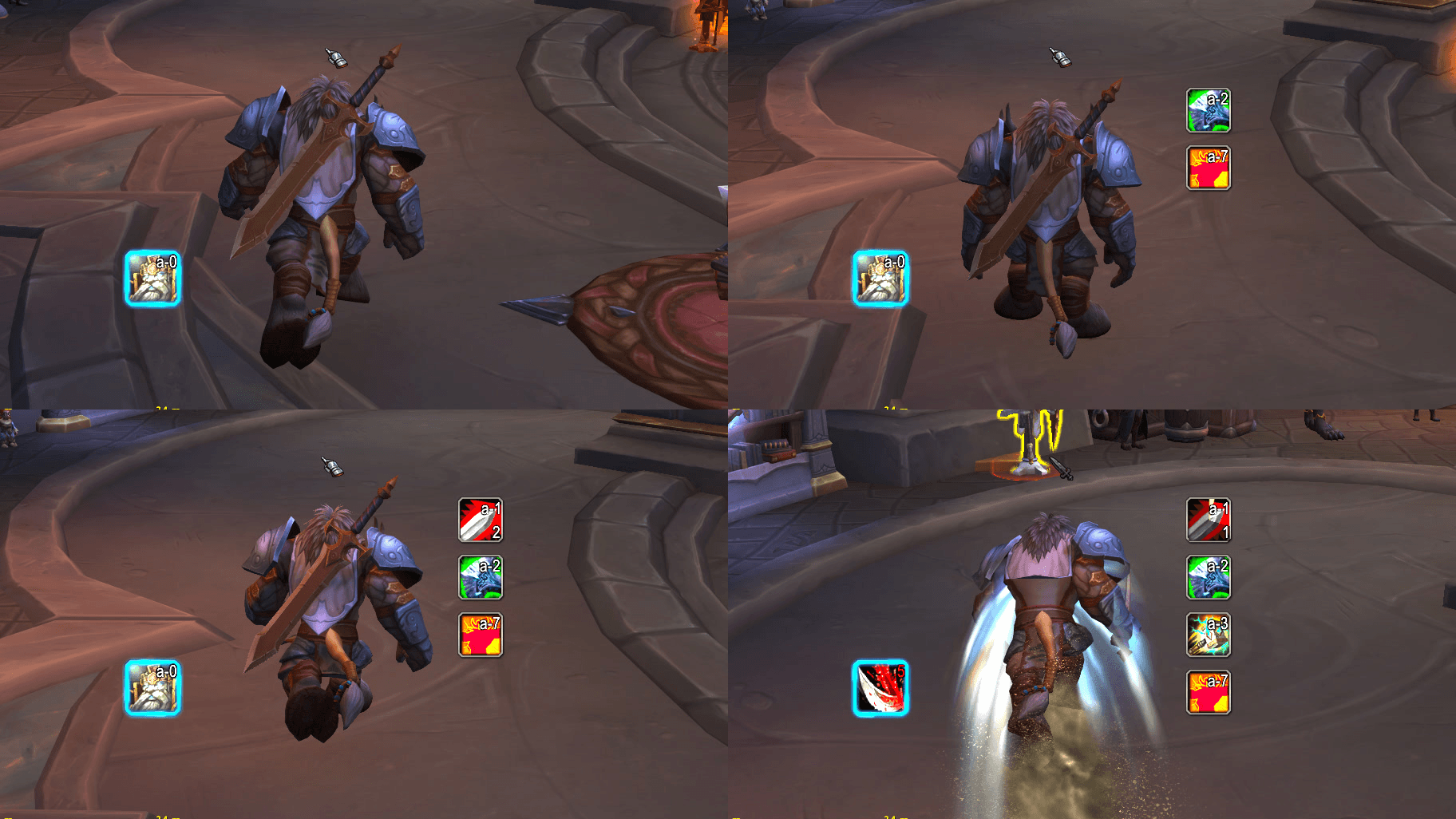
glancecast-v1.2-1-warrior-charge.png
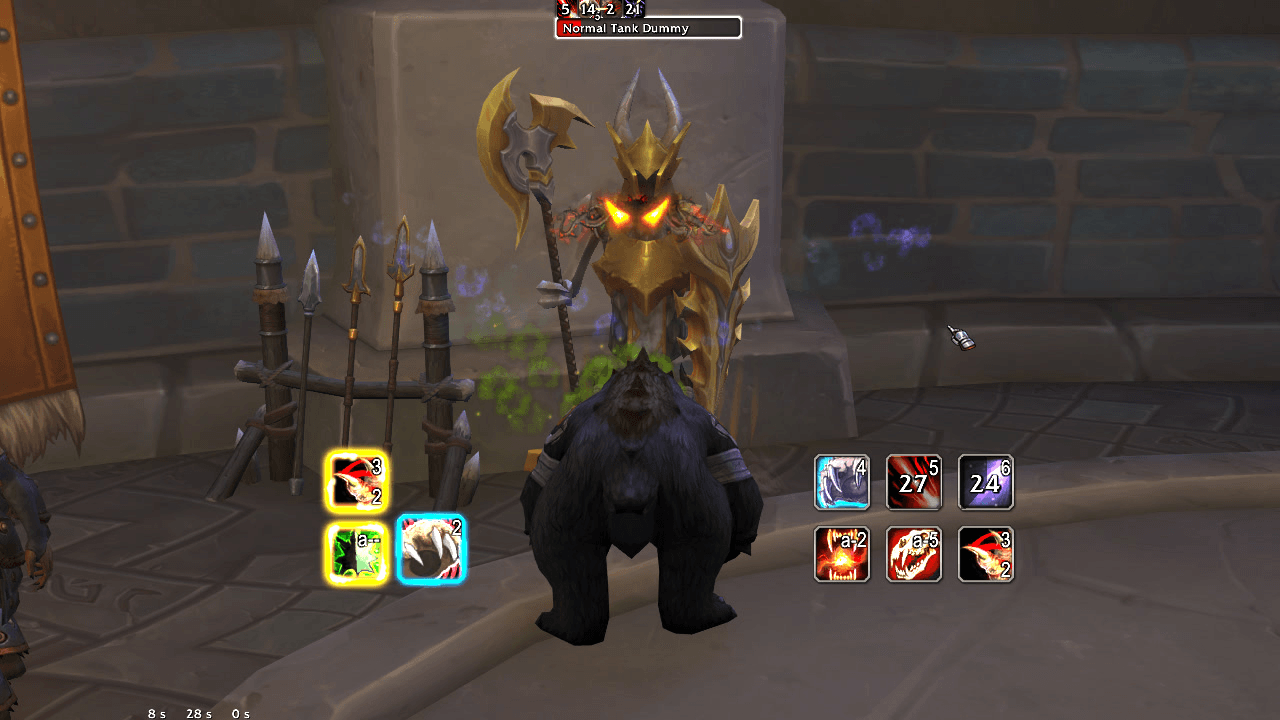
glancecast-v1.2-2-druid-two-procs.png
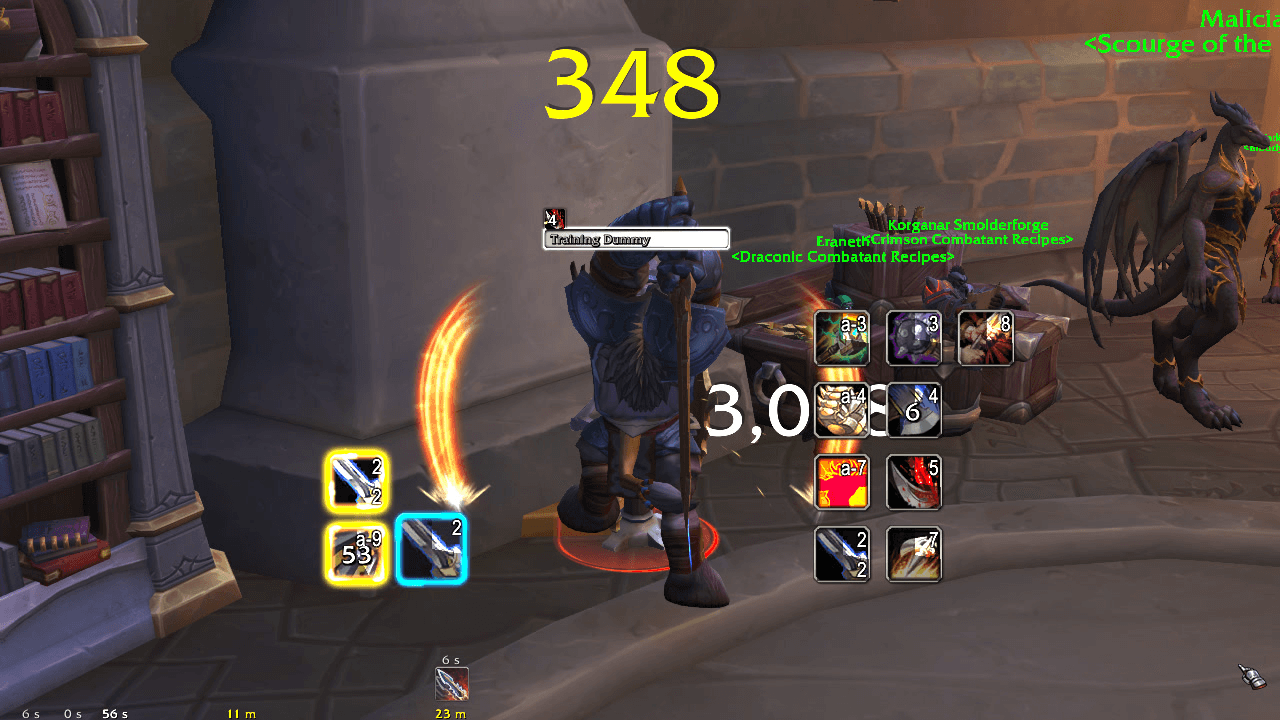
glancecast-v1.2-3-warrior-two-procs.png
glancecast-v1.2-4-priest-proc.png
Description
GlanceCast
Keep your eyes on the fight, not your action bars.
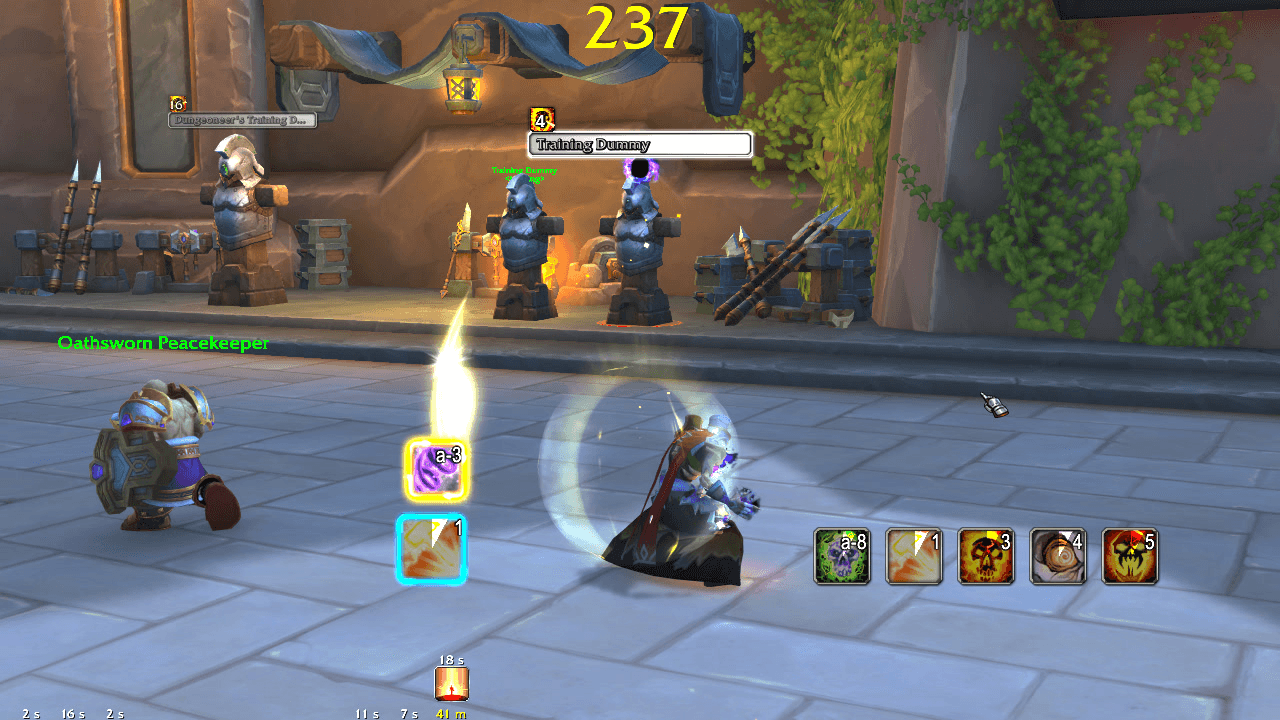
GlanceCast takes the spell the game's own Assisted Highlight recommends and shows it in a small, movable window you can place wherever you look during combat, for example just under your character. A second window shows every proc you have up right now, so you never miss an empowered or free cast, and a third shows the attacks your target is in range of.
Every window tells you everything your action bar button would: whether you can press the spell yet, when, and whether your target is in range.
GlanceCast is display-only: it never casts anything for you. It shows the game's own suggestions, closer to where you're looking.
Features
- Next-spell window: the recommended spell's icon, the keybind from your action bars, and the same "marching ants" glow as your bars.
- Know when to press: the next spell shows its cooldown sweep, global cooldown included, in step with your action bar. It's shaded like the bar button when it can't be pressed yet, sweeps through channels like Bladestorm until you can act again, and its keybind turns red when your target is out of range.
- Hit feedback: the icon pulses when you cast the recommended spell, and each new recommendation pops in, so you can feel the rotation flow.
- Proc window: every proc glowing on your action bars, once each, with the game's own gold proc glow. Procs show their cooldown and charges, and their keybinds turn red out of range, just like the bars.
- Range window: the attacks and debuffs on your action bars that can reach your target right now, in action bar order, each gone the moment your target leaves its range (Charge only shows between 8 and 25 yards). A per-character ignore list keeps out spells like Tame Beast.
- Ready for the pull: the windows appear when you enter combat or target an enemy, so your opener is on screen before the fight starts.
- Looks like it belongs: icons use the action bar button frame, and every glow, sweep and colour is the game's own.
- Your layout: move the windows in Edit Mode alongside your action bars, scale them from 0.5x to 3x, set each one's opacity, lay the proc and range windows out in rows or columns filling in any direction, and show them in combat (or while targeting an enemy) or all the time.
- Settings panel in Options → AddOns → GlanceCast, also reachable from the minimap's addon menu or
/glancecast.
Getting started
- Install and log in. The windows appear when you enter combat or target an enemy.
- Open Edit Mode and drag each window where you want it (or tick Unlock windows in the settings).
- Open Options → AddOns → GlanceCast (or type
/glancecast) to adjust the rest.
FAQ
The next-spell window stays empty. GlanceCast shows what the game's Assisted Highlight recommends, so your class and specialization need to support it, and the recommended spell must be on one of your visible action bars.
A proc isn't showing. The proc window shows procs that glow on your action bars, so the procced spell needs to be on one of them.
A spell is missing from the range window. It shows harmful spells on your visible action bars whose button reports your target in range. Check the spell isn't on your range ignore list (Options → AddOns → GlanceCast → Range ignore list) and that your bar isn't greying it out.
Why is the next spell greyed out? The game won't let you cast it yet, for example during Bladestorm. The sweep shows when you can. Blue means you're short on resources, the same as on your action bar.
Does it automate anything? No. GlanceCast only displays information. You press every button yourself.
Can I hide it outside combat? Yes, that's the default: the windows show in combat or while you target an enemy. Set Show windows to Always in the settings if you'd rather see them all the time.
Found a bug or have an idea? Leave a comment on this page.
The GlanceCast Team
