GlanceQuest
- By
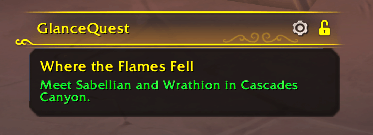
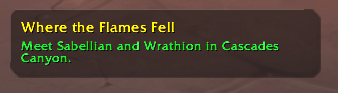
Shows the objectives of your focused quest, and of the quests whose area you're in, in a small window you can move, lock and fade.
glancequest-v1.0-1-title-bar.png
glancequest-v1.0-2-window.png
Description
GlanceQuest
Your current quest, and the ones around you, at a glance.
The objective tracker lists every quest you're tracking, but while you're questing you usually care about the one you're on and the ones right where you're standing. GlanceQuest shows the quest you're focused on, plus any quest whose area you're in, in a small window you can place wherever you look and fade as far as you like.
Click a quest in the objective tracker or on the map (the one that gets the gold highlight and the waypoint arrow) and the window switches to it: the quest's title, each objective with its count, and where to go next. Walk into another quest's area and it shows up underneath.
Features
- Your focused quest first: the window follows the quest you've focused. Focus another quest and it follows you.
- Quests around you: walk into a quest's objective area, the shaded region on your map, and that quest shows up under your focused one. Where areas overlap, every quest shows. Bonus objectives and world quests show too while you're in their area. Leave and they drop off, or turn this off in the settings to keep the window to one quest.
- Live objectives: each objective with its count, like 3/8 Bloodpetal Sprouts, updating as you go. Finished objectives turn grey.
- Where to go next: when the quest continues in another zone, the window shows the game's route hint, such as which portal to take. Once the quest is done, it shows how to turn it in.
- Looks like it belongs: the same rounded panel and title bar as Blizzard's All Objectives tracker, with the quest text in your game's language.
- Place it anywhere: click the padlock in the title bar to unlock the window, drag it where you want it, and click the padlock again to lock it. If you put the window against the top of your screen, the title bar moves below it, so the padlock is always within reach.
- See through it: set the background and the text opacity separately, scale the window from 50% to 200%, and choose how far it fades while you're in combat.
- Stays out of the way: while it's locked, clicks pass straight through the window to the world, so it doesn't get in the way of targeting or turning the camera. If you like, the title bar can stay hidden until you rest the pointer on the window.
Getting started
- Install and log in.
- Click a quest in your objective tracker. GlanceQuest shows it in a window above the middle of your screen.
- Click the padlock in the window's title bar, drag the window where you want it, and click the padlock again.
- Click the gear for opacity, scale and the other settings.
Slash commands
| Command | What it does |
|---|---|
/gq (or /glancequest) |
Lists the commands |
/gq unlock, /gq lock |
Unlocks the window to move it, or locks it in place |
/gq options |
Opens the settings |
/gq reset |
Puts every setting, and the window's position, back to the start |
FAQ
The window doesn't show. It shows the quest you've focused and any quest whose area you're in, so click a quest in the objective tracker or on the map first. It hides when no quest is focused (a map pin doesn't count) and you're in no quest's area.
Does it change what I'm tracking? No. Quests in your area only show in GlanceQuest's window. Your focused quest, the waypoint arrow and the objective tracker stay as they are.
Does it replace the objective tracker? No, it works alongside it. Keep both, or collapse the tracker and keep just GlanceQuest on screen.
Can I click through it? Yes. While the window is locked, clicks go straight through it to whatever is behind. Only its title bar, with the padlock and the gear, takes clicks, so if you want the window fully out of the way, turn on Show title bar only on hover in the settings.
Where are the settings? Click the gear in the window's title bar, or open Options → AddOns → GlanceQuest, or use the minimap's addon menu.
I moved the window somewhere I can't reach. Type /gq unlock to unlock it, or use Window
position → Reset in the settings to bring it back above the middle of your screen.
Found a bug or have an idea? Leave a comment on this page.
The GlanceQuest Team