ForeverForge Bags
- By
All-in-one bags and bank: auto sort into your own sections, item search, sell junk, auto vendor, bank or AH by section, Ctrl+Shift+click to disenchant, prospect, mill or pick locks, and a profession bag that fills itself.
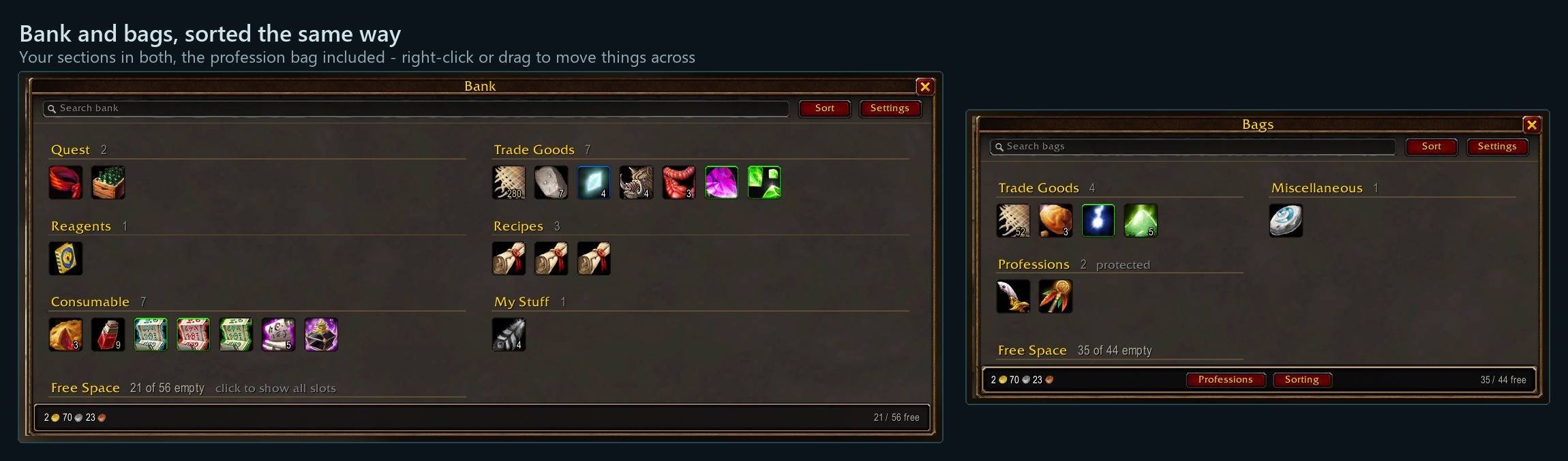
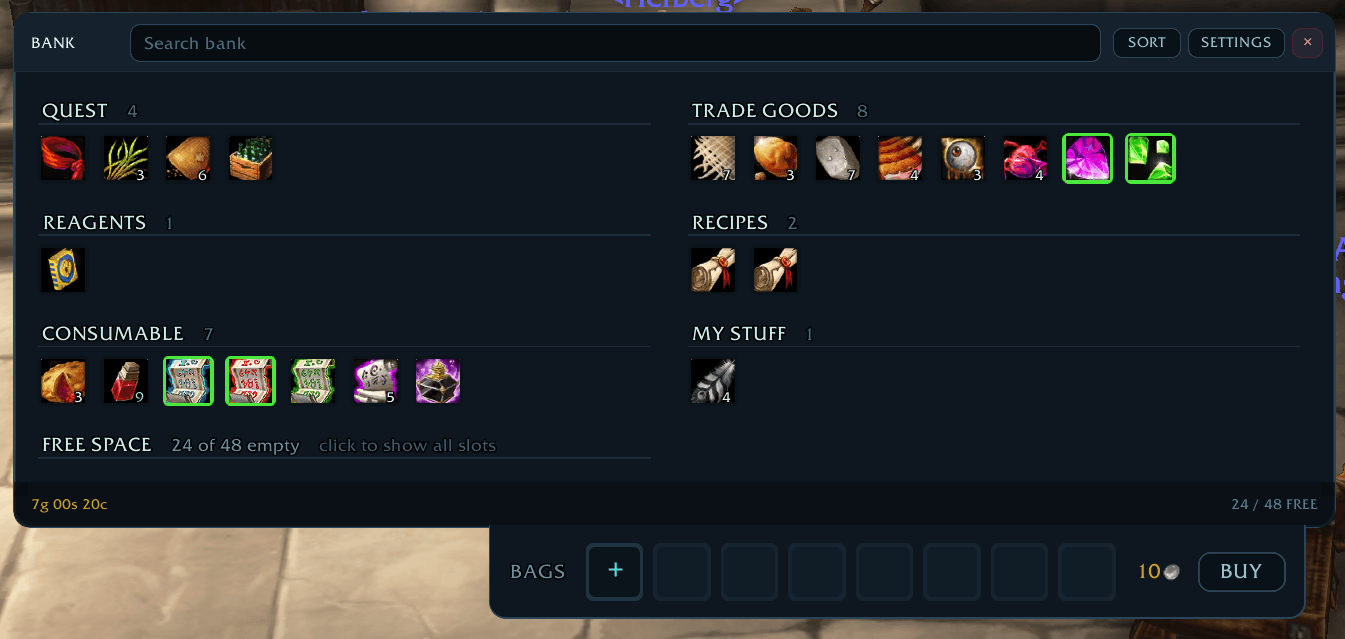
Your sections in both, the profession bag included - right-click or drag to move things across
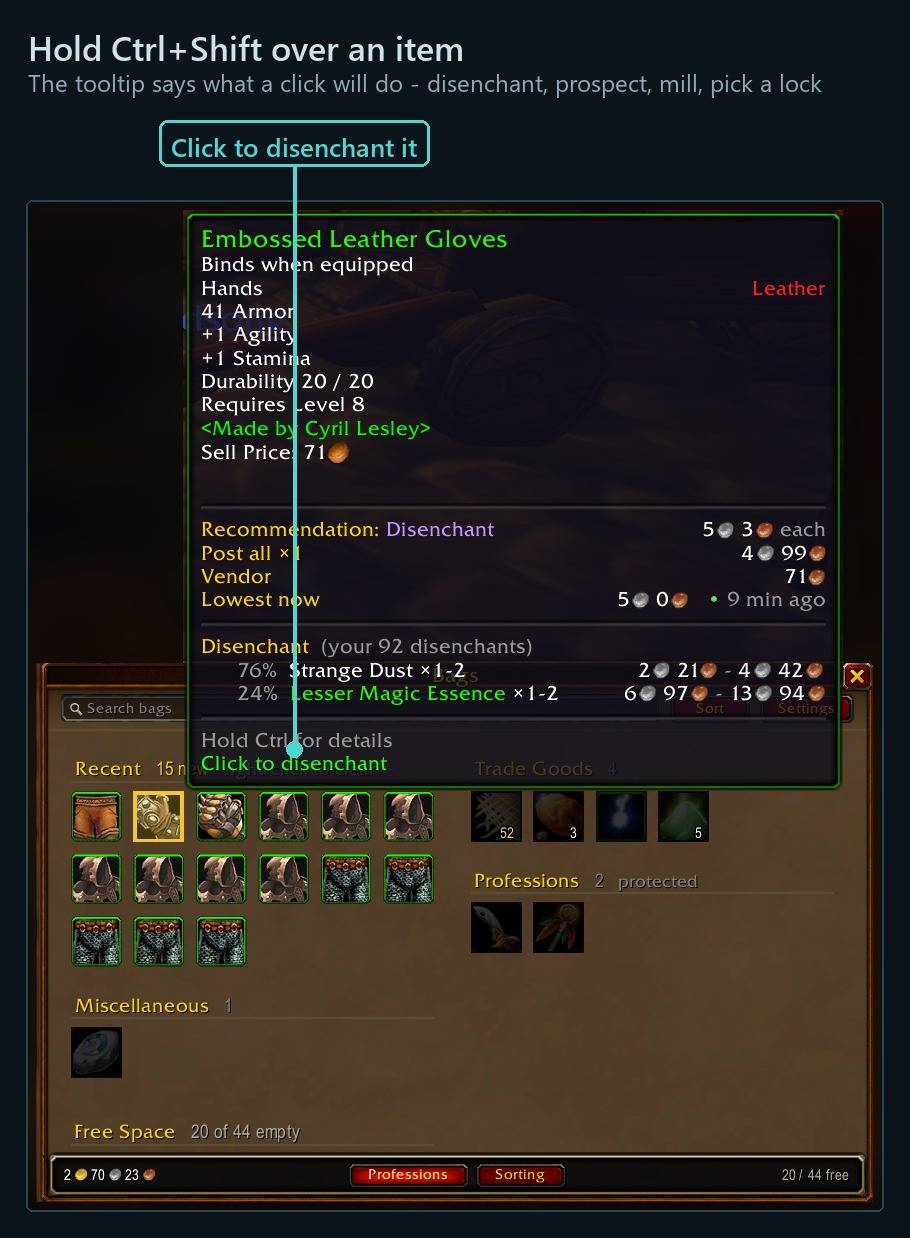
The tooltip says what a click will do - disenchant, prospect, mill, pick a lock
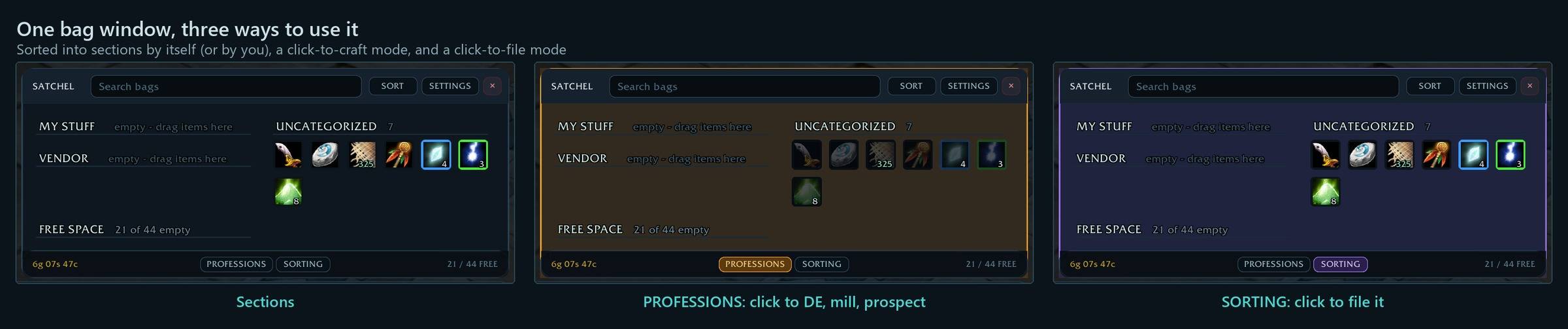
Sorted into sections by itself (or by you), a click-to-craft mode, and a click-to-file mode
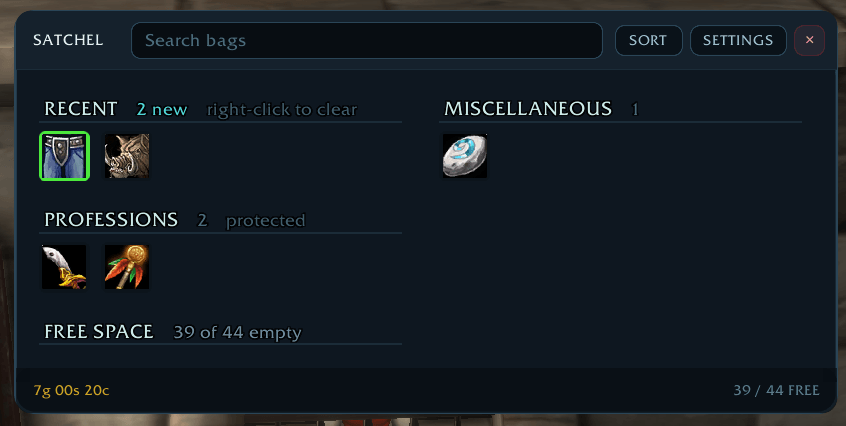
Screenshot 2026-09-25 085149.png
Screenshot 2026-09-25 085114.png
Description
ForeverForge Bags
One clean bag window for WoW: Forever, sorted into sections automatically or by you, with a Ctrl+Shift+Click that works out which profession to use on an item and uses it.
Part of the ForeverForge suite. Requires the ForeverForge core addon.
Shortcuts
- ⭐ Ctrl+Shift + click an item - Picks the right skill for it - Disenchant, Pick Lock, Prospecting, Milling, Comprehension - and casts it. Keep the keys held: results go straight into your bags.
- PROFESSIONS on the bag's bottom bar - Professions mode: just click items to disenchant, mill, prospect or pick locks. What it can't be used on is dimmed.
- SORTING on the bag's bottom bar - Click any item to move it to one of your sections - or name a new section on the spot. Off by itself at vendors, so selling still works.
- Drag an item onto a section title - Files it there; new copies follow it. Drop it on Uncategorized to take it back out.
- ⭐ Automate a section - Sell it at any vendor, bank it when the bank opens, or post it at the AH. Asks first unless you say not to. Bags » Sections » Custom.
- The profession bag fills itself - Reagents you loot, buy or trade go into your profession bag first, until it's full. Right-click its section title to fill it from your bags now.
- Alt + click an item - Destroys it. Grey items go at once; anything else asks first, with the item named.
- Click the FREE SPACE count - Shows every slot where it really is, so you can drag things around. Click again to go back.
- Profession tools can't be sold by accident - Right-click at a vendor does nothing on them. Drop one on the vendor window to sell it on purpose.
Every shortcut for every ForeverForge addon: in game under /forge » Core » Tips & shortcuts, or the #feature-guide channel on the ForeverForge Discord.
⚡ Ctrl+Shift+Click: the right ability, on the right item, in one click
Disenchanting a stack of greens in the default UI is slow. You open the spellbook, click Disenchant, click the item, wait for the cast, deal with the loot window, and then do it all again for the next item.
With ForeverForge Bags, hold Ctrl+Shift and click the item. That's it.
The addon looks at the item under your mouse, picks the ability that fits it, and casts it on that item:
| Item | What Ctrl+Shift+Click does |
|---|---|
| Uncommon, rare or epic weapons and armor | Disenchant |
| Scrolls, tomes, codices, manuals, books, parchments | Comprehension (Forever) |
| Lockboxes, strongboxes, footlockers | Pick Lock |
| Stacks of 5+ ore | Prospecting |
| Stacks of 5+ herbs | Milling |
- Keep the keys held and work down the bag. What a disenchant, prospect or mill gives you goes straight into your bags, so there's no loot window to close between items. Holding Shift normally turns off the game's auto-loot, and this gets around that.
- It only uses abilities your character knows. If you aren't an enchanter, Ctrl+Shift+Click won't try to disenchant anything.
- The tooltip tells you what will happen before you click, and names the ability it's going to use.
- It won't do anything silly. It skips legendaries, which can't be disenchanted, and it won't try to prospect cloth.
- It doesn't break anything. It uses the game's own secure macro system (
/castthen/use), so you never get a "blocked action" error. It turns itself off in combat, and when Ctrl+Shift isn't held your bag slots work exactly as normal. - You can turn it off, and turn off the auto-looting separately, under Bags » Professions.
Or switch on PROFESSIONS mode - no keys at all
Click PROFESSIONS on the bag window's bottom bar, then just click items: each click uses the right ability, exactly like Ctrl+Shift+Click. While it's on:
- Items no ability fits are dimmed and can't be clicked - no picking things up by accident.
- The window turns amber, so you always know you're not in normal bags.
- Nothing moves. Used-up items leave their slot empty instead of everything shuffling; the bags sort themselves again when you switch the mode off.
- It switches off by itself when you close your bags or enter combat.
Features
One bag window, sorted for you
- Every bag in one window, sorted into sections by smart filters: Recent, Junk, Quest, Professions, Equipment (or Armor / Weapons / Jewelry), and item categories like Consumables and Trade Goods.
- Group and sort within sections. Food with food, drink with drink, then potions, elixirs, scrolls, bandages, cloth, leather, metal and stone, with the most valuable first. Food and drink are identified by what they do, so every kind of water ends up together whatever it's called. Gear sorts by item level.
- Combine stacks. Five stacks of 20 leather show as one icon reading 100. Clicking, selling or dragging it uses the smallest stack first, so partial stacks get used up. Gear is never combined.
- Recent section. Anything you just picked up waits at the top of the bag, then moves to its normal section when the timer runs out (1 to 240 minutes). Right-click the title to clear it early. Things you already filed skip it and go straight to their section.
- SORT button to tidy the bags themselves.
Your own sections - sorted by you
- Make your own sections - Vendor, Bank, Auction, Crafting, whatever you like - and file items into them.
- Drag an item onto a section title in the bag window to file it there. Titles light up while you hold an item, and the item itself goes straight back where it was. Drop it on Uncategorized to take it back out. Gear you take off your character can be dropped on the bag window (or a title) too - it goes into the first empty slot.
- SORTING mode (beside PROFESSIONS on the bottom bar): click any item for a Move to menu - your sections, back to Uncategorized, or type a name to make a new section on the spot. Dragging still works. It switches off by itself in combat, when the bags close, and at a vendor, bank, mailbox, trade or auction house, so right-click selling always works.
- Bag sorting: Automatic or Manual. Manual keeps only your own sections: anything you haven't filed waits in Recent, then in Uncategorized at the top, until you decide. Your empty sections still show, ready to drop items on.
- New copies follow (Manual, on by default): loot another Linen Cloth and it joins the stack you filed; a second copy of a sword goes where the first is. Off, each new piece of gear waits for you to decide.
- Your own order: in SORTING mode, drag one item onto another - in your sections, Junk, Quest or Uncategorized - and it goes right there. RESET ORDER on the section's card puts the normal order back.
- Junk and Quest in Manual (optional): grey items and quest items keep a section of their own while you sort the rest; drop things in or out of them like your own sections.
- Rename a section without losing what's filed in it, and give each section its own New copies choice.
- Your profession bag and keyring each get a section of their own: the bag under its own name with how full it is (2 / 6), and Keys (0 / 32). Drop an item on their title to move it in - only what they take - and file it anywhere else to move it back out. Neither counts toward your free bag space, and FREE SPACE stays pinned at the bottom of the window.
- Reagents go into the profession bag by themselves. Whatever it can hold goes in as you loot, disenchant, trade, buy, or take it from the mail or bank - onto a matching stack first - until it's full; the rest stays in your regular bags. Right-click the bag's section title to fill it from what you already carry. Take something out of it and new ones of it stay out too. Switch it off under Bags » Sections.
- Display in: tick Automatic, Manual or both on each section.
- Automate a section: sell it at any vendor, put it in the bank when you open it, or post it when you open the auction house (with ForeverForge Auction - one click per post, the game's rule; anything your posting conditions turn down is offered one at a time). It asks first - Yes, Not now or Don't ask again - so it can run completely by itself. Trading or mailing a whole section: click its title while ForeverForge Mass Mail & Trade's queue is open.
Layout you control
- Section columns (1 to 4) put sections side by side, and item columns set how many slots each section is wide.
- Slot size from compact to large, and the title bar and footer shrink with it.
- Section order: reorder every section, custom ones included, with over then down or down then over flow.
- Free space as a count in the title (it takes no room) or as a slot you can drop items onto. Click it to see every bag slot by slot, empty ones included, so you can move things around by hand.
- Search box with dimming: items that don't match fade out and everything stays where it was.
Quality borders you can actually read
- Real rarity borders at a thickness you choose, in colours brightened so rare blue is readable on a dark background.
- Border styles: plain, halo, or full-slot tint.
- Border from: only show borders from a chosen rarity up. Greens while you're levelling, purples only at endgame.
- A live preview in settings shows the change as you make it.
Bag slots
- An optional bag slot row for your equipped bags and keyring. Right-click the SATCHEL title to show or hide it.
- Drag a bag on to equip or swap it, and right-click one to unequip it. Its contents are moved into your other bags first, and if there isn't room it tells you and does nothing.
- Hides Blizzard's bag bar, which Edit Mode won't let you remove.
Bank
- An optional ForeverForge window for the bank. Every bank tab in one window with the same sections, search, stacking, borders and custom sections as your bags.
- Separate width and position from your bags. SORT sorts the bank too.
- Right-click to move items in or out, like the default bank.
- Bank bag slots tab. Hover a bag to highlight what's in it, drop bags into slots, and buy the next slot from the tab. The price shows in red if you can't afford it.
Safety
- Profession tools can't be sold by accident. With a vendor open, right-clicking a skinning knife, mining pick, fishing pole, enchanting rod and so on does nothing. To sell one on purpose, drag it onto the vendor.
- Alt+Click to destroy. Greys go straight away. Anything better asks you first, with the item named in its rarity colour.
Everything the default bags do
Item buttons are built on Blizzard's own secure template, so everything works as it should: right-click to use, equip, sell, trade or mail, spell targeting, shift-click to split, drag anywhere, cooldown sweeps, and Escape, B and vendors open and close the bags as normal. No taint and no "blocked action" popups.
Commands
| Command | What it does |
|---|---|
/fbags |
Open or close the bags |
/fbags config |
Open the Bags settings |
/fbags scan |
Force a rescan |
/fbags spells |
Show which Ctrl+Shift abilities this character knows, and what would happen to the item under the mouse |
All settings are in the ForeverForge window (/forge → Bags).
The ForeverForge suite
One look, one settings window (/forge), made for WoW: Forever. Pick the ones you want - they all use the ForeverForge core addon, and the LFG Bulletin Board also runs on its own.
- ForeverForge (the core) - one settings window for the whole suite, faster auto loot, auto quests, and vendors that sell your greys and repair.
- Bags - one bag window with smart sections or your own sorting, and Ctrl+Shift+click to disenchant, prospect, mill or pick locks.
- Auction - a faster, simpler auction house: price tooltips you can customize, one-press posting, a sniper and safe bulk buying.
- LFG Bulletin Board - group posts sorted by dungeon and shared between players, so you see groups from every zone.
- UI - unit frames, action bars, chat and meters in one clean look.
- Training - pre-pick your talents, see the spells still to come, and a better trainer window.
- Macros - build macros line by line in plain English, plus the one-click tag macro.
- Mass Mail & Trade - send a pile of items to anyone: one mail per click, trades that fill themselves.
- Custom Info Panels - build info bars: FPS, gold, bags, coords, durability, XP and more.
- Skill Tracker - progress bars for your professions and weapon skills.
Credits and licence
ForeverForge Bags is derived from AdiBags by Adirelle, and it wouldn't exist without it. Its filter-pipeline design, scanning model and section layout come from AdiBags, and the settings, item buttons, drawing and everything Forever-specific were rewritten. Like AdiBags, it's licensed under the GNU GPL v3.
Made by Walord.
Bug reports and suggestions: ForeverForge Discord Support development: ko-fi.com/walord
ForeverForge Bags Team