Forever Console
- By
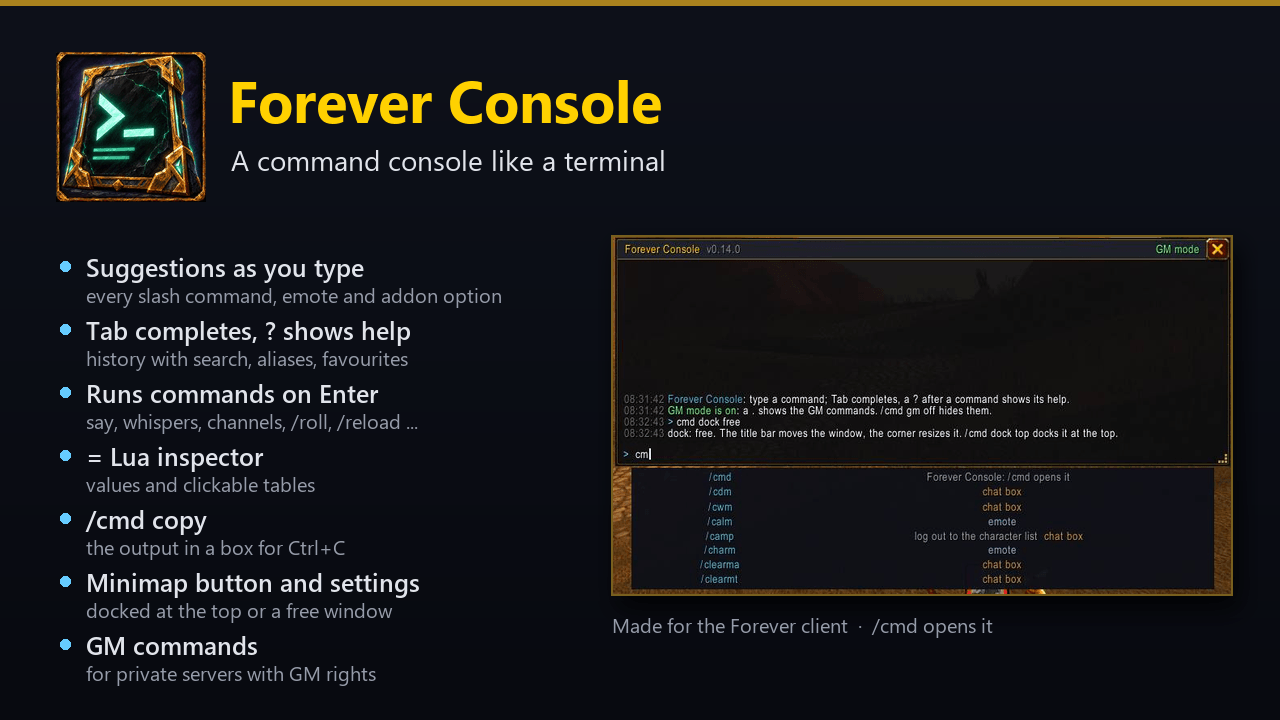
A command console like a terminal: suggestions as you type, Tab completion, help, history, aliases, a Lua inspector and copyable output.
summary.png
01-free-window.png
02-suggestions.png
Description
Forever Console
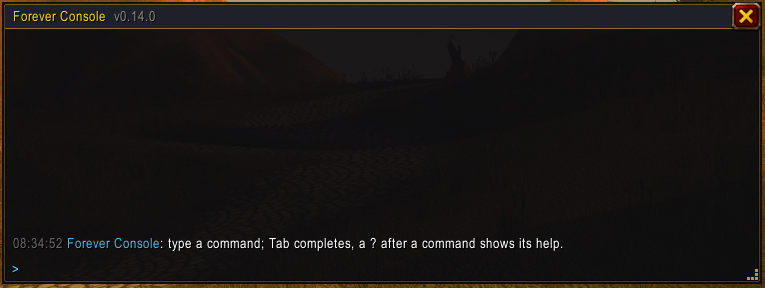
Type commands like in a terminal. Forever Console is a console window that slides down from the top of the screen when you press its key. It knows every slash command of the game and of your addons. It suggests them as you type, completes them with Tab, shows their help and remembers everything you ran.
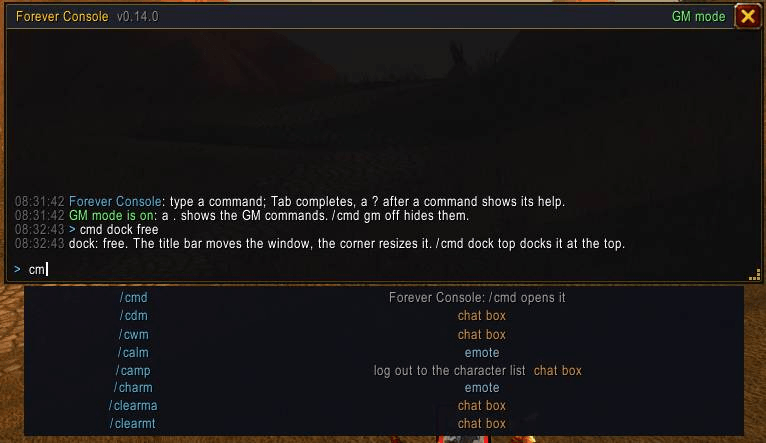
- Suggestions as you type. Commands, emotes and addon options show as you type. Player names are suggested for
/w,/inviteand the like. Tab or a click takes the highlighted row. - Help on the spot:
<command> ?explains a command, and/cmd help <command>does the same. - History. Up/Down walk your history, and
!textor Ctrl+R searches it. Lines you type in the normal chat box are kept too. A line that looks like a password is never stored. - Commands run in the console. Say, yell, whispers (
/w,/r), party, guild, raid, channels (/2 text),/afk,/reload,/roll,/who,/inviteand addon commands all run on Enter, and their output stays in the console. The few commands the game allows only from the chat box (/cast,/use,/target) are handed to the chat box, and the console tells you why.
Power tools
- Several commands on one line:
/s hi; /wave; /rollruns them in order on one Enter. - Aliases:
/cmd alias gg = /s good game; /cheerturnsgginto a command. - Favourites:
/cmd favstars a line, and starred lines come first in the history and the suggestions. - Find and filter the output:
/cmd find <text>, and/cmd filter console|reply|chat. - Lua inspector:
= UnitName("target")or= C_Mapshows what an expression gives. A table shows as a link: a click lists its keys, 40 at a time, and the tables inside open with a click too. Names and fields are suggested while you type. - Copy the output:
/cmd copy(or/cmd copy 20for the last 20 lines) opens a box with the text selected. Press Ctrl+C to copy it, for example an error or a long reply.
Make it yours
- A minimap button: a click opens the console, a right click opens the settings, and you can drag it around the minimap.
- Settings in Options → AddOns → Forever Console (or
/cmd options) for everything below, with check boxes and sliders. - Docked at the top edge (the default), or a free window you can drag and resize (
/cmd dock top|free). - Size, scale, opacity, font size and time stamps:
/cmd size,/cmd scale,/cmd opacity,/cmd font,/cmd time. - Its own key binding (Key Bindings → Forever Console, or
/cmd key F12).
For private servers with GM rights
/cmd gm on adds the server's GM commands to the suggestions, with their help. A . lists them: .lookup,
.additem, .learn, .tele, .modify and more. The server's replies show in the console. A click on a .lookup
result fills in the matching command, and nothing is sent until you press Enter. /cmd mark <name> and
/cmd go <name> save places and teleport back to them. On a normal realm, GM mode stays off and you never see any of
this.
Commands
| Command | What it does |
|---|---|
/cmd |
open or close the console |
/cmd help [command] |
the list of commands, or the help of one |
/cmd key <key> |
the key that opens the console |
/cmd clear / /cmd history |
clear the output / list the history |
/cmd dock top \| free |
docked at the top or a free window |
/cmd size <w> <h>, /cmd width <n>, /cmd height <n> |
window size (or drag the bottom-right corner) |
/cmd scale <60-150> / /cmd opacity <0-100> / /cmd font <8-24> |
scale, background and font size |
/cmd time on \| off |
time stamps on the output lines |
/cmd options |
open the settings |
/cmd minimap on \| off |
show or hide the minimap button |
/cmd echo console \| chat \| both |
where the output of a command run from the console goes |
/cmd alias <name> = <line> / /cmd unalias <name> |
aliases |
/cmd fav [line] / /cmd unfav [line] / /cmd favs |
favourites |
/cmd find <text> / /cmd filter console \| reply \| chat \| off |
show only some of the output |
/cmd copy [n] |
the output in a box to copy with Ctrl+C |
= <Lua> |
show the value of a Lua expression |
/cmd capture on \| off |
keep the lines typed in the chat box in the history |
/cmd reset |
put the window back where it started |
Good to know
- Made for the Forever client (Interface 16001). It also loads on the 1.12.1 client.
- Works well with Forever Tongues: a say or yell typed in the console shows what the other faction will read.
- Everything is saved per account.
Forever Console Team