ETB: Transmog & Collection Hub
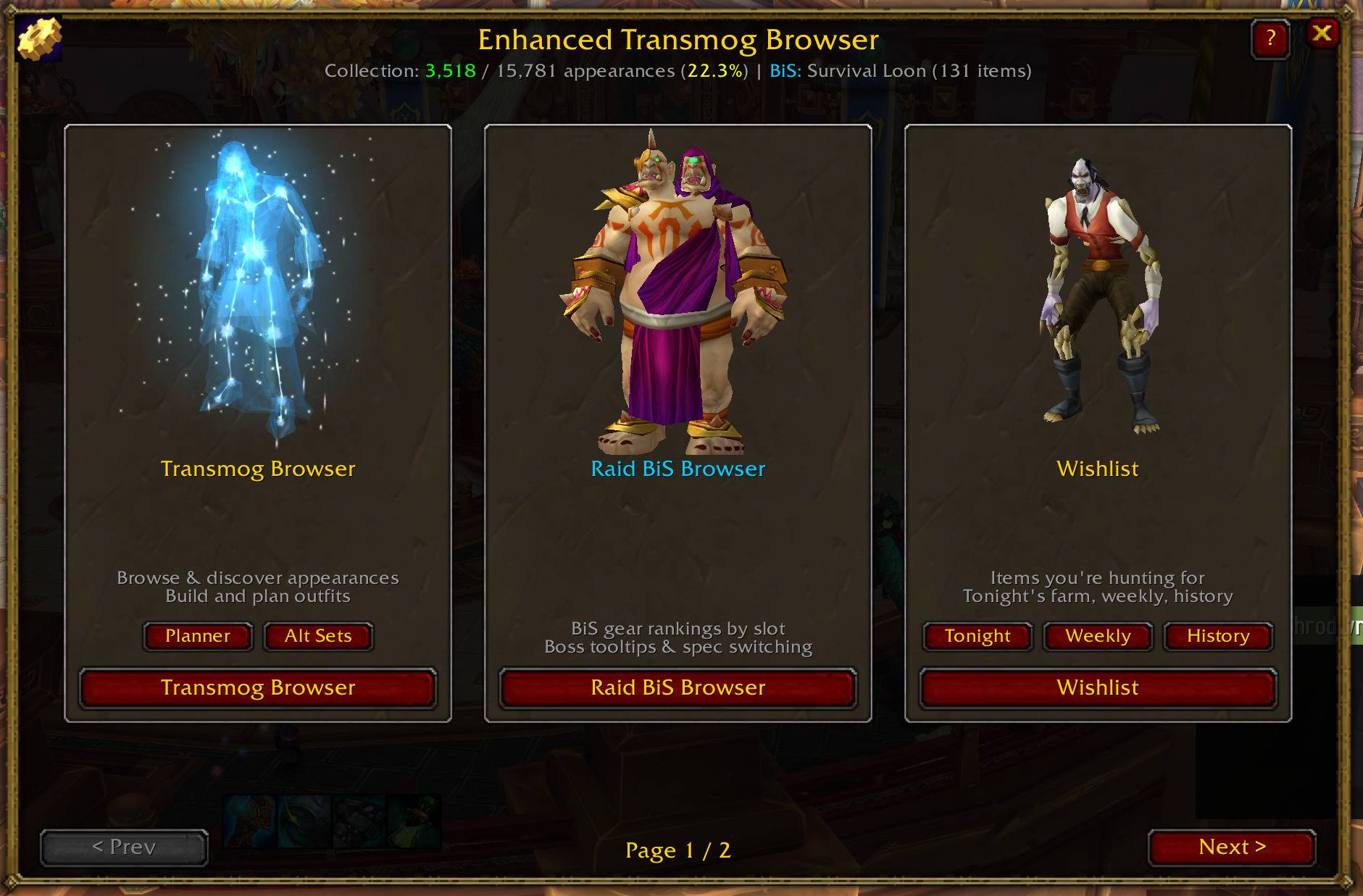
Enhanced Transmog Browser is a transmog, gear, BiS, collection, and farming hub for MoP Classic, Retail, and TBC Classic. Browse gear and appearances, track alts and collections, find boss loot, build wishlists, and plan what to farm next.
Screenshot 2026-03-22 172040.png
Screenshot 2026-05-14 185103_compressed_under_2mb.jpg
01_ETB_Main_Hub.jpg
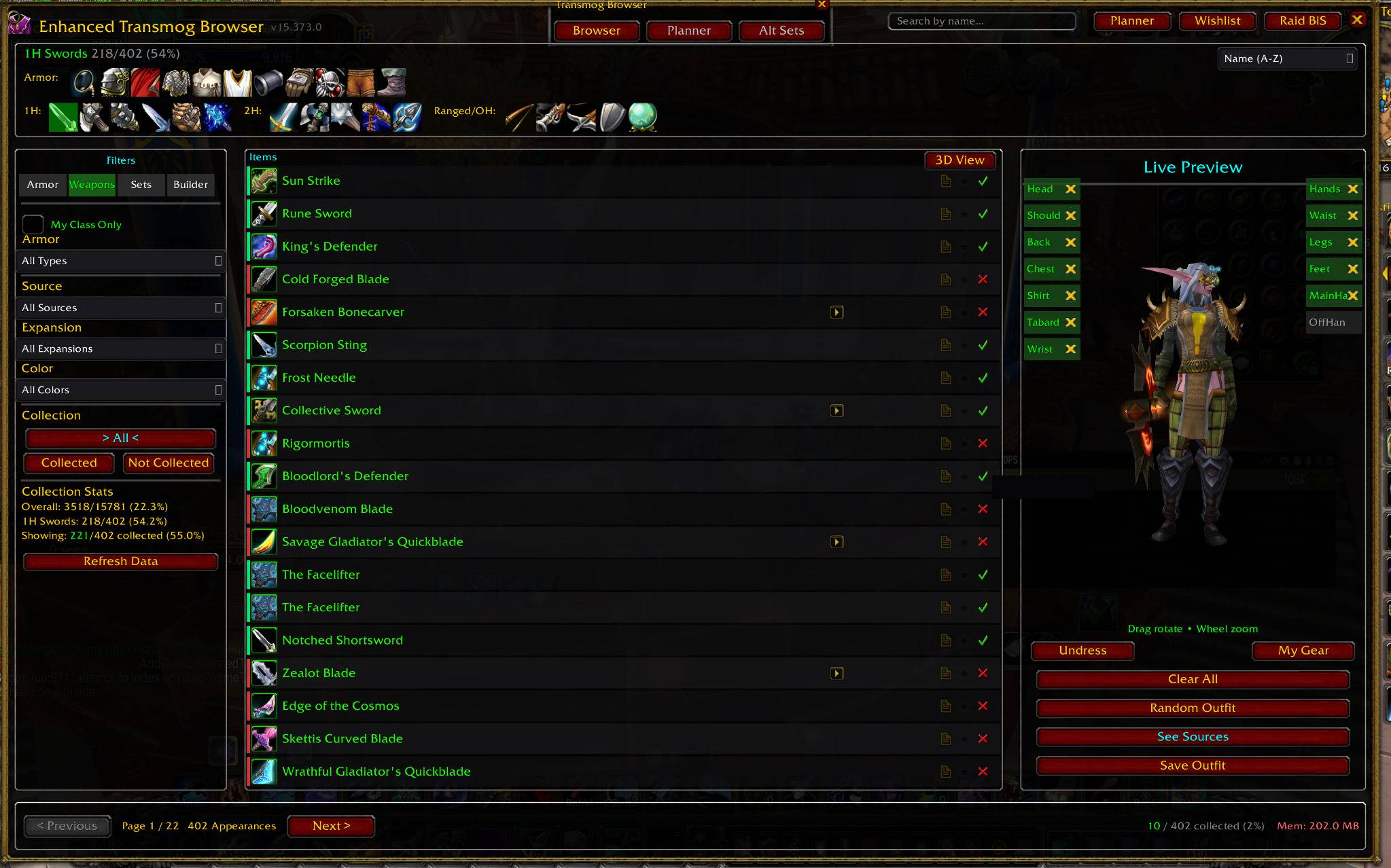
03_ETB_Transmog_Browser_Weapons.jpg
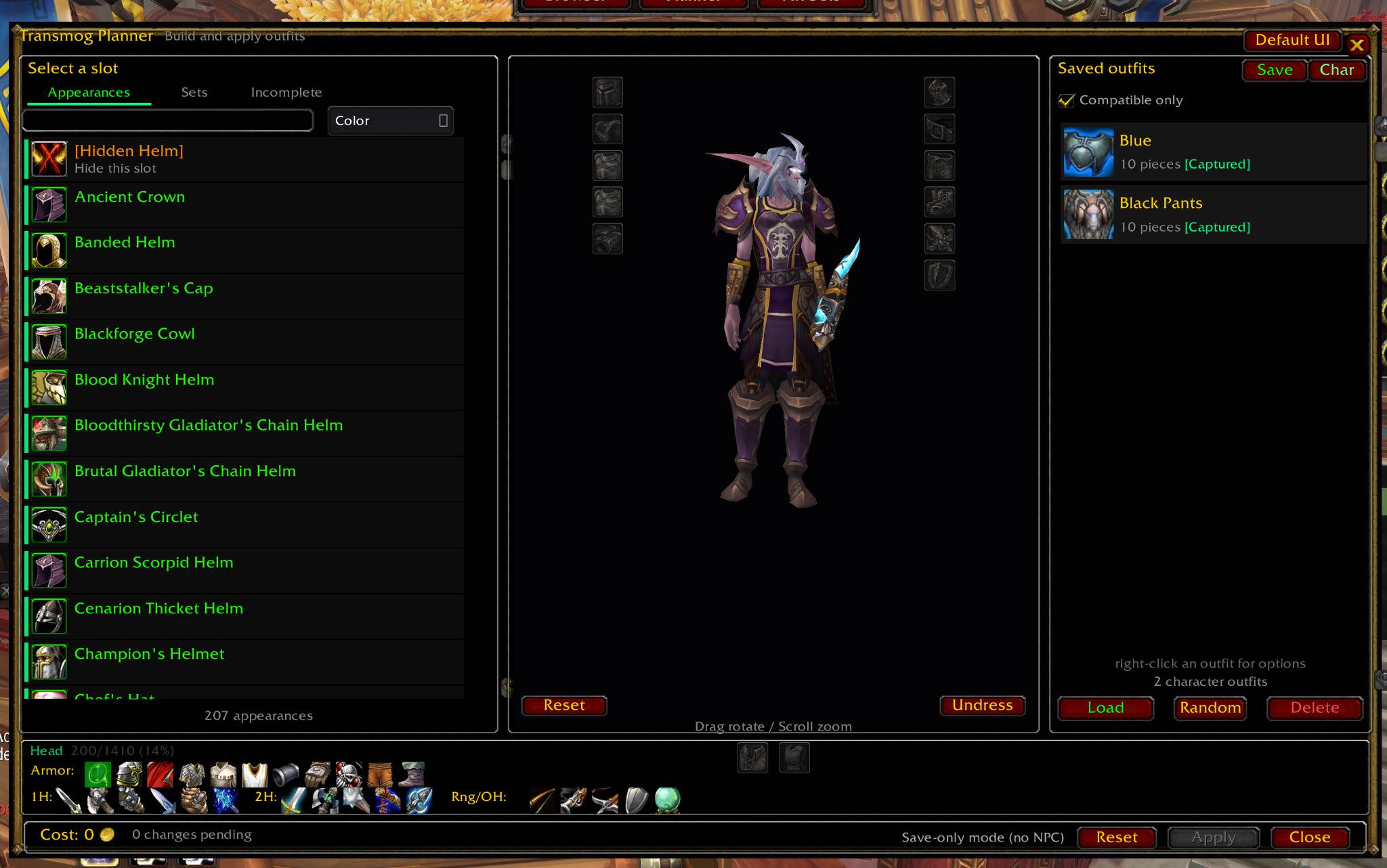
05_ETB_Transmog_Planner.jpg
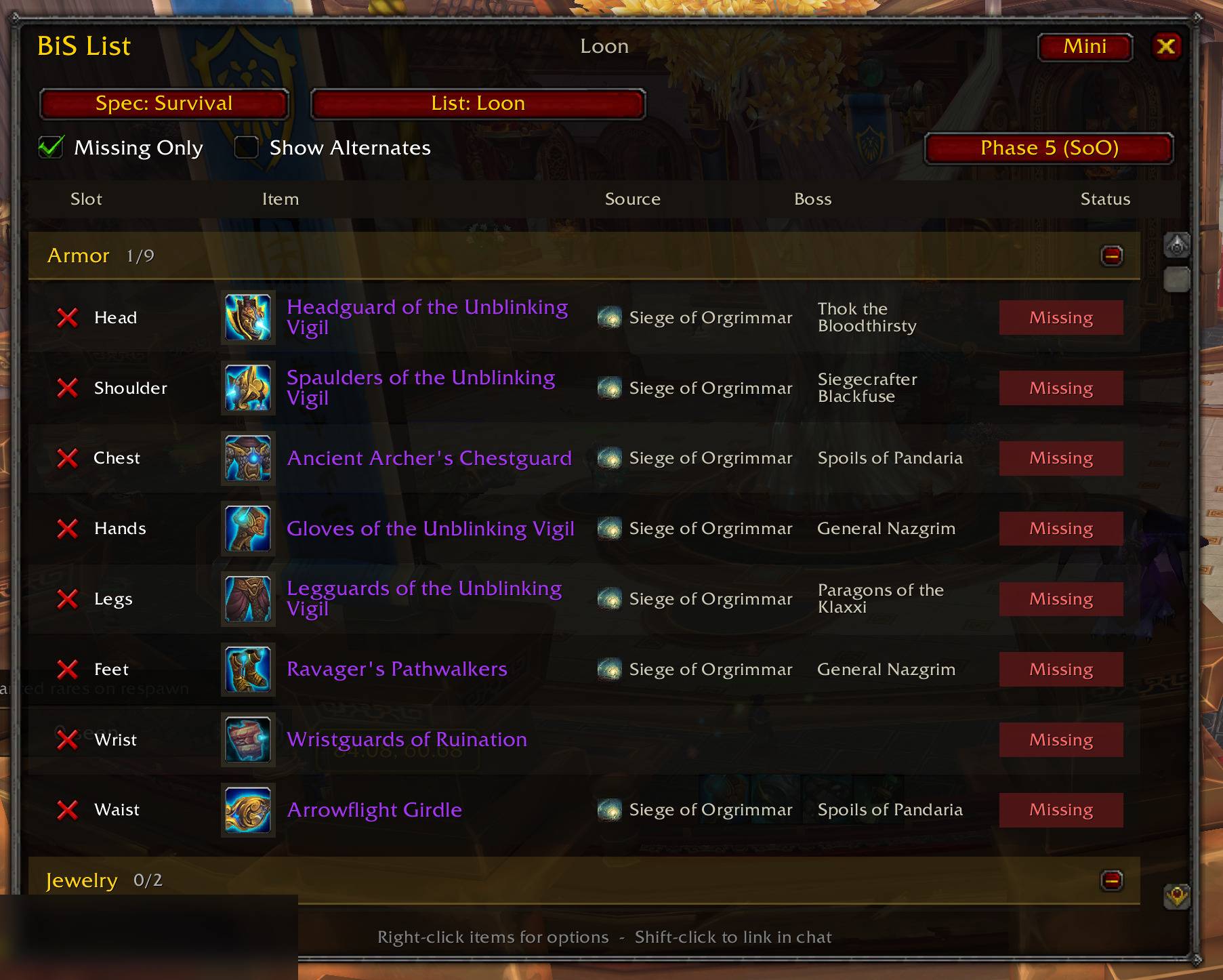
08_ETB_Compact_BiS_List.jpg
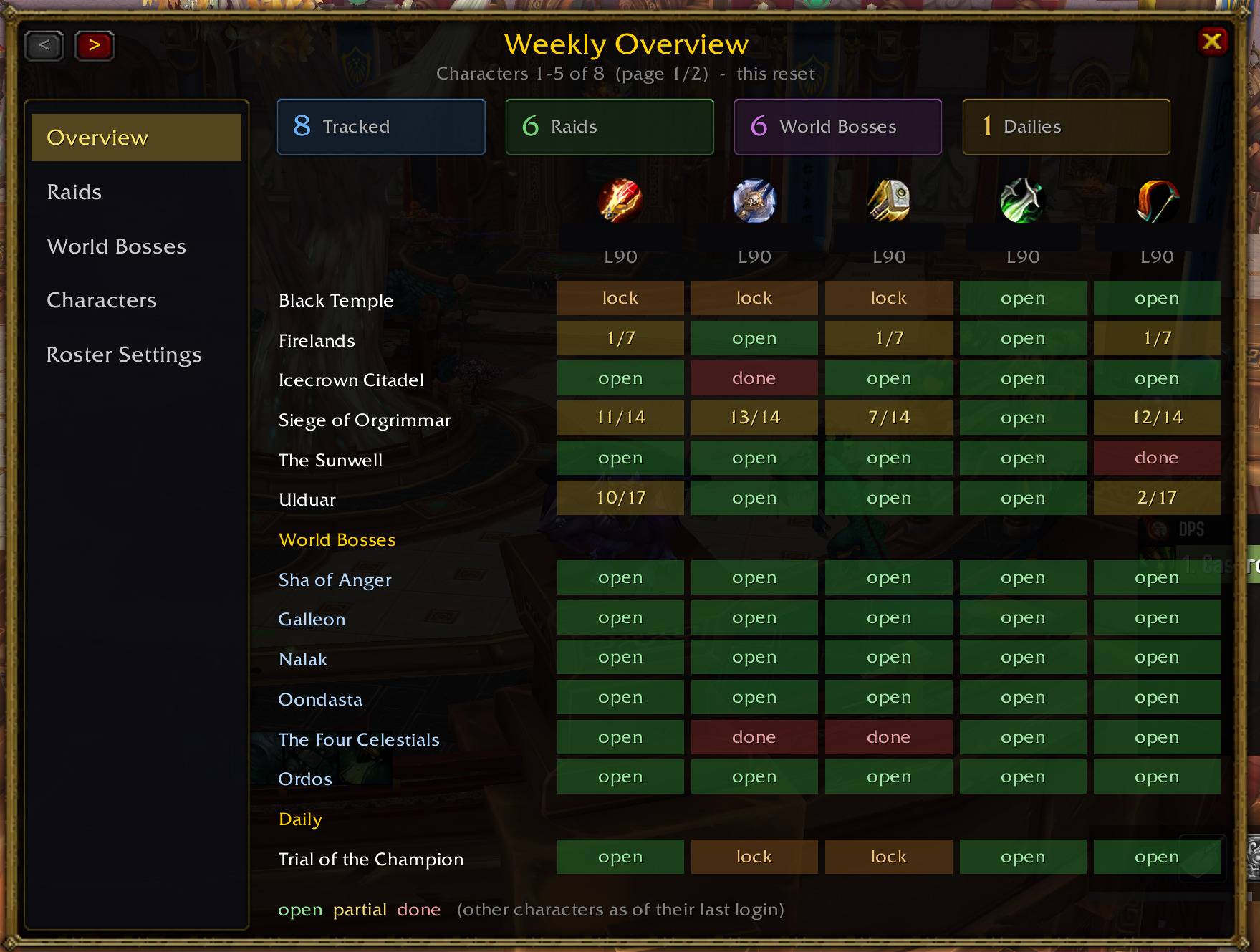
09_ETB_Weekly_Overview.jpg
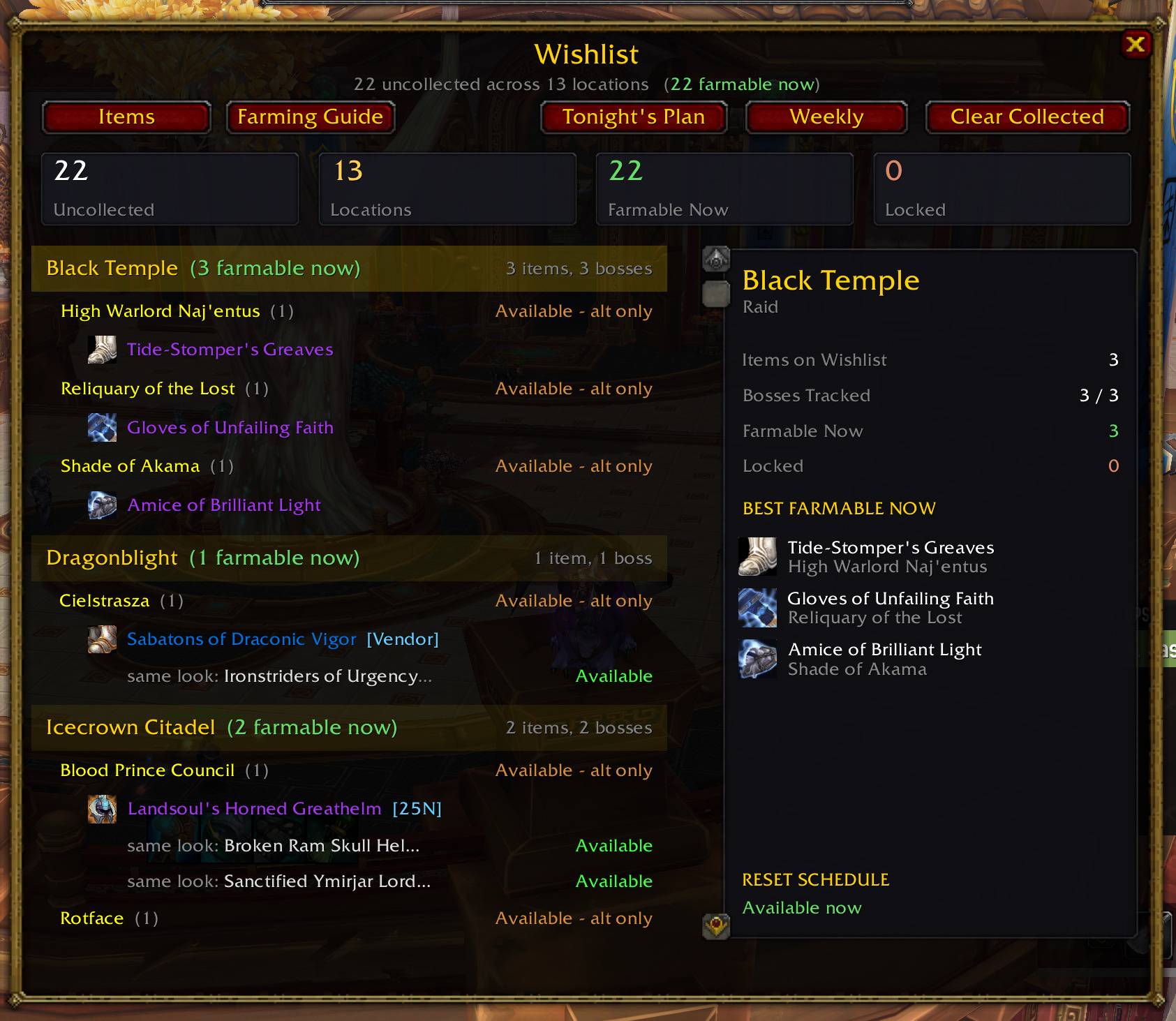
10_ETB_Wishlist_Farming_Guide.jpg
Description
Enhanced Transmog Browser (ETB)
Browse it. Track it. Find where it comes from. Figure out who can farm it. Then go get it.
Enhanced Transmog Browser has grown far beyond its original transmog browser.
ETB is an all-in-one transmog, collection, gear, loot, BiS and farming hub built for players who want more useful information inside World of Warcraft—and less time jumping between addons, spreadsheets and websites.
Whether you're hunting one appearance, finishing a set, gearing a character, checking a boss, building a BiS list or deciding what to farm next, ETB is designed to connect those steps into one workflow:
Browse → Find → Track → Plan → Farm → Collect
Five WoW Versions, One Addon
ETB currently supports:
-
World of Warcraft: Forever
-
Mists of Pandaria Classic
-
World of Warcraft Retail
-
Classic Era
-
The Burning Crusade Classic
Install one addon and ETB adapts itself to the version of World of Warcraft you're playing.
That distinction matters.
Forever, MoP Classic, Retail, Classic Era and TBC Classic do not have identical transmog, collection, gear or API systems. ETB does not simply force one client's features onto another.
Instead, each version loads the tools, data and interface appropriate for that game.
What ETB Is Built to Answer
ETB is designed around a few simple questions:
What am I missing?
Where does it come from?
Do I already own it somewhere?
Which character should farm it?
Is this boss, dungeon or raid still worth running?
What should I work on next?
The goal is not just to show you a giant database.
ETB tries to turn information into something you can actually use.
World of Warcraft: Forever
ETB includes a dedicated build and data layer for World of Warcraft: Forever.
Forever is not treated as Retail, MoP or ordinary Classic Era. ETB includes Forever-specific logic and client data for systems such as:
-
Transmog appearances
-
Armor and weapons
-
Gear
-
Sets
-
Achievements
-
Legacy progression
-
Mounts
-
Companions
-
Collectibles
-
Professions
-
Vendors
-
Currencies
-
Reputations
-
Encounters
-
Dungeons and raids
-
Class restrictions
-
Character data
-
Collection planning
ETB's Forever support uses information available from the Forever client wherever possible rather than simply importing assumptions from another version of WoW.
Forever Transmog & Collection Browser
Browse the appearances available to the Forever client and track what you've already collected.
ETB can help organize:
-
Armor appearances
-
Weapon appearances
-
Sets
-
Collection status
-
Class restrictions
-
Related item information
-
Collection goals
-
Missing appearances
Forever's collection systems differ from other versions of WoW, so ETB uses a dedicated Forever wardrobe and catalog rather than forcing Retail or MoP collection logic onto the client.
Forever Gear Browser
Forever contains its own gear catalog, including items that do not exist in ETB's older Classic datasets.
Browse physical gear with information such as:
-
Equipment slot
-
Item level
-
Required level
-
Quality
-
Class restrictions
-
Item sets
-
Binding information
-
Stats
-
Known sources
Physical-item ownership and appearance collection are treated as different concepts when appropriate.
Achievements & Legacy Progression
ETB can surface Forever's achievement data and its connection to the Legacy Track.
Forever includes achievements that award Legacy Points, which feed into Legacy progression and collectible rewards.
ETB can use supported client data to help connect those systems back to the collection experience.
Forever Instances & Encounters
ETB recognizes Forever's own dungeon, raid and encounter structure, including content that does not exist in normal Classic Era.
The Collection Planner can surface supported Forever instances and bosses instead of incorrectly showing expansion content that is not part of Forever.
A note about boss loot
Forever does not expose every boss-to-item loot table through the client.
When ETB can identify a reliable source, it will show it.
When the client does not provide enough information, ETB will not invent a source just to fill the screen.
Forever support will continue to evolve as Blizzard expands and changes the client.
Mists of Pandaria Classic
MoP Classic remains one of ETB's most complete collection-focused experiences.
Browse and track:
-
Transmog appearances
-
Armor and weapons
-
Sets
-
Outfits
-
Mounts
-
Battle Pets
-
Toys
-
Rares
-
Raid and dungeon sources
-
Wishlist targets
-
Collection progress
-
Alt collection opportunities
-
Raid BiS gear
-
Weekly farming opportunities
ETB includes source information spanning content from Classic through Mists of Pandaria and is built around the APIs and collection systems available in MoP Classic.
World of Warcraft Retail
ETB brings the same collection-first philosophy to modern Retail WoW.
Retail support includes systems such as:
-
Transmog and appearance browsing
-
Collection tracking
-
Gear Browser
-
Raid BiS Browser
-
Boss Loot Browser
-
Collection Planner
-
Wishlist and farming tools
-
Alt tracking
-
Mounts
-
Battle Pets
-
Toys
-
Rare tracking
-
Source information
-
Retail raid and dungeon data
-
Retail-aware tooltips
-
Wardrobe integrations
-
Sets and outfit tools
ETB adapts around differences between modern Retail APIs and Classic-family clients instead of assuming that every system behaves the same way.
Retail support continues to evolve alongside Blizzard's API and game-system changes.
The Burning Crusade Classic
TBC Classic does not have a transmog system.
So ETB becomes something different there:
Enhanced Gear Browser
Appearance-only systems are intentionally left unloaded.
Instead, the TBC build focuses on:
-
Physical gear
-
Loot
-
Ownership
-
BiS
-
Wishlists
-
Farming
-
Bosses
-
Alts
-
Progression
Browse gear using filters such as:
-
Equipment slot
-
Class
-
Raid
-
Dungeon
-
Profession
-
PvP
-
Quest
-
Other sources
-
Owned
-
Missing
-
Starred targets
-
Item name
-
Item ID
Inspect an exact item, see where it comes from, determine whether a tracked character owns it and turn useful items into farming or BiS targets.
TBC Raid BiS
ETB includes phase-aware Raid BiS tools for TBC Classic.
Use them to:
-
Browse rankings by class and spec
-
Switch specs
-
Switch phases
-
Track alternative items
-
Star exact items
-
Build custom BiS lists
-
Check boss sources
-
Review owned vs. missing gear
-
Keep a compact Mini BiS window open while playing
TBC ownership is based on the actual item, not a transmog appearance.
Classic Era
Classic Era also uses ETB as a gear, loot and progression tool rather than a transmog addon.
The Classic Era build intentionally leaves transmog systems unloaded and focuses on systems appropriate for Vanilla WoW.
Supported tools include:
-
Exact-item Gear Browser
-
Custom BiS lists
-
Wishlist and farming tools
-
Weekly alt tracking
-
Cross-character ownership
-
Rare tracking
-
Boss-loot information
-
Profiles and settings
-
PvP tracking where supported
ETB also filters its data around Classic Era's actual content ceiling instead of presenting later-expansion content that does not exist on the client.
Classic Era and TBC share some systems, but ETB keeps their content and capabilities separate where necessary.
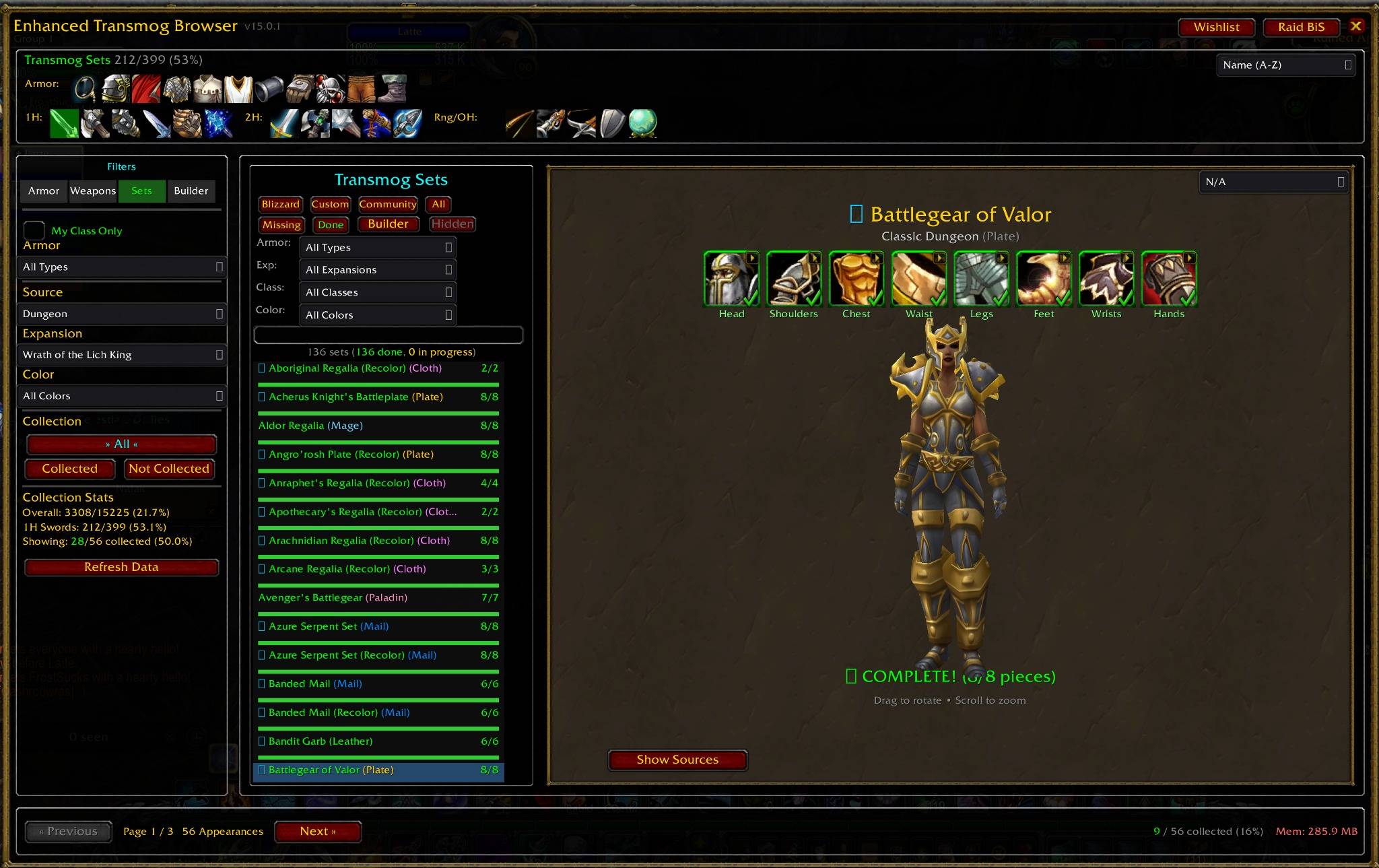
Transmog Browser
On clients with transmog support, ETB provides a larger view of your appearance collection.
Browse armor and weapon appearances using filters such as:
-
Slot
-
Armor type
-
Weapon type
-
Expansion
-
Source
-
Collection status
-
Class restrictions
-
Search terms
-
Related appearances
Instead of checking appearances one at a time, ETB is designed to help you see:
What exists
What you own
What you're missing
Where to go next
Gear Browser
The Gear Browser deals with physical equippable items rather than only appearances.
Search and filter supported gear by:
-
Slot
-
Class
-
Source
-
Ownership
-
Wishlist status
-
Item name
-
Item ID
Sources can include:
-
Raids
-
Dungeons
-
Professions
-
PvP
-
Quests
-
Vendors
-
Reputation
-
World drops
-
Other acquisition methods
This distinction is especially important on Classic Era and TBC, where physical gear—not appearance collection—is the focus.
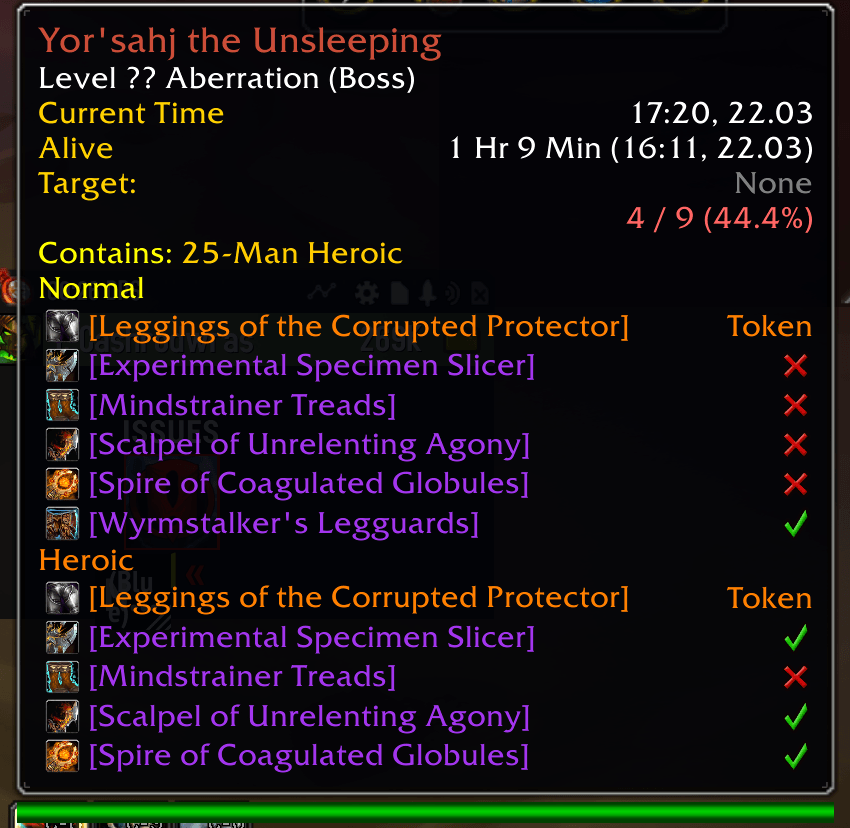
Boss Loot Browser
Want to know whether a boss is still worth killing?
ETB includes a dedicated Boss Loot Browser on supported clients.
Browse encounters and inspect available loot without needing to physically stand in front of the boss.
Useful for:
-
Planning raid farms
-
Finding missing appearances
-
Looking for upgrades
-
Checking BiS drops
-
Reviewing boss loot
-
Planning weekly runs
-
Determining which bosses still matter to your character
ETB also adds boss-related information to supported NPC, encounter and tooltip systems where the game client allows it.
Available information varies by WoW version because Blizzard exposes different APIs and data on each client.
Find Where Items Come From
Finding something you want is only useful if you know how to get it.
ETB connects supported items and appearances with sources such as:
-
Raid bosses
-
Dungeon bosses
-
World bosses
-
Rare enemies
-
Vendors
-
Reputation rewards
-
Professions
-
Crafted items
-
Quests
-
PvP
-
Tokens
-
Currencies
-
World drops
-
Containers
-
Legacy progression
-
Other supported acquisition methods
Depending on the client and available data, ETB may also show information such as:
-
Boss
-
Instance
-
Zone
-
Difficulty
-
Expansion
-
Profession
-
Reputation
-
Currency
-
Required level
If ETB cannot reliably determine a source, it is designed to say so rather than fabricate one.
Wishlist
Found something you want?
Star it.
ETB's Wishlist separates everything you're missing from the things you actually care about farming.
Wishlist targets can connect with other ETB systems including:
-
Farming plans
-
Boss targets
-
Weekly planning
-
Alt recommendations
-
Collection goals
-
Bag indicators
-
BiS tracking
-
Zone alerts
On clients without transmog, wishlist and BiS systems track the actual item instead of an appearance.
Collection Planner
Turn collection data into an actual plan.
The Collection Planner helps organize supported content by where your remaining targets come from.
Use it to help answer questions like:
-
Which instance should I run?
-
Which bosses still matter?
-
Which collectibles am I still missing?
-
Which expansion or zone has the most useful targets?
-
What content can this character still work on?
Client-specific filtering keeps the planner focused on content that actually exists in the version of WoW you're playing.
Weekly & Alt Tracking
Keep your characters organized.
ETB includes cross-character and weekly tracking tools designed to help identify where additional farming opportunities may still exist.
Depending on the client, this can help with:
-
Raid farming
-
Boss drops
-
Mount attempts
-
Tier pieces
-
Wishlist items
-
BiS upgrades
-
Collection goals
-
Character ownership
Instead of treating every character independently, ETB tries to help your account work together.
Raid BiS Browser
ETB includes its own Raid BiS system on supported versions.
Browse supported gear by:
-
Class
-
Spec
-
Slot
-
Phase or tier
-
Boss
-
Instance
-
Ownership
You can also create custom BiS lists and turn desired gear into exact farming targets.
The Mini BiS window provides a compact owned/missing view you can keep open while playing.
BiS support differs by client depending on the data available for that version of WoW.
Sets, Outfits & Appearance Planning
On clients with transmog support, ETB includes tools for working with complete appearances instead of only individual items.
Use ETB to:
-
Browse sets
-
Preview appearances
-
Build custom sets
-
Build outfits
-
Save combinations
-
Track missing pieces
-
Connect appearance goals back to farming targets
The goal is to keep browsing, planning, collecting and actually using your collection connected.
Enhanced Tooltips
ETB adds additional information to supported item, NPC, player and boss tooltips.
Depending on the client and available data, this can include:
-
Collection status
-
Source information
-
Boss information
-
Ownership across characters
-
Wishlist status
-
BiS information
-
Related appearance information
-
Class restrictions
-
Item references
The exact information changes by WoW version so ETB only attempts to show systems appropriate for that client.
More Collection Tools
ETB has grown into a collection suite with additional tools that support the main browsing and farming workflow.
Depending on the client, these can include:
-
Saved searches
-
Profiles
-
Collection history
-
Collection timeline
-
Set completion tracking
-
Custom set building
-
Favorites
-
Shopping and farming lists
-
Alt recommendations
-
Collection notifications
-
Source lookup tools
-
Player gear and appearance inspection
-
PvP history and tracking
Not every feature exists on every WoW client.
ETB uses client capabilities to decide what should load.
Built for Multiple WoW Clients
Supporting multiple versions of World of Warcraft is more complicated than changing a version number.
Different clients expose different:
-
APIs
-
Collection systems
-
Item data
-
Boss information
-
Transmog systems
-
Encounter data
-
Classes
-
Content ceilings
-
Secure-value restrictions
ETB uses separate manifests, data packages and compatibility logic so each supported version can behave like the game it actually is.
That means:
Retail is treated like Retail.
Forever is treated like Forever.
MoP Classic is treated like MoP Classic.
TBC is treated like TBC.
Classic Era is treated like Classic Era.
Performance
Large collection addons can process thousands of items.
ETB's development includes continued work on:
-
Background loading
-
Chunked data processing
-
Lazy-loaded datasets
-
Client-specific data loading
-
Avoiding unnecessary expansion data
-
Reducing work performed during tooltips
-
Preventing large catalog scans from freezing the game
The goal is to give ETB a large amount of useful information without making browsing that information feel heavier than necessary.
Optional Addon Integrations
ETB is designed to work on its own.
When compatible addons are installed, ETB can also use supported integrations to improve the experience.
Depending on your WoW version, supported integrations can include:
-
Syndicator
-
Bagnon / BagBrother
-
TomTom
-
HandyNotes
-
Flavor-specific gear integrations where supported
These addons are optional.
You do not need them to use ETB.
One Connected Workflow
ETB's goal is not to become a database of every objective in World of Warcraft.
It is built around a more focused loop:
Browse → Find → Track → Plan → Farm → Collect
Find something.
See whether you already have it.
Learn where it comes from.
Decide which character should pursue it.
Add it to your goals.
Go get it.
Then move on to the next thing.
Getting Started
Use:
/etb
to open ETB's main interface for your current version of World of Warcraft.
Use:
/etb help
to see commands available on your client.
Because ETB adapts to the game version you're playing, the available tools may differ between Retail, Forever, MoP Classic, TBC Classic and Classic Era.
Actively Developed
Enhanced Transmog Browser is actively developed.
Current development continues to focus on:
-
World of Warcraft: Forever support
-
Multi-client compatibility
-
Source accuracy
-
Performance
-
Collection systems
-
Gear browsing
-
Boss and encounter data
-
BiS tools
-
Farming tools
-
Alt tracking
-
UI improvements
-
Tooltip improvements
-
Bug fixes
Forever in particular is still evolving, and ETB will continue adapting as Blizzard changes the client, APIs and available data.
Reporting Problems
If you find incorrect loot, a missing source, an ownership problem, a collection-status issue, strange UI behavior or a Lua error, reports are welcome.
Useful bug reports include:
-
Your ETB version
-
Your WoW version
-
Your character class
-
The feature being used
-
The item, boss or source involved
-
The Lua error, if one occurred
-
Whether
/reloadreproduces the issue
The more specific the report, the easier it is to track down.
About Browsers of Azeroth
Enhanced Transmog Browser is developed under Browsers of Azeroth.
The goal is simple:
Make the information already inside World of Warcraft easier to find, understand and act on.
ETB helps you find, track and farm the gear and collectibles you're looking for across multiple generations of World of Warcraft.
Also by Browsers of Azeroth
Pet Duel – PvP Pet Battle Duels & Guild League
If you're into Battle Pets, Pet Duel expands player-vs-player pet battling with direct challenges, match tracking, rivals and competitive guild features.
☕ Support ETB Development
Enhanced Transmog Browser is developed and maintained in my free time, with continued work going into:
-
New features
-
Forever compatibility
-
Retail compatibility
-
Classic support
-
Source data
-
Performance
-
Bug fixes
-
Cross-client testing
If ETB has made collecting, gearing or farming easier for you, you can support continued development through the Donate button on the CurseForge page.
Support is completely optional.
Downloading ETB, reporting bugs, suggesting improvements, leaving feedback and sharing the addon with other players all help the project grow.
Thank you for using Enhanced Transmog Browser.
ETB: Transmog & Collection Hub Team